

Onboard enterprise customers
Complete workflow for enabling enterprise SSO and self-serve configuration for your customers
Enterprise SSO enables users to authenticate to your application using their organization’s identity provider (IdP) such as Okta, Microsoft Entra ID, or Google Workspace. This provides enterprise customers with a secure, centralized authentication experience while reducing password management overhead.
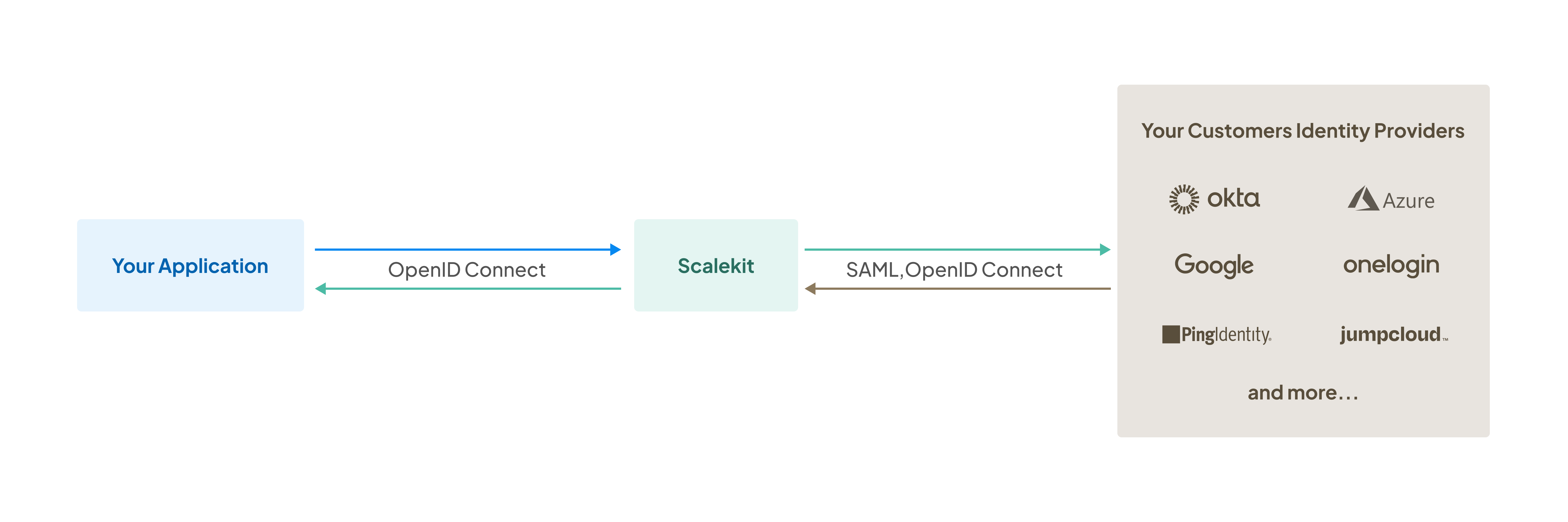
This guide walks you through the complete workflow for onboarding enterprise customers with SSO. You’ll learn how to create organizations, provide admin portal access, enable domain-based SSO, and verify the integration.
Before onboarding enterprise customers, ensure you have completed the Full Stack Auth quickstart to set up basic authentication in your application.
Table of contents
-
Create organization
Create an organization in Scalekit to represent your enterprise customer:
- Log in to the Scalekit dashboard
- Navigate to Dashboard > Organizations
- Click Create Organization
- Enter the organization name and relevant details
- Save the organization
Each organization in Scalekit represents one of your enterprise customers and can have its own SSO configuration, directory sync settings, and domain associations.
-
Provide admin portal access
Give your customer’s IT administrator access to the self-serve admin portal to configure their identity provider. Scalekit provides two integration methods:
Option 1: Share a no-code link Quick setup
Generate and share a link to the admin portal:
- Select the organization from Dashboard > Organizations
- Click Generate link in the organization overview
- Share the link with your customer’s IT admin via email, Slack, or your preferred channel
The link remains valid for 7 days and can be revoked anytime from the dashboard.
Link properties:
Property Details Expiration Links expire after 7 days Revocation Revoke links anytime from the dashboard Sharing Share via email, Slack, or any preferred channel Security Anyone with the link can view and update the organization’s connection settings The generated link follows this format:
Portal link example https://your-app.scalekit.dev/magicLink/2cbe56de-eec4-41d2-abed-90a5b82286c4_pOption 2: Embed the portal Seamless experience
Embed the admin portal directly in your application so customers can configure SSO without leaving your interface. The portal link must be generated programmatically on each page load for security. Each generated link is single-use and expires after 1 minute, though once loaded, the session remains active for up to 6 hours.
npm install @scalekit-sdk/nodepip install scalekit-sdk-pythongo get -u github.com/scalekit-inc/scalekit-sdk-go/* Gradle users - add the following to your dependencies in build file */implementation "com.scalekit:scalekit-sdk-java:2.0.11"<!-- Maven users - add the following to your `pom.xml` --><dependency><groupId>com.scalekit</groupId><artifactId>scalekit-sdk-java</artifactId><version>2.0.11</version></dependency>Generate portal link
Use the Scalekit SDK to generate a unique, embeddable admin portal link for an organization. Call this API endpoint each time you render the page containing the iframe:
Express.js 6 collapsed linesimport { Scalekit } from '@scalekit-sdk/node';const scalekit = new Scalekit(process.env.SCALEKIT_ENVIRONMENT_URL,process.env.SCALEKIT_CLIENT_ID,process.env.SCALEKIT_CLIENT_SECRET,);async function generatePortalLink(organizationId) {const link = await scalekit.organization.generatePortalLink(organizationId);return link.location; // Use as iframe src}Flask 6 collapsed linesfrom scalekit import Scalekitimport osscalekit_client = Scalekit(environment_url=os.environ.get("SCALEKIT_ENVIRONMENT_URL"),client_id=os.environ.get("SCALEKIT_CLIENT_ID"),client_secret=os.environ.get("SCALEKIT_CLIENT_SECRET"))def generate_portal_link(organization_id):link = scalekit_client.organization.generate_portal_link(organization_id)return link.location # Use as iframe srcGin 10 collapsed linesimport ("context""os""github.com/scalekit/sdk-go")scalekitClient := scalekit.New(os.Getenv("SCALEKIT_ENVIRONMENT_URL"),os.Getenv("SCALEKIT_CLIENT_ID"),os.Getenv("SCALEKIT_CLIENT_SECRET"),)func generatePortalLink(organizationID string) (string, error) {ctx := context.Background()link, err := scalekitClient.Organization().GeneratePortalLink(ctx, organizationID)if err != nil {return "", err}return link.Location, nil // Use as iframe src}Spring Boot 8 collapsed linesimport com.scalekit.client.Scalekit;import com.scalekit.client.models.Link;import com.scalekit.client.models.Feature;import java.util.Arrays;Scalekit scalekitClient = new Scalekit(System.getenv("SCALEKIT_ENVIRONMENT_URL"),System.getenv("SCALEKIT_CLIENT_ID"),System.getenv("SCALEKIT_CLIENT_SECRET"));public String generatePortalLink(String organizationId) {Link portalLink = scalekitClient.organizations().generatePortalLink(organizationId, Arrays.asList(Feature.sso, Feature.dir_sync));return portalLink.getLocation(); // Use as iframe src}The API returns a JSON object with the portal link. Use the
locationproperty as the iframesrc:API response {"id": "8930509d-68cf-4e2c-8c6d-94d2b5e2db43","location": "https://random-subdomain.scalekit.dev/magicLink/8930509d-68cf-4e2c-8c6d-94d2b5e2db43","expireTime": "2024-10-03T13:35:50.563013Z"}Embed portal in iframe <iframesrc="https://random-subdomain.scalekit.dev/magicLink/8930509d-68cf-4e2c-8c6d-94d2b5e2db43"width="100%" height="600" frameborder="0" allow="clipboard-write"></iframe>Embed the portal in your application’s settings or admin section where customers manage authentication configuration.
Listen for UI events from the embedded portal to respond to configuration changes, such as when SSO is enabled or the session expires. See the Admin portal UI events reference for details on handling these events.
Configuration and session
Setting Requirement Redirect URI Add your application domain at Dashboard > Developers > API Configuration iframe attributes Include allow="clipboard-write"for copy-paste functionalityDimensions Minimum recommended height: 600px Link expiration Generated links expire after 1 minute if not loaded Session duration Portal session remains active for up to 6 hours once loaded Single-use Each generated link can only be used once to initialize a session -
Customer configures SSO
After receiving admin portal access, your customer’s IT administrator:
- Opens the admin portal (via shared link or embedded iframe)
- Selects their identity provider (Okta, Microsoft Entra ID, Google Workspace, etc.)
- Follows the provider-specific setup guide
- Enters the required configuration (metadata URL, certificates, etc.)
- Tests the connection
- Activates the SSO connection
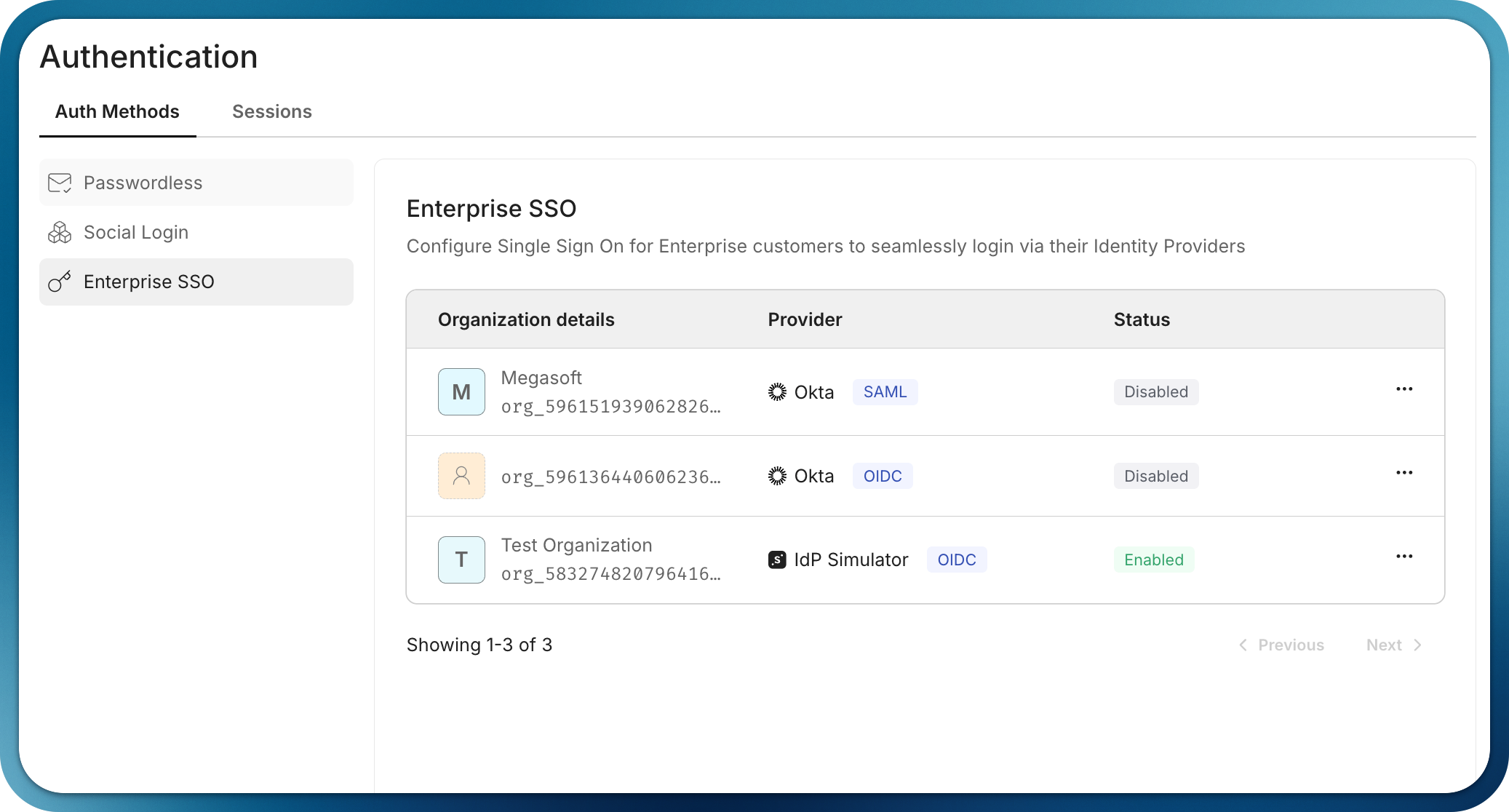
Once configured, the SSO connection appears as active in your organization’s settings:
-
Verify domain ownership
After SSO is configured, verify the organization’s email domains to enable automatic SSO routing. When domains are verified, users with matching email addresses are automatically redirected to their organization’s SSO login.
Verification methods:
- DNS verification Coming soon: Organization admins add a DNS TXT record to prove domain ownership through the admin portal
- Manual verification: Request domain verification through the Scalekit dashboard when domain ownership is already established
To manually verify a domain:
- Navigate to Dashboard > Organizations and select the organization
- Go to Overview > Organization Domains
- Add the domain (e.g.,
megacorp.com) through the dashboard
Once verified, users with email addresses from that domain (e.g.,
user@megacorp.com) can authenticate using their organization’s SSO.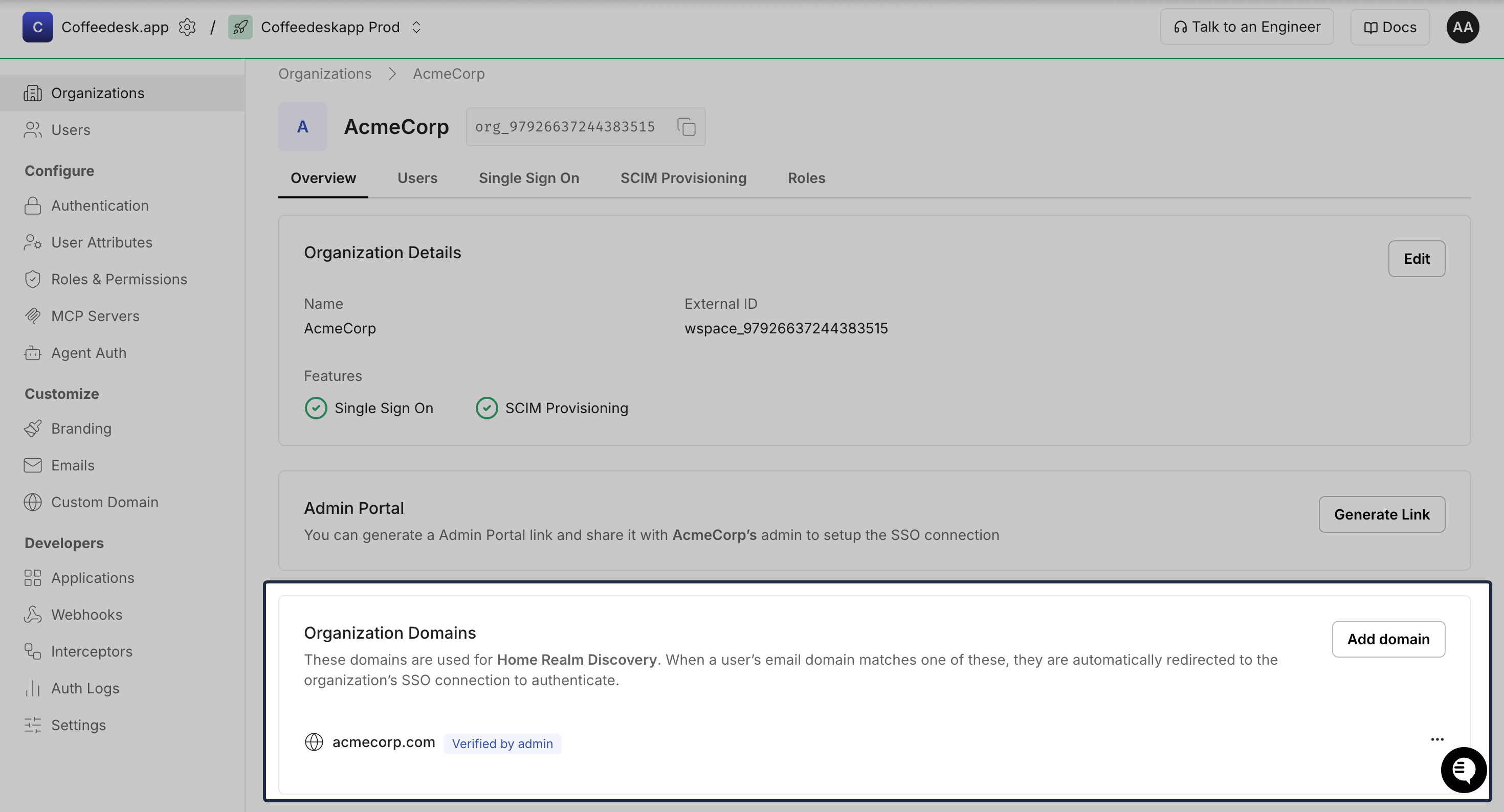
Customize the admin portal
Match the admin portal to your brand identity. Configure branding at Dashboard > Settings > Branding:
| Option | Description |
|---|---|
| Logo | Upload your company logo (displayed in the portal header) |
| Accent color | Set the primary color to match your brand palette |
| Favicon | Provide a custom favicon for browser tabs |
For additional customization options including custom domains, see the Custom domain guide.
5. Test the integration
Section titled “5. Test the integration”Before rolling out SSO to your customers, thoroughly test the integration:
- Use the IdP Simulator during development to test without configuring real identity providers
- Test with real providers like Okta or Microsoft Entra ID in your staging environment
- Validate all scenarios: SP-initiated SSO, IdP-initiated SSO, and error handling
For complete testing instructions, see the Test SSO integration guide.