


The Discord Bot connector lets your AI agent act in each user's Discord Bot account. Each user connects their own Discord Bot API key once, and Scalekit sends it with every call, so your agent never handles credentials. It comes with 221 tools.
- Tools
- 221
- What they doRead · write · destructive
- 93 · 82 · 4693 read82 write46 destructive
- Users sign in with
- API key
What you can do
- Send and manage messages: send, edit, delete, pin, and react to messages in channels and DMs
- Search messages: search a server’s messages by query and read channel message history
- Manage channels and threads: create, modify, and delete channels, and start, join, and list threads
- Manage members and roles: add, kick, and ban members, create and assign roles, and set auto-moderation rules
- Build slash commands: register, edit, and delete application commands and respond to user interactions
- Schedule events: create, update, and delete scheduled events and stage instances in a server
Setup
Install the SDK
Terminal window npm install @scalekit-sdk/node dotenvTerminal window pip install scalekit-sdk-python python-dotenvSet your credentials
Add your Scalekit credentials to your
.envfile. Find values in app.scalekit.com > Developers > API Credentials..env SCALEKIT_ENVIRONMENT_URL=<your-environment-url>SCALEKIT_CLIENT_ID=<your-client-id>SCALEKIT_CLIENT_SECRET=<your-client-secret>Create the Discord Bot connection
In AgentKit > Connections, create a Discord Bot connection. The name you give it is the
connection_nameyour code passes. See Configure connections.Console steps with screenshots
Register your Discord bot token with Scalekit so it can authenticate and proxy requests on behalf of your users. Discord Bot uses Bearer Token authentication.
-
Create a Discord application and bot user
- Go to the Discord Developer Portal and sign in with your Discord account.
- Click New Application, enter a name (for example,
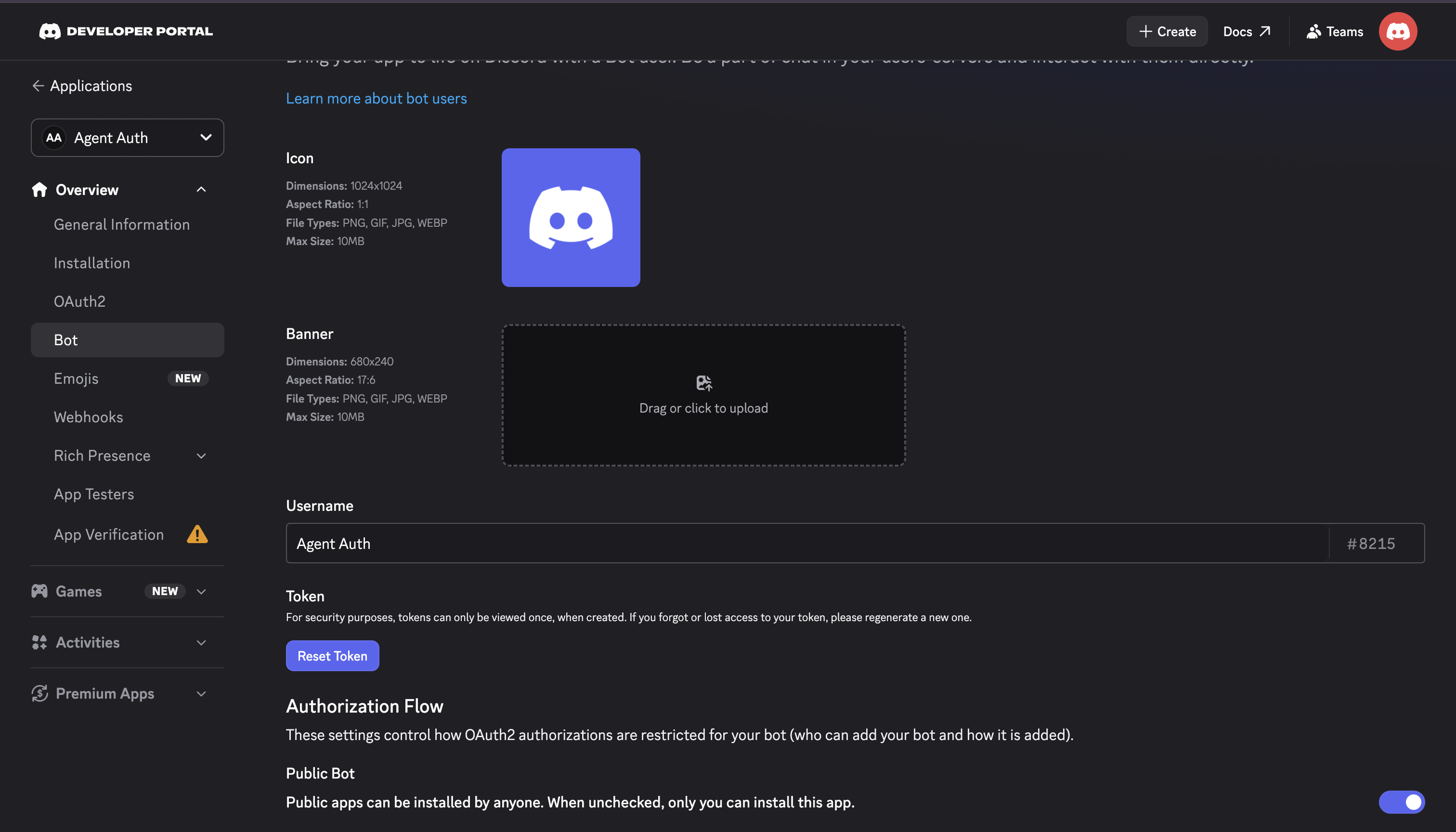
Agent Auth), accept the terms, and click Create. - Open your application and go to Bot in the left sidebar.
-
Get your bot token
-
On the Bot page, under Token, click Reset Token to generate a new bot token and copy it immediately — Discord shows the full token only once.
-
-
Invite the bot to a server
-
Go to OAuth2 > URL Generator in the left sidebar.
-
Under Scopes, select bot.
-
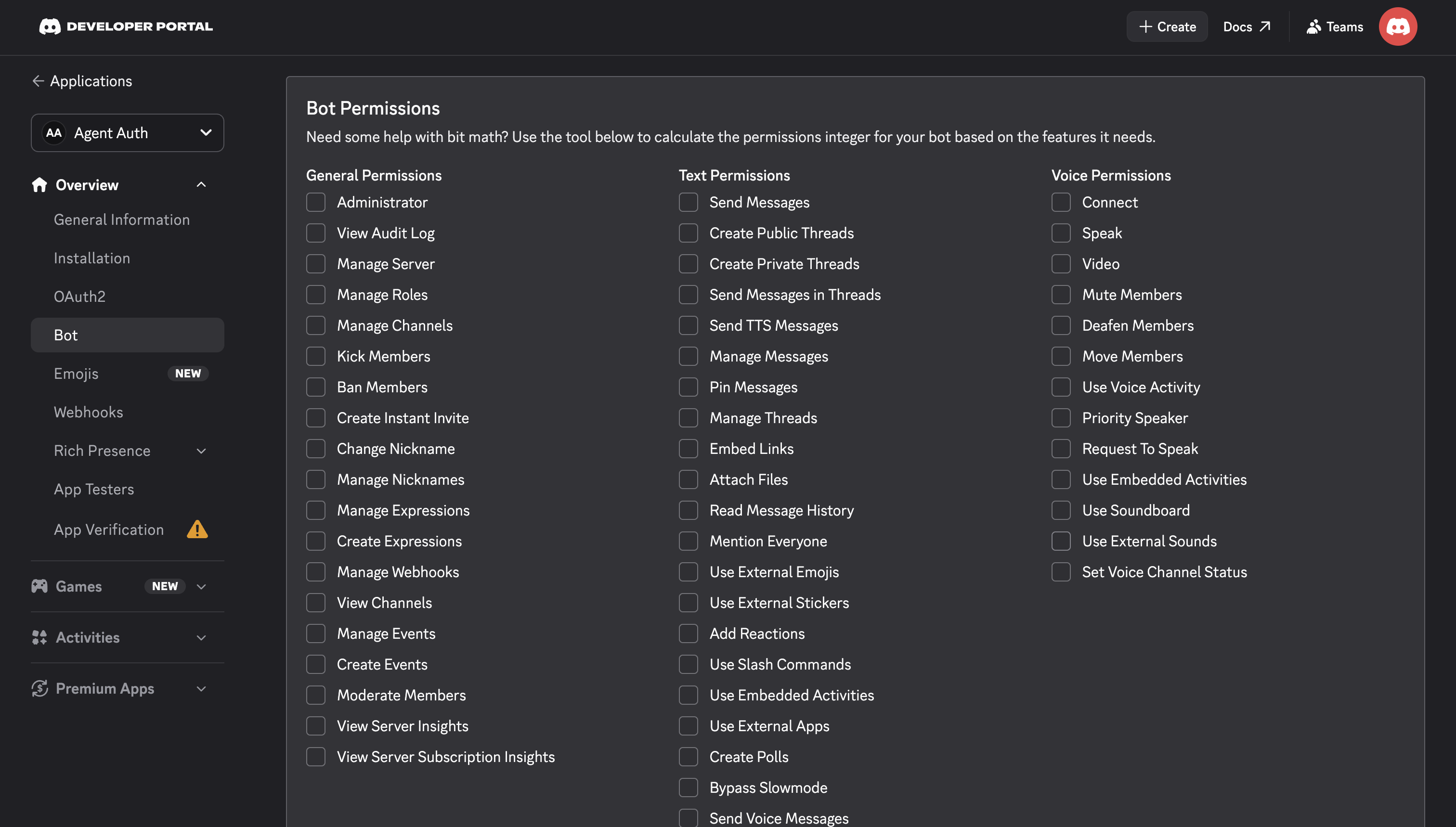
Under Bot Permissions, select the permissions your agent needs.
-
Copy the generated URL at the bottom of the page, open it in a browser, and select a server to add the bot to.
-
-
Create a connection in Scalekit
- In the Scalekit dashboard, go to AgentKit → Connections → Create Connection.
- Search for Discord Bot and click Create.
- Note the Connection name — use this as
connection_namein your code (e.g.,discordbot).
-
Add a connected account
Connected accounts link a specific user identifier in your system to a Discord bot token. Add one in the dashboard to test. In production, each user adds their own through the authorization link: they enter their credentials on the page it opens.
In the dashboard, to test
- Open the connection and click the Connected Accounts tab → Add account.
- Fill in Your User’s ID and Bot Token, then click Save.
From your backend, if your app already has the credentials
For example, when users enter them on a settings page in your app:
import { ConnectorStatus } from '@scalekit-sdk/node'const authorizationDetails = {details: {case: 'staticAuth',value: { details: { api_key: 'your-discord-bot-token' } },},}let { connectedAccount } = await scalekit.actions.upsertConnectedAccount({connectionName: 'discordbot',identifier: 'user_123',authorizationDetails,})// Make sure the account is ACTIVE before the first tool call.if (connectedAccount?.status !== ConnectorStatus.ACTIVE) {;({ connectedAccount } = await scalekit.actions.upsertConnectedAccount({connectionName: 'discordbot',identifier: 'user_123',authorizationDetails,}))}authorization_details = {"static_auth": {"api_key": "your-discord-bot-token"}}response = scalekit_client.actions.upsert_connected_account(connection_name="discordbot",identifier="user_123",authorization_details=authorization_details,)# Make sure the account is ACTIVE before the first tool call.if response.connected_account.status != "ACTIVE":response = scalekit_client.actions.upsert_connected_account(connection_name="discordbot",identifier="user_123",authorization_details=authorization_details,)
-
Authorize a user and make your first call
quickstart.mts import { ScalekitClient } from '@scalekit-sdk/node'import 'dotenv/config'import { createInterface } from 'node:readline/promises'const scalekit = new ScalekitClient(process.env.SCALEKIT_ENVIRONMENT_URL,process.env.SCALEKIT_CLIENT_ID,process.env.SCALEKIT_CLIENT_SECRET,)const actions = scalekit.actionsconst connector = 'discordbot'const identifier = 'user_123'// Generate an authorization link for the userconst { link } = await actions.getAuthorizationLink({ connectionName: connector, identifier })console.log('Authorize Discord Bot:', link)const rl = createInterface({ input: process.stdin, output: process.stdout })await rl.question('Press Enter after authorizing...')rl.close()// Make your first callconst result = await actions.executeTool({connector,identifier,toolName: 'discordbot_get_current_user',toolInput: {},})console.log(result)Terminal window npx tsx quickstart.mtsquickstart.py import osfrom scalekit import ScalekitClientfrom dotenv import load_dotenvload_dotenv()scalekit_client = ScalekitClient(env_url=os.getenv("SCALEKIT_ENVIRONMENT_URL"),client_id=os.getenv("SCALEKIT_CLIENT_ID"),client_secret=os.getenv("SCALEKIT_CLIENT_SECRET"),)actions = scalekit_client.actionsconnection_name = "discordbot"identifier = "user_123"# Generate an authorization link for the userlink_response = actions.get_authorization_link(connection_name=connection_name,identifier=identifier,)print("Authorize Discord Bot:", link_response.link)input("Press Enter after authorizing...")# Make your first callresult = actions.execute_tool(tool_input={},tool_name="discordbot_get_current_user",connection_name=connection_name,identifier=identifier,)print(result)Terminal window python quickstart.pyEach user opens the link once and enters their Discord credentials there. If your app already has a user's credentials, add the account from your backend instead, as the console steps above show. See Authorize a user for the full flow and statuses.
Tools
Pass the exact name toexecute_tooldiscordbot_get_answer_votersRetrieve a list of users who voted for a specific answer in a Discord poll.Read-onlyGet Answer Voters
Retrieve a list of users who voted for a specific answer in a Discord poll.
Inputs
answer_idstringrequired- The ID of the poll answer to get voters for.
channel_idstringrequired- The ID of the channel containing the poll message.
message_idstringrequired- The ID of the poll message.
afterstring- Get users after this user ID (snowflake) for pagination.
limitinteger- Maximum number of voters to return (1-100). Default is 25.
discordbot_get_application_activity_instanceRetrieve a serialized activity instance for an application, if it exists.Read-onlyGet Application Activity Instance
Retrieve a serialized activity instance for an application, if it exists. Useful for preventing unwanted activity sessions.
Inputs
application_idstringrequired- The ID of the application that owns the activity instance.
instance_idstringrequired- The ID of the activity instance to retrieve.
discordbot_get_application_command_permissionsFetch permissions for a specific application command in a specific guild.Read-onlyGet Application Command Permissions
Fetch permissions for a specific application command in a specific guild. Returns a guild application command permissions object describing which roles, users, and channels can (or cannot) use the command. This is a read-only lookup — use Get Guild Application Command Permissions instead to fetch permissions for every command in the guild at once. Note: editing permissions (the corresponding PUT endpoint) requires a Bearer token authorized with the applications.commands.permissions.update scope and cannot be done with a bot token, so no write tool is provided here.
Inputs
application_idstringrequired- The ID of the application.
command_idstringrequired- The ID of the command to get permissions for.
guild_idstringrequired- The ID of the guild.
discordbot_get_application_emojiRetrieve a specific emoji owned by a Discord application by its emoji ID.Read-onlyGet Application Emoji
Retrieve a specific emoji owned by a Discord application by its emoji ID.
Inputs
application_idstringrequired- The ID of the application that owns the emoji.
emoji_idstringrequired- The ID of the emoji to retrieve.
discordbot_get_application_role_connection_metadataFetch the list of application role connection metadata records configured for an application.Read-onlyGet Application Role Connection Metadata Records
Fetch the list of application role connection metadata records configured for an application. Returns an array of application role connection metadata objects, each describing a comparison type, dictionary key, name, and description used to verify a user's role connection.
Inputs
application_idstringrequired- The ID of the application.
discordbot_get_auto_moderation_ruleGet a single Auto Moderation rule for a guild by its ID.Read-onlyGet Auto Moderation Rule
Get a single Auto Moderation rule for a guild by its ID. Requires the MANAGE_GUILD permission. Returns an auto moderation rule object.
Inputs
guild_idstringrequired- The ID of the guild the rule belongs to.
rule_idstringrequired- The ID of the Auto Moderation rule to retrieve.
discordbot_get_bot_gatewayRetrieve a valid WebSocket (wss) URL for connecting to the Discord Gateway as this bot, along with the recommended number of shards to use and the bot's current session-start rate limit (total, remaining, reset_after, max_concurrency).Read-onlyGet Gateway Bot
Retrieve a valid WebSocket (wss) URL for connecting to the Discord Gateway as this bot, along with the recommended number of shards to use and the bot's current session-start rate limit (total, remaining, reset_after, max_concurrency). Requires a valid bot token. Use this before starting a Gateway connection to avoid exhausting your session start limit.
Inputs
This tool takes no inputs.
discordbot_get_channelRetrieve a Discord channel by its ID.Read-onlyGet Channel
Retrieve a Discord channel by its ID. Returns channel information including type, name, topic, permissions, and other metadata.
Inputs
channel_idstringrequired- The ID of the channel to retrieve.
discordbot_get_channel_invitesRetrieve a list of invites for a Discord channel.Read-onlyGet Channel Invites
Retrieve a list of invites for a Discord channel. Requires MANAGE_CHANNELS permission. Returns invite objects with metadata.
Inputs
channel_idstringrequired- The ID of the channel to retrieve invites for.
discordbot_get_channel_messageRetrieve a specific message from a Discord channel by its message ID.Read-onlyGet Channel Message
Retrieve a specific message from a Discord channel by its message ID.
Inputs
channel_idstringrequired- The ID of the channel containing the message.
message_idstringrequired- The ID of the message to retrieve.
discordbot_get_channel_webhooksRetrieve all webhooks for a Discord channel.Read-onlyGet Channel Webhooks
Retrieve all webhooks for a Discord channel. Requires MANAGE_WEBHOOKS permission.
Inputs
channel_idstringrequired- The ID of the channel to retrieve webhooks for.
discordbot_get_current_applicationRetrieve the full application object associated with the requesting bot user, including installation settings, integration type configuration, and webhook event configuration.Read-onlyGet Current Application
Retrieve the full application object associated with the requesting bot user, including installation settings, integration type configuration, and webhook event configuration.
Inputs
This tool takes no inputs.
discordbot_get_current_bot_applicationRetrieve the bot's own application object, including its public Client ID, name, icon, and description.Read-onlyGet Current Bot Application Information
Retrieve the bot's own application object, including its public Client ID, name, icon, and description. Per Discord's official OpenAPI spec, this endpoint is Bot Token only.
Inputs
This tool takes no inputs.
discordbot_get_current_userReturns the bot user object for the currently authenticated bot token — id, username, avatar, discriminator, and flags.Read-onlyGet Current User
Returns the bot user object for the currently authenticated bot token — id, username, avatar, discriminator, and flags. Use this to confirm which bot account a token belongs to, or to fetch its current avatar/username after a change. To update these fields, use Modify Current User.
Inputs
This tool takes no inputs.
discordbot_get_current_user_voice_stateRetrieve the current user's (the bot's) voice state in a guild, including the connected voice channel, mute and deafen status, and stage speaking request timestamp.Read-onlyGet Current User Voice State
Retrieve the current user's (the bot's) voice state in a guild, including the connected voice channel, mute and deafen status, and stage speaking request timestamp.
Inputs
guild_idstringrequired- The ID of the guild to get the current user's voice state for.
discordbot_get_entitlementRetrieve a single entitlement for an application by ID.Read-onlyGet Entitlement
Retrieve a single entitlement for an application by ID. Use to check whether a specific entitlement is active, its type, and its expiration window.
Inputs
application_idstringrequired- The ID of the application that owns the entitlement.
entitlement_idstringrequired- The ID of the entitlement to retrieve.
discordbot_get_gatewayRetrieve a valid WebSocket (wss) URL for connecting to the Discord Gateway.Read-onlyGet Gateway
Retrieve a valid WebSocket (wss) URL for connecting to the Discord Gateway. This endpoint does not require authentication and does not return shard or session-limit information — use Get Gateway Bot for that.
Inputs
This tool takes no inputs.
discordbot_get_global_application_commandFetch a specific global application command.Read-onlyGet Global Application Command
Fetch a specific global application command. Returns the application command object.
Inputs
application_idstringrequired- The ID of the application.
command_idstringrequired- The ID of the command to retrieve.
discordbot_get_global_application_commandsFetch all global commands for an application.Read-onlyGet Global Application Commands
Fetch all global commands for an application. Returns an array of application command objects.
Inputs
application_idstringrequired- The ID of the application.
with_localizationsboolean- Whether to include localizations in the response.
discordbot_get_guildRetrieve a Discord guild (server) by its ID.Read-onlyGet Guild
Retrieve a Discord guild (server) by its ID. Optionally include approximate member and presence counts.
Inputs
guild_idstringrequired- The ID of the guild to retrieve.
with_countsboolean- When true, returns approximate_member_count and approximate_presence_count.
discordbot_get_guild_application_commandFetch a specific application command registered in a guild.Read-onlyGet Guild Application Command
Fetch a specific application command registered in a guild. Returns the application command object.
Inputs
application_idstringrequired- The ID of the application.
command_idstringrequired- The ID of the command to retrieve.
guild_idstringrequired- The ID of the guild.
discordbot_get_guild_application_command_permissionsFetch permissions for all commands in a guild.Read-onlyGet Guild Application Command Permissions
Fetch permissions for all commands in a guild. Returns an array of guild application command permissions objects.
Inputs
application_idstringrequired- The ID of the application.
guild_idstringrequired- The ID of the guild.
discordbot_get_guild_application_commandsFetch all application commands registered in a specific guild.Read-onlyGet Guild Application Commands
Fetch all application commands registered in a specific guild. Returns an array of application command objects.
Inputs
application_idstringrequired- The ID of the application.
guild_idstringrequired- The ID of the guild to get commands for.
with_localizationsboolean- Whether to include localizations in the response.
discordbot_get_guild_audit_logRetrieve the audit log for a Discord guild.Read-onlyGet Guild Audit Log
Retrieve the audit log for a Discord guild. Returns a list of audit log entries with details about administrative actions. Requires VIEW_AUDIT_LOG permission.
Inputs
guild_idstringrequired- The ID of the guild to retrieve the audit log for.
action_typeinteger- Filter by audit log event type (e.g., 1=GUILD_UPDATE, 10=CHANNEL_CREATE, 20=MEMBER_KICK).
afterstring- Return entries after this audit log entry ID for pagination.
beforestring- Return entries before this audit log entry ID for pagination.
limitinteger- Number of entries to return (1-100). Default is 50.
user_idstring- Filter audit log entries by the user who performed the action.
discordbot_get_guild_banRetrieve the ban record for a specific user in a Discord guild.Read-onlyGet Guild Ban
Retrieve the ban record for a specific user in a Discord guild. Requires BAN_MEMBERS permission.
Inputs
guild_idstringrequired- The ID of the guild.
user_idstringrequired- The ID of the banned user to retrieve information for.
discordbot_get_guild_bansRetrieve a list of ban objects for users banned from a Discord guild.Read-onlyGet Guild Bans
Retrieve a list of ban objects for users banned from a Discord guild. Requires BAN_MEMBERS permission. Supports pagination via before and after.
Inputs
guild_idstringrequired- The ID of the guild to retrieve bans for.
afterstring- Return bans after this user ID (snowflake) for pagination.
beforestring- Return bans before this user ID (snowflake) for pagination.
limitinteger- Number of bans to return (1-1000). Default is 1000.
discordbot_get_guild_emojiRetrieve a specific custom emoji from a Discord guild by its emoji ID.Read-onlyGet Guild Emoji
Retrieve a specific custom emoji from a Discord guild by its emoji ID.
Inputs
emoji_idstringrequired- The ID of the emoji to retrieve.
guild_idstringrequired- The ID of the guild containing the emoji.
discordbot_get_guild_integrationsRetrieve a list of integration objects for a Discord guild.Read-onlyGet Guild Integrations
Retrieve a list of integration objects for a Discord guild. Requires MANAGE_GUILD permission. Returns a maximum of 50 integrations.
Inputs
guild_idstringrequired- The ID of the guild to retrieve integrations for.
discordbot_get_guild_invitesRetrieve a list of all active invites for a Discord guild.Read-onlyGet Guild Invites
Retrieve a list of all active invites for a Discord guild. Requires MANAGE_GUILD permission. Returns invite objects with metadata.
Inputs
guild_idstringrequired- The ID of the guild to retrieve invites for.
discordbot_get_guild_join_requestsList membership screening join requests for a guild that requires applications to join, optionally filtered by status.Read-onlyGet Guild Join Requests
List membership screening join requests for a guild that requires applications to join, optionally filtered by status. Requires the bot to have permission to manage membership screening (MANAGE_GUILD). Use Action Guild Join Request to approve or reject a pending request.
Inputs
guild_idstringrequired- The ID of the guild.
afterstring- Return requests after this request ID, for pagination.
beforestring- Return requests before this request ID, for pagination.
limitinteger- Maximum number of join requests to return (1-100).
statusstring- Filter join requests by their application status.one of
STARTEDSUBMITTEDREJECTEDAPPROVED
discordbot_get_guild_memberRetrieve a specific member of a Discord guild by their user ID.Read-onlyGet Guild Member
Retrieve a specific member of a Discord guild by their user ID. Returns the guild member object including roles, nickname, and join date.
Inputs
guild_idstringrequired- The ID of the guild.
user_idstringrequired- The ID of the user to retrieve guild member information for.
discordbot_get_guild_onboardingGet the onboarding configuration for a guild.Read-onlyGet Guild Onboarding
Get the onboarding configuration for a guild. Returns the guild onboarding object.
Inputs
guild_idstringrequired- The ID of the guild to get onboarding information for.
discordbot_get_guild_previewRetrieve a preview of a Discord guild.Read-onlyGet Guild Preview
Retrieve a preview of a Discord guild. For public guilds this is accessible without being a member. Returns guild name, description, icon, emojis, stickers, and approximate counts.
Inputs
guild_idstringrequired- The ID of the guild to preview.
discordbot_get_guild_prune_countGet the number of members that would be removed by a prune operation.Read-onlyGet Guild Prune Count
Get the number of members that would be removed by a prune operation. Requires KICK_MEMBERS permission.
Inputs
guild_idstringrequired- The ID of the guild to check prune count for.
daysinteger- Number of days of inactivity to check for (1-30, default 7).
include_rolesstring- Comma-separated list of role IDs to include in the prune count.
discordbot_get_guild_roleRetrieve a specific role object from a Discord guild by its role ID.Read-onlyGet Guild Role
Retrieve a specific role object from a Discord guild by its role ID.
Inputs
guild_idstringrequired- The ID of the guild containing the role.
role_idstringrequired- The ID of the role to retrieve.
discordbot_get_guild_role_member_countsRetrieve a map of role IDs to the number of guild members with that role.Read-onlyGet Guild Role Member Counts
Retrieve a map of role IDs to the number of guild members with that role. Does not include the @everyone role.
Inputs
guild_idstringrequired- The ID of the guild to retrieve role member counts for.
discordbot_get_guild_scheduled_eventRetrieve a specific scheduled event in a Discord guild by its event ID.Read-onlyGet Guild Scheduled Event
Retrieve a specific scheduled event in a Discord guild by its event ID.
Inputs
guild_idstringrequired- The ID of the guild containing the scheduled event.
guild_scheduled_event_idstringrequired- The ID of the scheduled event to retrieve.
with_user_countboolean- Include the user subscription count for the event.
discordbot_get_guild_scheduled_event_usersGet a list of users subscribed to a guild scheduled event.Read-onlyGet Guild Scheduled Event Users
Get a list of users subscribed to a guild scheduled event. Returns a list of guild scheduled event user objects.
Inputs
guild_idstringrequired- The ID of the guild.
guild_scheduled_event_idstringrequired- The ID of the scheduled event.
afterstring- Get users after this user ID (for pagination).
beforestring- Get users before this user ID (for pagination).
limitinteger- Maximum number of users to return (1-100, default 100).
with_memberboolean- Whether to include guild member objects for each user.
discordbot_get_guild_soundboard_soundRetrieve a soundboard sound object for the given sound id in a guild.Read-onlyGet Guild Soundboard Sound
Retrieve a soundboard sound object for the given sound id in a guild. Includes the user field if the bot has the CREATE_GUILD_EXPRESSIONS or MANAGE_GUILD_EXPRESSIONS permission.
Inputs
guild_idstringrequired- The ID of the guild containing the soundboard sound.
sound_idstringrequired- The ID of the soundboard sound to retrieve.
discordbot_get_guild_stickerRetrieve a specific custom sticker from a Discord guild by its sticker ID.Read-onlyGet Guild Sticker
Retrieve a specific custom sticker from a Discord guild by its sticker ID.
Inputs
guild_idstringrequired- The ID of the guild containing the sticker.
sticker_idstringrequired- The ID of the sticker to retrieve.
discordbot_get_guild_templateFetch a guild template by its template code.Read-onlyGet Guild Template
Fetch a guild template by its template code. This is a public lookup — no permissions are required, since it is meant to preview a template before using it to create a new guild. Returns a guild template object. For templates that already belong to one of the bot's guilds, use List Guild Templates instead.
Inputs
template_codestringrequired- The unique code of the guild template.
discordbot_get_guild_vanity_urlGet the vanity URL for a guild.Read-onlyGet Guild Vanity URL
Get the vanity URL for a guild. Requires MANAGE_GUILD permission. The guild must have the VANITY_URL feature enabled. Returns a partial invite object with code and uses.
Inputs
guild_idstringrequired- The ID of the guild to get the vanity URL for.
discordbot_get_guild_voice_regionsGet a list of voice regions available for a guild.Read-onlyGet Guild Voice Regions
Get a list of voice regions available for a guild. Returns optimal regions that can be used when updating a guild or voice channel's region.
Inputs
guild_idstringrequired- The ID of the guild to get voice regions for.
discordbot_get_guild_webhooksRetrieve all webhooks for a Discord guild.Read-onlyGet Guild Webhooks
Retrieve all webhooks for a Discord guild. Requires MANAGE_WEBHOOKS permission.
Inputs
guild_idstringrequired- The ID of the guild to retrieve webhooks for.
discordbot_get_guild_welcome_screenRetrieve the welcome screen for a Discord guild.Read-onlyGet Guild Welcome Screen
Retrieve the welcome screen for a Discord guild. The welcome screen is shown to new members when they join.
Inputs
guild_idstringrequired- The ID of the guild to retrieve the welcome screen for.
discordbot_get_guild_widgetRetrieve the guild widget in JSON format — public information such as the guild's name, instant invite, and currently online members.Read-onlyGet Guild Widget
Retrieve the guild widget in JSON format — public information such as the guild's name, instant invite, and currently online members. The widget must be enabled in the guild's server settings (Server Settings > Widget), or this returns an error. This is distinct from Get Guild Widget Settings, which returns the enabled/channel configuration and requires MANAGE_GUILD.
Inputs
guild_idstringrequired- The ID of the guild.
discordbot_get_guild_widget_pngRetrieve a PNG image widget for a Discord guild — a visual banner that can be embedded on external websites to show live member counts and an invite link.Read-onlyGet Guild Widget PNG
Retrieve a PNG image widget for a Discord guild — a visual banner that can be embedded on external websites to show live member counts and an invite link. The widget must be enabled in the guild's server settings.
Inputs
guild_idstringrequired- The ID of the guild.
stylestring- Style of the widget image.one of
shieldbanner1banner2banner3banner4
discordbot_get_guild_widget_settingsGet the widget settings for a guild.Read-onlyGet Guild Widget Settings
Get the widget settings for a guild. Requires MANAGE_GUILD permission. Returns the guild widget settings object.
Inputs
guild_idstringrequired- The ID of the guild to get widget settings for.
discordbot_get_invite_target_usersGet the users allowed to see and accept an invite.Read-onlyGet Invite Target Users
Get the users allowed to see and accept an invite. Response is a CSV file with the header user_id and each user ID from the file originally passed to invite create, one per line. Requires the caller to be the inviter, or have MANAGE_GUILD permission, or have VIEW_AUDIT_LOG permission.
Inputs
invite_codestringrequired- The invite code to get the target users for.
discordbot_get_invite_target_users_job_statusCheck the status of the asynchronous job that processes target users from a CSV when creating or updating an invite.Read-onlyGet Invite Target Users Job Status
Check the status of the asynchronous job that processes target users from a CSV when creating or updating an invite. Requires the caller to be the inviter, or have MANAGE_GUILD permission, or have VIEW_AUDIT_LOG permission. Status values: 0=UNSPECIFIED, 1=PROCESSING, 2=COMPLETED, 3=FAILED (see error_message for details).
Inputs
invite_codestringrequired- The invite code to check the target users job status for.
discordbot_get_lobbyRetrieve a Discord lobby object for the specified lobby id, if it exists.Read-onlyGet Lobby
Retrieve a Discord lobby object for the specified lobby id, if it exists.
Inputs
lobby_idstringrequired- The ID of the lobby to retrieve.
discordbot_get_lobby_messagesRetrieve the most recent messages in a Discord lobby.Read-onlyGet Lobby Messages
Retrieve the most recent messages in a Discord lobby. The calling user must be a member of the lobby. Returns an array of lobby message objects.
Inputs
lobby_idstringrequired- The ID of the lobby to retrieve messages from.
limitinteger- Maximum number of messages to return (1-200). Defaults to 50.
discordbot_get_original_interaction_responseGet the initial response to an interaction.Read-onlyGet Original Interaction Response
Get the initial response to an interaction. Returns the message object.
Inputs
application_idstringrequired- The ID of the application.
interaction_tokenstringrequired- The token of the interaction.
thread_idstring- ID of the thread the message is in.
discordbot_get_pinned_messagesRetrieve pinned messages in a Discord channel using Discord's current paginated pins endpoint (introduced June 2025, replacing the deprecated /channels/{channel.id}/pins).Read-onlyGet Pinned Messages
Retrieve pinned messages in a Discord channel using Discord's current paginated pins endpoint (introduced June 2025, replacing the deprecated /channels/{channel.id}/pins). Returns pinned messages ordered most-recently-pinned first.
Inputs
channel_idstringrequired- The ID of the channel to retrieve pinned messages from.
beforestring- ISO8601 timestamp; only returns pins created before this time. Used for paginating through channels with many pins.
limitinteger- Maximum number of pins to return (1-50, default 50).
discordbot_get_reactionsRetrieve a list of users who reacted to a Discord message with a specific emoji.Read-onlyGet Reactions
Retrieve a list of users who reacted to a Discord message with a specific emoji.
Inputs
channel_idstringrequired- The ID of the channel containing the message.
emojistringrequired- The emoji to get reactions for. Use URL-encoded Unicode or name:id format.
message_idstringrequired- The ID of the message to get reactions for.
afterstring- Get users after this user ID (snowflake) for pagination.
limitinteger- Maximum number of users to return (1-100). Default is 25.
typeinteger- The type of reaction (0 for normal, 1 for burst/super reactions).
discordbot_get_sku_subscriptionRetrieve a single subscription for a SKU by its ID.Read-onlyGet SKU Subscription
Retrieve a single subscription for a SKU by its ID. Returns a subscription object with its status, current billing period, and the entitlements it grants.
Inputs
sku_idstringrequired- The ID of the SKU the subscription belongs to.
subscription_idstringrequired- The ID of the subscription to retrieve.
user_idstring- Optional user ID to verify the subscription belongs to.
discordbot_get_stage_instanceRetrieve the Stage instance associated with a Stage channel, if one exists (the channel is currently live).Read-onlyGet Stage Instance
Retrieve the Stage instance associated with a Stage channel, if one exists (the channel is currently live).
Inputs
channel_idstringrequired- The ID of the Stage channel to look up the Stage instance for.
discordbot_get_stickerRetrieve a Discord sticker by its ID.Read-onlyGet Sticker
Retrieve a Discord sticker by its ID. Returns sticker information including name, description, format type, and pack details.
Inputs
sticker_idstringrequired- The ID of the sticker to retrieve.
discordbot_get_sticker_packRetrieve a Discord standard sticker pack by its ID.Read-onlyGet Sticker Pack
Retrieve a Discord standard sticker pack by its ID. Returns the sticker pack including its name, description, contained stickers, cover sticker, and banner asset.
Inputs
pack_idstringrequired- The ID of the sticker pack to retrieve.
discordbot_get_thread_memberGet a member of a thread.Read-onlyGet Thread Member
Get a member of a thread. Returns a thread member object.
Inputs
channel_idstringrequired- The ID of the thread channel.
user_idstringrequired- The ID of the thread member to retrieve.
with_memberboolean- Whether to include a guild member object for the thread member.
discordbot_get_userRetrieve information about any Discord user by ID.Read-onlyGet User
Retrieve information about any Discord user by ID. Pass '@me' as user_id to fetch the bot's own user profile. Returns username, avatar, discriminator, locale, and premium status.
Inputs
user_idstringrequired- The ID of the user to retrieve, or '@me' to fetch the bot's own user profile.
discordbot_get_user_voice_stateRetrieve the specified user's voice state in a guild, including the connected voice channel, mute and deafen status, and stage speaking request timestamp.Read-onlyGet User Voice State
Retrieve the specified user's voice state in a guild, including the connected voice channel, mute and deafen status, and stage speaking request timestamp. If the user is connected to a voice channel, the bot must have permission to connect to that channel.
Inputs
guild_idstringrequired- The ID of the guild to get the user's voice state for.
user_idstringrequired- The ID of the user to retrieve the voice state for.
discordbot_get_webhookRetrieve a Discord webhook by its ID.Read-onlyGet Webhook
Retrieve a Discord webhook by its ID. Returns the webhook object including name, channel, guild, and token.
Inputs
webhook_idstringrequired- The ID of the webhook to retrieve.
discordbot_get_webhook_messageGet a previously sent webhook message.Read-onlyGet Webhook Message
Get a previously sent webhook message. Returns the message object.
Inputs
message_idstringrequired- The ID of the message to retrieve.
webhook_idstringrequired- The ID of the webhook.
webhook_tokenstringrequired- The token of the webhook.
thread_idstring- ID of the thread the message is in (if in a forum/thread channel).
discordbot_get_webhook_with_tokenRetrieve a Discord webhook using both its ID and token.Read-onlyGet Webhook with Token
Retrieve a Discord webhook using both its ID and token. Does not require bot authentication. Returns the webhook object without the user field.
Inputs
webhook_idstringrequired- The ID of the webhook to retrieve.
webhook_tokenstringrequired- The token of the webhook.
discordbot_list_active_guild_threadsList all active threads in a guild, including public and private threads.Read-onlyList Active Guild Threads
List all active threads in a guild, including public and private threads. Returns a list of channel objects and thread member objects for the current user.
Inputs
guild_idstringrequired- The ID of the guild to list active threads from.
discordbot_list_application_emojisRetrieve all emojis owned by a Discord application (app emojis).Read-onlyList Application Emojis
Retrieve all emojis owned by a Discord application (app emojis). Returns an object containing a list of emoji objects under the items key.
Inputs
application_idstringrequired- The ID of the application to retrieve emojis for.
discordbot_list_auto_moderation_rulesGet a list of all Auto Moderation rules currently configured for a guild.Read-onlyList Auto Moderation Rules for Guild
Get a list of all Auto Moderation rules currently configured for a guild. Requires the MANAGE_GUILD permission. Returns a list of auto moderation rule objects.
Inputs
guild_idstringrequired- The ID of the guild to list Auto Moderation rules for.
discordbot_list_channel_messagesRetrieve a list of messages from a Discord channel.Read-onlyList Channel Messages
Retrieve a list of messages from a Discord channel. Supports pagination using around, before, and after message IDs with a configurable limit.
Inputs
channel_idstringrequired- The ID of the channel to retrieve messages from.
afterstring- Get messages after this message ID (snowflake).
aroundstring- Get messages around this message ID (snowflake).
beforestring- Get messages before this message ID (snowflake).
limitinteger- Maximum number of messages to return (1-100). Default is 50.
discordbot_list_current_user_guildsLists the guilds the bot is currently a member of, returning partial guild data (id, name, icon, owner, permissions, features, and optionally approximate member/presence counts) for each.Read-onlyList Current User Guilds
Lists the guilds the bot is currently a member of, returning partial guild data (id, name, icon, owner, permissions, features, and optionally approximate member/presence counts) for each. Paginated by guild ID. Useful for enumerating every server a bot serves without relying on Gateway cache state.
Inputs
afterstring- Get guilds after this guild ID (for pagination).
beforestring- Get guilds before this guild ID (for pagination).
limitinteger- Maximum number of guilds to return (1-200, default 200).
with_countsboolean- Whether to include approximate member and presence counts for each guild.
discordbot_list_default_soundboard_soundsRetrieve an array of default soundboard sound objects that can be used by all users.Read-onlyList Default Soundboard Sounds
Retrieve an array of default soundboard sound objects that can be used by all users.
Inputs
This tool takes no inputs.
discordbot_list_entitlementsReturns all entitlements for a given app, active and expired, optionally filtered by user, guild, or SKU.Read-onlyList Entitlements
Returns all entitlements for a given app, active and expired, optionally filtered by user, guild, or SKU. Use this to check which users or guilds currently have access to your premium offerings. For a single entitlement by ID, use Get Entitlement instead.
Inputs
application_idstringrequired- The ID of the application.
afterstring- Retrieve entitlements after this entitlement ID (for pagination).
beforestring- Retrieve entitlements before this entitlement ID (for pagination).
exclude_deletedboolean- Whether to exclude deleted entitlements. Defaults to true.
exclude_endedboolean- Whether to exclude entitlements that have ended. Defaults to false.
guild_idstring- Filter entitlements granted to this guild.
limitinteger- Maximum number of entitlements to return (1-100). Defaults to 100.
only_activeboolean- Whether to only return entitlements that are currently active.
sku_idsstring- Comma-delimited list of SKU IDs to filter entitlements by.
user_idstring- Filter entitlements granted to this user.
discordbot_list_guild_channelsRetrieve all channels in a Discord guild (server).Read-onlyList Guild Channels
Retrieve all channels in a Discord guild (server). Returns a list of channel objects including text channels, voice channels, categories, and threads.
Inputs
guild_idstringrequired- The ID of the guild to retrieve channels for.
discordbot_list_guild_emojisRetrieve all custom emojis for a Discord guild.Read-onlyList Guild Emojis
Retrieve all custom emojis for a Discord guild. Returns a list of emoji objects.
Inputs
guild_idstringrequired- The ID of the guild to retrieve emojis for.
discordbot_list_guild_membersRetrieve a list of members in a Discord guild.Read-onlyList Guild Members
Retrieve a list of members in a Discord guild. Requires the GUILD_MEMBERS privileged intent or appropriate bot permissions. Supports pagination via the after parameter.
Inputs
guild_idstringrequired- The ID of the guild to list members for.
afterstring- Return members after this user ID (snowflake) for pagination.
limitinteger- Maximum number of members to return (1-1000). Default is 1.
discordbot_list_guild_rolesRetrieve all roles in a Discord guild.Read-onlyList Guild Roles
Retrieve all roles in a Discord guild. Returns a list of role objects including permissions, color, and position.
Inputs
guild_idstringrequired- The ID of the guild to retrieve roles for.
discordbot_list_guild_scheduled_eventsRetrieve a list of scheduled events for a Discord guild.Read-onlyList Guild Scheduled Events
Retrieve a list of scheduled events for a Discord guild. Optionally include user subscription counts.
Inputs
guild_idstringrequired- The ID of the guild to retrieve scheduled events for.
with_user_countboolean- Include the user count for each scheduled event.
discordbot_list_guild_soundboard_soundsRetrieve the guild's soundboard sounds.Read-onlyList Guild Soundboard Sounds
Retrieve the guild's soundboard sounds. Includes user fields if the bot has the CREATE_GUILD_EXPRESSIONS or MANAGE_GUILD_EXPRESSIONS permission. Returns an object with an items array of soundboard sound objects.
Inputs
guild_idstringrequired- The ID of the guild to retrieve soundboard sounds for.
discordbot_list_guild_stickersRetrieve all custom stickers for a Discord guild.Read-onlyList Guild Stickers
Retrieve all custom stickers for a Discord guild. Returns a list of sticker objects.
Inputs
guild_idstringrequired- The ID of the guild to retrieve stickers for.
discordbot_list_guild_templatesRetrieve all guild templates for a guild.Read-onlyList Guild Templates
Retrieve all guild templates for a guild. Requires the MANAGE_GUILD permission. Returns a list of guild template objects.
Inputs
guild_idstringrequired- The ID of the guild to retrieve templates for.
discordbot_list_joined_private_archived_threadsList private archived threads in a channel that the current user has joined.Read-onlyList Joined Private Archived Threads
List private archived threads in a channel that the current user has joined. Returns threads in descending order of archive timestamp.
Inputs
channel_idstringrequired- The ID of the channel to list joined private archived threads from.
beforestring- Returns threads archived before this thread ID (snowflake).
limitinteger- Maximum number of threads to return.
discordbot_list_private_archived_threadsList all private archived threads in a channel.Read-onlyList Private Archived Threads
List all private archived threads in a channel. Requires MANAGE_THREADS permission and READ_MESSAGE_HISTORY permission. Returns threads in descending order of archive timestamp.
Inputs
channel_idstringrequired- The ID of the channel to list private archived threads from.
beforestring- Returns threads archived before this timestamp (ISO8601 format).
limitinteger- Maximum number of threads to return.
discordbot_list_public_archived_threadsList all public archived threads in a channel.Read-onlyList Public Archived Threads
List all public archived threads in a channel. Returns threads in descending order of archive timestamp. Requires READ_MESSAGE_HISTORY permission.
Inputs
channel_idstringrequired- The ID of the channel to list archived threads from.
beforestring- Returns threads archived before this timestamp (ISO8601 format).
limitinteger- Maximum number of threads to return.
discordbot_list_sku_subscriptionsRetrieve all subscriptions containing a given SKU, filtered by user.Read-onlyList SKU Subscriptions
Retrieve all subscriptions containing a given SKU, filtered by user. Returns a list of subscription objects representing recurring payments for that SKU. With Bot Token auth, user_id is required since the bot has no implicit 'current user' context. Supports cursor-based pagination via before/after and limit.
Inputs
sku_idstringrequired- The ID of the SKU to list subscriptions for.
user_idstringrequired- The ID of the user to return subscriptions for. Required for Bot Token requests.
afterstring- List subscriptions after this subscription ID (for pagination).
beforestring- List subscriptions before this subscription ID (for pagination).
limitinteger- Number of results to return (1-100). Defaults to 50.
discordbot_list_skusRetrieve all SKUs (stock-keeping units) for a given Discord application.Read-onlyList SKUs
Retrieve all SKUs (stock-keeping units) for a given Discord application. SKUs represent premium offerings, such as subscriptions, that can be made available to the application's users or guilds. Returns an array of SKU objects.
Inputs
application_idstringrequired- The ID of the application to retrieve SKUs for.
discordbot_list_sticker_packsRetrieve all default Discord sticker packs (the packs available to Nitro subscribers), including each pack's name, description, stickers, cover sticker, and banner asset.Read-onlyList Sticker Packs
Retrieve all default Discord sticker packs (the packs available to Nitro subscribers), including each pack's name, description, stickers, cover sticker, and banner asset. For a single pack by ID, use Get Sticker Pack instead.
Inputs
This tool takes no inputs.
discordbot_list_thread_membersList all members of a thread.Read-onlyList Thread Members
List all members of a thread. Returns an array of thread member objects. When with_member is true, results are paginated using after and limit.
Inputs
channel_idstringrequired- The ID of the thread channel.
afterstring- Get thread members after this user ID (for pagination when with_member is true).
limitinteger- Maximum number of thread members to return (1-100, default 100).
with_memberboolean- Whether to include guild member objects for each thread member.
discordbot_list_threadsRetrieve archived public threads in a Discord channel.Read-onlyList Archived Public Threads
Retrieve archived public threads in a Discord channel. Returns threads in descending order by archive timestamp. Requires READ_MESSAGE_HISTORY permission. Note: Discord has no single endpoint that lists every thread type at once — this tool calls the same public-archived-threads endpoint as discordbot_list_public_archived_threads. Use discordbot_list_active_guild_threads for active (non-archived) threads across a guild, or discordbot_list_private_archived_threads for archived private threads.
Inputs
channel_idstringrequired- The ID of the channel to retrieve archived threads from.
beforestring- Returns threads archived before this ISO8601 timestamp.
limitinteger- Maximum number of threads to return.
discordbot_list_voice_regionsRetrieve a list of all available voice regions on Discord.Read-onlyList Voice Regions
Retrieve a list of all available voice regions on Discord. Returns region IDs, names, and whether they are optimal or deprecated.
Inputs
This tool takes no inputs.
discordbot_resolve_inviteResolve a Discord invite code to its invite object, including the associated guild, channel, and inviter.Read-onlyResolve Invite
Resolve a Discord invite code to its invite object, including the associated guild, channel, and inviter. Does not require the bot to be a member of the invite's guild. Use Get Guild Invites or Get Channel Invites instead to list invites you manage.
Inputs
invite_codestringrequired- The unique invite code to resolve.
guild_scheduled_event_idstring- Guild scheduled event ID to include event details in the response.
target_channel_idstring- Only return the invite if it targets this channel.
target_message_idstring- Only return the invite if it targets this message (message-link invites).
with_countsboolean- Whether to include approximate member and presence counts.
discordbot_search_guild_membersSearch for guild members in a Discord guild whose username or nickname starts with the given query string.Read-onlySearch Guild Members
Search for guild members in a Discord guild whose username or nickname starts with the given query string.
Inputs
guild_idstringrequired- The ID of the guild to search members in.
querystringrequired- Query string to match against usernames and nicknames. Returns members whose username or nickname starts with this string.
limitinteger- Maximum number of members to return (1-1000). Default is 1.
discordbot_search_guild_messagesSearch for messages matching a query across a Discord guild.Read-onlySearch Guild Messages
Search for messages matching a query across a Discord guild. Returns matching messages without the reactions key. Requires the READ_MESSAGE_HISTORY permission and access is restricted according to whether the MESSAGE_CONTENT privileged intent is enabled for the application. If the searched entity is not yet indexed, Discord returns a 202 response instead of results.
Inputs
guild_idstringrequired- The ID of the guild to search messages in.
attachment_extensionarray- Filter messages by attachment extension, e.g. txt (max 256 characters per entry, max 100 entries).
attachment_filenamearray- Filter messages by attachment filename (max 1024 characters per entry, max 100 entries).
author_idarray- Filter messages by these author user IDs (max 100).
author_typearray- Filter messages by author type. Prefix a value with - to negate it, e.g. -bot.
channel_idarray- Filter messages by these channel IDs (max 500).
contentstring- Filter messages by content (max 1024 characters).
embed_providerarray- Filter messages by embed provider name, case-sensitive, e.g. Tenor (max 256 characters per entry, max 100 entries).
embed_typearray- Filter messages by embed type (max 5 entries).
hasarray- Filter messages by whether they have specific things. Prefix a value with - to negate it, e.g. -embed.
include_nsfwboolean- Whether to include results from age-restricted channels. Defaults to false.
limitinteger- Max number of messages to return (1-25). Default is 25.
link_hostnamearray- Filter messages by link hostname, e.g. discordapp.com (max 256 characters per entry, max 100 entries).
max_idstring- Get messages before this message ID.
mention_everyoneboolean- Filter messages by whether they do or do not mention @everyone.
mentionsarray- Filter messages that mention these user IDs (max 100).
mentions_role_idarray- Filter messages that mention these role IDs (max 100).
min_idstring- Get messages after this message ID.
offsetinteger- Number to offset the returned messages by (max 9975).
pinnedboolean- Filter messages by whether they are or are not pinned.
replied_to_message_idarray- Filter messages that reply to these message IDs (max 100).
replied_to_user_idarray- Filter messages that reply to these user IDs (max 100).
slopinteger- Max number of words to skip between matching tokens in the search content (max 100, default 2).
sort_bystring- The sorting algorithm to use: timestamp (default) or relevance. Sort order is not respected when sorting by relevance.one of
timestamprelevance sort_orderstring- The direction to sort: asc or desc. Defaults to desc.one of
ascdesc
discordbot_search_threadsSearch for threads in a forum or media channel by name, applied tags, archive state, and other filters.Read-onlySearch Threads
Search for threads in a forum or media channel by name, applied tags, archive state, and other filters. Returns matching threads and their members. May respond with 202 while the channel's threads are still being indexed for search — retry shortly after.
Inputs
channel_idstringrequired- The ID of the channel.
archivedboolean- Filter by archive state. Omit to return both archived and active threads.
limitinteger- Maximum number of threads to return (1-25).
max_idstring- Only return threads with an ID less than this snowflake.
min_idstring- Only return threads with an ID greater than this snowflake.
namestring- Search threads by name (up to 100 characters).
offsetinteger- Number of matching threads to skip, for pagination (0-9975).
slopinteger- Fuzzy-match tolerance for the name search — higher values allow more word-order or spelling differences between the query and a thread's name (0-100).
sort_bystring- Field to sort results by.one of
relevancecreation_timelast_message_timearchive_time sort_orderstring- Sort direction to apply to sort_by.one of
ascdesc tagstring- One forum/media tag ID, or a comma-separated list of tag IDs, to filter by.
tag_settingstring- How multiple tag IDs in 'tag' are combined.one of
match_allmatch_some
discordbot_action_guild_join_requestApprove or reject a pending membership screening join request for a guild.WriteAction Guild Join Request
Approve or reject a pending membership screening join request for a guild. Requires MANAGE_GUILD permission. rejection_reason is only used when action is REJECTED. Returns the updated guild join request object on success.
- Idempotent
Inputs
actionstringrequired- Whether to approve or reject the join request.one of
APPROVEDREJECTED guild_idstringrequired- The ID of the guild.
request_idstringrequired- The ID of the join request to act on.
rejection_reasonstring- Reason for rejection, shown to the applicant. Only used when action is REJECTED (up to 160 characters).
discordbot_add_guild_memberAdd a user to a guild using their OAuth2 access token with the guilds.join scope.WriteAdd Guild Member
Add a user to a guild using their OAuth2 access token with the guilds.join scope. Returns 201 if the user was added, or 204 if already a member.
- Idempotent
Inputs
access_tokenstringrequired- OAuth2 access token of the user to add, with guilds.join scope.
guild_idstringrequired- The ID of the guild to add the user to.
user_idstringrequired- The ID of the user to add to the guild.
deafboolean- Whether the user should be server-deafened on join.
muteboolean- Whether the user should be server-muted on join.
nickstring- Nickname to assign to the user in the guild.
rolesarray- Array of role IDs to assign to the user on join.
discordbot_add_guild_member_roleAdd a role to a guild member.WriteAdd Guild Member Role
Add a role to a guild member. Requires MANAGE_ROLES permission. Returns 204 No Content on success.
- Idempotent
Inputs
guild_idstringrequired- The ID of the guild.
role_idstringrequired- The ID of the role to add to the member.
user_idstringrequired- The ID of the guild member to add the role to.
discordbot_add_lobby_memberAdd the specified user to a Discord lobby.WriteAdd A Member To A Lobby
Add the specified user to a Discord lobby. If the user is already a member, updates their metadata and flags instead. Returns the lobby member object.
- Idempotent
Inputs
lobby_idstringrequired- The ID of the lobby to add the member to.
user_idstringrequired- The ID of the user to add to the lobby.
flagsinteger- Lobby member flags combined as a bitfield (1 = CanLinkLobby).
metadataobject- Optional dictionary of string key/value pairs for the member. Max total length 1000.
discordbot_add_thread_memberAdd another user to a thread.WriteAdd Thread Member
Add another user to a thread. Requires the thread to not be archived. Returns 204 No Content on success.
- Idempotent
Inputs
channel_idstringrequired- The ID of the thread channel.
user_idstringrequired- The ID of the user to add to the thread.
discordbot_create_application_emojiCreate a new emoji owned by a Discord application (app emoji).WriteCreate Application Emoji
Create a new emoji owned by a Discord application (app emoji). Returns the new emoji object.
Inputs
application_idstringrequired- The ID of the application to create the emoji for.
imagestringrequired- Base64 encoded image data URI for the 128x128 emoji (PNG, JPG, GIF supported).
namestringrequired- Name of the emoji (2-32 characters, alphanumeric and underscores).
discordbot_create_auto_moderation_ruleCreate a new Auto Moderation rule for a guild.WriteCreate Auto Moderation Rule
Create a new Auto Moderation rule for a guild. Requires the MANAGE_GUILD permission. Fires an Auto Moderation Rule Create Gateway event. Returns the new auto moderation rule object on success.
Inputs
actionsarrayrequired- The actions which will execute when the rule is triggered. Each action is an object with a 'type' (1=BLOCK_MESSAGE, 2=SEND_ALERT_MESSAGE, 3=TIMEOUT, 4=BLOCK_MEMBER_INTERACTION) and optional 'metadata'.
event_typeintegerrequired- The rule event type: 1=MESSAGE_SEND (when a member sends or edits a message), 2=MEMBER_UPDATE (when a member edits their profile).
guild_idstringrequired- The ID of the guild to create the Auto Moderation rule in.
namestringrequired- The rule name.
trigger_typeintegerrequired- The rule trigger type: 1=KEYWORD, 3=SPAM, 4=KEYWORD_PRESET, 5=MENTION_SPAM, 6=MEMBER_PROFILE.
enabledboolean- Whether the rule is enabled. False by default.
exempt_channelsarray- Channel IDs that should not be affected by the rule (maximum of 50).
exempt_rolesarray- Role IDs that should not be affected by the rule (maximum of 20).
reasonstring- Reason for creating the rule, shown in the guild's audit log.
trigger_metadataobject- Additional data used to determine whether the rule triggers, relevant fields depend on trigger_type (e.g. keyword_filter, regex_patterns, presets, allow_list, mention_total_limit, mention_raid_protection_enabled). Can be omitted for trigger types that need no metadata.
discordbot_create_channel_inviteCreate a new invite for a Discord channel.WriteCreate Channel Invite
Create a new invite for a Discord channel. Requires CREATE_INSTANT_INVITE permission. Returns an invite object.
Inputs
channel_idstringrequired- The ID of the channel to create an invite for.
max_ageinteger- Duration in seconds before the invite expires (0 for never). Default is 86400 (24 hours). Max is 604800 (7 days).
max_usesinteger- Maximum number of times the invite can be used (0 for unlimited). Max is 100.
role_idsarray- The role ID(s) for roles in the guild given to the users that accept this invite. Requires the MANAGE_ROLES permission and cannot assign roles with higher permissions than the sender.
target_application_idstring- Application ID for embedded activity target types.
target_typeinteger- The type of invite target (1 for STREAM, 2 for EMBEDDED_APPLICATION).
target_user_idstring- The user ID whose stream to display for STREAM target type.
temporaryboolean- Whether this invite grants temporary membership. Default is false.
uniqueboolean- If true, tries to create a unique invite. Default is false.
discordbot_create_dmCreate a new DM channel with a user.WriteCreate DM
Create a new DM channel with a user. Returns a DM channel object. If a DM channel already exists with the user, it is returned.
- Idempotent
Inputs
recipient_idstringrequired- The ID of the user to open a DM channel with.
discordbot_create_global_application_commandCreate a new global application command.WriteCreate Global Application Command
Create a new global application command. If a command with the same name already exists, it will be overwritten. Returns the created command object.
Inputs
application_idstringrequired- The ID of the application.
namestringrequired- Command name (1-32 characters).
typeintegerrequired- Command type: 1=CHAT_INPUT (slash command), 2=USER, 3=MESSAGE.
contextsarray- Installation context(s) where the command is available. 0=GUILD, 1=BOT_DM, 2=PRIVATE_CHANNEL.
default_member_permissionsstring- Set of permissions represented as a bit set string that a user must have to use the command.
default_permissionboolean- Whether the command is enabled by default (deprecated, use default_member_permissions).
descriptionstring- Command description (1-100 characters) for CHAT_INPUT commands.
description_localizationsobject- Localization dictionary for description field.
dm_permissionboolean- Whether the command is available in DMs (deprecated, use contexts).
integration_typesarray- Installation context(s): 0=GUILD_INSTALL, 1=USER_INSTALL.
name_localizationsobject- Localization dictionary for name field.
nsfwboolean- Whether the command is age-restricted.
optionsarray- Array of command option objects (for CHAT_INPUT type, up to 25 options).
discordbot_create_group_dmCreate a new group DM channel with multiple users using their OAuth2 access tokens (granted the gdm.join scope).WriteCreate Group DM
Create a new group DM channel with multiple users using their OAuth2 access tokens (granted the gdm.join scope). Returns a DM channel object. This endpoint was intended to be used with the now-deprecated GameBridge SDK and is limited to 10 active group DMs. Fires a Channel Create Gateway event.
Inputs
access_tokensarrayrequired- Access tokens of users that have granted your app the gdm.join scope.
nicksobject- A dictionary of user ids to their respective nicknames.
discordbot_create_guild_application_commandCreate a new application command for a specific guild.WriteCreate Guild Application Command
Create a new application command for a specific guild. Guild commands are only available in the guild they are created in. Returns the created command object.
Inputs
application_idstringrequired- The ID of the application.
guild_idstringrequired- The ID of the guild to create the command in.
namestringrequired- Command name (1-32 characters).
typeintegerrequired- Command type: 1=CHAT_INPUT, 2=USER, 3=MESSAGE.
default_member_permissionsstring- Permissions required to use the command as a bitfield string.
default_permissionboolean- Whether the command is enabled by default (deprecated).
descriptionstring- Command description (1-100 characters) for CHAT_INPUT commands.
description_localizationsobject- Localization dictionary for description field.
name_localizationsobject- Localization dictionary for name field.
nsfwboolean- Whether the command is age-restricted.
optionsarray- Array of command option objects (up to 25 options).
discordbot_create_guild_channelCreate a new channel in a guild.WriteCreate Guild Channel
Create a new channel in a guild. Requires MANAGE_CHANNELS permission. Returns the new channel object. Each permission_overwrites entry may specify 'allow_names'/'deny_names' (arrays of named permission flags) instead of raw 'allow'/'deny' integers — the correct bitfield is computed automatically.
Inputs
guild_idstringrequired- The ID of the guild to create the channel in.
namestringrequired- Name of the channel (1-100 characters).
available_tagsarray- Array of tag objects for forum channels.
bitrateinteger- Bitrate in bits for voice channels.
default_auto_archive_durationinteger- Default thread auto-archive duration in minutes: 60, 1440, 4320, or 10080.
default_forum_layoutinteger- Default forum layout. 0=NOT_SET, 1=LIST_VIEW, 2=GALLERY_VIEW.
default_reaction_emojiobject- Default reaction emoji for forum posts.
default_sort_orderinteger- Default sort order for forum posts. 0=LATEST_ACTIVITY, 1=CREATION_DATE.
default_thread_rate_limit_per_userinteger- Default slowmode for new threads in forum/media channels.
flagsinteger- Channel flags combined as a bitfield. Currently only supported for Text, Voice, Announcement, Forum, and Media channels.
nsfwboolean- Whether the channel is NSFW.
parent_idstring- ID of the parent category channel.
permission_overwritesarray- Array of permission overwrite objects.
positioninteger- Sorting position of the channel.
rate_limit_per_userinteger- Slowmode rate limit in seconds (0-21600).
rtc_regionstring- Voice region for voice/stage channels.
topicstring- Channel topic (0-1024 characters, or 0-4096 for forums).
typeinteger- Channel type: 0=text, 2=voice, 4=category, 5=announcement, 13=stage, 15=forum, 16=media.
user_limitinteger- Maximum number of users in a voice channel (0=unlimited, 1-99).
video_quality_modeinteger- Video quality mode for voice channels. 1=AUTO, 2=FULL.
discordbot_create_guild_emojiCreate a new emoji for a guild.WriteCreate Guild Emoji
Create a new emoji for a guild. Requires CREATE_GUILD_EXPRESSIONS permission. Returns the new emoji object.
Inputs
guild_idstringrequired- The ID of the guild to create the emoji in.
imagestringrequired- Base64 encoded image data URI for the emoji (PNG, JPG, GIF supported).
namestringrequired- Name of the emoji (2-32 characters, alphanumeric and underscores).
rolesarray- Array of role IDs allowed to use the emoji (empty array means everyone can).
discordbot_create_guild_roleCreate a new role for a guild.WriteCreate Guild Role
Create a new role for a guild. Requires MANAGE_ROLES permission. Returns the new role object. Full permission flag reference (name=decimal value, OR multiple together): CREATE_INSTANT_INVITE=1, KICK_MEMBERS=2, BAN_MEMBERS=4, ADMINISTRATOR=8, MANAGE_CHANNELS=16, MANAGE_GUILD=32, ADD_REACTIONS=64, VIEW_AUDIT_LOG=128, PRIORITY_SPEAKER=256, STREAM=512, VIEW_CHANNEL=1024, SEND_MESSAGES=2048, SEND_TTS_MESSAGES=4096, MANAGE_MESSAGES=8192, EMBED_LINKS=16384, ATTACH_FILES=32768, READ_MESSAGE_HISTORY=65536, MENTION_EVERYONE=131072, USE_EXTERNAL_EMOJIS=262144, VIEW_GUILD_INSIGHTS=524288, CONNECT=1048576, SPEAK=2097152, MUTE_MEMBERS=4194304, DEAFEN_MEMBERS=8388608, MOVE_MEMBERS=16777216, USE_VAD=33554432, CHANGE_NICKNAME=67108864, MANAGE_NICKNAMES=134217728, MANAGE_ROLES=268435456, MANAGE_WEBHOOKS=536870912, MANAGE_GUILD_EXPRESSIONS=1073741824, USE_APPLICATION_COMMANDS=2147483648, REQUEST_TO_SPEAK=4294967296, MANAGE_EVENTS=8589934592, MANAGE_THREADS=17179869184, CREATE_PUBLIC_THREADS=34359738368, CREATE_PRIVATE_THREADS=68719476736, USE_EXTERNAL_STICKERS=137438953472, SEND_MESSAGES_IN_THREADS=274877906944, USE_EMBEDDED_ACTIVITIES=549755813888, MODERATE_MEMBERS=1099511627776, VIEW_CREATOR_MONETIZATION_ANALYTICS=2199023255552, USE_SOUNDBOARD=4398046511104, CREATE_GUILD_EXPRESSIONS=8796093022208, CREATE_EVENTS=17592186044416, USE_EXTERNAL_SOUNDS=35184372088832, SEND_VOICE_MESSAGES=70368744177664, SET_VOICE_CHANNEL_STATUS=281474976710656, SEND_POLLS=562949953421312, USE_EXTERNAL_APPS=1125899906842624, PIN_MESSAGES=2251799813685248, BYPASS_SLOWMODE=4503599627370496. Or use a calculator like discordapi.com/permissions.htm. Optionally provide 'permissions_names' (array of named permission flags, e.g. ["SEND_MESSAGES"]) instead of a raw 'permissions' integer — the correct bitfield is computed automatically.
Inputs
guild_idstringrequired- The ID of the guild to create the role in.
colorinteger- Deprecated. RGB color value of the role as an integer. Still returned by the API, but using 'colors' is recommended when making requests.
colorsobject- The role's colors object (recommended replacement for the deprecated 'color' field). Contains primary_color, and optionally secondary_color and tertiary_color for gradient/holographic roles.
hoistboolean- Whether the role should be displayed separately in the member list.
iconstring- Base64 encoded role icon image (requires ROLE_ICONS guild feature).
mentionableboolean- Whether the role should be mentionable by everyone.
namestring- Name of the role (1-100 characters, default 'new role').
permissionsstring- Bitwise permission value for the role as a string.
permissions_namesarray- Named permission flags to OR together, as a more reliable alternative to specifying 'permissions' as a raw bitwise integer string — no manual bit math required. If both 'permissions_names' and 'permissions' are given, 'permissions_names' takes precedence.
unicode_emojistring- Role's unicode emoji as a standard emoji (requires ROLE_ICONS guild feature).
discordbot_create_guild_scheduled_eventCreate a new scheduled event in a Discord guild.WriteCreate Guild Scheduled Event
Create a new scheduled event in a Discord guild. Entity type determines the event location: 1=STAGE_INSTANCE, 2=VOICE (requires channel_id), 3=EXTERNAL (requires entity_metadata with location and scheduled_end_time).
Inputs
entity_typeintegerrequired- The type of the scheduled event entity: 1=STAGE_INSTANCE, 2=VOICE, 3=EXTERNAL.
guild_idstringrequired- The ID of the guild to create the scheduled event in.
namestringrequired- The name of the scheduled event (1-100 characters).
privacy_levelintegerrequired- Privacy level for the event. Must be 2 (GUILD_ONLY).
scheduled_start_timestringrequired- ISO8601 timestamp for when the event starts.
channel_idstring- The channel ID for STAGE_INSTANCE or VOICE entity types. Not required for EXTERNAL events.
descriptionstring- Description of the scheduled event (up to 1000 characters).
entity_metadataobject- Additional metadata for the event. Required for EXTERNAL events: provide {"location": "venue name"}.
imagestring- Base64 encoded cover image for the event (data URI format).
recurrence_ruleobject- Recurrence rule object for repeating events.
scheduled_end_timestring- ISO8601 timestamp for when the event ends. Required for EXTERNAL events.
discordbot_create_guild_soundboard_soundCreate a new soundboard sound for the guild.WriteCreate Guild Soundboard Sound
Create a new soundboard sound for the guild. Requires the CREATE_GUILD_EXPRESSIONS permission. Sounds have a max file size of 512kb and a max duration of 5.2 seconds. Fires a Guild Soundboard Sound Create Gateway event. Returns the new soundboard sound object on success.
Inputs
guild_idstringrequired- The ID of the guild to create the soundboard sound in.
namestringrequired- Name of the soundboard sound (2-32 characters).
soundstringrequired- The mp3 or ogg sound data, base64 encoded as a data URI, similar to image data.
emoji_idstring- The ID of the custom emoji for the soundboard sound.
emoji_namestring- The unicode character of a standard emoji for the soundboard sound.
reasonstring- Reason for creating the sound, shown in the guild's audit log.
volumenumber- The volume of the soundboard sound, from 0 to 1. Defaults to 1.default
1
discordbot_create_guild_stickerCreate a new sticker for the guild.WriteCreate Guild Sticker
Create a new sticker for the guild. Requires the CREATE_GUILD_EXPRESSIONS permission. Sent as multipart/form-data — the file must be a PNG, APNG, GIF, or Lottie JSON file, 512 KB or smaller (animated stickers are limited to 5 seconds and 320x320 pixels). Fires a Guild Stickers Update Gateway event. Returns the new sticker object on success.
Inputs
file_content_base64stringrequired- Base64-encoded contents of the sticker file (PNG, APNG, GIF, or Lottie JSON, max 512KB).
guild_idstringrequired- The ID of the guild.
namestringrequired- Name of the sticker (2-30 characters).
tagsstringrequired- Autocomplete/suggestion tags for the sticker (max 200 characters), typically related emoji or keywords separated by commas.
descriptionstring- Description of the sticker. Must be empty or 2-100 characters.
reasonstring- Reason for creating the sticker, shown in the guild's audit log.
discordbot_create_guild_templateCreate a template from a guild's current state.WriteCreate Guild Template
Create a template from a guild's current state. Requires the MANAGE_GUILD permission. Returns the created guild template object on success.
Inputs
guild_idstringrequired- The ID of the guild to create the template from.
namestringrequired- Name of the template (1-100 characters).
descriptionstring- Description for the template (0-120 characters).
discordbot_create_interaction_responseRespond to an interaction from Discord.WriteCreate Interaction Response
Respond to an interaction from Discord. Must be called within 3 seconds of receiving the interaction. Type determines the response kind: 1=PONG, 4=CHANNEL_MESSAGE_WITH_SOURCE, 5=DEFERRED_CHANNEL_MESSAGE_WITH_SOURCE, 6=DEFERRED_UPDATE_MESSAGE, 7=UPDATE_MESSAGE, 8=APPLICATION_COMMAND_AUTOCOMPLETE_RESULT, 9=MODAL.
Inputs
dataobjectrequired- Response data object. Content depends on type (e.g., message data for type 4, modal data for type 9).
interaction_idstringrequired- The ID of the interaction to respond to.
interaction_tokenstringrequired- The token of the interaction.
typeintegerrequired- Interaction callback type: 1=PONG, 4=message, 5=deferred message, 6=deferred update, 7=update message, 8=autocomplete, 9=modal.
discordbot_create_lobbyCreate a new Discord lobby for matchmaking, optionally adding members to it.WriteCreate Lobby
Create a new Discord lobby for matchmaking, optionally adding members to it. Discord Social SDK clients cannot join or leave a lobby created via this API. Returns a lobby object.
Inputs
idle_timeout_secondsinteger- Seconds to wait before shutting down the lobby after it becomes idle. Between 5 and 604800 (7 days).
membersarray- Array of up to 25 lobby member objects to add to the lobby on creation. Each requires a user id and may include metadata and flags.
metadataobject- Optional dictionary of string key/value pairs to attach to the lobby. Max total length 1000.
discordbot_create_lobby_channel_invite_for_selfCreate a single-use guild invite to a lobby's linked channel, targeted at the calling user.WriteCreate Lobby Channel Invite For Self
Create a single-use guild invite to a lobby's linked channel, targeted at the calling user. The lobby must have a linked channel and the caller must be a member of the lobby. The invite expires after one hour. Returns a lobby invite object.
Inputs
lobby_idstringrequired- The ID of the lobby to create a channel invite for.
discordbot_create_lobby_channel_invite_for_userCreate a single-use guild invite to a lobby's linked channel on behalf of an application, targeted at the specified user.WriteCreate Lobby Channel Invite For User
Create a single-use guild invite to a lobby's linked channel on behalf of an application, targeted at the specified user. The lobby must have a linked channel. The invite expires after one hour. Uses a Bot token for authorization. Returns a lobby invite object.
Inputs
lobby_idstringrequired- The ID of the lobby to create a channel invite for.
user_idstringrequired- The ID of the user to target with the invite.
discordbot_create_messageSend a message to a Discord channel.WriteCreate Message
Send a message to a Discord channel. At least one of content, embeds, sticker_ids, or components must be provided. Supports rich embeds, message references for replies, and components.
Inputs
channel_idstringrequired- The ID of the channel to send the message to.
allowed_mentionsobject- Controls which mentions are allowed in the message. Example: {"parse": ["users", "roles"]}
componentsarray- Array of message component objects (buttons, select menus, etc.).
contentstring- The text content of the message (up to 2000 characters).
embedsarray- Array of embed objects to attach to the message (up to 10 embeds).
enforce_nonceboolean- If true and nonce is present, the nonce is checked for uniqueness in the past few minutes. If another message was created by the same author with the same nonce, that message is returned and no new message is created.
flagsinteger- Message flags. Use 64 for SUPPRESS_EMBEDS or 4096 for SUPPRESS_NOTIFICATIONS.
message_referenceobject- Message reference object for replying to a message. Example: {"message_id": "123"}
noncestring- A nonce value (string or integer) used for message deduplication.
pollobject- A poll request object to attach to the message.
shared_client_themeobject- The custom client-side theme to share via the message.
sticker_idsarray- Array of sticker IDs to attach to the message (up to 3 stickers).
ttsboolean- Whether the message should be sent as text-to-speech.
discordbot_create_or_join_lobbyCreate a new lobby identified by a secret, or join the calling user to the existing lobby with that secret if one already exists.WriteCreate Or Join Lobby
Create a new lobby identified by a secret, or join the calling user to the existing lobby with that secret if one already exists. Updates lobby metadata and the calling member's metadata on join. Returns a lobby object.
- Idempotent
Inputs
secretstringrequired- Secret used to identify the lobby. If a lobby for this application already exists with this secret, the caller joins it; otherwise a new lobby is created. Max 250 characters.
idle_timeout_secondsinteger- Seconds to wait before shutting down the lobby after it becomes idle. Between 5 and 604800 (7 days).
lobby_metadataobject- Optional dictionary of string key/value pairs to set on the lobby. Max total length 1000. Overwrites any existing lobby metadata.
member_metadataobject- Optional dictionary of string key/value pairs to set on the calling user's lobby member. Max total length 1000.
discordbot_create_reactionAdd a reaction to a message in a Discord channel.WriteCreate Reaction
Add a reaction to a message in a Discord channel. The emoji parameter should be URL-encoded (e.g., a Unicode emoji like %F0%9F%94%A5 for 🔥, or name:id for custom emojis).
- Idempotent
Inputs
channel_idstringrequired- The ID of the channel containing the message.
emojistringrequired- The emoji to react with. Use URL-encoded Unicode for standard emojis (e.g., %F0%9F%94%A5) or name:id format for custom emojis.
message_idstringrequired- The ID of the message to react to.
discordbot_create_stage_instanceCreate a new Stage instance associated with a Stage channel, making the channel go live.WriteCreate Stage Instance
Create a new Stage instance associated with a Stage channel, making the channel go live. Requires the user to be a moderator of the Stage channel (MANAGE_CHANNELS, MUTE_MEMBERS, and MOVE_MEMBERS permissions). Fires a Stage Instance Create Gateway event. Returns the new Stage instance object.
Inputs
channel_idstringrequired- The ID of the Stage channel to create the Stage instance for.
topicstringrequired- The topic of the Stage instance (1-120 characters).
guild_scheduled_event_idstring- The ID of the guild scheduled event to associate with this Stage instance.
privacy_levelinteger- The privacy level of the Stage instance: 1=PUBLIC (deprecated), 2=GUILD_ONLY. Defaults to GUILD_ONLY (2) if omitted.
reasonstring- Reason for creating the Stage instance, shown in the guild's audit log.
send_start_notificationboolean- Whether to notify @everyone that a Stage instance has started. The stage moderator must have the MENTION_EVERYONE permission for the notification to be sent.
discordbot_create_test_entitlementCreate a test entitlement to a given SKU for a given guild or user.WriteCreate Test Entitlement
Create a test entitlement to a given SKU for a given guild or user. Discord will act as though that user or guild has entitlement to your premium offering. After creating a test entitlement, reload your Discord client to see the server or user gain premium access. Returns a partial entitlement object — it does not contain subscription_id, starts_at, or ends_at, since it's valid in perpetuity.
Inputs
application_idstringrequired- The ID of the application to create the test entitlement for.
owner_idstringrequired- The ID of the guild or user to grant the entitlement to.
owner_typeintegerrequired- The type of owner to grant the entitlement to: 1 for a guild subscription, 2 for a user subscription.one of
12 sku_idstringrequired- The ID of the SKU to grant the entitlement to.
discordbot_create_webhookCreate a new webhook for a Discord channel.WriteCreate Webhook
Create a new webhook for a Discord channel. Requires MANAGE_WEBHOOKS permission. Returns the newly created webhook object with its token.
Inputs
channel_idstringrequired- The ID of the channel to create the webhook in.
namestringrequired- The name of the webhook (1-80 characters). Cannot be 'clyde'.
avatarstring- Base64 encoded avatar image for the webhook (data URI format, e.g., data:image/png;base64,...).
discordbot_crosspost_messageCrosspost a message in an announcement channel to all following channels.WriteCrosspost Message
Crosspost a message in an announcement channel to all following channels. Requires SEND_MESSAGES permission if the current user wrote the message, or MANAGE_MESSAGES if they did not.
- Idempotent
Inputs
channel_idstringrequired- The ID of the announcement channel containing the message.
message_idstringrequired- The ID of the message to crosspost.
discordbot_edit_channel_permissionsEdit the channel permission overwrites for a user or role in a channel.WriteEdit Channel Permissions
Edit the channel permission overwrites for a user or role in a channel. Only usable for guild channels. Requires MANAGE_ROLES permission. Returns 204 No Content on success. Full permission flag reference (name=decimal value, OR multiple together): CREATE_INSTANT_INVITE=1, KICK_MEMBERS=2, BAN_MEMBERS=4, ADMINISTRATOR=8, MANAGE_CHANNELS=16, MANAGE_GUILD=32, ADD_REACTIONS=64, VIEW_AUDIT_LOG=128, PRIORITY_SPEAKER=256, STREAM=512, VIEW_CHANNEL=1024, SEND_MESSAGES=2048, SEND_TTS_MESSAGES=4096, MANAGE_MESSAGES=8192, EMBED_LINKS=16384, ATTACH_FILES=32768, READ_MESSAGE_HISTORY=65536, MENTION_EVERYONE=131072, USE_EXTERNAL_EMOJIS=262144, VIEW_GUILD_INSIGHTS=524288, CONNECT=1048576, SPEAK=2097152, MUTE_MEMBERS=4194304, DEAFEN_MEMBERS=8388608, MOVE_MEMBERS=16777216, USE_VAD=33554432, CHANGE_NICKNAME=67108864, MANAGE_NICKNAMES=134217728, MANAGE_ROLES=268435456, MANAGE_WEBHOOKS=536870912, MANAGE_GUILD_EXPRESSIONS=1073741824, USE_APPLICATION_COMMANDS=2147483648, REQUEST_TO_SPEAK=4294967296, MANAGE_EVENTS=8589934592, MANAGE_THREADS=17179869184, CREATE_PUBLIC_THREADS=34359738368, CREATE_PRIVATE_THREADS=68719476736, USE_EXTERNAL_STICKERS=137438953472, SEND_MESSAGES_IN_THREADS=274877906944, USE_EMBEDDED_ACTIVITIES=549755813888, MODERATE_MEMBERS=1099511627776, VIEW_CREATOR_MONETIZATION_ANALYTICS=2199023255552, USE_SOUNDBOARD=4398046511104, CREATE_GUILD_EXPRESSIONS=8796093022208, CREATE_EVENTS=17592186044416, USE_EXTERNAL_SOUNDS=35184372088832, SEND_VOICE_MESSAGES=70368744177664, SET_VOICE_CHANNEL_STATUS=281474976710656, SEND_POLLS=562949953421312, USE_EXTERNAL_APPS=1125899906842624, PIN_MESSAGES=2251799813685248, BYPASS_SLOWMODE=4503599627370496. Or use a calculator like discordapi.com/permissions.htm. Optionally provide 'allow_names'/'deny_names' (arrays of named permission flags) instead of raw 'allow'/'deny' integers — the correct bitfield is computed automatically.
- Idempotent
Inputs
channel_idstringrequired- The ID of the channel to edit permissions for.
overwrite_idstringrequired- The ID of the role or user to set permissions for.
typeintegerrequired- Type of overwrite: 0 for role, 1 for member. Required by Discord's API.
allowstring- Bitwise value of all allowed permissions as a string.
allow_namesarray- Named permission flags to OR together for 'allow', as a more reliable alternative to a raw bitwise integer string — no manual bit math required. If both 'allow_names' and 'allow' are given, 'allow_names' takes precedence.
denystring- Bitwise value of all denied permissions as a string.
deny_namesarray- Named permission flags to OR together for 'deny', as a more reliable alternative to a raw bitwise integer string — no manual bit math required. If both 'deny_names' and 'deny' are given, 'deny_names' takes precedence.
discordbot_edit_current_applicationEdit properties of the app associated with the requesting bot user.WriteEdit Current Application
Edit properties of the app associated with the requesting bot user. Only properties that are passed are updated. Returns the updated application object on success.
- Idempotent
Inputs
cover_imagestring- Base64 encoded image data URI for the app's default rich presence invite cover image, or null to remove it.
custom_install_urlstring- Default custom authorization URL for the app, if enabled.
descriptionstring- Description of the app.
event_webhooks_statusinteger- Whether event webhooks are enabled for the app. Use 1 to disable and 2 to enable.
event_webhooks_typesarray- List of webhook event types to subscribe to.
event_webhooks_urlstring- Event webhooks URL for the app to receive webhook events.
flagsinteger- App's public flags. Only limited intent flags (GATEWAY_PRESENCE_LIMITED, GATEWAY_GUILD_MEMBERS_LIMITED, and GATEWAY_MESSAGE_CONTENT_LIMITED) can be updated via the API.
iconstring- Base64 encoded image data URI for the icon of the app, or null to remove it.
install_paramsobject- Settings for the app's default in-app authorization link, if enabled. An object with 'scopes' (array of strings) and 'permissions' (string).
integration_types_configobject- Default scopes and permissions for each supported installation context, keyed by application integration type (0 for guild install, 1 for user install).
interactions_endpoint_urlstring- Interactions endpoint URL for the app. Discord validates this URL by sending a PING interaction before accepting the update.
role_connections_verification_urlstring- Role connection verification URL for the app.
tagsarray- List of tags describing the content and functionality of the app. Max of 20 characters per tag, and a max of 5 tags.
discordbot_edit_global_application_commandEdit a global application command.WriteEdit Global Application Command
Edit a global application command. Returns the updated command object.
- Idempotent
Inputs
application_idstringrequired- The ID of the application.
command_idstringrequired- The ID of the command to edit.
default_member_permissionsstring- Permissions required to use the command as a bitfield string.
default_permissionboolean- Whether the command is enabled by default (deprecated).
descriptionstring- New command description (1-100 characters).
description_localizationsobject- Localization dictionary for description field.
dm_permissionboolean- Whether the command is available in DMs (deprecated).
namestring- New command name (1-32 characters).
name_localizationsobject- Localization dictionary for name field.
nsfwboolean- Whether the command is age-restricted.
optionsarray- New array of command option objects.
discordbot_edit_guild_application_commandEdit a guild application command.WriteEdit Guild Application Command
Edit a guild application command. Returns the updated command object.
- Idempotent
Inputs
application_idstringrequired- The ID of the application.
command_idstringrequired- The ID of the command to edit.
guild_idstringrequired- The ID of the guild.
default_member_permissionsstring- Permissions required to use the command as a bitfield string.
default_permissionboolean- Whether the command is enabled by default (deprecated).
descriptionstring- New command description.
description_localizationsobject- Localization dictionary for description field.
namestring- New command name.
name_localizationsobject- Localization dictionary for name field.
nsfwboolean- Whether the command is age-restricted.
optionsarray- New array of command option objects.
discordbot_edit_messageEdit a previously sent message in a Discord channel.WriteEdit Message
Edit a previously sent message in a Discord channel. Only the author of the message can edit it. Supports updating content, embeds, flags, allowed mentions, components, and attachments.
- Idempotent
Inputs
channel_idstringrequired- The ID of the channel containing the message.
message_idstringrequired- The ID of the message to edit.
allowed_mentionsobject- Controls which mentions are allowed in the edited message.
attachmentsarray- Array of attachment objects to keep or modify on the message.
componentsarray- Array of updated message component objects.
contentstring- New text content for the message (up to 2000 characters). Pass null to remove content.
embedsarray- Array of updated embed objects. Pass empty array to remove all embeds.
flagsinteger- Updated message flags. Use 64 to suppress embeds.
discordbot_edit_original_interaction_responseEdit the initial response to an interaction.WriteEdit Original Interaction Response
Edit the initial response to an interaction. Returns the updated message object.
- Idempotent
Inputs
application_idstringrequired- The ID of the application.
interaction_tokenstringrequired- The token of the interaction.
allowed_mentionsobject- Allowed mentions object.
attachmentsarray- Array of attachment objects.
componentsarray- Array of message component objects.
contentstring- Updated message content.
embedsarray- Array of embed objects.
flagsinteger- Message flags.
discordbot_edit_webhook_messageEdit a previously sent webhook message.WriteEdit Webhook Message
Edit a previously sent webhook message. Returns the updated message object.
- Idempotent
Inputs
message_idstringrequired- The ID of the message to edit.
webhook_idstringrequired- The ID of the webhook.
webhook_tokenstringrequired- The token of the webhook.
allowed_mentionsobject- Allowed mentions object controlling which mentions are processed.
attachmentsarray- Array of attachment objects to include with the message.
componentsarray- Array of message component objects.
contentstring- New message content (up to 2000 characters).
embedsarray- Array of embed objects.
flagsinteger- Message flags (only SUPPRESS_EMBEDS can be set/unset).
pollobject- A poll request object to attach to the message. Polls can only be added when editing a deferred interaction response.
thread_idstring- ID of the thread the message is in (query parameter).
with_componentsboolean- Whether to respect the components field of the request (defaults to false). When enabled, allows application-owned webhooks to use all components and non-owned webhooks to use non-interactive components.
discordbot_end_pollImmediately end an active poll in a Discord message.WriteEnd Poll
Immediately end an active poll in a Discord message. You cannot end polls created by other users.
- Idempotent
Inputs
channel_idstringrequired- The ID of the channel containing the poll message.
message_idstringrequired- The ID of the poll message to end.
discordbot_execute_github_compatible_webhookSend a GitHub webhook event payload to a Discord webhook, for use as the Payload URL when configuring a GitHub repository webhook.WriteExecute GitHub-Compatible Webhook
Send a GitHub webhook event payload to a Discord webhook, for use as the Payload URL when configuring a GitHub repository webhook. Supports the commit_comment, create, delete, fork, issue_comment, issues, member, public, pull_request, pull_request_review, pull_request_review_comment, push, release, watch, check_run, check_suite, discussion, and discussion_comment GitHub events.
Inputs
senderobjectrequired- The GitHub user object that triggered the event.
webhook_idstringrequired- The ID of the webhook to execute.
webhook_tokenstringrequired- The token of the webhook.
actionstring- The GitHub event action, such as opened, closed, or created.
answerobject- The GitHub discussion answer comment object, present for discussion answer events.
check_runobject- The GitHub check run object, present for check_run events.
check_suiteobject- The GitHub check suite object, present for check_suite events.
commentobject- The GitHub comment object, present for comment_comment, issue_comment, pull_request_review_comment, and discussion_comment events.
commitsarray- Array of GitHub commit objects included in a push event.
comparestring- URL to compare the before and after states of a push event.
discussionobject- The GitHub discussion object, present for discussion events.
forcedboolean- Whether the push event was a force push.
forkeeobject- The GitHub repository object for the new fork, present for fork events.
head_commitobject- The head GitHub commit object for a push event.
issueobject- The GitHub issue object, present for issues and issue_comment events.
memberobject- The GitHub user object for the affected member, present for member events.
pull_requestobject- The GitHub pull request object, present for pull_request, pull_request_review, and pull_request_review_comment events.
refstring- The full git ref that was pushed, created, or deleted, such as refs/heads/main.
ref_typestring- The type of ref affected, such as branch or tag, present for create and delete events.
releaseobject- The GitHub release object, present for release events.
repositoryobject- The GitHub repository object the event occurred in.
reviewobject- The GitHub pull request review object, present for pull_request_review events.
thread_idstring- ID of the thread to send the message in.
waitboolean- Waits for server confirmation of message send before responding. Defaults to true; when false, a message that fails to save does not return an error.
discordbot_execute_slack_compatible_webhookSend a message to a Discord webhook using a Slack-compatible payload format, so tools that only speak Slack's incoming webhook format can post into Discord.WriteExecute Slack-Compatible Webhook
Send a message to a Discord webhook using a Slack-compatible payload format, so tools that only speak Slack's incoming webhook format can post into Discord. Discord does not support Slack's channel, icon_emoji, mrkdwn, or mrkdwn_in properties.
Inputs
webhook_idstringrequired- The ID of the webhook to execute.
webhook_tokenstringrequired- The token of the webhook.
attachmentsarray- Array of Slack-style attachment objects to include with the message.
icon_urlstring- URL of an image to use as the icon for this message, overriding the webhook's default avatar.
textstring- The message text content (up to 2000 characters).
thread_idstring- ID of the thread to send the message in.
usernamestring- Override the webhook's default username for this message.
waitboolean- Waits for server confirmation of message send before responding. Defaults to true; when false, a message that fails to save does not return an error.
discordbot_execute_webhookSend a message via a Discord webhook.WriteExecute Webhook
Send a message via a Discord webhook. Supports custom username, avatar, embeds, and components. File attachments (multipart/form-data) are not supported by this tool. Use the wait query parameter to receive the created message object in the response.
Inputs
webhook_idstringrequired- The ID of the webhook to execute.
webhook_tokenstringrequired- The token of the webhook.
allowed_mentionsobject- Allowed mentions object to control mention behavior.
applied_tagsarray- Array of tag IDs to apply to the thread (requires the webhook channel to be a forum or media channel).
attachmentsarray- Array of partial attachment request objects providing metadata for the attachments on this message.
avatar_urlstring- URL of the avatar image to use instead of the webhook's default avatar.
componentsarray- Array of message component objects.
contentstring- The message text content (up to 2000 characters).
embedsarray- Array of embed objects to include in the message (up to 10).
flagsinteger- Message flags. Use 64 for SUPPRESS_EMBEDS.
pollobject- A poll request object to attach to the message.
thread_idstring- Send the message to this thread within a forum or media channel.
thread_namestring- Name of the thread to create (only for forum/media channels).
ttsboolean- Whether the message should be sent as text-to-speech.
usernamestring- Override the webhook's default username for this message.
waitboolean- If true, waits for the message to be created and returns the message object.
with_componentsboolean- Whether to respect the components field of the request. When enabled, allows application-owned webhooks to use all components and non-owned webhooks to use non-interactive components. Defaults to false.
discordbot_follow_announcement_channelFollow an announcement channel to send messages to a target channel.WriteFollow Announcement Channel
Follow an announcement channel to send messages to a target channel. Requires MANAGE_WEBHOOKS permission in the target channel. Returns a followed channel object.
- Idempotent
Inputs
channel_idstringrequired- The ID of the announcement channel to follow.
webhook_channel_idstringrequired- The ID of the target channel to receive crossposted messages.
discordbot_group_dm_add_recipientAdd a recipient to a Group DM using their OAuth2 access token, which must have been granted the gdm.join scope.WriteGroup DM Add Recipient
Add a recipient to a Group DM using their OAuth2 access token, which must have been granted the gdm.join scope. Returns 201 if the user was added, or 204 if already a recipient.
- Idempotent
Inputs
access_tokenstringrequired- OAuth2 access token of the user to add, granted with the gdm.join scope.
channel_idstringrequired- The ID of the Group DM channel to add the recipient to.
user_idstringrequired- The ID of the user to add to the Group DM.
nickstring- Nickname to assign to the user being added.
discordbot_join_threadAdd the current user to a thread.WriteJoin Thread
Add the current user to a thread. Requires the thread to not be archived. Returns 204 No Content on success.
- Idempotent
Inputs
channel_idstringrequired- The ID of the thread channel to join.
discordbot_link_channel_to_lobbyLink an existing guild text channel to a Discord lobby, or unlink any currently linked channel by omitting channel_id.WriteLink/Unlink Channel To Lobby
Link an existing guild text channel to a Discord lobby, or unlink any currently linked channel by omitting channel_id. The caller must be a lobby member with the CanLinkLobby lobby member flag. Returns the updated lobby object.
- Idempotent
Inputs
lobby_idstringrequired- The ID of the lobby to link or unlink a channel for.
channel_idstring- The ID of the channel to link to the lobby. If omitted, any currently linked channel is unlinked from the lobby.
discordbot_modify_application_emojiModify the name of an emoji owned by a Discord application.WriteModify Application Emoji
Modify the name of an emoji owned by a Discord application. Returns the updated emoji object.
- Idempotent
Inputs
application_idstringrequired- The ID of the application that owns the emoji.
emoji_idstringrequired- The ID of the emoji to modify.
namestringrequired- New name for the emoji (2-32 characters, alphanumeric and underscores).
discordbot_modify_auto_moderation_ruleModify an existing Auto Moderation rule for a guild.WriteModify Auto Moderation Rule
Modify an existing Auto Moderation rule for a guild. Requires the MANAGE_GUILD permission. All parameters are optional. Fires an Auto Moderation Rule Update Gateway event. Returns the updated auto moderation rule object on success.
- Idempotent
Inputs
guild_idstringrequired- The ID of the guild the rule belongs to.
rule_idstringrequired- The ID of the Auto Moderation rule to modify.
actionsarray- The actions which will execute when the rule is triggered. Each action is an object with a 'type' (1=BLOCK_MESSAGE, 2=SEND_ALERT_MESSAGE, 3=TIMEOUT, 4=BLOCK_MEMBER_INTERACTION) and optional 'metadata'.
enabledboolean- Whether the rule is enabled.
event_typeinteger- The rule event type: 1=MESSAGE_SEND (when a member sends or edits a message), 2=MEMBER_UPDATE (when a member edits their profile).
exempt_channelsarray- Channel IDs that should not be affected by the rule (maximum of 50).
exempt_rolesarray- Role IDs that should not be affected by the rule (maximum of 20).
namestring- The rule name.
reasonstring- Reason for modifying the rule, shown in the guild's audit log.
trigger_metadataobject- Additional data used to determine whether the rule triggers, relevant fields depend on the rule's trigger_type (e.g. keyword_filter, regex_patterns, presets, allow_list, mention_total_limit, mention_raid_protection_enabled).
discordbot_modify_channelModify a channel's settings.WriteModify Channel
Modify a channel's settings. Supports text, voice, announcement, stage, and forum channels. Returns the updated channel object. Each permission_overwrites entry may specify 'allow_names'/'deny_names' (arrays of named permission flags) instead of raw 'allow'/'deny' integers — the correct bitfield is computed automatically.
- Idempotent
Inputs
channel_idstringrequired- The ID of the channel to modify.
applied_tagsarray- IDs of tags (from the forum/media channel's available_tags) applied to this thread. Only valid when modifying a thread in a forum or media channel; maximum of 5 tags.
archivedboolean- Whether the thread is archived. Unarchiving with locked also false only requires the SEND_MESSAGES permission; otherwise requires MANAGE_THREADS.
auto_archive_durationinteger- Duration in minutes of inactivity after which this thread auto-archives: 60, 1440, 4320, or 10080.
available_tagsarray- Array of tag objects available in a forum channel.
bitrateinteger- Bitrate in bits for voice channels (8000-96000, or up to 128000 for VIP servers).
default_auto_archive_durationinteger- Default duration (in minutes) for auto-archiving threads: 60, 1440, 4320, or 10080.
default_forum_layoutinteger- Default layout for forum channels. 0=NOT_SET, 1=LIST_VIEW, 2=GALLERY_VIEW.
default_reaction_emojiobject- Default emoji for reactions in forum posts. Object with emoji_id or emoji_name.
default_sort_orderinteger- Default sort order for forum posts. 0=LATEST_ACTIVITY, 1=CREATION_DATE.
default_thread_rate_limit_per_userinteger- Default slowmode rate limit (in seconds) for new threads in the channel.
flagsinteger- Channel flags as a bitfield.
invitableboolean- Whether non-moderators can add other non-moderators to a private thread. Only applies to private threads.
lockedboolean- Whether the thread is locked. When locked, only users with the MANAGE_THREADS permission can unarchive it.
namestring- New name for the channel (1-100 characters).
nsfwboolean- Whether the channel is NSFW (not safe for work).
parent_idstring- ID of the new parent category for the channel.
permission_overwritesarray- Array of permission overwrite objects for the channel.
positioninteger- Sorting position of the channel.
rate_limit_per_userinteger- Slowmode rate limit in seconds (0-21600). Users can send one message per this many seconds.
rtc_regionstring- Voice region for voice/stage channels. null for automatic.
topicstring- Channel topic (0-4096 characters for forum/media channels, 0-1024 for others).
typeinteger- Channel type. Can convert between text (0) and announcement (5) channels.
user_limitinteger- Maximum number of users in a voice channel (0 for unlimited, 1-99).
video_quality_modeinteger- Camera video quality mode for voice channels. 1=AUTO, 2=FULL.
discordbot_modify_current_memberModify the current user's guild member attributes.WriteModify Current Member
Modify the current user's guild member attributes. Returns the updated guild member object.
- Idempotent
Inputs
guild_idstringrequired- The ID of the guild.
avatarstring- Avatar image to set for the current user in the guild, as a base64 data URI (null to reset).
bannerstring- Banner image to set for the current user in the guild, as a base64 data URI (null to reset).
biostring- Bio to set for the current user in the guild (null to reset).
nickstring- Nickname to set for the current user in the guild (null to reset).
discordbot_modify_current_userModify the bot's own username, avatar, or banner.WriteModify Current User
Modify the bot's own username, avatar, or banner. Returns the updated user object.
- Idempotent
Inputs
avatarstring- Base64 encoded image data URI for the user's avatar (or null to remove).
bannerstring- Base64 encoded image data URI for the user's banner (or null to remove).
usernamestring- New username for the account (changing username may require a discriminator change).
discordbot_modify_current_user_nickDeprecated in favor of Modify Current Member.WriteModify Current User Nick
Deprecated in favor of Modify Current Member. Modifies the nickname of the current user in a guild. Requires CHANGE_NICKNAME permission. Returns a 200 with the nickname on success.
- Idempotent
Inputs
guild_idstringrequired- The ID of the guild.
nickstring- Value to set the current user's nickname to (null to reset).
reasonstring- Reason for changing the nickname, shown in the guild's audit log.
discordbot_modify_current_user_voice_stateUpdate the current user's (the bot's) voice state in a stage channel.WriteModify Current User Voice State
Update the current user's (the bot's) voice state in a stage channel. Returns 204 No Content on success. channel_id must currently point to a stage channel the bot has already joined. MUTE_MEMBERS permission is required to unsuppress; REQUEST_TO_SPEAK permission is required to request to speak, but the bot can always suppress itself or clear its own speak request.
- Idempotent
Inputs
guild_idstringrequired- The ID of the guild to modify the current user's voice state in.
channel_idstring- The ID of the stage channel the current user is currently in. Must currently point to a stage channel already joined.
request_to_speak_timestampstring- ISO8601 timestamp for when the current user requested to speak (any present or future time). Requires the REQUEST_TO_SPEAK permission; the bot can always clear its own request.
suppressboolean- Toggles the current user's suppress state. Requires the MUTE_MEMBERS permission to unsuppress; the bot can always suppress itself.
discordbot_modify_guildModify a guild's settings.WriteModify Guild
Modify a guild's settings. Requires MANAGE_GUILD permission. Returns the updated guild object.
- Idempotent
Inputs
guild_idstringrequired- The ID of the guild to modify.
afk_channel_idstring- ID of the AFK channel (null to remove).
afk_timeoutinteger- AFK timeout in seconds (60, 300, 900, 1800, 3600).
bannerstring- Base64 encoded guild banner image (requires BANNER feature).
default_message_notificationsinteger- Default message notification level: 0=ALL_MESSAGES, 1=ONLY_MENTIONS.
descriptionstring- Guild description (for discoverable guilds).
discovery_splashstring- Base64 encoded discovery splash image (requires DISCOVERABLE feature).
explicit_content_filterinteger- Explicit content filter level: 0=DISABLED, 1=MEMBERS_WITHOUT_ROLES, 2=ALL_MEMBERS.
featuresarray- Array of guild features to enable/disable.
iconstring- Base64 encoded guild icon image.
namestring- New name for the guild (2-100 characters).
preferred_localestring- Preferred locale for the guild (e.g., en-US, de).
premium_progress_bar_enabledboolean- Whether the guild has the premium progress bar enabled.
public_updates_channel_idstring- ID of the channel where admins and moderators receive Discord updates.
regionstring- Voice region ID (deprecated).
rules_channel_idstring- ID of the channel for community guilds' rules.
safety_alerts_channel_idstring- ID of the channel where Discord sends safety alerts.
splashstring- Base64 encoded guild splash image (requires INVITE_SPLASH feature).
system_channel_flagsinteger- System channel flags bitfield.
system_channel_idstring- ID of the channel for system messages.
verification_levelinteger- Verification level: 0=NONE, 1=LOW, 2=MEDIUM, 3=HIGH, 4=VERY_HIGH.
discordbot_modify_guild_channel_positionsModify the positions of channels in a guild.WriteModify Guild Channel Positions
Modify the positions of channels in a guild. Requires MANAGE_CHANNELS permission. Only channels to be modified need to be included. Returns 204 No Content on success.
- Idempotent
Inputs
guild_idstringrequired- The ID of the guild to modify channel positions in.
positionsarrayrequired- Array of objects with channel id (required) and optional position, lock_permissions (boolean), and parent_id (string).
discordbot_modify_guild_emojiModify a guild emoji.WriteModify Guild Emoji
Modify a guild emoji. Requires MANAGE_GUILD_EXPRESSIONS permission. Returns the updated emoji object.
- Idempotent
Inputs
emoji_idstringrequired- The ID of the emoji to modify.
guild_idstringrequired- The ID of the guild.
namestring- New name for the emoji.
rolesarray- Array of role IDs allowed to use the emoji (null to allow everyone).
discordbot_modify_guild_incident_actionsModify the incident actions of a guild, used to temporarily disable invites or direct messages during a raid or spam incident.WriteModify Guild Incident Actions
Modify the incident actions of a guild, used to temporarily disable invites or direct messages during a raid or spam incident. Requires MANAGE_GUILD permission. Both fields can be enabled for a maximum of 24 hours in the future; supplying null disables the action. Returns the updated incidents data object.
- Idempotent
Inputs
guild_idstringrequired- The ID of the guild to modify incident actions for.
dms_disabled_untilstring- ISO8601 timestamp until which direct messages will be disabled for the guild (max 24 hours in the future). Null disables the action.
invites_disabled_untilstring- ISO8601 timestamp until which invites will be disabled for the guild (max 24 hours in the future). Null disables the action.
discordbot_modify_guild_memberModify attributes of a guild member.WriteModify Guild Member
Modify attributes of a guild member. Returns the updated guild member object.
- Idempotent
Inputs
guild_idstringrequired- The ID of the guild.
user_idstringrequired- The ID of the guild member to modify.
channel_idstring- Move member to a different voice channel (null to disconnect).
communication_disabled_untilstring- ISO8601 timestamp until which the member is timed out (null to remove timeout).
deafboolean- Whether the member should be server-deafened.
flagsinteger- Guild member flags as a bitfield.
muteboolean- Whether the member should be server-muted.
nickstring- Nickname to set for the member (null to reset).
rolesarray- Array of role IDs to assign to the member.
discordbot_modify_guild_onboardingModify the onboarding configuration of a guild.WriteModify Guild Onboarding
Modify the onboarding configuration of a guild. Requires MANAGE_GUILD and MANAGE_ROLES permissions. Onboarding enforces constraints when enabled: at least 7 default channels, at least 5 of which allow sending messages to @everyone. Returns the updated guild onboarding object.
- Idempotent
Inputs
guild_idstringrequired- The ID of the guild to modify onboarding for.
default_channel_idsarray- Channel IDs that members get opted into automatically.
enabledboolean- Whether onboarding is enabled in the guild.
modeinteger- The onboarding mode: 0 for ONBOARDING_DEFAULT (counts only default channels), 1 for ONBOARDING_ADVANCED (counts default channels and questions).
promptsarray- Prompts shown during onboarding and in customize community. Each prompt object has id, type, options, title, single_select, required, and in_onboarding fields.
reasonstring- Reason for modifying onboarding, shown in the guild's audit log.
discordbot_modify_guild_roleModify a guild role's settings.WriteModify Guild Role
Modify a guild role's settings. Requires MANAGE_ROLES permission. Returns the updated role object. Full permission flag reference (name=decimal value, OR multiple together): CREATE_INSTANT_INVITE=1, KICK_MEMBERS=2, BAN_MEMBERS=4, ADMINISTRATOR=8, MANAGE_CHANNELS=16, MANAGE_GUILD=32, ADD_REACTIONS=64, VIEW_AUDIT_LOG=128, PRIORITY_SPEAKER=256, STREAM=512, VIEW_CHANNEL=1024, SEND_MESSAGES=2048, SEND_TTS_MESSAGES=4096, MANAGE_MESSAGES=8192, EMBED_LINKS=16384, ATTACH_FILES=32768, READ_MESSAGE_HISTORY=65536, MENTION_EVERYONE=131072, USE_EXTERNAL_EMOJIS=262144, VIEW_GUILD_INSIGHTS=524288, CONNECT=1048576, SPEAK=2097152, MUTE_MEMBERS=4194304, DEAFEN_MEMBERS=8388608, MOVE_MEMBERS=16777216, USE_VAD=33554432, CHANGE_NICKNAME=67108864, MANAGE_NICKNAMES=134217728, MANAGE_ROLES=268435456, MANAGE_WEBHOOKS=536870912, MANAGE_GUILD_EXPRESSIONS=1073741824, USE_APPLICATION_COMMANDS=2147483648, REQUEST_TO_SPEAK=4294967296, MANAGE_EVENTS=8589934592, MANAGE_THREADS=17179869184, CREATE_PUBLIC_THREADS=34359738368, CREATE_PRIVATE_THREADS=68719476736, USE_EXTERNAL_STICKERS=137438953472, SEND_MESSAGES_IN_THREADS=274877906944, USE_EMBEDDED_ACTIVITIES=549755813888, MODERATE_MEMBERS=1099511627776, VIEW_CREATOR_MONETIZATION_ANALYTICS=2199023255552, USE_SOUNDBOARD=4398046511104, CREATE_GUILD_EXPRESSIONS=8796093022208, CREATE_EVENTS=17592186044416, USE_EXTERNAL_SOUNDS=35184372088832, SEND_VOICE_MESSAGES=70368744177664, SET_VOICE_CHANNEL_STATUS=281474976710656, SEND_POLLS=562949953421312, USE_EXTERNAL_APPS=1125899906842624, PIN_MESSAGES=2251799813685248, BYPASS_SLOWMODE=4503599627370496. Or use a calculator like discordapi.com/permissions.htm. Optionally provide 'permissions_names' (array of named permission flags, e.g. ["SEND_MESSAGES"]) instead of a raw 'permissions' integer — the correct bitfield is computed automatically.
- Idempotent
Inputs
guild_idstringrequired- The ID of the guild.
role_idstringrequired- The ID of the role to modify.
colorinteger- Deprecated. RGB color value of the role as an integer. Still returned by the API, but using 'colors' is recommended when making requests.
colorsobject- The role's colors object (recommended replacement for the deprecated 'color' field). Contains primary_color, and optionally secondary_color and tertiary_color for gradient/holographic roles.
hoistboolean- Whether the role should be displayed separately in the member list.
iconstring- Base64 encoded role icon image (requires ROLE_ICONS guild feature).
mentionableboolean- Whether the role should be mentionable by everyone.
namestring- New name for the role.
permissionsstring- Bitwise permission value for the role as a string.
permissions_namesarray- Named permission flags to OR together, as a more reliable alternative to specifying 'permissions' as a raw bitwise integer string — no manual bit math required. If both 'permissions_names' and 'permissions' are given, 'permissions_names' takes precedence.
unicode_emojistring- Role's unicode emoji (requires ROLE_ICONS guild feature).
discordbot_modify_guild_role_positionsModify the positions of roles in a guild.WriteModify Guild Role Positions
Modify the positions of roles in a guild. Requires MANAGE_ROLES permission. Returns a list of all guild role objects.
- Idempotent
Inputs
guild_idstringrequired- The ID of the guild to modify role positions in.
positionsarrayrequired- Array of objects with role id (required) and optional position (integer).
discordbot_modify_guild_scheduled_eventModify a guild scheduled event.WriteModify Guild Scheduled Event
Modify a guild scheduled event. Requires MANAGE_EVENTS permission. To start or end an event, modify the status field. Returns the modified scheduled event object.
- Idempotent
Inputs
guild_idstringrequired- The ID of the guild.
guild_scheduled_event_idstringrequired- The ID of the scheduled event to modify.
channel_idstring- Channel ID of the event (required for STAGE_INSTANCE and VOICE entity types).
descriptionstring- Description of the event (up to 1000 characters).
entity_metadataobject- Entity metadata for the event. For EXTERNAL type, include location string.
entity_typeinteger- Entity type: 1=STAGE_INSTANCE, 2=VOICE, 3=EXTERNAL.
imagestring- Base64 encoded cover image for the event.
namestring- Name of the scheduled event (1-100 characters).
privacy_levelinteger- Privacy level: 2=GUILD_ONLY.
recurrence_ruleobject- Recurrence rule object for repeating events. Set to null to clear an existing recurrence rule.
scheduled_end_timestring- ISO8601 timestamp for when the event ends.
scheduled_start_timestring- ISO8601 timestamp for when the event starts.
statusinteger- Event status: 1=SCHEDULED, 2=ACTIVE, 3=COMPLETED, 4=CANCELED.
discordbot_modify_guild_soundboard_soundModify the given guild soundboard sound.WriteModify Guild Soundboard Sound
Modify the given guild soundboard sound. For sounds created by the current user, requires either the CREATE_GUILD_EXPRESSIONS or MANAGE_GUILD_EXPRESSIONS permission. For other sounds, requires the MANAGE_GUILD_EXPRESSIONS permission. All parameters are optional. Fires a Guild Soundboard Sound Update Gateway event. Returns the updated soundboard sound object on success.
- Idempotent
Inputs
guild_idstringrequired- The ID of the guild the soundboard sound belongs to.
sound_idstringrequired- The ID of the soundboard sound to modify.
emoji_idstring- The ID of the custom emoji for the soundboard sound.
emoji_namestring- The unicode character of a standard emoji for the soundboard sound.
namestring- New name for the soundboard sound (2-32 characters).
reasonstring- Reason for modifying the sound, shown in the guild's audit log.
volumenumber- The volume of the soundboard sound, from 0 to 1.
discordbot_modify_guild_stickerModify a guild sticker's details.WriteModify Guild Sticker
Modify a guild sticker's details. Requires MANAGE_GUILD_EXPRESSIONS permission. Returns the updated sticker object.
- Idempotent
Inputs
guild_idstringrequired- The ID of the guild.
sticker_idstringrequired- The ID of the sticker to modify.
descriptionstring- New description for the sticker (2-100 characters).
namestring- New name for the sticker (2-30 characters).
tagsstring- New autocomplete tags for the sticker (max 200 characters).
discordbot_modify_guild_templateModify a guild template's metadata.WriteModify Guild Template
Modify a guild template's metadata. Requires the MANAGE_GUILD permission. Returns the guild template object on success.
- Idempotent
Inputs
guild_idstringrequired- The ID of the guild the template belongs to.
template_codestringrequired- The template code to modify.
descriptionstring- New description for the template (0-120 characters).
namestring- New name for the template (1-100 characters).
discordbot_modify_guild_welcome_screenModify the welcome screen of a Community guild.WriteModify Guild Welcome Screen
Modify the welcome screen of a Community guild. Requires MANAGE_GUILD permission. Returns the updated welcome screen object.
- Idempotent
Inputs
guild_idstringrequired- The ID of the guild to modify the welcome screen for.
descriptionstring- The server description shown in the welcome screen.
enabledboolean- Whether the welcome screen is enabled.
welcome_channelsarray- Array of welcome channel objects with channel_id, description, and optional emoji_id/emoji_name.
discordbot_modify_guild_widgetModify the widget settings for a guild.WriteModify Guild Widget
Modify the widget settings for a guild. Requires MANAGE_GUILD permission. Returns the updated guild widget settings object.
- Idempotent
Inputs
guild_idstringrequired- The ID of the guild to modify the widget for.
channel_idstring- The channel ID to generate an invite for the widget. Set to null to disable.
enabledboolean- Whether the widget is enabled.
discordbot_modify_lobbyModify a Discord lobby with new values, if provided.WriteModify Lobby
Modify a Discord lobby with new values, if provided. When members is provided, it replaces the full member list — any current member not included is removed from the lobby. Returns the updated lobby object.
- Idempotent
Inputs
lobby_idstringrequired- The ID of the lobby to modify.
idle_timeout_secondsinteger- Seconds to wait before shutting down the lobby after it becomes idle. Between 5 and 604800 (7 days).
membersarray- Optional array of up to 25 lobby member objects to replace the lobby members with. Members not included in this list are removed from the lobby.
metadataobject- Optional dictionary of string key/value pairs. Max total length 1000. Overwrites any existing metadata.
discordbot_modify_stage_instanceUpdate fields of an existing Stage instance.WriteModify Stage Instance
Update fields of an existing Stage instance. Requires the user to be a moderator of the Stage channel (MANAGE_CHANNELS, MUTE_MEMBERS, and MOVE_MEMBERS permissions). Fires a Stage Instance Update Gateway event. Returns the updated Stage instance object.
- Idempotent
Inputs
channel_idstringrequired- The ID of the Stage channel whose Stage instance should be updated.
privacy_levelinteger- The privacy level of the Stage instance: 1=PUBLIC (deprecated), 2=GUILD_ONLY.
reasonstring- Reason for updating the Stage instance, shown in the guild's audit log.
topicstring- The new topic of the Stage instance (1-120 characters).
discordbot_modify_user_voice_stateUpdate another user's voice state in a stage channel.WriteModify User Voice State
Update another user's voice state in a stage channel. Returns 204 No Content on success. channel_id must currently point to a stage channel the user has already joined. Requires the MUTE_MEMBERS permission. When unsuppressed, non-bot users have their request_to_speak_timestamp set to the current time; bot users do not. When suppressed, the user's request_to_speak_timestamp is removed.
- Idempotent
Inputs
guild_idstringrequired- The ID of the guild to modify the user's voice state in.
user_idstringrequired- The ID of the user whose voice state to modify.
channel_idstring- The ID of the stage channel the user is currently in. Must currently point to a stage channel already joined.
suppressboolean- Toggles the user's suppress state. Requires the MUTE_MEMBERS permission.
discordbot_modify_webhookModify a webhook.WriteModify Webhook
Modify a webhook. Requires MANAGE_WEBHOOKS permission. Returns the updated webhook object.
- Idempotent
Inputs
webhook_idstringrequired- The ID of the webhook to modify.
avatarstring- Base64 encoded avatar image for the webhook.
channel_idstring- ID of the channel to move the webhook to.
namestring- New default name for the webhook.
discordbot_modify_webhook_with_tokenModify a webhook using its token instead of OAuth authentication.WriteModify Webhook with Token
Modify a webhook using its token instead of OAuth authentication. Does not support channel_id field. Returns the updated webhook object (without token).
- Idempotent
Inputs
webhook_idstringrequired- The ID of the webhook to modify.
webhook_tokenstringrequired- The token of the webhook.
avatarstring- Base64 encoded avatar image for the webhook.
namestring- New default name for the webhook.
discordbot_pin_messagePin a message in a Discord channel using Discord's current pins endpoint (introduced June 2025, replacing the deprecated /channels/{channel.id}/pins/{message.id}).WritePin Message
Pin a message in a Discord channel using Discord's current pins endpoint (introduced June 2025, replacing the deprecated /channels/{channel.id}/pins/{message.id}). Requires PIN_MESSAGES permission. A channel can have up to 50 pinned messages.
- Idempotent
Inputs
channel_idstringrequired- The ID of the channel containing the message to pin.
message_idstringrequired- The ID of the message to pin.
discordbot_send_lobby_messageSend a message to a Discord lobby.WriteSend Lobby Message
Send a message to a Discord lobby. The calling user must be a member of the lobby. If the lobby has a linked channel, the message is also forwarded there; if forwarding fails (for example due to AutoMod), the lobby message is still delivered to other lobby members. Returns the created lobby message object.
Inputs
contentstringrequired- Message content. Must be non-empty.
lobby_idstringrequired- The ID of the lobby to send the message to.
flagsinteger- Optional message flags combined as a bitfield. Only flags creatable by the Social SDK are accepted.
metadataobject- Optional dictionary of string key/value pairs delivered alongside the message to active clients via the Social SDK. Not persisted on the linked channel message.
discordbot_send_soundboard_soundSend a soundboard sound to a voice channel the user is connected to.WriteSend Soundboard Sound
Send a soundboard sound to a voice channel the user is connected to. Requires the SPEAK and USE_SOUNDBOARD permissions, and also USE_EXTERNAL_SOUNDS if the sound is from a different guild. The user must be connected to the voice channel with a voice state that has deaf, self_deaf, mute, and suppress all disabled. Fires a Voice Channel Effect Send Gateway event. Returns 204 No Content on success.
Inputs
channel_idstringrequired- The ID of the voice channel to send the soundboard sound to.
sound_idstringrequired- The ID of the soundboard sound to play.
source_guild_idstring- The ID of the guild the soundboard sound is from. Required to play sounds from a different guild than the voice channel's guild.
discordbot_set_voice_channel_statusSet a voice channel's status.WriteSet Voice Channel Status
Set a voice channel's status. Requires the SET_VOICE_CHANNEL_STATUS permission, and additionally the MANAGE_CHANNELS permission if the current user is not connected to the voice channel. Returns 204 No Content on success. Fires a Voice Channel Status Update Gateway event.
- Idempotent
Inputs
channel_idstringrequired- The ID of the voice channel to set the status for.
statusstringrequired- The new voice channel status, up to 500 characters. Pass null to clear the current status.
discordbot_start_thread_from_messageCreate a new thread from an existing message in a channel.WriteStart Thread from Message
Create a new thread from an existing message in a channel. The thread is a public thread by default. Requires CREATE_PUBLIC_THREADS permission. Returns the new thread channel object.
Inputs
channel_idstringrequired- The ID of the channel containing the message.
message_idstringrequired- The ID of the message to create the thread from.
namestringrequired- The name of the thread (1-100 characters).
auto_archive_durationinteger- Duration in minutes to auto-archive the thread: 60, 1440, 4320, or 10080.one of
601440432010080 rate_limit_per_userinteger- Slowmode rate limit in seconds for thread members (0-21600).
discordbot_start_thread_in_forum_channelCreate a new post (thread) in a forum or media channel, along with its first message.WriteStart Thread in Forum or Media Channel
Create a new post (thread) in a forum or media channel, along with its first message. At least one of content, embeds, or sticker_ids must be provided for the message. The current user must have the SEND_MESSAGES permission. Returns the new thread channel object with a nested message object.
Inputs
channel_idstringrequired- The ID of the forum or media channel to post in.
namestringrequired- The name of the post/thread (1-100 characters).
allowed_mentionsobject- Controls which mentions are allowed in the first message. Example: {"parse": ["users", "roles"]}
applied_tagsarray- IDs of the available_tags to apply to this post (forum/media channel tags).
auto_archive_durationinteger- Duration in minutes to auto-archive the thread: 60, 1440, 4320, or 10080.one of
601440432010080 contentstring- The text content of the first message (up to 2000 characters).
embedsarray- Array of embed objects to attach to the first message (up to 10 embeds).
rate_limit_per_userinteger- Slowmode rate limit in seconds for the thread (0-21600).
sticker_idsarray- Array of sticker IDs to attach to the first message (up to 3 stickers).
discordbot_start_thread_without_messageCreate a new thread that is not attached to an existing message.WriteStart Thread Without Message
Create a new thread that is not attached to an existing message. Type 10=ANNOUNCEMENT_THREAD (in announcement channel), 11=PUBLIC_THREAD, 12=PRIVATE_THREAD. Returns the new thread channel object.
Inputs
channel_idstringrequired- The ID of the channel to create the thread in.
namestringrequired- The name of the thread (1-100 characters).
typeintegerrequired- The type of thread. 10=ANNOUNCEMENT_THREAD, 11=PUBLIC_THREAD, 12=PRIVATE_THREAD.one of
101112 auto_archive_durationinteger- Duration in minutes to auto-archive the thread: 60, 1440, 4320, or 10080.one of
601440432010080 invitableboolean- Whether non-moderators can add other users to the private thread.
rate_limit_per_userinteger- Slowmode rate limit in seconds for thread members (0-21600).
discordbot_sync_guild_templateSync a template to the guild's current state.WriteSync Guild Template
Sync a template to the guild's current state. Requires the MANAGE_GUILD permission. Returns the guild template object on success.
- Idempotent
Inputs
guild_idstringrequired- The ID of the guild the template belongs to.
template_codestringrequired- The template code to sync.
discordbot_trigger_typingPost a typing indicator to a Discord channel.WriteTrigger Typing Indicator
Post a typing indicator to a Discord channel. The typing indicator lasts for 10 seconds or until a message is sent. Useful for indicating that a bot is processing a request.
Inputs
channel_idstringrequired- The ID of the channel to show the typing indicator in.
discordbot_update_invite_target_usersUpdate the users allowed to see and accept an existing invite.WriteUpdate Invite Target Users
Update the users allowed to see and accept an existing invite. Sent as multipart/form-data with a CSV file (header 'user_id', one user ID per line). Processing happens asynchronously — poll Get Invite Target Users Job Status to see when it completes, then use Get Invite Target Users to confirm the resulting list. Requires the caller to be the inviter, or have MANAGE_GUILD permission. Returns 204 No Content on success.
- Idempotent
Inputs
invite_codestringrequired- The invite code to update the target users for.
target_users_csv_base64stringrequired- Base64-encoded CSV file content with header 'user_id' and one target user ID per line.
discordbot_update_lobby_message_moderation_metadataSet the moderation metadata for a lobby message.WriteUpdate Lobby Message Moderation Metadata
Set the moderation metadata for a lobby message. The metadata is app-scoped and delivered to active game clients via the Social SDK as a realtime message update. Uses a Bot token for authorization. Returns HTTP 204 No Content on success.
- Idempotent
Inputs
lobby_idstringrequired- The ID of the lobby the message belongs to.
message_idstringrequired- The ID of the lobby message to set moderation metadata on.
moderation_metadataobjectrequired- Free-form key/value pairs describing the moderation decision. Up to 5 keys; key length up to 1024 characters; value length up to 2000 characters. This object is sent as the entire request body.
discordbot_begin_guild_pruneBegin a prune operation to kick inactive members.DestructiveBegin Guild Prune
Begin a prune operation to kick inactive members. Requires KICK_MEMBERS permission. Returns a pruned object with the count of kicked members (or null if compute_prune_count is false).
Inputs
guild_idstringrequired- The ID of the guild to prune members from.
compute_prune_countboolean- Whether to compute and return the number of pruned members (default true; set false for large guilds).
daysinteger- Number of days of inactivity to prune for (1-30, default 7).
include_rolesarray- Array of role IDs to include in the prune operation.
reasonstring- Reason for the prune (for audit log).
discordbot_bulk_delete_messagesDelete multiple messages in a Discord channel in a single request (2-100 messages).DestructiveBulk Delete Messages
Delete multiple messages in a Discord channel in a single request (2-100 messages). Messages older than 2 weeks cannot be deleted this way. Requires MANAGE_MESSAGES permission.
Inputs
channel_idstringrequired- The ID of the channel to delete messages from.
messagesarrayrequired- Array of message IDs to delete (2-100 messages). Messages older than 2 weeks cannot be deleted.
discordbot_bulk_guild_banBan up to 200 users from a guild and optionally delete their recent messages.DestructiveBulk Guild Ban
Ban up to 200 users from a guild and optionally delete their recent messages. Requires both BAN_MEMBERS and MANAGE_GUILD permissions. Returns object with banned_users and failed_users arrays.
Inputs
guild_idstringrequired- The ID of the guild to ban members from.
user_idsarrayrequired- Array of user IDs to ban (up to 200).
delete_message_secondsinteger- Number of seconds of messages to delete from banned users (0-604800).
discordbot_bulk_overwrite_global_application_commandsBulk overwrite all global application commands.DestructiveBulk Overwrite Global Application Commands
Bulk overwrite all global application commands. Takes a full list of commands to replace existing ones. Any commands not included will be deleted. Returns an array of application command objects.
- Idempotent
Inputs
application_idstringrequired- The ID of the application.
commandsarrayrequired- Array of application command objects to set as global commands.
discordbot_bulk_overwrite_guild_application_commandsBulk overwrite all application commands registered in a guild.DestructiveBulk Overwrite Guild Application Commands
Bulk overwrite all application commands registered in a guild. Commands not included will be deleted. Returns an array of application command objects.
- Idempotent
Inputs
application_idstringrequired- The ID of the application.
commandsarrayrequired- Array of application command objects to set as guild commands.
guild_idstringrequired- The ID of the guild.
discordbot_bulk_update_lobby_membersAdd, update, or remove up to 25 members from a Discord lobby in a single request.DestructiveBulk Update Lobby Members
Add, update, or remove up to 25 members from a Discord lobby in a single request. Members with remove_member false (the default) are upserted; members with remove_member true are removed. Users unknown to Discord return a 404 error. Users that fail permission checks, or that already reached the maximum lobbies per application, are silently dropped from the upsert set. Returns an array of lobby member objects for the upserted members; removed members are not included.
- Idempotent
Inputs
lobby_idstringrequired- The ID of the lobby to bulk update members for.
membersarrayrequired- Array of 1 to 25 member objects to add, update, or remove from the lobby.
discordbot_consume_entitlementFor one-time purchase consumable SKUs, mark a given entitlement for the user as consumed.DestructiveConsume An Entitlement
For one-time purchase consumable SKUs, mark a given entitlement for the user as consumed. The entitlement will have consumed: true when listed afterward. This action cannot be undone. Returns 204 No Content on success.
Inputs
application_idstringrequired- The ID of the application that owns the entitlement.
entitlement_idstringrequired- The ID of the entitlement to mark as consumed.
discordbot_create_guild_banBan a user from a Discord guild.DestructiveCreate Guild Ban
Ban a user from a Discord guild. Requires BAN_MEMBERS permission. Optionally delete recent messages from the banned user.
- Idempotent
Inputs
guild_idstringrequired- The ID of the guild to ban the user from.
user_idstringrequired- The ID of the user to ban.
delete_message_secondsinteger- Number of seconds to delete messages for (0-604800, i.e., 0 to 7 days).
discordbot_delete_all_reactionsDelete all reactions on a message.DestructiveDelete All Reactions
Delete all reactions on a message. Requires MANAGE_MESSAGES permission. Returns 204 No Content on success.
- Idempotent
Inputs
channel_idstringrequired- The ID of the channel containing the message.
message_idstringrequired- The ID of the message to clear all reactions from.
discordbot_delete_all_reactions_for_emojiDelete all reactions for a specific emoji on a message.DestructiveDelete All Reactions for Emoji
Delete all reactions for a specific emoji on a message. Requires MANAGE_MESSAGES permission. Use URL-encoded emoji format. Returns 204 No Content on success.
- Idempotent
Inputs
channel_idstringrequired- The ID of the channel containing the message.
emojistringrequired- The emoji whose reactions to remove. For custom emoji use name:id format. For unicode emoji use the URL-encoded character.
message_idstringrequired- The ID of the message to remove emoji reactions from.
discordbot_delete_application_emojiDelete an emoji owned by a Discord application.DestructiveDelete Application Emoji
Delete an emoji owned by a Discord application. Returns 204 No Content on success.
- Idempotent
Inputs
application_idstringrequired- The ID of the application that owns the emoji.
emoji_idstringrequired- The ID of the emoji to delete.
discordbot_delete_auto_moderation_ruleDelete an Auto Moderation rule for a guild.DestructiveDelete Auto Moderation Rule
Delete an Auto Moderation rule for a guild. Requires the MANAGE_GUILD permission. Fires an Auto Moderation Rule Delete Gateway event. Returns 204 No Content on success.
- Idempotent
Inputs
guild_idstringrequired- The ID of the guild the rule belongs to.
rule_idstringrequired- The ID of the Auto Moderation rule to delete.
reasonstring- Reason for deleting the rule, shown in the guild's audit log.
discordbot_delete_channelDelete a channel or close a private message.DestructiveDelete Channel
Delete a channel or close a private message. For guild channels, requires MANAGE_CHANNELS permission. Deleting a category does not delete its child channels. Returns the deleted channel object.
- Idempotent
Inputs
channel_idstringrequired- The ID of the channel to delete.
discordbot_delete_channel_inviteDelete an invite by its code.DestructiveDelete Invite
Delete an invite by its code. Requires MANAGE_CHANNELS permission for guild channel invites or MANAGE_GUILD. Returns the deleted invite object.
- Idempotent
Inputs
invite_codestringrequired- The invite code to delete.
reasonstring- Reason for deleting the invite, shown in the guild's audit log.
discordbot_delete_channel_permissionDelete a channel permission overwrite for a user or role in a channel.DestructiveDelete Channel Permission
Delete a channel permission overwrite for a user or role in a channel. Requires MANAGE_ROLES permission. Returns 204 No Content on success.
- Idempotent
Inputs
channel_idstringrequired- The ID of the channel to delete permissions from.
overwrite_idstringrequired- The ID of the role or user permission overwrite to delete.
discordbot_delete_global_application_commandDelete a global application command.DestructiveDelete Global Application Command
Delete a global application command. Returns 204 No Content on success.
- Idempotent
Inputs
application_idstringrequired- The ID of the application.
command_idstringrequired- The ID of the command to delete.
discordbot_delete_guild_application_commandDelete a guild application command.DestructiveDelete Guild Application Command
Delete a guild application command. Returns 204 No Content on success.
- Idempotent
Inputs
application_idstringrequired- The ID of the application.
command_idstringrequired- The ID of the command to delete.
guild_idstringrequired- The ID of the guild.
discordbot_delete_guild_emojiDelete a guild emoji.DestructiveDelete Guild Emoji
Delete a guild emoji. Requires MANAGE_GUILD_EXPRESSIONS permission. Returns 204 No Content on success.
- Idempotent
Inputs
emoji_idstringrequired- The ID of the emoji to delete.
guild_idstringrequired- The ID of the guild.
discordbot_delete_guild_integrationDelete an attached integration for a guild.DestructiveDelete Guild Integration
Delete an attached integration for a guild. Deletes any associated webhooks and kicks the associated bot if there is one. Requires MANAGE_GUILD permission. Returns 204 No Content on success.
- Idempotent
Inputs
guild_idstringrequired- The ID of the guild.
integration_idstringrequired- The ID of the integration to delete.
reasonstring- Reason for deleting the integration, shown in the guild's audit log.
discordbot_delete_guild_inviteDelete an invite by its code.DestructiveDelete Guild Invite
Delete an invite by its code. Requires the MANAGE_CHANNELS permission on the channel this invite belongs to, or MANAGE_GUILD to remove any invite across the guild. Discord's invite-deletion endpoint is not guild-scoped in the URL — the invite code alone identifies it. Returns the deleted invite object.
- Idempotent
Inputs
invite_codestringrequired- The invite code to delete.
reasonstring- Reason for deleting the invite, shown in the guild's audit log.
discordbot_delete_guild_roleDelete a guild role.DestructiveDelete Guild Role
Delete a guild role. Requires MANAGE_ROLES permission. Returns 204 No Content on success.
- Idempotent
Inputs
guild_idstringrequired- The ID of the guild.
role_idstringrequired- The ID of the role to delete.
discordbot_delete_guild_scheduled_eventDelete a guild scheduled event.DestructiveDelete Guild Scheduled Event
Delete a guild scheduled event. Requires MANAGE_EVENTS permission. Returns 204 No Content on success.
- Idempotent
Inputs
guild_idstringrequired- The ID of the guild.
guild_scheduled_event_idstringrequired- The ID of the scheduled event to delete.
discordbot_delete_guild_soundboard_soundDelete the given guild soundboard sound.DestructiveDelete Guild Soundboard Sound
Delete the given guild soundboard sound. For sounds created by the current user, requires either the CREATE_GUILD_EXPRESSIONS or MANAGE_GUILD_EXPRESSIONS permission. For other sounds, requires the MANAGE_GUILD_EXPRESSIONS permission. Fires a Guild Soundboard Sound Delete Gateway event. Returns 204 No Content on success.
- Idempotent
Inputs
guild_idstringrequired- The ID of the guild the soundboard sound belongs to.
sound_idstringrequired- The ID of the soundboard sound to delete.
reasonstring- Reason for deleting the sound, shown in the guild's audit log.
discordbot_delete_guild_stickerDelete a guild sticker.DestructiveDelete Guild Sticker
Delete a guild sticker. Requires MANAGE_GUILD_EXPRESSIONS permission. Returns 204 No Content on success.
- Idempotent
Inputs
guild_idstringrequired- The ID of the guild.
sticker_idstringrequired- The ID of the sticker to delete.
discordbot_delete_guild_templateDelete a guild template.DestructiveDelete Guild Template
Delete a guild template. Requires the MANAGE_GUILD permission. Returns the deleted guild template object on success.
- Idempotent
Inputs
guild_idstringrequired- The ID of the guild the template belongs to.
template_codestringrequired- The template code to delete.
discordbot_delete_lobbyDelete a Discord lobby if it exists.DestructiveDelete Lobby
Delete a Discord lobby if it exists. Safe to call even if the lobby is already deleted. Returns nothing.
- Idempotent
Inputs
lobby_idstringrequired- The ID of the lobby to delete.
discordbot_delete_messagePermanently delete a message from a Discord channel.DestructiveDelete Message
Permanently delete a message from a Discord channel. This action is irreversible. Requires MANAGE_MESSAGES permission for messages sent by others.
- Idempotent
Inputs
channel_idstringrequired- The ID of the channel containing the message.
message_idstringrequired- The ID of the message to delete.
discordbot_delete_original_interaction_responseDelete the initial response to an interaction.DestructiveDelete Original Interaction Response
Delete the initial response to an interaction. Returns 204 No Content on success.
- Idempotent
Inputs
application_idstringrequired- The ID of the application.
interaction_tokenstringrequired- The token of the interaction.
discordbot_delete_own_reactionRemove the current user's own reaction from a Discord message.DestructiveDelete Own Reaction
Remove the current user's own reaction from a Discord message. The emoji parameter should be URL-encoded.
- Idempotent
Inputs
channel_idstringrequired- The ID of the channel containing the message.
emojistringrequired- The emoji reaction to remove. Use URL-encoded Unicode for standard emojis or name:id for custom emojis.
message_idstringrequired- The ID of the message to remove the reaction from.
discordbot_delete_stage_instanceDelete the Stage instance for a Stage channel, ending the live Stage.DestructiveDelete Stage Instance
Delete the Stage instance for a Stage channel, ending the live Stage. Requires the user to be a moderator of the Stage channel (MANAGE_CHANNELS, MUTE_MEMBERS, and MOVE_MEMBERS permissions). Fires a Stage Instance Delete Gateway event. Returns 204 No Content on success.
- Idempotent
Inputs
channel_idstringrequired- The ID of the Stage channel whose Stage instance should be deleted.
reasonstring- Reason for deleting the Stage instance, shown in the guild's audit log.
discordbot_delete_test_entitlementDelete a currently-active test entitlement.DestructiveDelete Test Entitlement
Delete a currently-active test entitlement. Discord will act as though that user or guild no longer has entitlement to your premium offering. Returns 204 No Content on success.
- Idempotent
Inputs
application_idstringrequired- The ID of the application that owns the entitlement.
entitlement_idstringrequired- The ID of the test entitlement to delete.
discordbot_delete_user_reactionDelete a reaction made by a specific user on a message.DestructiveDelete User Reaction
Delete a reaction made by a specific user on a message. Requires MANAGE_MESSAGES permission. Use URL-encoded emoji format (e.g., %F0%9F%94%A5 for fire emoji, or name:id for custom emoji).
- Idempotent
Inputs
channel_idstringrequired- The ID of the channel containing the message.
emojistringrequired- The emoji to remove. For custom emoji use name:id format. For unicode emoji use the URL-encoded character.
message_idstringrequired- The ID of the message to remove the reaction from.
user_idstringrequired- The ID of the user whose reaction to remove.
discordbot_delete_webhookPermanently delete a Discord webhook.DestructiveDelete Webhook
Permanently delete a Discord webhook. Requires MANAGE_WEBHOOKS permission. This action is irreversible.
- Idempotent
Inputs
webhook_idstringrequired- The ID of the webhook to delete.
discordbot_delete_webhook_messageDelete a previously sent webhook message.DestructiveDelete Webhook Message
Delete a previously sent webhook message. Returns 204 No Content on success.
- Idempotent
Inputs
message_idstringrequired- The ID of the message to delete.
webhook_idstringrequired- The ID of the webhook.
webhook_tokenstringrequired- The token of the webhook.
thread_idstring- ID of the thread the message is in (if applicable).
discordbot_delete_webhook_with_tokenDelete a webhook using its token instead of OAuth authentication.DestructiveDelete Webhook with Token
Delete a webhook using its token instead of OAuth authentication. Returns 204 No Content on success.
- Idempotent
Inputs
webhook_idstringrequired- The ID of the webhook to delete.
webhook_tokenstringrequired- The token of the webhook.
discordbot_group_dm_remove_recipientRemove a recipient from a Group DM.DestructiveGroup DM Remove Recipient
Remove a recipient from a Group DM. Returns 204 No Content on success.
- Idempotent
Inputs
channel_idstringrequired- The ID of the Group DM channel to remove the recipient from.
user_idstringrequired- The ID of the user to remove from the Group DM.
discordbot_kick_guild_memberRemove (kick) a member from a Discord guild.DestructiveKick Guild Member
Remove (kick) a member from a Discord guild. The user can rejoin via a new invite. Requires KICK_MEMBERS permission.
- Idempotent
Inputs
guild_idstringrequired- The ID of the guild to kick the member from.
user_idstringrequired- The ID of the member to kick.
discordbot_leave_guildRemove the bot from a guild it belongs to.DestructiveLeave Guild
Remove the bot from a guild it belongs to. Returns 204 No Content on success.
- Idempotent
Inputs
guild_idstringrequired- The ID of the guild to leave.
discordbot_leave_lobbyRemove the calling user from the specified Discord lobby.DestructiveLeave Lobby
Remove the calling user from the specified Discord lobby. Safe to call even if the user is no longer a member, but fails if the lobby does not exist. Returns nothing.
- Idempotent
Inputs
lobby_idstringrequired- The ID of the lobby to leave.
discordbot_leave_threadRemove the current user from a thread.DestructiveLeave Thread
Remove the current user from a thread. Requires the thread to not be archived. Returns 204 No Content on success.
- Idempotent
Inputs
channel_idstringrequired- The ID of the thread channel to leave.
discordbot_remove_guild_banRemove a ban for a user in a Discord guild, allowing them to rejoin.DestructiveRemove Guild Ban
Remove a ban for a user in a Discord guild, allowing them to rejoin. Requires BAN_MEMBERS permission.
- Idempotent
Inputs
guild_idstringrequired- The ID of the guild to remove the ban from.
user_idstringrequired- The ID of the user to unban.
discordbot_remove_guild_member_roleRemove a role from a guild member.DestructiveRemove Guild Member Role
Remove a role from a guild member. Requires MANAGE_ROLES permission. Returns 204 No Content on success.
- Idempotent
Inputs
guild_idstringrequired- The ID of the guild.
role_idstringrequired- The ID of the role to remove from the member.
user_idstringrequired- The ID of the guild member to remove the role from.
discordbot_remove_lobby_memberRemove the specified user from a Discord lobby.DestructiveRemove A Member From A Lobby
Remove the specified user from a Discord lobby. Safe to call even if the user is no longer a member of the lobby, but fails if the lobby does not exist. Returns nothing.
- Idempotent
Inputs
lobby_idstringrequired- The ID of the lobby to remove the member from.
user_idstringrequired- The ID of the user to remove from the lobby.
discordbot_remove_thread_memberRemove a user from a thread.DestructiveRemove Thread Member
Remove a user from a thread. Requires MANAGE_THREADS permission or that the current user is the creator of the thread. Returns 204 No Content on success.
- Idempotent
Inputs
channel_idstringrequired- The ID of the thread channel.
user_idstringrequired- The ID of the user to remove from the thread.
discordbot_unpin_messageUnpin a previously pinned message from a Discord channel using Discord's current pins endpoint (introduced June 2025, replacing the deprecated /channels/{channel.id}/pins/{message.id}).DestructiveUnpin Message
Unpin a previously pinned message from a Discord channel using Discord's current pins endpoint (introduced June 2025, replacing the deprecated /channels/{channel.id}/pins/{message.id}). Requires PIN_MESSAGES permission.
- Idempotent
Inputs
channel_idstringrequired- The ID of the channel containing the pinned message.
message_idstringrequired- The ID of the message to unpin.
discordbot_update_application_role_connection_metadataUpdate and return the list of application role connection metadata records for an application.DestructiveUpdate Application Role Connection Metadata Records
Update and return the list of application role connection metadata records for an application. Takes a full list of metadata objects to replace the existing ones; any records not included are removed. An application can have a maximum of 5 metadata records.
- Idempotent
Inputs
application_idstringrequired- The ID of the application.
recordsarrayrequired- Full list of application role connection metadata objects (max 5) to replace the existing records. Each object requires type, key, name, and description; name_localizations and description_localizations are optional.
No tools match.


