


The Mailtrap connector lets your AI agent act in each user's Mailtrap account. Each user connects their own Mailtrap access token once, and Scalekit sends it with every call, so your agent never handles credentials. It comes with 92 tools.
- Tools
- 92
- What they doRead · write · destructive
- 44 · 35 · 1344 read35 write13 destructive
- Users sign in with
- Access token
Setup
Install the SDK
Terminal window npm install @scalekit-sdk/node dotenvTerminal window pip install scalekit-sdk-python python-dotenvSet your credentials
Add your Scalekit credentials to your
.envfile. Find values in app.scalekit.com > Developers > API Credentials..env SCALEKIT_ENVIRONMENT_URL=<your-environment-url>SCALEKIT_CLIENT_ID=<your-client-id>SCALEKIT_CLIENT_SECRET=<your-client-secret>Create the Mailtrap connection
In AgentKit > Connections, create a Mailtrap connection. The name you give it is the
connection_nameyour code passes. See Configure connections.Console steps with screenshots
Register your Mailtrap API token with Scalekit so it can authenticate and proxy email requests on behalf of your users. Mailtrap uses Bearer Token authentication.
-
Get a Mailtrap API token
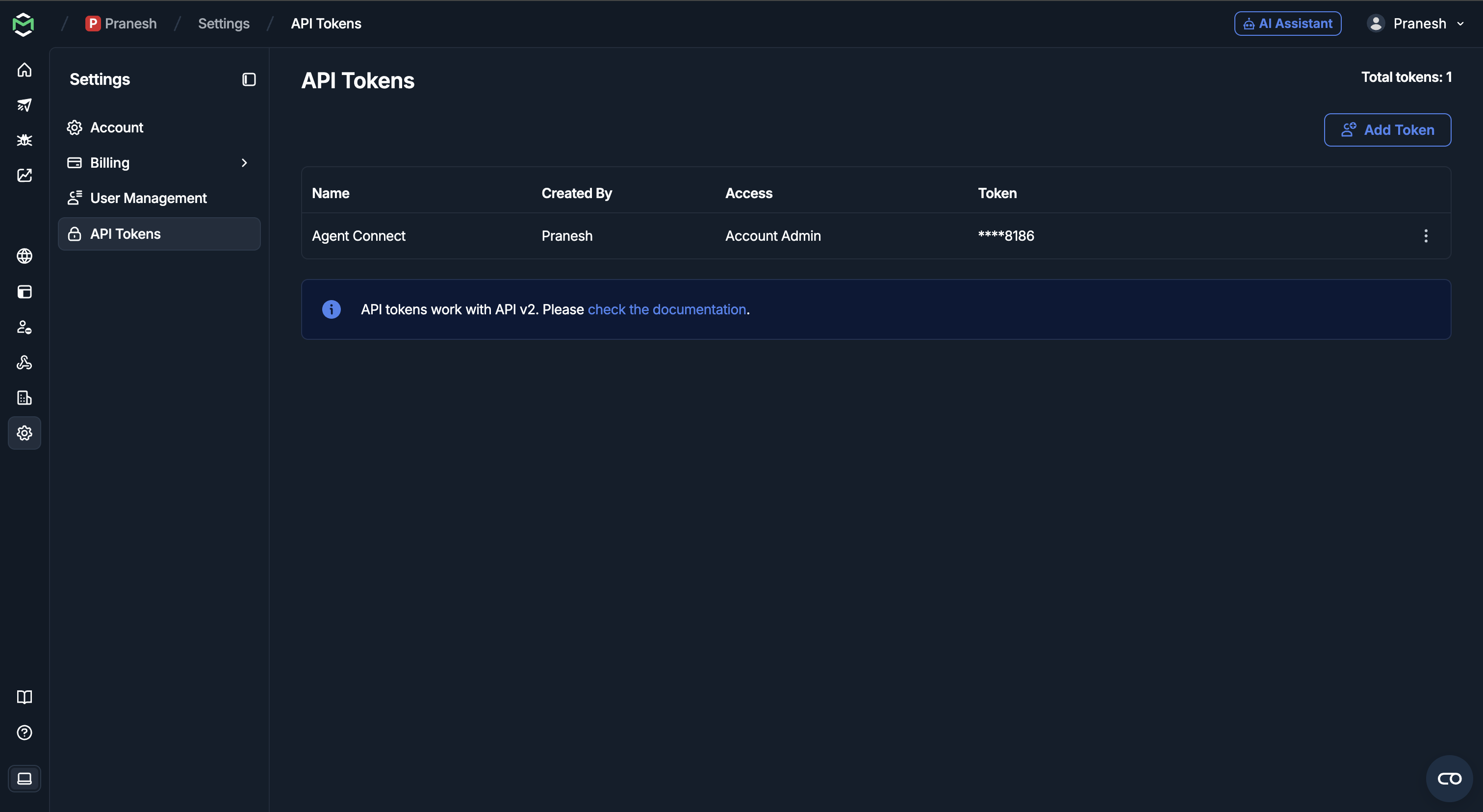
- Sign in to mailtrap.io and go to Settings → API Tokens.
- Click Add Token and give it a name (for example,
Agent Connect). - Copy the generated token.
-
Create a connection in Scalekit
- In the Scalekit dashboard, go to AgentKit → Connections → Create Connection.
- Search for Mailtrap and click Create.
- Note the Connection name — use this as
connection_namein your code (e.g.,mailtrap).
-
Add a connected account
Connected accounts link a specific user identifier in your system to a Mailtrap API token. Add one in the dashboard to test. In production, each user adds their own through the authorization link: they enter their credentials on the page it opens.
In the dashboard, to test
- Open the connection and click the Connected Accounts tab → Add account.
- Fill in Your User’s ID and API Token, then click Save.
From your backend, if your app already has the credentials
For example, when users enter them on a settings page in your app:
import { ConnectorStatus } from '@scalekit-sdk/node'const authorizationDetails = {details: {case: 'staticAuth',value: { details: { token: 'your-mailtrap-api-token' } },},}let { connectedAccount } = await scalekit.actions.upsertConnectedAccount({connectionName: 'mailtrap',identifier: 'user_123',authorizationDetails,})// Make sure the account is ACTIVE before the first tool call.if (connectedAccount?.status !== ConnectorStatus.ACTIVE) {;({ connectedAccount } = await scalekit.actions.upsertConnectedAccount({connectionName: 'mailtrap',identifier: 'user_123',authorizationDetails,}))}authorization_details = {"static_auth": {"token": "your-mailtrap-api-token"}}response = scalekit_client.actions.upsert_connected_account(connection_name="mailtrap",identifier="user_123",authorization_details=authorization_details,)# Make sure the account is ACTIVE before the first tool call.if response.connected_account.status != "ACTIVE":response = scalekit_client.actions.upsert_connected_account(connection_name="mailtrap",identifier="user_123",authorization_details=authorization_details,)
-
Authorize a user and make your first call
quickstart.mts import { ScalekitClient } from '@scalekit-sdk/node'import 'dotenv/config'import { createInterface } from 'node:readline/promises'const scalekit = new ScalekitClient(process.env.SCALEKIT_ENVIRONMENT_URL,process.env.SCALEKIT_CLIENT_ID,process.env.SCALEKIT_CLIENT_SECRET,)const actions = scalekit.actionsconst connector = 'mailtrap'const identifier = 'user_123'// Generate an authorization link for the userconst { link } = await actions.getAuthorizationLink({ connectionName: connector, identifier })console.log('Authorize Mailtrap:', link)const rl = createInterface({ input: process.stdin, output: process.stdout })await rl.question('Press Enter after authorizing...')rl.close()// Make your first callconst result = await actions.executeTool({connector,identifier,toolName: 'mailtrap_get_accounts',toolInput: {},})console.log(result)Terminal window npx tsx quickstart.mtsquickstart.py import osfrom scalekit import ScalekitClientfrom dotenv import load_dotenvload_dotenv()scalekit_client = ScalekitClient(env_url=os.getenv("SCALEKIT_ENVIRONMENT_URL"),client_id=os.getenv("SCALEKIT_CLIENT_ID"),client_secret=os.getenv("SCALEKIT_CLIENT_SECRET"),)actions = scalekit_client.actionsconnection_name = "mailtrap"identifier = "user_123"# Generate an authorization link for the userlink_response = actions.get_authorization_link(connection_name=connection_name,identifier=identifier,)print("Authorize Mailtrap:", link_response.link)input("Press Enter after authorizing...")# Make your first callresult = actions.execute_tool(tool_input={},tool_name="mailtrap_get_accounts",connection_name=connection_name,identifier=identifier,)print(result)Terminal window python quickstart.pyEach user opens the link once and enters their Mailtrap credentials there. If your app already has a user's credentials, add the account from your backend instead, as the console steps above show. See Authorize a user for the full flow and statuses.
Tools
Pass the exact name toexecute_toolmailtrap_get_accountsList all Mailtrap accounts the API token has access to.Read-onlyGet Accounts
List all Mailtrap accounts the API token has access to.
Inputs
This tool takes no inputs.
mailtrap_get_api_tokenRetrieve a single API token by ID, including its name and resource permissions.Read-onlyGet API Token
Retrieve a single API token by ID, including its name and resource permissions. Does not return the token's secret value.
Inputs
token_idintegerrequired- ID of the API token to retrieve.
mailtrap_get_billing_usageGet current billing cycle usage for Sandbox, Email API, and Email Marketing quotas.Read-onlyGet Billing Usage
Get current billing cycle usage for Sandbox, Email API, and Email Marketing quotas.
Inputs
This tool takes no inputs.
mailtrap_get_contactRetrieve a contact by UUID or email address, including their subscription status and custom fields.Read-onlyGet Contact
Retrieve a contact by UUID or email address, including their subscription status and custom fields.
Inputs
contact_identifierstringrequired- UUID or email address of the contact to retrieve. Example: 'a1b2c3d4-e5f6-7890-abcd-ef1234567890' or 'alice@example.com'.
mailtrap_get_contact_exportCheck the status of a contact export job by its ID.Read-onlyGet Contact Export
Check the status of a contact export job by its ID. Returns a download URL once the export has finished.
Inputs
export_idintegerrequired- The unique numeric ID of the contact export job to check.
mailtrap_get_contact_importCheck the status and results of an asynchronous contact import job by its ID.Read-onlyGet Contact Import
Check the status and results of an asynchronous contact import job by its ID.
Inputs
import_idintegerrequired- The unique numeric ID of the contact import job to check.
mailtrap_get_contact_listGet details of a specific contact list by ID, including its name and contact count.Read-onlyGet Contact List
Get details of a specific contact list by ID, including its name and contact count.
Inputs
list_idintegerrequired- Numeric ID of the contact list to retrieve. Example: 42.
mailtrap_get_domainGet details for a specific sending domain including DNS records, DKIM keys, and verification status.Read-onlyGet Domain
Get details for a specific sending domain including DNS records, DKIM keys, and verification status.
Inputs
domain_idintegerrequired- ID of the sending domain to retrieve.
mailtrap_get_email_campaignRetrieve a single email campaign by ID, including its state, audience, and template attributes.Read-onlyGet Email Campaign
Retrieve a single email campaign by ID, including its state, audience, and template attributes.
Inputs
email_campaign_idintegerrequired- Unique identifier of the email campaign.
mailtrap_get_email_campaign_statsGet aggregated performance metrics for a campaign: counts and rates for deliveries, opens, clicks, bounces, spam complaints, and unsubscriptions.Read-onlyGet Email Campaign Stats
Get aggregated performance metrics for a campaign: counts and rates for deliveries, opens, clicks, bounces, spam complaints, and unsubscriptions. Returns all-zero counts if the campaign has never been started. Optionally narrow the aggregation window with start_date/end_date.
Inputs
email_campaign_idintegerrequired- Unique identifier of the email campaign.
end_datestring- End of the aggregation window, as a date (YYYY-MM-DD).
start_datestring- Start of the aggregation window, as a date (YYYY-MM-DD).
mailtrap_get_email_logRetrieve detailed information for a specific sent message by its ID, including delivery events and timestamps.Read-onlyGet Email Log
Retrieve detailed information for a specific sent message by its ID, including delivery events and timestamps.
Inputs
sending_message_idstringrequired- The unique ID of the sent message to retrieve. Obtained from the List Email Logs response.
mailtrap_get_inbound_messageRetrieve full details of a single inbound email message, including decoded HTML/text bodies, headers, attachments with download URLs, and a link to the raw .eml file.Read-onlyGet Inbound Message
Retrieve full details of a single inbound email message, including decoded HTML/text bodies, headers, attachments with download URLs, and a link to the raw .eml file.
Inputs
inbox_idintegerrequired- The numeric ID of the inbound inbox containing the message.
message_idstringrequired- The ID of the inbound message to retrieve.
mailtrap_get_inboxRetrieve a single inbound email inbox by ID, including its receiving address and attached domain.Read-onlyGet Inbox
Retrieve a single inbound email inbox by ID, including its receiving address and attached domain.
Inputs
folder_idintegerrequired- The numeric ID of the inbound folder that contains the inbox.
inbox_idintegerrequired- The numeric ID of the inbox to retrieve.
mailtrap_get_message_attachmentGet metadata for a single attachment captured on a sandbox test message, including filename, content type, and size.Read-onlyGet Message Attachment
Get metadata for a single attachment captured on a sandbox test message, including filename, content type, and size.
Inputs
attachment_idintegerrequired- The numeric ID of the attachment to retrieve.
message_idintegerrequired- The numeric ID of the sandbox message that owns the attachment.
sandbox_idintegerrequired- The numeric ID of the sandbox inbox containing the message.
mailtrap_get_message_body_htmlGet the rendered HTML body content of a captured sandbox test message.Read-onlyGet Message HTML Body
Get the rendered HTML body content of a captured sandbox test message.
Inputs
message_idintegerrequired- The numeric ID of the sandbox message whose HTML body will be retrieved.
sandbox_idintegerrequired- The numeric ID of the sandbox inbox containing the message.
mailtrap_get_message_body_textGet the plain-text body content of a captured sandbox test message.Read-onlyGet Message Text Body
Get the plain-text body content of a captured sandbox test message.
Inputs
message_idintegerrequired- The numeric ID of the sandbox message whose text body will be retrieved.
sandbox_idintegerrequired- The numeric ID of the sandbox inbox containing the message.
mailtrap_get_message_spam_reportGet spam analysis score and detailed spam rule report for a captured sandbox email.Read-onlyGet Message Spam Report
Get spam analysis score and detailed spam rule report for a captured sandbox email.
Inputs
message_idintegerrequired- The numeric ID of the sandbox message to analyze for spam.
sandbox_idintegerrequired- The numeric ID of the sandbox inbox containing the message.
mailtrap_get_projectGet details of a single sandbox project by ID, including its sandbox inboxes.Read-onlyGet Project
Get details of a single sandbox project by ID, including its sandbox inboxes.
Inputs
project_idintegerrequired- The unique numeric ID of the project to retrieve.
mailtrap_get_sandboxGet details of a single sandbox inbox by ID, including its email address and credentials info.Read-onlyGet Sandbox
Get details of a single sandbox inbox by ID, including its email address and credentials info.
Inputs
sandbox_idintegerrequired- The numeric ID of the sandbox inbox to retrieve.
mailtrap_get_sandbox_messageShow full details of a specific captured test email including headers, HTML body, and text body.Read-onlyGet Sandbox Message
Show full details of a specific captured test email including headers, HTML body, and text body.
Inputs
message_idintegerrequired- The numeric ID of the sandbox message to retrieve.
sandbox_idintegerrequired- The numeric ID of the sandbox inbox containing the message.
mailtrap_get_sending_statsGet overall email sending statistics including sent, delivered, opened, clicked, bounced, and spam counts.Read-onlyGet Sending Stats
Get overall email sending statistics including sent, delivered, opened, clicked, bounced, and spam counts.
Inputs
end_datestringrequired- ISO date string for the end of the stats period.
start_datestringrequired- ISO date string for the start of the stats period.
mailtrap_get_stats_by_categoryGet email sending statistics grouped by email category tag.Read-onlyGet Stats by Category
Get email sending statistics grouped by email category tag.
Inputs
end_datestringrequired- The end date for the statistics range in ISO 8601 date format (YYYY-MM-DD).
start_datestringrequired- The start date for the statistics range in ISO 8601 date format (YYYY-MM-DD).
domain_idinteger- Filter statistics to a specific sending domain by its numeric ID.
mailtrap_get_stats_by_dateGet email sending statistics grouped by date for trend analysis over a time period.Read-onlyGet Stats by Date
Get email sending statistics grouped by date for trend analysis over a time period.
Inputs
domain_idinteger- Filter statistics to a specific sending domain by its numeric ID.
end_datestring- The end date for the statistics range in ISO 8601 date format (YYYY-MM-DD).
start_datestring- The start date for the statistics range in ISO 8601 date format (YYYY-MM-DD).
mailtrap_get_stats_by_domainGet email sending statistics grouped by sending domain for the specified date range.Read-onlyGet Stats by Domain
Get email sending statistics grouped by sending domain for the specified date range.
Inputs
end_datestringrequired- The end date for the statistics range in ISO 8601 date format (YYYY-MM-DD).
start_datestringrequired- The start date for the statistics range in ISO 8601 date format (YYYY-MM-DD).
mailtrap_get_stats_by_espGet email sending statistics grouped by recipient email service provider (Gmail, Outlook, etc.).Read-onlyGet Stats by ESP
Get email sending statistics grouped by recipient email service provider (Gmail, Outlook, etc.).
Inputs
end_datestringrequired- The end date for the statistics range in ISO 8601 date format (YYYY-MM-DD).
start_datestringrequired- The start date for the statistics range in ISO 8601 date format (YYYY-MM-DD).
domain_idinteger- Filter statistics to a specific sending domain by its numeric ID.
mailtrap_get_templateGet a single email template by ID including its name, subject, and HTML/text body content.Read-onlyGet Template
Get a single email template by ID including its name, subject, and HTML/text body content.
Inputs
email_template_idintegerrequired- The numeric ID of the email template to retrieve.
mailtrap_get_webhookRetrieve a single webhook by its ID, including its URL, type, active state, and subscribed event types.Read-onlyGet Webhook
Retrieve a single webhook by its ID, including its URL, type, active state, and subscribed event types.
Inputs
webhook_idintegerrequired- The numeric ID of the webhook to retrieve.
mailtrap_list_account_accessesList all user and invite account accesses with optional resource type filtering.Read-onlyList Account Accesses
List all user and invite account accesses with optional resource type filtering.
Inputs
resource_idinteger- Filter accesses by the numeric ID of the target resource.
resource_typestring- Filter accesses by the type of resource they apply to.
mailtrap_list_api_tokensList all API tokens visible to the current API token.Read-onlyList API Tokens
List all API tokens visible to the current API token.
Inputs
This tool takes no inputs.
mailtrap_list_contact_fieldsList all custom contact fields defined for the account (maximum 40 fields).Read-onlyList Contact Fields
List all custom contact fields defined for the account (maximum 40 fields).
Inputs
This tool takes no inputs.
mailtrap_list_contact_listsList all contact lists in the Mailtrap account, with optional search filtering and pagination.Read-onlyList Contact Lists
List all contact lists in the Mailtrap account, with optional search filtering and pagination.
Inputs
limitinteger- Number of contact lists to return per page.
pageinteger- Page number for pagination. Starts at 1.
searchstring- Search term to filter contact lists by name. Case-insensitive substring match.
mailtrap_list_domainsList all sending domains with their verification, DKIM, SPF, and compliance status.Read-onlyList Domains
List all sending domains with their verification, DKIM, SPF, and compliance status.
Inputs
limitinteger- Maximum number of domain records to return per page.
pageinteger- Page number for paginated results.
mailtrap_list_email_campaignsReturns a paginated list of the account's email marketing campaigns, newest first.Read-onlyList Email Campaigns
Returns a paginated list of the account's email marketing campaigns, newest first. Supports searching by name.
Inputs
per_pageinteger- Number of campaigns per page. Defaults to 50, maximum 100.
searchstring- Search string to filter campaigns by name.
tokeninteger- Page number to retrieve (page-token pagination). Defaults to 1.
mailtrap_list_email_logsList email logs with filtering by status, date range, domain, and search.Read-onlyList Email Logs
List email logs with filtering by status, date range, domain, and search. Returns sent message records with delivery status.
Inputs
domain_idinteger- Filter logs by sending domain ID.
end_datestring- Filter logs sent on or before this date.
limitinteger- Number of log records to return per page.
pageinteger- Page number for paginated results.
searchstring- Search term to filter email logs by subject, recipient, or message ID.
start_datestring- Filter logs sent on or after this date.
statusstring- Filter logs by delivery status.one of
sentdeliveredbouncedspamrejectedopenedclicked
mailtrap_list_inbound_messagesList real inbound email messages received by an inbox, newest first, within the account's retention window.Read-onlyList Inbound Messages
List real inbound email messages received by an inbox, newest first, within the account's retention window. Supports cursor-based pagination via last_id.
Inputs
inbox_idintegerrequired- The numeric ID of the inbound inbox to list messages from.
last_idstring- Cursor for pagination. Pass the previous response's last_id value to fetch the next page.
mailtrap_list_inboxesList all inbound email inboxes in a folder.Read-onlyList Inboxes
List all inbound email inboxes in a folder. Inbound inboxes receive real email at a generated or custom-domain address, distinct from the Email Testing sandboxes used for capturing outgoing test messages.
Inputs
folder_idintegerrequired- The numeric ID of the inbound folder that contains the inboxes.
mailtrap_list_message_attachmentsList the attachments captured on a sandbox test message, including filename, content type, and size.Read-onlyList Message Attachments
List the attachments captured on a sandbox test message, including filename, content type, and size.
Inputs
message_idintegerrequired- The numeric ID of the sandbox message whose attachments will be listed.
sandbox_idintegerrequired- The numeric ID of the sandbox inbox containing the message.
mailtrap_list_projectsList all sandbox projects in the account.Read-onlyList Projects
List all sandbox projects in the account. Projects are containers for organizing sandbox inboxes.
Inputs
This tool takes no inputs.
mailtrap_list_sandbox_messagesGet captured test emails in a sandbox inbox with optional filtering by subject or sender.Read-onlyList Sandbox Messages
Get captured test emails in a sandbox inbox with optional filtering by subject or sender.
Inputs
sandbox_idintegerrequired- The numeric ID of the sandbox inbox to list messages from.
limitinteger- Maximum number of messages to return per page.
pageinteger- Page number for paginating through sandbox messages.
searchstring- Search string to filter messages by subject or sender.
mailtrap_list_sandboxesList all testing sandbox inboxes available for capturing test emails in development.Read-onlyList Sandboxes
List all testing sandbox inboxes available for capturing test emails in development.
Inputs
limitinteger- Maximum number of sandboxes to return per page.
pageinteger- Page number for paginated results.
mailtrap_list_sub_accountsList all sub accounts belonging to a specified organization.Read-onlyList Sub Accounts
List all sub accounts belonging to a specified organization.
Inputs
organization_idintegerrequired- ID of the organization whose sub accounts should be listed.
mailtrap_list_suppressionsList suppressed email addresses including bounces, unsubscribes, and spam complaints.Read-onlyList Suppressions
List suppressed email addresses including bounces, unsubscribes, and spam complaints.
Inputs
emailstring- Filter suppressions by email address.
limitinteger- Maximum number of suppression records to return per page.
pageinteger- Page number for paginated results.
mailtrap_list_templatesList all email templates in the Mailtrap account.Read-onlyList Templates
List all email templates in the Mailtrap account.
Inputs
limitinteger- Number of templates to return per page.
pageinteger- Page number for paginated results.
mailtrap_list_webhooksList all webhooks configured for the account, including their URL, type, active state, and subscribed event types.Read-onlyList Webhooks
List all webhooks configured for the account, including their URL, type, active state, and subscribed event types.
Inputs
This tool takes no inputs.
mailtrap_batch_send_bulk_emailSend up to 500 marketing/bulk emails in a single API call via the Bulk Sending stream, each with its own recipients and content, optionally sharing base properties.WriteBatch Send Bulk Emails
Send up to 500 marketing/bulk emails in a single API call via the Bulk Sending stream, each with its own recipients and content, optionally sharing base properties. Returns HTTP 200 even if individual messages fail -- check the per-message results for status.
Inputs
requests_jsonstringrequired- JSON array of individual email configurations (max 500), each with the same fields as a single send (from, to, subject, text/html, etc.).
base_jsonstring- JSON object of base properties shared by all emails in the batch (from, subject, text, html, category, template_uuid, etc.), used as defaults when not overridden per-request.
mailtrap_batch_send_emailSend up to 500 transactional emails in a single API call, each with its own recipients and content, optionally sharing base properties.WriteBatch Send Emails
Send up to 500 transactional emails in a single API call, each with its own recipients and content, optionally sharing base properties. Returns HTTP 200 even if individual messages fail -- check the per-message results for status.
Inputs
requests_jsonstringrequired- JSON array of individual email configurations (max 500), each with the same fields as a single send (from, to, subject, text/html, etc.).
base_jsonstring- JSON object of base properties shared by all emails in the batch (from, subject, text, html, category, template_uuid, etc.), used as defaults when not overridden per-request.
mailtrap_create_api_tokenCreate a new API token with a specified name and optional resource permissions.WriteCreate API Token
Create a new API token with a specified name and optional resource permissions.
Inputs
namestringrequired- Name for the new API token.
permissions_jsonstringrequired- JSON array string of permission objects. The Mailtrap API requires at least one permission.
mailtrap_create_contactCreate a new marketing contact with email address, custom fields, and contact list assignments.WriteCreate Contact
Create a new marketing contact with email address, custom fields, and contact list assignments.
Inputs
emailstringrequired- Email address of the contact. Must be a valid email address.
first_namestring- First name of the contact.
last_namestring- Last name of the contact.
list_idsstring- Comma-separated list IDs to add this contact to upon creation, e.g. '123,456'.
statusstring- Subscription status of the contact. Valid values: subscribed, unsubscribed.one of
subscribedunsubscribed
mailtrap_create_contact_fieldCreate a custom contact field with a name and data type (text, integer, float, boolean, or date).WriteCreate Contact Field
Create a custom contact field with a name and data type (text, integer, float, boolean, or date).
Inputs
data_typestringrequired- The data type of the contact field.one of
textintegerfloatbooleandate merge_tagstringrequired- Lowercase short identifier with underscores used as a merge tag in email templates (e.g. company_size).
namestringrequired- The display name for the custom contact field.
mailtrap_create_contact_listCreate a new contact list for segmenting marketing email recipients.WriteCreate Contact List
Create a new contact list for segmenting marketing email recipients.
Inputs
namestringrequired- Name for the new contact list, e.g. 'Monthly Newsletter Subscribers'.
mailtrap_create_domainCreate a new sending domain and receive DNS configuration records for DKIM and SPF setup.WriteCreate Domain
Create a new sending domain and receive DNS configuration records for DKIM and SPF setup.
Inputs
namestringrequired- The domain name to add as a sending domain.
mailtrap_create_email_campaignCreate a new email marketing campaign as a draft.WriteCreate Email Campaign
Create a new email marketing campaign as a draft. Requires an existing verified sending domain (domain_id), a From local part, and a template subject. Scheduling and starting are separate actions.
Inputs
domain_idintegerrequired- ID of the verified sending domain used for the campaign.
from_local_partstringrequired- Local part (before the @) of the From address.
namestringrequired- Campaign name.
subjectstringrequired- Email subject line. Supports merge tags, e.g. 'Hi {{first_name}}'.
body_htmlstring- HTML body of the email (the design). Optional for a draft; required before the campaign can be scheduled or started. Include an unsubscribe link via an anchor whose href contains the __unsubscribe_url__ placeholder.
body_textstring- Optional plain-text alternative of the email body.
contact_list_idsstring- Comma-separated IDs of contact lists to send to.
contact_segment_idsstring- Comma-separated IDs of contact segments to send to.
delivery_modestring- How the campaign is delivered. 'rapid' sends as fast as possible; 'gradual' throttles sending to emails_per_hour.one of
rapidgradual emails_per_hourinteger- Delivery throttle. Applies only when delivery_mode is 'gradual'.
from_display_namestring- Display name shown in the From header.
reply_to_display_namestring- Display name for the Reply-To address.
reply_to_domainstring- Domain of the Reply-To address.
reply_to_local_partstring- Local part (before the @) of the Reply-To address.
mailtrap_create_inboxCreate a new inbound email inbox inside a folder.WriteCreate Inbox
Create a new inbound email inbox inside a folder. A standard inbox gets a unique generated receiving address; attaching a verified custom sending domain (with inbound enabled) instead creates a catch-all inbox that receives mail for any address on that domain.
Inputs
folder_idintegerrequired- The numeric ID of the inbound folder to create the inbox in.
namestringrequired- Name for the new inbox.
domain_idinteger- Attach the inbox to a verified custom sending domain (with inbound enabled), creating a catch-all inbox for any address on that domain. Omit to create a standard Mailtrap-hosted inbox. Requires the custom domains feature.
mailtrap_create_projectCreate a new sandbox project to organize testing inboxes by team or application.WriteCreate Project
Create a new sandbox project to organize testing inboxes by team or application.
Inputs
namestringrequired- The name of the new sandbox project.
mailtrap_create_sandboxCreate a new sandbox inbox within a specific project for capturing test emails.WriteCreate Sandbox
Create a new sandbox inbox within a specific project for capturing test emails.
Inputs
namestringrequired- Name for the new sandbox inbox.
project_idintegerrequired- ID of the project in which to create the sandbox inbox.
mailtrap_create_sub_accountCreate a new sub-account under a Mailtrap organization.WriteCreate Sub-Account
Create a new sub-account under a Mailtrap organization.
Inputs
namestringrequired- Name of the new sub-account.
organization_idintegerrequired- The numeric ID of the organization to create the sub-account under.
mailtrap_create_suppressionAdd an email address to the suppression list to prevent future email deliveries.WriteCreate Suppression
Add an email address to the suppression list to prevent future email deliveries.
Inputs
domain_idintegerrequired- Numeric ID of the verified sending domain this suppression applies to.
emailstringrequired- Email address to add to the suppression list.
sending_streamstringrequired- Sending stream to suppress the email address on.one of
transactionalbulk typestring- Suppression type indicating the reason for suppression.one of
hard bounceunsubscriptionspam complaintmanual import
mailtrap_create_templateCreate a new reusable email template with name, subject, and HTML/text body content.WriteCreate Template
Create a new reusable email template with name, subject, and HTML/text body content.
Inputs
categorystringrequired- Category to organize the template.
namestringrequired- Name of the email template.
subjectstringrequired- Subject line for the email template.
html_bodystring- HTML body content of the email template.
text_bodystring- Plain text body content of the email template.
mailtrap_create_webhookCreate a webhook subscription that receives real-time HTTP notifications for account events (email sending, campaigns, audit log, or inbound receiving).WriteCreate Webhook
Create a webhook subscription that receives real-time HTTP notifications for account events (email sending, campaigns, audit log, or inbound receiving). The response includes a signing_secret returned only once — store it securely to verify payload signatures.
Inputs
urlstringrequired- The URL that will receive webhook payloads.
webhook_typestringrequired- The type of webhook. Determines which events the webhook can subscribe to.one of
email_sendingcampaignsaudit_loginbound_receiving activeboolean- Whether the webhook is active. Defaults to true.default
true domain_idinteger- Scopes the webhook to a specific sending domain ID, or all domains if omitted. Applicable only for email_sending and campaigns webhooks.
event_typesstring- Comma-separated list of event types to subscribe to. Required for email_sending and campaigns webhook types. Valid values: delivery, soft_bounce, bounce, suspension, unsubscribe, open, spam_complaint, click, reject.
inbound_inbox_idinteger- ID of the inbound inbox the webhook is linked to. Optional for inbound_receiving webhooks — omit to apply to all inboxes in the account. Not applicable to any other webhook type.
payload_formatstring- Format of the webhook payload. Valid values: json, jsonlines.one of
jsonjsonlinesdefaultjson sending_streamstring- Sending stream the webhook subscribes to. Required for the email_sending webhook type. Valid values: transactional, bulk.one of
transactionalbulk
mailtrap_export_contactsStart an asynchronous export of the account's contacts to a downloadable file, optionally filtered by contact list membership or subscription status.WriteExport Contacts
Start an asynchronous export of the account's contacts to a downloadable file, optionally filtered by contact list membership or subscription status. Use the returned export ID with Get Contact Export to poll for the download URL.
Inputs
filtersstring- JSON array of filter objects to scope the export. Supported filters: {"name":"list_id","operator":"equal","value":[1,2]} and {"name":"subscription_status","operator":"equal","value":"subscribed"}. Omit to export all contacts.
mailtrap_forward_sandbox_messageForward a captured sandbox test email to a real recipient email address for live testing.WriteForward Sandbox Message
Forward a captured sandbox test email to a real recipient email address for live testing.
Inputs
emailstringrequired- The real recipient email address to forward the sandbox message to.
message_idintegerrequired- The numeric ID of the sandbox message to forward.
sandbox_idintegerrequired- The numeric ID of the sandbox inbox containing the message.
mailtrap_import_contactsBulk import up to 50,000 contacts in a single request, with support for custom fields and list assignment.WriteImport Contacts
Bulk import up to 50,000 contacts in a single request, with support for custom fields and list assignment. Contacts with matching email addresses are updated automatically. The import runs asynchronously — use the returned import ID with Get Contact Import to check status and results.
Inputs
contactsstringrequired- JSON array of contact objects to import (up to 50,000). Each needs email, and may include fields (custom field key-value map), list_ids_included, and list_ids_excluded.
mailtrap_manage_permissionsBulk create, update, or delete resource permissions for a user or API token account access.WriteManage Permissions
Bulk create, update, or delete resource permissions for a user or API token account access.
- Idempotent
Inputs
account_access_idintegerrequired- ID of the account access record whose permissions will be updated.
permissions_jsonstringrequired- JSON string representing the full permissions payload to apply. Structure as required by the Mailtrap bulk permissions API.
mailtrap_reply_inbound_messageSend a reply to a received inbound email message.WriteReply To Inbound Message
Send a reply to a received inbound email message. Must include text and/or html. Recipients default to the original sender's reply-to/from address when to_json is omitted. The from address is rejected for standard Mailtrap-hosted inboxes and required only for custom-domain inboxes.
Inputs
inbox_idintegerrequired- The numeric ID of the inbound inbox containing the message.
message_idstringrequired- The ID of the inbound message to reply to.
attachments_jsonstring- JSON array of attachment objects, e.g. '[{"filename":"invoice.pdf","content":"<base64>","type":"application/pdf"}]'. content must be base64-encoded.
bcc_jsonstring- JSON array of BCC recipient objects, same format as to_json.
categorystring- Email API category label for the sent reply, used for grouping in delivery statistics.
cc_jsonstring- JSON array of CC recipient objects, same format as to_json.
custom_variables_jsonstring- JSON object of custom key-value metadata to attach to the reply, e.g. '{"ticket_id":"12345"}'.
from_emailstring- Sender email address. Rejected for standard Mailtrap-hosted inboxes; required for custom-domain inboxes, where it must belong to the inbox's domain.
from_namestring- Sender display name. Only used together with from_email.
headers_jsonstring- JSON object of additional email headers to send, e.g. '{"X-Priority":"1"}'.
htmlstring- HTML reply body. At least one of text or html is required.
textstring- Plain-text reply body. At least one of text or html is required.
to_jsonstring- JSON array of recipient objects, e.g. '[{"email":"jane@example.com","name":"Jane"}]'. Defaults to the original sender's reply-to/from address if omitted.
mailtrap_sandbox_batch_send_emailSend up to 500 test emails into a Mailtrap sandbox inbox in a single API call, each with its own recipients and content, optionally sharing base properties.WriteBatch Send Test Emails to Sandbox
Send up to 500 test emails into a Mailtrap sandbox inbox in a single API call, each with its own recipients and content, optionally sharing base properties. Returns HTTP 200 even if individual messages fail -- check the per-message results for status.
Inputs
requests_jsonstringrequired- JSON array of individual email configurations (max 500), each with the same fields as a single send (from, to, subject, text/html, etc.).
sandbox_idintegerrequired- The numeric ID of the sandbox inbox to deliver the test emails into.
base_jsonstring- JSON object of base properties shared by all emails in the batch (from, subject, text, html, template_uuid, etc.), used as defaults when not overridden per-request.
mailtrap_sandbox_send_emailSend a test email directly into a Mailtrap sandbox inbox via the Sandbox Sending API, for testing your email content without delivering to a real recipient.WriteSend Test Email to Sandbox
Send a test email directly into a Mailtrap sandbox inbox via the Sandbox Sending API, for testing your email content without delivering to a real recipient. Provide text and/or html content, or a template_uuid.
Inputs
from_emailstringrequired- Sender email address for the test email.
sandbox_idintegerrequired- The numeric ID of the sandbox inbox to deliver the test email into.
to_jsonstringrequired- JSON array of recipient objects, e.g. '[{"email":"user@example.com","name":"Test User"}]'.
attachments_jsonstring- JSON array of attachment objects. content must be base64-encoded.
from_namestring- Sender display name.
htmlstring- HTML email body. At least one of text or html is required unless template_uuid is set.
subjectstring- Email subject line. Required unless sending from a template that provides its own subject.
template_uuidstring- UUID of a saved Mailtrap template to send from, instead of subject/text/html.
template_variables_jsonstring- JSON object of variable values to substitute into the template.
textstring- Plain-text email body. At least one of text or html is required unless template_uuid is set.
mailtrap_send_bulk_emailSend a marketing or newsletter email via the Mailtrap Bulk Sending stream, optimized for high-volume, non-transactional sends.WriteSend Bulk Email
Send a marketing or newsletter email via the Mailtrap Bulk Sending stream, optimized for high-volume, non-transactional sends. Provide text and/or html content, or a template_uuid to send from a saved template.
Inputs
from_emailstringrequired- Sender email address. Must be on a verified sending domain.
to_jsonstringrequired- JSON array of recipient objects, e.g. '[{"email":"jane@example.com","name":"Jane"}]'.
attachments_jsonstring- JSON array of attachment objects, e.g. '[{"filename":"flyer.pdf","content":"<base64>","type":"application/pdf"}]'. content must be base64-encoded.
bcc_jsonstring- JSON array of BCC recipient objects, same format as to_json.
categorystring- Category label for grouping this email in Mailtrap statistics.
cc_jsonstring- JSON array of CC recipient objects, same format as to_json.
custom_variables_jsonstring- JSON object of custom key-value metadata to attach to the email, e.g. '{"campaign_id":"42"}'.
from_namestring- Sender display name.
headers_jsonstring- JSON object of additional email headers to send, e.g. '{"List-Unsubscribe":"<mailto:unsub@example.com>"}'.
htmlstring- HTML email body. At least one of text or html is required unless template_uuid is set.
reply_to_emailstring- Reply-to email address.
subjectstring- Email subject line. Required unless sending from a template that provides its own subject.
template_uuidstring- UUID of a saved Mailtrap template to send from, instead of subject/text/html.
template_variables_jsonstring- JSON object of variable values to substitute into the template, e.g. '{"first_name":"Jane"}'.
textstring- Plain-text email body. At least one of text or html is required unless template_uuid is set.
mailtrap_send_domain_setup_instructionsEmail DNS setup instructions for a domain to a specified recipient address.WriteSend Domain Setup Instructions
Email DNS setup instructions for a domain to a specified recipient address.
Inputs
domain_idintegerrequired- The unique numeric ID of the domain whose setup instructions will be sent.
emailstringrequired- The recipient email address to send the DNS setup instructions to.
mailtrap_send_emailSend a single transactional email via the Mailtrap Sending API (order confirmations, password resets, notifications).WriteSend Email
Send a single transactional email via the Mailtrap Sending API (order confirmations, password resets, notifications). Provide text and/or html content, or a template_uuid to send from a saved template.
Inputs
from_emailstringrequired- Sender email address. Must be on a verified sending domain.
to_jsonstringrequired- JSON array of recipient objects, e.g. '[{"email":"jane@example.com","name":"Jane"}]'.
attachments_jsonstring- JSON array of attachment objects, e.g. '[{"filename":"invoice.pdf","content":"<base64>","type":"application/pdf"}]'. content must be base64-encoded.
bcc_jsonstring- JSON array of BCC recipient objects, same format as to_json.
categorystring- Category label for grouping this email in Mailtrap statistics.
cc_jsonstring- JSON array of CC recipient objects, same format as to_json.
custom_variables_jsonstring- JSON object of custom key-value metadata to attach to the email, e.g. '{"user_id":"42"}'.
from_namestring- Sender display name.
headers_jsonstring- JSON object of additional email headers to send, e.g. '{"X-Priority":"1"}'.
htmlstring- HTML email body. At least one of text or html is required unless template_uuid is set.
reply_to_emailstring- Reply-to email address.
subjectstring- Email subject line. Required unless sending from a template that provides its own subject.
template_uuidstring- UUID of a saved Mailtrap template to send from, instead of subject/text/html.
template_variables_jsonstring- JSON object of variable values to substitute into the template, e.g. '{"order_id":"1234"}'.
textstring- Plain-text email body. At least one of text or html is required unless template_uuid is set.
mailtrap_start_email_campaignStart sending a draft campaign immediately.WriteStart Email Campaign
Start sending a draft campaign immediately. Runs full sending validation (template design, audience, verified domain, billing limits); on failure the campaign stays a draft and the request fails. The campaign must be in the draft state.
Inputs
email_campaign_idintegerrequired- Unique identifier of the draft email campaign to start sending.
mailtrap_track_contact_eventSubmit a custom interaction event for a contact to track engagement and trigger automations.WriteTrack Contact Event
Submit a custom interaction event for a contact to track engagement and trigger automations.
Inputs
contact_identifierstringrequired- UUID or email address of the contact for whom the event is being tracked.
namestringrequired- Name of the custom event to record, e.g. 'purchase', 'page_view', 'trial_started'.
occurred_atstring- ISO 8601 datetime when the event occurred. Defaults to now if omitted.
valuestring- Optional value associated with the event, e.g. a purchase amount or product ID.
mailtrap_update_contactUpdate a contact's custom fields, subscription status, or contact list memberships by UUID or email address.WriteUpdate Contact
Update a contact's custom fields, subscription status, or contact list memberships by UUID or email address.
- Idempotent
Inputs
contact_identifierstringrequired- UUID or email address of the contact to update. Example: 'a1b2c3d4-e5f6-7890-abcd-ef1234567890' or 'alice@example.com'.
first_namestring- New first name for the contact.
last_namestring- New last name for the contact.
statusstring- New subscription status. Valid values: subscribed, unsubscribed.one of
subscribedunsubscribed
mailtrap_update_contact_listUpdate the name of an existing contact list by its ID.WriteUpdate Contact List
Update the name of an existing contact list by its ID.
- Idempotent
Inputs
list_idintegerrequired- Numeric ID of the contact list to update. Example: 42.
namestringrequired- New name for the contact list.
mailtrap_update_domainUpdate domain settings such as open tracking, click tracking, and unsubscribe tracking configuration.WriteUpdate Domain
Update domain settings such as open tracking, click tracking, and unsubscribe tracking configuration.
- Idempotent
Inputs
domain_idintegerrequired- The unique numeric ID of the domain to update.
click_trackingboolean- Enable or disable click tracking for links in emails sent from this domain.
open_trackingboolean- Enable or disable open tracking for emails sent from this domain.
unsubscribe_trackingboolean- Enable or disable unsubscribe tracking for emails sent from this domain.
mailtrap_update_email_campaignUpdate an existing draft email campaign.WriteUpdate Email Campaign
Update an existing draft email campaign. Only the provided attributes are changed; the template (subject/design) is always edited in place. Only draft campaigns can be updated — editing a scheduled or sending campaign fails.
- Idempotent
Inputs
email_campaign_idintegerrequired- Unique identifier of the draft email campaign to update.
body_htmlstring- HTML body of the email (the design). Required before the campaign can be scheduled or started.
body_textstring- Plain-text alternative of the email body.
contact_list_idsstring- Comma-separated IDs of contact lists to send to. Replaces the campaign's full set of included lists.
contact_segment_idsstring- Comma-separated IDs of contact segments to send to. Replaces the campaign's full set of included segments.
delivery_modestring- How the campaign is delivered. 'rapid' sends as fast as possible; 'gradual' throttles sending to emails_per_hour.one of
rapidgradual domain_idinteger- ID of the verified sending domain used for the campaign.
emails_per_hourinteger- Delivery throttle. Applies only when delivery_mode is 'gradual'.
from_display_namestring- Display name shown in the From header.
from_local_partstring- Local part (before the @) of the From address.
namestring- New campaign name.
reply_to_display_namestring- Display name for the Reply-To address.
reply_to_domainstring- Domain of the Reply-To address.
reply_to_local_partstring- Local part (before the @) of the Reply-To address.
subjectstring- Email subject line. Supports merge tags, e.g. 'Hi {{first_name}}'.
mailtrap_update_projectRename an existing sandbox project.WriteUpdate Project
Rename an existing sandbox project.
- Idempotent
Inputs
namestringrequired- New name for the project.
project_idintegerrequired- The unique numeric ID of the project to update.
mailtrap_update_sandboxRename a sandbox inbox or change its email username.WriteUpdate Sandbox
Rename a sandbox inbox or change its email username.
- Idempotent
Inputs
sandbox_idintegerrequired- The numeric ID of the sandbox inbox to update.
email_usernamestring- New local-part username for the sandbox inbox's email address.
namestring- New display name for the sandbox inbox.
mailtrap_update_templateUpdate an existing email template's name, subject, or body content.WriteUpdate Template
Update an existing email template's name, subject, or body content.
- Idempotent
Inputs
email_template_idintegerrequired- ID of the email template to update.
categorystring- New category for the template.
html_bodystring- New HTML body content for the email template.
namestring- New name for the email template.
subjectstring- New subject line for the email template.
text_bodystring- New plain text body content for the email template.
mailtrap_update_webhookUpdate an existing webhook's URL, active state, payload format, event types, or inbound inbox scope.WriteUpdate Webhook
Update an existing webhook's URL, active state, payload format, event types, or inbound inbox scope. Only the fields provided are changed.
- Idempotent
Inputs
webhook_idintegerrequired- The numeric ID of the webhook to update.
activeboolean- Whether the webhook is active.
event_typesstring- Comma-separated list of event types to subscribe to. Applicable only for email_sending and campaigns webhooks. Valid values: delivery, soft_bounce, bounce, suspension, unsubscribe, open, spam_complaint, click, reject.
inbound_inbox_idinteger- ID of the inbound inbox the webhook is linked to. Applicable only for inbound_receiving webhooks.
payload_formatstring- Format of the webhook payload. Valid values: json, jsonlines.one of
jsonjsonlines urlstring- New URL that will receive webhook payloads.
mailtrap_clean_sandboxDelete all captured messages from a sandbox inbox, clearing it for fresh test runs.DestructiveClean Sandbox
Delete all captured messages from a sandbox inbox, clearing it for fresh test runs.
- Idempotent
Inputs
sandbox_idintegerrequired- ID of the sandbox inbox to clean.
mailtrap_delete_api_tokenPermanently delete an API token by ID.DestructiveDelete API Token
Permanently delete an API token by ID. This action cannot be undone.
- Idempotent
Inputs
token_idintegerrequired- ID of the API token to permanently delete.
mailtrap_delete_contactPermanently remove a contact by UUID or email address from the Mailtrap account.DestructiveDelete Contact
Permanently remove a contact by UUID or email address from the Mailtrap account. This action cannot be undone.
- Idempotent
Inputs
contact_identifierstringrequired- UUID or email address of the contact to permanently delete. Example: 'a1b2c3d4-e5f6-7890-abcd-ef1234567890' or 'alice@example.com'.
mailtrap_delete_contact_listDelete a contact list by ID.DestructiveDelete Contact List
Delete a contact list by ID. This does not delete the contacts within the list.
- Idempotent
Inputs
list_idintegerrequired- The numeric ID of the contact list to delete.
mailtrap_delete_domainDelete a sending domain from the Mailtrap account.DestructiveDelete Domain
Delete a sending domain from the Mailtrap account. This action is permanent and cannot be undone.
- Idempotent
Inputs
domain_idintegerrequired- The unique numeric ID of the domain to delete.
mailtrap_delete_email_campaignSoft-delete an email campaign by ID.DestructiveDelete Email Campaign
Soft-delete an email campaign by ID. The campaign must not be in a sending state. This action cannot be undone.
- Idempotent
Inputs
email_campaign_idintegerrequired- Unique identifier of the email campaign to permanently delete.
mailtrap_delete_projectPermanently delete a sandbox project and all of its sandbox inboxes.DestructiveDelete Project
Permanently delete a sandbox project and all of its sandbox inboxes. This action cannot be undone.
- Idempotent
Inputs
project_idintegerrequired- The unique numeric ID of the project to delete.
mailtrap_delete_sandboxPermanently delete a sandbox inbox and all of its captured test messages.DestructiveDelete Sandbox
Permanently delete a sandbox inbox and all of its captured test messages. This action cannot be undone.
- Idempotent
Inputs
sandbox_idintegerrequired- The numeric ID of the sandbox inbox to delete.
mailtrap_delete_sandbox_messagePermanently delete a single captured message from a sandbox inbox.DestructiveDelete Sandbox Message
Permanently delete a single captured message from a sandbox inbox. This action cannot be undone.
- Idempotent
Inputs
message_idintegerrequired- The numeric ID of the sandbox message to delete.
sandbox_idintegerrequired- The numeric ID of the sandbox inbox containing the message.
mailtrap_delete_suppressionRemove an email address from the suppression list to re-enable email deliveries.DestructiveDelete Suppression
Remove an email address from the suppression list to re-enable email deliveries.
- Idempotent
Inputs
suppression_idintegerrequired- ID of the suppression record to remove.
mailtrap_delete_templatePermanently delete an email template by ID.DestructiveDelete Template
Permanently delete an email template by ID.
- Idempotent
Inputs
email_template_idintegerrequired- ID of the email template to delete.
mailtrap_delete_webhookPermanently delete a webhook by ID.DestructiveDelete Webhook
Permanently delete a webhook by ID. This action cannot be undone.
- Idempotent
Inputs
webhook_idintegerrequired- The numeric ID of the webhook to permanently delete.
mailtrap_reset_api_tokenExpire an API token and generate a new token with the same permissions in its place.DestructiveReset API Token
Expire an API token and generate a new token with the same permissions in its place. The old token keeps working for a short grace period. The response includes the new secret value once — store it securely. Only tokens that have not already been reset can be reset.
Inputs
token_idintegerrequired- ID of the API token to reset.
No tools match.


