
The Stripe connector lets your AI agent act in each user's Stripe account. Each user connects their own Stripe access token once, and Scalekit sends it with every call, so your agent never handles credentials. It comes with 178 tools.
- Tools
- 178
- What they doRead · write · destructive
- 78 · 77 · 2378 read77 write23 destructive
- Users sign in with
- Access token
Setup
Install the SDK
Terminal window npm install @scalekit-sdk/node dotenvTerminal window pip install scalekit-sdk-python python-dotenvSet your credentials
Add your Scalekit credentials to your
.envfile. Find values in app.scalekit.com > Developers > API Credentials..env SCALEKIT_ENVIRONMENT_URL=<your-environment-url>SCALEKIT_CLIENT_ID=<your-client-id>SCALEKIT_CLIENT_SECRET=<your-client-secret>Create the Stripe connection
In AgentKit > Connections, create a Stripe connection. The name you give it is the
connection_nameyour code passes. See Configure connections.Console steps with screenshots
Register your Stripe Secret Key with Scalekit so it can authenticate requests on your behalf. This connector uses a Bearer token.
-
Choose a sandbox or your live account
Stripe separates every account into isolated environments: one or more sandboxes for testing, and the live account for real payments. Each environment has its own API keys, so pick the right one before you continue:
- Use a sandbox (shown as Test mode in the dashboard) while you build and test your integration. Sandbox keys are prefixed
sk_test_andpk_test_, and never move real money. - Switch to your live account only when you’re ready to process real payments. Live keys are prefixed
sk_live_andpk_live_.
- Use a sandbox (shown as Test mode in the dashboard) while you build and test your integration. Sandbox keys are prefixed
-
Get your Secret Key
-
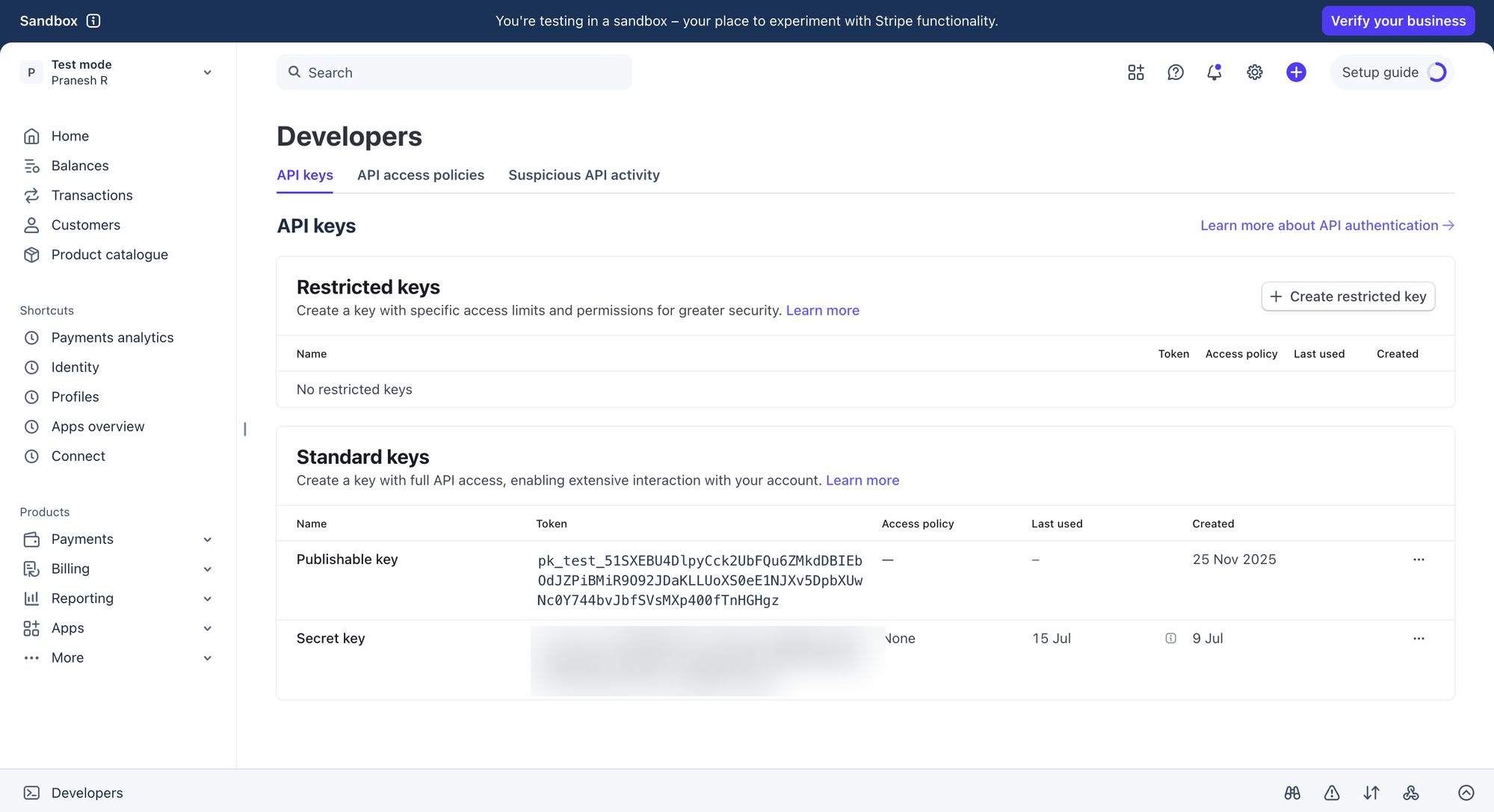
Sign in to the Stripe Dashboard and confirm the environment switcher in the top-left corner shows the sandbox or live account you want keys for.
-
Go to Developers → API keys.
-
Under Standard keys, click the Secret key row and reveal or copy its value.
-
-
Add a connected account in Scalekit
Connected accounts link a specific user identifier in your system to a Stripe Secret Key. Add one via the dashboard for testing, or via the Scalekit API in production. Use the Secret Key from step 2 as the
tokencredential field — see Set your credentials above for the request shape.
-
Authorize a user and make your first call
quickstart.mts import { ScalekitClient } from '@scalekit-sdk/node'import 'dotenv/config'import { createInterface } from 'node:readline/promises'const scalekit = new ScalekitClient(process.env.SCALEKIT_ENVIRONMENT_URL,process.env.SCALEKIT_CLIENT_ID,process.env.SCALEKIT_CLIENT_SECRET,)const actions = scalekit.actionsconst connector = 'stripe'const identifier = 'user_123'// Generate an authorization link for the userconst { link } = await actions.getAuthorizationLink({ connectionName: connector, identifier })console.log('Authorize Stripe:', link)const rl = createInterface({ input: process.stdin, output: process.stdout })await rl.question('Press Enter after authorizing...')rl.close()// Make your first callconst result = await actions.executeTool({connector,identifier,toolName: 'stripe_create_invoice_preview_dahlia',toolInput: {},})console.log(result)Terminal window npx tsx quickstart.mtsquickstart.py import osfrom scalekit import ScalekitClientfrom dotenv import load_dotenvload_dotenv()scalekit_client = ScalekitClient(env_url=os.getenv("SCALEKIT_ENVIRONMENT_URL"),client_id=os.getenv("SCALEKIT_CLIENT_ID"),client_secret=os.getenv("SCALEKIT_CLIENT_SECRET"),)actions = scalekit_client.actionsconnection_name = "stripe"identifier = "user_123"# Generate an authorization link for the userlink_response = actions.get_authorization_link(connection_name=connection_name,identifier=identifier,)print("Authorize Stripe:", link_response.link)input("Press Enter after authorizing...")# Make your first callresult = actions.execute_tool(tool_input={},tool_name="stripe_create_invoice_preview_dahlia",connection_name=connection_name,identifier=identifier,)print(result)Terminal window python quickstart.pyEach user opens the link once and enters their Stripe credentials there. If your app already has a user's credentials, add the account from your backend instead, as the console steps above show. See Authorize a user for the full flow and statuses.
Tools
Pass the exact name toexecute_toolstripe_create_invoice_preview_dahliaPreviews the upcoming invoice for a customer or subscription without creating it, showing pending charges, renewal amounts, invoice item charges, and any applicable discounts or prorations.Read-onlyCreate Invoice Preview
Previews the upcoming invoice for a customer or subscription without creating it, showing pending charges, renewal amounts, invoice item charges, and any applicable discounts or prorations.
Inputs
currencystring- The currency to preview this invoice in. Defaults to the customer's currency if not specified.
customerstring- The ID of the customer whose upcoming invoice you're previewing.
expandarray- List of fields to expand in the response.
invoice_itemsarray- List of ad-hoc invoice items to add to the preview (up to 250).
preview_modestring- Whether to preview only the next invoice, or a full recurring schedule. Defaults to 'next'.one of
nextrecurring subscriptionstring- The ID of the subscription to preview, e.g. to preview the effect of a plan change.
subscription_detailsobject- Overrides used to preview a subscription update, such as new items or a proration date.
stripe_get_account_dahliaRetrieve the details of the current Stripe account.Read-onlyGet Account
Retrieve the details of the current Stripe account.
Inputs
This tool takes no inputs.
stripe_get_account_person_dahliaRetrieves an existing person associated with a connected account's legal entity.Read-onlyGet Account Person
Retrieves an existing person associated with a connected account's legal entity.
Inputs
accountstringrequired- The ID of the connected account.
personstringrequired- The ID of the person to retrieve.
expandarray- List of fields to expand in the response.
stripe_get_balance_dahliaRetrieve the current balance of the Stripe account, showing available and pending amounts by currency.Read-onlyGet Balance
Retrieve the current balance of the Stripe account, showing available and pending amounts by currency.
Inputs
This tool takes no inputs.
stripe_get_balance_transaction_dahliaRetrieve a balance transaction by ID.Read-onlyGet Balance Transaction
Retrieve a balance transaction by ID. Balance transactions represent funds moving through the Stripe account.
Inputs
idstringrequired- The ID of the balance transaction to retrieve.
stripe_get_charge_dahliaRetrieves the details of a charge that has previously been created.Read-onlyGet Charge
Retrieves the details of a charge that has previously been created. Supply the unique charge ID that was returned from your previous request, and Stripe will return the corresponding charge information.
Inputs
charge_idstringrequired- The ID of the charge to retrieve.
expandarray- List of fields to expand in the response.
stripe_get_checkout_session_dahliaRetrieve a Checkout Session by ID.Read-onlyGet Checkout Session
Retrieve a Checkout Session by ID.
Inputs
sessionstringrequired- The ID of the Checkout Session to retrieve.
stripe_get_checkout_session_line_items_dahliaRetrieves the full, paginated list of line items for a Checkout Session.Read-onlyGet Checkout Session Line Items
Retrieves the full, paginated list of line items for a Checkout Session.
Inputs
session_idstringrequired- The ID of the Checkout Session.
ending_beforestring- Line item ID to end pagination before.
expandarray- List of fields to expand in the response.
limitinteger- Number of line items to return (1-100, default 10).
starting_afterstring- Line item ID to start pagination after.
stripe_get_connected_account_dahliaRetrieves the details of a connected account by ID.Read-onlyGet Connected Account
Retrieves the details of a connected account by ID. Use this to check onboarding status, requirements, and capabilities for a specific Connect account, as opposed to the platform's own account.
Inputs
accountstringrequired- The ID of the connected account to retrieve.
expandarray- List of fields to expand in the response.
stripe_get_coupon_dahliaRetrieve a coupon by its ID.Read-onlyGet Coupon
Retrieve a coupon by its ID.
Inputs
couponstringrequired- The ID of the coupon to retrieve.
stripe_get_customer_dahliaRetrieves the details of an existing customer.Read-onlyGet Customer
Retrieves the details of an existing customer. You need only supply the unique customer identifier that was returned upon customer creation.
Inputs
customer_idstringrequired- The ID of the customer to retrieve
expandarray- List of fields to expand in the response.
stripe_get_customer_payment_method_dahliaRetrieves a specific PaymentMethod that is attached to a given customer.Read-onlyGet Customer Payment Method
Retrieves a specific PaymentMethod that is attached to a given customer.
Inputs
customer_idstringrequired- The ID of the customer the payment method is attached to.
payment_method_idstringrequired- The ID of the payment method to retrieve.
expandarray- List of fields to expand in the response.
stripe_get_customer_tax_id_dahliaRetrieves the tax ID object with the given identifier for a customer.Read-onlyGet Customer Tax ID
Retrieves the tax ID object with the given identifier for a customer.
Inputs
customer_idstringrequired- The ID of the customer the tax ID belongs to.
tax_idstringrequired- The ID of the tax ID object to retrieve.
expandarray- List of fields to expand in the response.
stripe_get_dispute_dahliaRetrieve a dispute by ID.Read-onlyGet Dispute
Retrieve a dispute by ID. A dispute occurs when a customer questions a charge with their card issuer.
Inputs
disputestringrequired- The ID of the dispute to retrieve.
stripe_get_event_dahliaRetrieve an event by ID.Read-onlyGet Event
Retrieve an event by ID. Events are Stripe's way of notifying your application about changes.
Inputs
idstringrequired- The ID of the event to retrieve.
stripe_get_invoice_dahliaRetrieves the invoice with the given ID.Read-onlyGet Invoice
Retrieves the invoice with the given ID. Supply the unique invoice identifier that was returned from your previous request, and Stripe will return the corresponding invoice information.
Inputs
invoice_idstringrequired- The ID of the invoice to retrieve
expandarray- List of fields to expand in the response.
stripe_get_invoice_item_dahliaRetrieves the invoice item with the given ID.Read-onlyGet Invoice Item
Retrieves the invoice item with the given ID. Supply the unique invoice item identifier and Stripe will return the corresponding invoice item information.
Inputs
invoice_item_idstringrequired- The ID of the invoice item to retrieve
expandarray- List of fields to expand in the response.
stripe_get_payment_intent_dahliaRetrieves the details of a PaymentIntent that was previously created.Read-onlyGet Payment Intent
Retrieves the details of a PaymentIntent that was previously created. Supply the unique PaymentIntent ID and Stripe will return the corresponding PaymentIntent information.
Inputs
payment_intent_idstringrequired- The ID of the PaymentIntent to retrieve.
expandarray- List of fields to expand in the response.
stripe_get_payment_method_dahliaRetrieve a PaymentMethod object.Read-onlyGet Payment Method
Retrieve a PaymentMethod object.
Inputs
idstringrequired- The ID of the PaymentMethod to retrieve.
stripe_get_payout_dahliaRetrieve a payout by ID.Read-onlyGet Payout
Retrieve a payout by ID.
Inputs
payoutstringrequired- The ID of the payout to retrieve.
stripe_get_plan_dahliaRetrieve a Plan by ID.Read-onlyGet Plan
Retrieve a Plan by ID.
Inputs
planstringrequired- The ID of the plan to retrieve.
stripe_get_price_dahliaRetrieves the price with the given ID.Read-onlyGet Price
Retrieves the price with the given ID.
Inputs
price_idstringrequired- The ID of the price to retrieve.
expandarray- List of fields to expand in the response.
stripe_get_product_dahliaRetrieves the details of an existing product.Read-onlyGet Product
Retrieves the details of an existing product. Supply the unique product ID from either a product creation request or the product list, and Stripe will return the corresponding product information.
Inputs
product_idstringrequired- The ID of the product to retrieve
expandarray- List of fields to expand in the response.
stripe_get_promotion_code_dahliaRetrieve a promotion code by ID.Read-onlyGet Promotion Code
Retrieve a promotion code by ID.
Inputs
promotion_codestringrequired- The ID of the promotion code to retrieve.
stripe_get_quote_dahliaRetrieve a Quote by ID.Read-onlyGet Quote
Retrieve a Quote by ID.
Inputs
quotestringrequired- The ID of the quote to retrieve.
stripe_get_refund_dahliaRetrieve the details of an existing refund.Read-onlyGet Refund
Retrieve the details of an existing refund.
Inputs
idstringrequired- The ID of the refund to retrieve.
stripe_get_setup_intent_dahliaRetrieve a SetupIntent by ID.Read-onlyGet Setup Intent
Retrieve a SetupIntent by ID.
Inputs
setup_intent_idstringrequired- The ID of the SetupIntent to retrieve.
stripe_get_subscription_dahliaRetrieves the subscription with the given ID.Read-onlyGet Subscription
Retrieves the subscription with the given ID. Supply the unique subscription identifier that was returned from your previous request, and Stripe will return the corresponding subscription information.
Inputs
subscription_idstringrequired- The ID of the subscription to retrieve
expandarray- List of fields to expand in the response.
stripe_get_subscription_item_dahliaRetrieves the subscription item with the given ID.Read-onlyGet Subscription Item
Retrieves the subscription item with the given ID. Supply the unique subscription item identifier and Stripe will return the corresponding subscription item information.
Inputs
subscription_item_idstringrequired- The ID of the subscription item to retrieve
expandarray- List of fields to expand in the response.
stripe_get_subscription_scheduleRetrieves the subscription schedule with the given ID.Read-onlyGet Subscription Schedule
Retrieves the subscription schedule with the given ID.
Inputs
subscription_schedule_idstringrequired- The ID of the subscription schedule to retrieve.
expandarray- List of fields to expand in the response.
stripe_get_tax_rate_dahliaRetrieve a tax rate by ID.Read-onlyGet Tax Rate
Retrieve a tax rate by ID.
Inputs
tax_ratestringrequired- The ID of the tax rate to retrieve.
stripe_get_transfer_dahliaRetrieve a transfer by ID.Read-onlyGet Transfer
Retrieve a transfer by ID.
Inputs
transferstringrequired- The ID of the transfer to retrieve.
stripe_get_transfer_reversal_dahliaRetrieves the details of a specific reversal stored on a transfer.Read-onlyGet Transfer Reversal
Retrieves the details of a specific reversal stored on a transfer. By default only the 10 most recent reversals are stored directly on the transfer object; use this to retrieve any reversal by ID.
Inputs
reversal_idstringrequired- The ID of the reversal to retrieve.
transfer_idstringrequired- The ID of the transfer the reversal belongs to.
expandarray- List of fields to expand in the response.
stripe_get_webhook_endpoint_dahliaRetrieve a webhook endpoint by ID.Read-onlyGet Webhook Endpoint
Retrieve a webhook endpoint by ID.
Inputs
webhook_endpointstringrequired- The ID of the webhook endpoint to retrieve.
stripe_list_account_capabilities_dahliaReturns a list of capabilities (such as card_payments or transfers) associated with a connected account, along with each capability's current status.Read-onlyList Account Capabilities
Returns a list of capabilities (such as card_payments or transfers) associated with a connected account, along with each capability's current status.
Inputs
accountstringrequired- The ID of the connected account.
expandarray- List of fields to expand in the response.
stripe_list_account_external_accounts_dahliaLists the external accounts (bank accounts and cards) attached to a connected account for receiving payouts.Read-onlyList Account External Accounts
Lists the external accounts (bank accounts and cards) attached to a connected account for receiving payouts.
Inputs
accountstringrequired- The ID of the connected account.
ending_beforestring- External account ID to end pagination before.
expandarray- List of fields to expand in the response.
limitinteger- Number of external accounts to return (1-100, default 10).
objectstring- Filter external accounts by object type.one of
bank_accountcard starting_afterstring- External account ID to start pagination after.
stripe_list_account_persons_dahliaReturns a list of people associated with a connected account's legal entity, sorted by creation date with the most recent first.Read-onlyList Account Persons
Returns a list of people associated with a connected account's legal entity, sorted by creation date with the most recent first.
Inputs
accountstringrequired- The ID of the connected account.
ending_beforestring- Person ID to end pagination before.
expandarray- List of fields to expand in the response.
limitinteger- Number of persons to return (1-100, default 10).
relationshipobject- Filter people by their relationship to the account's company (e.g. representative, owner, director, executive).
starting_afterstring- Person ID to start pagination after.
stripe_list_accounts_dahliaList all connected accounts on your platform (Connect platforms only).Read-onlyList Accounts
List all connected accounts on your platform (Connect platforms only).
Inputs
ending_beforestring- Cursor for pagination: return results before this account ID.
limitinteger- Maximum number of accounts to return (1–100).
starting_afterstring- Cursor for pagination: return results after this account ID.
stripe_list_application_feesReturns a list of application fees previously collected on charges made for connected accounts via Stripe Connect, most recent first.Read-onlyList Application Fees
Returns a list of application fees previously collected on charges made for connected accounts via Stripe Connect, most recent first.
Inputs
chargestring- Only return application fees for the charge specified by this charge ID.
createdinteger- Filter by exact creation timestamp (Unix seconds). For a range filter, use created_gt/created_gte/created_lt/created_lte instead.
created_gtinteger- Filter by creation date, strictly after this Unix timestamp.
created_gteinteger- Filter by creation date, at or after this Unix timestamp.
created_ltinteger- Filter by creation date, strictly before this Unix timestamp.
created_lteinteger- Filter by creation date, at or before this Unix timestamp.
ending_beforestring- Application fee ID to end pagination before.
expandarray- List of fields to expand in the response.
limitinteger- Number of application fees to return (1-100, default 10).
starting_afterstring- Application fee ID to start pagination after.
stripe_list_balance_transactions_dahliaList all balance transactions, optionally filtered by currency, source, or type.Read-onlyList Balance Transactions
List all balance transactions, optionally filtered by currency, source, or type.
Inputs
currencystring- Filter by three-letter ISO currency code.
ending_beforestring- Balance transaction ID to end pagination before.
limitinteger- Number of transactions to return (1-100, default 10).
sourcestring- Filter by source object ID (charge or payout ID).
starting_afterstring- Balance transaction ID to start pagination after.
typestring- Filter by transaction type.one of
chargerefundadjustmentpayoutpayout_failurestripe_feenetwork_costpaymentpayment_refundtransfertransfer_canceltransfer_failure
stripe_list_billing_portal_configurations_dahliaReturns a list of configurations that describe the functionality of the customer self-service billing portal.Read-onlyList Billing Portal Configurations
Returns a list of configurations that describe the functionality of the customer self-service billing portal.
Inputs
activeboolean- Only return configurations that are active (true) or inactive (false).
ending_beforestring- Configuration ID to end pagination before.
expandarray- List of fields to expand in the response.
is_defaultboolean- Only return the default (true) or non-default (false) configuration.
limitinteger- Number of configurations to return (1-100, default 10).
starting_afterstring- Configuration ID to start pagination after.
stripe_list_charges_dahliaReturns a list of charges you've previously created.Read-onlyList Charges
Returns a list of charges you've previously created. The charges are returned in sorted order, with the most recent charges appearing first.
Inputs
createdinteger- Filter by exact creation timestamp (Unix seconds). For a range filter, use created_gt/created_gte/created_lt/created_lte instead.
created_gtinteger- Filter by creation date, strictly after this Unix timestamp.
created_gteinteger- Filter by creation date, at or after this Unix timestamp.
created_ltinteger- Filter by creation date, strictly before this Unix timestamp.
created_lteinteger- Filter by creation date, at or before this Unix timestamp.
customerstring- Filter charges by customer ID
ending_beforestring- Charge ID to end pagination before
limitinteger- Number of charges to return (1-100, default 10)
payment_intentstring- Filter charges by PaymentIntent ID
starting_afterstring- Charge ID to start pagination after
stripe_list_checkout_sessions_dahliaList all Checkout Sessions.Read-onlyList Checkout Sessions
List all Checkout Sessions.
Inputs
customerstring- Filter sessions by customer ID.
ending_beforestring- Cursor for pagination. Returns sessions before this ID.
limitinteger- Maximum number of sessions to return (1-100).
payment_intentstring- Filter sessions by payment intent ID.
starting_afterstring- Cursor for pagination. Returns sessions after this ID.
subscriptionstring- Filter sessions by subscription ID.
stripe_list_coupons_dahliaList all coupons.Read-onlyList Coupons
List all coupons.
Inputs
ending_beforestring- Cursor for pagination. Returns results before this coupon ID.
limitinteger- Maximum number of coupons to return (1–100).
starting_afterstring- Cursor for pagination. Returns results after this coupon ID.
stripe_list_credit_notesReturns a list of credit notes, with the most recent appearing first.Read-onlyList Credit Notes
Returns a list of credit notes, with the most recent appearing first.
Inputs
createdinteger- Filter by exact creation timestamp (Unix seconds). For a range filter, use created_gt/created_gte/created_lt/created_lte instead.
created_gtinteger- Filter by creation date, strictly after this Unix timestamp.
created_gteinteger- Filter by creation date, at or after this Unix timestamp.
created_ltinteger- Filter by creation date, strictly before this Unix timestamp.
created_lteinteger- Filter by creation date, at or before this Unix timestamp.
customerstring- Only return credit notes for the customer specified by this customer ID.
ending_beforestring- Credit note ID to end pagination before.
expandarray- List of fields to expand in the response.
invoicestring- Only return credit notes for the invoice specified by this invoice ID.
limitinteger- Number of credit notes to return (1-100, default 10).
starting_afterstring- Credit note ID to start pagination after.
stripe_list_customer_balance_transactions_dahliaReturns a list of transactions that have updated a customer's credit balance.Read-onlyList Customer Balance Transactions
Returns a list of transactions that have updated a customer's credit balance.
Inputs
customer_idstringrequired- The ID of the customer whose balance transactions you want to list.
ending_beforestring- Balance transaction ID to end pagination before.
expandarray- List of fields to expand in the response.
limitinteger- Number of balance transactions to return (1-100, default 10).
starting_afterstring- Balance transaction ID to start pagination after.
stripe_list_customer_payment_methods_dahliaList all PaymentMethods attached to a specific customer.Read-onlyList Customer Payment Methods
List all PaymentMethods attached to a specific customer.
Inputs
customerstringrequired- The ID of the customer whose payment methods to list.
ending_beforestring- Cursor for pagination — return results before this payment method ID.
limitinteger- Maximum number of payment methods to return.
starting_afterstring- Cursor for pagination — return results after this payment method ID.
typestring- Filter payment methods by type.one of
acss_debitaffirmafterpay_clearpayalipayau_becs_debitbacs_debitbancontactblikboletocardcashappcustomer_balanceepsfpxgiropaygrabpayidealklarnakonbinilinkmobilepayoxxop24paynowpaypalpixpromptpaysepa_debitsofortswishus_bank_accountwechat_payzip
stripe_list_customer_tax_ids_dahliaReturns a list of tax IDs registered for a customer.Read-onlyList Customer Tax IDs
Returns a list of tax IDs registered for a customer.
Inputs
customer_idstringrequired- The ID of the customer whose tax IDs you want to list.
ending_beforestring- Tax ID to end pagination before.
expandarray- List of fields to expand in the response.
limitinteger- Number of tax IDs to return (1-100, default 10).
starting_afterstring- Tax ID to start pagination after.
stripe_list_customers_dahliaReturns a list of your customers.Read-onlyList Customers
Returns a list of your customers. The customers are returned sorted by creation date, with the most recent customers appearing first. Supports filtering by email and pagination for large customer lists.
Inputs
createdinteger- Filter by exact creation timestamp (Unix seconds). For a range filter, use created_gt/created_gte/created_lt/created_lte instead.
created_gtinteger- Filter by creation date, strictly after this Unix timestamp.
created_gteinteger- Filter by creation date, at or after this Unix timestamp.
created_ltinteger- Filter by creation date, strictly before this Unix timestamp.
created_lteinteger- Filter by creation date, at or before this Unix timestamp.
emailstring- Filter customers by exact email address
ending_beforestring- Customer ID to end pagination before
expandarray- List of fields to expand in the response.
limitinteger- Number of customers to return (1-100, default 10)
starting_afterstring- Customer ID to start pagination after
stripe_list_disputes_dahliaList all disputes, optionally filtered by charge or payment intent.Read-onlyList Disputes
List all disputes, optionally filtered by charge or payment intent.
Inputs
chargestring- Filter disputes by charge ID.
ending_beforestring- Cursor for pagination: return disputes before this dispute ID.
limitinteger- Maximum number of disputes to return (1-100).
payment_intentstring- Filter disputes by payment intent ID.
starting_afterstring- Cursor for pagination: return disputes after this dispute ID.
stripe_list_events_dahliaList all events.Read-onlyList Events
List all events. Events represent noteworthy activity on your Stripe account.
Inputs
ending_beforestring- Cursor for pagination: return events before this event ID.
limitinteger- Maximum number of events to return (1-100).
starting_afterstring- Cursor for pagination: return events after this event ID.
typestring- Filter events by type, e.g. payment_intent.created.
stripe_list_invoice_items_dahliaReturns a list of your invoice items.Read-onlyList Invoice Items
Returns a list of your invoice items. Invoice items are returned sorted by creation date, with the most recent invoice items appearing first.
Inputs
createdinteger- Filter by exact creation timestamp (Unix seconds). For a range filter, use created_gt/created_gte/created_lt/created_lte instead.
created_gtinteger- Filter by creation date, strictly after this Unix timestamp.
created_gteinteger- Filter by creation date, at or after this Unix timestamp.
created_ltinteger- Filter by creation date, strictly before this Unix timestamp.
created_lteinteger- Filter by creation date, at or before this Unix timestamp.
customerstring- Filter invoice items by customer ID
ending_beforestring- Invoice item ID to end pagination before
expandarray- List of fields to expand in the response.
invoicestring- Filter invoice items by invoice ID
limitinteger- Number of invoice items to return (1-100, default 10)
pendingboolean- Filter by pending status
starting_afterstring- Invoice item ID to start pagination after
stripe_list_invoice_line_items_dahliaWhen retrieving an invoice, you'll get a lines property containing the total count of line items and the first handful of those items.Read-onlyList Invoice Line Items
When retrieving an invoice, you'll get a lines property containing the total count of line items and the first handful of those items. There is also a URL where you can retrieve the full (paginated) list of line items.
Inputs
invoice_idstringrequired- The ID of the invoice to list line items for
ending_beforestring- Line item ID to end pagination before
expandarray- List of fields to expand in the response.
limitinteger- Number of line items to return (1-100, default 10)
starting_afterstring- Line item ID to start pagination after
stripe_list_invoices_dahliaReturns a list of your invoices.Read-onlyList Invoices
Returns a list of your invoices. The invoices are returned sorted by creation date, with the most recent invoices appearing first.
Inputs
collection_methodstring- Filter invoices by collection methodone of
charge_automaticallysend_invoice createdinteger- Filter by exact creation timestamp (Unix seconds). For a range filter, use created_gt/created_gte/created_lt/created_lte instead.
created_gtinteger- Filter by creation date, strictly after this Unix timestamp.
created_gteinteger- Filter by creation date, at or after this Unix timestamp.
created_ltinteger- Filter by creation date, strictly before this Unix timestamp.
created_lteinteger- Filter by creation date, at or before this Unix timestamp.
customerstring- Filter invoices by customer ID
ending_beforestring- Invoice ID to end pagination before
expandarray- List of fields to expand in the response.
limitinteger- Number of invoices to return (1-100, default 10)
starting_afterstring- Invoice ID to start pagination after
statusstring- Filter invoices by statusone of
draftopenpaiduncollectiblevoid subscriptionstring- Filter invoices by subscription ID
stripe_list_payment_intents_dahliaReturns a list of PaymentIntents.Read-onlyList Payment Intents
Returns a list of PaymentIntents. The PaymentIntents are returned sorted by creation date, with the most recent PaymentIntents appearing first.
Inputs
createdinteger- Filter by exact creation timestamp (Unix seconds). For a range filter, use created_gt/created_gte/created_lt/created_lte instead.
created_gtinteger- Filter by creation date, strictly after this Unix timestamp.
created_gteinteger- Filter by creation date, at or after this Unix timestamp.
created_ltinteger- Filter by creation date, strictly before this Unix timestamp.
created_lteinteger- Filter by creation date, at or before this Unix timestamp.
customerstring- Filter PaymentIntents by customer ID
ending_beforestring- PaymentIntent ID to end pagination before
limitinteger- Number of results to return (1-100, default 10)
starting_afterstring- PaymentIntent ID to start pagination after
stripe_list_payment_methods_dahliaList PaymentMethods for a customer.Read-onlyList Payment Methods
List PaymentMethods for a customer.
Inputs
customerstring- The ID of the customer whose payment methods to list.
ending_beforestring- Cursor for pagination; returns results before this PaymentMethod ID.
limitinteger- Number of results to return (1–100).
starting_afterstring- Cursor for pagination; returns results after this PaymentMethod ID.
typestring- Filter by payment method type.one of
acss_debitaffirmafterpay_clearpayalipayau_becs_debitbacs_debitbancontactblikboletocardcashappcustomer_balanceepsfpxgiropaygrabpayidealklarnakonbinilinkoxxop24paynowpaypalpixpromptpayrevolut_paysepa_debitsofortswishus_bank_accountwechat_payzip
stripe_list_payouts_dahliaList all payouts, with optional filters by status and arrival date.Read-onlyList Payouts
List all payouts, with optional filters by status and arrival date.
Inputs
arrival_dateinteger- Filter by arrival date (Unix timestamp).
destinationstring- Filter by destination bank account or card ID.
ending_beforestring- Payout ID to end pagination before.
limitinteger- Number of payouts to return (1-100, default 10).
starting_afterstring- Payout ID to start pagination after.
statusstring- Filter by payout status.one of
paidpendingin_transitcanceledfailed
stripe_list_plans_dahliaList all Plans.Read-onlyList Plans
List all Plans.
Inputs
activeboolean- Filter plans by active status. Pass true to list only active plans.
ending_beforestring- Cursor for pagination: return results before this plan ID.
limitinteger- Maximum number of plans to return (1–100).
productstring- Filter plans by product ID.
starting_afterstring- Cursor for pagination: return results after this plan ID.
stripe_list_prices_dahliaReturns a list of your active prices, excluding inline prices.Read-onlyList Prices
Returns a list of your active prices, excluding inline prices. For the list of inactive prices, set active to false.
Inputs
activeboolean- Only return prices that are active or inactive.
currencystring- Only return prices for the given currency.
ending_beforestring- Price ID to end pagination before
limitinteger- Number of prices to return (1-100, default 10)
productstring- Only return prices for the given product.
starting_afterstring- Price ID to start pagination after
typestring- Only return prices of this type.one of
one_timerecurring
stripe_list_products_dahliaReturns a list of your products.Read-onlyList Products
Returns a list of your products. The products are returned sorted by creation date, with the most recent products appearing first.
Inputs
activeboolean- Filter products by active status
createdinteger- Filter by exact creation timestamp (Unix seconds). For a range filter, use created_gt/created_gte/created_lt/created_lte instead.
created_gtinteger- Filter by creation date, strictly after this Unix timestamp.
created_gteinteger- Filter by creation date, at or after this Unix timestamp.
created_ltinteger- Filter by creation date, strictly before this Unix timestamp.
created_lteinteger- Filter by creation date, at or before this Unix timestamp.
ending_beforestring- Product ID to end pagination before
expandarray- List of fields to expand in the response.
limitinteger- Number of products to return (1-100, default 10)
shippableboolean- Filter products by shippable status
starting_afterstring- Product ID to start pagination after
typestring- Filter products by typeone of
goodservice urlstring- Filter products by URL
stripe_list_promotion_codes_dahliaList all promotion codes.Read-onlyList Promotion Codes
List all promotion codes.
Inputs
activeboolean- Filter by active status. True returns only active codes, false returns only inactive.
codestring- Filter by the exact customer-facing code string.
couponstring- Filter by the coupon ID the promotion codes belong to.
customerstring- Filter by the customer ID the promotion codes are restricted to.
ending_beforestring- Cursor for reverse pagination. Returns results before this promotion code ID.
limitinteger- Maximum number of promotion codes to return (1–100).
starting_afterstring- Cursor for forward pagination. Returns results after this promotion code ID.
stripe_list_quotes_dahliaList all Quotes.Read-onlyList Quotes
List all Quotes.
Inputs
customerstring- Filter quotes by customer ID.
ending_beforestring- Cursor for pagination — return results before this quote ID.
limitinteger- Maximum number of quotes to return.
starting_afterstring- Cursor for pagination — return results after this quote ID.
statusstring- Filter quotes by status.one of
draftopenacceptedcanceled
stripe_list_refunds_dahliaList all refunds, optionally filtered by charge or payment intent.Read-onlyList Refunds
List all refunds, optionally filtered by charge or payment intent.
Inputs
chargestring- Filter refunds by the charge ID.
ending_beforestring- A cursor for pagination. Returns objects before this refund ID.
limitinteger- A limit on the number of objects to be returned, between 1 and 100.
payment_intentstring- Filter refunds by the PaymentIntent ID.
starting_afterstring- A cursor for pagination. Returns objects after this refund ID.
stripe_list_setup_intents_dahliaList all SetupIntents.Read-onlyList Setup Intents
List all SetupIntents.
Inputs
customerstring- Filter by customer ID.
ending_beforestring- A cursor for pagination. Returns objects before this ID.
limitinteger- Maximum number of objects to return (1–100).
payment_methodstring- Filter by payment method ID.
starting_afterstring- A cursor for pagination. Returns objects after this ID.
stripe_list_subscription_items_dahliaReturns a list of subscription items for a given subscription.Read-onlyList Subscription Items
Returns a list of subscription items for a given subscription. Subscription items represent the component lines of a subscription.
Inputs
subscriptionstringrequired- The ID of the subscription to list items for
ending_beforestring- Subscription item ID to end pagination before
expandarray- List of fields to expand in the response.
limitinteger- Number of subscription items to return (1-100, default 10)
starting_afterstring- Subscription item ID to start pagination after
stripe_list_subscription_schedulesRetrieves the list of your subscription schedules, sorted by creation date with the most recent first.Read-onlyList Subscription Schedules
Retrieves the list of your subscription schedules, sorted by creation date with the most recent first.
Inputs
createdinteger- Filter by exact creation timestamp (Unix seconds). For a range filter, use created_gt/created_gte/created_lt/created_lte instead.
created_gtinteger- Filter by creation date, strictly after this Unix timestamp.
created_gteinteger- Filter by creation date, at or after this Unix timestamp.
created_ltinteger- Filter by creation date, strictly before this Unix timestamp.
created_lteinteger- Filter by creation date, at or before this Unix timestamp.
customerstring- Only return subscription schedules for the given customer.
ending_beforestring- Subscription schedule ID to end pagination before.
expandarray- List of fields to expand in the response.
limitinteger- Number of subscription schedules to return (1-100, default 10).
scheduledboolean- Only return subscription schedules that have not started yet.
starting_afterstring- Subscription schedule ID to start pagination after.
stripe_list_subscriptions_dahliaReturns a list of your subscriptions.Read-onlyList Subscriptions
Returns a list of your subscriptions. The subscriptions are returned sorted by creation date, with the most recent subscriptions appearing first.
Inputs
createdinteger- Filter by exact creation timestamp (Unix seconds). For a range filter, use created_gt/created_gte/created_lt/created_lte instead.
created_gtinteger- Filter by creation date, strictly after this Unix timestamp.
created_gteinteger- Filter by creation date, at or after this Unix timestamp.
created_ltinteger- Filter by creation date, strictly before this Unix timestamp.
created_lteinteger- Filter by creation date, at or before this Unix timestamp.
customerstring- Filter subscriptions by customer ID
ending_beforestring- Subscription ID to end pagination before
expandarray- List of fields to expand in the response.
limitinteger- Number of subscriptions to return (1-100, default 10)
pricestring- Filter subscriptions by price ID
starting_afterstring- Subscription ID to start pagination after
statusstring- Filter subscriptions by statusone of
activecanceledincompleteincomplete_expiredpast_duetrialingunpaid
stripe_list_tax_rates_dahliaList all tax rates.Read-onlyList Tax Rates
List all tax rates.
Inputs
activeboolean- Filter to only return active or inactive tax rates.
ending_beforestring- A cursor for pagination. Returns objects before this ID.
inclusiveboolean- Filter to return only inclusive or exclusive tax rates.
limitinteger- Maximum number of objects to return (1–100).
starting_afterstring- A cursor for pagination. Returns objects after this ID.
stripe_list_transfer_reversals_dahliaLists the reversals belonging to a specific transfer.Read-onlyList Transfer Reversals
Lists the reversals belonging to a specific transfer. The 10 most recent reversals are always available directly on the transfer object; use this to page through additional ones.
Inputs
transfer_idstringrequired- The ID of the transfer whose reversals you want to list.
ending_beforestring- Reversal ID to end pagination before.
expandarray- List of fields to expand in the response.
limitinteger- Number of reversals to return (1-100, default 10).
starting_afterstring- Reversal ID to start pagination after.
stripe_list_transfers_dahliaList all transfers to connected accounts.Read-onlyList Transfers
List all transfers to connected accounts.
Inputs
destinationstring- Filter transfers by the connected account ID they were sent to.
ending_beforestring- Cursor for pagination: return results before this transfer ID.
limitinteger- Maximum number of transfers to return (1–100).
starting_afterstring- Cursor for pagination: return results after this transfer ID.
stripe_list_webhook_endpoints_dahliaList all webhook endpoints.Read-onlyList Webhook Endpoints
List all webhook endpoints.
Inputs
ending_beforestring- Cursor for pagination: return endpoints before this webhook endpoint ID.
limitinteger- Maximum number of webhook endpoints to return (1-100).
starting_afterstring- Cursor for pagination: return endpoints after this webhook endpoint ID.
stripe_search_charges_dahliaSearch for charges using Stripe's Search Query Language.Read-onlySearch Charges
Search for charges using Stripe's Search Query Language. Data is typically searchable within a minute of being written; do not use this in read-after-write flows requiring strict consistency.
Inputs
querystringrequired- The search query string using Stripe's Search Query Language.
limitinteger- Number of results to return (1-100, default 10).
pagestring- Cursor for pagination across multiple pages of search results.
stripe_search_customers_dahliaSearch for customers using Stripe's Search Query Language.Read-onlySearch Customers
Search for customers using Stripe's Search Query Language. Data is typically searchable within a minute of being written; do not use this in read-after-write flows requiring strict consistency.
Inputs
querystringrequired- The search query string using Stripe's Search Query Language.
limitinteger- Number of results to return (1-100, default 10).
pagestring- Cursor for pagination across multiple pages of search results.
stripe_search_invoices_dahliaSearch for invoices using Stripe's Search Query Language.Read-onlySearch Invoices
Search for invoices using Stripe's Search Query Language. Data is typically searchable within a minute of being written; do not use this in read-after-write flows requiring strict consistency.
Inputs
querystringrequired- The search query string using Stripe's Search Query Language.
limitinteger- Number of results to return (1-100, default 10).
pagestring- Cursor for pagination across multiple pages of search results.
stripe_search_payment_intents_dahliaSearch for payment intents using Stripe's Search Query Language.Read-onlySearch Payment Intents
Search for payment intents using Stripe's Search Query Language. Data is typically searchable within a minute of being written; do not use this in read-after-write flows requiring strict consistency.
Inputs
querystringrequired- The search query string using Stripe's Search Query Language.
limitinteger- Number of results to return (1-100, default 10).
pagestring- Cursor for pagination across multiple pages of search results.
stripe_search_prices_dahliaSearch for prices using Stripe's Search Query Language.Read-onlySearch Prices
Search for prices using Stripe's Search Query Language. Data is typically searchable within a minute of being written; do not use this in read-after-write flows requiring strict consistency.
Inputs
querystringrequired- The search query string using Stripe's Search Query Language.
limitinteger- Number of results to return (1-100, default 10).
pagestring- Cursor for pagination across multiple pages of search results.
stripe_search_products_dahliaSearch for products using Stripe's Search Query Language.Read-onlySearch Products
Search for products using Stripe's Search Query Language. Data is typically searchable within a minute of being written; do not use this in read-after-write flows requiring strict consistency.
Inputs
querystringrequired- The search query string using Stripe's Search Query Language.
limitinteger- Number of results to return (1-100, default 10).
pagestring- Cursor for pagination across multiple pages of search results.
stripe_search_subscriptions_dahliaSearch for subscriptions using Stripe's Search Query Language.Read-onlySearch Subscriptions
Search for subscriptions using Stripe's Search Query Language. Data is typically searchable within a minute of being written; do not use this in read-after-write flows requiring strict consistency.
Inputs
querystringrequired- The search query string using Stripe's Search Query Language.
limitinteger- Number of results to return (1-100, default 10).
pagestring- Cursor for pagination across multiple pages of search results.
stripe_accept_quote_dahliaAccept a finalized Quote.WriteAccept Quote
Accept a finalized Quote. Converts it into a subscription or invoice.
Inputs
quotestringrequired- The ID of the quote to accept.
stripe_attach_invoice_payment_dahliaAttaches a PaymentIntent to an invoice, crediting the invoice's amount_paid when the PaymentIntent succeeds.WriteAttach Payment To Invoice
Attaches a PaymentIntent to an invoice, crediting the invoice's amount_paid when the PaymentIntent succeeds. Use this to record an out-of-band or externally-processed payment against an invoice.
Inputs
invoice_idstringrequired- The ID of the invoice to attach the payment to.
expandarray- List of fields to expand in the response.
payment_intentstring- The ID of the PaymentIntent to attach to the invoice.
stripe_attach_payment_method_dahliaAttach a PaymentMethod to a Customer.WriteAttach Payment Method
Attach a PaymentMethod to a Customer.
Inputs
customerstringrequired- The ID of the customer to attach the PaymentMethod to.
idstringrequired- The ID of the PaymentMethod to attach.
stripe_cancel_payout_dahliaCancel a payout that has not yet been paid out.WriteCancel Payout
Cancel a payout that has not yet been paid out. Only cancels payouts with status 'pending'.
Inputs
payoutstringrequired- The ID of the payout to cancel.
stripe_cancel_quote_dahliaCancel a Quote that has been finalized but not yet accepted.WriteCancel Quote
Cancel a Quote that has been finalized but not yet accepted.
Inputs
quotestringrequired- The ID of the quote to cancel.
stripe_cancel_refund_dahliaCancels a refund that has a status of requires_action.WriteCancel Refund
Cancels a refund that has a status of requires_action. Only refunds for payment methods that require customer action can enter that state; refunds in other states cannot be canceled.
Inputs
refund_idstringrequired- The ID of the refund to cancel.
expandarray- List of fields to expand in the response.
stripe_capture_charge_dahliaCaptures the payment of an existing, uncaptured charge that was created with capture set to false.WriteCapture Charge
Captures the payment of an existing, uncaptured charge that was created with capture set to false. Uncaptured charges expire (7 days by default) after which capture attempts fail.
Inputs
charge_idstringrequired- The ID of the uncaptured charge to capture.
amountinteger- The amount to capture, which must be less than or equal to the original charge amount.
expandarray- List of fields to expand in the response.
receipt_emailstring- The email address to send the receipt to, overriding any previously-specified email.
statement_descriptorstring- Text that appears on the customer's statement as the statement descriptor for a non-card charge.
stripe_confirm_payment_intent_dahliaConfirm that your customer intends to pay with current or provided payment method.WriteConfirm Payment Intent
Confirm that your customer intends to pay with current or provided payment method. Upon confirmation, the PaymentIntent will attempt to initiate a payment. If the payment method requires action (3DS, redirect), the PaymentIntent will move to requires_action.
Inputs
payment_intent_idstringrequired- The ID of the PaymentIntent to confirm.
payment_methodstring- ID of the payment method to confirm with.
return_urlstring- The URL to redirect the customer to after payment completion.
stripe_confirm_setup_intent_dahliaConfirm a SetupIntent and attempt to collect a payment method for future use.WriteConfirm Setup Intent
Confirm a SetupIntent and attempt to collect a payment method for future use.
Inputs
setup_intent_idstringrequired- The ID of the SetupIntent to confirm.
payment_methodstring- ID of the payment method to attach to this SetupIntent.
return_urlstring- The URL to redirect to after the SetupIntent is confirmed.
stripe_create_account_dahliaCreates a new connected account for use with Stripe Connect.WriteCreate Account
Creates a new connected account for use with Stripe Connect. Platforms use this to onboard sellers, service providers, or other businesses to accept payments and receive payouts.
Inputs
business_profileobject- Business information shown to customers, such as the business's URL and MCC.
business_typestring- The business type: individual, company, government_entity, or non_profit.one of
individualcompanygovernment_entitynon_profit capabilitiesobject- Capabilities to request for the account, e.g. card_payments and transfers.
companyobject- Information about the company, used when business_type is 'company'.
controllerobject- Configuration describing who is responsible for pricing, fee collection, and dashboard access on this account.
countrystring- Two-letter country code for the account holder's country.
default_currencystring- Three-letter ISO currency code representing the default currency for the account.
emailstring- The email address of the account holder.
expandarray- List of fields to expand in the response.
individualobject- Information about the individual represented by the account, used when business_type is 'individual'.
metadataobject- Set of key-value pairs to attach to the account.
tos_acceptanceobject- Details on the account's acceptance of the Stripe Services Agreement.
stripe_create_account_external_account_dahliaAdds an external account (a bank account or debit card) to a connected account for receiving payouts.WriteCreate Account External Account
Adds an external account (a bank account or debit card) to a connected account for receiving payouts.
Inputs
accountstringrequired- The ID of the connected account.
external_accountstringrequired- A token (from Stripe.js) representing the bank account or card to attach, or a dictionary of external account details.
default_for_currencyboolean- Whether this external account should become the default for its currency.
expandarray- List of fields to expand in the response.
metadataobject- Set of key-value pairs to attach to the external account.
stripe_create_account_login_link_dahliaCreates a single-use login link for a connected account that uses the Express Dashboard, letting the account holder access their dashboard without a separate Stripe login.WriteCreate Account Login Link
Creates a single-use login link for a connected account that uses the Express Dashboard, letting the account holder access their dashboard without a separate Stripe login.
Inputs
accountstringrequired- The ID of the Express-dashboard connected account.
expandarray- List of fields to expand in the response.
stripe_create_account_person_dahliaCreates a new person associated with a connected account's legal entity, such as an owner, director, executive, or representative.WriteCreate Account Person
Creates a new person associated with a connected account's legal entity, such as an owner, director, executive, or representative.
Inputs
accountstringrequired- The ID of the connected account.
addressobject- The person's address.
dobobject- The person's date of birth.
emailstring- The person's email address.
expandarray- List of fields to expand in the response.
first_namestring- The person's first name.
last_namestring- The person's last name.
metadataobject- Set of key-value pairs to attach to the person.
phonestring- The person's phone number.
relationshipobject- The relationship that this person has with the account's legal entity (e.g. owner, director, representative).
ssn_last_4string- The last four digits of the person's Social Security number (U.S. only).
stripe_create_application_fee_refundRefunds an application fee previously collected via Stripe Connect but not yet fully refunded.WriteCreate Application Fee Refund
Refunds an application fee previously collected via Stripe Connect but not yet fully refunded. Funds are refunded to the Stripe account from which the fee was originally collected. Can be called multiple times to partially refund a fee until it is entirely refunded.
Inputs
application_fee_idstringrequired- The ID of the application fee to refund.
amountinteger- A positive integer, in the smallest currency unit, representing how much of this fee to refund. Can refund only up to the remaining unrefunded amount of the fee. Omit to refund the full remaining amount.
metadataobject- Set of key-value pairs to attach to the fee refund.
stripe_create_billing_meterCreates a billing meter that defines how to aggregate usage events for usage-based billing prices.WriteCreate Billing Meter
Creates a billing meter that defines how to aggregate usage events for usage-based billing prices.
Inputs
default_aggregationobjectrequired- The default settings used to aggregate this meter's events.
display_namestringrequired- The meter's name. Not visible to the customer. Max 250 characters.
event_namestringrequired- The name of the meter event to record usage for. Corresponds with the event_name field on meter events. Max 100 characters.
customer_mappingobject- Fields that specify how to map a meter event to a customer.
event_time_windowstring- The time window which meter events have been pre-aggregated for, if any.one of
dayhour value_settingsobject- Fields that specify how to calculate a meter event's value.
stripe_create_billing_meter_eventSubmits a usage event (e.g.WriteCreate Billing Meter Event
Submits a usage event (e.g. API calls, minutes used) against a billing meter to drive usage-based billing.
Inputs
event_namestringrequired- The name of the meter event. Must match the event_name configured on a billing meter. Max 100 characters.
payloadobjectrequired- The payload of the event. Must contain the fields corresponding to the meter's customer_mapping.event_payload_key (default 'stripe_customer_id') and value_settings.event_payload_key (default 'value').
identifierstring- A unique identifier for the event. If not provided, one is generated. Stripe enforces uniqueness within a rolling period of at least 24 hours. Max 100 characters.
timestampinteger- The time of the event, in Unix seconds. Must be within the past 35 calendar days or up to 5 minutes in the future. Defaults to the current time if not specified.
stripe_create_billing_portal_configuration_dahliaCreates a configuration that describes the functionality and behavior of the customer self-service billing portal, such as which features (subscription updates, cancellation, invoice history) are enabled.WriteCreate Billing Portal Configuration
Creates a configuration that describes the functionality and behavior of the customer self-service billing portal, such as which features (subscription updates, cancellation, invoice history) are enabled.
Inputs
featuresobjectrequired- Information about the features available in the portal, such as invoice_history, subscription_cancel, and payment_method_update.
business_profileobject- The business information shown to customers in the portal.
default_return_urlstring- The default URL to redirect customers to when they click the portal's return-to-site link.
expandarray- List of fields to expand in the response.
metadataobject- Set of key-value pairs to attach to the configuration.
stripe_create_charge_dahliaCreates a direct charge against a card or other payment source.WriteCreate Charge
Creates a direct charge against a card or other payment source. Stripe recommends using the Payment Intents API for new integrations; this legacy endpoint remains useful for simple, immediate card charges.
Inputs
amountintegerrequired- Amount to be collected, in the smallest currency unit (e.g. cents for USD).
currencystringrequired- Three-letter ISO currency code for the charge.
captureboolean- Whether to immediately capture the charge. Defaults to true; pass false to create an authorization only.
customerstring- The ID of an existing customer to charge.
descriptionstring- An arbitrary string attached to the charge, shown in the dashboard.
expandarray- List of fields to expand in the response.
metadataobject- Set of key-value pairs to attach to the charge.
receipt_emailstring- The email address to which the receipt for this charge will be sent.
stripe_create_checkout_session_dahliaCreate a Checkout Session to accept one-time or subscription payments via Stripe-hosted page.WriteCreate Checkout Session
Create a Checkout Session to accept one-time or subscription payments via Stripe-hosted page.
Inputs
modestringrequired- The mode of the Checkout Session.one of
paymentsetupsubscription success_urlstringrequired- The URL the customer will be redirected to after a successful payment.
cancel_urlstring- The URL the customer will be redirected to if they cancel the payment.
currencystring- Three-letter ISO currency code (e.g., usd, eur, gbp).
customerstring- ID of an existing Customer to associate with this session.
customer_emailstring- If provided, this value will be used when the customer has not provided an email address.
line_itemsarray- Array of line items for this Checkout Session. Each item is a JSON object with fields: price (Stripe Price ID) and quantity. Required for payment/subscription mode.
metadataobject- Set of key-value pairs to attach to the Checkout Session.
stripe_create_coupon_dahliaCreate a coupon that can be redeemed for a discount on subscriptions or one-time charges.WriteCreate Coupon
Create a coupon that can be redeemed for a discount on subscriptions or one-time charges.
Inputs
durationstringrequired- How long the discount will be in effect. 'once' applies to the first charge, 'repeating' applies for duration_in_months, 'forever' applies indefinitely.one of
foreveroncerepeating amount_offinteger- Fixed amount discount in the smallest currency unit (e.g. cents). Requires currency. Use this OR percent_off.
currencystring- Three-letter ISO currency code. Required when amount_off is set.
duration_in_monthsinteger- Number of months the discount applies when duration is repeating.
idstring- Unique identifier for the coupon. If not provided, Stripe generates a random ID.
max_redemptionsinteger- Maximum number of times this coupon can be redeemed in total.
metadataobject- Set of key-value pairs for storing additional information.
namestring- Name of the coupon displayed to customers.
percent_offnumber- Percentage discount to apply. Use this OR amount_off, not both.
redeem_byinteger- Unix timestamp after which the coupon can no longer be redeemed.
stripe_create_credit_noteIssues a credit note to adjust the amount of a finalized invoice (e.g.WriteCreate Credit Note
Issues a credit note to adjust the amount of a finalized invoice (e.g. to refund or credit a customer against that invoice). One of amount, lines, or shipping_cost must be provided.
Inputs
invoicestringrequired- The ID of the invoice to credit.
amountinteger- The integer amount in the smallest currency unit representing the total amount of the credit note. One of amount, lines, or shipping_cost must be provided.
credit_amountinteger- The integer amount in the smallest currency unit to credit to the customer's balance, automatically applied to their next invoice.
email_typestring- Type of email to send to the customer.one of
credit_notenone linesarray- Line items that make up the credit note. One of amount, lines, or shipping_cost must be provided.
memostring- The credit note's memo, which appears on the credit note PDF.
metadataobject- Set of key-value pairs to attach to the credit note.
out_of_band_amountinteger- The integer amount in the smallest currency unit that is or will be credited outside of Stripe.
reasonstring- Reason for issuing this credit note.one of
duplicatefraudulentorder_changeproduct_unsatisfactory refund_amountinteger- The integer amount in the smallest currency unit to refund. If set, a refund is created for the charge associated with the invoice.
stripe_create_customer_balance_transaction_dahliaCreates an immutable transaction that adjusts a customer's credit balance, which is automatically applied to the customer's next invoices.WriteCreate Customer Balance Transaction
Creates an immutable transaction that adjusts a customer's credit balance, which is automatically applied to the customer's next invoices.
Inputs
amountintegerrequired- The signed integer amount, in the smallest currency unit, to apply to the customer's credit balance. A negative amount is a credit; a positive amount is a debit.
currencystringrequired- Three-letter ISO currency code for the balance transaction.
customer_idstringrequired- The ID of the customer whose balance to adjust.
descriptionstring- An arbitrary string attached to the object, useful for displaying to users.
expandarray- List of fields to expand in the response.
metadataobject- Set of key-value pairs to attach to the balance transaction.
stripe_create_customer_dahliaCreates a new customer object.WriteCreate Customer
Creates a new customer object. Use this to store a customer's payment and billing details. The customer object allows you to perform recurring charges and track multiple charges associated with the same customer.
Inputs
addressobject- The customer's address as a JSON object with fields: line1, line2, city, state, postal_code, country.
descriptionstring- An arbitrary string that you can attach to a customer object. It is displayed alongside the customer in the dashboard.
emailstring- Customer's email address. It is displayed alongside the customer in the dashboard and can be useful for searching and tracking.
metadataobject- Set of key-value pairs that you can attach to an object. Useful for storing additional information about the customer.
namestring- The customer's full name or business name.
payment_methodstring- The ID of the PaymentMethod to attach to the customer.
phonestring- The customer's phone number.
shippingobject- The customer's shipping information as a JSON object with name, address, and optional phone fields.
tax_exemptstring- The customer's tax exemption status. One of: none, exempt, or reverse.one of
noneexemptreverse
stripe_create_customer_portal_session_dahliaCreates a session of the customer portal.WriteCreate Customer Portal Session
Creates a session of the customer portal. A portal session describes the instantiation of the customer portal for a particular customer. By visiting the session's URL, the customer can manage their subscriptions and billing details. Portal sessions are short-lived and will expire if the customer does not visit the URL.
Inputs
customerstringrequired- The ID of an existing customer
configurationstring- The ID of an existing configuration to use for this session
localestring- The IETF language tag of the locale customer portal is displayed in
on_behalf_ofstring- The `on_behalf_of` account to use for this session
return_urlstring- The default URL to redirect customers to when they click on the portal's link to return to your website
stripe_create_customer_tax_id_dahliaCreates a new tax ID (such as a VAT or GST number) for a customer, for use on invoices and tax reporting.WriteCreate Customer Tax ID
Creates a new tax ID (such as a VAT or GST number) for a customer, for use on invoices and tax reporting.
Inputs
customer_idstringrequired- The ID of the customer to add the tax ID to.
typestringrequired- The type of tax ID, e.g. eu_vat, us_ein, gb_vat.one of
ad_nrtae_trnal_tinam_tinao_tinar_cuitau_abnau_arnaw_tinaz_tinba_tinbb_tinbd_binbf_ifubg_uicbh_vatbj_ifubo_tinbr_cnpjbr_cpfbs_tinby_tinca_bnca_gst_hstca_pst_bcca_pst_mbca_pst_skca_qstcd_nifch_uidch_vatcl_tincm_niucn_tinco_nitcr_tincv_nifde_stndo_rcnec_ruceg_tines_cifet_tineu_oss_vateu_vatfo_vatgb_vatge_vatgi_tingn_nifhk_brhr_oibhu_tinic_nifid_npwpil_vatin_gstis_vatit_cfjp_cnjp_rnjp_trnke_pinkg_tinkh_tinkr_brnkz_binla_tinli_uidli_vatlk_vatma_vatmd_vatme_pibmk_vatmr_nifmx_rfcmy_frpmy_itnmy_sstng_tinno_vatno_voecnp_pannz_gstom_vatpe_rucph_tinpl_nippy_rucro_tinrs_pibru_innru_kppsa_vatsg_gstsg_uensi_tinsn_nineasr_finsv_nitth_vattj_tintr_tintw_vattz_vatua_vatug_tinus_einuy_rucuz_tinuz_vatve_rifvn_tinza_vatzm_tinzw_tin valuestringrequired- The value of the tax ID.
expandarray- List of fields to expand in the response.
stripe_create_invoice_dahliaThis endpoint creates a draft invoice for a given customer.WriteCreate Invoice
This endpoint creates a draft invoice for a given customer. The draft invoice created pulls in all pending invoice items on that customer, including prorations. The invoice remains a draft until you finalize the invoice, which allows you to pay, send, and delete the invoice.
Inputs
customerstringrequired- The ID of the customer to bill.
auto_advanceboolean- Controls whether Stripe performs automatic collection of the invoice.
collection_methodstring- Either charge_automatically or send_invoice.one of
charge_automaticallysend_invoice currencystring- Three-letter ISO currency code.
days_until_dueinteger- The number of days from when the invoice is created until it is due (send_invoice only).
default_payment_methodstring- ID of the default payment method for this invoice.
descriptionstring- An arbitrary string attached to the invoice.
footerstring- Footer text displayed on the invoice.
metadataobject- Set of key-value pairs to attach to the invoice.
pending_invoice_items_behaviorstring- Controls whether the customer's pending invoice items are attached to this invoice.one of
includeexclude subscriptionstring- The ID of the subscription to invoice.
stripe_create_invoice_item_dahliaCreate an invoice item to be added to a pending invoice.WriteCreate Invoice Item
Create an invoice item to be added to a pending invoice.
Inputs
currencystringrequired- Three-letter ISO currency code for the invoice item.
customerstringrequired- The ID of the customer to create the invoice item for.
amountinteger- The amount in the smallest currency unit (e.g. cents for USD).
descriptionstring- An arbitrary string describing the invoice item.
invoicestring- The ID of an existing invoice to attach this item to.
pricestring- The ID of a Price to use for this invoice item.
quantityinteger- Non-negative integer quantity of units for this invoice item.
stripe_create_payment_intent_dahliaCreates a PaymentIntent object.WriteCreate Payment Intent
Creates a PaymentIntent object. After the PaymentIntent is created, attach a payment method and confirm to continue the payment. You can also create and confirm a PaymentIntent in a single step by using the confirm parameter.
Inputs
amountintegerrequired- Amount intended to be collected in the smallest currency unit (e.g., 100 cents for $1.00 USD).
currencystringrequired- Three-letter ISO currency code (lowercase, e.g., usd, eur, gbp).
capture_methodstring- Controls when the funds will be captured from the customer's account.one of
automaticautomatic_asyncmanual confirmboolean- Set to true to attempt to confirm this PaymentIntent immediately after creation.
customerstring- ID of the Customer this PaymentIntent belongs to, if one exists.
descriptionstring- An arbitrary string attached to the object. Often useful for displaying to users.
metadataobject- Set of key-value pairs that you can attach to an object.
payment_methodstring- ID of the payment method to attach to this PaymentIntent.
payment_method_typesarray- The payment method types to allow for this PaymentIntent (e.g. ["card"], ["card", "sepa_debit"]). Stripe's API requires this as an array, even for a single type.
receipt_emailstring- Email address to send the receipt to after successful payment.
return_urlstring- The URL to redirect to after payment is confirmed (used when confirm=true).
statement_descriptorstring- Text shown on the customer's bank or card statement (max 22 characters).
stripe_create_payment_method_dahliaCreate a PaymentMethod object.WriteCreate Payment Method
Create a PaymentMethod object. Attach it to a Customer to enable reusable payment.
Inputs
typestringrequired- The type of payment method to create. Excludes 'link': Stripe rejects direct creation of a link PaymentMethod ("You cannot create a type `link` PaymentMethod directly") regardless of input — it can only be obtained via other flows (e.g. an automatic_payment_methods-enabled PaymentIntent/SetupIntent).one of
acss_debitaffirmafterpay_clearpayalipayau_becs_debitbacs_debitbancontactblikboletocardcashappcustomer_balanceepsfpxgiropaygrabpayidealklarnakonbinioxxop24paynowpaypalpixpromptpayrevolut_paysepa_debitsofortswishus_bank_accountwechat_payzip billing_detailsobject- Billing information associated with the PaymentMethod, as a JSON object with fields: name, email, phone.
cardobject- Card details (for type=card), as a JSON object with fields: number, exp_month, exp_year, cvc. Use Stripe test numbers like 4242424242424242.
metadataobject- Set of key-value pairs to attach to the PaymentMethod.
stripe_create_payout_dahliaCreate a payout to send funds to a bank account or debit card.WriteCreate Payout
Create a payout to send funds to a bank account or debit card.
Inputs
amountintegerrequired- Amount in the smallest currency unit (e.g., cents for USD). Must be a positive integer.
currencystringrequired- Three-letter ISO 4217 currency code for the payout.
descriptionstring- An arbitrary string to describe the payout.
destinationstring- The ID of a bank account or debit card to send the payout to.
methodstring- The method used to send the payout. 'standard' (bank transfer) or 'instant' (instant payout to debit card).one of
standardinstant statement_descriptorstring- A string that appears on the recipient's bank statement (max 22 characters).
stripe_create_plan_dahliaCreate a Plan (legacy billing API).WriteCreate Plan
Create a Plan (legacy billing API). Consider using Prices instead for new integrations.
Inputs
amountintegerrequired- Amount to charge per billing interval, in the smallest currency unit (e.g. cents for USD).
currencystringrequired- Three-letter ISO currency code (lowercase) for the plan.
intervalstringrequired- Billing frequency for the plan.one of
dayweekmonthyear productstringrequired- The product ID (or inline product object) this plan belongs to.
idstring- An optional custom identifier for the plan. Must be unique.
interval_countinteger- Number of intervals between billings. For example, interval=month and interval_count=3 means every 3 months.
nicknamestring- A friendly name for the plan shown in the Stripe dashboard.
trial_period_daysinteger- Number of trial period days granted when subscribing to this plan.
stripe_create_price_dahliaCreates a new price for an existing product.WriteCreate Price
Creates a new price for an existing product. Prices define how much and how often to charge for products. This includes one-time prices and recurring prices for subscriptions.
Inputs
currencystringrequired- Three-letter ISO currency code.
activeboolean- Whether the price can be used for new purchases. Defaults to true.
billing_schemestring- Describes how to compute the price per period. Either per_unit or tiered.one of
per_unittiered lookup_keystring- A lookup key used to retrieve prices dynamically from a static string.
metadataobject- Set of key-value pairs to attach to the price.
nicknamestring- A brief description of the price, hidden from customers.
productstring- The ID of the product that this price will belong to.
recurringobject- Recurring billing details as a JSON object with fields: interval (day, week, month, year) and optional interval_count. Omit for a one-time price.
tax_behaviorstring- Specifies whether the price is considered inclusive of taxes or exclusive of taxes.one of
exclusiveinclusiveunspecified unit_amountinteger- A positive integer in cents (or 0 for a free price) representing how much to charge.
stripe_create_product_dahliaCreates a new product object.WriteCreate Product
Creates a new product object. Products describe the specific goods or services you offer to your customers. Products are used in conjunction with Prices to configure how much and how often you charge customers.
Inputs
namestringrequired- The product's name, meant to be displayable to the customer.
activeboolean- Whether the product is currently available for purchase. Defaults to true.
descriptionstring- The product's description, meant to be displayable to the customer. Use this field to optionally store a long form explanation of the product.
imagesarray- A list of up to 8 URLs of images for this product.
metadataobject- Set of key-value pairs to attach to the product.
shippableboolean- Whether this product is shipped (i.e., physical goods).
statement_descriptorstring- An arbitrary string to be displayed on your customer's credit card or bank statement.
tax_codestring- A tax code ID. Stripe Tax uses this to classify the product for tax calculations.
unit_labelstring- A label that represents units of this product. When set, this will be included in customers' receipts, invoices, Checkout, and the customer portal.
urlstring- A URL of a publicly-accessible webpage for this product.
stripe_create_promotion_code_dahliaCreate a promotion code for a coupon that customers can redeem.WriteCreate Promotion Code
Create a promotion code for a coupon that customers can redeem.
Inputs
couponstringrequired- The ID of the coupon to apply to this promotion code.
activeboolean- Whether the promotion code is currently active. Defaults to true.
codestring- Human-readable code that customers enter at checkout. If not set, Stripe generates a random code.
customerstring- Restrict this promotion code to a specific customer ID.
expires_atinteger- Unix timestamp after which the promotion code can no longer be redeemed.
max_redemptionsinteger- Maximum number of times this promotion code can be redeemed.
metadataobject- Set of key-value pairs for storing additional information.
stripe_create_quote_dahliaCreate a Quote for a subscription or one-time payment, which can be sent to customers for approval.WriteCreate Quote
Create a Quote for a subscription or one-time payment, which can be sent to customers for approval.
Inputs
customerstring- The ID of the customer the quote belongs to.
descriptionstring- A description visible to customers on the quote.
expires_atinteger- Unix timestamp at which the quote will expire.
footerstring- Footer text shown at the bottom of the quote document.
headerstring- Header text shown at the top of the quote document.
line_itemsarray- A list of line items to include on the quote.
metadataobject- Set of key-value pairs to attach to the quote.
subscription_dataobject- Subscription data to apply when converting the quote to a subscription.
stripe_create_refund_dahliaCreate a refund for a charge or payment intent.WriteCreate Refund
Create a refund for a charge or payment intent. Refunds a charge that has previously been created, with optional partial amount.
Inputs
amountinteger- A positive integer in the smallest currency unit representing how much to refund. Defaults to full refund if omitted.
chargestring- The identifier of the charge to refund. Either charge or payment_intent must be provided.
payment_intentstring- The identifier of the PaymentIntent to refund. Alternative to charge.
reasonstring- The reason for the refund.one of
duplicatefraudulentrequested_by_customer
stripe_create_setup_intent_dahliaCreate a SetupIntent to collect payment method details for future off-session payments.WriteCreate Setup Intent
Create a SetupIntent to collect payment method details for future off-session payments.
Inputs
confirmboolean- Set to true to attempt to confirm this SetupIntent immediately.
customerstring- ID of the Stripe customer this SetupIntent is associated with.
descriptionstring- An arbitrary string description for the SetupIntent.
payment_methodstring- ID of the payment method to attach to this SetupIntent.
payment_method_typesarray- The payment method types this SetupIntent is allowed to use (e.g. ["card"], ["card", "sepa_debit"]). Stripe's API requires this as an array, even for a single type.
usagestring- Indicates how the payment method is intended to be used in the future.one of
off_sessionon_session
stripe_create_subscription_dahliaCreates a new subscription on an existing customer.WriteCreate Subscription
Creates a new subscription on an existing customer. Each customer can have multiple active subscriptions if needed.
Inputs
customerstringrequired- The identifier of the customer to subscribe.
itemsarrayrequired- List of subscription items, each with a price ID and optional quantity.
cancel_at_period_endboolean- Boolean indicating whether this subscription should cancel at the end of the current period.
collection_methodstring- Either charge_automatically or send_invoice.one of
charge_automaticallysend_invoice currencystring- Three-letter ISO currency code for the subscription.
days_until_dueinteger- Number of days a customer has to pay invoices (used with send_invoice collection method).
default_payment_methodstring- ID of the default payment method for this subscription.
metadataobject- Set of key-value pairs to attach to the subscription.
payment_behaviorstring- Controls how Stripe handles the first invoice when payment is required and collection_method=charge_automatically. Use default_incomplete to let the subscription go to status=incomplete (generating a PaymentIntent the client confirms) instead of hard-failing when the customer has no default payment method.one of
allow_incompletedefault_incompleteerror_if_incompletepending_if_incomplete trial_endstring- Unix timestamp for when the trial period ends. Use 'now' to end an existing trial.
trial_period_daysinteger- Integer representing the number of trial period days before the customer is charged.
stripe_create_subscription_item_dahliaAdd a new item to an existing subscription.WriteCreate Subscription Item
Add a new item to an existing subscription.
Inputs
pricestringrequired- The ID of the price to use for this subscription item.
subscriptionstringrequired- The ID of the subscription to add this item to.
proration_behaviorstring- Determines how to handle prorations when adding this item.one of
create_prorationsnonealways_invoice quantityinteger- The quantity of the plan to which the customer should be subscribed.
stripe_create_subscription_scheduleCreates a subscription schedule that predefines future phases/changes to a subscription (upgrades, downgrades, trial-to-paid transitions) on a fixed timeline.WriteCreate Subscription Schedule
Creates a subscription schedule that predefines future phases/changes to a subscription (upgrades, downgrades, trial-to-paid transitions) on a fixed timeline. Provide either 'customer' with 'phases', or 'from_subscription' to migrate an existing subscription onto a schedule.
Inputs
customerstring- The identifier of the customer to create the subscription schedule for. Required unless from_subscription is set.
default_settingsobject- Default settings for the subscription schedule, applied to phases that don't override them (e.g. default_payment_method, collection_method, application_fee_percent).
end_behaviorstring- Behavior when the schedule ends: 'release' (default, keeps the underlying subscription running as-is) or 'cancel' (cancels the underlying subscription).one of
cancelrelease expandarray- List of fields to expand in the response.
from_subscriptionstring- Migrate an existing subscription to be managed by a subscription schedule, using the subscription's item(s), set to auto-renew using the subscription's interval. When set, phase values cannot also be set.
metadataobject- Set of key-value pairs to attach to the subscription schedule.
phasesarray- List of phases for the subscription schedule. Each phase can have different prices/quantities and duration. The end_date of one phase equals the start_date of the next.
start_datestring- When the subscription schedule starts. Use 'now' to start immediately, or a Unix timestamp to backdate/postdate the start.
stripe_create_tax_rate_dahliaCreate a tax rate that can be applied to invoices and subscriptions.WriteCreate Tax Rate
Create a tax rate that can be applied to invoices and subscriptions.
Inputs
display_namestringrequired- Label shown to customers on invoices and receipts, e.g. VAT or GST.
inclusivebooleanrequired- Whether the tax is included in the price (true) or added on top (false).
percentagenumberrequired- The tax rate percentage as a decimal, e.g. 20.0 for 20%.
countrystring- Two-letter ISO country code the tax rate applies to, e.g. DE or US.
descriptionstring- Internal description of the tax rate, not shown to customers.
jurisdictionstring- The jurisdiction for the tax rate, displayed on invoices.
metadataobject- Set of key-value pairs for storing additional information.
statestring- State, county, province, or region the tax rate applies to.
stripe_create_transfer_dahliaCreate a transfer to send funds to a connected Stripe account (Connect platforms).WriteCreate Transfer
Create a transfer to send funds to a connected Stripe account (Connect platforms).
Inputs
amountintegerrequired- Amount to transfer in the smallest currency unit (e.g. cents for USD).
currencystringrequired- Three-letter ISO currency code (lowercase) for the transfer.
destinationstringrequired- The ID of the connected Stripe account to transfer funds to.
descriptionstring- An optional description of the transfer.
source_transactionstring- The ID of a charge to use as the source for the transfer.
stripe_create_transfer_reversal_dahliaReverses a transfer, in full or in part.WriteCreate Transfer Reversal
Reverses a transfer, in full or in part. Multiple partial reversals are allowed until the entire transfer amount has been reversed. A fully-reversed transfer cannot be reversed again.
Inputs
transfer_idstringrequired- The ID of the transfer to reverse.
amountinteger- The amount in the smallest currency unit to reverse. Omit to reverse the entire remaining transfer amount.
descriptionstring- An arbitrary string attached to the reversal object.
expandarray- List of fields to expand in the response.
metadataobject- Set of key-value pairs to attach to the reversal.
refund_application_feeboolean- Whether the application fee should be refunded when reversing this transfer.
stripe_create_webhook_endpoint_dahliaCreate a webhook endpoint to receive Stripe event notifications at your HTTPS URL.WriteCreate Webhook Endpoint
Create a webhook endpoint to receive Stripe event notifications at your HTTPS URL. Supports subscribing to any number of event types (or use * to receive all events).
Inputs
enabled_eventsarrayrequired- Array of event types to subscribe to. Use ["*"] to receive all events.
urlstringrequired- The HTTPS URL of your webhook endpoint.
descriptionstring- An optional description of the webhook endpoint.
stripe_detach_payment_method_dahliaDetach a PaymentMethod from a Customer, making it reusable for other customers.WriteDetach Payment Method
Detach a PaymentMethod from a Customer, making it reusable for other customers.
Inputs
idstringrequired- The ID of the PaymentMethod to detach.
stripe_expire_checkout_session_dahliaExpire a Checkout Session before it has been completed.WriteExpire Checkout Session
Expire a Checkout Session before it has been completed. Can only expire sessions in 'open' status.
Inputs
sessionstringrequired- The ID of the Checkout Session to expire.
stripe_finalize_invoice_dahliaStripe automatically finalizes drafts before sending them.WriteFinalize Invoice
Stripe automatically finalizes drafts before sending them. However, if you'd like to finalize a draft invoice manually, you can do so using this method. After an invoice is finalized, it can be paid or sent to customers.
Inputs
invoice_idstringrequired- The ID of the invoice to finalize.
auto_advanceboolean- Controls whether Stripe performs automatic collection of the invoice after finalization.
stripe_finalize_quote_dahliaFinalize a Quote to make it ready to be accepted by the customer.WriteFinalize Quote
Finalize a Quote to make it ready to be accepted by the customer.
Inputs
quotestringrequired- The ID of the quote to finalize.
expires_atinteger- Unix timestamp at which the finalized quote will expire.
stripe_pay_invoice_dahliaStripe automatically creates and then attempts to collect payment on invoices for customers on subscriptions according to your subscriptions settings.WritePay Invoice
Stripe automatically creates and then attempts to collect payment on invoices for customers on subscriptions according to your subscriptions settings. However, if you'd like to attempt payment on an invoice out of the normal collection schedule or for some other reason, you use this endpoint.
Inputs
invoice_idstringrequired- The ID of the invoice to pay.
forgiveboolean- In cases where the source used to pay the invoice has insufficient funds, the invoice becomes past_due. Setting forgive to true forgives the invoice and marks it as paid.
payment_methodstring- ID of the payment method to use for this invoice payment.
stripe_resume_subscription_dahliaInitiates resumption of a paused subscription, optionally resetting the billing cycle anchor and creating prorations.WriteResume Subscription
Initiates resumption of a paused subscription, optionally resetting the billing cycle anchor and creating prorations. Only available for subscriptions using the charge_automatically collection method.
Inputs
subscription_idstringrequired- The ID of the paused subscription to resume.
billing_cycle_anchorstring- The billing cycle anchor to apply when resuming: 'now' or 'unchanged'. Defaults to 'now'.one of
nowunchanged expandarray- List of fields to expand in the response.
proration_behaviorstring- How to handle prorations resulting from the billing_cycle_anchor being 'unchanged'.one of
always_invoicecreate_prorationsnone
stripe_send_invoice_dahliaManually sends an invoice to the customer's email out of the normal automatic billing schedule.WriteSend Invoice
Manually sends an invoice to the customer's email out of the normal automatic billing schedule. In test mode, no email is actually sent even though an invoice.sent event fires.
Inputs
invoice_idstringrequired- The ID of the finalized invoice to send.
expandarray- List of fields to expand in the response.
stripe_update_account_capability_dahliaUpdates an existing account capability by requesting it or removing a previous request.WriteUpdate Account Capability
Updates an existing account capability by requesting it or removing a previous request. Request or remove a capability by updating its 'requested' parameter.
- Idempotent
Inputs
accountstringrequired- The ID of the connected account.
capabilitystringrequired- The capability identifier, e.g. card_payments or transfers.
expandarray- List of fields to expand in the response.
requestedboolean- Whether to request the capability. Pass true to request it; pass false to remove a previous request.
stripe_update_account_dahliaUpdates a connected account by setting the values of the parameters passed.WriteUpdate Account
Updates a connected account by setting the values of the parameters passed. Any parameters not provided are left unchanged.
- Idempotent
Inputs
accountstringrequired- The ID of the connected account to update.
business_profileobject- Business information shown to customers, such as the business's URL and MCC.
companyobject- Information about the company, used when business_type is 'company'.
default_currencystring- Three-letter ISO currency code representing the default currency for the account.
emailstring- The email address of the account holder.
expandarray- List of fields to expand in the response.
individualobject- Information about the individual represented by the account.
metadataobject- Set of key-value pairs to attach to the account.
tos_acceptanceobject- Details on the account's acceptance of the Stripe Services Agreement.
stripe_update_account_person_dahliaUpdates an existing person associated with a connected account's legal entity.WriteUpdate Account Person
Updates an existing person associated with a connected account's legal entity.
- Idempotent
Inputs
accountstringrequired- The ID of the connected account.
personstringrequired- The ID of the person to update.
addressobject- The person's address.
emailstring- The person's email address.
expandarray- List of fields to expand in the response.
first_namestring- The person's first name.
last_namestring- The person's last name.
metadataobject- Set of key-value pairs to attach to the person.
phonestring- The person's phone number.
relationshipobject- The relationship that this person has with the account's legal entity.
stripe_update_charge_dahliaUpdates the specified charge by setting the values of the parameters passed.WriteUpdate Charge
Updates the specified charge by setting the values of the parameters passed. Any parameters not provided are left unchanged.
- Idempotent
Inputs
charge_idstringrequired- The ID of the charge to update.
descriptionstring- An arbitrary string attached to the charge.
expandarray- List of fields to expand in the response.
fraud_detailsobject- Information about the charge's riskiness, e.g. marking it as fraudulent or safe.
metadataobject- Set of key-value pairs to attach to the charge.
receipt_emailstring- This is the email address that the receipt for this charge will be sent to.
stripe_update_checkout_session_dahliaUpdates an open Checkout Session, such as extending its expiration or changing its line items.WriteUpdate Checkout Session
Updates an open Checkout Session, such as extending its expiration or changing its line items. Related guide: dynamically updating a Checkout Session.
- Idempotent
Inputs
session_idstringrequired- The ID of the Checkout Session to update.
collected_informationobject- Information about the customer collected within the session. Can only be set when updating embedded or custom sessions.
expandarray- List of fields to expand in the response.
line_itemsarray- The full list of items the customer is purchasing. When updating, you must retransmit the entire array; include an existing item's id to retain it.
stripe_update_coupon_dahliaUpdate a coupon's name or metadata.WriteUpdate Coupon
Update a coupon's name or metadata.
Inputs
couponstringrequired- The ID of the coupon to update.
metadataobject- Set of key-value pairs for storing additional information. Replaces existing metadata.
namestring- Updated name for the coupon, shown to customers.
stripe_update_customer_dahliaUpdates the specified customer by setting the values of the parameters passed.WriteUpdate Customer
Updates the specified customer by setting the values of the parameters passed. Any parameters not provided will be left unchanged.
- Idempotent
Inputs
customer_idstringrequired- The ID of the customer to update.
addressobject- The customer's address as a JSON object with fields: line1, line2, city, state, postal_code, country.
descriptionstring- An arbitrary string that you can attach to a customer object.
emailstring- Customer's email address.
metadataobject- Set of key-value pairs to attach to the customer. Pass an empty value to remove a key.
namestring- The customer's full name or business name.
phonestring- The customer's phone number.
tax_exemptstring- The customer's tax exemption status. One of: none, exempt, or reverse.one of
noneexemptreverse
stripe_update_dispute_dahliaUpdate a dispute to submit evidence to the card issuer and potentially win the chargeback.WriteUpdate Dispute
Update a dispute to submit evidence to the card issuer and potentially win the chargeback.
Inputs
disputestringrequired- The ID of the dispute to update.
customer_email_addressstring- Customer's email address as evidence.
customer_namestring- Customer's name as evidence.
product_descriptionstring- Description of the product or service as evidence.
shipping_documentationstring- File ID for shipping documentation evidence.
submitboolean- If true, immediately submit evidence to the card issuer.
stripe_update_invoice_item_dahliaUpdate an invoice item's amount, description, or metadata.WriteUpdate Invoice Item
Update an invoice item's amount, description, or metadata.
Inputs
invoiceitemstringrequired- The ID of the invoice item to update.
amountinteger- The new amount in the smallest currency unit (e.g. cents for USD).
descriptionstring- An updated description for the invoice item.
quantityinteger- Non-negative integer quantity of units for this invoice item.
stripe_update_payment_intent_dahliaUpdates properties on a PaymentIntent object without confirming it.WriteUpdate Payment Intent
Updates properties on a PaymentIntent object without confirming it. Updating certain properties, such as payment_method, requires confirming the PaymentIntent again afterward.
- Idempotent
Inputs
payment_intent_idstringrequired- The ID of the PaymentIntent to update.
amountinteger- Amount intended to be collected, in the smallest currency unit.
currencystring- Three-letter ISO currency code.
customerstring- ID of the customer this PaymentIntent belongs to.
descriptionstring- An arbitrary string attached to the object, useful for displaying to users.
expandarray- List of fields to expand in the response.
metadataobject- Set of key-value pairs to attach to the PaymentIntent.
receipt_emailstring- Email address the receipt for the resulting payment will be sent to.
stripe_update_payment_method_dahliaUpdates a PaymentMethod object.WriteUpdate Payment Method
Updates a PaymentMethod object. The PaymentMethod must already be attached to a customer to be updated.
- Idempotent
Inputs
payment_method_idstringrequired- The ID of the payment method to update.
billing_detailsobject- Billing information associated with the payment method.
cardobject- If this is a card PaymentMethod, a hash of updatable card fields (currently only exp_month and exp_year).
expandarray- List of fields to expand in the response.
metadataobject- Set of key-value pairs to attach to the payment method.
stripe_update_payout_dahliaUpdates the specified payout by setting the values of the parameters passed.WriteUpdate Payout
Updates the specified payout by setting the values of the parameters passed. This request only accepts metadata as an argument.
- Idempotent
Inputs
payout_idstringrequired- The ID of the payout to update.
expandarray- List of fields to expand in the response.
metadataobject- Set of key-value pairs to attach to the payout.
stripe_update_plan_dahliaUpdate a Plan's nickname, active status, or metadata.WriteUpdate Plan
Update a Plan's nickname, active status, or metadata.
Inputs
planstringrequired- The ID of the plan to update.
activeboolean- Whether the plan is currently available for new subscriptions.
metadataobject- Set of key-value pairs to attach to the plan object.
nicknamestring- A brief description of the plan, hidden from customers.
trial_period_daysinteger- Default number of trial days for subscriptions created using this plan.
stripe_update_price_dahliaUpdates the specified price by setting the values of the parameters passed.WriteUpdate Price
Updates the specified price by setting the values of the parameters passed. Any parameters not provided are left unchanged. Core pricing fields like unit_amount and currency are immutable once a price is created.
- Idempotent
Inputs
price_idstringrequired- The ID of the price to update.
activeboolean- Whether the price can be used for new purchases. Defaults to true.
expandarray- List of fields to expand in the response.
lookup_keystring- A lookup key used to retrieve this price dynamically from a static string.
metadataobject- Set of key-value pairs to attach to the price.
nicknamestring- A brief description of the price, hidden from customers.
tax_behaviorstring- Whether the price is considered inclusive or exclusive of tax.one of
exclusiveinclusiveunspecified
stripe_update_product_dahliaUpdates the specific product by setting the values of the parameters passed.WriteUpdate Product
Updates the specific product by setting the values of the parameters passed. Any parameters not provided will be left unchanged.
- Idempotent
Inputs
product_idstringrequired- The ID of the product to update.
activeboolean- Whether the product is currently available for purchase.
descriptionstring- The product's description.
imagesarray- A list of up to 8 URLs of images for this product.
metadataobject- Set of key-value pairs to attach to the product.
namestring- The product's name.
unit_labelstring- A label that represents units of this product.
urlstring- A URL of a publicly-accessible webpage for this product.
stripe_update_promotion_code_dahliaUpdate a promotion code's active status or metadata.WriteUpdate Promotion Code
Update a promotion code's active status or metadata.
Inputs
promotion_codestringrequired- The ID of the promotion code to update.
activeboolean- Set to false to deactivate the promotion code so it can no longer be redeemed.
metadataobject- Set of key-value pairs for storing additional information. Replaces existing metadata.
stripe_update_quote_dahliaUpdate a draft Quote.WriteUpdate Quote
Update a draft Quote.
Inputs
quotestringrequired- The ID of the quote to update.
customerstring- The ID of the customer to associate with the quote.
descriptionstring- A description visible to customers on the quote.
expires_atinteger- Unix timestamp at which the quote will expire.
footerstring- Footer text shown at the bottom of the quote document.
headerstring- Header text shown at the top of the quote document.
metadataobject- Set of key-value pairs to attach to the quote.
stripe_update_refund_dahliaUpdate the metadata on a refund.WriteUpdate Refund
Update the metadata on a refund.
Inputs
idstringrequired- The ID of the refund to update.
metadataobject- Set of key-value pairs to attach to the refund as metadata.
stripe_update_setup_intent_dahliaUpdates a SetupIntent object prior to confirmation, such as changing the associated customer, payment method types, or description.WriteUpdate Setup Intent
Updates a SetupIntent object prior to confirmation, such as changing the associated customer, payment method types, or description.
- Idempotent
Inputs
setup_intent_idstringrequired- The ID of the SetupIntent to update.
customerstring- The ID of the Customer this SetupIntent belongs to.
descriptionstring- An arbitrary string attached to the object, useful for displaying to users.
expandarray- List of fields to expand in the response.
metadataobject- Set of key-value pairs to attach to the SetupIntent.
payment_methodstring- ID of the payment method to attach to this SetupIntent.
stripe_update_subscription_dahliaUpdates an existing subscription to match the specified parameters.WriteUpdate Subscription
Updates an existing subscription to match the specified parameters. When updating a subscription, any parameters not provided will be left unchanged.
- Idempotent
Inputs
subscription_idstringrequired- The ID of the subscription to update.
cancel_at_period_endboolean- Boolean indicating whether this subscription should cancel at the end of the current period.
collection_methodstring- Either charge_automatically or send_invoice.one of
charge_automaticallysend_invoice days_until_dueinteger- Number of days a customer has to pay invoices (send_invoice collection method only).
default_payment_methodstring- ID of the default payment method for this subscription.
itemsarray- List of subscription items to update. Each item includes id, price, and/or quantity.
metadataobject- Set of key-value pairs to attach to the subscription.
proration_behaviorstring- Determines how to handle prorations when the billing cycle changes.one of
always_invoicecreate_prorationsnone
stripe_update_subscription_item_dahliaUpdate a subscription item, for example to change the price or quantity.WriteUpdate Subscription Item
Update a subscription item, for example to change the price or quantity.
Inputs
itemstringrequired- The ID of the subscription item to update.
pricestring- The ID of the new price to switch this subscription item to.
proration_behaviorstring- Determines how to handle prorations when modifying this item.one of
create_prorationsnonealways_invoice quantityinteger- The updated quantity of the subscription item.
stripe_update_subscription_scheduleUpdates an existing subscription schedule, e.g.WriteUpdate Subscription Schedule
Updates an existing subscription schedule, e.g. to change its phases, end behavior, or default settings. Past phases can be omitted when specifying phases.
- Idempotent
Inputs
subscription_schedule_idstringrequired- The ID of the subscription schedule to update.
default_settingsobject- Default settings for the subscription schedule, applied to phases that don't override them.
end_behaviorstring- Behavior when the schedule ends: 'release' (default, keeps the underlying subscription running as-is) or 'cancel' (cancels the underlying subscription).one of
cancelrelease metadataobject- Set of key-value pairs to attach to the subscription schedule. Individual keys can be unset by posting an empty value.
phasesarray- List of phases for the subscription schedule. Note that past phases can be omitted; the end_date of one phase equals the start_date of the next.
proration_behaviorstring- If the update changes the billing configuration of the current phase, indicates how prorations should be handled. Defaults to 'create_prorations'.one of
always_invoicecreate_prorationsnone
stripe_update_tax_rate_dahliaUpdate a tax rate's display name, description, or active status.WriteUpdate Tax Rate
Update a tax rate's display name, description, or active status.
- Idempotent
Inputs
tax_ratestringrequired- The ID of the tax rate to update.
activeboolean- Set to false to deactivate the tax rate.
descriptionstring- An arbitrary string attached to the tax rate for your internal use.
display_namestring- The display name of the tax rate, shown to customers on invoices.
jurisdictionstring- The jurisdiction for the tax rate.
stripe_update_transfer_dahliaUpdate a transfer's metadata.WriteUpdate Transfer
Update a transfer's metadata.
Inputs
transferstringrequired- The ID of the transfer to update.
metadataobject- Set of key-value pairs to attach to the transfer. Stripe's update endpoint only accepts metadata — description cannot be changed after creation.
stripe_update_webhook_endpoint_dahliaUpdate a webhook endpoint's URL, enabled events, or disabled status.WriteUpdate Webhook Endpoint
Update a webhook endpoint's URL, enabled events, or disabled status.
Inputs
webhook_endpointstringrequired- The ID of the webhook endpoint to update.
descriptionstring- An updated description for the webhook endpoint.
disabledboolean- Whether the webhook endpoint is disabled.
enabled_eventsarray- Updated list of event types this endpoint should receive.
urlstring- The new HTTPS URL for the webhook endpoint.
stripe_zz_test_echo_probe_dahliaTemporary throwaway tool for verifying raw wire bytes against an echo service.WriteZZ Test Echo Probe
Temporary throwaway tool for verifying raw wire bytes against an echo service. Not for real use — delete after testing.
Inputs
big_idstring- Body-spread large ID field, typed as string to avoid protobuf Struct's double-precision ceiling on NumberValue.
customerstring- Body-spread field.
expandstring- Query-mapped field.
stripe_cancel_payment_intent_dahliaCancels a PaymentIntent object when it's in a cancellable state.DestructiveCancel Payment Intent
Cancels a PaymentIntent object when it's in a cancellable state. Depending on the payment method, it may be possible to cancel a PaymentIntent once it has been confirmed and is in requires_capture state.
Inputs
payment_intent_idstringrequired- The ID of the PaymentIntent to cancel.
cancellation_reasonstring- Reason for canceling this PaymentIntent.one of
duplicatefraudulentrequested_by_customerabandoned
stripe_cancel_setup_intent_dahliaCancel a SetupIntent that has not been confirmed.DestructiveCancel Setup Intent
Cancel a SetupIntent that has not been confirmed.
Inputs
setup_intent_idstringrequired- The ID of the SetupIntent to cancel.
cancellation_reasonstring- The reason for canceling the SetupIntent.one of
abandonedrequested_by_customerduplicate
stripe_cancel_subscription_dahliaCancels a customer's subscription immediately.DestructiveCancel Subscription
Cancels a customer's subscription immediately. The customer will not be charged again for the subscription. By default the subscription is canceled immediately but if prorate is set, any remaining charges are refunded.
Inputs
subscription_idstringrequired- The ID of the subscription to cancel.
cancellation_detailsobject- Details about why this subscription was cancelled.
invoice_nowboolean- Will generate a final invoice that charges for any un-invoiced metered usage.
prorateboolean- Will generate a proration invoice item that credits remaining unused time until the subscription period end.
stripe_cancel_subscription_scheduleCancels a subscription schedule and its associated subscription immediately (if the schedule has an active subscription).DestructiveCancel Subscription Schedule
Cancels a subscription schedule and its associated subscription immediately (if the schedule has an active subscription). A subscription schedule can only be canceled if its status is 'not_started' or 'active'.
Inputs
subscription_schedule_idstringrequired- The ID of the subscription schedule to cancel.
invoice_nowboolean- If the subscription schedule is active, indicates whether a final invoice will be generated for any un-invoiced metered usage and pending proration items. Defaults to true.
prorateboolean- If the subscription schedule is active, indicates whether the cancellation should be prorated. Defaults to true.
stripe_close_dispute_dahliaClose a dispute and accept the chargeback.DestructiveClose Dispute
Close a dispute and accept the chargeback. This cannot be undone.
Inputs
disputestringrequired- The ID of the dispute to close.
stripe_delete_account_dahliaDeletes a connected account you manage.DestructiveDelete Account
Deletes a connected account you manage. Test-mode accounts can be deleted at any time; live-mode accounts can only be deleted once all balances are zero and the account does not use the standard Stripe dashboard.
- Idempotent
Inputs
accountstringrequired- The ID of the connected account to delete.
stripe_delete_account_external_account_dahliaDeletes a specified external account (bank account or card) from a connected account.DestructiveDelete Account External Account
Deletes a specified external account (bank account or card) from a connected account.
- Idempotent
Inputs
accountstringrequired- The ID of the connected account.
idstringrequired- Unique identifier for the external account to delete.
stripe_delete_account_person_dahliaDeletes an existing person's relationship to a connected account's legal entity.DestructiveDelete Account Person
Deletes an existing person's relationship to a connected account's legal entity. The representative cannot be deleted through this endpoint.
- Idempotent
Inputs
accountstringrequired- The ID of the connected account.
personstringrequired- The ID of the person to delete.
stripe_delete_coupon_dahliaDelete a coupon.DestructiveDelete Coupon
Delete a coupon. Customers that have already applied this coupon are not affected.
Inputs
couponstringrequired- The ID of the coupon to delete.
stripe_delete_customer_dahliaPermanently deletes a customer.DestructiveDelete Customer
Permanently deletes a customer. It cannot be undone. Also immediately cancels any active subscriptions on the customer.
- Idempotent
Inputs
customer_idstringrequired- The ID of the customer to delete.
stripe_delete_customer_discount_dahliaRemoves the currently applied discount (coupon) from a customer.DestructiveDelete Customer Discount
Removes the currently applied discount (coupon) from a customer.
- Idempotent
Inputs
customer_idstringrequired- The ID of the customer to remove the discount from.
stripe_delete_customer_tax_id_dahliaDeletes an existing tax ID object from a customer.DestructiveDelete Customer Tax ID
Deletes an existing tax ID object from a customer.
- Idempotent
Inputs
customer_idstringrequired- The ID of the customer the tax ID belongs to.
tax_idstringrequired- The ID of the tax ID object to delete.
stripe_delete_invoice_dahliaPermanently deletes a one-off invoice that is still in draft status.DestructiveDelete Invoice
Permanently deletes a one-off invoice that is still in draft status. This cannot be undone. Finalized invoices, or invoices tied to a subscription, must be voided instead.
- Idempotent
Inputs
invoice_idstringrequired- The ID of the draft invoice to delete.
stripe_delete_invoice_item_dahliaDelete an invoice item.DestructiveDelete Invoice Item
Delete an invoice item. Can only delete items that have not been finalized in an invoice.
Inputs
invoiceitemstringrequired- The ID of the invoice item to delete.
stripe_delete_plan_dahliaDelete a Plan.DestructiveDelete Plan
Delete a Plan. Customers subscribed to this plan are not affected.
Inputs
planstringrequired- The ID of the plan to delete.
stripe_delete_product_dahliaDeletes a product.DestructiveDelete Product
Deletes a product. This is only possible if the product has no prices associated with it.
- Idempotent
Inputs
product_idstringrequired- The ID of the product to delete.
stripe_delete_subscription_discount_dahliaRemoves the currently applied discount (coupon) from a subscription.DestructiveDelete Subscription Discount
Removes the currently applied discount (coupon) from a subscription.
- Idempotent
Inputs
subscription_idstringrequired- The ID of the subscription to remove the discount from.
stripe_delete_subscription_item_dahliaDelete a subscription item, removing it from the subscription.DestructiveDelete Subscription Item
Delete a subscription item, removing it from the subscription.
Inputs
itemstringrequired- The ID of the subscription item to delete.
proration_behaviorstring- Determines how to handle prorations when deleting this item.one of
create_prorationsnonealways_invoice
stripe_delete_webhook_endpoint_dahliaDelete a webhook endpoint.DestructiveDelete Webhook Endpoint
Delete a webhook endpoint. Once deleted, the endpoint will no longer receive events from Stripe.
Inputs
webhook_endpointstringrequired- The ID of the webhook endpoint to delete.
stripe_mark_invoice_uncollectible_dahliaMarks an invoice as uncollectible, which is useful for tracking bad debt that will be written off for accounting purposes.DestructiveMark Invoice Uncollectible
Marks an invoice as uncollectible, which is useful for tracking bad debt that will be written off for accounting purposes.
Inputs
invoice_idstringrequired- The ID of the invoice to mark as uncollectible.
expandarray- List of fields to expand in the response.
stripe_reverse_payout_dahliaReverses a payout by debiting the destination bank account.DestructiveReverse Payout
Reverses a payout by debiting the destination bank account. Only available for payouts to US and Canadian bank accounts. For a pending manual payout, cancel it instead of reversing it.
Inputs
payout_idstringrequired- The ID of the payout to reverse.
expandarray- List of fields to expand in the response.
metadataobject- Set of key-value pairs to attach to the reversal.
stripe_void_credit_noteMarks a previously issued credit note as void.DestructiveVoid Credit Note
Marks a previously issued credit note as void. This cannot be undone.
Inputs
credit_note_idstringrequired- The ID of the credit note to void.
stripe_void_invoice_dahliaMark a finalized invoice as void.DestructiveVoid Invoice
Mark a finalized invoice as void. This cannot be undone. Voiding an invoice is similar to deletion, however it only applies to finalized invoices and maintains a papertrail where the invoice can still be found.
Inputs
invoice_idstringrequired- The ID of the invoice to void.
No tools match.