

AgentKit: Connect my agent to apps
Build a working agent that makes authenticated tool calls on behalf of users, using Gmail as the example connector.
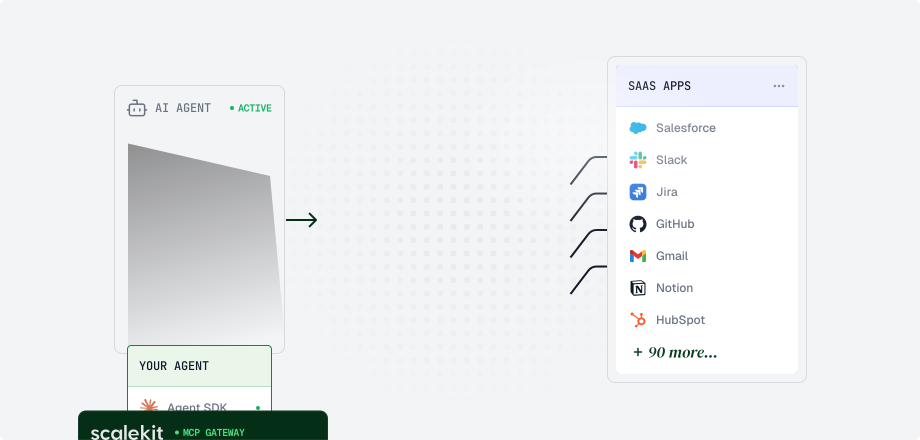
By the end of this guide, you’ll have a working agent that fetches a user’s last 5 unread Gmail messages (authenticated with their real account). Scalekit manages the OAuth flow, token storage, and API proxy so you focus on agent logic.
Before you start
Section titled “Before you start”Complete these steps in the Scalekit dashboard before writing any code:
-
Create a Scalekit account at app.scalekit.com.
-
Configure a Gmail connector at Dashboard → AgentKit > Connections > Create Connection → select Gmail.
Create the connection in the dashboard before running any code. Then copy the exact Connection name from that connection and use that value in your code. It must match the dashboard exactly, and it is not always the provider slug
gmail.Gmail is enabled by default in new Scalekit environments. To connect to other services, create a connection for each app under AgentKit > Connections > Create Connection.
-
Copy your API credentials at Dashboard → Developers → Settings → API Credentials. Save these three values as environment variables:
SCALEKIT_CLIENT_IDSCALEKIT_CLIENT_SECRETSCALEKIT_ENV_URLGMAIL_CONNECTION_NAME(copy the exact Connection name from AgentKit > Connections)
Build your agent
Section titled “Build your agent”Install the Scalekit Auth Stack for your coding agent, complete the browser authorization when prompted, then paste the implementation prompt. The agent scaffolds connected account setup, the OAuth flow, and tool execution.
claude plugin marketplace add scalekit-inc/claude-code-authstack && claude plugin install agent-auth@scalekit-auth-stackInstalling the plugin sets up Scalekit’s MCP server and triggers an OAuth authorization flow in your browser. Complete the authorization before continuing. This gives Claude Code direct access to your Scalekit environment to search docs, manage connections, and check connected account status. Then paste the prompt below.
curl -fsSL https://raw.githubusercontent.com/scalekit-inc/codex-authstack/main/install.sh | bashRestart Codex → Plugin Directory → Scalekit Auth Stack → install agent-auth. If a browser authorization prompt appears, complete the OAuth flow before continuing. Then paste the prompt below.
copilot plugin marketplace add scalekit-inc/github-copilot-authstackcopilot plugin install agent-auth@scalekit-auth-stackIf a browser authorization prompt appears, complete the OAuth flow before continuing. Then run:
copilot "Configure Scalekit agent authentication for Gmail. Provide code to create a connected account, generate an authorization link, and fetch the last 5 unread emails using Scalekit's tool API."curl -fsSL https://raw.githubusercontent.com/scalekit-inc/cursor-authstack/main/install.sh | bashReload Cursor → Settings → Plugins → enable Agent Auth. If a browser authorization prompt appears, complete the OAuth flow before continuing. Open chat (Cmd+L / Ctrl+L) and paste the prompt below.
npx skills add scalekit-inc/skills --skill integrating-agent-authThen ask your agent: “Configure Scalekit agent authentication for Gmail, create a connected account, generate an authorization link, and fetch the last 5 unread emails using Scalekit’s tool API.”
Configure Scalekit agent authentication for Gmail. Provide code to create a connected account, generate an authorization link, and, once the user authorizes, fetch the last 5 unread emails using Scalekit's tool API.1. Set up your environment
Section titled “1. Set up your environment”Install the Scalekit SDK and initialize the client with your API credentials:
pip install scalekit-sdk-python python-dotenv requestsnpm install @scalekit-sdk/nodeimport scalekit.clientimport osimport requestsfrom dotenv import load_dotenvload_dotenv()
scalekit_client = scalekit.client.ScalekitClient( client_id=os.getenv("SCALEKIT_CLIENT_ID"), client_secret=os.getenv("SCALEKIT_CLIENT_SECRET"), env_url=os.getenv("SCALEKIT_ENV_URL"),)actions = scalekit_client.actionsconnection_name = os.getenv("GMAIL_CONNECTION_NAME") # must match the Connection name in the dashboard exactlyimport { ScalekitClient } from '@scalekit-sdk/node';import { ConnectorStatus } from '@scalekit-sdk/node/lib/pkg/grpc/scalekit/v1/connected_accounts/connected_accounts_pb';import 'dotenv/config';
const scalekit = new ScalekitClient( process.env.SCALEKIT_ENV_URL, process.env.SCALEKIT_CLIENT_ID, process.env.SCALEKIT_CLIENT_SECRET);
const actions = scalekit.actions;const connectionName = process.env.GMAIL_CONNECTION_NAME!; // must match the Connection name in the dashboard exactly2. Create a connected account
Section titled “2. Create a connected account”Scalekit tracks each user’s third-party connection as a connected account. This is the record that holds their OAuth tokens. Creating it tells Scalekit to start managing the user’s Gmail access on your behalf. This step fails if the Gmail connection has not been created in AgentKit > Connections yet, or if connection_name / connectionName does not match the dashboard exactly.
# Create or retrieve the user's connected Gmail accountresponse = actions.get_or_create_connected_account( connection_name=connection_name, identifier="user_123" # Replace with your system's unique user ID)connected_account = response.connected_accountprint(f'Connected account created: {connected_account.id}')// Create or retrieve the user's connected Gmail accountconst response = await actions.getOrCreateConnectedAccount({ connectionName, identifier: 'user_123', // Replace with your system's unique user ID});
const connectedAccount = response.connectedAccount;console.log('Connected account created:', connectedAccount?.id);3. Authenticate the user
Section titled “3. Authenticate the user”Your agent can’t act on behalf of a user until they authorize access. Generate an authorization link, send it to the user, and Scalekit handles the rest: token exchange, storage, and automatic refresh. Once they complete the flow, the connected account status becomes ACTIVE.
# Generate authorization link if user hasn't authorized or token is expiredif(connected_account.status != "ACTIVE"):      print(f"Gmail is not connected: {connected_account.status}")      link_response = actions.get_authorization_link(          connection_name=connection_name,          identifier="user_123"      )      print(f"🔗 click on the link to authorize Gmail", link_response.link)      input(f"⎆ Press Enter after authorizing Gmail...")
# In production, redirect user to this URL to complete OAuth flow
// Generate authorization link if user hasn't authorized or token is expiredif (connectedAccount?.status !== ConnectorStatus.ACTIVE) { console.log('gmail is not connected:', connectedAccount?.status); const linkResponse = await actions.getAuthorizationLink({ connectionName, identifier: 'user_123', }); console.log('🔗 click on the link to authorize gmail', linkResponse.link); // In production, redirect user to this URL to complete OAuth flow}Open the link in a browser and authorize the Gmail connection. Once complete, the connected account status updates to ACTIVE and your agent can act on the user’s behalf.
4. Fetch emails via tool call
Section titled “4. Fetch emails via tool call”Pass the tool name and your inputs to Scalekit. It handles the request to Gmail and returns a structured response your agent can reason over directly: no endpoint URLs, auth headers, or response parsing required.
response = actions.execute_tool( tool_name="gmail_fetch_mails", identifier="user_123", tool_input={ "query": "is:unread", "max_results": 5, },)print(response)const toolResponse = await actions.executeTool({ toolName: 'gmail_fetch_mails', connectedAccountId: connectedAccount?.id, toolInput: { query: 'is:unread', max_results: 5, },});console.log('Recent emails:', toolResponse.data);Verify it works
Section titled “Verify it works”Run your agent and confirm:
- The connected account status is
ACTIVEafter the user completes the Gmail OAuth flow. - The tool response contains structured email data (subject, sender, snippet, and timestamp) ready for your agent to process.
If the connected account stays in a non-ACTIVE state, the user has not completed the OAuth flow. Regenerate the authorization link and try again.
Next steps
Section titled “Next steps”- Secure user verification: Confirm the OAuth identity matches your logged-in user before activating a connected account. Required for production.
- Connected accounts: Manage user connections across multiple providers.
- Tool calling: Use Scalekit’s optimized tools to call APIs without managing endpoints yourself.