
The Bitbucket connector lets your AI agent act in each user's Bitbucket account. Each user signs in to Bitbucket once, and Scalekit stores and refreshes their tokens, so your agent never handles credentials. It comes with 171 tools.
- Tools
- 171
- What they doRead · write · destructive
- 87 · 59 · 2587 read59 write25 destructive
- Users sign in with
- OAuth
- OAuth app
- Your own Bitbucket app
What you can do
- Manage pull requests: open, update, approve, decline, and merge pull requests, and read their diffs and activity
- Review code: comment on pull requests and commits, request changes, and track review tasks
- Work with repositories: create, fork, and update repositories, and browse branches, tags, commits, and files
- Run pipelines: trigger, stop, and schedule pipelines, read step logs, and manage pipeline variables
- Track issues: create, update, and comment on issues, and attach files, vote, or watch
- Manage deployments: set up deployment environments and variables, and report build statuses on commits
Setup
Install the SDK
Terminal window npm install @scalekit-sdk/node dotenvTerminal window pip install scalekit-sdk-python python-dotenvSet your credentials
Add your Scalekit credentials to your
.envfile. Find values in app.scalekit.com > Developers > API Credentials..env SCALEKIT_ENVIRONMENT_URL=<your-environment-url>SCALEKIT_CLIENT_ID=<your-client-id>SCALEKIT_CLIENT_SECRET=<your-client-secret>Create the Bitbucket connection
In AgentKit > Connections, create a Bitbucket connection and copy its redirect URI. The name you give it is the
connection_nameyour code passes. See Configure connections.Register an OAuth app
Bitbucket connections use your own OAuth app. Register one with Bitbucket and add the redirect URI you copied.
Then enter the app's Client ID and Client Secret on the Bitbucket connection.
Console steps with screenshots
Register your Bitbucket OAuth consumer credentials with Scalekit so it can manage the OAuth 2.0 authentication flow and token lifecycle on your behalf. You’ll need a Key (Client ID) and Secret (Client Secret) from your Bitbucket workspace settings.
-
Open OAuth consumers in your Bitbucket workspace
-
Go to Bitbucket and open your workspace by clicking your avatar in the top-right corner and selecting the workspace you want to use.
-
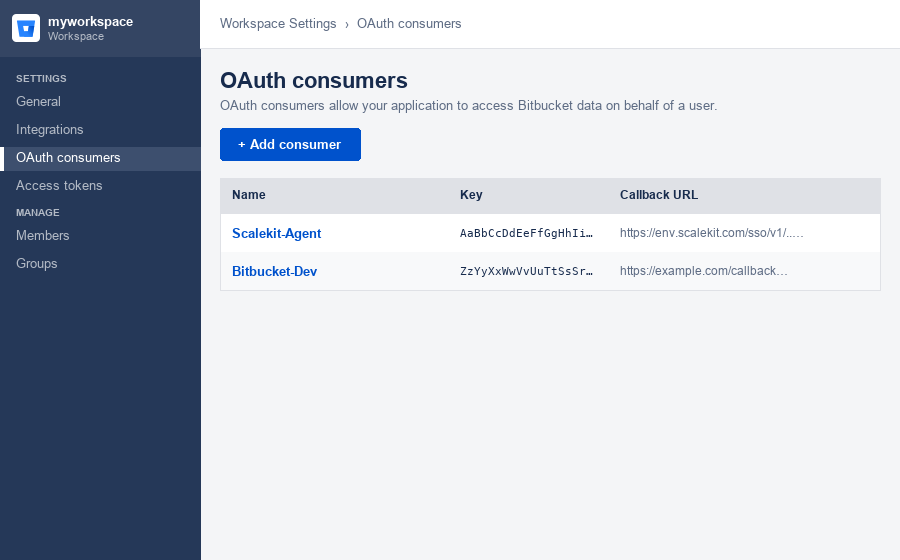
In the left sidebar, click Settings → OAuth consumers.
-
Click Add consumer to create a new OAuth application.
-
-
Create the OAuth consumer
-
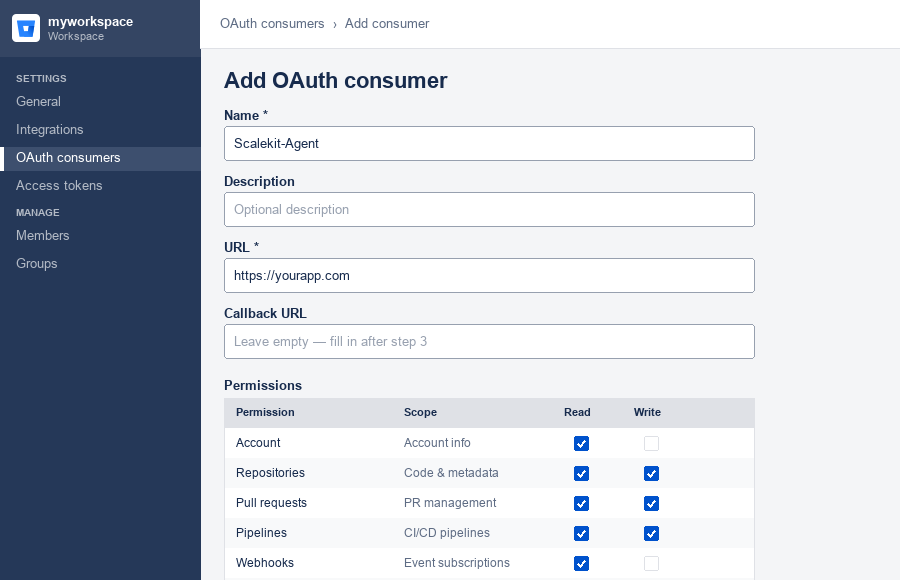
Fill in the consumer details:
- Name — enter a descriptive name (e.g.,
Scalekit-Agent) - Description — optional description
- URL — your application’s homepage URL
- Name — enter a descriptive name (e.g.,
-
Leave the Callback URL field empty for now — you’ll fill it in after getting the redirect URI from Scalekit.
-
Under Permissions, select the scopes your agent needs. Recommended minimum:
Permission Scope Required for Account Read User profile access Repositories Read Read code and metadata Repositories Write Create branches, push commits Pull requests Read Read PR data Pull requests Write Create, approve, and merge PRs Pipelines Read View pipeline runs Pipelines Write Trigger pipelines -
Click Save to create the consumer.
-
-
Get the redirect URI from Scalekit
-
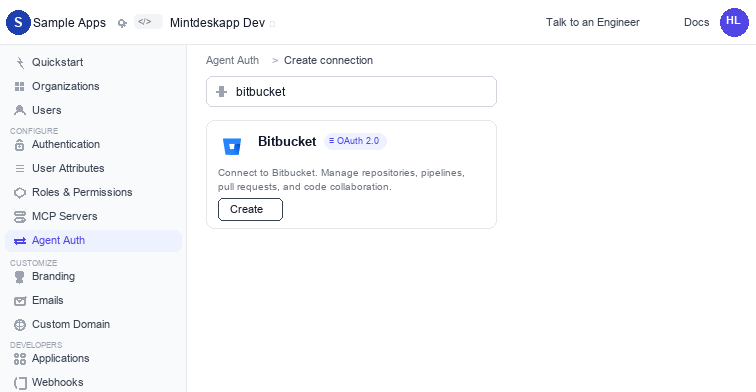
In Scalekit dashboard, go to AgentKit > Connections > Create Connection. Search for Bitbucket and click Create.
-
Copy the Redirect URI shown in the connection configuration panel. It looks like
https://<SCALEKIT_ENVIRONMENT_URL>/sso/v1/oauth/<CONNECTION_ID>/callback.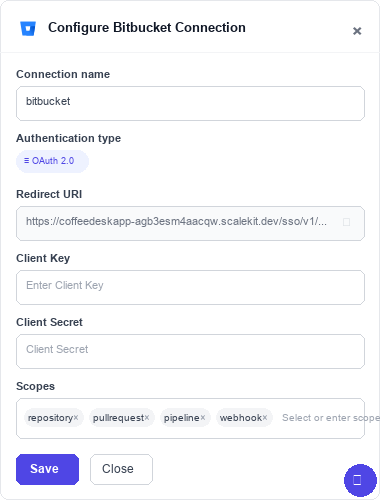
-
-
Add the callback URL in Bitbucket
-
Back in Bitbucket, open your OAuth consumer and click Edit.
-
Paste the Scalekit Redirect URI into the Callback URL field.
-
Click Save to apply the change.
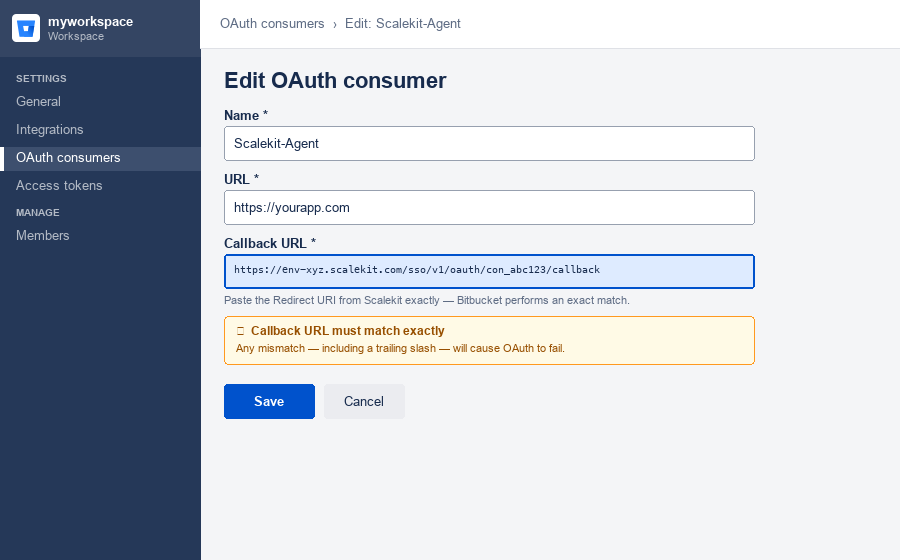
-
-
Copy your OAuth credentials
-
In Bitbucket, go back to Workspace settings → OAuth consumers and click on your consumer name to expand it.
-
The Key and Secret will be shown. Click Reveal next to the secret to display it.
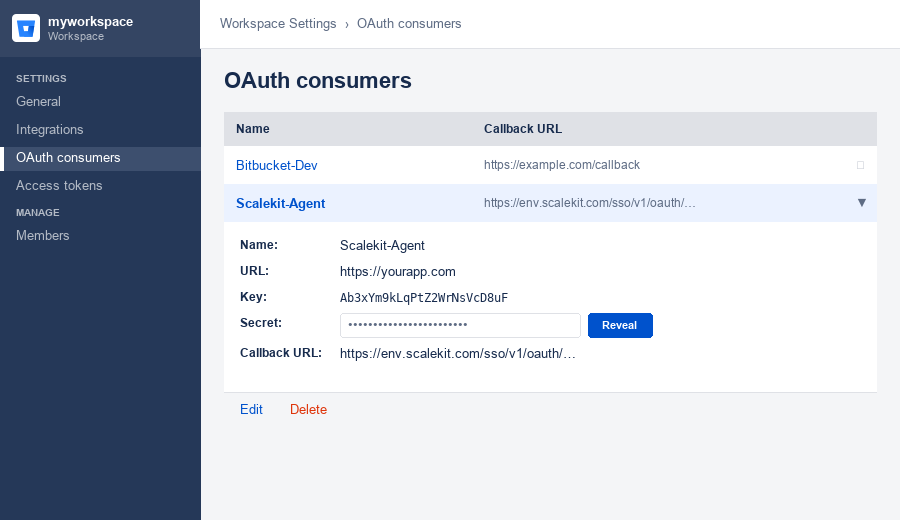
-
Copy both values. The secret is not stored by Bitbucket after you leave this page — save it securely.
-
-
Add credentials in Scalekit
-
In Scalekit dashboard, go to AgentKit > Connections and open the Bitbucket connection you created.
-
Enter your credentials:
- Client Key — the Key from your Bitbucket OAuth consumer
- Client Secret — the Secret from your Bitbucket OAuth consumer
- Scopes — select the scopes that match the permissions you granted in step 2
-
Click Save.
-
-
Authorize a user and make your first call
quickstart.mts import { ScalekitClient } from '@scalekit-sdk/node'import 'dotenv/config'import { createInterface } from 'node:readline/promises'const scalekit = new ScalekitClient(process.env.SCALEKIT_ENVIRONMENT_URL,process.env.SCALEKIT_CLIENT_ID,process.env.SCALEKIT_CLIENT_SECRET,)const actions = scalekit.actionsconst connector = 'bitbucket'const identifier = 'user_123'// Generate an authorization link for the userconst { link } = await actions.getAuthorizationLink({ connectionName: connector, identifier })console.log('Authorize Bitbucket:', link)const rl = createInterface({ input: process.stdin, output: process.stdout })await rl.question('Press Enter after authorizing...')rl.close()// Make your first callconst result = await actions.executeTool({connector,identifier,toolName: 'bitbucket_user_emails_list',toolInput: {},})console.log(result)Terminal window npx tsx quickstart.mtsquickstart.py import osfrom scalekit import ScalekitClientfrom dotenv import load_dotenvload_dotenv()scalekit_client = ScalekitClient(env_url=os.getenv("SCALEKIT_ENVIRONMENT_URL"),client_id=os.getenv("SCALEKIT_CLIENT_ID"),client_secret=os.getenv("SCALEKIT_CLIENT_SECRET"),)actions = scalekit_client.actionsconnection_name = "bitbucket"identifier = "user_123"# Generate an authorization link for the userlink_response = actions.get_authorization_link(connection_name=connection_name,identifier=identifier,)print("Authorize Bitbucket:", link_response.link)input("Press Enter after authorizing...")# Make your first callresult = actions.execute_tool(tool_input={},tool_name="bitbucket_user_emails_list",connection_name=connection_name,identifier=identifier,)print(result)Terminal window python quickstart.pyEach user signs in once. See Authorize a user for the full flow and statuses.
Tools
Pass the exact name toexecute_toolbitbucket_branch_getReturns details of a specific branch in a Bitbucket repository.Read-onlyGet Branch
Returns details of a specific branch in a Bitbucket repository.
Inputs
namestringrequired- The branch name.
repo_slugstringrequired- The repository slug or UUID.
workspacestringrequired- The workspace slug or UUID.
bitbucket_branch_restriction_getReturns a specific branch permission rule by ID.Read-onlyGet Branch Restriction
Returns a specific branch permission rule by ID.
Inputs
idstringrequired- The numeric ID of the branch restriction.
repo_slugstringrequired- The repository slug or UUID.
workspacestringrequired- The workspace slug or UUID.
bitbucket_branch_restrictions_listLists branch permission rules for a repository.Read-onlyList Branch Restrictions
Lists branch permission rules for a repository.
Inputs
repo_slugstringrequired- The repository slug or UUID.
workspacestringrequired- The workspace slug or UUID.
bitbucket_branches_listReturns all branches in a Bitbucket repository.Read-onlyList Branches
Returns all branches in a Bitbucket repository.
Inputs
repo_slugstringrequired- The repository slug or UUID.
workspacestringrequired- The workspace slug or UUID.
pageinteger- Page number for pagination (starts at 1).
pageleninteger- Number of items to return per page.
qstring- Query to filter branches, e.g. name~"feature".
sortstring- Sort field, e.g. -target.date for newest first.
bitbucket_branching_model_getReturns the effective branching model for a repository (e.g.Read-onlyGet Branching Model
Returns the effective branching model for a repository (e.g. Gitflow config).
Inputs
repo_slugstringrequired- The repository slug or UUID.
workspacestringrequired- The workspace slug or UUID.
bitbucket_branching_model_settings_getReturns the branching model configuration settings for a repository.Read-onlyGet Branching Model Settings
Returns the branching model configuration settings for a repository.
Inputs
repo_slugstringrequired- The repository slug or UUID.
workspacestringrequired- The workspace slug or UUID.
bitbucket_commit_build_status_getReturns the build status for a specific commit and build key.Read-onlyGet Commit Build Status
Returns the build status for a specific commit and build key.
Inputs
commitstringrequired- The commit hash.
keystringrequired- Unique identifier for the build.
repo_slugstringrequired- The repository slug or UUID.
workspacestringrequired- The workspace slug or UUID.
bitbucket_commit_comment_getReturns a specific comment on a commit.Read-onlyGet Commit Comment
Returns a specific comment on a commit.
Inputs
comment_idstringrequired- The numeric ID of the comment.
commitstringrequired- The commit hash.
repo_slugstringrequired- The repository slug or UUID.
workspacestringrequired- The workspace slug or UUID.
bitbucket_commit_comments_listLists all comments on a specific commit in a Bitbucket repository.Read-onlyList Commit Comments
Lists all comments on a specific commit in a Bitbucket repository.
Inputs
commitstringrequired- The commit hash.
repo_slugstringrequired- The repository slug or UUID.
workspacestringrequired- The workspace slug or UUID.
bitbucket_commit_getReturns details of a specific commit including author, message, date, and diff stats.Read-onlyGet Commit
Returns details of a specific commit including author, message, date, and diff stats.
Inputs
commitstringrequired- The commit hash.
repo_slugstringrequired- The repository slug or UUID.
workspacestringrequired- The workspace slug or UUID.
bitbucket_commit_pull_requests_listReturns a paginated list of all pull requests that include the given commit.Read-onlyList Pull Requests for Commit
Returns a paginated list of all pull requests that include the given commit. Requires the Pull Request Commit Links app, which is automatically installed the first time 'Go to pull request' is clicked from a commit's details in the Bitbucket web interface.
Inputs
commitstringrequired- The SHA1 of the commit.
repo_slugstringrequired- The repository slug or UUID.
workspacestringrequired- The workspace slug or UUID.
pageinteger- Page number for pagination.
pageleninteger- Number of pull requests to retrieve per page.
bitbucket_commit_statuses_listLists all statuses (build results) for a specific commit.Read-onlyList Commit Statuses
Lists all statuses (build results) for a specific commit.
Inputs
commitstringrequired- The commit hash.
repo_slugstringrequired- The repository slug or UUID.
workspacestringrequired- The workspace slug or UUID.
bitbucket_commits_listReturns a list of commits for a repository, optionally filtered by branch.Read-onlyList Commits
Returns a list of commits for a repository, optionally filtered by branch.
Inputs
repo_slugstringrequired- The repository slug or UUID.
workspacestringrequired- The workspace slug or UUID.
branchstring- Branch or tag name to list commits for.
pageinteger- Page number for pagination (starts at 1).
pageleninteger- Number of items to return per page.
bitbucket_component_getReturns a specific component by ID from the issue tracker.Read-onlyGet Issue Component
Returns a specific component by ID from the issue tracker.
Inputs
component_idstringrequired- The numeric ID of the component.
repo_slugstringrequired- The repository slug or UUID.
workspacestringrequired- The workspace slug or UUID.
bitbucket_components_listLists all components defined for a repository's issue tracker.Read-onlyList Issue Components
Lists all components defined for a repository's issue tracker.
Inputs
repo_slugstringrequired- The repository slug or UUID.
workspacestringrequired- The workspace slug or UUID.
bitbucket_default_reviewer_getChecks if a user is a default reviewer for a repository.Read-onlyGet Default Reviewer
Checks if a user is a default reviewer for a repository.
Inputs
repo_slugstringrequired- The repository slug or UUID.
usernamestringrequired- The user's account ID or UUID.
workspacestringrequired- The workspace slug or UUID.
bitbucket_default_reviewers_listLists all default reviewers for a repository.Read-onlyList Default Reviewers
Lists all default reviewers for a repository.
Inputs
repo_slugstringrequired- The repository slug or UUID.
workspacestringrequired- The workspace slug or UUID.
bitbucket_deploy_keys_listReturns a list of deploy keys (SSH keys) configured on a Bitbucket repository.Read-onlyList Deploy Keys
Returns a list of deploy keys (SSH keys) configured on a Bitbucket repository.
Inputs
repo_slugstringrequired- The repository slug or UUID.
workspacestringrequired- The workspace slug or UUID.
bitbucket_deployment_getReturns a specific deployment by UUID.Read-onlyGet Deployment
Returns a specific deployment by UUID.
Inputs
deployment_uuidstringrequired- The UUID of the deployment.
repo_slugstringrequired- The repository slug or UUID.
workspacestringrequired- The workspace slug or UUID.
bitbucket_deployment_variables_listLists all variables for a deployment environment.Read-onlyList Deployment Environment Variables
Lists all variables for a deployment environment.
Inputs
environment_uuidstringrequired- The UUID of the environment.
repo_slugstringrequired- The repository slug or UUID.
workspacestringrequired- The workspace slug or UUID.
bitbucket_deployments_listLists all deployments for a repository.Read-onlyList Deployments
Lists all deployments for a repository.
Inputs
repo_slugstringrequired- The repository slug or UUID.
workspacestringrequired- The workspace slug or UUID.
bitbucket_diff_getReturns a JSON summary of file changes (diffstat) for a given commit spec (e.g.Read-onlyGet Diff Summary (Diffstat)
Returns a JSON summary of file changes (diffstat) for a given commit spec (e.g. commit hash, branch..branch). Shows which files were added, modified, or deleted with line counts.
Inputs
repo_slugstringrequired- The repository slug or UUID.
specstringrequired- Diff spec in the form of 'hash1..hash2' or 'branch1..branch2'.
workspacestringrequired- The workspace slug or UUID.
pathstring- Limit diff to a specific file path.
bitbucket_diff_raw_getReturns the raw unified diff (text/plain) between two commits or branches for a repository.Read-onlyGet Raw Diff
Returns the raw unified diff (text/plain) between two commits or branches for a repository. Distinct from diffstat, which returns only per-file change stats as JSON. Note: the existing bitbucket_diff_get tool is mislabeled and actually calls the diffstat endpoint -- this tool calls the real /diff/{spec} endpoint.
Inputs
repo_slugstringrequired- The repository slug or UUID.
specstringrequired- Diff spec in the form of 'hash1..hash2' or 'branch1..branch2'.
workspacestringrequired- The workspace slug or UUID.
contextinteger- Number of context lines to show around each change.
ignore_whitespaceboolean- Whether to ignore whitespace-only changes in the diff.
pathstring- Limit the diff to a specific file path.
bitbucket_diffstat_getReturns the diff stats between two commits or a branch/commit spec in a repository.Read-onlyGet Diffstat
Returns the diff stats between two commits or a branch/commit spec in a repository.
Inputs
repo_slugstringrequired- The repository slug or UUID.
specstringrequired- Revision spec e.g. 'main..feature' or commit SHA.
workspacestringrequired- The workspace slug or UUID.
bitbucket_download_getReturns a redirect to the contents of a download artifact in a Bitbucket repository.Read-onlyGet Download Artifact Link
Returns a redirect to the contents of a download artifact in a Bitbucket repository. This resolves to the actual file contents, not the artifact's metadata — use List Downloads to retrieve metadata such as size and creation date instead.
Inputs
filenamestringrequired- The filename of the download artifact.
repo_slugstringrequired- The repository slug or UUID.
workspacestringrequired- The workspace slug or UUID.
bitbucket_downloads_listLists all download artifacts for a repository.Read-onlyList Downloads
Lists all download artifacts for a repository.
Inputs
repo_slugstringrequired- The repository slug or UUID.
workspacestringrequired- The workspace slug or UUID.
bitbucket_environment_getReturns a specific deployment environment by UUID.Read-onlyGet Environment
Returns a specific deployment environment by UUID.
Inputs
environment_uuidstringrequired- The UUID of the environment.
repo_slugstringrequired- The repository slug or UUID.
workspacestringrequired- The workspace slug or UUID.
bitbucket_environments_listLists all deployment environments for a repository (e.g.Read-onlyList Environments
Lists all deployment environments for a repository (e.g. Test, Staging, Production).
Inputs
repo_slugstringrequired- The repository slug or UUID.
workspacestringrequired- The workspace slug or UUID.
bitbucket_file_history_listLists the commits that modified a specific file path.Read-onlyList File History
Lists the commits that modified a specific file path.
Inputs
commitstringrequired- The commit hash or branch name.
pathstringrequired- Path to the file in the repository.
repo_slugstringrequired- The repository slug or UUID.
workspacestringrequired- The workspace slug or UUID.
bitbucket_issue_attachments_listReturns metadata for all attachments on a Bitbucket issue, ordered by upload date.Read-onlyList Issue Attachments
Returns metadata for all attachments on a Bitbucket issue, ordered by upload date. This returns the files' metadata only, not their contents.
Inputs
issue_idintegerrequired- The issue ID.
repo_slugstringrequired- The repository slug or UUID.
workspacestringrequired- The workspace slug or UUID.
bitbucket_issue_comments_listReturns all comments on a Bitbucket issue.Read-onlyList Issue Comments
Returns all comments on a Bitbucket issue.
Inputs
issue_idintegerrequired- The issue ID.
repo_slugstringrequired- The repository slug or UUID.
workspacestringrequired- The workspace slug or UUID.
pageinteger- Page number for pagination (starts at 1).
bitbucket_issue_getReturns details of a specific issue in a Bitbucket repository.Read-onlyGet Issue
Returns details of a specific issue in a Bitbucket repository.
Inputs
issue_idintegerrequired- The issue ID.
repo_slugstringrequired- The repository slug or UUID.
workspacestringrequired- The workspace slug or UUID.
bitbucket_issue_vote_getChecks if the authenticated user has voted for an issue.Read-onlyGet Issue Vote
Checks if the authenticated user has voted for an issue.
Inputs
issue_idstringrequired- The numeric issue ID.
repo_slugstringrequired- The repository slug or UUID.
workspacestringrequired- The workspace slug or UUID.
bitbucket_issue_watch_getChecks if the authenticated user is watching an issue.Read-onlyGet Issue Watch Status
Checks if the authenticated user is watching an issue.
Inputs
issue_idstringrequired- The numeric issue ID.
repo_slugstringrequired- The repository slug or UUID.
workspacestringrequired- The workspace slug or UUID.
bitbucket_issues_listReturns all issues in a Bitbucket repository's issue tracker.Read-onlyList Issues
Returns all issues in a Bitbucket repository's issue tracker.
Inputs
repo_slugstringrequired- The repository slug or UUID.
workspacestringrequired- The workspace slug or UUID.
pageinteger- Page number for pagination (starts at 1).
pageleninteger- Number of items to return per page.
qstring- Filter query, e.g. status="open" AND priority="major".
sortstring- Sort field, e.g. -updated_on.
bitbucket_merge_base_getReturns the common ancestor (merge base) between two commits.Read-onlyGet Merge Base
Returns the common ancestor (merge base) between two commits.
Inputs
repo_slugstringrequired- The repository slug or UUID.
revspecstringrequired- Two commits separated by '..', e.g. 'abc123..def456'.
workspacestringrequired- The workspace slug or UUID.
bitbucket_milestone_getReturns a specific milestone by ID from the issue tracker.Read-onlyGet Issue Milestone
Returns a specific milestone by ID from the issue tracker.
Inputs
milestone_idstringrequired- The numeric ID of the milestone.
repo_slugstringrequired- The repository slug or UUID.
workspacestringrequired- The workspace slug or UUID.
bitbucket_milestones_listLists all milestones defined for a repository's issue tracker.Read-onlyList Issue Milestones
Lists all milestones defined for a repository's issue tracker.
Inputs
repo_slugstringrequired- The repository slug or UUID.
workspacestringrequired- The workspace slug or UUID.
bitbucket_pipeline_getReturns details of a specific Bitbucket pipeline run by its UUID.Read-onlyGet Pipeline
Returns details of a specific Bitbucket pipeline run by its UUID.
Inputs
pipeline_uuidstringrequired- The pipeline UUID.
repo_slugstringrequired- The repository slug or UUID.
workspacestringrequired- The workspace slug or UUID.
bitbucket_pipeline_schedule_getReturns a specific pipeline schedule by UUID.Read-onlyGet Pipeline Schedule
Returns a specific pipeline schedule by UUID.
Inputs
repo_slugstringrequired- The repository slug or UUID.
schedule_uuidstringrequired- The UUID of the schedule.
workspacestringrequired- The workspace slug or UUID.
bitbucket_pipeline_schedules_listLists all pipeline schedules for a repository.Read-onlyList Pipeline Schedules
Lists all pipeline schedules for a repository.
Inputs
repo_slugstringrequired- The repository slug or UUID.
workspacestringrequired- The workspace slug or UUID.
bitbucket_pipeline_step_log_getRetrieves the log output for a specific step of a Bitbucket pipeline run.Read-onlyGet Pipeline Step Log
Retrieves the log output for a specific step of a Bitbucket pipeline run.
Inputs
pipeline_uuidstringrequired- The UUID of the pipeline.
repo_slugstringrequired- The repository slug or UUID.
step_uuidstringrequired- The UUID of the pipeline step.
workspacestringrequired- The workspace slug or UUID.
bitbucket_pipeline_steps_listReturns a list of steps for a specific Bitbucket pipeline run.Read-onlyList Pipeline Steps
Returns a list of steps for a specific Bitbucket pipeline run.
Inputs
pipeline_uuidstringrequired- The UUID of the pipeline.
repo_slugstringrequired- The repository slug or UUID.
workspacestringrequired- The workspace slug or UUID.
bitbucket_pipeline_variables_listReturns a list of pipeline variables defined for the repository.Read-onlyList Pipeline Variables
Returns a list of pipeline variables defined for the repository.
Inputs
repo_slugstringrequired- The repository slug or UUID.
workspacestringrequired- The workspace slug or UUID.
pageinteger- Page number for pagination (starts at 1).
pageleninteger- Number of items to return per page.
bitbucket_pipelines_listReturns pipeline runs for a Bitbucket repository, optionally filtered by status or branch.Read-onlyList Pipelines
Returns pipeline runs for a Bitbucket repository, optionally filtered by status or branch.
Inputs
repo_slugstringrequired- The repository slug or UUID.
workspacestringrequired- The workspace slug or UUID.
pageinteger- Page number for pagination (starts at 1).
pageleninteger- Number of items to return per page.
sortstring- Sort field, e.g. -created_on for newest first.
bitbucket_pull_request_activity_listLists all activity (comments, approvals, updates) for a specific pull request.Read-onlyList Pull Request Activity
Lists all activity (comments, approvals, updates) for a specific pull request.
Inputs
pull_request_idstringrequired- The numeric pull request ID.
repo_slugstringrequired- The repository slug or UUID.
workspacestringrequired- The workspace slug or UUID.
bitbucket_pull_request_comments_listReturns all comments on a pull request.Read-onlyList Pull Request Comments
Returns all comments on a pull request.
Inputs
pull_request_idintegerrequired- The pull request ID.
repo_slugstringrequired- The repository slug or UUID.
workspacestringrequired- The workspace slug or UUID.
pageinteger- Page number for pagination (starts at 1).
pageleninteger- Number of items to return per page.
bitbucket_pull_request_commits_listReturns all commits included in a pull request.Read-onlyList Pull Request Commits
Returns all commits included in a pull request.
Inputs
pull_request_idintegerrequired- The pull request ID.
repo_slugstringrequired- The repository slug or UUID.
workspacestringrequired- The workspace slug or UUID.
bitbucket_pull_request_diff_getReturns the diff (list of changes) for a pull request as raw diff text.Read-onlyGet Pull Request Diff
Returns the diff (list of changes) for a pull request as raw diff text. Bitbucket implements this as a redirect to the equivalent repository diff for the pull request's revision spec.
Inputs
pull_request_idintegerrequired- The pull request ID.
repo_slugstringrequired- The repository slug or UUID.
workspacestringrequired- The workspace slug or UUID.
bitbucket_pull_request_diffstat_getReturns a JSON diffstat for a pull request given the source and destination commit hashes.Read-onlyGet Pull Request Diffstat
Returns a JSON diffstat for a pull request given the source and destination commit hashes. Get these from bitbucket_pull_request_get (source.commit.hash and destination.commit.hash).
Inputs
dest_commitstringrequired- Destination commit hash from the pull request (destination.commit.hash).
repo_slugstringrequired- The repository slug or UUID.
source_commitstringrequired- Source commit hash from the pull request (source.commit.hash).
workspacestringrequired- The workspace slug or UUID.
bitbucket_pull_request_getReturns details of a specific pull request including title, description, source/destination branches, state, and reviewers.Read-onlyGet Pull Request
Returns details of a specific pull request including title, description, source/destination branches, state, and reviewers.
Inputs
pull_request_idintegerrequired- The pull request ID.
repo_slugstringrequired- The repository slug or UUID.
workspacestringrequired- The workspace slug or UUID.
bitbucket_pull_request_patch_getReturns the patch for a pull request as raw patch text, suitable for applying with 'git apply'.Read-onlyGet Pull Request Patch
Returns the patch for a pull request as raw patch text, suitable for applying with 'git apply'. Bitbucket implements this as a redirect to the equivalent repository patch for the pull request's revision spec.
Inputs
pull_request_idintegerrequired- The pull request ID.
repo_slugstringrequired- The repository slug or UUID.
workspacestringrequired- The workspace slug or UUID.
bitbucket_pull_request_statuses_listLists all commit statuses for the commits in a pull request.Read-onlyList Pull Request Statuses
Lists all commit statuses for the commits in a pull request.
Inputs
pull_request_idstringrequired- The numeric pull request ID.
repo_slugstringrequired- The repository slug or UUID.
workspacestringrequired- The workspace slug or UUID.
bitbucket_pull_request_task_getReturns a specific task on a pull request.Read-onlyGet Pull Request Task
Returns a specific task on a pull request.
Inputs
pull_request_idstringrequired- The numeric pull request ID.
repo_slugstringrequired- The repository slug or UUID.
task_idstringrequired- The numeric task ID.
workspacestringrequired- The workspace slug or UUID.
bitbucket_pull_request_tasks_listLists all tasks on a pull request.Read-onlyList Pull Request Tasks
Lists all tasks on a pull request.
Inputs
pull_request_idstringrequired- The numeric pull request ID.
repo_slugstringrequired- The repository slug or UUID.
workspacestringrequired- The workspace slug or UUID.
bitbucket_pull_requests_activity_listLists overall activity for all pull requests in a repository.Read-onlyList All Pull Requests Activity
Lists overall activity for all pull requests in a repository.
Inputs
repo_slugstringrequired- The repository slug or UUID.
workspacestringrequired- The workspace slug or UUID.
bitbucket_pull_requests_listReturns pull requests for a Bitbucket repository, filterable by state.Read-onlyList Pull Requests
Returns pull requests for a Bitbucket repository, filterable by state.
Inputs
repo_slugstringrequired- The repository slug or UUID.
workspacestringrequired- The workspace slug or UUID.
pageinteger- Page number for pagination (starts at 1).
pageleninteger- Number of items to return per page.
qstring- Query to filter pull requests.
sortstring- Sort field for pull requests.
statestring- Filter by state: OPEN, MERGED, DECLINED, SUPERSEDED.
bitbucket_refs_listLists all branches and tags (refs) for a repository.Read-onlyList Refs
Lists all branches and tags (refs) for a repository.
Inputs
repo_slugstringrequired- The repository slug or UUID.
workspacestringrequired- The workspace slug or UUID.
bitbucket_report_annotations_listLists the annotations (inline vulnerability, bug, or code-smell findings tied to a file and line) attached to a Code Insights report.Read-onlyList Report Annotations
Lists the annotations (inline vulnerability, bug, or code-smell findings tied to a file and line) attached to a Code Insights report.
Inputs
commitstringrequired- The commit hash.
repo_slugstringrequired- The repository slug or UUID.
report_idstringrequired- The ID of the report whose annotations should be listed.
workspacestringrequired- The workspace slug or UUID.
bitbucket_reports_listLists the Code Insights reports (test results, security scans, coverage, etc.) attached to a specific commit.Read-onlyList Code Insights Reports
Lists the Code Insights reports (test results, security scans, coverage, etc.) attached to a specific commit.
Inputs
commitstringrequired- The commit hash.
repo_slugstringrequired- The repository slug or UUID.
workspacestringrequired- The workspace slug or UUID.
bitbucket_repositories_listReturns all repositories in a Bitbucket workspace.Read-onlyList Repositories
Returns all repositories in a Bitbucket workspace.
Inputs
workspacestringrequired- The workspace slug or UUID.
pageinteger- Page number for pagination (starts at 1).
pageleninteger- Number of items to return per page.
qstring- Query to filter repositories, e.g. name~"my-repo".
sortstring- Sort field, e.g. -updated_on for newest first.
bitbucket_repository_forks_listReturns a paginated list of all forks of a Bitbucket repository.Read-onlyList Repository Forks
Returns a paginated list of all forks of a Bitbucket repository. Distinct from Fork Repository, which creates a new fork rather than listing existing ones.
Inputs
repo_slugstringrequired- The repository slug or UUID.
workspacestringrequired- The workspace slug or UUID.
pageinteger- Page number for pagination.
pageleninteger- Number of results per page.
qstring- Query to filter forks, e.g. name~"my-fork".
rolestring- Filter by the authenticated user's role on each fork: member, contributor, admin, or owner.one of
membercontributoradminowner sortstring- Sort field, e.g. -updated_on for newest first.
bitbucket_repository_getReturns details of a specific Bitbucket repository including description, language, size, and clone URLs.Read-onlyGet Repository
Returns details of a specific Bitbucket repository including description, language, size, and clone URLs.
Inputs
repo_slugstringrequired- The repository slug or UUID.
workspacestringrequired- The workspace slug or UUID.
bitbucket_repository_permission_group_getReturns the explicit repository permission for a specific group.Read-onlyGet Repository Group Permission
Returns the explicit repository permission for a specific group.
Inputs
group_slugstringrequired- The group slug.
repo_slugstringrequired- The repository slug or UUID.
workspacestringrequired- The workspace slug or UUID.
bitbucket_repository_permission_user_getReturns the explicit repository permission for a specific user.Read-onlyGet Repository User Permission
Returns the explicit repository permission for a specific user.
Inputs
repo_slugstringrequired- The repository slug or UUID.
usernamestringrequired- The user's account ID or UUID.
workspacestringrequired- The workspace slug or UUID.
bitbucket_repository_permissions_groups_listLists all explicit group permissions for a repository.Read-onlyList Repository Group Permissions
Lists all explicit group permissions for a repository.
Inputs
repo_slugstringrequired- The repository slug or UUID.
workspacestringrequired- The workspace slug or UUID.
bitbucket_repository_permissions_users_listLists all explicit user permissions for a repository.Read-onlyList Repository User Permissions
Lists all explicit user permissions for a repository.
Inputs
repo_slugstringrequired- The repository slug or UUID.
workspacestringrequired- The workspace slug or UUID.
bitbucket_repository_watchers_listLists all users watching a repository.Read-onlyList Repository Watchers
Lists all users watching a repository.
Inputs
repo_slugstringrequired- The repository slug or UUID.
workspacestringrequired- The workspace slug or UUID.
bitbucket_snippet_getRetrieve a single Bitbucket snippet by its encoded ID, including its title, files, and owner metadata.Read-onlyGet Snippet
Retrieve a single Bitbucket snippet by its encoded ID, including its title, files, and owner metadata.
Inputs
encoded_idstringrequired- The encoded ID of the snippet to retrieve.
workspacestringrequired- The workspace slug or UUID.
bitbucket_snippets_listList code snippets owned by a Bitbucket workspace.Read-onlyList Snippets in Workspace
List code snippets owned by a Bitbucket workspace. Snippets are small, shareable pieces of code or text, similar to a lightweight Gist. Supports filtering by the authenticated user's role and pagination.
Inputs
workspacestringrequired- The workspace slug or UUID.
pageinteger- Page number for pagination.
pageleninteger- Number of results per page.
rolestring- Filter by the authenticated user's role: owner, contributor, or member.one of
ownercontributormember
bitbucket_src_getRetrieves metadata (size, type, mimetype, last commit) for a file or directory in a Bitbucket repository at a specific commit.Read-onlyGet File/Directory Metadata
Retrieves metadata (size, type, mimetype, last commit) for a file or directory in a Bitbucket repository at a specific commit. Returns JSON metadata via format=meta.
Inputs
commitstringrequired- Branch name, tag, or commit hash.
repo_slugstringrequired- The repository slug or UUID.
workspacestringrequired- The workspace slug or UUID.
pathstring- Path to the file or directory within the repository.
bitbucket_user_emails_listReturns all email addresses associated with the authenticated Bitbucket user.Read-onlyList User Emails
Returns all email addresses associated with the authenticated Bitbucket user.
Inputs
This tool takes no inputs.
bitbucket_user_getReturns the authenticated user's Bitbucket profile including display name, account ID, and account links.Read-onlyGet Current User
Returns the authenticated user's Bitbucket profile including display name, account ID, and account links.
Inputs
This tool takes no inputs.
bitbucket_version_getReturns a specific version by ID from the issue tracker.Read-onlyGet Issue Version
Returns a specific version by ID from the issue tracker.
Inputs
repo_slugstringrequired- The repository slug or UUID.
version_idstringrequired- The numeric ID of the version.
workspacestringrequired- The workspace slug or UUID.
bitbucket_versions_listLists all versions defined for a repository's issue tracker.Read-onlyList Issue Versions
Lists all versions defined for a repository's issue tracker.
Inputs
repo_slugstringrequired- The repository slug or UUID.
workspacestringrequired- The workspace slug or UUID.
bitbucket_webhook_getReturns the details of a specific webhook installed on a Bitbucket repository.Read-onlyGet Repository Webhook
Returns the details of a specific webhook installed on a Bitbucket repository.
Inputs
repo_slugstringrequired- The repository slug or UUID.
uidstringrequired- The UID of the webhook.
workspacestringrequired- The workspace slug or UUID.
bitbucket_webhooks_listReturns a list of webhooks installed on a Bitbucket repository.Read-onlyList Repository Webhooks
Returns a list of webhooks installed on a Bitbucket repository.
Inputs
repo_slugstringrequired- The repository slug or UUID.
workspacestringrequired- The workspace slug or UUID.
pageinteger- Page number for pagination (starts at 1).
pageleninteger- Number of items to return per page.
bitbucket_workspace_getReturns details of a specific Bitbucket workspace by its slug.Read-onlyGet Workspace
Returns details of a specific Bitbucket workspace by its slug.
Inputs
workspacestringrequired- The workspace slug or UUID.
bitbucket_workspace_members_listReturns all members of a Bitbucket workspace.Read-onlyList Workspace Members
Returns all members of a Bitbucket workspace.
Inputs
workspacestringrequired- The workspace slug or UUID.
pageinteger- Page number for pagination (starts at 1).
pageleninteger- Number of items to return per page.
bitbucket_workspace_pipeline_variable_getReturns a specific workspace pipeline variable by UUID.Read-onlyGet Workspace Pipeline Variable
Returns a specific workspace pipeline variable by UUID.
Inputs
variable_uuidstringrequired- The UUID of the variable.
workspacestringrequired- The workspace slug or UUID.
bitbucket_workspace_pipeline_variables_listLists all pipeline variables defined at the workspace level.Read-onlyList Workspace Pipeline Variables
Lists all pipeline variables defined at the workspace level.
Inputs
workspacestringrequired- The workspace slug or UUID.
bitbucket_workspace_project_getReturns a specific project from a workspace by project key.Read-onlyGet Workspace Project
Returns a specific project from a workspace by project key.
Inputs
project_keystringrequired- The project key (e.g. PROJ).
workspacestringrequired- The workspace slug or UUID.
bitbucket_workspace_projects_listLists all projects in a workspace.Read-onlyList Workspace Projects
Lists all projects in a workspace.
Inputs
workspacestringrequired- The workspace slug or UUID.
bitbucket_workspace_search_codeSearches for code across all repositories in a workspace.Read-onlySearch Code in Workspace
Searches for code across all repositories in a workspace.
Inputs
search_querystringrequired- Code search query string.
workspacestringrequired- The workspace slug or UUID.
pageinteger- Page number for pagination.
pageleninteger- Number of results per page (max 100).
bitbucket_workspace_webhook_getReturns the details of a specific webhook installed on a Bitbucket workspace.Read-onlyGet Workspace Webhook
Returns the details of a specific webhook installed on a Bitbucket workspace.
Inputs
uidstringrequired- The UID of the workspace webhook.
workspacestringrequired- The workspace slug or UUID.
bitbucket_workspace_webhooks_listReturns a paginated list of webhooks installed on a Bitbucket workspace.Read-onlyList Workspace Webhooks
Returns a paginated list of webhooks installed on a Bitbucket workspace.
Inputs
workspacestringrequired- The workspace slug or UUID.
pageinteger- Page number for pagination.
pageleninteger- Number of results per page.
bitbucket_branch_createCreates a new branch in a Bitbucket repository from a specified commit hash or branch.WriteCreate Branch
Creates a new branch in a Bitbucket repository from a specified commit hash or branch.
Inputs
namestringrequired- Name for the new branch.
repo_slugstringrequired- The repository slug or UUID.
target_hashstringrequired- The commit hash to create the branch from.
workspacestringrequired- The workspace slug or UUID.
bitbucket_branch_restriction_createCreates a branch permission rule for a repository.WriteCreate Branch Restriction
Creates a branch permission rule for a repository.
Inputs
kindstringrequired- Restriction type: require_tasks_to_be_completed, require_approvals_to_merge, require_default_reviewer_approvals_to_merge, require_no_changes_requested, require_commits_behind, require_passing_builds_to_merge, reset_pullrequest_approvals_on_change, push, restrict_merges, force, delete, enforce_merge_checks.
patternstringrequired- Branch name or glob pattern to restrict, e.g. 'main' or 'release/*'.
repo_slugstringrequired- The repository slug or UUID.
workspacestringrequired- The workspace slug or UUID.
groupsstring- List of group slugs to exempt from the restriction.
usersstring- List of user account IDs to exempt from the restriction.
valuestring- Numeric value for count-based restrictions (e.g. required approvals).
bitbucket_branch_restriction_updateUpdates a branch permission rule.WriteUpdate Branch Restriction
Updates a branch permission rule.
- Idempotent
Inputs
idstringrequired- The numeric ID of the branch restriction.
kindstringrequired- Restriction type (see Create Branch Restriction for valid values).
patternstringrequired- Branch name or glob pattern.
repo_slugstringrequired- The repository slug or UUID.
workspacestringrequired- The workspace slug or UUID.
valuestring- Numeric value for count-based restrictions.
bitbucket_branching_model_settings_updateUpdates the branching model configuration settings for a repository.WriteUpdate Branching Model Settings
Updates the branching model configuration settings for a repository.
- Idempotent
Inputs
repo_slugstringrequired- The repository slug or UUID.
workspacestringrequired- The workspace slug or UUID.
development_branchstring- Name of the development branch.
production_branchstring- Name of the production branch.
bitbucket_commit_approveApproves a specific commit in a Bitbucket repository.WriteApprove Commit
Approves a specific commit in a Bitbucket repository.
Inputs
commitstringrequired- The commit hash.
repo_slugstringrequired- The repository slug or UUID.
workspacestringrequired- The workspace slug or UUID.
bitbucket_commit_build_status_createCreates or updates a build status for a specific commit (used to report CI/CD results).WriteCreate Commit Build Status
Creates or updates a build status for a specific commit (used to report CI/CD results).
Inputs
commitstringrequired- The commit hash.
keystringrequired- Unique identifier for the build (e.g. CI pipeline name).
repo_slugstringrequired- The repository slug or UUID.
statestringrequired- Build state: SUCCESSFUL, FAILED, INPROGRESS, STOPPED.
urlstringrequired- URL linking to the build result.
workspacestringrequired- The workspace slug or UUID.
descriptionstring- Description of the build result.
namestring- Display name for the build.
bitbucket_commit_build_status_updateUpdates an existing build status for a specific commit and key.WriteUpdate Commit Build Status
Updates an existing build status for a specific commit and key.
- Idempotent
Inputs
commitstringrequired- The commit hash.
keystringrequired- Unique identifier for the build.
repo_slugstringrequired- The repository slug or UUID.
statestringrequired- Build state: SUCCESSFUL, FAILED, INPROGRESS, STOPPED.
urlstringrequired- URL linking to the build result.
workspacestringrequired- The workspace slug or UUID.
descriptionstring- Description of the build result.
namestring- Display name for the build.
bitbucket_commit_comment_createCreates a new comment on a specific commit in a Bitbucket repository.WriteCreate Commit Comment
Creates a new comment on a specific commit in a Bitbucket repository.
Inputs
commitstringrequired- The commit hash.
contentstringrequired- The comment text (Markdown supported).
repo_slugstringrequired- The repository slug or UUID.
workspacestringrequired- The workspace slug or UUID.
bitbucket_commit_comment_updateUpdates an existing comment on a commit.WriteUpdate Commit Comment
Updates an existing comment on a commit.
- Idempotent
Inputs
comment_idstringrequired- The numeric ID of the comment.
commitstringrequired- The commit hash.
contentstringrequired- Updated comment text (Markdown supported).
repo_slugstringrequired- The repository slug or UUID.
workspacestringrequired- The workspace slug or UUID.
bitbucket_commit_unapproveRemoves an approval from a specific commit.WriteUnapprove Commit
Removes an approval from a specific commit.
- Idempotent
Inputs
commitstringrequired- The commit hash.
repo_slugstringrequired- The repository slug or UUID.
workspacestringrequired- The workspace slug or UUID.
bitbucket_default_reviewer_addAdds a user as a default reviewer for a repository.WriteAdd Default Reviewer
Adds a user as a default reviewer for a repository.
- Idempotent
Inputs
repo_slugstringrequired- The repository slug or UUID.
usernamestringrequired- The user's account ID or UUID.
workspacestringrequired- The workspace slug or UUID.
bitbucket_deploy_key_createAdds a new deploy key (SSH public key) to a Bitbucket repository for read-only or read-write access.WriteCreate Deploy Key
Adds a new deploy key (SSH public key) to a Bitbucket repository for read-only or read-write access.
Inputs
keystringrequired- The SSH public key string.
labelstringrequired- A human-readable label for the deploy key.
repo_slugstringrequired- The repository slug or UUID.
workspacestringrequired- The workspace slug or UUID.
bitbucket_deployment_variable_createCreates a new variable for a deployment environment.WriteCreate Deployment Environment Variable
Creates a new variable for a deployment environment.
Inputs
environment_uuidstringrequired- The UUID of the environment.
keystringrequired- Variable name.
repo_slugstringrequired- The repository slug or UUID.
valuestringrequired- Variable value.
workspacestringrequired- The workspace slug or UUID.
securedstring- Whether the variable is secret (masked in logs).
bitbucket_deployment_variable_updateUpdates an existing variable for a deployment environment.WriteUpdate Deployment Environment Variable
Updates an existing variable for a deployment environment.
- Idempotent
Inputs
environment_uuidstringrequired- The UUID of the environment.
keystringrequired- Variable name.
repo_slugstringrequired- The repository slug or UUID.
valuestringrequired- Variable value.
variable_uuidstringrequired- The UUID of the variable.
workspacestringrequired- The workspace slug or UUID.
securedstring- Whether the variable is secret.
bitbucket_download_uploadUpload a new download artifact to a Bitbucket repository's Downloads section.WriteUpload Download Artifact
Upload a new download artifact to a Bitbucket repository's Downloads section. The file content must be supplied as a base64-encoded string along with its filename; it is uploaded as multipart/form-data. If a file with the same name already exists, it is replaced.
Inputs
file_content_base64stringrequired- Base64-encoded contents of the file to upload.
filenamestringrequired- Name of the file to upload, including extension.
repo_slugstringrequired- The repository slug or UUID.
workspacestringrequired- The workspace slug or UUID.
bitbucket_environment_createCreates a new deployment environment for a repository.WriteCreate Environment
Creates a new deployment environment for a repository.
Inputs
environment_typestringrequired- Type: Test, Staging, or Production.
namestringrequired- Name of the environment.
repo_slugstringrequired- The repository slug or UUID.
workspacestringrequired- The workspace slug or UUID.
bitbucket_issue_attachment_uploadUpload a new attachment to a Bitbucket issue.WriteUpload Issue Attachment
Upload a new attachment to a Bitbucket issue. The file content must be supplied as a base64-encoded string along with its filename; it is uploaded as multipart/form-data. If a file with the same name already exists on the issue, it is replaced.
Inputs
file_content_base64stringrequired- Base64-encoded contents of the file to upload.
filenamestringrequired- Name of the file to upload, including extension.
issue_idintegerrequired- The issue ID.
repo_slugstringrequired- The repository slug or UUID.
workspacestringrequired- The workspace slug or UUID.
bitbucket_issue_comment_createPosts a new comment on a Bitbucket issue.WriteCreate Issue Comment
Posts a new comment on a Bitbucket issue.
Inputs
contentstringrequired- The comment text (Markdown supported).
issue_idintegerrequired- The issue ID to comment on.
repo_slugstringrequired- The repository slug or UUID.
workspacestringrequired- The workspace slug or UUID.
bitbucket_issue_comment_updateUpdates an existing comment on an issue.WriteUpdate Issue Comment
Updates an existing comment on an issue.
- Idempotent
Inputs
comment_idstringrequired- The numeric ID of the comment.
contentstringrequired- Updated comment text (Markdown).
issue_idstringrequired- The numeric issue ID.
repo_slugstringrequired- The repository slug or UUID.
workspacestringrequired- The workspace slug or UUID.
bitbucket_issue_createCreates a new issue in a Bitbucket repository's issue tracker.WriteCreate Issue
Creates a new issue in a Bitbucket repository's issue tracker.
Inputs
repo_slugstringrequired- The repository slug or UUID.
titlestringrequired- Title of the issue.
workspacestringrequired- The workspace slug or UUID.
assignee_account_idstring- Account ID of the assignee.
contentstring- Description/body of the issue (Markdown supported).
kindstring- Issue kind: bug, enhancement, proposal, or task.
prioritystring- Priority: trivial, minor, major, critical, or blocker.
bitbucket_issue_unvoteRemoves a vote from an issue.WriteUnvote Issue
Removes a vote from an issue.
- Idempotent
Inputs
issue_idstringrequired- The numeric issue ID.
repo_slugstringrequired- The repository slug or UUID.
workspacestringrequired- The workspace slug or UUID.
bitbucket_issue_unwatchStops watching an issue.WriteUnwatch Issue
Stops watching an issue.
- Idempotent
Inputs
issue_idstringrequired- The numeric issue ID.
repo_slugstringrequired- The repository slug or UUID.
workspacestringrequired- The workspace slug or UUID.
bitbucket_issue_updateUpdates an existing issue in a Bitbucket repository.WriteUpdate Issue
Updates an existing issue in a Bitbucket repository.
- Idempotent
Inputs
issue_idintegerrequired- The issue ID to update.
repo_slugstringrequired- The repository slug or UUID.
workspacestringrequired- The workspace slug or UUID.
contentstring- New content/body for the issue.
kindstring- Issue kind: bug, enhancement, proposal, or task.
prioritystring- Priority: trivial, minor, major, critical, or blocker.
statusstring- Issue status: new, open, resolved, on hold, invalid, duplicate, or wontfix.
titlestring- New title for the issue.
bitbucket_issue_voteCasts a vote for an issue.WriteVote for Issue
Casts a vote for an issue.
- Idempotent
Inputs
issue_idstringrequired- The numeric issue ID.
repo_slugstringrequired- The repository slug or UUID.
workspacestringrequired- The workspace slug or UUID.
bitbucket_issue_watchStarts watching an issue to receive notifications.WriteWatch Issue
Starts watching an issue to receive notifications.
- Idempotent
Inputs
issue_idstringrequired- The numeric issue ID.
repo_slugstringrequired- The repository slug or UUID.
workspacestringrequired- The workspace slug or UUID.
bitbucket_pipeline_schedule_createCreates a new pipeline schedule for a repository.WriteCreate Pipeline Schedule
Creates a new pipeline schedule for a repository.
Inputs
branchstringrequired- Branch to run the pipeline on.
cron_expressionstringrequired- Cron schedule expression (e.g. '0 0 * * *' for daily midnight).
repo_slugstringrequired- The repository slug or UUID.
workspacestringrequired- The workspace slug or UUID.
enabledstring- Whether the schedule is active.
bitbucket_pipeline_schedule_updateUpdates a pipeline schedule.WriteUpdate Pipeline Schedule
Updates a pipeline schedule.
- Idempotent
Inputs
repo_slugstringrequired- The repository slug or UUID.
schedule_uuidstringrequired- The UUID of the schedule.
workspacestringrequired- The workspace slug or UUID.
cron_expressionstring- Updated cron expression.
enabledstring- Whether the schedule is active.
bitbucket_pipeline_stopStops a running Bitbucket pipeline by sending a stop request to the specified pipeline UUID.WriteStop Pipeline
Stops a running Bitbucket pipeline by sending a stop request to the specified pipeline UUID.
Inputs
pipeline_uuidstringrequired- The UUID of the pipeline to stop.
repo_slugstringrequired- The repository slug or UUID.
workspacestringrequired- The workspace slug or UUID.
bitbucket_pipeline_triggerTriggers a new Bitbucket pipeline run for a specific branch, tag, or commit.WriteTrigger Pipeline
Triggers a new Bitbucket pipeline run for a specific branch, tag, or commit.
Inputs
repo_slugstringrequired- The repository slug or UUID.
workspacestringrequired- The workspace slug or UUID.
branchstring- Branch name to run the pipeline on.
commit_hashstring- Specific commit hash to run the pipeline on.
pipeline_namestring- Custom pipeline name defined in bitbucket-pipelines.yml.
variablesstring- JSON array of pipeline variables, e.g. [{"key":"ENV","value":"prod"}].
bitbucket_pipeline_variable_createCreates a new pipeline variable for a Bitbucket repository.WriteCreate Pipeline Variable
Creates a new pipeline variable for a Bitbucket repository.
Inputs
keystringrequired- The variable name/key.
repo_slugstringrequired- The repository slug or UUID.
valuestringrequired- The variable value.
workspacestringrequired- The workspace slug or UUID.
securedboolean- If true, the variable value is masked in logs.
bitbucket_pipeline_variable_updateUpdates an existing pipeline variable for a Bitbucket repository.WriteUpdate Pipeline Variable
Updates an existing pipeline variable for a Bitbucket repository.
- Idempotent
Inputs
keystringrequired- The new variable name/key.
repo_slugstringrequired- The repository slug or UUID.
valuestringrequired- The new variable value.
variable_uuidstringrequired- The UUID of the pipeline variable to update.
workspacestringrequired- The workspace slug or UUID.
securedboolean- If true, the variable value is masked in logs.
bitbucket_pull_request_approveApproves a pull request on behalf of the authenticated user.WriteApprove Pull Request
Approves a pull request on behalf of the authenticated user.
Inputs
pull_request_idintegerrequired- The pull request ID to approve.
repo_slugstringrequired- The repository slug or UUID.
workspacestringrequired- The workspace slug or UUID.
bitbucket_pull_request_comment_createPosts a new comment on a pull request.WriteCreate Pull Request Comment
Posts a new comment on a pull request.
Inputs
contentstringrequired- The comment text (Markdown supported).
pull_request_idintegerrequired- The pull request ID.
repo_slugstringrequired- The repository slug or UUID.
workspacestringrequired- The workspace slug or UUID.
bitbucket_pull_request_createCreates a new pull request in a Bitbucket repository.WriteCreate Pull Request
Creates a new pull request in a Bitbucket repository.
Inputs
repo_slugstringrequired- The repository slug or UUID.
source_branchstringrequired- Source branch name.
titlestringrequired- Title of the pull request.
workspacestringrequired- The workspace slug or UUID.
close_source_branchboolean- Whether to close the source branch after merge.
descriptionstring- Description of the pull request.
destination_branchstring- Destination branch to merge into.
reviewersstring- JSON array of reviewer account UUIDs, e.g. [{"uuid":"{account-uuid}"}].
bitbucket_pull_request_declineDeclines (rejects) an open pull request in a Bitbucket repository.WriteDecline Pull Request
Declines (rejects) an open pull request in a Bitbucket repository.
Inputs
pull_request_idintegerrequired- The pull request ID to decline.
repo_slugstringrequired- The repository slug or UUID.
workspacestringrequired- The workspace slug or UUID.
bitbucket_pull_request_mergeMerges a pull request in a Bitbucket repository.WriteMerge Pull Request
Merges a pull request in a Bitbucket repository.
Inputs
pull_request_idintegerrequired- The pull request ID to merge.
repo_slugstringrequired- The repository slug or UUID.
workspacestringrequired- The workspace slug or UUID.
close_source_branchboolean- Whether to close the source branch after merge.
merge_strategystring- Merge strategy: merge_commit, squash, or fast_forward.
messagestring- Custom commit message for the merge commit.
bitbucket_pull_request_remove_request_changesRemoves a change request from a pull request.WriteRemove Request Changes from Pull Request
Removes a change request from a pull request.
- Idempotent
Inputs
pull_request_idstringrequired- The numeric pull request ID.
repo_slugstringrequired- The repository slug or UUID.
workspacestringrequired- The workspace slug or UUID.
bitbucket_pull_request_request_changesRequests changes on a pull request, blocking it from merging until changes are addressed.WriteRequest Changes on Pull Request
Requests changes on a pull request, blocking it from merging until changes are addressed.
Inputs
pull_request_idstringrequired- The numeric pull request ID.
repo_slugstringrequired- The repository slug or UUID.
workspacestringrequired- The workspace slug or UUID.
bitbucket_pull_request_task_createCreates a new task on a pull request.WriteCreate Pull Request Task
Creates a new task on a pull request.
Inputs
contentstringrequired- The task description.
pull_request_idstringrequired- The numeric pull request ID.
repo_slugstringrequired- The repository slug or UUID.
workspacestringrequired- The workspace slug or UUID.
pendingstring- Whether the task is pending (true) or resolved (false).
bitbucket_pull_request_task_updateUpdates a task on a pull request (e.g.WriteUpdate Pull Request Task
Updates a task on a pull request (e.g. resolve/reopen or change content).
- Idempotent
Inputs
pull_request_idstringrequired- The numeric pull request ID.
repo_slugstringrequired- The repository slug or UUID.
task_idstringrequired- The numeric task ID.
workspacestringrequired- The workspace slug or UUID.
contentstring- Updated task description.
pendingstring- Set to false to resolve the task, true to reopen.
bitbucket_pull_request_unapproveRemoves the authenticated user's approval from a pull request.WriteUnapprove Pull Request
Removes the authenticated user's approval from a pull request.
- Idempotent
Inputs
pull_request_idintegerrequired- The pull request ID to unapprove.
repo_slugstringrequired- The repository slug or UUID.
workspacestringrequired- The workspace slug or UUID.
bitbucket_pull_request_updateUpdates a pull request's title, description, reviewers, or destination branch.WriteUpdate Pull Request
Updates a pull request's title, description, reviewers, or destination branch.
- Idempotent
Inputs
pull_request_idintegerrequired- The pull request ID to update.
repo_slugstringrequired- The repository slug or UUID.
workspacestringrequired- The workspace slug or UUID.
descriptionstring- New description for the pull request.
destination_branchstring- New destination branch.
titlestring- New title for the pull request.
bitbucket_report_annotations_createBulk creates or updates up to 100 Code Insights annotations (inline vulnerability, bug, or code-smell findings tied to a file and line) under a report.WriteCreate Report Annotations
Bulk creates or updates up to 100 Code Insights annotations (inline vulnerability, bug, or code-smell findings tied to a file and line) under a report. Reusing the same external_id on a later call updates that annotation instead of creating a duplicate. Sends the annotations as a raw JSON array request body, per Bitbucket's API.
- Idempotent
Inputs
annotationsarrayrequired- Up to 100 annotation objects to create or update. Each object's only mandatory fields are annotation_type (VULNERABILITY, CODE_SMELL, or BUG) and summary. Optional fields per annotation: external_id (a client-chosen unique ID -- reusing it updates that annotation instead of creating a new one), title, severity (CRITICAL, HIGH, MEDIUM, or LOW), path (file path the finding applies to), line (line number), result (PASSED, FAILED, IGNORED, or SKIPPED), link, details.
commitstringrequired- The commit hash the report is attached to.
repo_slugstringrequired- The repository slug or UUID.
report_idstringrequired- The ID of the report to attach these annotations to. The report must already exist (create it first).
workspacestringrequired- The workspace slug or UUID.
bitbucket_report_createCreates or updates a Code Insights report (test results, security scan, coverage, etc.) on a commit, so CI/CD tool output shows up in the Bitbucket UI.WriteCreate or Update Code Insights Report
Creates or updates a Code Insights report (test results, security scan, coverage, etc.) on a commit, so CI/CD tool output shows up in the Bitbucket UI. Calling this again with the same report_id updates the existing report instead of creating a duplicate.
- Idempotent
Inputs
commitstringrequired- The commit hash to attach the report to.
detailsstringrequired- A longer description of the report.
repo_slugstringrequired- The repository slug or UUID.
report_idstringrequired- A unique ID for this report, chosen by the reporting tool. Calling this endpoint again with the same report_id updates that report instead of creating a new one.
report_typestringrequired- The type of report. Accepted values: SECURITY, COVERAGE, TEST, BUG, BUILD.
titlestringrequired- Title of the report.
workspacestringrequired- The workspace slug or UUID.
dataarray- Up to 10 custom data points to display on the report, each shaped as {title, type, value}. type accepts: BOOLEAN, DATE, DURATION, LINK, NUMBER, PERCENTAGE, TEXT.
linkstring- A URL linking to the full report on the reporting tool's own site.
logo_urlstring- A URL to a logo image shown next to the report in the Bitbucket UI.
remote_link_enabledboolean- Whether the link field should be shown as a clickable link in the Bitbucket UI.
reporterstring- The name of the tool or system that generated this report.
resultstring- The overall result of the report. Accepted values: PASSED, FAILED, PENDING.
bitbucket_repository_createCreates a new Bitbucket repository in the specified workspace.WriteCreate Repository
Creates a new Bitbucket repository in the specified workspace.
Inputs
repo_slugstringrequired- The slug for the new repository.
workspacestringrequired- The workspace slug or UUID.
descriptionstring- A description for the repository.
has_issuesboolean- Enable the issue tracker for this repository.
has_wikiboolean- Enable the wiki for this repository.
is_privateboolean- Whether the repository is private. Default is true.
project_keystring- Key of the project to associate the repository with.
scmstring- Source control type: git or hg. Default is git.
bitbucket_repository_forkForks a Bitbucket repository into the authenticated user's workspace or a specified workspace.WriteFork Repository
Forks a Bitbucket repository into the authenticated user's workspace or a specified workspace.
Inputs
repo_slugstringrequired- The repository slug to fork.
workspacestringrequired- The workspace slug of the source repository.
is_privateboolean- Whether the fork should be private.
namestring- Name for the forked repository. Defaults to the source name.
workspace_destinationstring- Workspace to fork into. Defaults to the authenticated user's workspace.
bitbucket_repository_permission_group_updateSets the explicit permission for a group on a repository.WriteUpdate Repository Group Permission
Sets the explicit permission for a group on a repository.
- Idempotent
Inputs
group_slugstringrequired- The group slug.
permissionstringrequired- Permission level: read, write, or admin.
repo_slugstringrequired- The repository slug or UUID.
workspacestringrequired- The workspace slug or UUID.
bitbucket_repository_permission_user_updateSets the explicit permission for a user on a repository.WriteUpdate Repository User Permission
Sets the explicit permission for a user on a repository.
- Idempotent
Inputs
permissionstringrequired- Permission level: read, write, or admin.
repo_slugstringrequired- The repository slug or UUID.
usernamestringrequired- The user's account ID or UUID.
workspacestringrequired- The workspace slug or UUID.
bitbucket_repository_updateUpdates a Bitbucket repository's description, privacy, or other settings.WriteUpdate Repository
Updates a Bitbucket repository's description, privacy, or other settings.
- Idempotent
Inputs
repo_slugstringrequired- The repository slug or UUID.
workspacestringrequired- The workspace slug or UUID.
descriptionstring- New description for the repository.
has_issuesboolean- Enable or disable the issue tracker.
has_wikiboolean- Enable or disable the wiki.
is_privateboolean- Whether the repository should be private.
bitbucket_snippet_createCreate a new Bitbucket snippet in a workspace from a single file.WriteCreate Snippet
Create a new Bitbucket snippet in a workspace from a single file. The file content must be supplied as a base64-encoded string along with its filename; it is uploaded as multipart/form-data. Optionally set a title and whether the snippet is private (defaults to private).
Inputs
file_content_base64stringrequired- Base64-encoded contents of the snippet file.
filenamestringrequired- Name of the file to include in the snippet, including extension.
workspacestringrequired- The workspace slug or UUID.
is_privateboolean- Whether the snippet is private. Defaults to true.
titlestring- Title of the snippet.
bitbucket_tag_createCreates a new tag in a Bitbucket repository pointing to a specific commit.WriteCreate Tag
Creates a new tag in a Bitbucket repository pointing to a specific commit.
Inputs
namestringrequired- Name for the new tag.
repo_slugstringrequired- The repository slug or UUID.
target_hashstringrequired- The commit hash to tag.
workspacestringrequired- The workspace slug or UUID.
messagestring- Optional message for an annotated tag.
bitbucket_webhook_createCreates a new webhook on a Bitbucket repository to receive event notifications at a specified URL.WriteCreate Repository Webhook
Creates a new webhook on a Bitbucket repository to receive event notifications at a specified URL.
Inputs
eventsstringrequired- JSON array of event types to subscribe to, e.g. ["repo:push","pullrequest:created"].
repo_slugstringrequired- The repository slug or UUID.
urlstringrequired- The URL to receive webhook payloads.
workspacestringrequired- The workspace slug or UUID.
activeboolean- Whether the webhook is active.
descriptionstring- A human-readable description of the webhook.
secretstring- Secret string used to compute the HMAC signature of webhook payloads.
bitbucket_webhook_updateUpdates an existing webhook on a Bitbucket repository, including its URL, events, and active status.WriteUpdate Repository Webhook
Updates an existing webhook on a Bitbucket repository, including its URL, events, and active status.
- Idempotent
Inputs
eventsstringrequired- JSON array of event types to subscribe to, e.g. ["repo:push","pullrequest:created"].
repo_slugstringrequired- The repository slug or UUID.
uidstringrequired- The UID of the webhook to update.
urlstringrequired- The new URL to receive webhook payloads.
workspacestringrequired- The workspace slug or UUID.
activeboolean- Whether the webhook is active.
descriptionstring- A human-readable description of the webhook.
bitbucket_workspace_pipeline_variable_createCreates a new pipeline variable at the workspace level.WriteCreate Workspace Pipeline Variable
Creates a new pipeline variable at the workspace level.
Inputs
keystringrequired- Variable name.
valuestringrequired- Variable value.
workspacestringrequired- The workspace slug or UUID.
securedstring- Whether the variable is secret (masked in logs).
bitbucket_workspace_pipeline_variable_updateUpdates a workspace pipeline variable.WriteUpdate Workspace Pipeline Variable
Updates a workspace pipeline variable.
- Idempotent
Inputs
keystringrequired- Variable name.
valuestringrequired- Variable value.
variable_uuidstringrequired- The UUID of the variable.
workspacestringrequired- The workspace slug or UUID.
securedstring- Whether the variable is secret.
bitbucket_workspace_project_createCreates a new project in a workspace.WriteCreate Workspace Project
Creates a new project in a workspace.
Inputs
keystringrequired- Unique key for the project (uppercase letters/numbers).
namestringrequired- Name of the project.
workspacestringrequired- The workspace slug or UUID.
descriptionstring- Description of the project.
is_privatestring- Whether the project is private.
bitbucket_workspace_project_updateUpdates an existing project in a workspace.WriteUpdate Workspace Project
Updates an existing project in a workspace.
- Idempotent
Inputs
keystringrequired- The project key to set in the request body. To keep the existing key, pass the same value as project_key. To rename the key, pass the new key here.
namestringrequired- Updated name of the project.
project_keystringrequired- The current project key used in the URL path to identify which project to update (e.g. PROJ).
workspacestringrequired- The workspace slug or UUID.
descriptionstring- Updated description.
is_privatestring- Whether the project is private.
bitbucket_workspace_webhook_createCreates a new webhook on a Bitbucket workspace.WriteCreate Workspace Webhook
Creates a new webhook on a Bitbucket workspace. Workspace webhooks fire for events from every repository contained in that workspace, unlike repository webhooks which only fire for one repository. Only workspace owners can install workspace webhooks.
Inputs
eventsstringrequired- JSON array of event types to subscribe to, e.g. ["repo:push","issue:created"].
urlstringrequired- The URL to receive webhook payloads.
workspacestringrequired- The workspace slug or UUID.
activeboolean- Whether the webhook is active.
descriptionstring- A human-readable description of the webhook.
secretstring- Secret string used to compute the HMAC signature of webhook payloads.
bitbucket_workspace_webhook_updateUpdates an existing webhook on a Bitbucket workspace, including its URL, events, and active status.WriteUpdate Workspace Webhook
Updates an existing webhook on a Bitbucket workspace, including its URL, events, and active status.
- Idempotent
Inputs
eventsstringrequired- JSON array of event types to subscribe to, e.g. ["repo:push","issue:created"].
uidstringrequired- The UID of the workspace webhook to update.
urlstringrequired- The URL to receive webhook payloads.
workspacestringrequired- The workspace slug or UUID.
activeboolean- Whether the webhook is active.
descriptionstring- A human-readable description of the webhook.
bitbucket_branch_deleteDeletes a branch from a Bitbucket repository.DestructiveDelete Branch
Deletes a branch from a Bitbucket repository.
- Idempotent
Inputs
namestringrequired- The branch name to delete.
repo_slugstringrequired- The repository slug or UUID.
workspacestringrequired- The workspace slug or UUID.
bitbucket_branch_restriction_deleteDeletes a branch permission rule.DestructiveDelete Branch Restriction
Deletes a branch permission rule.
- Idempotent
Inputs
idstringrequired- The numeric ID of the branch restriction.
repo_slugstringrequired- The repository slug or UUID.
workspacestringrequired- The workspace slug or UUID.
bitbucket_commit_comment_deleteDeletes a specific comment on a commit.DestructiveDelete Commit Comment
Deletes a specific comment on a commit.
- Idempotent
Inputs
comment_idstringrequired- The numeric ID of the comment.
commitstringrequired- The commit hash.
repo_slugstringrequired- The repository slug or UUID.
workspacestringrequired- The workspace slug or UUID.
bitbucket_default_reviewer_removeRemoves a user from the default reviewers for a repository.DestructiveRemove Default Reviewer
Removes a user from the default reviewers for a repository.
- Idempotent
Inputs
repo_slugstringrequired- The repository slug or UUID.
usernamestringrequired- The user's account ID or UUID.
workspacestringrequired- The workspace slug or UUID.
bitbucket_deploy_key_deleteRemoves a deploy key from a Bitbucket repository.DestructiveDelete Deploy Key
Removes a deploy key from a Bitbucket repository.
- Idempotent
Inputs
key_idintegerrequired- The integer ID of the deploy key to delete.
repo_slugstringrequired- The repository slug or UUID.
workspacestringrequired- The workspace slug or UUID.
bitbucket_deployment_variable_deleteDeletes a variable from a deployment environment.DestructiveDelete Deployment Environment Variable
Deletes a variable from a deployment environment.
- Idempotent
Inputs
environment_uuidstringrequired- The UUID of the environment.
repo_slugstringrequired- The repository slug or UUID.
variable_uuidstringrequired- The UUID of the variable.
workspacestringrequired- The workspace slug or UUID.
bitbucket_download_deleteDeletes a specific download artifact from a repository.DestructiveDelete Download
Deletes a specific download artifact from a repository.
- Idempotent
Inputs
filenamestringrequired- The filename of the download artifact.
repo_slugstringrequired- The repository slug or UUID.
workspacestringrequired- The workspace slug or UUID.
bitbucket_environment_deleteDeletes a deployment environment by UUID.DestructiveDelete Environment
Deletes a deployment environment by UUID.
- Idempotent
Inputs
environment_uuidstringrequired- The UUID of the environment.
repo_slugstringrequired- The repository slug or UUID.
workspacestringrequired- The workspace slug or UUID.
bitbucket_issue_attachment_deleteDeletes a specific attachment from a Bitbucket issue.DestructiveDelete Issue Attachment
Deletes a specific attachment from a Bitbucket issue.
- Idempotent
Inputs
issue_idintegerrequired- The issue ID.
pathstringrequired- The filename (path) of the attachment to delete.
repo_slugstringrequired- The repository slug or UUID.
workspacestringrequired- The workspace slug or UUID.
bitbucket_issue_comment_deleteDeletes a specific comment on an issue.DestructiveDelete Issue Comment
Deletes a specific comment on an issue.
- Idempotent
Inputs
comment_idstringrequired- The numeric ID of the comment.
issue_idstringrequired- The numeric issue ID.
repo_slugstringrequired- The repository slug or UUID.
workspacestringrequired- The workspace slug or UUID.
bitbucket_issue_deleteDeletes an issue from a Bitbucket repository's issue tracker.DestructiveDelete Issue
Deletes an issue from a Bitbucket repository's issue tracker.
- Idempotent
Inputs
issue_idintegerrequired- The issue ID to delete.
repo_slugstringrequired- The repository slug or UUID.
workspacestringrequired- The workspace slug or UUID.
bitbucket_pipeline_schedule_deleteDeletes a pipeline schedule.DestructiveDelete Pipeline Schedule
Deletes a pipeline schedule.
- Idempotent
Inputs
repo_slugstringrequired- The repository slug or UUID.
schedule_uuidstringrequired- The UUID of the schedule.
workspacestringrequired- The workspace slug or UUID.
bitbucket_pipeline_variable_deleteDeletes a pipeline variable from a Bitbucket repository.DestructiveDelete Pipeline Variable
Deletes a pipeline variable from a Bitbucket repository.
- Idempotent
Inputs
repo_slugstringrequired- The repository slug or UUID.
variable_uuidstringrequired- The UUID of the pipeline variable to delete.
workspacestringrequired- The workspace slug or UUID.
bitbucket_pull_request_comment_deleteDeletes a comment from a pull request.DestructiveDelete Pull Request Comment
Deletes a comment from a pull request.
- Idempotent
Inputs
comment_idintegerrequired- The comment ID to delete.
pull_request_idintegerrequired- The pull request ID.
repo_slugstringrequired- The repository slug or UUID.
workspacestringrequired- The workspace slug or UUID.
bitbucket_pull_request_task_deleteDeletes a task from a pull request.DestructiveDelete Pull Request Task
Deletes a task from a pull request.
- Idempotent
Inputs
pull_request_idstringrequired- The numeric pull request ID.
repo_slugstringrequired- The repository slug or UUID.
task_idstringrequired- The numeric task ID.
workspacestringrequired- The workspace slug or UUID.
bitbucket_report_deleteDeletes a Code Insights report (and its annotations) from a commit.DestructiveDelete Code Insights Report
Deletes a Code Insights report (and its annotations) from a commit.
- Idempotent
Inputs
commitstringrequired- The commit hash.
repo_slugstringrequired- The repository slug or UUID.
report_idstringrequired- The ID of the report to delete.
workspacestringrequired- The workspace slug or UUID.
bitbucket_repository_deletePermanently deletes a Bitbucket repository and all its data.DestructiveDelete Repository
Permanently deletes a Bitbucket repository and all its data.
- Idempotent
Inputs
repo_slugstringrequired- The repository slug or UUID.
workspacestringrequired- The workspace slug or UUID.
bitbucket_repository_permission_group_deleteRemoves a group's explicit permission from a repository.DestructiveDelete Repository Group Permission
Removes a group's explicit permission from a repository.
- Idempotent
Inputs
group_slugstringrequired- The group slug.
repo_slugstringrequired- The repository slug or UUID.
workspacestringrequired- The workspace slug or UUID.
bitbucket_repository_permission_user_deleteRemoves a user's explicit permission from a repository.DestructiveDelete Repository User Permission
Removes a user's explicit permission from a repository.
- Idempotent
Inputs
repo_slugstringrequired- The repository slug or UUID.
usernamestringrequired- The user's account ID or UUID.
workspacestringrequired- The workspace slug or UUID.
bitbucket_snippet_deletePermanently delete a Bitbucket snippet.DestructiveDelete Snippet
Permanently delete a Bitbucket snippet. This action cannot be undone.
- Idempotent
Inputs
encoded_idstringrequired- The encoded ID of the snippet to delete.
workspacestringrequired- The workspace slug or UUID.
bitbucket_tag_deleteDeletes a tag from a Bitbucket repository.DestructiveDelete Tag
Deletes a tag from a Bitbucket repository.
- Idempotent
Inputs
namestringrequired- The tag name to delete.
repo_slugstringrequired- The repository slug or UUID.
workspacestringrequired- The workspace slug or UUID.
bitbucket_webhook_deleteDeletes a webhook from a Bitbucket repository.DestructiveDelete Repository Webhook
Deletes a webhook from a Bitbucket repository.
- Idempotent
Inputs
repo_slugstringrequired- The repository slug or UUID.
uidstringrequired- The UID of the webhook to delete.
workspacestringrequired- The workspace slug or UUID.
bitbucket_workspace_pipeline_variable_deleteDeletes a workspace pipeline variable.DestructiveDelete Workspace Pipeline Variable
Deletes a workspace pipeline variable.
- Idempotent
Inputs
variable_uuidstringrequired- The UUID of the variable.
workspacestringrequired- The workspace slug or UUID.
bitbucket_workspace_project_deleteDeletes a project from a workspace.DestructiveDelete Workspace Project
Deletes a project from a workspace.
- Idempotent
Inputs
project_keystringrequired- The project key.
workspacestringrequired- The workspace slug or UUID.
bitbucket_workspace_webhook_deleteDeletes a webhook from a Bitbucket workspace.DestructiveDelete Workspace Webhook
Deletes a webhook from a Bitbucket workspace.
- Idempotent
Inputs
uidstringrequired- The UID of the workspace webhook.
workspacestringrequired- The workspace slug or UUID.
No tools match.
Workflows
Proxy API call
const user = await actions.request({ connectionName: 'bitbucket', identifier: 'user_123', path: '/2.0/user', method: 'GET',});console.log(user);user = actions.request( connection_name='bitbucket', identifier='user_123', path="/2.0/user", method="GET",)print(user)Execute a tool
const result = await actions.executeTool({ connector: 'bitbucket', identifier: 'user_123', toolName: 'bitbucket_branch_create', toolInput: {},});console.log(result);result = actions.execute_tool( connection_name='bitbucket', identifier='user_123', tool_name='bitbucket_branch_create', tool_input={},)print(result)