


The Microsoft Excel connector lets your AI agent act in each user's Microsoft Excel account. Each user signs in to Microsoft Excel once, and Scalekit stores and refreshes their tokens, so your agent never handles credentials. It comes with 47 tools.
- Tools
- 47
- What they doRead · write · destructive
- 16 · 24 · 716 read24 write7 destructive
- Users sign in with
- OAuth
- OAuth app
- Scalekit's or your own
Setup
Install the SDK
Terminal window npm install @scalekit-sdk/node dotenvTerminal window pip install scalekit-sdk-python python-dotenvSet your credentials
Add your Scalekit credentials to your
.envfile. Find values in app.scalekit.com > Developers > API Credentials..env SCALEKIT_ENVIRONMENT_URL=<your-environment-url>SCALEKIT_CLIENT_ID=<your-client-id>SCALEKIT_CLIENT_SECRET=<your-client-secret>Create the Microsoft Excel connection
In AgentKit > Connections, create a Microsoft Excel connection. The name you give it is the
connection_nameyour code passes. See Configure connections.Scalekit credentials are available for Microsoft Excel, so you don't need to register an OAuth app. To show your own app on the consent screen, use your own credentials instead.
Use your own OAuth app
Register your Scalekit environment with the Microsoft Excel connector so Scalekit handles the authentication flow and token lifecycle for you. The connection name you create will be used to identify and invoke the connection programmatically. Then complete the configuration in your application as follows:
-
Set up auth redirects
-
In Scalekit dashboard, go to AgentKit > Connections > Create Connection. Find Excel and click Create. Copy the redirect URI. It will look like
https://<SCALEKIT_ENVIRONMENT_URL>/sso/v1/oauth/<CONNECTION_ID>/callback.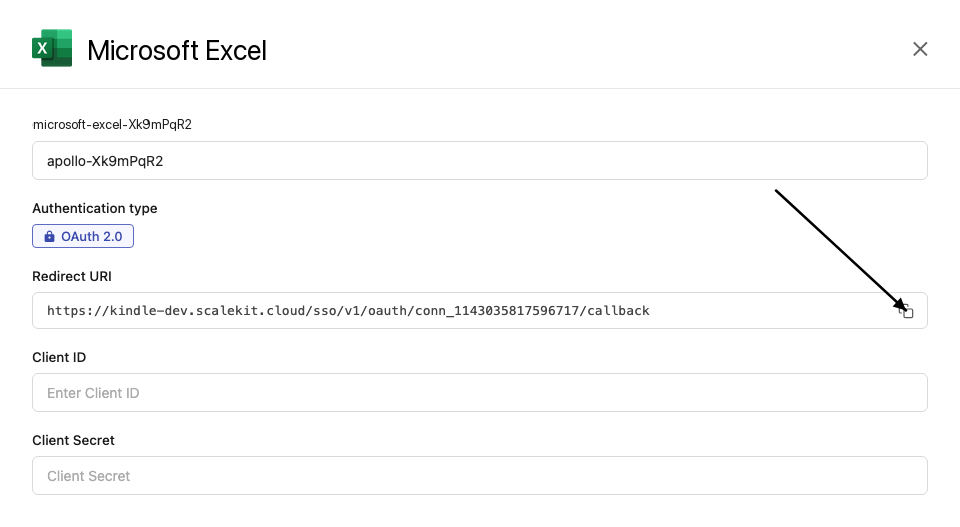
-
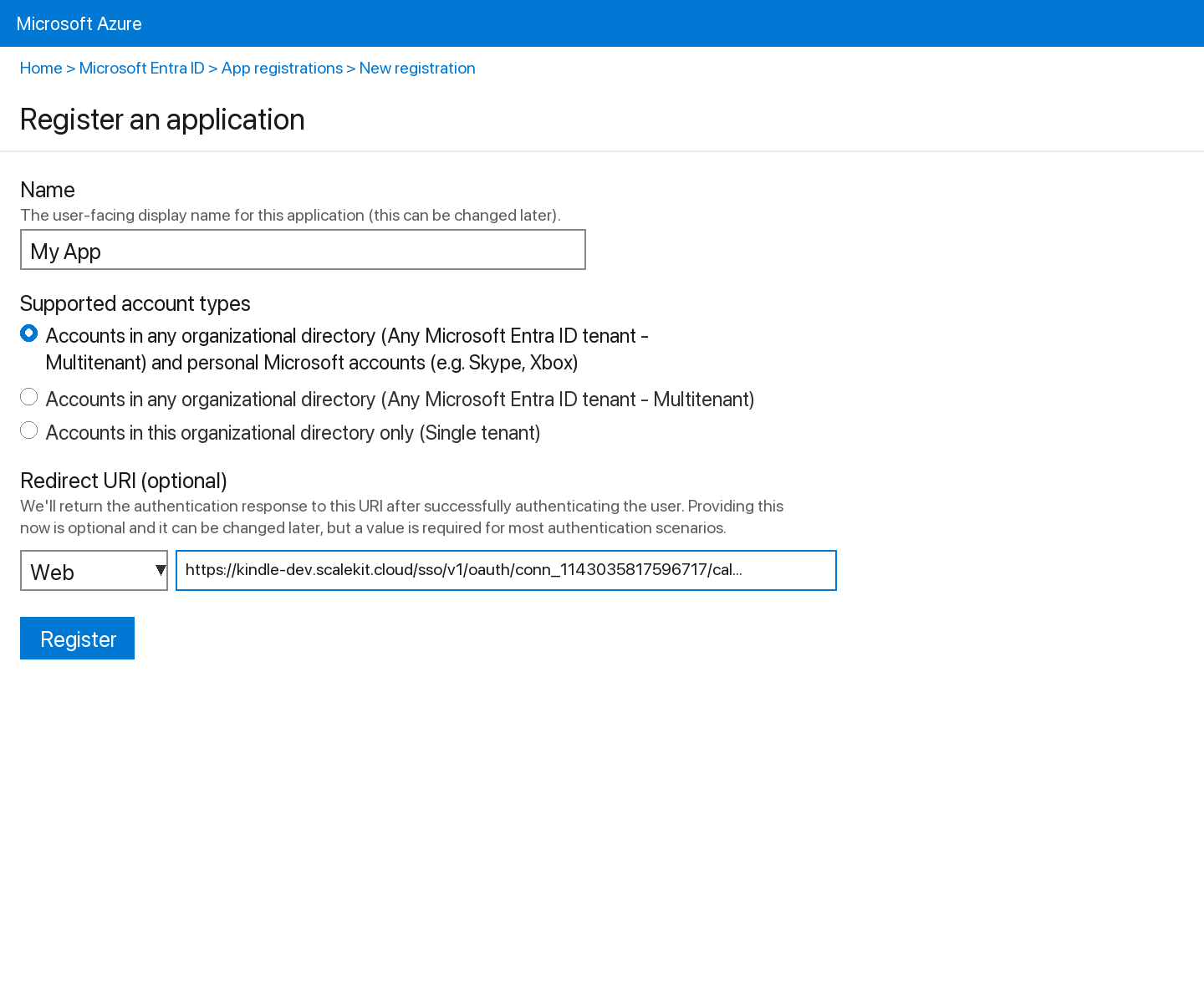
Sign into portal.azure.com and go to Microsoft Entra ID → App registrations → New registration.
-
Enter a name for your app.
-
Under Supported account types, select Accounts in any organizational directory (Any Azure AD directory - Multitenant) and personal Microsoft accounts.
-
Under Redirect URI, select Web and paste the redirect URI from step 1. Click Register.
-
-
Get your client credentials
-
Go to Certificates & secrets → New client secret, set an expiry, and click Add. Copy the Value immediately.
-
From the Overview page, copy the Application (client) ID.
-
-
Add credentials in Scalekit
-
In Scalekit dashboard, go to AgentKit > Connections and open the connection you created.
-
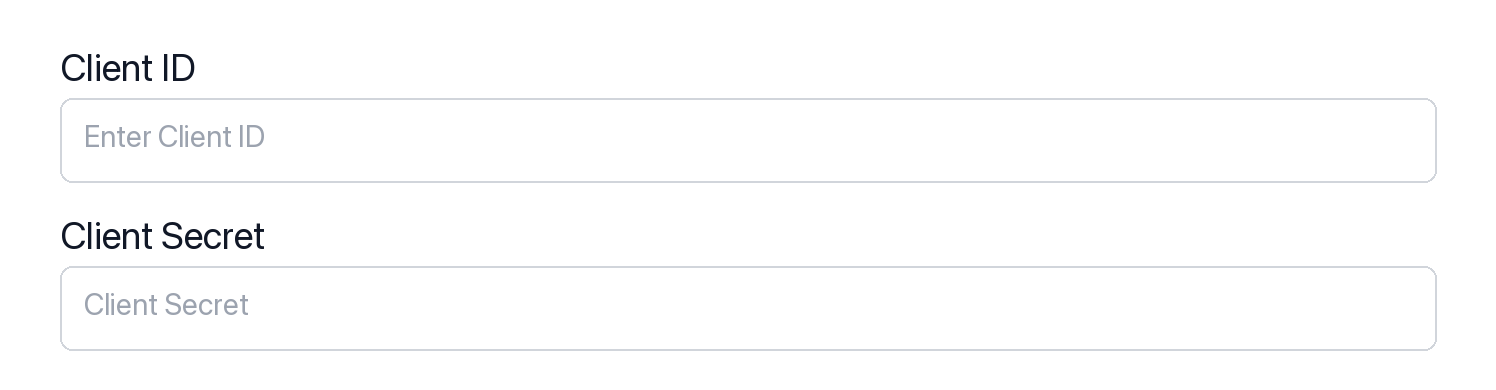
Enter your credentials:
- Client ID (Application (client) ID from Azure)
- Client Secret (from Certificates & secrets)
- Permissions (scopes — see Microsoft Graph permissions reference)
-
Click Save.
-
-
Authorize a user and make your first call
quickstart.mts import { ScalekitClient } from '@scalekit-sdk/node'import 'dotenv/config'import { createInterface } from 'node:readline/promises'const scalekit = new ScalekitClient(process.env.SCALEKIT_ENVIRONMENT_URL,process.env.SCALEKIT_CLIENT_ID,process.env.SCALEKIT_CLIENT_SECRET,)const actions = scalekit.actionsconst connector = 'microsoftexcel'const identifier = 'user_123'// Generate an authorization link for the userconst { link } = await actions.getAuthorizationLink({ connectionName: connector, identifier })console.log('Authorize Microsoft Excel:', link)const rl = createInterface({ input: process.stdin, output: process.stdout })await rl.question('Press Enter after authorizing...')rl.close()// Make your first callconst result = await actions.executeTool({connector,identifier,toolName: 'microsoftexcel_export_to_pdf',toolInput: { item_id: '01BYE5RZ6QN3ZWBTUFOFD3GSPGOHDJD36K' },})console.log(result)Terminal window npx tsx quickstart.mtsquickstart.py import osfrom scalekit import ScalekitClientfrom dotenv import load_dotenvload_dotenv()scalekit_client = ScalekitClient(env_url=os.getenv("SCALEKIT_ENVIRONMENT_URL"),client_id=os.getenv("SCALEKIT_CLIENT_ID"),client_secret=os.getenv("SCALEKIT_CLIENT_SECRET"),)actions = scalekit_client.actionsconnection_name = "microsoftexcel"identifier = "user_123"# Generate an authorization link for the userlink_response = actions.get_authorization_link(connection_name=connection_name,identifier=identifier,)print("Authorize Microsoft Excel:", link_response.link)input("Press Enter after authorizing...")# Make your first callresult = actions.execute_tool(tool_input={"item_id":"01BYE5RZ6QN3ZWBTUFOFD3GSPGOHDJD36K"},tool_name="microsoftexcel_export_to_pdf",connection_name=connection_name,identifier=identifier,)print(result)Terminal window python quickstart.pyEach user signs in once. See Authorize a user for the full flow and statuses.
Tools
Pass the exact name toexecute_toolmicrosoftexcel_calculate_functionInvoke any built-in Excel worksheet function (e.g.Read-onlyCalculate Excel Function
Invoke any built-in Excel worksheet function (e.g. PMT, SUM, VLOOKUP, TEXTJOIN) directly against a workbook stored in OneDrive and return its computed result, without needing to write the formula into a cell first.
Inputs
argumentsobjectrequired- Named arguments for the function, matching the function's parameter names. Example for pmt: {"rate": 0.045, "nper": 12, "pv": -1250}.
function_namestringrequired- The name of the Excel function to invoke, in lowercase (e.g. 'pmt', 'sum', 'vlookup').
item_idstringrequired- OneDrive item ID of the Excel (.xlsx) file.
session_idstring- Optional workbook session ID from createSession. When provided, sent as the workbook-session-id header.
microsoftexcel_export_to_pdfExport an Excel workbook stored in OneDrive to PDF format.Read-onlyExport Excel to PDF
Export an Excel workbook stored in OneDrive to PDF format. Uses the Microsoft Graph OneDrive content endpoint with format=pdf query parameter. Returns the PDF binary content. The response may be a direct 200 with the PDF body or a 302 redirect to a download URL depending on file size.
Inputs
item_idstringrequired- OneDrive item ID of the Excel (.xlsx) file to export. Example: '01BYE5RZ6QN3ZWBTUFOFD3GSPGOHDJD36K'.
microsoftexcel_get_chart_imageRender an Excel chart to a base64-encoded image, useful for embedding a snapshot of the chart in a report, email, or dashboard without opening the workbook.Read-onlyGet Chart Image
Render an Excel chart to a base64-encoded image, useful for embedding a snapshot of the chart in a report, email, or dashboard without opening the workbook.
Inputs
chart_idstringrequired- Name or ID of the chart to render. Use List Charts to find it.
item_idstringrequired- OneDrive item ID of the Excel (.xlsx) file.
worksheet_idstringrequired- Worksheet name or GUID containing the chart.
heightinteger- Desired image height in pixels. Use 0 to keep the chart's natural height.
session_idstring- Optional workbook session ID from createSession. When provided, sent as the workbook-session-id header.
widthinteger- Desired image width in pixels. Use 0 to keep the chart's natural width.
microsoftexcel_get_named_itemRetrieve the definition of a single named item (named range or named formula) in an Excel workbook stored in OneDrive, by its name.Read-onlyGet Named Item
Retrieve the definition of a single named item (named range or named formula) in an Excel workbook stored in OneDrive, by its name.
Inputs
item_idstringrequired- OneDrive item ID of the Excel (.xlsx) file.
namestringrequired- The name of the named item to retrieve.
session_idstring- Optional workbook session ID from createSession. When provided, sent as the workbook-session-id header.
microsoftexcel_get_rangeRetrieve the values, formulas, format, and address of a cell range in an Excel worksheet stored in OneDrive.Read-onlyGet Excel Range
Retrieve the values, formulas, format, and address of a cell range in an Excel worksheet stored in OneDrive. Specify the range using standard Excel notation (e.g., 'A1:C10' or 'B2'). Optionally accepts a workbook session ID.
Inputs
addressstringrequired- Cell range address in Excel notation to retrieve. Examples: 'A1' for a single cell, 'A1:C10' for a multi-cell range, 'Sheet1!A1:B5' to target a specific sheet within the address.
item_idstringrequired- OneDrive item ID of the Excel (.xlsx) file. Example: '01BYE5RZ6QN3ZWBTUFOFD3GSPGOHDJD36K'.
worksheet_idstringrequired- Worksheet name or GUID containing the range. Example: 'Sheet1' or '{00000000-0001-0000-0000-000000000000}'.
session_idstring- Optional workbook session ID from createSession. When provided, sent as the workbook-session-id header. Example: 'cluster=SN2&session=...'.
microsoftexcel_get_tableRetrieve details of a specific table in an Excel workbook stored in OneDrive, including its name, style, column count, and header/total row settings.Read-onlyGet Excel Table
Retrieve details of a specific table in an Excel workbook stored in OneDrive, including its name, style, column count, and header/total row settings. Accepts either a numeric table ID or the table name.
Inputs
item_idstringrequired- OneDrive item ID of the Excel (.xlsx) file. Example: '01BYE5RZ6QN3ZWBTUFOFD3GSPGOHDJD36K'.
table_idstringrequired- Table name or numeric ID to retrieve. Example: 'Table1' or '1'. Both the table name and the workbook-assigned numeric ID are accepted.
session_idstring- Optional workbook session ID from createSession. When provided, sent as the workbook-session-id header. Example: 'cluster=SN2&session=...'.
microsoftexcel_get_used_rangeRetrieve the smallest range that contains any data or formatting on an Excel worksheet stored in OneDrive, without needing to already know the address.Read-onlyGet Worksheet Used Range
Retrieve the smallest range that contains any data or formatting on an Excel worksheet stored in OneDrive, without needing to already know the address. Useful for reading all the data on a sheet in one call.
Inputs
item_idstringrequired- OneDrive item ID of the Excel (.xlsx) file.
worksheet_idstringrequired- Worksheet name or GUID whose used range to retrieve.
session_idstring- Optional workbook session ID from createSession. When provided, sent as the workbook-session-id header.
microsoftexcel_get_worksheetRetrieve the properties of a specific worksheet in an Excel workbook stored in OneDrive.Read-onlyGet Excel Worksheet
Retrieve the properties of a specific worksheet in an Excel workbook stored in OneDrive. Use the worksheet name or its GUID as the worksheet_id. Optionally accepts a workbook session ID.
Inputs
item_idstringrequired- OneDrive item ID of the Excel (.xlsx) file. Example: '01BYE5RZ6QN3ZWBTUFOFD3GSPGOHDJD36K'.
worksheet_idstringrequired- The worksheet name or GUID to retrieve. Use the sheet tab name (e.g., 'Sheet1') or the worksheet's unique GUID. Example: 'Sheet1' or '{00000000-0001-0000-0000-000000000000}'.
session_idstring- Optional workbook session ID from createSession. When provided, sent as the workbook-session-id header. Example: 'cluster=SN2&session=...'.
microsoftexcel_list_chartsList all charts in an Excel worksheet stored in OneDrive.Read-onlyList Excel Charts
List all charts in an Excel worksheet stored in OneDrive. Returns chart names, IDs, type, dimensions, and position. Supports OData $top for pagination.
Inputs
item_idstringrequired- OneDrive item ID of the Excel (.xlsx) file. Example: '01BYE5RZ6QN3ZWBTUFOFD3GSPGOHDJD36K'.
worksheet_idstringrequired- Worksheet name or GUID containing the charts to list. Example: 'Sheet1'.
session_idstring- Optional workbook session ID from createSession. When provided, sent as the workbook-session-id header. Example: 'cluster=SN2&session=...'.
topinteger- Maximum number of charts to return (1–1000). Defaults to server-defined page size.
microsoftexcel_list_commentsList all comments in an Excel workbook stored in OneDrive.Read-onlyList Excel Comments
List all comments in an Excel workbook stored in OneDrive. Returns comment IDs, author information, content, cell location, and creation date. Supports OData $top for pagination.
Inputs
item_idstringrequired- OneDrive item ID of the Excel (.xlsx) file. Example: '01BYE5RZ6QN3ZWBTUFOFD3GSPGOHDJD36K'.
session_idstring- Optional workbook session ID from createSession. When provided, sent as the workbook-session-id header. Example: 'cluster=SN2&session=...'.
topinteger- Maximum number of comments to return (1–1000). Defaults to server-defined page size.
microsoftexcel_list_named_itemsList all named items (named ranges and constants) in an Excel workbook stored in OneDrive.Read-onlyList Excel Named Items
List all named items (named ranges and constants) in an Excel workbook stored in OneDrive. Returns the name, type, value, and scope for each named item. Supports OData $top for pagination and $select for field projection.
Inputs
item_idstringrequired- OneDrive item ID of the Excel (.xlsx) file. Example: '01BYE5RZ6QN3ZWBTUFOFD3GSPGOHDJD36K'.
selectstring- Comma-separated list of properties to return for each named item. Example: 'name,type,value' to return only those fields.
session_idstring- Optional workbook session ID from createSession. When provided, sent as the workbook-session-id header. Example: 'cluster=SN2&session=...'.
topinteger- Maximum number of named items to return (1–1000). Defaults to server-defined page size.
microsoftexcel_list_pivot_tablesList all PivotTables on a worksheet in an Excel workbook stored in OneDrive.Read-onlyList Excel PivotTables
List all PivotTables on a worksheet in an Excel workbook stored in OneDrive. Returns each PivotTable's name and ID. PivotTables are not covered by any other existing tool.
Inputs
item_idstringrequired- OneDrive item ID of the Excel (.xlsx) file. Example: '01BYE5RZ6QN3ZWBTUFOFD3GSPGOHDJD36K'.
worksheet_idstringrequired- Worksheet name or GUID containing the PivotTables to list. Example: 'Sheet1'.
session_idstring- Optional workbook session ID from createSession. When provided, sent as the workbook-session-id header. Example: 'cluster=SN2&session=...'.
topinteger- Maximum number of PivotTables to return (1–1000). Defaults to server-defined page size.
microsoftexcel_list_table_columnsList all columns in an Excel table in a workbook stored in OneDrive.Read-onlyList Excel Table Columns
List all columns in an Excel table in a workbook stored in OneDrive. Returns column objects including their name, index, and values. Supports OData pagination with $top and field selection with $select.
Inputs
item_idstringrequired- OneDrive item ID of the Excel (.xlsx) file. Example: '01BYE5RZ6QN3ZWBTUFOFD3GSPGOHDJD36K'.
table_idstringrequired- Table name or numeric ID whose columns to list. Example: 'Table1' or '1'.
selectstring- Comma-separated list of properties to return for each column. Example: 'id,name' to return only the column ID and name.
session_idstring- Optional workbook session ID from createSession. When provided, sent as the workbook-session-id header. Example: 'cluster=SN2&session=...'.
topinteger- Maximum number of columns to return. Useful for tables with many columns. Example: 10.
microsoftexcel_list_table_rowsList rows in an Excel table stored in OneDrive.Read-onlyList Excel Table Rows
List rows in an Excel table stored in OneDrive. Returns an array of row objects, each containing a values array with the cell data. Supports OData pagination with $top and $skip.
Inputs
item_idstringrequired- OneDrive item ID of the Excel (.xlsx) file. Example: '01BYE5RZ6QN3ZWBTUFOFD3GSPGOHDJD36K'.
table_idstringrequired- Table name or numeric ID whose rows to list. Example: 'Table1' or '1'.
session_idstring- Optional workbook session ID from createSession. When provided, sent as the workbook-session-id header. Example: 'cluster=SN2&session=...'.
skipinteger- Number of rows to skip for pagination. Use in combination with $top to page through large tables. Example: 20 to skip the first 20 rows.
topinteger- Maximum number of rows to return. Defaults to server page size. Example: 50 to return up to 50 rows.
microsoftexcel_list_tablesList all tables in an Excel workbook stored in OneDrive.Read-onlyList Excel Tables
List all tables in an Excel workbook stored in OneDrive. Returns table names, IDs, style, and header/total row settings. Supports OData query options for pagination and field selection.
Inputs
item_idstringrequired- OneDrive item ID of the Excel (.xlsx) file. Example: '01BYE5RZ6QN3ZWBTUFOFD3GSPGOHDJD36K'.
selectstring- Comma-separated list of properties to return. Example: 'id,name,style' to return only those fields for each table.
session_idstring- Optional workbook session ID from createSession. When provided, sent as the workbook-session-id header. Example: 'cluster=SN2&session=...'.
topinteger- Maximum number of tables to return (1–1000). Defaults to server-defined page size.
microsoftexcel_list_worksheetsList all worksheets in an Excel workbook stored in OneDrive.Read-onlyList Excel Worksheets
List all worksheets in an Excel workbook stored in OneDrive. Supports OData query parameters for field selection and pagination. Optionally accepts a workbook session ID for session-based access.
Inputs
item_idstringrequired- OneDrive item ID of the Excel (.xlsx) file. Example: '01BYE5RZ6QN3ZWBTUFOFD3GSPGOHDJD36K'.
selectstring- Comma-separated list of properties to return for each worksheet. Example: 'id,name,position,visibility'.
session_idstring- Optional workbook session ID from createSession. When provided, sent as the workbook-session-id header for session-based access. Example: 'cluster=SN2&session=...'.
topinteger- Maximum number of worksheets to return. Example: 10.
microsoftexcel_add_named_itemDefine a new named item (named range or named formula) in an Excel workbook stored in OneDrive.WriteAdd Named Item
Define a new named item (named range or named formula) in an Excel workbook stored in OneDrive. Named items let formulas and other tools refer to a range or value by a memorable name instead of a cell address.
Inputs
item_idstringrequired- OneDrive item ID of the Excel (.xlsx) file.
namestringrequired- The name to assign to the new named item. Must be unique within the workbook.
referencestringrequired- A formula-style string starting with '=' that this name refers to — either a range address (e.g. '=Sheet1!$A$1:$B$10') or a computed formula (e.g. '=SUM(Sheet1!A1:A10)').
commentstring- Optional comment describing the named item.
session_idstring- Optional workbook session ID from createSession. When provided, sent as the workbook-session-id header.
microsoftexcel_add_table_columnAdd a new column to an existing Excel table in OneDrive.WriteAdd Excel Table Column
Add a new column to an existing Excel table in OneDrive. Optionally specify the column name, its zero-based insertion index (null = append at end), and initial cell values as a 2D array (first row is the header). Returns the created column object.
Inputs
item_idstringrequired- OneDrive item ID of the Excel (.xlsx) file. Example: '01BYE5RZ6QN3ZWBTUFOFD3GSPGOHDJD36K'.
table_idstringrequired- Name or ID of the table to add the column to. Example: 'Table1' or the GUID assigned by Excel.
indexinteger- Zero-based index position at which to insert the column. Null or omitted means append the column at the right end of the table. Example: 0 inserts as the first column.
namestring- Display name for the new column header. If omitted, Excel auto-generates a name (e.g., 'Column1'). Example: 'Revenue'.
session_idstring- Optional workbook session ID from createSession. When provided, sent as the workbook-session-id header. Example: 'cluster=SN2&session=...'.
valuesarray- 2D array of initial cell values for the column, including the header row in the first element. Example: [["Header"],["row1val"],["row2val"]]. Each inner array is one row. If omitted, the column is created empty.
microsoftexcel_add_table_rowAdd a new row to an Excel table in a workbook stored in OneDrive.WriteAdd Excel Table Row
Add a new row to an Excel table in a workbook stored in OneDrive. Provide a 2D array of values (one inner array per row to insert). Optionally specify an index to insert the row at a specific position; omit index to append to the end of the table.
Inputs
item_idstringrequired- OneDrive item ID of the Excel (.xlsx) file. Example: '01BYE5RZ6QN3ZWBTUFOFD3GSPGOHDJD36K'.
table_idstringrequired- Table name or numeric ID to add a row to. Example: 'Table1' or '1'.
valuesarrayrequired- 2D array of values to insert as a new row. Each inner array represents one row; each element is a cell value (string, number, boolean, or null). The number of elements in each inner array must match the table's column count. Example: [["Alice", 95, true]] inserts one row with three cells.
indexinteger- Zero-based index at which to insert the row. If null or omitted, the row is appended to the end of the table. Example: 0 inserts at the top of the table.
session_idstring- Optional workbook session ID from createSession. When provided, sent as the workbook-session-id header. Example: 'cluster=SN2&session=...'.
microsoftexcel_clear_rangeClear the contents, formats, or both from a cell range in an Excel worksheet stored in OneDrive.WriteClear Excel Range
Clear the contents, formats, or both from a cell range in an Excel worksheet stored in OneDrive. Use apply_to to control what is cleared: 'All' clears both content and formatting, 'Contents' clears only values and formulas, 'Formats' clears only cell formatting.
Inputs
addressstringrequired- Cell range address in Excel notation to clear. Examples: 'A1:C10' to clear a multi-cell range, 'B2' to clear a single cell.
item_idstringrequired- OneDrive item ID of the Excel (.xlsx) file. Example: '01BYE5RZ6QN3ZWBTUFOFD3GSPGOHDJD36K'.
worksheet_idstringrequired- Worksheet name or GUID containing the range to clear. Example: 'Sheet1'.
apply_tostring- What to clear from the range. Valid values: 'All' (clears both content and formatting, default), 'Contents' (clears only values and formulas), 'Formats' (clears only cell formatting).one of
AllContentsFormatsdefaultAll session_idstring- Optional workbook session ID from createSession. When provided, sent as the workbook-session-id header. Example: 'cluster=SN2&session=...'.
microsoftexcel_clear_table_filterClear an active filter on a table column, complementing Filter Excel Table Column (apply), which has no corresponding clear action of its own.WriteClear Excel Table Filter
Clear an active filter on a table column, complementing Filter Excel Table Column (apply), which has no corresponding clear action of its own.
- Idempotent
Inputs
column_idstringrequired- Name or ID of the column within the table whose filter should be cleared. Example: 'Status' or the column's integer ID.
item_idstringrequired- OneDrive item ID of the Excel (.xlsx) file. Example: '01BYE5RZ6QN3ZWBTUFOFD3GSPGOHDJD36K'.
table_idstringrequired- Name or ID of the table whose column filter should be cleared. Example: 'Table1' or the GUID assigned by Excel.
session_idstring- Optional workbook session ID from createSession. When provided, sent as the workbook-session-id header. Example: 'cluster=SN2&session=...'.
microsoftexcel_close_sessionClose an active workbook session for an Excel file in OneDrive.WriteClose Excel Workbook Session
Close an active workbook session for an Excel file in OneDrive. Releases server-side resources associated with the session. Pass the session ID returned by the createSession call as session_id.
Inputs
item_idstringrequired- OneDrive item ID of the Excel (.xlsx) file whose session should be closed. Example: '01BYE5RZ6QN3ZWBTUFOFD3GSPGOHDJD36K'.
session_idstringrequired- Workbook session ID returned by the createSession call. Sent as the workbook-session-id request header to identify which session to close. Example: 'cluster=SN2&session=...'.
microsoftexcel_copy_worksheetDuplicate a worksheet within the same Excel workbook stored in OneDrive, including its data, formatting, and charts.WriteCopy Worksheet
Duplicate a worksheet within the same Excel workbook stored in OneDrive, including its data, formatting, and charts. The copy is placed relative to an existing worksheet.
Inputs
item_idstringrequired- OneDrive item ID of the Excel (.xlsx) file.
worksheet_idstringrequired- Worksheet name or GUID to copy.
position_typestring- Where to place the new worksheet relative to relative_to (or absolutely for Beginning/End). Defaults to After.one of
NoneBeforeAfterBeginningEnd relative_tostring- Worksheet name or GUID that position_type (Before/After) is relative to. Defaults to the source worksheet.
session_idstring- Optional workbook session ID from createSession. When provided, sent as the workbook-session-id header.
microsoftexcel_create_chartCreate a new chart in an Excel worksheet stored in OneDrive.WriteCreate Excel Chart
Create a new chart in an Excel worksheet stored in OneDrive. Specify the chart type (e.g., ColumnClustered, Line, Pie), the source data range address (e.g., 'A1:B10'), and optionally how series are arranged (Auto, Columns, Rows). Returns the created chart object including its ID.
Inputs
item_idstringrequired- OneDrive item ID of the Excel (.xlsx) file. Example: '01BYE5RZ6QN3ZWBTUFOFD3GSPGOHDJD36K'.
source_datastringrequired- Cell range address providing the chart source data in Excel notation. Example: 'A1:B10' uses columns A and B, rows 1–10 as the chart data.
worksheet_idstringrequired- Worksheet name or GUID in which to create the chart. Example: 'Sheet1'.
chart_typestring- Type of chart to create. Valid values: ColumnClustered, ColumnStacked, ColumnStacked100, BarClustered, BarStacked, BarStacked100, Line, LineStacked, LineMarkers, Pie, Doughnut, Scatter, Area, Radar, XYScatter. Default is 'ColumnClustered'.one of
ColumnClusteredColumnStackedColumnStacked100BarClusteredBarStackedBarStacked100LineLineStackedLineMarkersPieDoughnutScatterXYScatterAreaAreaStackedRadardefaultColumnClustered series_bystring- How data series are determined from the source range. Valid values: 'Auto' (Excel decides), 'Columns' (each column is a series), 'Rows' (each row is a series). Default is 'Auto'.one of
AutoColumnsRowsdefaultAuto session_idstring- Optional workbook session ID from createSession. When provided, sent as the workbook-session-id header. Example: 'cluster=SN2&session=...'.
microsoftexcel_create_sessionCreate a workbook session for an Excel file in OneDrive.WriteCreate Excel Workbook Session
Create a workbook session for an Excel file in OneDrive. Returns a session ID that can be passed as the workbook-session-id header in subsequent Excel API calls to maintain state and improve performance. Requires the OneDrive item ID of the .xlsx file.
Inputs
item_idstringrequired- OneDrive item ID of the Excel (.xlsx) file to open a session for. Obtain this from the OneDrive file listing or drive item API. Example: '01BYE5RZ6QN3ZWBTUFOFD3GSPGOHDJD36K'.
persist_changesboolean- Whether to persist changes made during the session to the workbook. Set to true (default) to save changes; set to false for a read-only transient session that does not commit edits.default
true
microsoftexcel_create_tableCreate a new Excel table from a cell range in a worksheet stored in OneDrive.WriteCreate Excel Table
Create a new Excel table from a cell range in a worksheet stored in OneDrive. Specify the address of the range (e.g., 'A1:D10') and whether the first row contains headers. Returns the created table object including its assigned ID and name.
Inputs
addressstringrequired- Cell range address for the new table in Excel notation. Example: 'A1:D10' creates a table spanning columns A–D and rows 1–10.
item_idstringrequired- OneDrive item ID of the Excel (.xlsx) file. Example: '01BYE5RZ6QN3ZWBTUFOFD3GSPGOHDJD36K'.
worksheet_idstringrequired- Worksheet name or GUID in which to create the table. Example: 'Sheet1'.
has_headersboolean- Whether the first row of the range contains column headers. When true (default), the first row becomes the header row of the table. When false, Excel auto-generates header names.default
true session_idstring- Optional workbook session ID from createSession. When provided, sent as the workbook-session-id header. Example: 'cluster=SN2&session=...'.
microsoftexcel_create_worksheetAdd a new worksheet to an Excel workbook stored in OneDrive.WriteCreate Excel Worksheet
Add a new worksheet to an Excel workbook stored in OneDrive. Specify the sheet name. Returns the newly created worksheet object including its ID, name, position, and visibility.
Inputs
item_idstringrequired- OneDrive item ID of the Excel (.xlsx) file to add the worksheet to. Example: '01BYE5RZ6QN3ZWBTUFOFD3GSPGOHDJD36K'.
namestringrequired- Name for the new worksheet tab. Must be unique within the workbook and cannot exceed 31 characters. Example: 'Q1 Sales'.
session_idstring- Optional workbook session ID from createSession. When provided, sent as the workbook-session-id header. Example: 'cluster=SN2&session=...'.
microsoftexcel_filter_tableApply a filter to a column in an Excel table stored in OneDrive.WriteFilter Excel Table Column
Apply a filter to a column in an Excel table stored in OneDrive. Specify the filter criteria type (e.g., Values, Dynamic, Top, Custom) and the values or criteria to filter by. For 'Values' filtering, provide an array of exact string values to show. The filter is applied in place; no data is returned.
Inputs
column_idstringrequired- Name or ID of the column within the table on which to apply the filter. Example: 'Status' or the column's integer ID.
item_idstringrequired- OneDrive item ID of the Excel (.xlsx) file. Example: '01BYE5RZ6QN3ZWBTUFOFD3GSPGOHDJD36K'.
table_idstringrequired- Name or ID of the table to filter. Example: 'Table1' or the GUID assigned by Excel.
valuesarrayrequired- Array of string values to filter by when filter_on is 'Values'. Only rows whose cell in this column matches one of these values will be shown. Example: ["Active", "Pending"].
filter_onstring- Filter type that determines how the criteria are applied. Valid values: 'Values' (match exact values), 'Custom' (custom expression), 'CellColor' (cell background color), 'FontColor' (cell font color), 'Dynamic' (dynamic filter such as Above Average), 'Top10' (top or bottom N items), 'Icon' (cell icon). Default is 'Values'.one of
ValuesCustomCellColorFontColorDynamicTop10IcondefaultValues session_idstring- Optional workbook session ID from createSession. When provided, sent as the workbook-session-id header. Example: 'cluster=SN2&session=...'.
microsoftexcel_merge_rangeMerge a cell range in an Excel worksheet stored in OneDrive.WriteMerge Excel Range
Merge a cell range in an Excel worksheet stored in OneDrive. Specify the range address (e.g., 'A1:C3') and optionally set 'across' to true to merge each row separately rather than merging the entire block into one cell.
Inputs
addressstringrequired- Cell range address in Excel notation to merge. Examples: 'A1:C3' for a 3-column by 3-row block, 'B2:D4' for a rectangular range.
item_idstringrequired- OneDrive item ID of the Excel (.xlsx) file. Example: '01BYE5RZ6QN3ZWBTUFOFD3GSPGOHDJD36K'.
worksheet_idstringrequired- Worksheet name or GUID containing the range to merge. Example: 'Sheet1'.
acrossboolean- When true, merges cells in each row of the range separately (row-by-row merge) instead of merging the entire block into a single cell. Defaults to false.default
false session_idstring- Optional workbook session ID from createSession. When provided, sent as the workbook-session-id header. Example: 'cluster=SN2&session=...'.
microsoftexcel_protect_worksheetApply protection to a worksheet in an Excel workbook stored in OneDrive.WriteProtect Excel Worksheet
Apply protection to a worksheet in an Excel workbook stored in OneDrive. You can optionally set a password and configure which actions are allowed while the sheet is protected (e.g., allow formatting cells but prevent deleting rows).
Inputs
item_idstringrequired- OneDrive item ID of the Excel (.xlsx) file. Example: '01BYE5RZ6QN3ZWBTUFOFD3GSPGOHDJD36K'.
worksheet_idstringrequired- Worksheet name or GUID to protect. Example: 'Sheet1' or '{00000000-0001-0000-0000-000000000000}'.
allow_auto_filterboolean- Whether to allow AutoFilter operations while the worksheet is protected. Default is false.
allow_delete_columnsboolean- Whether to allow deleting columns while the worksheet is protected. Default is false.
allow_delete_rowsboolean- Whether to allow deleting rows while the worksheet is protected. Default is false.
allow_format_cellsboolean- Whether to allow formatting cells while the worksheet is protected. Default is false.
allow_format_columnsboolean- Whether to allow formatting columns while the worksheet is protected. Default is false.
allow_format_rowsboolean- Whether to allow formatting rows while the worksheet is protected. Default is false.
allow_insert_columnsboolean- Whether to allow inserting columns while the worksheet is protected. Default is false.
allow_insert_hyperlinksboolean- Whether to allow inserting hyperlinks while the worksheet is protected. Default is false.
allow_insert_rowsboolean- Whether to allow inserting rows while the worksheet is protected. Default is false.
allow_pivot_tablesboolean- Whether to allow PivotTable operations while the worksheet is protected. Default is false.
allow_sortboolean- Whether to allow sorting while the worksheet is protected. Default is false.
passwordstring- Optional password to protect the worksheet. If set, users must enter this password to unprotect the sheet. Example: 'MySecretPass123'.
session_idstring- Optional workbook session ID from createSession. When provided, sent as the workbook-session-id header. Example: 'cluster=SN2&session=...'.
microsoftexcel_refresh_all_pivot_tablesRefresh every PivotTable on a worksheet in one call, picking up any changes made to their underlying source data since they were last refreshed.WriteRefresh All Excel PivotTables
Refresh every PivotTable on a worksheet in one call, picking up any changes made to their underlying source data since they were last refreshed.
- Idempotent
Inputs
item_idstringrequired- OneDrive item ID of the Excel (.xlsx) file. Example: '01BYE5RZ6QN3ZWBTUFOFD3GSPGOHDJD36K'.
worksheet_idstringrequired- Worksheet name or GUID whose PivotTables should all be refreshed. Example: 'Sheet1'.
session_idstring- Optional workbook session ID from createSession. When provided, sent as the workbook-session-id header. Example: 'cluster=SN2&session=...'.
microsoftexcel_refresh_pivot_tableRefresh a single PivotTable's data from its source range, picking up any changes made to the underlying data since it was last refreshed.WriteRefresh Excel PivotTable
Refresh a single PivotTable's data from its source range, picking up any changes made to the underlying data since it was last refreshed.
- Idempotent
Inputs
item_idstringrequired- OneDrive item ID of the Excel (.xlsx) file. Example: '01BYE5RZ6QN3ZWBTUFOFD3GSPGOHDJD36K'.
pivot_table_idstringrequired- Name or ID of the PivotTable to refresh. Use List Excel PivotTables to find it.
worksheet_idstringrequired- Worksheet name or GUID containing the PivotTable. Example: 'Sheet1'.
session_idstring- Optional workbook session ID from createSession. When provided, sent as the workbook-session-id header. Example: 'cluster=SN2&session=...'.
microsoftexcel_set_chart_dataRepoint an existing chart at a new source data range and/or seriesBy setting.WriteSet Excel Chart Data
Repoint an existing chart at a new source data range and/or seriesBy setting. Distinct from Update Excel Chart, which per Microsoft's docs only changes position/size/title properties, not the underlying data the chart plots.
- Idempotent
Inputs
chart_idstringrequired- Name or ID of the chart to repoint. Example: 'Chart 1' or the GUID assigned by Excel.
item_idstringrequired- OneDrive item ID of the Excel (.xlsx) file. Example: '01BYE5RZ6QN3ZWBTUFOFD3GSPGOHDJD36K'.
source_datastringrequired- The new range address the chart should plot, e.g. 'A1:B4' or 'Sheet1!A1:B4'.
worksheet_idstringrequired- Worksheet name or GUID containing the chart. Example: 'Sheet1'.
series_bystring- Whether the chart series should be created from rows or columns of the source data. Accepted values: Auto, Columns, Rows. Defaults to Auto.one of
AutoColumnsRows session_idstring- Optional workbook session ID from createSession. When provided, sent as the workbook-session-id header. Example: 'cluster=SN2&session=...'.
microsoftexcel_sort_rangeApply a sort to a cell range in an Excel worksheet stored in OneDrive.WriteSort Excel Range
Apply a sort to a cell range in an Excel worksheet stored in OneDrive. Specify one or more sort fields defining which column index to sort by and whether to sort ascending or descending. Optionally control case sensitivity and whether the range has a header row.
Inputs
addressstringrequired- Cell range address in Excel notation to sort. Example: 'A1:D20' to sort a 4-column, 20-row range.
fieldsarrayrequired- Array of sort field objects defining the sort criteria. Each object must have a 'key' (zero-based column index within the range) and optionally 'ascending' (bool, default true) and 'sortOn' (e.g., 'Value', 'CellColor', 'FontColor', 'Icon'). Example: [{"key": 0, "ascending": true, "sortOn": "Value"}].
item_idstringrequired- OneDrive item ID of the Excel (.xlsx) file. Example: '01BYE5RZ6QN3ZWBTUFOFD3GSPGOHDJD36K'.
worksheet_idstringrequired- Worksheet name or GUID containing the range to sort. Example: 'Sheet1'.
has_headersboolean- Whether the range has a header row that should not be sorted. Default is true — the first row is treated as a header and excluded from sorting.default
true match_caseboolean- Whether the sort is case-sensitive. Default is false (case-insensitive).default
false session_idstring- Optional workbook session ID from createSession. When provided, sent as the workbook-session-id header. Example: 'cluster=SN2&session=...'.
microsoftexcel_sort_tableApply a sort to an Excel table stored in OneDrive.WriteSort Excel Table
Apply a sort to an Excel table stored in OneDrive. Provide one or more sort field objects specifying the zero-based column key within the table, sort direction (ascending/descending), and sort basis (Value, CellColor, FontColor, Icon). Optionally control case sensitivity. The sort is applied in place; no data is returned.
Inputs
fieldsarrayrequired- Array of sort field objects defining the sort criteria. Each object must include 'key' (zero-based column index within the table). Optionally include 'ascending' (bool, default true) and 'sortOn' (e.g., 'Value', 'CellColor', 'FontColor', 'Icon'). Example: [{"key": 0, "ascending": true, "sortOn": "Value"}].
item_idstringrequired- OneDrive item ID of the Excel (.xlsx) file. Example: '01BYE5RZ6QN3ZWBTUFOFD3GSPGOHDJD36K'.
table_idstringrequired- Name or ID of the table to sort. Example: 'Table1' or the GUID assigned by Excel.
match_caseboolean- Whether the sort is case-sensitive. Default is false (case-insensitive). Example: set to true to distinguish 'Apple' from 'apple'.default
false session_idstring- Optional workbook session ID from createSession. When provided, sent as the workbook-session-id header. Example: 'cluster=SN2&session=...'.
microsoftexcel_unmerge_rangeUnmerge a previously merged cell range in an Excel worksheet stored in OneDrive.WriteUnmerge Excel Range
Unmerge a previously merged cell range in an Excel worksheet stored in OneDrive. Specify the range address to split any merged cells back into individual cells.
Inputs
addressstringrequired- Cell range address in Excel notation to unmerge. Example: 'A1:C3' to unmerge a block that was previously merged.
item_idstringrequired- OneDrive item ID of the Excel (.xlsx) file. Example: '01BYE5RZ6QN3ZWBTUFOFD3GSPGOHDJD36K'.
worksheet_idstringrequired- Worksheet name or GUID containing the range to unmerge. Example: 'Sheet1'.
session_idstring- Optional workbook session ID from createSession. When provided, sent as the workbook-session-id header. Example: 'cluster=SN2&session=...'.
microsoftexcel_update_chartUpdate properties of an existing chart in an Excel worksheet stored in OneDrive.WriteUpdate Excel Chart
Update properties of an existing chart in an Excel worksheet stored in OneDrive. You can update the chart title text, dimensions (height, width in points), and position (left, top offsets in points). Only fields provided will be updated. Returns the updated chart object.
- Idempotent
Inputs
chart_idstringrequired- Name or ID of the chart to update. Example: 'Chart 1' or the GUID assigned by Excel.
item_idstringrequired- OneDrive item ID of the Excel (.xlsx) file. Example: '01BYE5RZ6QN3ZWBTUFOFD3GSPGOHDJD36K'.
worksheet_idstringrequired- Worksheet name or GUID containing the chart. Example: 'Sheet1'.
heightinteger- Height of the chart in points. Example: 300 sets the chart height to 300 points.
leftinteger- Left offset of the chart from the worksheet origin in points. Example: 0 positions the chart at the left edge.
session_idstring- Optional workbook session ID from createSession. When provided, sent as the workbook-session-id header. Example: 'cluster=SN2&session=...'.
titlestring- New text for the chart title. Example: 'Monthly Revenue'. This wraps to the Graph API shape {"title":{"text":"..."}}.
topinteger- Top offset of the chart from the worksheet origin in points. Example: 0 positions the chart at the top edge.
widthinteger- Width of the chart in points. Example: 400 sets the chart width to 400 points.
microsoftexcel_update_rangeWrite values, formulas, or number formats to a cell range in an Excel worksheet stored in OneDrive.WriteUpdate Excel Range
Write values, formulas, or number formats to a cell range in an Excel worksheet stored in OneDrive. Provide a 2D array of values matching the dimensions of the target range. Optionally set formulas and number formats for cells.
- Idempotent
Inputs
addressstringrequired- Cell range address in Excel notation to update. Must match the dimensions of the values array. Examples: 'A1:C2' for a 2-row by 3-column range, 'B5' for a single cell.
item_idstringrequired- OneDrive item ID of the Excel (.xlsx) file. Example: '01BYE5RZ6QN3ZWBTUFOFD3GSPGOHDJD36K'.
valuesarrayrequired- 2D array of cell values to write. Each inner array represents a row; each element is a cell value (string, number, boolean, or null). Example: [["Name", "Score"], ["Alice", 95], ["Bob", 87]].
worksheet_idstringrequired- Worksheet name or GUID containing the range to update. Example: 'Sheet1'.
formulasarray- 2D array of formula strings to write. Each inner array represents a row; each element is a cell formula string (e.g., '=SUM(A1:A5)') or null to leave blank. Must match the dimensions of the address range.
number_formatarray- 2D array of number format strings to apply. Each element is an Excel number format code (e.g., 'mm/dd/yyyy', '0.00', '@' for text). Must match the dimensions of the address range.
session_idstring- Optional workbook session ID from createSession. When provided, sent as the workbook-session-id header. Example: 'cluster=SN2&session=...'.
microsoftexcel_update_tableUpdate the properties of an existing Excel table in a workbook stored in OneDrive.WriteUpdate Excel Table
Update the properties of an existing Excel table in a workbook stored in OneDrive. Supports renaming the table, toggling header and total rows, and changing the table style.
- Idempotent
Inputs
item_idstringrequired- OneDrive item ID of the Excel (.xlsx) file. Example: '01BYE5RZ6QN3ZWBTUFOFD3GSPGOHDJD36K'.
table_idstringrequired- Table name or numeric ID to update. Example: 'Table1' or '1'.
namestring- New name for the table. Must be unique within the workbook. Example: 'SalesData'. Only alphanumeric characters and underscores; must not start with a number.
session_idstring- Optional workbook session ID from createSession. When provided, sent as the workbook-session-id header. Example: 'cluster=SN2&session=...'.
show_headersboolean- Whether to show the header row of the table. Set to true to display column headers, false to hide them.
show_totalsboolean- Whether to show the totals row at the bottom of the table. Set to true to display the totals row, false to hide it.
stylestring- Table style name to apply. Valid values follow the Excel table style naming convention, e.g., 'TableStyleLight1', 'TableStyleMedium2', 'TableStyleDark3'. See Excel table styles for available options.
microsoftexcel_update_worksheetUpdate properties of an existing worksheet in an Excel workbook stored in OneDrive.WriteUpdate Excel Worksheet
Update properties of an existing worksheet in an Excel workbook stored in OneDrive. You can rename the sheet, change its tab position, or change its visibility. At least one of name, position, or visibility must be provided.
- Idempotent
Inputs
item_idstringrequired- OneDrive item ID of the Excel (.xlsx) file. Example: '01BYE5RZ6QN3ZWBTUFOFD3GSPGOHDJD36K'.
worksheet_idstringrequired- Worksheet name or GUID to update. Example: 'Sheet1' or '{00000000-0001-0000-0000-000000000000}'.
namestring- New name for the worksheet tab. Must be unique within the workbook and no longer than 31 characters. Example: 'Q2 Sales'.
positioninteger- Zero-based index position of the worksheet among other sheets. Example: 0 makes it the first sheet.
session_idstring- Optional workbook session ID from createSession. When provided, sent as the workbook-session-id header. Example: 'cluster=SN2&session=...'.
visibilitystring- Visibility of the worksheet. Valid values: 'Visible' (shown), 'Hidden' (hidden but can be unhidden by user), 'VeryHidden' (hidden and cannot be unhidden from the UI).one of
VisibleHiddenVeryHidden
microsoftexcel_convert_table_to_rangeConvert an Excel table back into a plain cell range, removing table formatting and behaviors (filters, structured references, banding) while keeping the underlying data in place.DestructiveConvert Table to Range
Convert an Excel table back into a plain cell range, removing table formatting and behaviors (filters, structured references, banding) while keeping the underlying data in place.
Inputs
item_idstringrequired- OneDrive item ID of the Excel (.xlsx) file.
table_idstringrequired- Name or ID of the table to convert. Use List Tables to find it.
session_idstring- Optional workbook session ID from createSession. When provided, sent as the workbook-session-id header.
microsoftexcel_delete_chartDelete a chart from an Excel worksheet stored in OneDrive.DestructiveDelete Excel Chart
Delete a chart from an Excel worksheet stored in OneDrive. This permanently removes the chart from the worksheet. Requires the OneDrive item ID, worksheet name or GUID, and chart name or GUID.
- Idempotent
Inputs
chart_idstringrequired- Name or ID of the chart to delete. Example: 'Chart 1' or the GUID assigned by Excel.
item_idstringrequired- OneDrive item ID of the Excel (.xlsx) file. Example: '01BYE5RZ6QN3ZWBTUFOFD3GSPGOHDJD36K'.
worksheet_idstringrequired- Worksheet name or GUID containing the chart to delete. Example: 'Sheet1'.
session_idstring- Optional workbook session ID from createSession. When provided, sent as the workbook-session-id header. Example: 'cluster=SN2&session=...'.
microsoftexcel_delete_named_itemDelete a named item (named range or named formula) definition from an Excel workbook stored in OneDrive.DestructiveDelete Named Item
Delete a named item (named range or named formula) definition from an Excel workbook stored in OneDrive. This removes the name only; the underlying cells and their data are not affected.
- Idempotent
Inputs
item_idstringrequired- OneDrive item ID of the Excel (.xlsx) file.
namestringrequired- The name of the named item to delete.
session_idstring- Optional workbook session ID from createSession. When provided, sent as the workbook-session-id header.
microsoftexcel_delete_tablePermanently delete a table from an Excel workbook stored in OneDrive.DestructiveDelete Excel Table
Permanently delete a table from an Excel workbook stored in OneDrive. The underlying cell data is preserved but the table formatting and structure are removed. This action cannot be undone.
Inputs
item_idstringrequired- OneDrive item ID of the Excel (.xlsx) file. Example: '01BYE5RZ6QN3ZWBTUFOFD3GSPGOHDJD36K'.
table_idstringrequired- Table name or numeric ID to delete. Example: 'Table1' or '1'. This permanently removes the table structure (cell data is kept).
session_idstring- Optional workbook session ID from createSession. When provided, sent as the workbook-session-id header. Example: 'cluster=SN2&session=...'.
microsoftexcel_delete_table_columnDelete a column from an Excel table by its zero-based index.DestructiveDelete Excel Table Column
Delete a column from an Excel table by its zero-based index. This permanently removes the column and all its data from the table. Requires the OneDrive item ID, table name or ID, and the column index to delete.
- Idempotent
Inputs
column_indexintegerrequired- Zero-based index of the column to delete within the table. Example: 0 deletes the first column, 2 deletes the third column.
item_idstringrequired- OneDrive item ID of the Excel (.xlsx) file. Example: '01BYE5RZ6QN3ZWBTUFOFD3GSPGOHDJD36K'.
table_idstringrequired- Name or ID of the table containing the column to delete. Example: 'Table1' or the GUID assigned by Excel.
session_idstring- Optional workbook session ID from createSession. When provided, sent as the workbook-session-id header. Example: 'cluster=SN2&session=...'.
microsoftexcel_delete_table_rowPermanently delete a row from an Excel table in a workbook stored in OneDrive by its zero-based row index.DestructiveDelete Excel Table Row
Permanently delete a row from an Excel table in a workbook stored in OneDrive by its zero-based row index. All rows below the deleted row shift up by one. This action cannot be undone.
Inputs
item_idstringrequired- OneDrive item ID of the Excel (.xlsx) file. Example: '01BYE5RZ6QN3ZWBTUFOFD3GSPGOHDJD36K'.
row_indexintegerrequired- Zero-based index of the row to delete within the table. The header row is not counted; index 0 refers to the first data row. Example: 0 deletes the first data row.
table_idstringrequired- Table name or numeric ID from which to delete the row. Example: 'Table1' or '1'.
session_idstring- Optional workbook session ID from createSession. When provided, sent as the workbook-session-id header. Example: 'cluster=SN2&session=...'.
microsoftexcel_delete_worksheetPermanently delete a worksheet from an Excel workbook stored in OneDrive.DestructiveDelete Excel Worksheet
Permanently delete a worksheet from an Excel workbook stored in OneDrive. This action cannot be undone. The workbook must have at least one remaining visible worksheet after deletion.
Inputs
item_idstringrequired- OneDrive item ID of the Excel (.xlsx) file. Example: '01BYE5RZ6QN3ZWBTUFOFD3GSPGOHDJD36K'.
worksheet_idstringrequired- Worksheet name or GUID to delete. Example: 'Sheet1' or '{00000000-0001-0000-0000-000000000000}'.
session_idstring- Optional workbook session ID from createSession. When provided, sent as the workbook-session-id header. Example: 'cluster=SN2&session=...'.
No tools match.
Workflows
Proxy API call
// Make a request via Scalekit proxyconst result = await actions.request({ connectionName: 'microsoftexcel', identifier: 'user_123', path: '/v1.0/me/drive/root/children', method: 'GET',});console.log(result);# Make a request via Scalekit proxyresult = actions.request( connection_name='microsoftexcel', identifier='user_123', path="/v1.0/me/drive/root/children", method="GET")print(result)Execute a tool
const result = await actions.executeTool({ connector: 'microsoftexcel', identifier: 'user_123', toolName: 'microsoftexcel_list_worksheets', toolInput: { item_id: '01BYE5RZ6QN3ZWBTUFOFD3GSPGOHDJD36K' },});console.log(result);result = actions.execute_tool( connection_name='microsoftexcel', identifier='user_123', tool_name='microsoftexcel_list_worksheets', tool_input={'item_id': '01BYE5RZ6QN3ZWBTUFOFD3GSPGOHDJD36K'},)print(result)

