The Twitter / X (OAuth) connector lets your AI agent act in each user's Twitter / X (OAuth) account. Each user signs in to Twitter / X (OAuth) once, and Scalekit stores and refreshes their tokens, so your agent never handles credentials. It comes with 92 tools.
- Tools
- 92
- What they doRead · write · destructive
- 52 · 34 · 652 read34 write6 destructive
- Users sign in with
- OAuth
- OAuth app
- Scalekit's or your own
Setup
Install the SDK
Terminal window npm install @scalekit-sdk/node dotenvTerminal window pip install scalekit-sdk-python python-dotenvSet your credentials
Add your Scalekit credentials to your
.envfile. Find values in app.scalekit.com > Developers > API Credentials..env SCALEKIT_ENVIRONMENT_URL=<your-environment-url>SCALEKIT_CLIENT_ID=<your-client-id>SCALEKIT_CLIENT_SECRET=<your-client-secret>Create the Twitter / X (OAuth) connection
In AgentKit > Connections, create a Twitter / X (OAuth) connection. The name you give it is the
connection_nameyour code passes. See Configure connections.Scalekit credentials are available for Twitter / X, so you don't need to register an OAuth app. To show your own app on the consent screen, use your own credentials instead.
Use your own OAuth app
Register your Twitter app credentials with Scalekit so it can manage the OAuth 2.0 authentication flow and token lifecycle on your behalf. You’ll need a Client ID and Client Secret from an app in the X Developer Console.
-
Create a Twitter OAuth connection in Scalekit
-
In Scalekit dashboard, go to AgentKit > Connections > Create Connection. Search for Twitter OAuth and click Create.
-
In the Configure Twitter OAuth Connection panel, copy the Redirect URI. It looks like
https://<SCALEKIT_ENVIRONMENT_URL>/sso/v1/oauth/<CONNECTION_ID>/callback. You’ll paste this into your X app in the next step.
-
-
Choose or create an app in the X Developer Console
-
Go to the X Developer Console and sign in.
-
Under Access > Apps, either select an existing app or click + Create App.
-
-
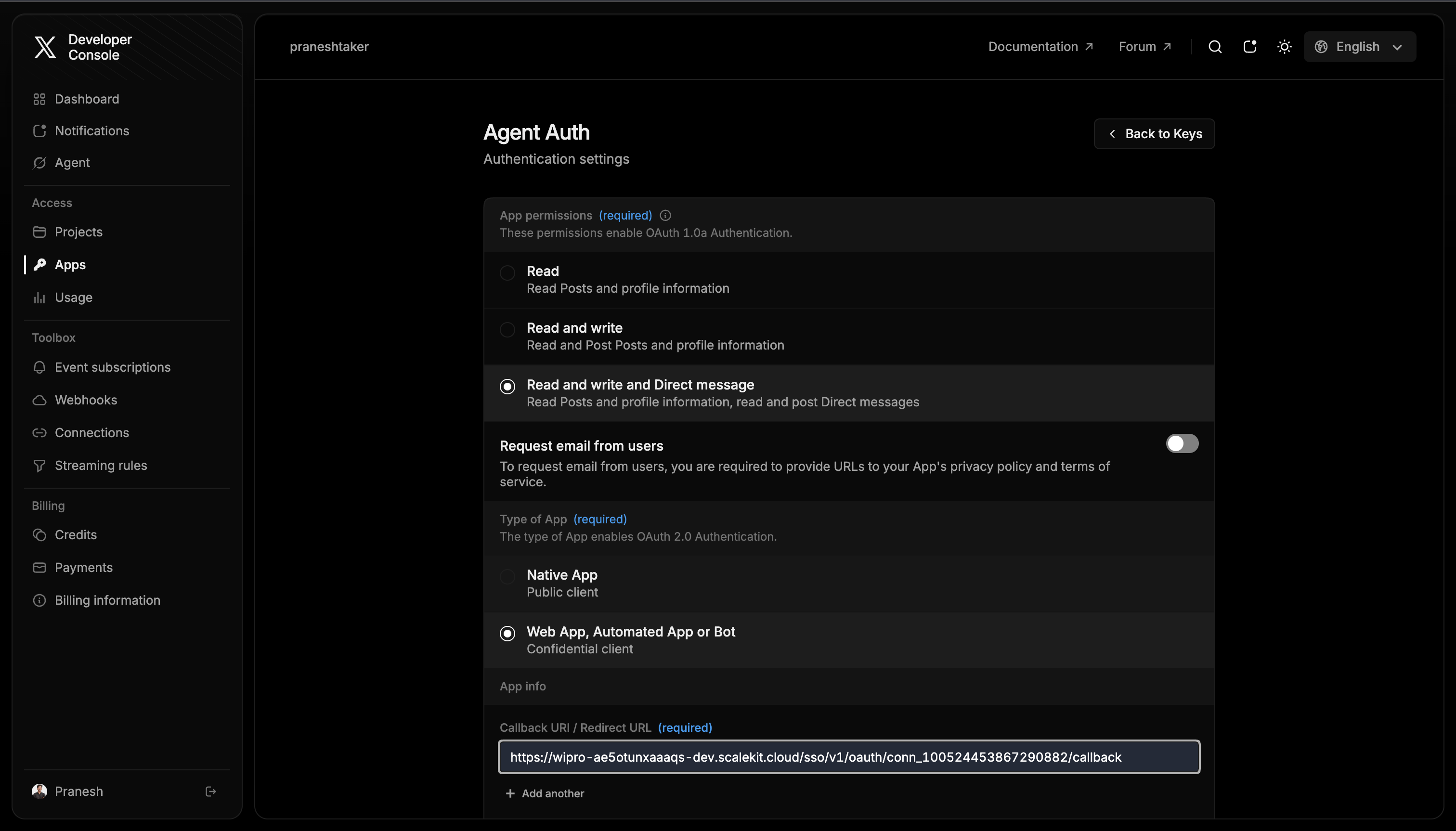
Configure user authentication settings
-
Open your app, go to Settings, and find User authentication settings.
-
Set the following values:
Setting Value App permissions Read and Write — needed to post and manage content on behalf of users Type of App Web App, Automated App or Bot Callback URI / Redirect URL Paste the Redirect URI from Scalekit Website URL Your application’s public homepage 
-
Click Save.
-
-
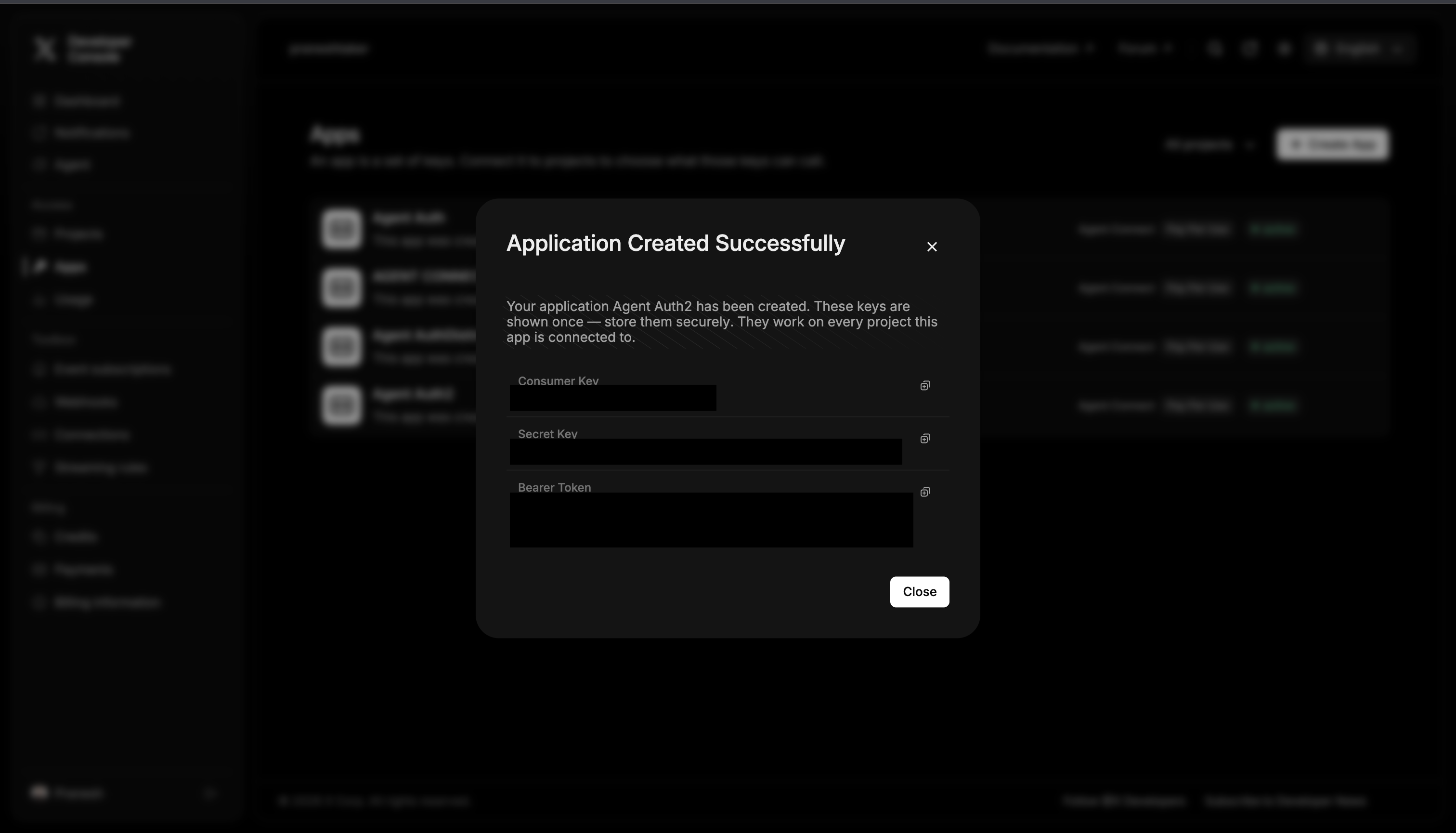
Copy OAuth 2.0 credentials
-
In your app, go to the Keys & Tokens tab.
-
Under OAuth 2.0 Keys, copy the Client ID. Click Regenerate next to Client Secret if you haven’t generated one yet, then copy it.
-
-
Add credentials in Scalekit
-
In Scalekit dashboard, go to AgentKit > Connections and open the Twitter OAuth connection you created.
-
Enter your credentials:
- Client ID — from the OAuth 2.0 Keys section
- Client Secret — copied in the previous step
- Scopes — select the permissions your app needs:
tweet.read— read tweets and timelinestweet.write— create, delete, and manage tweetsusers.read— read user profile datafollows.read— read follower/following listsfollows.write— follow and unfollow userslike.read— read liked tweetslike.write— like and unlike tweetsbookmark.read— read bookmarked tweetsbookmark.write— add and remove bookmarkslist.read— read list membership and tweetslist.write— create, update, and delete listsdm.read— read direct messagesdm.write— send direct messagesmute.read— read muted usersmute.write— mute and unmute usersblock.read— read blocked usersblock.write— block and unblock usersoffline.access— obtain refresh tokens for long-lived access
-
Click Save.
-
-
Authorize a user and make your first call
quickstart.mts import { ScalekitClient } from '@scalekit-sdk/node'import 'dotenv/config'import { createInterface } from 'node:readline/promises'const scalekit = new ScalekitClient(process.env.SCALEKIT_ENVIRONMENT_URL,process.env.SCALEKIT_CLIENT_ID,process.env.SCALEKIT_CLIENT_SECRET,)const actions = scalekit.actionsconst connector = 'twitteroauth'const identifier = 'user_123'// Generate an authorization link for the userconst { link } = await actions.getAuthorizationLink({ connectionName: connector, identifier })console.log('Authorize Twitter / X (OAuth):', link)const rl = createInterface({ input: process.stdin, output: process.stdout })await rl.question('Press Enter after authorizing...')rl.close()// Make your first callconst result = await actions.executeTool({connector,identifier,toolName: 'twitteroauth_user_me',toolInput: {},})console.log(result)Terminal window npx tsx quickstart.mtsquickstart.py import osfrom scalekit import ScalekitClientfrom dotenv import load_dotenvload_dotenv()scalekit_client = ScalekitClient(env_url=os.getenv("SCALEKIT_ENVIRONMENT_URL"),client_id=os.getenv("SCALEKIT_CLIENT_ID"),client_secret=os.getenv("SCALEKIT_CLIENT_SECRET"),)actions = scalekit_client.actionsconnection_name = "twitteroauth"identifier = "user_123"# Generate an authorization link for the userlink_response = actions.get_authorization_link(connection_name=connection_name,identifier=identifier,)print("Authorize Twitter / X (OAuth):", link_response.link)input("Press Enter after authorizing...")# Make your first callresult = actions.execute_tool(tool_input={},tool_name="twitteroauth_user_me",connection_name=connection_name,identifier=identifier,)print(result)Terminal window python quickstart.pyEach user signs in once. See Authorize a user for the full flow and statuses.
Tools
Pass the exact name toexecute_tooltwitteroauth_activity_subscriptions_listList existing X activity subscriptions for the authenticated app.Read-onlyList Activity Subscriptions
List existing X activity subscriptions for the authenticated app. Complements Create Activity Subscription, which only covers creating new subscriptions on this same resource.
Inputs
This tool takes no inputs.
twitteroauth_blocked_users_getRetrieves the authenticated user's block list.Read-onlyGet Blocked Users
Retrieves the authenticated user's block list. The id parameter must be the authenticated user's ID. Use Get Authenticated User action first to obtain your user ID.
Inputs
idstringrequired- Authenticated user's Twitter ID — must match the authenticated user
expansionsstring- Comma-separated expansions
max_resultsinteger- Max results per page (1-1000)
pagination_tokenstring- Pagination token for next page
user_fieldsstring- Comma-separated user fields
twitteroauth_bookmarks_getRetrieves Tweets bookmarked by the authenticated user.Read-onlyGet Bookmarks by User
Retrieves Tweets bookmarked by the authenticated user. The provided User ID must match the authenticated user's ID.
Inputs
idstringrequired- Authenticated user's Twitter ID
expansionsstring- Comma-separated expansions
max_resultsinteger- Max results per page (1-100)
pagination_tokenstring- Pagination token for next page
tweet_fieldsstring- Comma-separated tweet fields
twitteroauth_communities_searchSearches for X Communities by keyword, matching against community name and description.Read-onlySearch Communities
Searches for X Communities by keyword, matching against community name and description.
Inputs
querystringrequired- Search term to match against Community name/description (1-4096 characters)
community_fieldsstring- Comma-separated Community fields to include, e.g. access,created_at,description,member_count,name
max_resultsinteger- Results per page (10-100, default 10)
next_tokenstring- Pagination token from a previous response
twitteroauth_community_getGet details of an X Community by its ID: name, description, access type, join policy, and member count.Read-onlyGet Community by ID
Get details of an X Community by its ID: name, description, access type, join policy, and member count.
Inputs
idstringrequired- Community ID to look up
community_fieldsstring- Comma-separated Community fields to include, e.g. access,created_at,description,member_count,name
twitteroauth_dm_conversation_events_getFetches Direct Message (DM) events for a one-on-one conversation with a specified participant ID, ordered chronologically newest to oldest.Read-onlyGet DM Events for a DM Conversation
Fetches Direct Message (DM) events for a one-on-one conversation with a specified participant ID, ordered chronologically newest to oldest. Does not support group DMs.
Inputs
participant_idstringrequired- User ID of the DM conversation participant
dm_event_fieldsstring- Comma-separated DM event fields
event_typesstring- Filter by event types
expansionsstring- Comma-separated expansions
max_resultsinteger- Max results per page (1-100)
pagination_tokenstring- Pagination token for next page
twitteroauth_dm_conversation_retrieveRetrieves Direct Message (DM) events for a specific conversation ID on Twitter.Read-onlyRetrieve DM Conversation Events
Retrieves Direct Message (DM) events for a specific conversation ID on Twitter. Useful for analyzing messages and participant activities.
Inputs
dm_conversation_idstringrequired- DM conversation ID
dm_event_fieldsstring- Comma-separated DM event fields
expansionsstring- Comma-separated expansions
max_resultsinteger- Max results per page (1-100)
pagination_tokenstring- Pagination token for next page
twitteroauth_dm_event_getFetches a specific Direct Message (DM) event by its unique ID.Read-onlyGet DM Events by ID
Fetches a specific Direct Message (DM) event by its unique ID. Allows optional expansion of related data like users or tweets.
Inputs
event_idstringrequired- DM event ID
dm_event_fieldsstring- Comma-separated DM event fields
expansionsstring- Comma-separated expansions
twitteroauth_dm_events_getReturns recent Direct Message events for the authenticated user, such as new messages or changes in conversation participants.Read-onlyGet Recent Direct Message Events
Returns recent Direct Message events for the authenticated user, such as new messages or changes in conversation participants.
Inputs
dm_event_fieldsstring- Comma-separated DM event fields
event_typesstring- Filter by event types
expansionsstring- Comma-separated expansions
max_resultsinteger- Max results per page (1-100)
pagination_tokenstring- Pagination token for next page
twitteroauth_followers_getRetrieves a list of users who follow a specified public Twitter user ID.Read-onlyGet Followers by User ID
Retrieves a list of users who follow a specified public Twitter user ID.
Inputs
idstringrequired- Twitter user ID to get followers for
expansionsstring- Comma-separated expansions
max_resultsinteger- Max results per page (1-1000)
pagination_tokenstring- Pagination token for next page
user_fieldsstring- Comma-separated user fields
twitteroauth_following_getRetrieves users followed by a specific Twitter user, allowing pagination and customization of returned user and tweet data fields via expansions.Read-onlyGet Following by User ID
Retrieves users followed by a specific Twitter user, allowing pagination and customization of returned user and tweet data fields via expansions.
Inputs
idstringrequired- Twitter user ID
expansionsstring- Comma-separated expansions
max_resultsinteger- Max results per page (1-1000)
pagination_tokenstring- Pagination token for next page
user_fieldsstring- Comma-separated user fields
twitteroauth_list_followers_getFetches a list of users who follow a specific Twitter List, identified by its ID.Read-onlyGet List Followers
Fetches a list of users who follow a specific Twitter List, identified by its ID. Ensure the authenticated user has access if the list is private.
Inputs
idstringrequired- Twitter List ID
expansionsstring- Comma-separated expansions
max_resultsinteger- Max results per page (1-100)
pagination_tokenstring- Pagination token for next page
user_fieldsstring- Comma-separated user fields
twitteroauth_list_lookupReturns metadata for a specific Twitter List, identified by its ID.Read-onlyLookup List by ID
Returns metadata for a specific Twitter List, identified by its ID. Does not return list members. Can expand the owner's User object via the expansions parameter.
Inputs
idstringrequired- Twitter List ID
expansionsstring- Comma-separated expansions
list_fieldsstring- Comma-separated list fields
user_fieldsstring- Comma-separated user fields
twitteroauth_list_members_getFetches members of a specific Twitter List, identified by its unique ID.Read-onlyFetch List Members by ID
Fetches members of a specific Twitter List, identified by its unique ID.
Inputs
idstringrequired- Twitter List ID
expansionsstring- Comma-separated expansions
max_resultsinteger- Max results per page (1-100)
pagination_tokenstring- Pagination token for next page
user_fieldsstring- Comma-separated user fields
twitteroauth_list_timeline_getFetches the most recent Tweets posted by members of a specified Twitter List.Read-onlyList Posts Timeline by List ID
Fetches the most recent Tweets posted by members of a specified Twitter List.
Inputs
idstringrequired- Twitter List ID
expansionsstring- Comma-separated expansions
max_resultsinteger- Max results per page (1-100)
pagination_tokenstring- Pagination token for next page
tweet_fieldsstring- Comma-separated tweet fields
user_fieldsstring- Comma-separated user fields
twitteroauth_media_analytics_getRetrieves organic engagement analytics for one or more pieces of media owned by the authenticated user over a time window.Read-onlyGet Media Analytics
Retrieves organic engagement analytics for one or more pieces of media owned by the authenticated user over a time window.
Inputs
end_timestringrequired- ISO 8601 end time for the analytics window
media_keysstringrequired- Comma-separated list of media keys (up to 100)
start_timestringrequired- ISO 8601 start time for the analytics window
granularitystring- Aggregation granularity: hourly, daily, or total
media_analytics_fieldsstring- Comma-separated media analytics fields
twitteroauth_media_batch_lookupRetrieves details for one or more pieces of media identified by their media keys.Read-onlyLook Up Media by Keys
Retrieves details for one or more pieces of media identified by their media keys.
Inputs
media_keysstringrequired- Comma-separated list of media keys (up to 100)
media_fieldsstring- Comma-separated media fields
twitteroauth_media_lookupRetrieves details for a single piece of media by its media key.Read-onlyLook Up Media by Key
Retrieves details for a single piece of media by its media key.
Inputs
media_keystringrequired- Media key to look up
media_fieldsstring- Comma-separated media fields
twitteroauth_media_upload_status_getGets the status of a media upload for X/Twitter.Read-onlyGet Media Upload Status
Gets the status of a media upload for X/Twitter. Use to check the processing status of uploaded media, especially for videos and GIFs. Only needed if the FINALIZE command returned processing_info.
Inputs
media_idstringrequired- Media ID from the upload INIT step
twitteroauth_muted_users_getReturns user objects muted by the X user identified by the id path parameter.Read-onlyGet Muted Users
Returns user objects muted by the X user identified by the id path parameter.
Inputs
idstringrequired- Twitter user ID
expansionsstring- Comma-separated expansions
max_resultsinteger- Max results per page (1-1000)
pagination_tokenstring- Pagination token for next page
user_fieldsstring- Comma-separated user fields
twitteroauth_post_analytics_getRetrieves analytics data for specified Posts within a defined time range.Read-onlyGet Post Analytics
Retrieves analytics data for specified Posts within a defined time range. Returns engagement metrics, impressions, and other analytics. Requires OAuth 2.0 with tweet.read and users.read scopes.
Inputs
end_timestringrequired- ISO 8601 end time
start_timestringrequired- ISO 8601 start time
tweet_idsstringrequired- Comma-separated list of Tweet IDs
granularitystring- Time granularity of the returned analytics data
twitteroauth_post_likers_getRetrieves users who have liked the Post (Tweet) identified by the provided ID.Read-onlyList Post Likers
Retrieves users who have liked the Post (Tweet) identified by the provided ID.
Inputs
idstringrequired- Tweet ID
expansionsstring- Comma-separated expansions
max_resultsinteger- Max results per page (1-100)
pagination_tokenstring- Pagination token for next page
user_fieldsstring- Comma-separated user fields
twitteroauth_post_lookupFetches comprehensive details for a single Tweet by its unique ID, provided the Tweet exists and is accessible.Read-onlyLook Up Post by ID
Fetches comprehensive details for a single Tweet by its unique ID, provided the Tweet exists and is accessible.
Inputs
idstringrequired- Tweet ID
expansionsstring- Comma-separated expansions
media_fieldsstring- Comma-separated media fields
tweet_fieldsstring- Comma-separated tweet fields
user_fieldsstring- Comma-separated user fields
twitteroauth_post_quotes_getRetrieves Tweets that quote a specified Tweet.Read-onlyRetrieve Posts that Quote a Post
Retrieves Tweets that quote a specified Tweet. Requires a valid Tweet ID.
Inputs
idstringrequired- Tweet ID
expansionsstring- Comma-separated expansions
max_resultsinteger- Max results per page (1-100)
pagination_tokenstring- Pagination token for next page
tweet_fieldsstring- Comma-separated tweet fields
twitteroauth_post_retweeters_getRetrieves users who publicly retweeted a specified public Post ID, excluding Quote Tweets and retweets from private accounts.Read-onlyGet Post Retweeters
Retrieves users who publicly retweeted a specified public Post ID, excluding Quote Tweets and retweets from private accounts.
Inputs
idstringrequired- Tweet ID
expansionsstring- Comma-separated expansions
max_resultsinteger- Max results per page (1-100)
pagination_tokenstring- Pagination token for next page
user_fieldsstring- Comma-separated user fields
twitteroauth_post_retweets_getRetrieves Tweets that Retweeted a specified public or authenticated-user-accessible Tweet ID.Read-onlyRetrieve Retweets of a Post
Retrieves Tweets that Retweeted a specified public or authenticated-user-accessible Tweet ID. Optionally customize the response with fields and expansions.
Inputs
idstringrequired- Tweet ID
expansionsstring- Comma-separated expansions
max_resultsinteger- Max results per page (1-100)
pagination_tokenstring- Pagination token for next page
tweet_fieldsstring- Comma-separated tweet fields
twitteroauth_posts_lookupRetrieves detailed information for one or more Posts (Tweets) identified by their unique IDs.Read-onlyGet Tweets by IDs
Retrieves detailed information for one or more Posts (Tweets) identified by their unique IDs. Allows selection of specific fields and expansions.
Inputs
idsstringrequired- Comma-separated list of Tweet IDs (up to 100)
expansionsstring- Comma-separated expansions
media_fieldsstring- Comma-separated media fields
tweet_fieldsstring- Comma-separated tweet fields
user_fieldsstring- Comma-separated user fields
twitteroauth_recent_searchSearches Tweets from the last 7 days matching a query using X's search syntax.Read-onlySearch Recent Tweets
Searches Tweets from the last 7 days matching a query using X's search syntax. Ideal for real-time analysis, trend monitoring, or retrieving posts from specific users (e.g., from:username). Note: impression_count returns 0 for other users' tweets — use retweet_count, like_count, or quote_count for engagement filtering instead.
Inputs
querystringrequired- Search query using X search syntax, e.g. from:username -is:retweet
end_timestring- ISO 8601 end time
expansionsstring- Comma-separated expansions
max_resultsinteger- Max results per page (10-100)
media_fieldsstring- Comma-separated media fields
next_tokenstring- Next page token
since_idstring- Minimum tweet ID
start_timestring- ISO 8601 start time
tweet_fieldsstring- Comma-separated tweet fields
until_idstring- Maximum tweet ID
user_fieldsstring- Comma-separated user fields
twitteroauth_recent_tweet_countsRetrieves the count of Tweets matching a specified search query within the last 7 days, aggregated by 'minute', 'hour', or 'day'.Read-onlyFetch Recent Tweet Counts
Retrieves the count of Tweets matching a specified search query within the last 7 days, aggregated by 'minute', 'hour', or 'day'.
Inputs
querystringrequired- Search query
end_timestring- ISO 8601 end time
granularitystring- Aggregation granularityone of
minutehourday since_idstring- Minimum tweet ID
start_timestring- ISO 8601 start time
until_idstring- Maximum tweet ID
twitteroauth_space_getRetrieves details for a Twitter Space by its ID, allowing for customization and expansion of related data.Read-onlyLook Up Space by ID
Retrieves details for a Twitter Space by its ID, allowing for customization and expansion of related data.
Inputs
idstringrequired- Twitter Space ID
expansionsstring- Comma-separated expansions
space_fieldsstring- Comma-separated space fields
user_fieldsstring- Comma-separated user fields
twitteroauth_space_posts_getRetrieves Tweets that were shared/posted during a Twitter Space broadcast.Read-onlyRetrieve Posts from a Space
Retrieves Tweets that were shared/posted during a Twitter Space broadcast. Returns Tweets that participants explicitly shared during the Space session, NOT audio transcripts. Most Spaces have zero associated Tweets — empty results are normal.
Inputs
idstringrequired- Twitter Space ID
expansionsstring- Comma-separated expansions
max_resultsinteger- Max results per page (1-100)
tweet_fieldsstring- Comma-separated tweet fields
twitteroauth_space_ticket_buyers_getRetrieves a list of users who purchased tickets for a specific, valid, and ticketed Twitter Space.Read-onlyFetch Space Ticket Buyers
Retrieves a list of users who purchased tickets for a specific, valid, and ticketed Twitter Space.
Inputs
idstringrequired- Twitter Space ID
expansionsstring- Comma-separated expansions
user_fieldsstring- Comma-separated user fields
twitteroauth_spaces_by_creator_getRetrieves Twitter Spaces created by a list of specified User IDs, with options to customize returned data fields.Read-onlyGet Spaces by Creator IDs
Retrieves Twitter Spaces created by a list of specified User IDs, with options to customize returned data fields.
Inputs
user_idsstringrequired- Comma-separated list of user IDs to get spaces for
expansionsstring- Comma-separated expansions
space_fieldsstring- Comma-separated space fields
user_fieldsstring- Comma-separated user fields
twitteroauth_spaces_getFetches detailed information for one or more Twitter Spaces (live, scheduled, or ended) by their unique IDs.Read-onlyGet Space Information by IDs
Fetches detailed information for one or more Twitter Spaces (live, scheduled, or ended) by their unique IDs. At least one Space ID must be provided.
Inputs
idsstringrequired- Comma-separated list of Space IDs
expansionsstring- Comma-separated expansions
space_fieldsstring- Comma-separated space fields
user_fieldsstring- Comma-separated user fields
twitteroauth_spaces_searchSearches for Twitter Spaces by a textual query.Read-onlySearch for Spaces
Searches for Twitter Spaces by a textual query. Optionally filter by state (live, scheduled, all) to discover audio conversations.
Inputs
querystringrequired- Text to search for in Space titles
expansionsstring- Comma-separated expansions
max_resultsinteger- Max results per page (1-100)
space_fieldsstring- Comma-separated space fields
statestring- Filter by space stateone of
livescheduledall
twitteroauth_user_bookmark_folders_getRetrieves the authenticated user's Bookmark folders.Read-onlyGet Bookmark Folders
Retrieves the authenticated user's Bookmark folders. The provided User ID must match the authenticated user's ID.
Inputs
idstringrequired- Authenticated user's Twitter ID
max_resultsinteger- Max results per page (1-100)
pagination_tokenstring- Pagination token for next page
twitteroauth_user_bookmarks_by_folder_getRetrieves the Posts bookmarked by the authenticated user within a specific Bookmark folder.Read-onlyGet Bookmarks by Folder ID
Retrieves the Posts bookmarked by the authenticated user within a specific Bookmark folder. The provided User ID must match the authenticated user's ID.
Inputs
folder_idstringrequired- Bookmark folder ID
idstringrequired- Authenticated user's Twitter ID
max_resultsinteger- Max results per page (1-100)
pagination_tokenstring- Pagination token for next page
twitteroauth_user_followed_lists_getReturns metadata (not Tweets) for lists a specific Twitter user follows.Read-onlyGet User's Followed Lists
Returns metadata (not Tweets) for lists a specific Twitter user follows. Optionally includes expanded owner details.
Inputs
idstringrequired- Twitter user ID
expansionsstring- Comma-separated expansions
list_fieldsstring- Comma-separated list fields
max_resultsinteger- Max results per page (1-100)
pagination_tokenstring- Pagination token for next page
user_fieldsstring- Comma-separated user fields
twitteroauth_user_liked_tweets_getRetrieves Tweets liked by a specified Twitter user, provided their liked tweets are public or accessible.Read-onlyRetrieve Liked Tweets by User ID
Retrieves Tweets liked by a specified Twitter user, provided their liked tweets are public or accessible.
Inputs
idstringrequired- Twitter user ID
expansionsstring- Comma-separated expansions
max_resultsinteger- Max results per page (5-100)
pagination_tokenstring- Pagination token for next page
tweet_fieldsstring- Comma-separated tweet fields
user_fieldsstring- Comma-separated user fields
twitteroauth_user_list_memberships_getRetrieves all Twitter Lists a specified user is a member of, including public Lists and private Lists the authenticated user is authorized to view.Read-onlyGet User's List Memberships
Retrieves all Twitter Lists a specified user is a member of, including public Lists and private Lists the authenticated user is authorized to view.
Inputs
idstringrequired- Twitter user ID
expansionsstring- Comma-separated expansions
list_fieldsstring- Comma-separated list fields
max_resultsinteger- Max results per page (1-100)
pagination_tokenstring- Pagination token for next page
user_fieldsstring- Comma-separated user fields
twitteroauth_user_lookupRetrieves detailed public information for a Twitter user by their ID.Read-onlyLook Up User by ID
Retrieves detailed public information for a Twitter user by their ID. Optionally expand related data (e.g., pinned tweets) and specify particular user or tweet fields to return.
Inputs
idstringrequired- Twitter user ID
expansionsstring- Comma-separated expansions
tweet_fieldsstring- Comma-separated tweet fields
user_fieldsstring- Comma-separated user fields
twitteroauth_user_lookup_by_usernameFetches public profile information for a valid and existing Twitter user by their username.Read-onlyLook Up User by Username
Fetches public profile information for a valid and existing Twitter user by their username. Optionally expands related data like pinned Tweets. Results may be limited for protected profiles not followed by the authenticated user.
Inputs
usernamestringrequired- Twitter username without the @ symbol, e.g. elonmusk
expansionsstring- Comma-separated expansions
tweet_fieldsstring- Comma-separated tweet fields
user_fieldsstring- Comma-separated user fields
twitteroauth_user_meReturns profile information for the currently authenticated X user.Read-onlyGet Authenticated User
Returns profile information for the currently authenticated X user. Use this to get the authenticated user's ID before calling endpoints that require it.
Inputs
expansionsstring- Comma-separated expansions
tweet_fieldsstring- Comma-separated tweet fields
user_fieldsstring- Comma-separated user fields to return, e.g. created_at,description,public_metrics
twitteroauth_user_mentions_getRetrieves Posts (Tweets) that mention the specified user, most recent first.Read-onlyGet User's Mentions
Retrieves Posts (Tweets) that mention the specified user, most recent first.
Inputs
idstringrequired- User ID whose mentions should be retrieved
end_timestring- ISO 8601 end time
expansionsstring- Comma-separated expansions
max_resultsinteger- Max results per page (5-100)
pagination_tokenstring- Pagination token for next page
since_idstring- Minimum tweet ID
start_timestring- ISO 8601 start time
tweet_fieldsstring- Comma-separated tweet fields
until_idstring- Maximum tweet ID
user_fieldsstring- Comma-separated user fields
twitteroauth_user_owned_lists_getRetrieves Lists created (owned) by a specific Twitter user, not Lists they follow or are subscribed to.Read-onlyGet User's Owned Lists
Retrieves Lists created (owned) by a specific Twitter user, not Lists they follow or are subscribed to.
Inputs
idstringrequired- Twitter user ID
expansionsstring- Comma-separated expansions
list_fieldsstring- Comma-separated list fields
max_resultsinteger- Max results per page (1-100)
pagination_tokenstring- Pagination token for next page
user_fieldsstring- Comma-separated user fields
twitteroauth_user_pinned_lists_getRetrieves the Lists a specific, existing Twitter user has pinned to their profile to highlight them.Read-onlyGet User's Pinned Lists
Retrieves the Lists a specific, existing Twitter user has pinned to their profile to highlight them.
Inputs
idstringrequired- Twitter user ID
expansionsstring- Comma-separated expansions
list_fieldsstring- Comma-separated list fields
user_fieldsstring- Comma-separated user fields
twitteroauth_user_posts_getRetrieves a collection of Posts (Tweets) authored by the specified user, most recent first.Read-onlyGet User's Posts
Retrieves a collection of Posts (Tweets) authored by the specified user, most recent first.
Inputs
idstringrequired- User ID whose Posts should be retrieved
end_timestring- ISO 8601 end time
excludestring- Comma-separated types to exclude: replies,retweets
expansionsstring- Comma-separated expansions
max_resultsinteger- Max results per page (5-100)
pagination_tokenstring- Pagination token for next page
since_idstring- Minimum tweet ID
start_timestring- ISO 8601 start time
tweet_fieldsstring- Comma-separated tweet fields
until_idstring- Maximum tweet ID
user_fieldsstring- Comma-separated user fields
twitteroauth_user_reposts_of_me_getRetrieves the most recent Posts that repost content from the authenticated user.Read-onlyGet Reposts of Me
Retrieves the most recent Posts that repost content from the authenticated user.
Inputs
expansionsstring- Comma-separated expansions
max_resultsinteger- Max results per page (1-100, default 100)
pagination_tokenstring- Pagination token for next page
tweet_fieldsstring- Comma-separated tweet fields
user_fieldsstring- Comma-separated user fields
twitteroauth_user_timeline_getRetrieves the home timeline (reverse chronological feed) for the authenticated Twitter user.Read-onlyGet User Reverse Chronological Timeline
Retrieves the home timeline (reverse chronological feed) for the authenticated Twitter user. Returns tweets from accounts the user follows and the user's own tweets. CRITICAL: The id parameter MUST be the authenticated user's own numeric Twitter user ID. Use twitter_user_me to get your ID first. Cannot fetch another user's home timeline.
Inputs
idstringrequired- Authenticated user's own numeric Twitter ID — must be your own ID
excludestring- Comma-separated types to exclude: retweets,replies
expansionsstring- Comma-separated expansions
max_resultsinteger- Max results per page (1-100)
pagination_tokenstring- Pagination token for next page
tweet_fieldsstring- Comma-separated tweet fields
user_fieldsstring- Comma-separated user fields
twitteroauth_users_lookupRetrieves detailed information for specified X (formerly Twitter) user IDs.Read-onlyLook Up Users by IDs
Retrieves detailed information for specified X (formerly Twitter) user IDs. Optionally customize returned fields and expand related entities like pinned tweets.
Inputs
idsstringrequired- Comma-separated list of Twitter user IDs (up to 100)
expansionsstring- Comma-separated expansions
tweet_fieldsstring- Comma-separated tweet fields
user_fieldsstring- Comma-separated user fields
twitteroauth_users_lookup_by_usernameRetrieves detailed information for 1 to 100 Twitter users by their usernames (each 1-15 alphanumeric characters/underscores).Read-onlyLook Up Users by Username
Retrieves detailed information for 1 to 100 Twitter users by their usernames (each 1-15 alphanumeric characters/underscores). Allows customizable user/tweet fields and expansion of related data like pinned tweets.
Inputs
usernamesstringrequired- Comma-separated list of Twitter usernames without @ symbols (up to 100)
expansionsstring- Comma-separated expansions
tweet_fieldsstring- Comma-separated tweet fields
user_fieldsstring- Comma-separated user fields
twitteroauth_users_searchSearches for users matching the provided query string, ranked by relevance.Read-onlySearch Users
Searches for users matching the provided query string, ranked by relevance.
Inputs
querystringrequired- Search query (1-50 characters) matching name, username, or bio
expansionsstring- Comma-separated expansions
max_resultsinteger- Max results per page (1-1000, default 100)
next_tokenstring- Next page token
tweet_fieldsstring- Comma-separated tweet fields
user_fieldsstring- Comma-separated user fields
twitteroauth_activity_subscription_createCreates a subscription for a single X activity event type, scoped to exactly one of a user (filter_user_id) or a keyword (filter_keyword) - Twitter rejects requests providing neither or both - delivered to a registered webhook.WriteCreate Activity Subscription
Creates a subscription for a single X activity event type, scoped to exactly one of a user (filter_user_id) or a keyword (filter_keyword) - Twitter rejects requests providing neither or both - delivered to a registered webhook. OAuth2 user-context tokens must hold the scope matching the requested event_type: dm.read for chat.* and dm.* events, like.read for like.* events, mute.read for mute.* events, block.read for block.* events, and tweet.read for all other event types. Mute and block subscriptions are actor-only.
Inputs
event_typestringrequired- Activity event type in dot notationone of
profile.update.bioprofile.update.profile_pictureprofile.update.banner_pictureprofile.update.screennameprofile.update.geoprofile.update.urlprofile.update.verified_badgeprofile.update.affiliate_badgeprofile.update.handlenews.newfollow.followfollow.unfollowspaces.startspaces.endbroadcast.chatchat.receivedchat.sentchat.conversation.joinchat.conversation.member_addedchat.conversation.member_removedchat.conversation.admin_addedchat.conversation.admin_removedchat.update.group_namechat.update.restrictionsdm.sentdm.receiveddm.indicate_typingdm.readpost.createpost.deletepost.mention.createpost.reply.createpost.quote.createpost.repost.createlike.createmute.mutemute.unmuteblock.blockblock.unblock filter_directionstring- Optional direction filter for directional events. Not supported for mute.* or block.* events.one of
inboundoutbound filter_keywordstring- Optional keyword filter
filter_user_idstring- User the subscription is scoped to. For mute.* and block.* events, this must be the authenticated source user.
tagstring- Optional caller-defined tag
webhook_idstring- Webhook to deliver the subscription events to
twitteroauth_article_draft_createCreates a draft X Article (long-form post) with a title and rich-text content, which can later be published with Publish Article.WriteCreate Article Draft
Creates a draft X Article (long-form post) with a title and rich-text content, which can later be published with Publish Article. Requires an X Premium subscription on the posting account.
Inputs
content_stateobjectrequired- DraftJS content structure for the Article body: an object with a 'blocks' array (text blocks with text/type) and an 'entities' array (formatting entities such as links or embeds).
titlestringrequired- Headline of the Article
cover_media_idstring- Media ID to use as the Article's cover image, from a prior media upload
twitteroauth_article_publishPublishes a previously created draft X Article, making it publicly visible as a Post.WritePublish Article
Publishes a previously created draft X Article, making it publicly visible as a Post. Use Create Article Draft first to get an article_id.
Inputs
article_idstringrequired- ID of the draft Article to publish
twitteroauth_bookmark_addAdds a specified, existing, and accessible Tweet to a user's bookmarks.WriteAdd Post to Bookmarks
Adds a specified, existing, and accessible Tweet to a user's bookmarks. Success is indicated by the 'bookmarked' field in the response.
Inputs
idstringrequired- Authenticated user's Twitter ID
tweet_idstringrequired- ID of the Tweet to bookmark
twitteroauth_bookmark_removeRemoves a Tweet from the authenticated user's bookmarks.WriteRemove a Bookmarked Post
Removes a Tweet from the authenticated user's bookmarks. The Tweet must have been previously bookmarked by the user for the action to have an effect.
- Idempotent
Inputs
idstringrequired- Authenticated user's Twitter ID
tweet_idstringrequired- ID of the bookmarked tweet to remove
twitteroauth_dm_conversation_sendSends a message with optional text and/or media attachments (using pre-uploaded media_ids) to a specified Twitter Direct Message conversation.WriteSend a New Message to a DM Conversation
Sends a message with optional text and/or media attachments (using pre-uploaded media_ids) to a specified Twitter Direct Message conversation.
Inputs
dm_conversation_idstringrequired- DM conversation ID to send the message to
media_idstring- Pre-uploaded media ID to attach
textstring- Message text
twitteroauth_dm_group_conversation_createCreates a new group Direct Message (DM) conversation on Twitter.WriteCreate Group DM Conversation
Creates a new group Direct Message (DM) conversation on Twitter. The conversation_type must be 'Group'. Include participant_ids and an initial message with text and optional media attachments using media_id (not media_url). Media must be uploaded first.
Inputs
message_textstringrequired- Initial message text
participant_idsarrayrequired- List of Twitter user IDs to include
message_media_idsarray- Media IDs to attach to initial message
twitteroauth_dm_sendSends a new Direct Message with text and/or media (media_id for attachments must be pre-uploaded) to a specified Twitter user.WriteSend a New Message to a User
Sends a new Direct Message with text and/or media (media_id for attachments must be pre-uploaded) to a specified Twitter user. Creates a new DM and does not modify existing messages.
Inputs
participant_idstringrequired- Twitter user ID of the DM recipient
media_idstring- Pre-uploaded media ID to attach
textstring- Message text
twitteroauth_dm_unblockRemoves a Direct Message block on the specified user, allowing them to send Direct Messages to the authenticated user again.WriteUnblock User's DMs
Removes a Direct Message block on the specified user, allowing them to send Direct Messages to the authenticated user again.
- Idempotent
Inputs
idstringrequired- User ID whose Direct Messages should be unblocked
twitteroauth_list_createCreates a new, empty List on X (formerly Twitter).WriteCreate a List
Creates a new, empty List on X (formerly Twitter). The provided name must be unique for the authenticated user. Accounts are added separately.
Inputs
namestringrequired- Unique name for the new list
descriptionstring- Description of the list
privateboolean- Whether the list should be private
twitteroauth_list_followAllows the authenticated user to follow a specific Twitter List they are permitted to access, subscribing them to the list's timeline.WriteFollow a List
Allows the authenticated user to follow a specific Twitter List they are permitted to access, subscribing them to the list's timeline. This does not automatically follow individual list members.
Inputs
idstringrequired- Authenticated user's Twitter ID
list_idstringrequired- ID of the list to follow
twitteroauth_list_member_addAdds a user to a specified Twitter List.WriteAdd List Member
Adds a user to a specified Twitter List. The list must be owned by the authenticated user.
Inputs
list_idstringrequired- ID of the Twitter List
user_idstringrequired- ID of the user to add
twitteroauth_list_pinPins a specified List to the authenticated user's profile.WritePin a List
Pins a specified List to the authenticated user's profile. The List must exist, the user must have access rights, and the pin limit (typically 5 Lists) must not be exceeded.
Inputs
idstringrequired- Authenticated user's Twitter ID
list_idstringrequired- ID of the list to pin
twitteroauth_list_unfollowEnables a user to unfollow a specific Twitter List, which removes its tweets from their timeline and stops related notifications.WriteUnfollow a List
Enables a user to unfollow a specific Twitter List, which removes its tweets from their timeline and stops related notifications. Reports following: false on success, even if the user was not initially following the list.
- Idempotent
Inputs
idstringrequired- Authenticated user's Twitter ID
list_idstringrequired- ID of the list to unfollow
twitteroauth_list_unpinUnpins a List from the authenticated user's profile.WriteUnpin a List
Unpins a List from the authenticated user's profile. The user ID is automatically retrieved if not provided.
- Idempotent
Inputs
idstringrequired- Authenticated user's Twitter ID
list_idstringrequired- ID of the list to unpin
twitteroauth_list_updateUpdates an existing Twitter List's name, description, or privacy status.WriteUpdate List Attributes
Updates an existing Twitter List's name, description, or privacy status. Requires the List ID and at least one mutable property.
- Idempotent
Inputs
idstringrequired- Twitter List ID to update
descriptionstring- New description
namestring- New name for the list
privateboolean- Set to true to make private, false for public
twitteroauth_media_metadata_createSets metadata, such as accessibility alt text, on a previously uploaded piece of media before it is attached to a Post.WriteCreate Media Metadata
Sets metadata, such as accessibility alt text, on a previously uploaded piece of media before it is attached to a Post.
- Idempotent
Inputs
alt_textstringrequired- Accessibility alt text describing the media (up to 1000 characters)
media_idstringrequired- The media ID the metadata is attached to
twitteroauth_media_subtitles_createAssociates a subtitle (closed caption) track with a previously uploaded video.WriteCreate Media Subtitles
Associates a subtitle (closed caption) track with a previously uploaded video.
Inputs
language_codestringrequired- BCP47 language code of the subtitle track
media_categorystringrequired- Media category of the target media: AmplifyVideo or TweetVideo
media_idstringrequired- The media ID of the video the subtitles belong to
subtitle_media_idstringrequired- The media ID of the previously uploaded subtitle (.srt/.vtt) file
display_namestring- Language name of the subtitle track in a human readable form
twitteroauth_media_uploadUploads media (images only) to X/Twitter using the v2 API.WriteUpload Media
Uploads media (images only) to X/Twitter using the v2 API. Only supports images (tweet_image, dm_image) and subtitle files. For GIFs, videos, or any file larger than ~5 MB, use twitter_media_upload_large instead.
Inputs
mediastringrequired- Base64-encoded image data
media_typestringrequired- MIME type, e.g. image/jpeg or image/png
media_categorystring- Media category for use contextone of
tweet_imagedm_image
twitteroauth_media_upload_appendAppends a data chunk to an ongoing media upload session on X/Twitter.WriteAppend Media Upload
Appends a data chunk to an ongoing media upload session on X/Twitter. Use during chunked media uploads to append each segment of media data in sequence.
Inputs
media_datastringrequired- Base64-encoded chunk data
media_idstringrequired- Media ID from the INIT step
segment_indexintegerrequired- Zero-based index of the chunk segment
twitteroauth_media_upload_base64Uploads media to X/Twitter using base64-encoded data.WriteUpload Media (Base64)
Uploads media to X/Twitter using base64-encoded data. Use when you have media content as a base64 string. Only supports images and subtitle files. For videos or GIFs, use twitter_media_upload_large.
Inputs
media_datastringrequired- Base64-encoded media data
media_typestringrequired- MIME type, e.g. image/jpeg
media_categorystring- Media category for use contextone of
tweet_imagetweet_gifdm_imagedm_gifsubtitles
twitteroauth_media_upload_initInitializes a media upload session for X/Twitter.WriteInitialize Media Upload
Initializes a media upload session for X/Twitter. Returns a media_id for subsequent APPEND and FINALIZE commands. Required for uploading large files or when using the chunked upload workflow.
Inputs
media_typestringrequired- MIME type, e.g. video/mp4 or image/gif
total_bytesintegerrequired- Total size of the media file in bytes
additional_ownersstring- Comma-separated user IDs to also own the media
media_categorystring- Media category for use contextone of
tweet_imagetweet_giftweet_videodm_imagedm_gifdm_video
twitteroauth_media_upload_largeUploads media files to X/Twitter.WriteUpload Large Media
Uploads media files to X/Twitter. Automatically uses chunked upload for GIFs, videos, and images larger than 5 MB. Use for videos, GIFs, or any file larger than 5 MB.
Inputs
media_datastringrequired- Base64-encoded media file data
media_typestringrequired- MIME type, e.g. video/mp4 or image/gif
total_bytesintegerrequired- Total size of the file in bytes
additional_ownersstring- Comma-separated user IDs to also own the media
media_categorystring- Media category for use contextone of
tweet_imagetweet_giftweet_videodm_imagedm_gifdm_video
twitteroauth_post_createCreates a Tweet on Twitter.WriteCreate a Post
Creates a Tweet on Twitter. The `text` field is required unless card_uri, media_media_ids, poll_options, or quote_tweet_id is provided. Supports media, polls, geo, and reply targeting.
Inputs
geo_place_idstring- Place ID for geo tag
media_media_idsarray- Media IDs to attach
poll_duration_minutesinteger- Duration of poll in minutes
poll_optionsarray- Up to 4 poll options
quote_tweet_idstring- ID of the tweet to quote
reply_in_reply_to_tweet_idstring- ID of the tweet to reply to
textstring- Text content of the tweet
twitteroauth_post_likeAllows the authenticated user to like a specific, accessible Tweet.WriteLike a Tweet
Allows the authenticated user to like a specific, accessible Tweet. The authenticated user's ID is automatically determined from the OAuth token — you only need to provide the tweet_id.
Inputs
idstringrequired- Authenticated user's Twitter ID
tweet_idstringrequired- ID of the Tweet to like
twitteroauth_post_retweetRetweets a Tweet for the authenticated user.WriteRetweet Post
Retweets a Tweet for the authenticated user. The user ID is automatically fetched from the authenticated session — you only need to provide the tweet_id.
Inputs
idstringrequired- Authenticated user's Twitter ID
tweet_idstringrequired- ID of the Tweet to retweet
twitteroauth_post_unlikeAllows an authenticated user to remove their like from a specific post.WriteUnlike Post
Allows an authenticated user to remove their like from a specific post. The action is idempotent and completes successfully even if the post was not liked.
- Idempotent
Inputs
idstringrequired- Authenticated user's Twitter ID
tweet_idstringrequired- ID of the Tweet to unlike
twitteroauth_post_unretweetRemoves a user's retweet of a specified Post, if the user had previously retweeted it.WriteUnretweet Post
Removes a user's retweet of a specified Post, if the user had previously retweeted it.
- Idempotent
Inputs
idstringrequired- Authenticated user's Twitter ID
source_tweet_idstringrequired- ID of the Tweet to unretweet
twitteroauth_reply_visibility_setHides or unhides an existing reply Tweet.WriteSet Reply Visibility
Hides or unhides an existing reply Tweet. Allows the authenticated user to hide or unhide a reply to a conversation they own. You can only hide replies to posts you authored. Requires tweet.moderate.write OAuth scope.
- Idempotent
Inputs
hiddenbooleanrequired- true to hide, false to unhide
tweet_idstringrequired- ID of the reply tweet to hide or unhide
twitteroauth_user_bookmark_folder_createCreates a new Bookmark folder for the authenticated user.WriteCreate Bookmark Folder
Creates a new Bookmark folder for the authenticated user. The provided User ID must match the authenticated user's ID.
Inputs
idstringrequired- Authenticated user's Twitter ID
namestringrequired- Name of the Bookmark folder (1-25 characters)
twitteroauth_user_followAllows an authenticated user to follow another user.WriteFollow a User
Allows an authenticated user to follow another user. Results in a pending request if the target user's tweets are protected.
Inputs
idstringrequired- Authenticated user's Twitter ID
target_user_idstringrequired- ID of the user to follow
twitteroauth_user_muteMutes a target user on behalf of an authenticated user, preventing the target's Tweets and Retweets from appearing in the authenticated user's home timeline without notifying the target.WriteMute User by ID
Mutes a target user on behalf of an authenticated user, preventing the target's Tweets and Retweets from appearing in the authenticated user's home timeline without notifying the target.
Inputs
idstringrequired- Authenticated user's Twitter ID
target_user_idstringrequired- ID of the user to mute
twitteroauth_user_unfollowAllows the authenticated user to unfollow an existing Twitter user, which removes the follow relationship.WriteUnfollow User
Allows the authenticated user to unfollow an existing Twitter user, which removes the follow relationship. The source user ID is automatically determined from the authenticated session.
- Idempotent
Inputs
idstringrequired- Authenticated user's Twitter ID
target_user_idstringrequired- ID of the user to unfollow
twitteroauth_user_unmuteUnmutes a target user for the authenticated user, allowing them to see Tweets and notifications from the target user again.WriteUnmute a User by User ID
Unmutes a target user for the authenticated user, allowing them to see Tweets and notifications from the target user again. The source_user_id is automatically populated from the authenticated user's credentials.
- Idempotent
Inputs
idstringrequired- Authenticated user's Twitter ID
target_user_idstringrequired- ID of the user to unmute
twitteroauth_dm_blockBlocks the specified user from sending Direct Messages to the authenticated user, without fully blocking the account.DestructiveBlock User's DMs
Blocks the specified user from sending Direct Messages to the authenticated user, without fully blocking the account.
- Idempotent
Inputs
idstringrequired- User ID whose Direct Messages should be blocked
twitteroauth_dm_deletePermanently deletes a specific Twitter Direct Message (DM) event using its event_id, if the authenticated user sent it.DestructiveDelete Direct Message
Permanently deletes a specific Twitter Direct Message (DM) event using its event_id, if the authenticated user sent it. This action is irreversible and does not delete entire conversations.
- Idempotent
Inputs
event_idstringrequired- ID of the DM event to delete
twitteroauth_list_deletePermanently deletes a specified Twitter List using its ID.DestructiveDelete List
Permanently deletes a specified Twitter List using its ID. The list must be owned by the authenticated user. This action is irreversible.
- Idempotent
Inputs
list_idstringrequired- ID of the Twitter List to delete
twitteroauth_list_member_removeRemoves a user from a Twitter List.DestructiveRemove a List Member
Removes a user from a Twitter List. The response is_member field will be false if removal was successful or the user was not a member. The updated list of members is not returned.
- Idempotent
Inputs
idstringrequired- Twitter List ID
user_idstringrequired- ID of the user to remove from the list
twitteroauth_media_subtitles_deleteRemoves a subtitle (closed caption) track of a specific language from a video.DestructiveDelete Media Subtitles
Removes a subtitle (closed caption) track of a specific language from a video.
- Idempotent
Inputs
language_codestringrequired- The language code of the subtitles to delete
media_categorystringrequired- Media category of the target media: AmplifyVideo or TweetVideo
media_idstringrequired- The media ID of the video the subtitles belong to
twitteroauth_post_deleteIrreversibly deletes a specific Tweet by its ID.DestructiveDelete Tweet
Irreversibly deletes a specific Tweet by its ID. The Tweet may persist in third-party caches after deletion.
- Idempotent
Inputs
idstringrequired- ID of the Tweet to delete
No tools match.