

MCP quickstart with AI coding agents
Use AI coding agents to add OAuth 2.1 authentication to your MCP servers in minutes
Use AI coding agents like Claude Code, GitHub Copilot CLI, Cursor, and OpenCode to add Scalekit’s OAuth 2.1 authentication to your MCP servers. This guide shows you how to configure these agents so they analyze your codebase, apply consistent authentication patterns, and generate production-ready code that integrates OAuth 2.1 end-to-end, reduces implementation time from hours to minutes, and follows security best practices.
Prerequisites
- A Scalekit account with MCP server management access
- Basic familiarity with OAuth 2.1 and MCP server architecture
- Terminal access for installing coding agent tools
-
Add the Scalekit Auth Stack marketplace
Not yet on Claude Code? Follow the official quickstart guide to install it.
Register Scalekit’s plugin marketplace to access pre-configured authentication skills. This marketplace provides context-aware prompts and implementation guides that help coding agents generate correct authentication code.
Start the Claude Code REPL:
Terminal claudeThen add the marketplace:
Claude REPL /plugin marketplace add scalekit-inc/claude-code-authstackWhen the marketplace registers successfully, you’ll see confirmation output:
Terminal ❯ /plugin marketplace add scalekit-inc/claude-code-authstack⎿ Successfully added marketplace: scalekit-auth-stackThe marketplace provides specialized authentication plugins that understand MCP server architectures and OAuth 2.1 security requirements. These plugins guide the coding agent to generate implementation code that matches your project structure.
-
Enable authentication plugins
Select which authentication capabilities to activate in your development environment. Each plugin provides specific skills that the coding agent uses to generate authentication code.
Directly install the specific plugin:
Claude REPL /plugin install mcp-auth@scalekit-auth-stackAlternative: Enable authentication plugins via plugin wizard
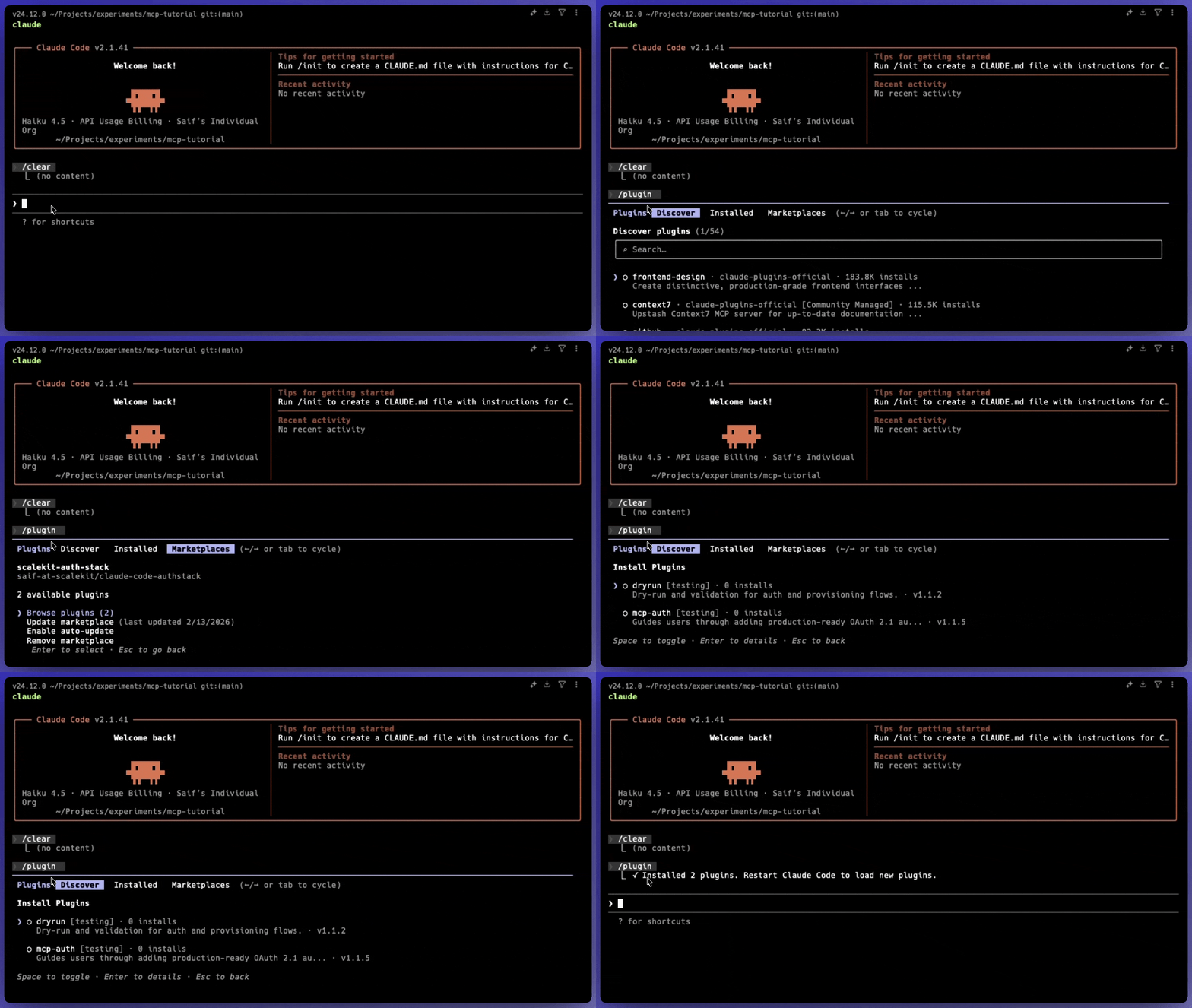
Run the plugin wizard to browse and enable available plugins:
Claude REPL /pluginsNavigate through the visual interface to enable the MCP authentication plugin:
-
Generate authentication implementation
Use a structured prompt to direct the coding agent. A well-formed prompt ensures the agent generates complete, production-ready authentication code that includes all required security components.
Copy the following prompt into your coding agent:
Authentication implementation prompt Add OAuth 2.1 authentication to my MCP server using Scalekit. Initialize ScalekitClient with environment credentials, implement /.well-known/ metadata endpoint for discovery, and add authentication middleware that validates JWT bearer tokens on all MCP requests. Code only.When you submit this prompt, Claude Code loads the MCP authentication skill from the marketplace -> analyzes your existing MCP server structure -> generates authentication middleware with token validation -> creates the OAuth discovery endpoint -> configures environment variable handling.

-
Verify and test the implementation
After the coding agent completes, verify that all authentication components are properly configured:
Check generated files:
- Authentication middleware with JWT validation
- Environment variable configuration (
.env.example) - OAuth discovery endpoint (
/.well-known/oauth-authorization-server) - Error handling for invalid or expired tokens
Test the authentication flow:
Claude REPL Now that your MCP server has authentication integrated, let's verify it's working correctly by testing the flow step by step. First, start your MCP server using npm start (Node.js) or python server.py (Python) and confirm it's running without errors. Next, test the OAuth discovery endpoint by running curl http://localhost:3000/.well-known/oauth-authorization-server to verify your server exposes the correct authorization configuration. Then, verify authentication is enforced by calling curl http://localhost:3000/mcp without credentials—this should return a 401 Unauthorized response, confirming protected endpoints are secured. Finally, test with a valid token by running curl -H "Authorization: Bearer YOUR_TOKEN" http://localhost:3000/mcp (replace YOUR_TOKEN with an actual access token from your auth provider) to confirm authenticated requests succeed and return the expected response—if all these steps work as described, your authentication implementation is functioning correctly.Terminal # Start your MCP servernpm start# Test discovery endpointcurl http://localhost:3000/.well-known/oauth-authorization-server# Test protected endpoint (should return 401)curl http://localhost:3000/mcp# Test with valid tokencurl -H "Authorization: Bearer YOUR_TOKEN" http://localhost:3000/mcpTerminal # Start your MCP serverpython server.py# Test discovery endpointcurl http://localhost:3000/.well-known/oauth-authorization-server# Test protected endpoint (should return 401)curl http://localhost:3000/mcp# Test with valid tokencurl -H "Authorization: Bearer YOUR_TOKEN" http://localhost:3000/mcpThe discovery endpoint should return OAuth configuration metadata. Protected endpoints should reject requests without valid tokens and accept requests with properly scoped access tokens.
-
Install the Scalekit Auth Stack marketplace
Install Scalekit’s Codex-native marketplace to access focused authentication plugins and reusable implementation guidance.
Run the bootstrap installer:
Terminal curl -fsSL https://raw.githubusercontent.com/scalekit-inc/codex-authstack/main/install.sh | bashThis installer downloads the marketplace from GitHub, installs it into
~/.codex/marketplaces/scalekit-auth-stack, and only updates~/.agents/plugins/marketplace.jsonwhen it is safe to do so. -
Enable the MCP Auth plugin
Restart Codex so it reloads installed marketplaces, then open the Plugin Directory and select Scalekit Auth Stack.
Install the
mcp-authplugin. This plugin includes the workflows, framework-specific guidance, and references Codex uses to generate OAuth 2.1 protection for remote MCP servers. -
Generate the authentication implementation
Use a structured prompt to direct Codex. A well-formed prompt helps Codex generate complete, production-ready authentication code that includes all required security components.
Copy the following prompt into Codex:
Authentication implementation prompt Add OAuth 2.1 authentication to my MCP server using Scalekit. Initialize ScalekitClient with environment credentials, implement /.well-known/ metadata endpoint for discovery, and add authentication middleware that validates JWT bearer tokens on all MCP requests. Code only.When you submit this prompt, Codex loads the MCP Auth plugin from the Scalekit Auth Stack marketplace, analyzes your existing MCP server structure, generates authentication middleware with token validation, creates the OAuth discovery endpoint, and configures environment variable handling.
-
Verify and test the implementation
After Codex completes, verify that all authentication components are properly configured:
Check generated files:
- Authentication middleware with JWT validation
- Environment variable configuration (
.env.example) - OAuth discovery endpoint (
/.well-known/oauth-authorization-server) - Error handling for invalid or expired tokens
Test the authentication flow:
Terminal # Start your MCP servernpm start# Test discovery endpointcurl http://localhost:3000/.well-known/oauth-authorization-server# Test protected endpoint (should return 401)curl http://localhost:3000/mcp# Test with valid tokencurl -H "Authorization: Bearer YOUR_TOKEN" http://localhost:3000/mcpThe discovery endpoint should return OAuth configuration metadata. Protected endpoints should reject requests without valid tokens and accept requests with properly scoped access tokens.
-
Add the Scalekit authstack marketplace
Need to install GitHub Copilot CLI? See the getting started guide — an active GitHub Copilot subscription is required.
Register Scalekit’s plugin marketplace to access pre-configured authentication plugins. This marketplace provides implementation skills that help GitHub Copilot generate correct MCP server authentication code.
Terminal copilot plugin marketplace add scalekit-inc/github-copilot-authstackThe marketplace provides specialized plugins that understand MCP server architectures and OAuth 2.1 security requirements. These plugins guide GitHub Copilot to generate implementation code that matches your project structure.
-
Install the MCP Auth plugin
Install the MCP Auth plugin to give GitHub Copilot the skills needed to generate OAuth 2.1 authentication code for MCP servers:
Terminal copilot plugin install mcp-auth@scalekit-auth-stackVerify the plugin is installed
Confirm the plugin installed successfully:
Terminal copilot plugin list -
Generate authentication implementation
Use a structured prompt to direct GitHub Copilot. A well-formed prompt ensures the agent generates complete, production-ready authentication code that includes all required security components.
Copy the following command into your terminal:
Terminal copilot "Add OAuth 2.1 authentication to my MCP server using Scalekit. Initialize ScalekitClient with environment credentials, implement /.well-known/ metadata endpoint for discovery, and add authentication middleware that validates JWT bearer tokens on all MCP requests. Code only."GitHub Copilot uses the MCP Auth plugin to analyze your existing MCP server structure, generate authentication middleware with token validation, create the OAuth discovery endpoint, and configure environment variable handling.
-
Verify the implementation
After GitHub Copilot completes, verify that all authentication components are properly configured:
Check generated files:
- Authentication middleware with JWT validation
- Environment variable configuration (
.env.example) - OAuth discovery endpoint (
/.well-known/oauth-authorization-server) - Error handling for invalid or expired tokens
Test the authentication flow:
Terminal # Start your MCP servernpm start# Test discovery endpointcurl http://localhost:3000/.well-known/oauth-authorization-server# Test protected endpoint (should return 401)curl http://localhost:3000/mcp# Test with valid tokencurl -H "Authorization: Bearer YOUR_TOKEN" http://localhost:3000/mcpThe discovery endpoint should return OAuth configuration metadata. Protected endpoints should reject requests without valid tokens and accept requests with properly scoped access tokens.
-
Install the Scalekit Auth Stack locally
Terminal curl -fsSL https://raw.githubusercontent.com/scalekit-inc/cursor-authstack/main/install.sh | bashThis installer downloads the latest Scalekit Cursor plugin bundle and installs each auth plugin into
~/.cursor/plugins/local/<plugin-name>. -
Reload Cursor and enable the plugin
Restart Cursor, or run Developer: Reload Window, then open Settings > Cursor Settings > Plugins.
Select the authentication plugin you need, such as Full Stack Auth, Modular SSO, or MCP Auth, and enable it.
-
Generate the implementation
Open Cursor’s chat panel with Cmd+L (macOS) or Ctrl+L (Windows/Linux) and paste in an implementation prompt. Use the same prompt from the corresponding Claude Code tab — the Scalekit plugins and their authentication skills work identically in Cursor.
-
Verify the implementation
After Cursor finishes generating code, confirm all authentication components are in place:
- The Scalekit plugin appears in Settings > Cursor Settings > Plugins
- Scalekit client initialized with your API credentials (set up a
.envfile with your Scalekit environment variables) - Authorization URL generation and callback handler
- Session or token integration matching your application’s existing patterns
Once the Scalekit Auth Stack is live on cursor.com/marketplace, you’ll be able to skip the local installer and install it directly inside Cursor.
Scalekit skills work with 40+ AI agents via the Vercel Skills CLI. Install skills to add Scalekit authentication to your agent.
Supported agents include Claude Code, Cursor, GitHub Copilot CLI, OpenCode, Windsurf, Cline, Gemini CLI, Codex, and 30+ others.
-
Install interactively
Run the command with no flags to be guided through the available skills:
Terminal npx skills add scalekit-inc/skills -
Browse and install a specific skill
Install the skill for your auth type (for example, MCP OAuth):
Terminal # List all available skillsnpx skills add scalekit-inc/skills --list# Install a specific skillnpx skills add scalekit-inc/skills --skill adding-mcp-oauth -
Invoke the skill Varies by agent
Each coding agent has its own behavior for invoking skills. In OpenCode, skills are invoked automatically by the agent based on natural language — no slash commands required. The agent has a list of available skills and their
descriptionfields in context. It reads your intent, matches it against those descriptions, and autonomously calls the skill tool to load the relevantSKILL.md. A clear, specificdescriptionin skill frontmatter is what the agent uses to decide which skill to invoke.Flow in practice:
- You write a natural language message to the agent
- The agent checks its context — it already sees
<available_skills>with names and descriptions - If your request matches a skill’s purpose, the agent calls
skill("<name>")internally - The full
SKILL.mdcontent loads into context and the agent follows those instructions
If your agent does not automatically pick up skills, you can run a command to load a skill and manually select Scalekit’s skills to load into context. Refer to your favorite coding agent’s documentation for how to invoke skills once they are installed.
-
Install all skills globally
To add all Scalekit authentication skills to your agents:
Terminal npx skills add scalekit-inc/skills --all --globalThis installs skills for Full Stack Auth, Agent Auth, MCP Auth, Modular SSO, and Modular SCIM.
Next steps
Section titled “Next steps”Your MCP server now has OAuth 2.1 authentication integrated. Test the implementation with your MCP host to verify the authentication flow works correctly.
Test with MCP hosts
Section titled “Test with MCP hosts”Connect your authenticated MCP server to any MCP-compatible host:
- Claude Desktop or Claude Code: Configure the MCP server connection in settings
- Cursor: Add the MCP server to your workspace configuration
- Windsurf: Register the server in your MCP settings
- Other MCP hosts: Follow your host’s documentation for connecting authenticated MCP servers
When you connect, the host authenticates using the OAuth 2.1 flow you configured. Verify that protected MCP resources require valid access tokens and that the discovery endpoint provides correct OAuth metadata.