


The OneDrive connector lets your AI agent act in each user's OneDrive account. Each user signs in to OneDrive once, and Scalekit stores and refreshes their tokens, so your agent never handles credentials. It comes with 46 tools.
- Tools
- 46
- What they doRead · write · destructive
- 26 · 17 · 326 read17 write3 destructive
- Users sign in with
- OAuth
- OAuth app
- Scalekit's or your own
Setup
Install the SDK
Terminal window npm install @scalekit-sdk/node dotenvTerminal window pip install scalekit-sdk-python python-dotenvSet your credentials
Add your Scalekit credentials to your
.envfile. Find values in app.scalekit.com > Developers > API Credentials..env SCALEKIT_ENVIRONMENT_URL=<your-environment-url>SCALEKIT_CLIENT_ID=<your-client-id>SCALEKIT_CLIENT_SECRET=<your-client-secret>Create the OneDrive connection
In AgentKit > Connections, create an OneDrive connection. The name you give it is the
connection_nameyour code passes. See Configure connections.Scalekit credentials are available for OneDrive, so you don't need to register an OAuth app. To show your own app on the consent screen, use your own credentials instead.
Use your own OAuth app
Register your Scalekit environment with the OneDrive connector so Scalekit handles the authentication flow and token lifecycle for you. The connection name you create will be used to identify and invoke the connection programmatically. Then complete the configuration in your application as follows:
-
Set up auth redirects
-
In Scalekit dashboard, go to AgentKit > Connections > Create Connection. Find OneDrive and click Create. Copy the redirect URI. It will look like
https://<SCALEKIT_ENVIRONMENT_URL>/sso/v1/oauth/<CONNECTION_ID>/callback.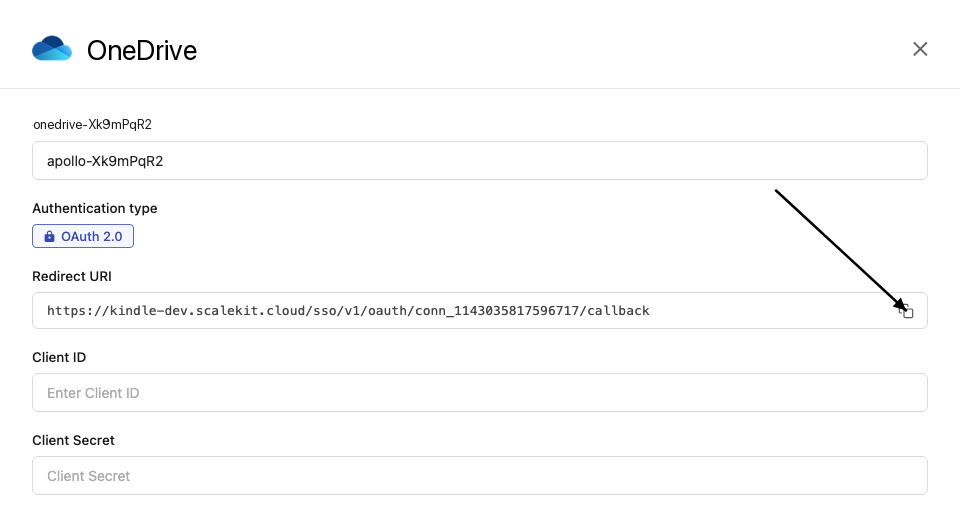
-
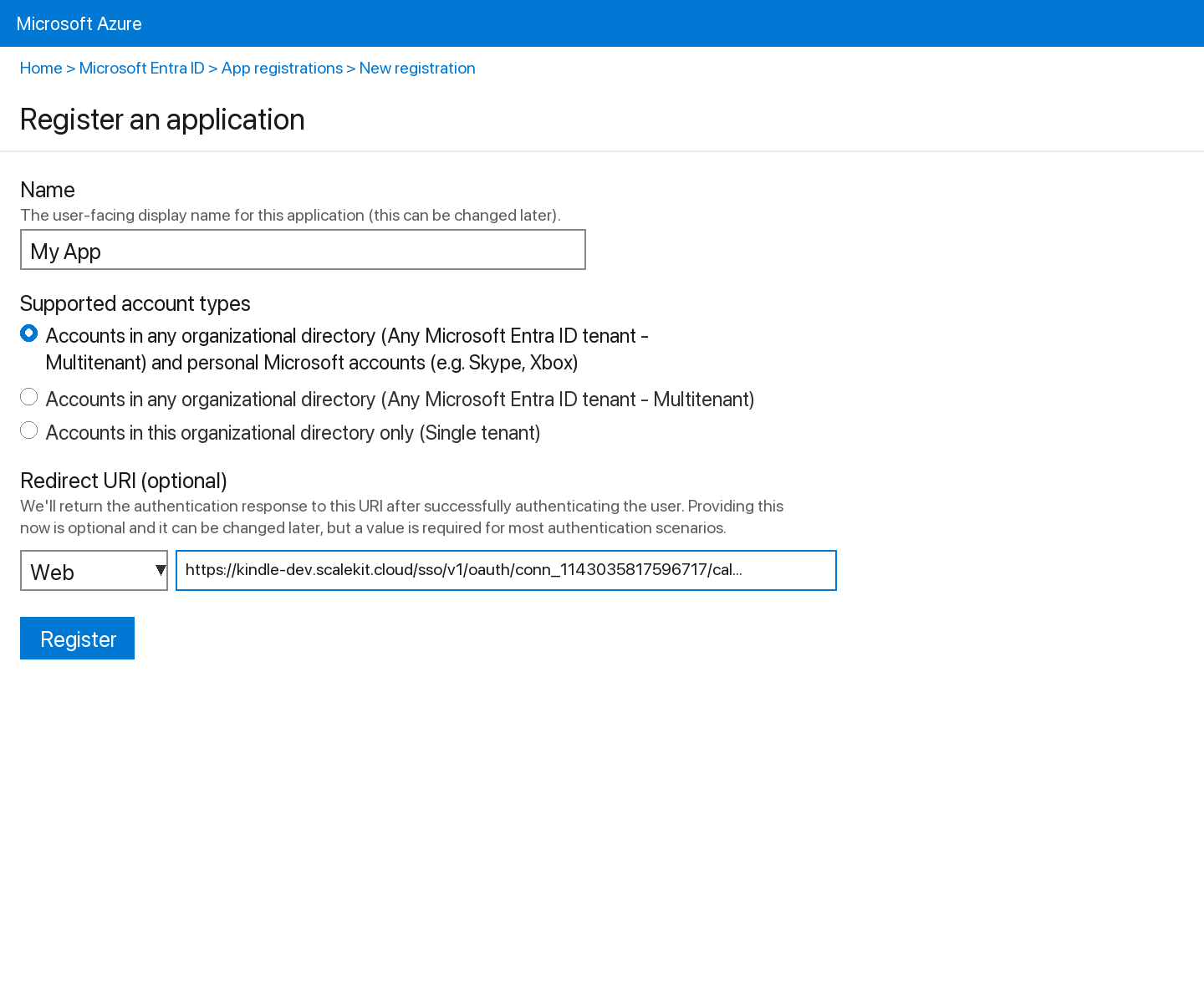
Sign into portal.azure.com and go to Azure Active Directory → App registrations → New registration.
-
Enter a name for your app.
-
Under Supported account types, select Accounts in any organizational directory (Any Azure AD directory - Multitenant) and personal Microsoft accounts.
-
Under Redirect URI, select Web and paste the redirect URI from step 1. Click Register.
-
-
Get your client credentials
-
Go to Certificates & secrets → New client secret, set an expiry, and click Add. Copy the Value immediately.
-
From the Overview page, copy the Application (client) ID.
-
-
Add credentials in Scalekit
-
In Scalekit dashboard, go to AgentKit > Connections and open the connection you created.
-
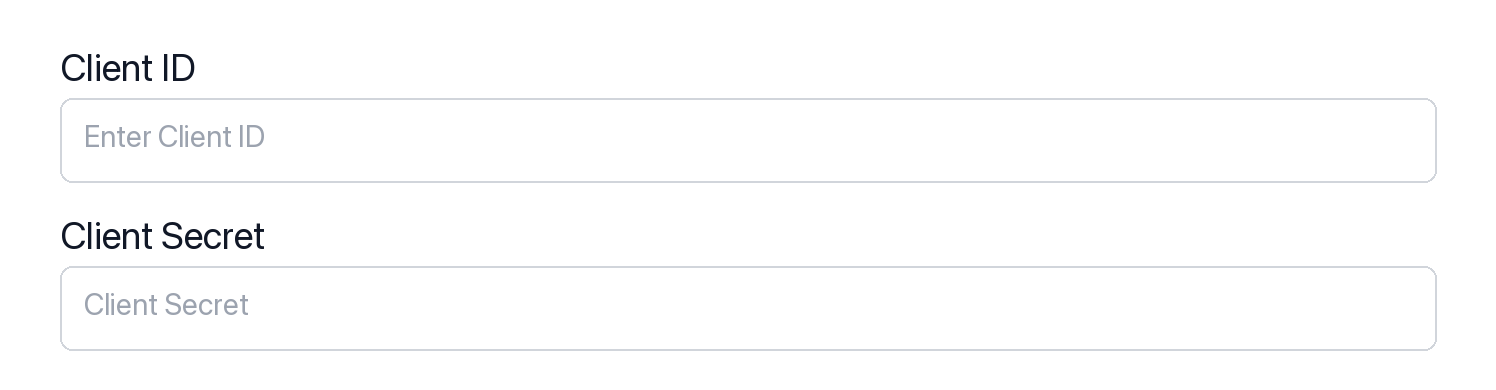
Enter your credentials:
- Client ID (Application (client) ID from Azure)
- Client Secret (from Certificates & secrets)
- Permissions (scopes — see Microsoft Graph permissions reference)
-
Click Save.
-
-
Authorize a user and make your first call
quickstart.mts import { ScalekitClient } from '@scalekit-sdk/node'import 'dotenv/config'import { createInterface } from 'node:readline/promises'const scalekit = new ScalekitClient(process.env.SCALEKIT_ENVIRONMENT_URL,process.env.SCALEKIT_CLIENT_ID,process.env.SCALEKIT_CLIENT_SECRET,)const actions = scalekit.actionsconst connector = 'onedrive'const identifier = 'user_123'// Generate an authorization link for the userconst { link } = await actions.getAuthorizationLink({ connectionName: connector, identifier })console.log('Authorize OneDrive:', link)const rl = createInterface({ input: process.stdin, output: process.stdout })await rl.question('Press Enter after authorizing...')rl.close()// Make your first callconst result = await actions.executeTool({connector,identifier,toolName: 'onedrive_get_drive',toolInput: {},})console.log(result)Terminal window npx tsx quickstart.mtsquickstart.py import osfrom scalekit import ScalekitClientfrom dotenv import load_dotenvload_dotenv()scalekit_client = ScalekitClient(env_url=os.getenv("SCALEKIT_ENVIRONMENT_URL"),client_id=os.getenv("SCALEKIT_CLIENT_ID"),client_secret=os.getenv("SCALEKIT_CLIENT_SECRET"),)actions = scalekit_client.actionsconnection_name = "onedrive"identifier = "user_123"# Generate an authorization link for the userlink_response = actions.get_authorization_link(connection_name=connection_name,identifier=identifier,)print("Authorize OneDrive:", link_response.link)input("Press Enter after authorizing...")# Make your first callresult = actions.execute_tool(tool_input={},tool_name="onedrive_get_drive",connection_name=connection_name,identifier=identifier,)print(result)Terminal window python quickstart.pyEach user signs in once. See Authorize a user for the full flow and statuses.
Tools
Pass the exact name toexecute_toolonedrive_download_fileDownload the binary content of a OneDrive file by its item ID.Read-onlyDownload Drive File
Download the binary content of a OneDrive file by its item ID. The response is the raw file bytes (not JSON). For text files this will be readable text; for binary files (images, Office documents) it will be binary data. Use the item ID from get or list operations.
Inputs
item_idstringrequired- The unique ID of the OneDrive file to download. Obtain item IDs from list drive items or search drive items operations.
onedrive_download_file_in_driveDownload the binary content of a file in a specific drive (e.g.Read-onlyDownload File in Drive
Download the binary content of a file in a specific drive (e.g. a SharePoint document library or another user's drive) by drive ID and item ID. To download from the signed-in user's personal OneDrive, use onedrive_download_file instead.
Inputs
drive_idstringrequired- The unique ID of the drive containing the file
item_idstringrequired- The unique ID of the file to download
onedrive_get_driveRetrieve the properties of the signed-in user's default OneDrive drive, including storage quota, owner information, and drive type (personal, business, or SharePoint document library).Read-onlyGet OneDrive
Retrieve the properties of the signed-in user's default OneDrive drive, including storage quota, owner information, and drive type (personal, business, or SharePoint document library).
Inputs
This tool takes no inputs.
onedrive_get_drive_itemRetrieve metadata for a file or folder in the signed-in user's personal OneDrive by item ID.Read-onlyGet Drive Item
Retrieve metadata for a file or folder in the signed-in user's personal OneDrive by item ID. Returns name, size, creation date, last modified date, MIME type, and download URL. To get an item from a specific drive by drive ID (e.g. a SharePoint document library), use onedrive_get_item_in_drive instead.
Inputs
item_idstringrequired- The unique ID of the OneDrive file or folder to retrieve. Obtain item IDs from list or search operations.
onedrive_get_item_analyticsGet view and access analytics for a OneDrive file or folder, aggregated over the allTime and lastSevenDays time periods.Read-onlyGet Drive Item Analytics
Get view and access analytics for a OneDrive file or folder, aggregated over the allTime and lastSevenDays time periods. Returns metrics such as view count and unique viewer count, useful for understanding how popular or actively used an item is.
Inputs
item_idstringrequired- The unique ID of the OneDrive file or folder to get analytics for.
onedrive_get_item_by_pathRetrieve metadata for a file or folder in the signed-in user's personal OneDrive using its human-readable folder path instead of an item ID.Read-onlyGet Drive Item by Path
Retrieve metadata for a file or folder in the signed-in user's personal OneDrive using its human-readable folder path instead of an item ID. Useful when the caller knows a path like 'Documents/Reports/Q1.xlsx' but not the underlying item ID.
Inputs
item_pathstringrequired- The path of the file or folder relative to the root of OneDrive, without a leading slash. Example: 'Documents/Reports/Q1.xlsx'.
onedrive_get_item_in_driveRetrieve metadata for a specific file or folder in a drive by drive ID and item ID.Read-onlyGet Item in Drive
Retrieve metadata for a specific file or folder in a drive by drive ID and item ID. Works across any drive accessible to the signed-in user, including SharePoint document libraries and Teams drives. Returns name, size, creation date, last modified date, MIME type, and download URL. To get an item from the signed-in user's personal OneDrive, use onedrive_get_drive_item instead.
Inputs
drive_idstringrequired- The unique ID of the drive containing the item. Obtain drive IDs from onedrive_list_drives or sharepoint_list_drives.
item_idstringrequired- The unique ID of the file or folder to retrieve. Obtain item IDs from list or search operations.
onedrive_get_permissionRetrieve the full details of a single sharing permission on a OneDrive file or folder by its permission ID.Read-onlyGet Drive Item Permission
Retrieve the full details of a single sharing permission on a OneDrive file or folder by its permission ID. Use onedrive_list_permissions first to find the permission ID.
Inputs
item_idstringrequired- The unique ID of the OneDrive file or folder that has the permission
permission_idstringrequired- The unique ID of the permission to retrieve
onedrive_get_special_folderRetrieve metadata for a well-known special folder in the signed-in user's OneDrive by its alias name, without needing to know its item ID.Read-onlyGet Special Folder
Retrieve metadata for a well-known special folder in the signed-in user's OneDrive by its alias name, without needing to know its item ID. Creates the folder if it does not already exist, per Microsoft Graph behavior.
Inputs
namestringrequired- The alias name of the special folder to retrieveone of
documentsphotoscamerarollapprootmusicrecordings
onedrive_get_thumbnailsRetrieve thumbnail images for a specific OneDrive file or folder.Read-onlyGet Drive Item Thumbnails
Retrieve thumbnail images for a specific OneDrive file or folder. Returns a collection of thumbnail sets including small, medium, and large thumbnail URLs. Useful for displaying file previews.
Inputs
item_idstringrequired- The unique ID of the OneDrive file or folder whose thumbnails to retrieve. Obtain item IDs from list or get drive item operations.
onedrive_get_version_contentDownload the binary content of a specific version of a OneDrive file.Read-onlyGet Drive Item Version Content
Download the binary content of a specific version of a OneDrive file. Returns the raw file bytes for the requested version. The response is a redirect (302) or direct download (200) depending on the client.
Inputs
item_idstringrequired- The unique ID of the OneDrive file whose version content to download. Obtain item IDs from list or get drive item operations.
version_idstringrequired- The unique ID of the version to download. Obtain version IDs from the list versions operation. Example: '1.0' or a GUID string.
onedrive_list_activitiesRetrieve the activity feed for a specific OneDrive file or folder.Read-onlyList Drive Item Activities
Retrieve the activity feed for a specific OneDrive file or folder. Returns a list of recent actions performed on the item, including who made changes, when, and what type of action was taken (create, edit, delete, share, etc.).
Inputs
item_idstringrequired- The unique ID of the OneDrive file or folder whose activity feed to retrieve. Obtain item IDs from list or get drive item operations.
filterstring- OData filter expression to narrow activity results. Example: "times/recordedTime ge 2024-01-01T00:00:00Z" to filter by date.
topinteger- Maximum number of activity records to return per page. Accepts an integer between 1 and 1000. Default: 25.default
25
onedrive_list_deltaTrack changes to files and folders in the signed-in user's personal OneDrive since a previous sync, without re-scanning the entire drive.Read-onlyList Drive Delta
Track changes to files and folders in the signed-in user's personal OneDrive since a previous sync, without re-scanning the entire drive. Call without a token to get the current state plus a delta token; pass the token back on later calls to get only what changed since then. Essential for keeping an external system in sync with OneDrive.
Inputs
tokenstring- The delta or next token from a previous list_delta response's @odata.deltaLink or @odata.nextLink. Omit on the first call to start a fresh sync from the current state.
onedrive_list_drive_itemsList the children (files and folders) of a folder in the signed-in user's personal OneDrive.Read-onlyList Drive Items
List the children (files and folders) of a folder in the signed-in user's personal OneDrive. Use "root" as the item_id to list top-level contents. To list children in a specific drive by drive ID (e.g. a SharePoint document library), use onedrive_list_items_in_drive instead.
Inputs
item_idstringrequired- The ID of the folder whose children to list. Use "root" to list top-level OneDrive contents. Obtain item IDs from other list or search operations.
filterstring- OData filter expression to narrow results. Example: "file ne null" returns only files; "folder ne null" returns only folders.
orderbystring- Property to sort results by. Example: "name asc" or "lastModifiedDateTime desc".
selectstring- Comma-separated list of properties to return. Example: "id,name,size,lastModifiedDateTime" reduces response payload.
skipinteger- Number of items to skip for pagination. Use with $top to page through results.
topinteger- Maximum number of items to return per page (default: 25). Accepts values 1–999.default
25
onedrive_list_drivesList all drives accessible to the signed-in user, including personal OneDrive, SharePoint document libraries, and shared drives.Read-onlyList OneDrive Drives
List all drives accessible to the signed-in user, including personal OneDrive, SharePoint document libraries, and shared drives. Supports OData $top for pagination and $select for field selection.
Inputs
selectstring- Comma-separated list of drive properties to return. Example: "id,name,driveType,quota" reduces response payload to only those fields.
topinteger- Maximum number of drives to return per page. Accepts values 1–999. Defaults to server-side limit if omitted.
onedrive_list_item_versions_in_driveRetrieve the version history for a file in a specific drive by drive ID and item ID.Read-onlyList Item Versions in Drive
Retrieve the version history for a file in a specific drive by drive ID and item ID. Works across any drive accessible to the signed-in user, including SharePoint document libraries and Teams drives. Returns version ID, last modified time, size, and the identity of the user who made each change. To list versions in the signed-in user's personal OneDrive, use onedrive_list_versions instead.
Inputs
drive_idstringrequired- The unique ID of the drive containing the file. Obtain drive IDs from onedrive_list_drives or sharepoint_list_drives.
item_idstringrequired- The unique ID of the file whose version history to list. Obtain item IDs from list or get item operations.
topinteger- Maximum number of version entries to return per page. Accepts values 1–1000. Default: 25.default
25
onedrive_list_items_by_pathList the children (files and folders) of a folder in the signed-in user's personal OneDrive using its human-readable folder path instead of an item ID.Read-onlyList Drive Items by Path
List the children (files and folders) of a folder in the signed-in user's personal OneDrive using its human-readable folder path instead of an item ID. Useful when the caller knows a path like 'Documents/Reports' but not the underlying item ID.
Inputs
folder_pathstringrequired- The path of the folder relative to the root of OneDrive, without a leading slash. Example: 'Documents/Reports'.
onedrive_list_items_in_driveList the children (files and folders) of a folder in a specific drive by drive ID.Read-onlyList Items in Drive
List the children (files and folders) of a folder in a specific drive by drive ID. Works across any drive accessible to the signed-in user, including SharePoint document libraries and Teams drives. Use "root" as item_id to list top-level contents of the drive. To list items in the signed-in user's personal OneDrive, use onedrive_list_drive_items instead.
Inputs
drive_idstringrequired- The unique ID of the drive containing the folder. Obtain drive IDs from onedrive_list_drives or sharepoint_list_drives.
item_idstringrequired- The ID of the folder whose children to list. Use "root" to list top-level contents of the drive.
filterstring- OData filter expression to narrow results. Example: "file ne null" returns only files; "folder ne null" returns only folders.
orderbystring- Property to sort results by. Example: "name asc" or "lastModifiedDateTime desc".
selectstring- Comma-separated list of properties to return. Example: "id,name,size,lastModifiedDateTime" reduces response payload.
skipinteger- Number of items to skip for pagination. Use with $top to page through results.
topinteger- Maximum number of items to return per page (default: 25). Accepts values 1–999.default
25
onedrive_list_permissionsRetrieve the list of permissions (sharing and access grants) for a specific OneDrive file or folder.Read-onlyList Drive Item Permissions
Retrieve the list of permissions (sharing and access grants) for a specific OneDrive file or folder. Returns all permission objects including sharing links, individual user grants, and inherited permissions.
Inputs
item_idstringrequired- The unique ID of the OneDrive file or folder whose permissions to list. Obtain item IDs from list or get drive item operations.
topinteger- Maximum number of permission entries to return per page. Accepts an integer between 1 and 100. Default: 25.default
25
onedrive_list_recent_itemsList files recently viewed or modified by the signed-in user in OneDrive.Read-onlyList Recent Drive Items
List files recently viewed or modified by the signed-in user in OneDrive. Returns the most recently accessed items across all drives the user has access to.
Inputs
topinteger- Maximum number of recent items to return. Accepts values 1–999.
onedrive_list_versionsRetrieve the version history for a file in the signed-in user's personal OneDrive by item ID.Read-onlyList Drive Item Versions
Retrieve the version history for a file in the signed-in user's personal OneDrive by item ID. Returns version ID, last modified time, size, and the identity of the user who made each change. To list versions in a specific drive by drive ID (e.g. a SharePoint document library), use onedrive_list_item_versions_in_drive instead.
Inputs
item_idstringrequired- The unique ID of the OneDrive file whose version history to list. Obtain item IDs from list or get drive item operations.
topinteger- Maximum number of version entries to return per page. Accepts an integer between 1 and 1000. Default: 25.default
25
onedrive_preview_itemGet a short-lived, embeddable preview URL for a OneDrive file so it can be viewed in a browser (e.g.Read-onlyPreview Drive Item
Get a short-lived, embeddable preview URL for a OneDrive file so it can be viewed in a browser (e.g. an iframe) without downloading its raw bytes. Supports Office documents, PDFs, images, and other common file types that OneDrive can render.
Inputs
item_idstringrequired- The unique ID of the OneDrive file to generate a preview for.
pagestring- For multi-page documents, the page number to start the preview on.
zoomnumber- Zoom level to render the preview at, where 1.0 is 100%.
onedrive_search_drive_itemsSearch the signed-in user's personal OneDrive (root) for files and folders matching a query string.Read-onlySearch Drive Items
Search the signed-in user's personal OneDrive (root) for files and folders matching a query string. Searches across file names, content, and metadata. To search within a specific drive by drive ID (e.g. a SharePoint document library), use onedrive_search_items_in_drive instead.
Inputs
querystringrequired- Search query string to find files or folders by name or content. Example: "budget 2024" searches for items containing that text.
selectstring- Comma-separated list of properties to return. Example: "id,name,size,webUrl" reduces response payload.
topinteger- Maximum number of results to return. Accepts values 1–999.
onedrive_search_items_in_driveSearch for files and folders within a specific drive by drive ID.Read-onlySearch Items in Drive
Search for files and folders within a specific drive by drive ID. Works across any drive accessible to the signed-in user, including SharePoint document libraries and Teams drives. To search the signed-in user's personal OneDrive, use onedrive_search_drive_items instead.
Inputs
drive_idstringrequired- The unique ID of the drive to search within. Obtain drive IDs from onedrive_list_drives or sharepoint_list_drives.
querystringrequired- Search query string to find files or folders by name or content. Example: "budget 2024" searches for items containing that text.
selectstring- Comma-separated list of properties to return. Example: "id,name,size,webUrl" reduces response payload.
topinteger- Maximum number of results to return. Accepts values 1–999.
onedrive_checkin_fileCheck in a checked-out OneDrive file to make the version available to others.WriteCheck In OneDrive File
Check in a checked-out OneDrive file to make the version available to others. Optionally provide a comment describing the changes and specify the check-in type. Requires the file to be checked out first.
Inputs
item_idstringrequired- The unique ID of the OneDrive file to check in. The file must currently be checked out. Obtain item IDs from list or get drive item operations.
check_in_asstring- The type of check-in to perform. 'published' makes the version visible to all users. 'unspecified' (default) lets the server decide based on document library configuration.one of
publishedunspecifieddefaultunspecified commentstring- An optional comment to associate with the checked-in version, describing the changes made. Maximum length varies by library configuration.
onedrive_checkout_fileCheck out a OneDrive file to prevent others from editing it while you make changes.WriteCheck Out OneDrive File
Check out a OneDrive file to prevent others from editing it while you make changes. Once checked out, only you can modify the file until it is checked back in or the checkout is discarded.
Inputs
item_idstringrequired- The unique ID of the OneDrive file to check out. The file must be in a document library that supports check out. Obtain item IDs from list or get drive item operations.
onedrive_copy_drive_itemCopy a file or folder in the signed-in user's personal OneDrive to a new location asynchronously.WriteCopy Drive Item
Copy a file or folder in the signed-in user's personal OneDrive to a new location asynchronously. Returns HTTP 202 with a monitor URL; copy completes in the background. To copy an item in a specific drive by drive ID (e.g. a SharePoint document library), use onedrive_copy_item_in_drive instead.
Inputs
item_idstringrequired- The unique ID of the OneDrive file or folder to copy. Obtain item IDs from list or get drive item operations.
new_parent_idstringrequired- The item ID of the destination folder for the copy. Use "root" to copy the item to the top level of OneDrive.
new_namestring- Optional name for the copied item in the destination. If omitted, the copy retains the original name.
onedrive_copy_item_in_driveCopy a file or folder in a specific drive to a new location asynchronously.WriteCopy Item in Drive
Copy a file or folder in a specific drive to a new location asynchronously. Works across any drive accessible to the signed-in user, including SharePoint document libraries and Teams drives. Returns HTTP 202 with a monitor URL; the copy completes in the background. To copy an item in the signed-in user's personal OneDrive, use onedrive_copy_drive_item instead.
Inputs
drive_idstringrequired- The unique ID of the drive containing the item to copy. Obtain drive IDs from onedrive_list_drives or sharepoint_list_drives.
item_idstringrequired- The unique ID of the file or folder to copy. Obtain item IDs from list or get item operations.
new_parent_idstringrequired- The item ID of the destination folder for the copy. Use "root" to copy to the top level of the drive.
new_namestring- Optional name for the copied item in the destination. If omitted, the copy retains the original name.
onedrive_create_folderCreate a new folder in OneDrive under the specified parent folder.WriteCreate OneDrive Folder
Create a new folder in OneDrive under the specified parent folder. Use "root" as the parent_id to create a top-level folder. Supports conflict behavior control when a folder with the same name already exists.
Inputs
namestringrequired- The name of the folder to create. Must be a valid folder name without path separators.
parent_idstringrequired- The ID of the parent folder under which to create the new folder. Use "root" to create a folder at the top level of OneDrive. Obtain folder IDs from list or get drive item operations.
conflict_behaviorstring- Behavior when a folder with the same name already exists. "fail" returns an error, "replace" overwrites the existing item, "rename" saves the new folder with a different name. Default: rename.one of
failreplacerenamedefaultrename
onedrive_create_sharing_linkCreate a sharing link for a file or folder in the signed-in user's personal OneDrive.WriteCreate Sharing Link
Create a sharing link for a file or folder in the signed-in user's personal OneDrive. Supports view-only, edit, and embed link types with optional org scope, password, and expiration. To create a sharing link for an item in a specific drive by drive ID (e.g. a SharePoint document library), use onedrive_create_sharing_link_in_drive instead.
Inputs
item_idstringrequired- The unique ID of the OneDrive file or folder for which to create a sharing link. Obtain item IDs from list or get drive item operations.
typestringrequired- Type of sharing link to create. "view" is read-only, "edit" allows modifications, "embed" provides an HTML embed code for web pages.one of
vieweditembed expiration_date_timestring- Optional expiration date and time for the sharing link in ISO 8601 format. After this date/time the link will no longer work. Example: "2026-12-31T23:59:00Z".
passwordstring- Optional password to protect the sharing link. Recipients will need to enter this password to access the shared item.
scopestring- Scope of the sharing link. "anonymous" allows anyone with the link to access the item. "organization" restricts access to users within the same Microsoft 365 organization. Default: anonymous.one of
anonymousorganizationdefaultanonymous
onedrive_create_sharing_link_in_driveCreate a sharing link for a file or folder in a specific drive by drive ID.WriteCreate Sharing Link in Drive
Create a sharing link for a file or folder in a specific drive by drive ID. Works across any drive accessible to the signed-in user, including SharePoint document libraries and Teams drives. Supports view-only, edit, and embed link types with optional org scope, password, and expiration. To create a sharing link for an item in the signed-in user's personal OneDrive, use onedrive_create_sharing_link instead.
Inputs
drive_idstringrequired- The unique ID of the drive containing the item to share. Obtain drive IDs from onedrive_list_drives or sharepoint_list_drives.
item_idstringrequired- The unique ID of the file or folder for which to create a sharing link. Obtain item IDs from list or get item operations.
typestringrequired- Type of sharing link to create. "view" is read-only, "edit" allows modifications, "embed" provides an HTML embed code for web pages.one of
vieweditembed expiration_date_timestring- Optional expiration date and time for the sharing link in ISO 8601 format. After this date/time the link will no longer work. Example: "2026-12-31T23:59:00Z".
passwordstring- Optional password to protect the sharing link. Recipients will need to enter this password to access the shared item.
scopestring- Scope of the sharing link. "anonymous" allows anyone with the link to access the item. "organization" restricts access to users within the same Microsoft 365 organization. Default: anonymous.one of
anonymousorganizationdefaultanonymous
onedrive_discard_checkoutDiscard a pending checkout for a OneDrive file, releasing the lock without saving any changes.WriteDiscard OneDrive File Checkout
Discard a pending checkout for a OneDrive file, releasing the lock without saving any changes. The file reverts to the state it was in before the checkout. Use this when you want to cancel edits and allow others to edit the file again.
Inputs
item_idstringrequired- The unique ID of the OneDrive file whose checkout to discard. The file must currently be checked out by you. Obtain item IDs from list or get drive item operations.
onedrive_follow_drive_itemFollow a OneDrive file or folder so it appears in your list of followed items.WriteFollow Drive Item
Follow a OneDrive file or folder so it appears in your list of followed items. Following an item allows you to track changes and receive notifications. Returns the updated drive item.
Inputs
item_idstringrequired- The unique ID of the OneDrive file or folder to follow. Obtain item IDs from list or get drive item operations.
onedrive_invite_usersSend sharing invitations for a OneDrive file or folder to one or more recipients by email address.WriteInvite Users to Drive Item
Send sharing invitations for a OneDrive file or folder to one or more recipients by email address. Assigns the specified roles (read or write) and optionally sends an email notification with a message.
Inputs
item_idstringrequired- The unique ID of the OneDrive file or folder to share. Obtain item IDs from list or get drive item operations.
recipient_emailsarrayrequired- Array of email addresses of users to invite. Each email will receive an invitation to access the shared item. Example: ["alice@example.com", "bob@example.com"].
rolesarrayrequired- Array of permission roles to grant to the invited users. Use "read" for view-only access and "write" for edit access. Example: ["read"].
messagestring- Optional message to include in the invitation email sent to the recipients.
require_sign_inboolean- Whether the recipient must sign in to access the shared item. Set to false to allow access without signing in. Default: true.default
true send_invitationboolean- Whether to send an email invitation to the recipients. Set to false to grant access silently without sending an email. Default: true.default
true
onedrive_move_drive_itemMove a OneDrive file or folder to a different parent folder by updating its parentReference.WriteMove Drive Item
Move a OneDrive file or folder to a different parent folder by updating its parentReference. Optionally rename the item during the move. Provide the destination folder's item ID as new_parent_id.
Inputs
item_idstringrequired- The unique ID of the OneDrive file or folder to move. Obtain item IDs from list or get drive item operations.
new_parent_idstringrequired- The item ID of the destination folder. Use "root" to move the item to the top level of OneDrive. Obtain folder IDs from list or get drive item operations.
new_namestring- Optional new name to assign to the item during the move. If omitted, the item keeps its current name.
onedrive_restore_drive_itemRestore a deleted OneDrive file or folder from the recycle bin back to its original location or an optionally specified destination.WriteRestore Drive Item
Restore a deleted OneDrive file or folder from the recycle bin back to its original location or an optionally specified destination. Provide new_parent_id and new_name to restore to a different location or with a different name.
Inputs
item_idstringrequired- The unique ID of the deleted OneDrive item to restore. Obtain deleted item IDs from recycle bin list operations.
new_namestring- Optional new name to assign to the item when restoring. If omitted, the item is restored with its original name.
new_parent_idstring- Optional item ID of the folder to restore the item into. If omitted, the item is restored to its original parent location.
onedrive_restore_item_versionRestore a previous version of a OneDrive file, making it the current version.WriteRestore Drive Item Version
Restore a previous version of a OneDrive file, making it the current version. Obtain the version ID from onedrive_list_versions.
Inputs
item_idstringrequired- The unique ID of the OneDrive file whose version to restore
version_idstringrequired- The unique ID of the version to restore as the current version
onedrive_unfollow_drive_itemStop following a OneDrive file or folder.WriteUnfollow Drive Item
Stop following a OneDrive file or folder. The item will no longer appear in your list of followed items and you will stop receiving change notifications for it.
Inputs
item_idstringrequired- The unique ID of the OneDrive file or folder to unfollow. The item must currently be in your followed items list. Obtain item IDs from list or get drive item operations.
onedrive_update_drive_itemUpdate the metadata of a OneDrive file or folder by its item ID.WriteUpdate Drive Item
Update the metadata of a OneDrive file or folder by its item ID. Supports renaming (via name) and updating the description. At least one of name or description should be provided.
- Idempotent
Inputs
item_idstringrequired- The unique ID of the OneDrive file or folder to update. Obtain item IDs from list or get drive item operations.
descriptionstring- New description for the file or folder. Provide a short text description to attach to the item. Optional — can be updated independently from name.
namestring- New name for the file or folder. Renaming a file preserves its extension unless explicitly changed. Optional — provide only when renaming.
onedrive_update_permissionUpdate the roles assigned to an existing permission on a OneDrive file or folder.WriteUpdate Drive Item Permission
Update the roles assigned to an existing permission on a OneDrive file or folder. Use this to change a user's access level from read to write or vice versa. Requires the item ID and the specific permission ID to update.
- Idempotent
Inputs
item_idstringrequired- The unique ID of the OneDrive file or folder whose permission to update. Obtain item IDs from list or get drive item operations.
permission_idstringrequired- The unique ID of the permission to update. Obtain permission IDs from the list permissions operation on the same item.
rolesarrayrequired- New array of permission roles to assign. Use "read" for view-only access and "write" for edit access. Example: ["write"].
onedrive_upload_large_fileCreate a resumable upload session for uploading large files (greater than 4 MB) to OneDrive.WriteCreate OneDrive Upload Session
Create a resumable upload session for uploading large files (greater than 4 MB) to OneDrive. Returns an upload URL that the caller uses to upload file bytes in separate PATCH requests. The file is placed under the specified parent folder with the given filename.
Inputs
filenamestringrequired- The name of the file to create or replace in OneDrive, including extension. Example: "report.xlsx".
parent_idstringrequired- The ID of the parent folder where the file will be uploaded. Use "root" to upload to the top-level OneDrive folder. Obtain folder IDs from list or get drive item operations.
conflict_behaviorstring- Behavior when a file with the same name already exists. "fail" aborts the upload, "replace" overwrites the existing file, "rename" saves with a new name. Default: replace.one of
failreplacerenamedefaultreplace
onedrive_delete_drive_itemDelete a file or folder from the signed-in user's personal OneDrive by item ID.DestructiveDelete Drive Item
Delete a file or folder from the signed-in user's personal OneDrive by item ID. The item is moved to the recycle bin. To delete an item in a specific drive by drive ID (e.g. a SharePoint document library), use onedrive_delete_item_in_drive instead.
Inputs
item_idstringrequired- The unique ID of the OneDrive file or folder to delete. Obtain item IDs from list or get drive item operations. Deleting a folder also removes all its contents.
onedrive_delete_item_in_driveDelete a file or folder from a specific drive by drive ID and item ID.DestructiveDelete Item in Drive
Delete a file or folder from a specific drive by drive ID and item ID. The item is moved to the recycle bin. Works across any drive accessible to the signed-in user, including SharePoint document libraries and Teams drives. Deleting a folder also removes all its contents. To delete an item from the signed-in user's personal OneDrive, use onedrive_delete_drive_item instead.
Inputs
drive_idstringrequired- The unique ID of the drive containing the item to delete. Obtain drive IDs from onedrive_list_drives or sharepoint_list_drives.
item_idstringrequired- The unique ID of the file or folder to delete. Obtain item IDs from list or get item operations. Deleting a folder also removes all its contents.
onedrive_delete_permissionRemove a specific permission (sharing link or user grant) from a OneDrive file or folder.DestructiveDelete Drive Item Permission
Remove a specific permission (sharing link or user grant) from a OneDrive file or folder. Once deleted, users who had access only through this permission will lose access. This action cannot be undone.
Inputs
item_idstringrequired- The unique ID of the OneDrive file or folder from which to remove the permission. Obtain item IDs from list or get drive item operations.
permission_idstringrequired- The unique ID of the permission to delete. Obtain permission IDs from list permissions operations.
No tools match.
Workflows
Proxy API call
const result = await actions.request({ connectionName: 'onedrive', identifier: 'user_123', path: '/v1.0/me/drive', method: 'GET',});console.log(result);result = actions.request( connection_name='onedrive', identifier='user_123', path="/v1.0/me/drive", method="GET")print(result)Execute a tool
const result = await actions.executeTool({ connector: 'onedrive', identifier: 'user_123', toolName: 'onedrive_list_drive_items', toolInput: { item_id: 'root' },});console.log(result);result = actions.execute_tool( connection_name='onedrive', identifier='user_123', tool_name='onedrive_list_drive_items', tool_input={'item_id': 'root'},)print(result)

