


The OneNote connector lets your AI agent act in each user's OneNote account. Each user signs in to OneNote once, and Scalekit stores and refreshes their tokens, so your agent never handles credentials. It comes with 13 tools.
- Tools
- 13
- What they doRead · write · destructive
- 6 · 6 · 16 read6 write1 destructive
- Users sign in with
- OAuth
- OAuth app
- Scalekit's or your own
Setup
Install the SDK
Terminal window npm install @scalekit-sdk/node dotenvTerminal window pip install scalekit-sdk-python python-dotenvSet your credentials
Add your Scalekit credentials to your
.envfile. Find values in app.scalekit.com > Developers > API Credentials..env SCALEKIT_ENVIRONMENT_URL=<your-environment-url>SCALEKIT_CLIENT_ID=<your-client-id>SCALEKIT_CLIENT_SECRET=<your-client-secret>Create the OneNote connection
In AgentKit > Connections, create an OneNote connection. The name you give it is the
connection_nameyour code passes. See Configure connections.Scalekit credentials are available for OneNote, so you don't need to register an OAuth app. To show your own app on the consent screen, use your own credentials instead.
Use your own OAuth app
Register your Scalekit environment with the Microsoft OneNote connector so Scalekit handles the authentication flow and token lifecycle for you. The connection name you create will be used to identify and invoke the connection programmatically. Then complete the configuration in your application as follows:
-
Create the OneNote connection in Scalekit
-
In Scalekit dashboard, go to AgentKit > Connections > Create Connection. Search for OneNote and click Create.
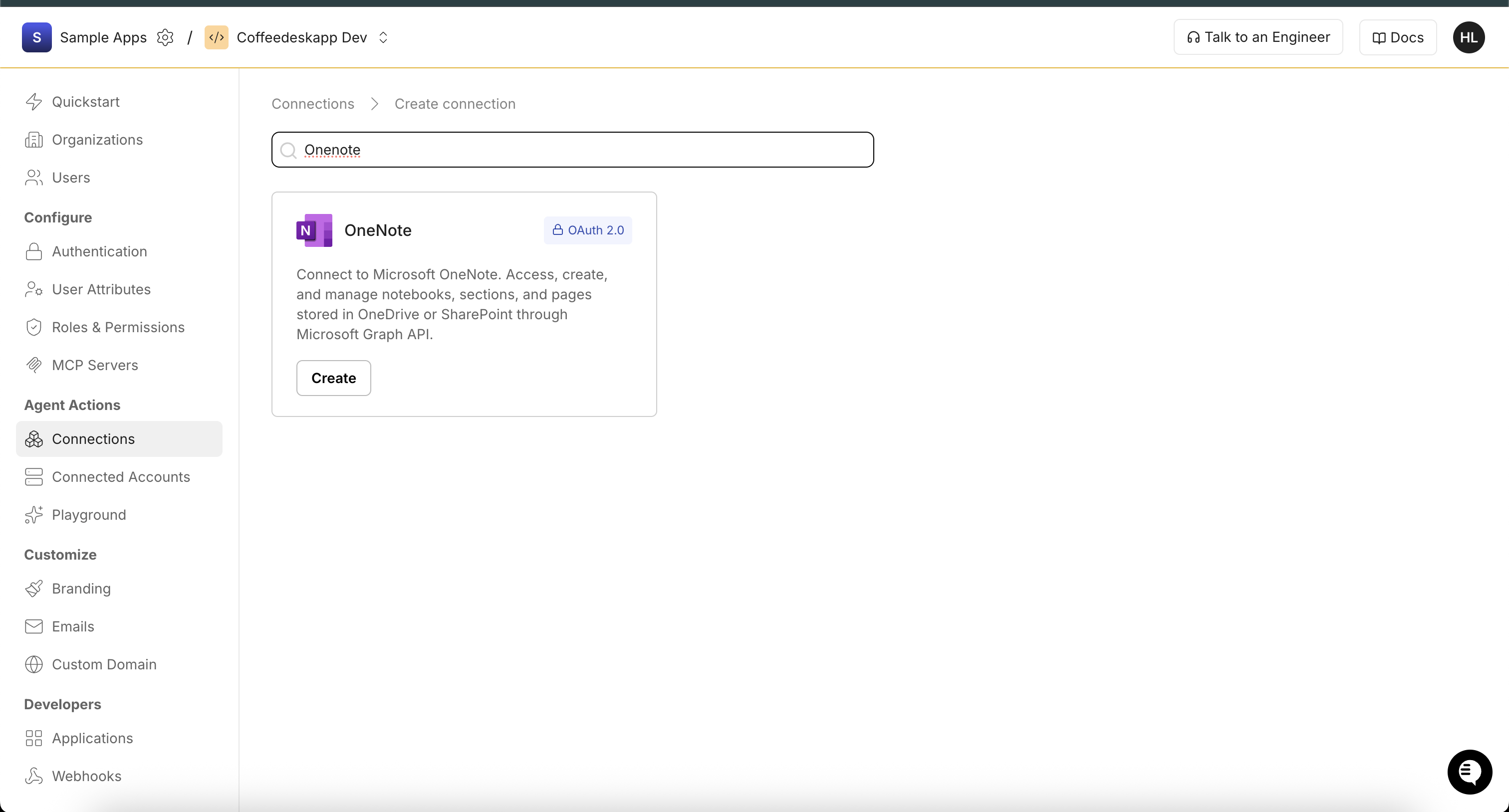
-
In the Configure OneNote Connection dialog, copy the Redirect URI. You will need this when registering your app in Azure.
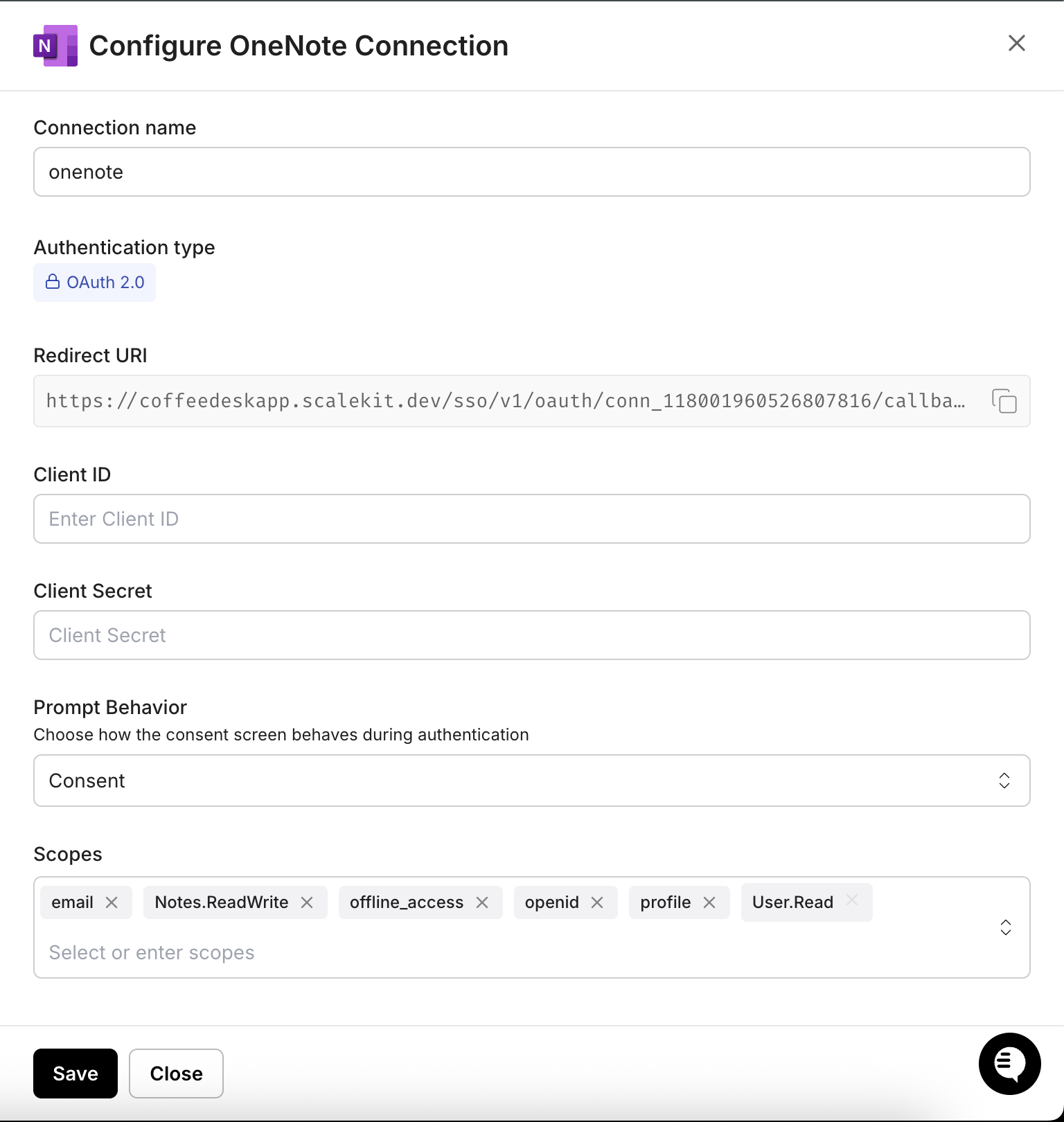
-
-
Register an application in Azure
-
Sign into portal.azure.com and go to Microsoft Entra ID → App registrations.
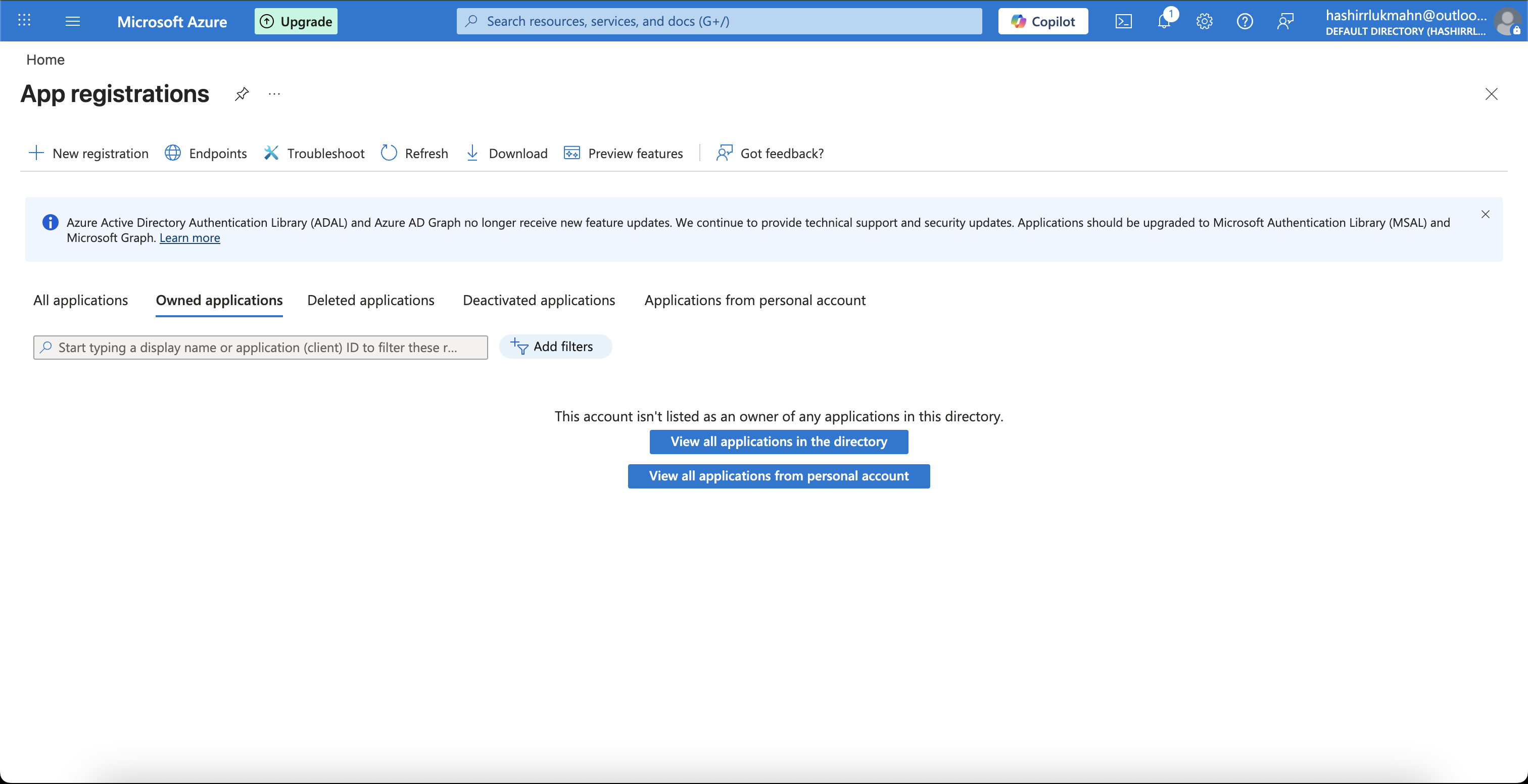
-
Click New registration. Enter a name for your app (for example, “Scalekit_Agent_Actions”).
-
Under Supported account types, select Accounts in any organizational directory (Any Microsoft Entra ID tenant - Multitenant) and personal Microsoft accounts.
-
Under Redirect URI, select Web and paste the redirect URI you copied from the Scalekit dashboard. Click Register.
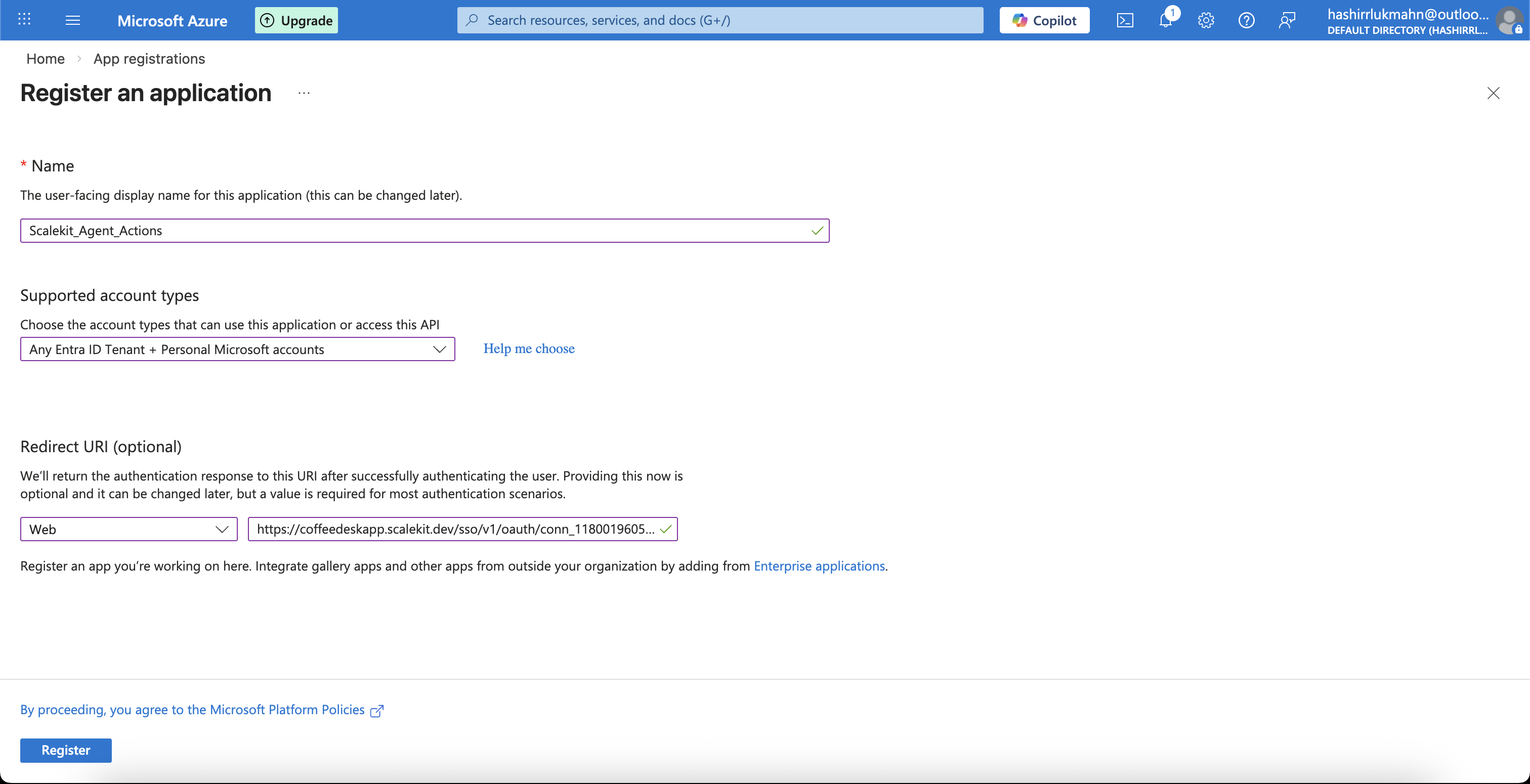
-
-
Get your client credentials
-
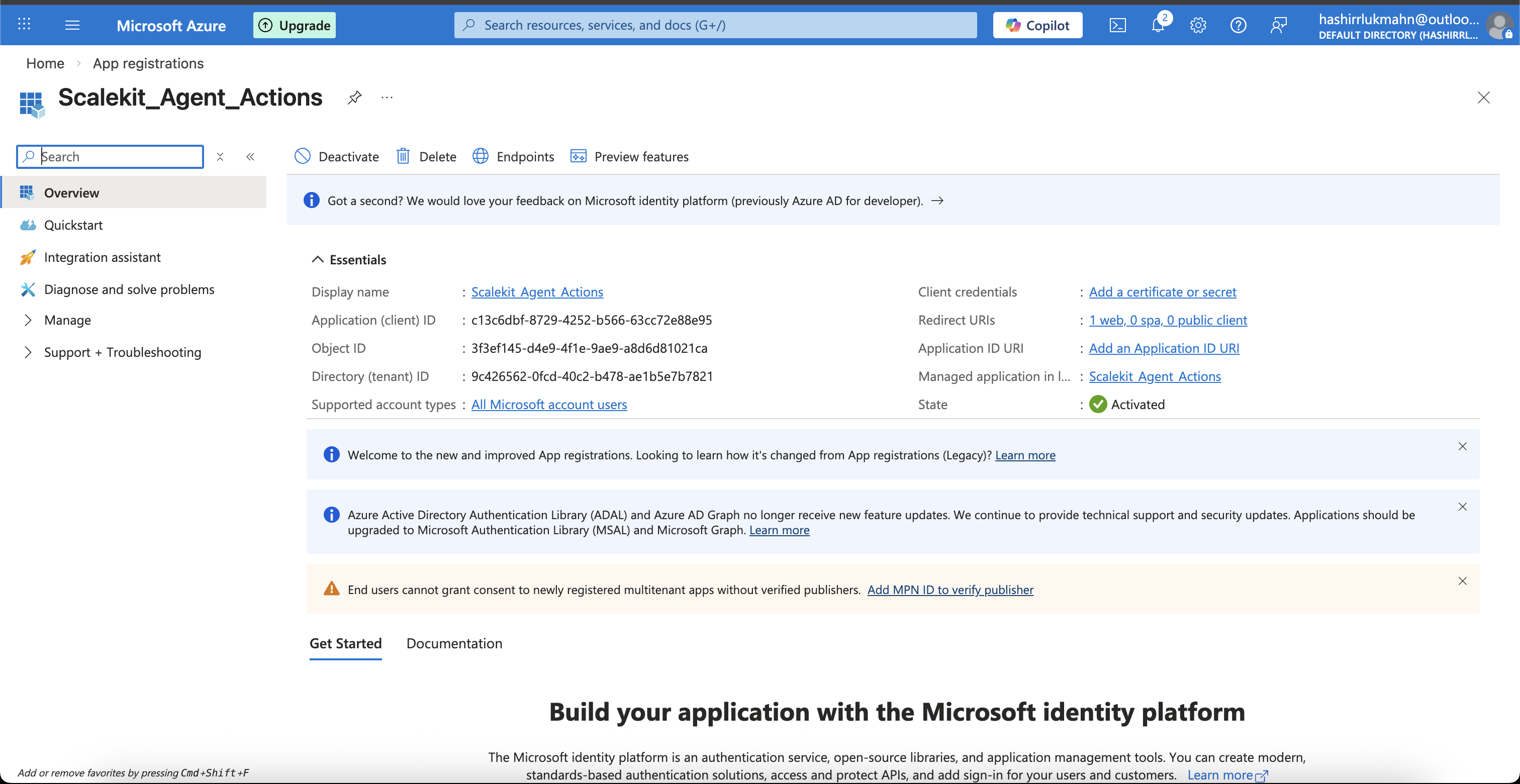
From the app’s Overview page, copy the Application (client) ID.
-
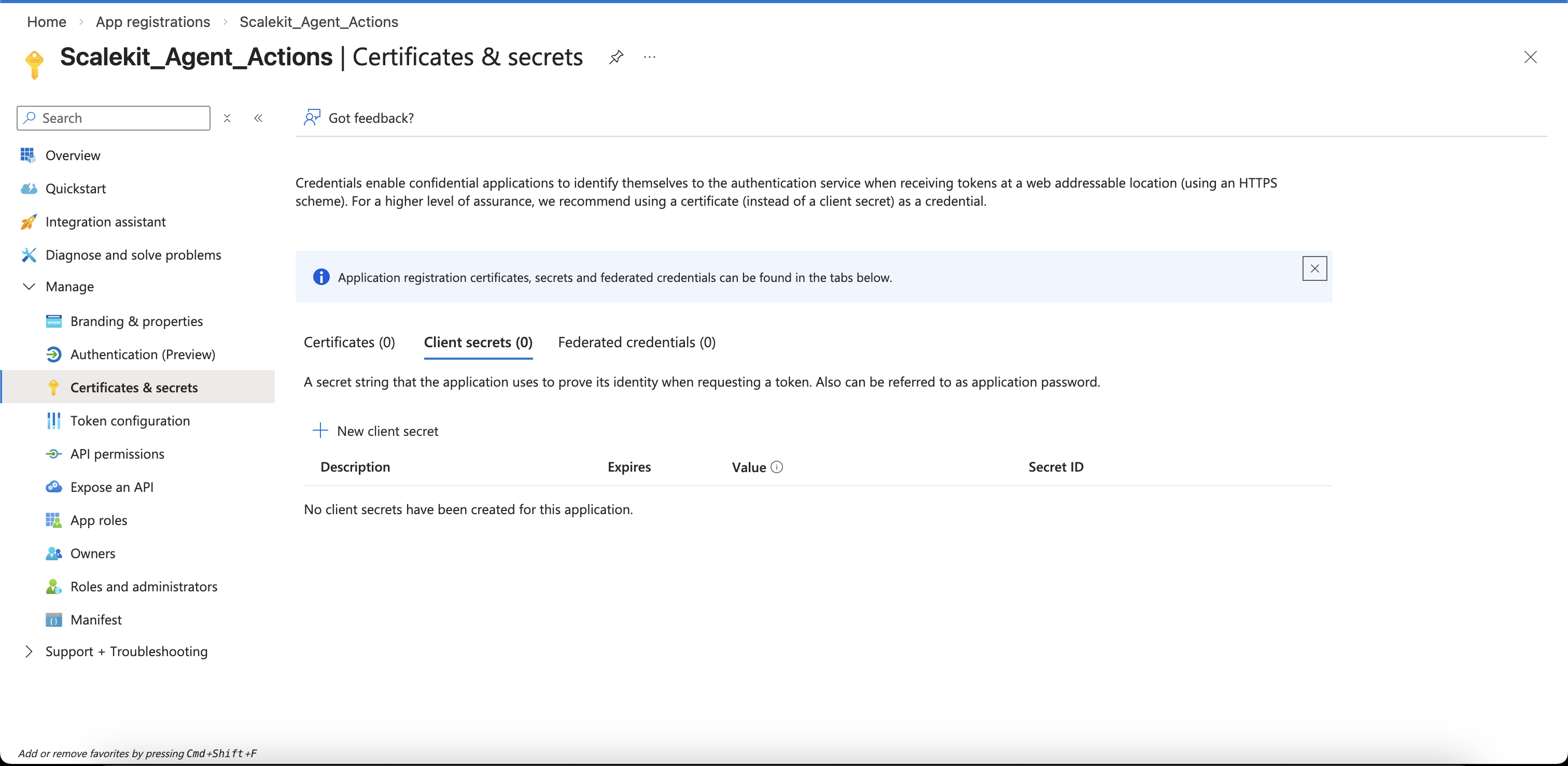
Go to Certificates & secrets in the left sidebar, then click + New client secret.
-
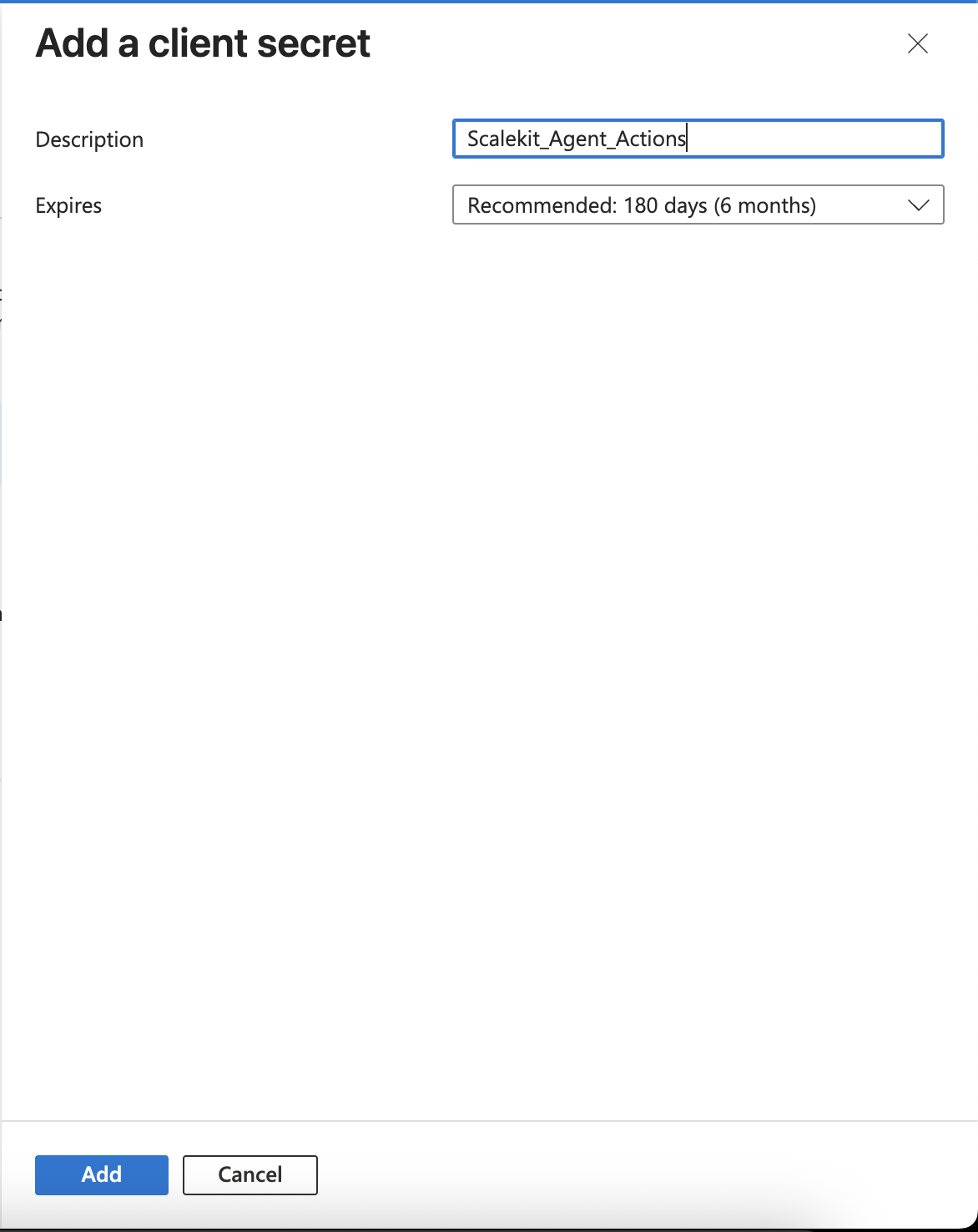
Enter a description, set an expiry period, and click Add. Copy the secret Value immediately — it is only shown once.
-
-
Add credentials in Scalekit
-
In Scalekit dashboard, go to AgentKit > Connections and open the OneNote connection you created.
-
Enter your credentials:
- Client ID — the Application (client) ID from the Azure app overview
- Client Secret — the secret value from Certificates & secrets
- Scopes — select the permissions your app needs (for example,
Notes.ReadWrite,User.Read,email,openid,profile,offline_access). See Microsoft Graph permissions reference for the full list.
-
Click Save.
-
-
Authorize a user and make your first call
quickstart.mts import { ScalekitClient } from '@scalekit-sdk/node'import 'dotenv/config'import { createInterface } from 'node:readline/promises'const scalekit = new ScalekitClient(process.env.SCALEKIT_ENVIRONMENT_URL,process.env.SCALEKIT_CLIENT_ID,process.env.SCALEKIT_CLIENT_SECRET,)const actions = scalekit.actionsconst connector = 'onenote'const identifier = 'user_123'// Generate an authorization link for the userconst { link } = await actions.getAuthorizationLink({ connectionName: connector, identifier })console.log('Authorize OneNote:', link)const rl = createInterface({ input: process.stdin, output: process.stdout })await rl.question('Press Enter after authorizing...')rl.close()// Make your first callconst result = await actions.executeTool({connector,identifier,toolName: 'onenote_list_notebooks',toolInput: {},})console.log(result)Terminal window npx tsx quickstart.mtsquickstart.py import osfrom scalekit import ScalekitClientfrom dotenv import load_dotenvload_dotenv()scalekit_client = ScalekitClient(env_url=os.getenv("SCALEKIT_ENVIRONMENT_URL"),client_id=os.getenv("SCALEKIT_CLIENT_ID"),client_secret=os.getenv("SCALEKIT_CLIENT_SECRET"),)actions = scalekit_client.actionsconnection_name = "onenote"identifier = "user_123"# Generate an authorization link for the userlink_response = actions.get_authorization_link(connection_name=connection_name,identifier=identifier,)print("Authorize OneNote:", link_response.link)input("Press Enter after authorizing...")# Make your first callresult = actions.execute_tool(tool_input={},tool_name="onenote_list_notebooks",connection_name=connection_name,identifier=identifier,)print(result)Terminal window python quickstart.pyEach user signs in once. See Authorize a user for the full flow and statuses.
Tools
Pass the exact name toexecute_toolonenote_get_page_contentRetrieve the full HTML content of a OneNote page by page ID.Read-onlyGet Page Content
Retrieve the full HTML content of a OneNote page by page ID. Returns raw HTML (Content-Type: text/html), not JSON — the response body is the page's markup, including any embedded images as data URIs or object references. Set include_ids to true to have the server annotate elements with data-id attributes, which are required as the "target" of a subsequent onenote_update_page_content call. Requires Notes.Read, Notes.Create, or Notes.ReadWrite scope.
Inputs
page_idstringrequired- The unique ID of the OneNote page whose content to retrieve. Obtain page IDs from onenote_list_pages, onenote_search_pages, or onenote_create_page.
include_idsboolean- When true, the returned HTML includes data-id attributes on elements so they can be targeted by a later onenote_update_page_content call. Default: false.default
false
onenote_list_notebooksList all OneNote notebooks owned by or shared with the signed-in user.Read-onlyList Notebooks
List all OneNote notebooks owned by or shared with the signed-in user. Returns each notebook's id, displayName, createdDateTime, lastModifiedDateTime, userRole, isShared, sectionsUrl, sectionGroupsUrl, and links (oneNoteWebUrl/oneNoteClientUrl). Default sort order is displayName ascending. Requires Notes.Create, Notes.Read, or Notes.ReadWrite scope.
Inputs
orderbystring- Value for the OData $orderby query parameter — the property to sort results by. Example: "displayName desc". The default sort order is "displayName asc".
selectstring- Value for the OData $select query parameter — a comma-separated list of notebook properties to return. Example: "id,displayName,lastModifiedDateTime" reduces response payload.
topinteger- Value for the OData $top query parameter — the maximum number of notebooks to return per page. Accepts values 1–999.
onenote_list_pagesList the OneNote pages inside a specific section.Read-onlyList Pages
List the OneNote pages inside a specific section. Returns each page's id, title, createdByAppId, contentUrl, links, and lastModifiedDateTime. By default returns the top 20 pages ordered by lastModifiedDateTime descending; the maximum for top is 100. Use onenote_get_page_content to fetch a page's HTML body. Requires Notes.Read, Notes.Create, or Notes.ReadWrite scope.
Inputs
section_idstringrequired- The unique ID of the section whose pages to list. Obtain section IDs from onenote_list_sections or onenote_create_section.
filterstring- Value for the OData $filter query parameter — an expression to narrow results. Example: "contains(tolower(title),'standup')".
orderbystring- Value for the OData $orderby query parameter — the property to sort results by. Example: "title asc". The default sort order is "lastModifiedDateTime desc".
selectstring- Value for the OData $select query parameter — a comma-separated list of page properties to return. Example: "id,title,lastModifiedDateTime" reduces response payload.
topinteger- Value for the OData $top query parameter — the maximum number of pages to return per page of results (default: 20). The server-enforced maximum is 100.default
20
onenote_list_section_groupsList the OneNote section groups (sectionGroup objects) inside a specific notebook.Read-onlyList Section Groups
List the OneNote section groups (sectionGroup objects) inside a specific notebook. A section group is a folder-like container that can hold its own sections and nested section groups. Returns each section group's id, displayName, sectionsUrl, sectionGroupsUrl, createdDateTime, and lastModifiedDateTime. The default sort order is displayName asc. Requires Notes.Create, Notes.Read, or Notes.ReadWrite scope.
Inputs
notebook_idstringrequired- The unique ID of the notebook whose section groups to list. Obtain notebook IDs from onenote_list_notebooks or onenote_create_notebook.
filterstring- Value for the OData $filter query parameter — an expression to narrow results. Example: "displayName eq 'Archived'".
orderbystring- Value for the OData $orderby query parameter — the property to sort results by. Example: "lastModifiedDateTime desc". The default sort order is "displayName asc".
selectstring- Value for the OData $select query parameter — a comma-separated list of section group properties to return. Example: "id,displayName,sectionsUrl" reduces response payload.
topinteger- Value for the OData $top query parameter — the maximum number of section groups to return per page. Accepts values 1–999.
onenote_list_sectionsList the OneNote sections (onenoteSection objects) inside a specific notebook.Read-onlyList Sections
List the OneNote sections (onenoteSection objects) inside a specific notebook. Returns each section's id, displayName, isDefault, pagesUrl, createdDateTime, and lastModifiedDateTime. The default response expands parentNotebook. Requires Notes.Create, Notes.Read, or Notes.ReadWrite scope.
Inputs
notebook_idstringrequired- The unique ID of the notebook whose sections to list. Obtain notebook IDs from onenote_list_notebooks or onenote_create_notebook.
filterstring- Value for the OData $filter query parameter — an expression to narrow results. Example: "displayName eq 'Meeting Notes'".
orderbystring- Value for the OData $orderby query parameter — the property to sort results by. Example: "displayName asc" or "lastModifiedDateTime desc". The default sort order is "displayName asc".
selectstring- Value for the OData $select query parameter — a comma-separated list of section properties to return. Example: "id,displayName,pagesUrl" reduces response payload.
topinteger- Value for the OData $top query parameter — the maximum number of sections to return per page. Accepts values 1–999.
onenote_search_pagesSearch all of the signed-in user's OneNote pages (across every notebook and section) for pages whose title contains the given text.Read-onlySearch Pages by Title
Search all of the signed-in user's OneNote pages (across every notebook and section) for pages whose title contains the given text. Implemented as an OData $filter using contains(tolower(title),'...'), so matching is case-insensitive as long as the query is passed in lowercase. To list pages within one specific section instead, use onenote_list_pages. Requires Notes.Read, Notes.Create, or Notes.ReadWrite scope.
Inputs
querystringrequired- Text to search for in page titles. Pass lowercase for reliable matching, since the filter compares against a lowercased title (e.g. "standup" matches "Weekly Standup Notes").
selectstring- Value for the OData $select query parameter — a comma-separated list of page properties to return. Example: "id,title,parentSection" reduces response payload.
topinteger- Value for the OData $top query parameter — the maximum number of matching pages to return. The server-enforced maximum is 100.
onenote_copy_pageCopy an existing OneNote page into a different section (including a section in a different notebook).WriteCopy Page
Copy an existing OneNote page into a different section (including a section in a different notebook). This is an asynchronous Graph operation: a successful call returns 202 Accepted immediately with an Operation-Location header rather than the copied page itself; the copy completes shortly afterward in the background. Requires Notes.Create or Notes.ReadWrite scope.
Inputs
page_idstringrequired- The unique ID of the OneNote page to copy. Obtain page IDs from onenote_list_pages, onenote_search_pages, or onenote_create_page.
target_section_idstringrequired- The unique ID of the destination section to copy the page into. Obtain section IDs from onenote_list_sections or onenote_create_section.
group_idstring- The ID of the Microsoft 365 group that owns the destination section, if the destination section belongs to a group notebook rather than the signed-in user's own notebooks.
onenote_create_notebookCreate a new OneNote notebook for the signed-in user.WriteCreate Notebook
Create a new OneNote notebook for the signed-in user. Notebook names must be unique within the user's OneNote, cannot exceed 128 characters, and cannot contain the characters ?*/:<>|'". Returns the new notebook object including its id and sectionsUrl. Requires Notes.Create or Notes.ReadWrite scope.
Inputs
display_namestringrequired- The display name for the new notebook. Must be unique among the user's notebooks, 128 characters or fewer, and cannot contain the characters ?*/:<>|'".
onenote_create_pageCreate a new OneNote page in the specified section by posting well-formed HTML directly as the request body.WriteCreate Page
Create a new OneNote page in the specified section by posting well-formed HTML directly as the request body. Content-Type is text/html (application/xhtml+xml is also accepted by the Graph API) — the body must be valid XHTML-compliant markup (properly closed/nested tags), not JSON. Use a <title> element inside <head> to set the page title, and a <meta name="created" content="..."/> tag to set the creation date. This tool only supports plain HTML (including remote image URLs); pages that embed binary image/file data require a multipart/form-data request, which is not supported by this tool. Requires Notes.Create or Notes.ReadWrite scope.
Inputs
html_contentstringrequired- Well-formed XHTML-compliant HTML for the new page, including the <html>, <head>, and <body> elements. Example: "<!DOCTYPE html><html><head><title>Meeting Notes</title></head><body><p>Agenda items...</p></body></html>". Remote image URLs are allowed in <img src="https://...">; embedded binary data is not supported by this tool.
section_idstringrequired- The unique ID of the section in which to create the new page. Obtain section IDs from onenote_list_sections or onenote_create_section.
onenote_create_sectionCreate a new OneNote section inside the specified notebook.WriteCreate Section
Create a new OneNote section inside the specified notebook. Section names must be unique within the same hierarchy level, cannot exceed 50 characters, and cannot contain the characters ?*/:<>|'%~. Returns the new onenoteSection object including its id and pagesUrl. Requires Notes.Create or Notes.ReadWrite scope.
Inputs
display_namestringrequired- The display name for the new section. Must be unique among the notebook's other sections, 50 characters or fewer, and cannot contain the characters ?*/:<>|'%~.
notebook_idstringrequired- The unique ID of the notebook in which to create the new section. Obtain notebook IDs from onenote_list_notebooks or onenote_create_notebook.
onenote_create_section_groupCreate a new section group directly inside the specified notebook.WriteCreate Section Group
Create a new section group directly inside the specified notebook. A section group is a folder-like container that can hold its own sections and nested section groups — useful for organizing many sections under one notebook. Section group names must be unique within the same hierarchy level, cannot exceed 50 characters, and cannot contain the characters ?*/:<>|'%~. Returns the new sectionGroup object including its id, sectionsUrl, and sectionGroupsUrl. Requires Notes.Create or Notes.ReadWrite scope.
Inputs
display_namestringrequired- The display name for the new section group. Must be unique among the notebook's other section groups, 50 characters or fewer, and cannot contain the characters ?*/:<>|'%~.
notebook_idstringrequired- The unique ID of the notebook in which to create the new section group. Obtain notebook IDs from onenote_list_notebooks or onenote_create_notebook.
onenote_update_page_contentApply a single patchContentCommand to an existing OneNote page's content, per the Graph OneNote page-update semantics (a JSON array containing one command object with target/action/position/content).WriteUpdate Page Content
Apply a single patchContentCommand to an existing OneNote page's content, per the Graph OneNote page-update semantics (a JSON array containing one command object with target/action/position/content). target must be the #<data-id> or generated <id> of an element from a onenote_get_page_content call made with include_ids=true, or the literal keyword "body" or "title". action is one of replace, append, delete, insert, or prepend. content must be well-formed HTML and is required for every action except delete. Binary image/file data in content is not supported by this tool (it would require a multipart/form-data request). On success, returns 204 No Content. Requires Notes.ReadWrite scope.
Inputs
actionstringrequired- The action to perform on the target element.one of
replaceappenddeleteinsertprepend page_idstringrequired- The unique ID of the OneNote page to update. Obtain page IDs from onenote_list_pages, onenote_search_pages, or onenote_create_page.
targetstringrequired- The element to update: the #<data-id> or generated <id> of an element (from a onenote_get_page_content call with include_ids=true), or the literal keyword "body" or "title".
contentstring- A string of well-formed HTML to add to the page. Required for the replace, append, insert, and prepend actions; ignored for delete.
positionstring- The location to add the supplied content, relative to the target element. Possible values: after (default) or before.one of
afterbeforedefaultafter
onenote_delete_pagePermanently delete a OneNote page by page ID.DestructiveDelete Page
Permanently delete a OneNote page by page ID. This action cannot be undone through the API. On success, returns 204 No Content. Requires Notes.ReadWrite scope.
Inputs
page_idstringrequired- The unique ID of the OneNote page to delete. Obtain page IDs from onenote_list_pages, onenote_search_pages, or onenote_create_page.
No tools match.
Workflows
Proxy API call
const result = await actions.request({ connectionName: 'onenote', identifier: 'user_123', path: '/v1.0/me/onenote/notebooks', method: 'GET',});console.log(result);result = actions.request( connection_name='onenote', identifier='user_123', path="/v1.0/me/onenote/notebooks", method="GET")print(result)

