


The SharePoint connector lets your AI agent act in each user's SharePoint account. Each user signs in to SharePoint once, and Scalekit stores and refreshes their tokens, so your agent never handles credentials. It comes with 52 tools.
- Tools
- 52
- What they doRead · write · destructive
- 23 · 22 · 723 read22 write7 destructive
- Users sign in with
- OAuth
- OAuth app
- Scalekit's or your own
Setup
Install the SDK
Terminal window npm install @scalekit-sdk/node dotenvTerminal window pip install scalekit-sdk-python python-dotenvSet your credentials
Add your Scalekit credentials to your
.envfile. Find values in app.scalekit.com > Developers > API Credentials..env SCALEKIT_ENVIRONMENT_URL=<your-environment-url>SCALEKIT_CLIENT_ID=<your-client-id>SCALEKIT_CLIENT_SECRET=<your-client-secret>Create the SharePoint connection
In AgentKit > Connections, create a SharePoint connection. The name you give it is the
connection_nameyour code passes. See Configure connections.Scalekit credentials are available for SharePoint, so you don't need to register an OAuth app. To show your own app on the consent screen, use your own credentials instead.
Use your own OAuth app
Register your Scalekit environment with the SharePoint connector so Scalekit handles the authentication flow and token lifecycle for you. The connection name you create will be used to identify and invoke the connection programmatically. Then complete the configuration in your application as follows:
-
Set up auth redirects
-
In Scalekit dashboard, go to AgentKit > Connections > Create Connection. Find SharePoint and click Create. Copy the redirect URI. It will look like
https://<SCALEKIT_ENVIRONMENT_URL>/sso/v1/oauth/<CONNECTION_ID>/callback.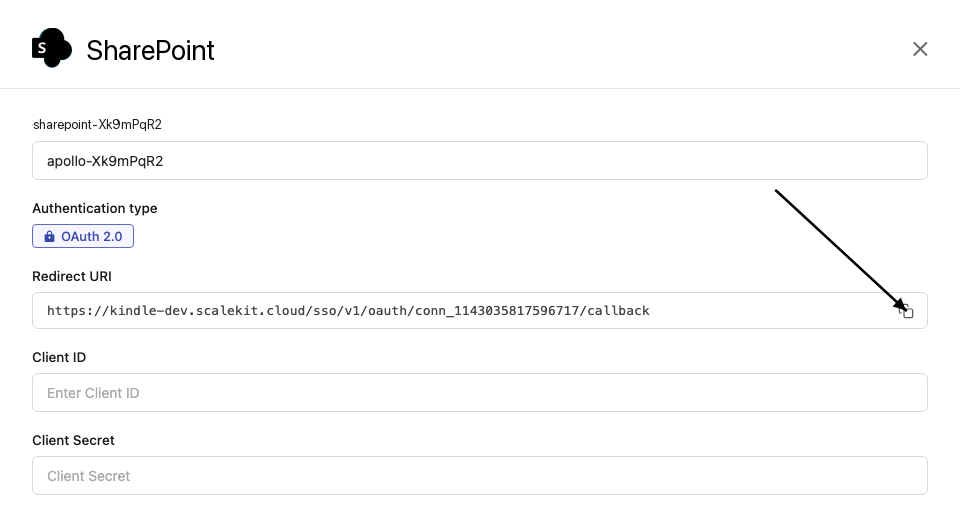
-
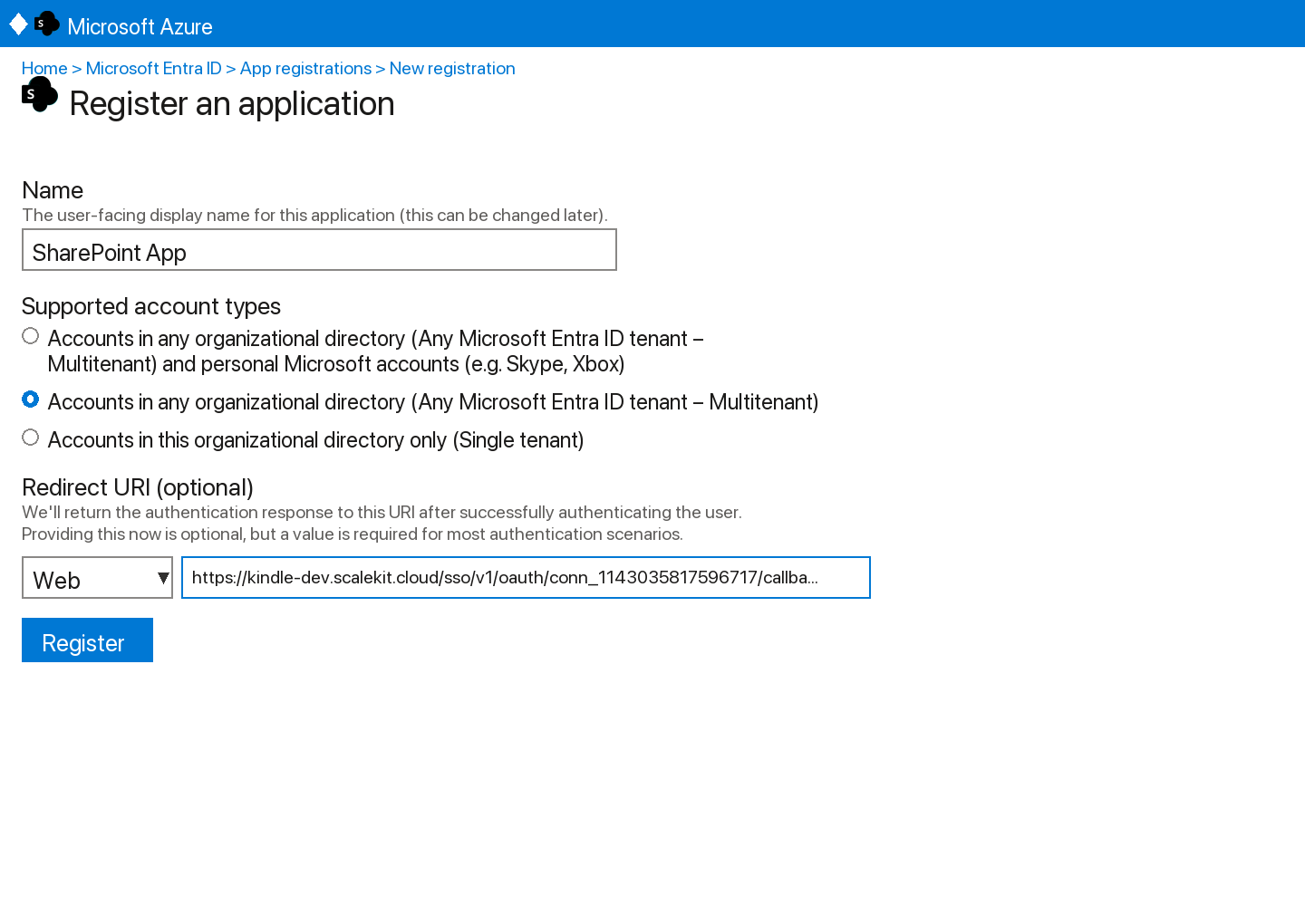
Sign into https://entra.microsoft.com and go to Microsoft Entra ID → App registrations → New registration.
-
Enter a name for your app.
-
Under Supported account types, select Accounts in any organizational directory (Any Azure AD directory - Multitenant).
-
Under Redirect URI, select Web and paste the redirect URI from step 1. Click Register.
-
-
Get your client credentials
-
Go to Certificates & secrets → New client secret, set an expiry, and click Add. Copy the Value immediately.
-
From the Overview page, copy the Application (client) ID.
-
-
Add credentials in Scalekit
-
In Scalekit dashboard, go to AgentKit > Connections and open the connection you created.
-
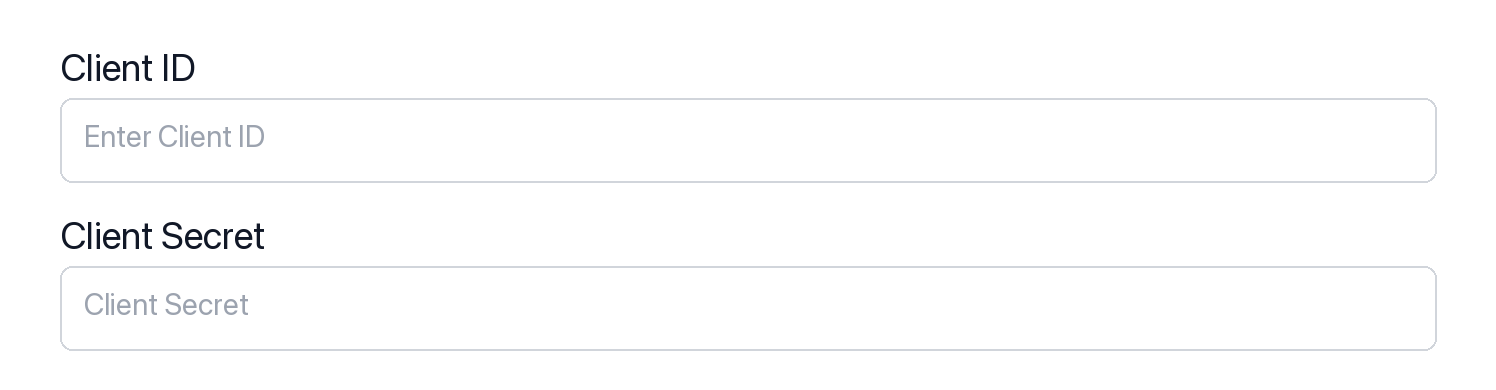
Enter your credentials:
- Client ID (Application (client) ID from Azure)
- Client Secret (from Certificates & secrets)
- Permissions (scopes — see Microsoft Graph permissions reference)
-
Click Save.
-
-
Authorize a user and make your first call
quickstart.mts import { ScalekitClient } from '@scalekit-sdk/node'import 'dotenv/config'import { createInterface } from 'node:readline/promises'const scalekit = new ScalekitClient(process.env.SCALEKIT_ENVIRONMENT_URL,process.env.SCALEKIT_CLIENT_ID,process.env.SCALEKIT_CLIENT_SECRET,)const actions = scalekit.actionsconst connector = 'sharepoint'const identifier = 'user_123'// Generate an authorization link for the userconst { link } = await actions.getAuthorizationLink({ connectionName: connector, identifier })console.log('Authorize SharePoint:', link)const rl = createInterface({ input: process.stdin, output: process.stdout })await rl.question('Press Enter after authorizing...')rl.close()// Make your first callconst result = await actions.executeTool({connector,identifier,toolName: 'sharepoint_list_followed_sites',toolInput: {},})console.log(result)Terminal window npx tsx quickstart.mtsquickstart.py import osfrom scalekit import ScalekitClientfrom dotenv import load_dotenvload_dotenv()scalekit_client = ScalekitClient(env_url=os.getenv("SCALEKIT_ENVIRONMENT_URL"),client_id=os.getenv("SCALEKIT_CLIENT_ID"),client_secret=os.getenv("SCALEKIT_CLIENT_SECRET"),)actions = scalekit_client.actionsconnection_name = "sharepoint"identifier = "user_123"# Generate an authorization link for the userlink_response = actions.get_authorization_link(connection_name=connection_name,identifier=identifier,)print("Authorize SharePoint:", link_response.link)input("Press Enter after authorizing...")# Make your first callresult = actions.execute_tool(tool_input={},tool_name="sharepoint_list_followed_sites",connection_name=connection_name,identifier=identifier,)print(result)Terminal window python quickstart.pyEach user signs in once. See Authorize a user for the full flow and statuses.
Tools
Pass the exact name toexecute_toolNo tools match.
Workflows
Proxy API call
const result = await actions.request({ connectionName: 'sharepoint', identifier: 'user_123', path: '/v1.0/me/sites', method: 'GET',});console.log(result);result = actions.request( connection_name='sharepoint', identifier='user_123', path="/v1.0/me/sites", method="GET")print(result)Download a file
Fetch file metadata via the Scalekit proxy to get a pre-authenticated download URL, then stream the file directly from Microsoft’s CDN. This avoids buffering large files through the proxy and is significantly faster.
import osimport requests
site_id = "<YOUR_SITE_ID>" # call GET /v1.0/sites/root to get your site ID
filename = "report.pdf"
response = actions.request( connection_name='sharepoint', identifier='user_123', path=f"/v1.0/sites/{site_id}/drive/root:/{filename}", method="GET", query_params={},)meta = response.json()
# Step 2: Stream directly from Microsoft CDN using the pre-authenticated URL# No auth headers needed — the URL is cryptographically signed and expires in ~1 hourdownload_url = meta["@microsoft.graph.downloadUrl"]
with requests.get(download_url, stream=True) as r: r.raise_for_status() with open(filename, "wb") as f: for chunk in r.iter_content(chunk_size=8 * 1024 * 1024): # 8 MB chunks f.write(chunk)
print(f"Downloaded: {filename} ({os.path.getsize(filename):,} bytes)")Upload a file
Upload a file to SharePoint’s Shared Documents folder. Scalekit injects the OAuth token automatically — your app never handles credentials directly.
import mimetypes
site_id = "<YOUR_SITE_ID>" # call GET /v1.0/sites/root to get your site ID
filename = "report.pdf"with open(filename, "rb") as f: file_bytes = f.read()
mime_type = mimetypes.guess_type(filename)[0] or "application/octet-stream"
response = actions.request( connection_name='sharepoint', identifier='user_123', path=f"/v1.0/sites/{site_id}/drive/root:/{filename}:/content", method="PUT", query_params={}, form_data=file_bytes, headers={"Content-Type": mime_type},)
meta = response.json()print(f"Uploaded: {meta['name']} → {meta['webUrl']}")Execute a tool
const result = await actions.executeTool({ connector: 'sharepoint', identifier: 'user_123', toolName: 'sharepoint_list_sites', toolInput: {},});console.log(result);result = actions.execute_tool( tool_input={}, tool_name='sharepoint_list_sites', connection_name='sharepoint', identifier='user_123',)print(result)

