

Sign in with magic link or Email OTP
Enable passwordless sign-in with email verification codes or magic links
Configure Magic Link & OTP to enable passwordless authentication for your application. After completing the quickstart guide, set up email verification codes or magic links so users can sign in without passwords.
Switch between those passwordless methods without modifying any code:
| Method | How it works | Best for |
|---|---|---|
| Verification code | Users receive a one-time code via email and enter it in your app | Applications requiring explicit verification |
| Magic link | Users click a link in their email to authenticate | Quick, frictionless sign-in |
| Magic link + Verification code | Users choose either method | Maximum flexibility and user choice |
Configure magic link or OTP
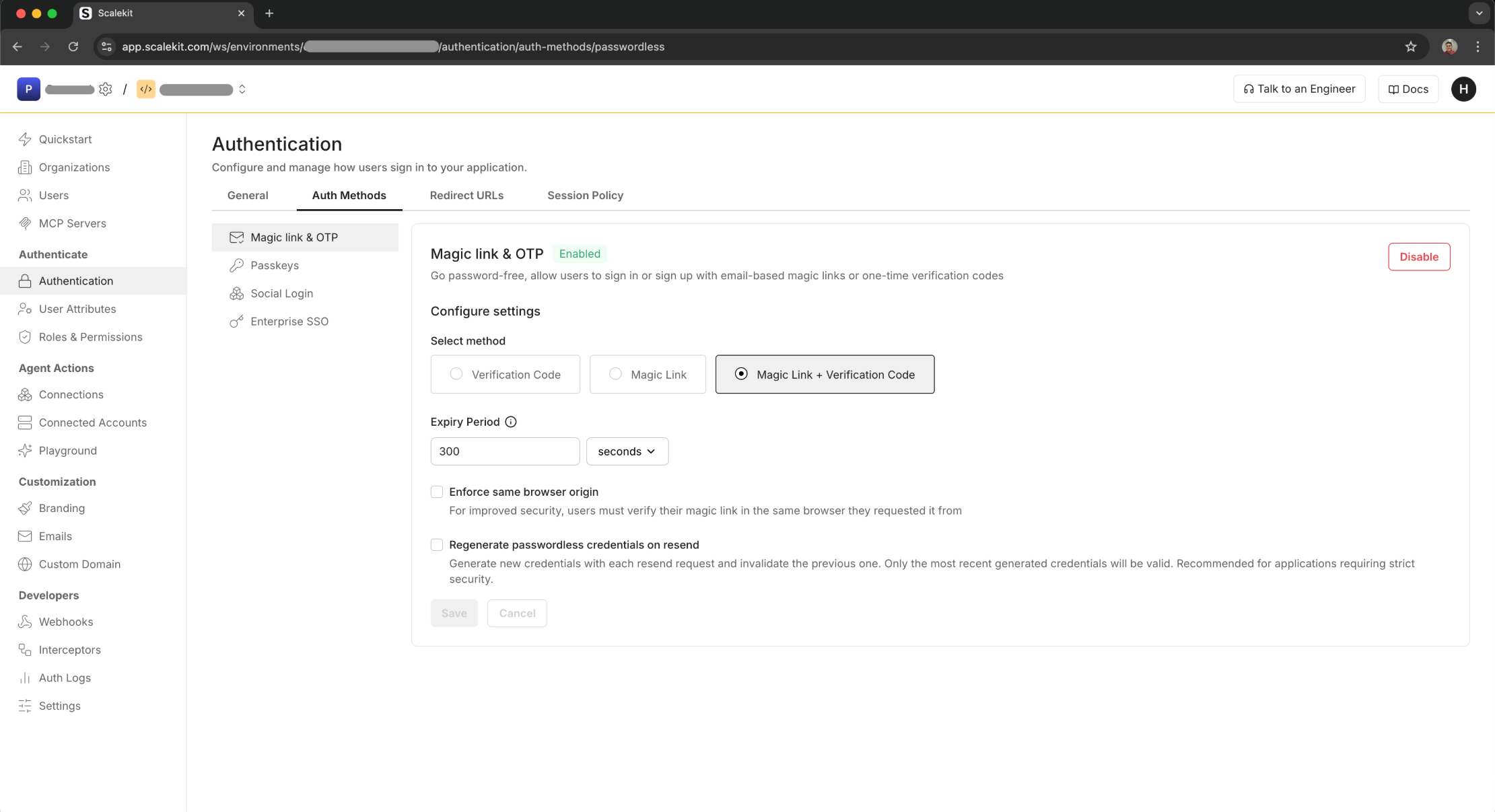
Section titled “Configure magic link or OTP”In the Scalekit dashboard, go to Authentication > Auth methods > Magic Link & OTP
-
Select authentication method
Section titled “Select authentication method”Choose one of three methods:
- Verification code - Users enter a 6-digit code sent to their email
- Magic link - Users click a link in their email to authenticate
- Magic link + Verification code - Users can choose either method
-
Set expiry period
Section titled “Set expiry period”Configure how long verification codes and magic links remain valid:
- Default: 300 seconds (5 minutes)
- Range: 60 to 3600 seconds
- Recommendation: 300 seconds balances security and usability
Enforce same browser origin
Section titled “Enforce same browser origin”When enforcing same browser origin, users are required to complete magic link authentication within the same browser where they initiated the login process. This security feature is particularly recommended for applications dealing with sensitive data or financial transactions, as it adds an extra layer of protection against potential unauthorized access attempts.
Example scenario: A healthcare app where a user requests a magic link on their laptop. If someone intercepts the email and tries to open it on a different device, the authentication fails.
Regenerate credentials on resend
Section titled “Regenerate credentials on resend”When a user requests a new Magic Link or Email OTP, the system generates a fresh code or link while automatically invalidating the previous one. This approach is recommended for all applications as a critical security measure to prevent potential misuse of compromised credentials.
Example scenario: A user requests a verification code but doesn’t receive it. They request a new code. With this setting enabled, the first code becomes invalid, preventing unauthorized access if the original email was intercepted.