The Exa MCP connector routes your AI agent's tool calls to Exa's own MCP server through Scalekit. Each user connects their own Exa API key once, and Scalekit sends it with every call, so your agent never handles credentials. It comes with 3 tools.
- Tools
- 3
- What they doRead · write · destructive
- 2 · 1 · 02 read1 write0 destructive
- Users sign in with
- API key
What you can do
- Search the web: find current news, facts, people, and companies and get clean page content back
- Read webpages: fetch the full content of specific URLs as clean markdown
Setup
Install the SDK
Terminal window npm install @scalekit-sdk/node dotenvTerminal window pip install scalekit-sdk-python python-dotenvSet your credentials
Add your Scalekit credentials to your
.envfile. Find values in app.scalekit.com > Developers > API Credentials..env SCALEKIT_ENVIRONMENT_URL=<your-environment-url>SCALEKIT_CLIENT_ID=<your-client-id>SCALEKIT_CLIENT_SECRET=<your-client-secret>Create the Exa MCP connection
In AgentKit > Connections, create an Exa MCP connection. The name you give it is the
connection_nameyour code passes. See Configure connections.Console steps with screenshots
Register your Exa API key with Scalekit so it can authenticate and proxy requests on behalf of your users. Exa MCP uses API key authentication.
-
Generate an Exa API key
-
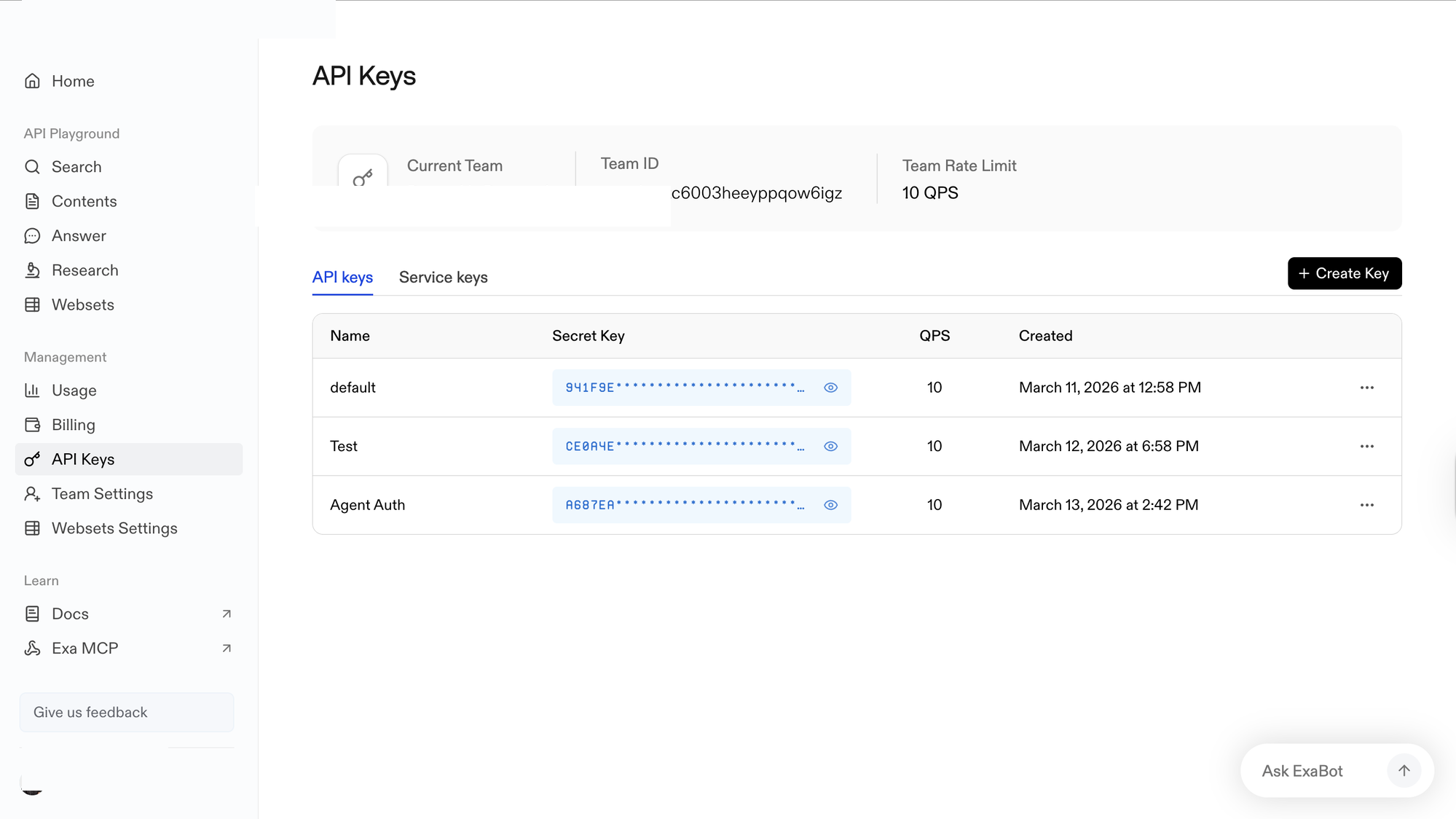
Sign in to dashboard.exa.ai/api-keys. Under Management, click API Keys.
-
Click + Create Key, enter a name (e.g.,
Agent Auth), and confirm. -
In the Secret Key column, click the eye icon to reveal the key and copy it. Store it somewhere safe — you will not be able to view it again.
-
-
Create a connection in Scalekit
-
In Scalekit dashboard, go to AgentKit > Connections > Create Connection. Find Exa MCP and click Create.
-
Note the Connection name — you will use this as
connection_namein your code (e.g.,examcp).
-
-
Add a connected account
Connected accounts link a specific user identifier in your system to an Exa API key. Add one in the dashboard to test. In production, each user adds their own through the authorization link: they enter their credentials on the page it opens.
In the dashboard, to test
-
Open the connection you created and click the Connected Accounts tab → Add account.
-
Fill in:
- Your User’s ID — a unique identifier for this user in your system (e.g.,
user_123) - API Key — the Exa API key you copied in step 1
- Your User’s ID — a unique identifier for this user in your system (e.g.,
-
Click Save.
From your backend, if your app already has the credentials
For example, when users enter them on a settings page in your app:
import { ConnectorStatus } from '@scalekit-sdk/node'const authorizationDetails = {details: {case: 'staticAuth',value: { details: { api_key: 'your-exa-api-key' } },},};let { connectedAccount } = await scalekit.actions.upsertConnectedAccount({connectionName: 'examcp',identifier: 'user_123',authorizationDetails,});// Make sure the account is ACTIVE before the first tool call.if (connectedAccount?.status !== ConnectorStatus.ACTIVE) {({ connectedAccount } = await scalekit.actions.upsertConnectedAccount({connectionName: 'examcp',identifier: 'user_123',authorizationDetails,}));}authorization_details = {"static_auth": {"api_key": "your-exa-api-key"}}response = scalekit_client.actions.upsert_connected_account(connection_name="examcp",identifier="user_123",authorization_details=authorization_details,)# Make sure the account is ACTIVE before the first tool call.if response.connected_account.status != "ACTIVE":response = scalekit_client.actions.upsert_connected_account(connection_name="examcp",identifier="user_123",authorization_details=authorization_details,) -
-
Authorize a user and make your first call
quickstart.mts import { ScalekitClient } from '@scalekit-sdk/node'import 'dotenv/config'import { createInterface } from 'node:readline/promises'const scalekit = new ScalekitClient(process.env.SCALEKIT_ENVIRONMENT_URL,process.env.SCALEKIT_CLIENT_ID,process.env.SCALEKIT_CLIENT_SECRET,)const actions = scalekit.actionsconst connector = 'examcp'const identifier = 'user_123'// Generate an authorization link for the userconst { link } = await actions.getAuthorizationLink({ connectionName: connector, identifier })console.log('Authorize Exa MCP:', link)const rl = createInterface({ input: process.stdin, output: process.stdout })await rl.question('Press Enter after authorizing...')rl.close()// Make your first callconst result = await actions.executeTool({connector,identifier,toolName: 'examcp_web_fetch_exa',toolInput: { urls: [] },})console.log(result)Terminal window npx tsx quickstart.mtsquickstart.py import osfrom scalekit import ScalekitClientfrom dotenv import load_dotenvload_dotenv()scalekit_client = ScalekitClient(env_url=os.getenv("SCALEKIT_ENVIRONMENT_URL"),client_id=os.getenv("SCALEKIT_CLIENT_ID"),client_secret=os.getenv("SCALEKIT_CLIENT_SECRET"),)actions = scalekit_client.actionsconnection_name = "examcp"identifier = "user_123"# Generate an authorization link for the userlink_response = actions.get_authorization_link(connection_name=connection_name,identifier=identifier,)print("Authorize Exa MCP:", link_response.link)input("Press Enter after authorizing...")# Make your first callresult = actions.execute_tool(tool_input={"urls":[]},tool_name="examcp_web_fetch_exa",connection_name=connection_name,identifier=identifier,)print(result)Terminal window python quickstart.pyEach user opens the link once and enters their Exa credentials there. If your app already has a user's credentials, add the account from your backend instead, as the console steps above show. See Authorize a user for the full flow and statuses.
Tools
Pass the exact name toexecute_toolexamcp_web_fetch_exaRead one or more webpages and return their full content as clean markdown.Read-onlyExa Web Fetch
Read one or more webpages and return their full content as clean markdown. Use when you have specific URLs to read, or to get full content after a web search returns insufficient highlights. Supports batching multiple URLs in a single call.
Inputs
urlsarrayrequired- One or more URLs to fetch. Batch multiple URLs in a single call.
maxCharactersnumber- Maximum characters to extract per page (default: 3000).
examcp_web_search_exaSearch the web and get clean, ready-to-use content.Read-onlyExa Web Search
Search the web and get clean, ready-to-use content. Best for current information, news, facts, people, and companies. Describe the ideal page rather than using keywords (e.g. 'blog post comparing React and Vue performance'). Use category:people or category:company to search LinkedIn profiles or companies.
Inputs
objectivestringrequired- Goal for this search turn; say which documents should rank first, which should be excluded, and what specific facts or figures to pull from them.
querystringrequired- Natural language search query. Should be a semantically rich description of the ideal page, not just keywords. Optionally include category:<type> (company, people) to focus results â e.g. 'category:people John Doe software engineer'.
numResultsnumber- Number of search results to return (default: 10).
examcp_agent_runStart or resume an Exa Agent run for multi-step research, list-building, or enrichment.WriteAgent Run
Start or resume an Exa Agent run for multi-step research, list-building, or enrichment. Use it instead of running many searches yourself when a task needs multiple searches, cross-source verification, or a structured table of results. Long-running: returns a run ID; resume with runId when the tool reports the run is still running. Not for a single question or lookup (use web_search_exa) or reading a known URL (use web_fetch_exa). An interrupted tool call is not an explicit cancellation request.
Inputs
budgetobject- Optional per-run spend and duration limits for the metered auto and ultra efforts. Set it when the user names a cost or time limit.
dataSourcesarray- Optional Exa Connect providers to enable for this run.
effortstring- Agent effort level. Defaults to low.one of
minimallowmediumhighxhighultraauto inputobject- No description.
outputSchemaobject- JSON Schema describing the desired research output. Prefer a top-level object with bounded arrays and source/evidence fields.
previousRunIdstring- ID of a completed prior run to use as context for a new run.
querystring- Natural-language research or enrichment objective. Provide query or runId, not both.
runIdstring- ID returned by an earlier call. Use it to check or continue waiting for the same run. Do not start a duplicate run.
systemPromptstring- Optional system-level guidance for the Agent.
No tools match.