The Gong MCP connector routes your AI agent's tool calls to Gong's own MCP server through Scalekit. Each user signs in to Gong once, and Scalekit stores and refreshes their tokens, so your agent never handles credentials. It comes with 3 tools.
- Tools
- 3
- What they doRead · write · destructive
- 2 · 1 · 02 read1 write0 destructive
- Users sign in with
- OAuth
- OAuth app
- Scalekit's or your own
Setup
Install the SDK
Terminal window npm install @scalekit-sdk/node dotenvTerminal window pip install scalekit-sdk-python python-dotenvSet your credentials
Add your Scalekit credentials to your
.envfile. Find values in app.scalekit.com > Developers > API Credentials..env SCALEKIT_ENVIRONMENT_URL=<your-environment-url>SCALEKIT_CLIENT_ID=<your-client-id>SCALEKIT_CLIENT_SECRET=<your-client-secret>Create the Gong MCP connection
In AgentKit > Connections, create a Gong MCP connection. The name you give it is the
connection_nameyour code passes. See Configure connections.Scalekit credentials are available for Gong, so you don't need to register an OAuth app. To show your own app on the consent screen, use your own credentials instead.
Use your own OAuth app
Register your Scalekit environment with Gong so Scalekit handles the OAuth flow and token lifecycle for your users. Create a Gong OAuth integration, then add its Client ID and Client Secret to your Scalekit connection.
-
Copy the redirect URI from Scalekit
-
In the Scalekit dashboard, go to AgentKit > Connections > Create Connection. Find Gong MCP and click Create.
-
Click Use your own credentials and copy the redirect URI. It looks like
https://<SCALEKIT_ENVIRONMENT_URL>/sso/v1/oauth/<CONNECTION_ID>/callback.
-
-
Create an OAuth integration in Gong
-
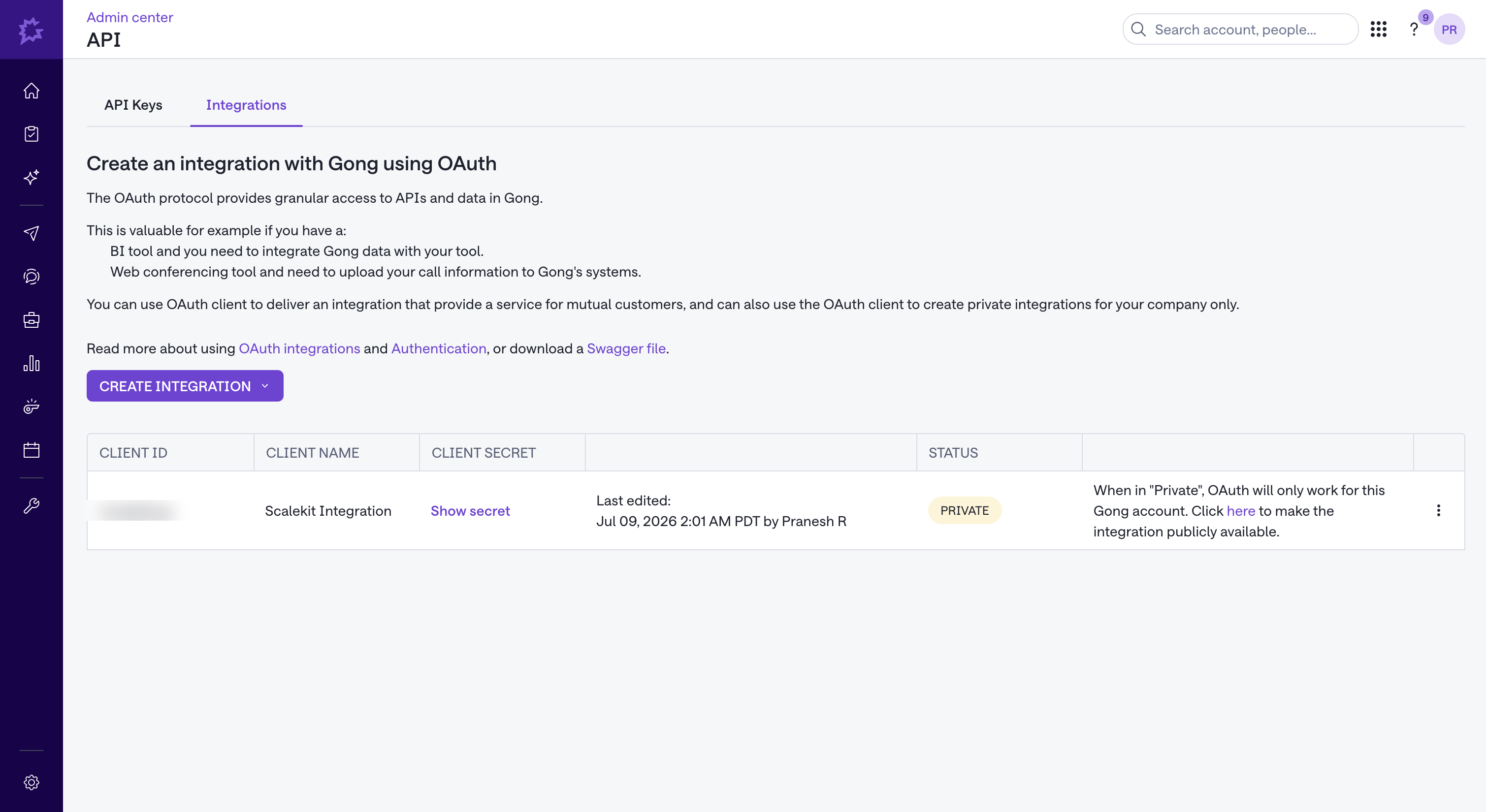
Sign in to Gong and go to Admin Center > API.
-
Click the Integrations tab.
-
Click Create Integration.
-
-
Configure the integration’s scopes and URLs
-
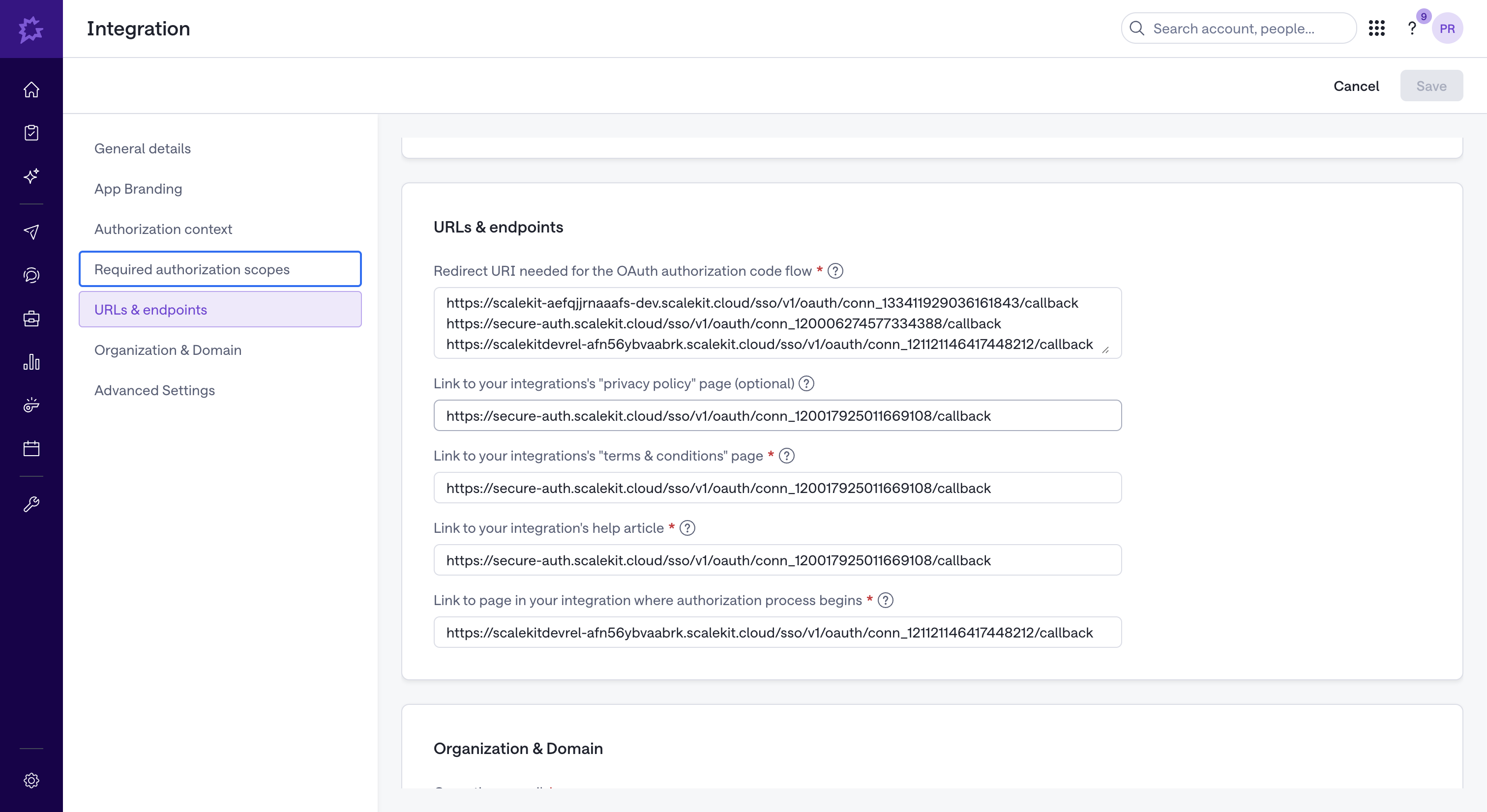
Under Required authorization scopes, select the scopes your agent needs (for example, calls and transcript read access).
-
Go to the URLs & endpoints tab and fill in:
- Redirect URI needed for the OAuth authorization code flow — paste the redirect URI you copied from Scalekit
- Link to your integration’s “privacy policy” page and “terms & conditions” page — a URL your organization controls (Gong requires both fields even for private integrations)
- Link to your integration’s help article — a URL your organization controls
- Link to page in your integration where authorization process begins — the same redirect URI from Scalekit works here for a private integration
-
Click Save.
-
-
Copy your Client ID and Client Secret
- Back on the Integrations tab, find your integration in the table.
- Copy the Client ID.
- Click Show secret to reveal and copy the Client Secret.
-
Add credentials in Scalekit
- Return to the connection you created in Scalekit and enter:
- Client ID — from your Gong integration
- Client Secret — from your Gong integration
- Click Save.
- Return to the connection you created in Scalekit and enter:
-
Authorize a user and make your first call
quickstart.mts import { ScalekitClient } from '@scalekit-sdk/node'import 'dotenv/config'import { createInterface } from 'node:readline/promises'const scalekit = new ScalekitClient(process.env.SCALEKIT_ENVIRONMENT_URL,process.env.SCALEKIT_CLIENT_ID,process.env.SCALEKIT_CLIENT_SECRET,)const actions = scalekit.actionsconst connector = 'gongmcp'const identifier = 'user_123'// Generate an authorization link for the userconst { link } = await actions.getAuthorizationLink({ connectionName: connector, identifier })console.log('Authorize Gong MCP:', link)const rl = createInterface({ input: process.stdin, output: process.stdout })await rl.question('Press Enter after authorizing...')rl.close()// Make your first callconst result = await actions.executeTool({connector,identifier,toolName: 'gongmcp_ask_account',toolInput: { crmAccount: 'Cisco Systems Inc', question: 'YOUR_QUESTION' },})console.log(result)Terminal window npx tsx quickstart.mtsquickstart.py import osfrom scalekit import ScalekitClientfrom dotenv import load_dotenvload_dotenv()scalekit_client = ScalekitClient(env_url=os.getenv("SCALEKIT_ENVIRONMENT_URL"),client_id=os.getenv("SCALEKIT_CLIENT_ID"),client_secret=os.getenv("SCALEKIT_CLIENT_SECRET"),)actions = scalekit_client.actionsconnection_name = "gongmcp"identifier = "user_123"# Generate an authorization link for the userlink_response = actions.get_authorization_link(connection_name=connection_name,identifier=identifier,)print("Authorize Gong MCP:", link_response.link)input("Press Enter after authorizing...")# Make your first callresult = actions.execute_tool(tool_input={"crmAccount":"Cisco Systems Inc","question":"YOUR_QUESTION"},tool_name="gongmcp_ask_account",connection_name=connection_name,identifier=identifier,)print(result)Terminal window python quickstart.pyEach user signs in once. See Authorize a user for the full flow and statuses.
Tools
Pass the exact name toexecute_toolgongmcp_ask_accountAnswer natural-language questions about a specific CRM account by analyzing Gong activities (calls and messages) within a defined time range.Read-onlyAskAccount
Answer natural-language questions about a specific CRM account by analyzing Gong activities (calls and messages) within a defined time range. Returns synthesized insights — not raw data.
Inputs
crmAccountstringrequired- The CRM account name (e.g. 'Cisco Systems Inc') or direct CRM ID (e.g. '0015g00000ABCDeQAL'). Name lookup uses exact matching, so the full account name must be provided. If multiple accounts match, a clarification response is returned so you can re-call with the exact crmId.
questionstringrequired- Natural-language question about the specified account. Ask for concepts, themes, risks, blockers, stakeholders, goals, or next steps rather than raw data dumps.
fromDateTimestring- Optional. Inclusive start of the activity window in ISO 8601 format with timezone (e.g., 2025-08-01T00:00:00Z). Provide both fromDateTime and toDateTime together, or omit both to default to the last 30 days.
includeSourcesboolean- When true, each answer section also returns the calls and emails behind it: callFindings (each with a call object holding id, title, url and started) and emailFindings (each with an emails array whose items hold id, title and sentDateTime) — so you can cite and link straight to the source. Defaults to false, which returns only the synthesized answer text and the top-level counts of calls and emails searched.default
false toDateTimestring- Optional. Inclusive end of the activity window in ISO 8601 format with timezone. Must be later than fromDateTime. Provide both fromDateTime and toDateTime together, or omit both to default to the last 30 days.
workspacestring- Required when the account has multiple workspaces; omit only if the account has exactly one workspace (it will be selected automatically). Accepts either a numeric workspace ID (e.g. '1234567890') or a workspace name (case-insensitive, e.g. 'Sales').
gongmcp_ask_dealAnswer natural-language questions about a specific CRM deal or opportunity by analyzing Gong activities (calls and messages) within a defined time range.Read-onlyAskDeal
Answer natural-language questions about a specific CRM deal or opportunity by analyzing Gong activities (calls and messages) within a defined time range. Returns synthesized insights — not raw data.
Inputs
crmDealstringrequired- The CRM deal/opportunity name (e.g. 'Acme Corp - Enterprise Q4') or direct CRM ID (e.g. '006EXAMPLE00001'). Name lookup uses exact matching. If multiple deals match, a clarification response is returned so you can re-call with the exact crmId.
questionstringrequired- Natural-language question about the specified deal. Ask about themes, risks, objections, competitive mentions, stakeholder concerns, negotiation progress, or next steps rather than requesting raw data.
fromDateTimestring- Optional. Inclusive start of the activity window in ISO 8601 format with timezone (e.g., 2025-08-01T00:00:00Z). Provide both fromDateTime and toDateTime together, or omit both to default to the last 30 days.
includeSourcesboolean- When true, each answer section also returns the calls and emails behind it: callFindings (each with a call object holding id, title, url and started) and emailFindings (each with an emails array whose items hold id, title and sentDateTime) — so you can cite and link straight to the source. Defaults to false, which returns only the synthesized answer text and the top-level counts of calls and emails searched.default
false toDateTimestring- Optional. Inclusive end of the activity window in ISO 8601 format with timezone. Must be later than fromDateTime. Provide both fromDateTime and toDateTime together, or omit both to default to the last 30 days.
workspacestring- Required when the account has multiple workspaces; omit only if the account has exactly one workspace (it will be selected automatically). Accepts either a numeric workspace ID (e.g. '1234567890') or a workspace name (case-insensitive, e.g. 'Sales').
gongmcp_generate_briefCreate a comprehensive structured brief about a CRM entity (account, deal, or contact) by analyzing Gong activities within a specified time period.WriteGenerateBrief
Create a comprehensive structured brief about a CRM entity (account, deal, or contact) by analyzing Gong activities within a specified time period. Returns multi-category insights for reviews and handovers.
Inputs
briefNamestringrequired- Must exactly match the name of a published brief configured in the Gong workspace. This is a lookup key, not a free-text label. If the name does not match, the response will list the available brief names and their descriptions.
crmEntitystringrequired- The CRM entity identifier. For ACCOUNT and DEAL, you can provide the entity name as it appears in the CRM (e.g. 'Acme Inc' or 'Acme Corp - Enterprise Q4') or its CRM ID — name lookup uses exact matching. For CONTACT, provide the direct CRM contact ID. If no name match is found, the value is treated as a direct CRM ID. If multiple matches are found, a clarification response is returned.
entityTypestringrequired- The type of CRM entity to generate a brief for. ACCOUNT for companies, DEAL for opportunities, CONTACT for contacts/leads.one of
ACCOUNTDEALCONTACT fromDateTimestring- Inclusive start of the activity window in ISO 8601 format with timezone (e.g., 2025-08-01T00:00:00Z). Required when periodType is CUSTOM_RANGE; optional for predefined periods (LAST_7DAYS, LAST_30DAYS, LAST_90DAYS).
includeSourcesboolean- When true, each section that is backed by conversations also returns the calls and emails behind it in conversationFindings (callFindings[].call with id, title, url and started; emailFindings[].emails[] with id, title and sentDateTime) — so you can cite and link straight to the source. Defaults to false, which returns only the synthesized section text and the top-level counts of calls and emails searched.default
false periodTypestring- The time period to analyze activities for. Defaults to LAST_90DAYS if omitted. Use CUSTOM_RANGE with specific dates for a custom window.one of
CUSTOM_RANGELAST_7DAYSLAST_30DAYSLAST_90DAYSdefaultLAST_90DAYS toDateTimestring- Inclusive end of the activity window in ISO 8601 format with timezone. Must be later than fromDateTime. Required when periodType is CUSTOM_RANGE; optional for predefined periods (LAST_7DAYS, LAST_30DAYS, LAST_90DAYS).
workspacestring- Required when the account has multiple workspaces; omit only if the account has exactly one workspace (it will be selected automatically). Accepts either a numeric workspace ID (e.g. '1234567890') or a workspace name (case-insensitive, e.g. 'Sales').
No tools match.