

Implement organization switcher
Let users switch across workspaces using prompt-based selection or direct org routing via organization ID
Organization switching lets users access multiple organizations or workspaces within your application. This guide shows you how to implement organization switching using Scalekit’s built-in switcher or by building your own organization switcher in your application.
This feature is essential for B2B applications where users may belong to several organizations simultaneously. Common scenarios include:
- Personal workspace to corporate workspace: Users sign up with their organization’s email address, creating their personal workspace. Later, when their organization subscribes to your app, a new corporate workspace is created (for example, “AcmeCorp workspace”).
- Multi-organization contractors: External consultants or contractors who belong to multiple organizations, each with their own SSO authentication policies. These users need to switch between different client organizations while maintaining secure access to each workspace.
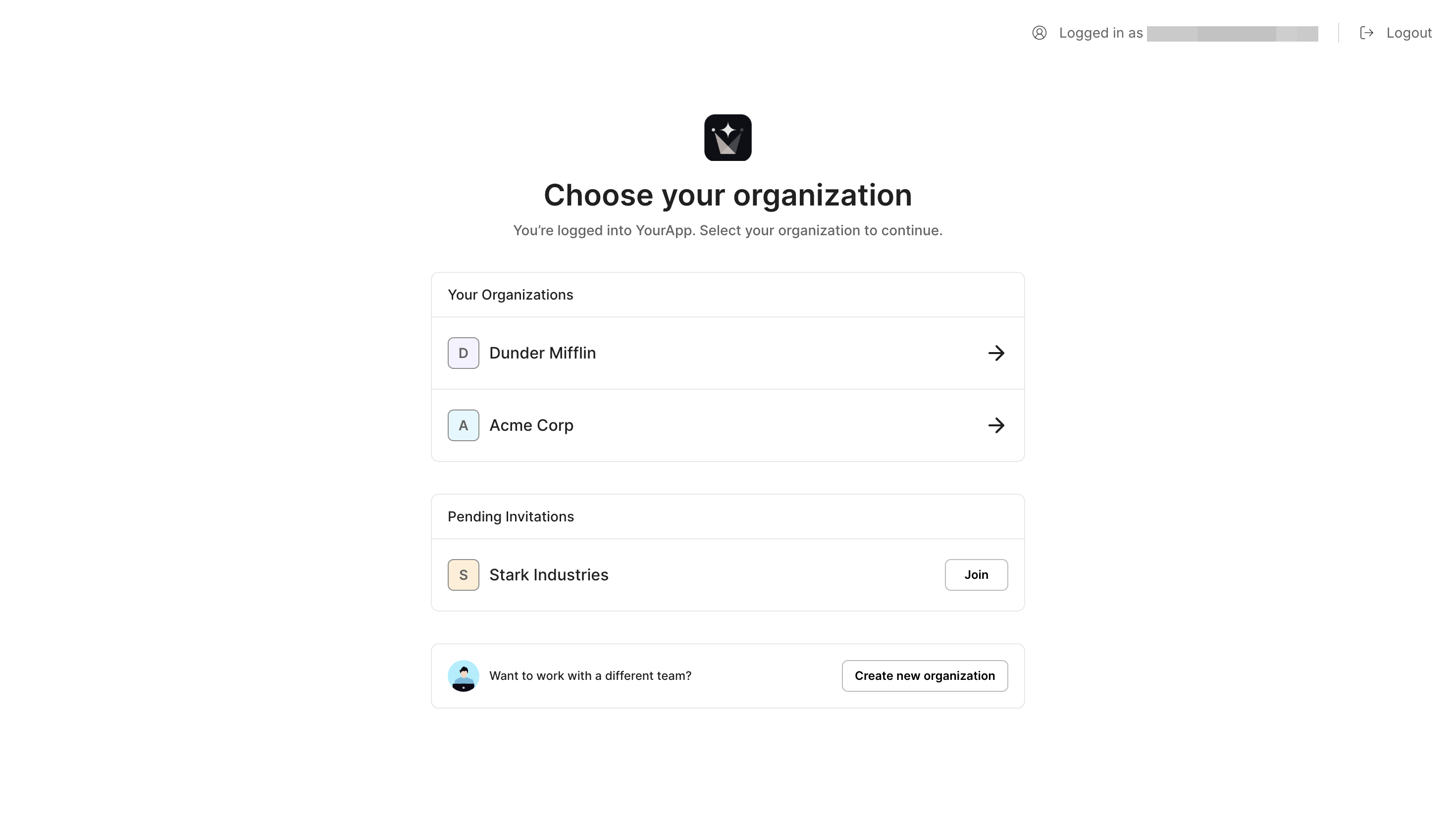
Default organization switching behavior
Section titled “Default organization switching behavior”When users belong to multiple organizations, Scalekit automatically handles organization switching during the authentication flow:
- Users click Sign In on your application.
- Your application redirects users to Scalekit’s sign-in page.
- Users authenticate using one of the available sign-in methods.
- Scalekit displays a list of organizations that users belong to.
- Users select the organization they want to sign in to.
- Users are redirected to the organization’s workspace and signed in.
Scalekit provides built-in support for organization switching through automatic organization detection, a hosted organization switcher UI, and secure session management. Each organization maintains its own authentication context and policies.
Control organization switching behavior
Section titled “Control organization switching behavior”You can customize the organization switcher’s behavior by adding query parameters when generating the authorization URL. These parameters give you precise control over how users navigate between organizations.
Display organization switcher
Section titled “Display organization switcher”Add the prompt: 'select_account' parameter when generating the authorization URL. This forces Scalekit to display a list of organizations the user belongs to, even if they’re already signed in.
// Use case: Show organization switcher after user authenticationconst redirectUri = 'http://localhost:3000/api/callback';const options = { scopes: ['openid', 'profile', 'email', 'offline_access'], prompt: 'select_account'};
const authorizationUrl = scalekit.getAuthorizationUrl(redirectUri, options);
res.redirect(authorizationUrl);# Use case: Show organization switcher after user authenticationfrom scalekit import AuthorizationUrlOptions
redirect_uri = 'http://localhost:3000/api/callback'options = AuthorizationUrlOptions()options.scopes = ['openid', 'profile', 'email', 'offline_access']options.prompt = 'select_account'
authorization_url = scalekit.get_authorization_url(redirect_uri, options)return redirect(authorization_url)// Use case: Show organization switcher after user authenticationredirectUri := "http://localhost:3000/api/callback"options := scalekit.AuthorizationUrlOptions{ Scopes: []string{"openid", "profile", "email", "offline_access"}, Prompt: "select_account",}
authorizationUrl, err := scalekitClient.GetAuthorizationUrl(redirectUri, options)if err != nil { // handle error appropriately panic(err)}
c.Redirect(http.StatusFound, authorizationUrl.String())// Use case: Show organization switcher after user authenticationimport com.scalekit.internal.http.AuthorizationUrlOptions;import java.net.URL;import java.util.Arrays;
String redirectUri = "http://localhost:3000/api/callback";AuthorizationUrlOptions options = new AuthorizationUrlOptions();options.setScopes(Arrays.asList("openid", "profile", "email", "offline_access"));options.setPrompt("select_account");
URL authorizationUrl = scalekit.authentication().getAuthorizationUrl(redirectUri, options);This displays the organization switcher UI where users can choose which organization to access.
Switch users directly to a specific organization
Section titled “Switch users directly to a specific organization”To bypass the organization switcher and directly authenticate users into a specific organization, include both the prompt: 'select_account' parameter and the organizationId parameter:
// Use case: Directly route users to a specific organizationconst redirectUri = 'http://localhost:3000/api/callback';const options = { scopes: ['openid', 'profile', 'email', 'offline_access'], prompt: 'select_account', organizationId: 'org_1233434'};
const authorizationUrl = scalekit.getAuthorizationUrl(redirectUri, options);
res.redirect(authorizationUrl);# Use case: Directly route users to a specific organizationfrom scalekit import AuthorizationUrlOptions
redirect_uri = 'http://localhost:3000/api/callback'options = AuthorizationUrlOptions()options.scopes = ['openid', 'profile', 'email', 'offline_access']options.prompt = 'select_account'options.organization_id = 'org_1233434'
authorization_url = scalekit.get_authorization_url(redirect_uri, options)return redirect(authorization_url)// Use case: Directly route users to a specific organizationredirectUri := "http://localhost:3000/api/callback"options := scalekit.AuthorizationUrlOptions{ Scopes: []string{"openid", "profile", "email", "offline_access"}, Prompt: "select_account", OrganizationId: "org_1233434",}
authorizationUrl, err := scalekitClient.GetAuthorizationUrl(redirectUri, options)if err != nil { // handle error appropriately panic(err)}
c.Redirect(http.StatusFound, authorizationUrl.String())// Use case: Directly route users to a specific organizationimport com.scalekit.internal.http.AuthorizationUrlOptions;import java.net.URL;import java.util.Arrays;
String redirectUri = "http://localhost:3000/api/callback";AuthorizationUrlOptions options = new AuthorizationUrlOptions();options.setScopes(Arrays.asList("openid", "profile", "email", "offline_access"));options.setPrompt("select_account");options.setOrganizationId("org_1233434");
URL authorizationUrl = scalekit.authentication().getAuthorizationUrl(redirectUri, options);When you include both parameters, Scalekit will:
- If the user is already authenticated: Directly sign them into the specified organization
- If the user needs to authenticate: First authenticate the user, then sign them into the specified organization
Organization switching parameters
Section titled “Organization switching parameters”Use these parameters to control the organization switching behavior:
| Parameter | Description | Example |
|---|---|---|
prompt=select_account | Shows the organization switcher UI | Forces organization selection even for authenticated users |
prompt=select_account&organizationId=org_123 | Direct organization access | Bypasses switcher and authenticates directly into the specified organization |