OneLogin Directory
Learn how to sync your OneLogin directory with your application for automated user provisioning and management using SCIM.
This guide helps administrators sync their OneLogin directory with an application they want to onboard. Integrating your application with OneLogin automates user management tasks and keeps access rights up-to-date.
Setting up the integration involves:
- Endpoint: The URL where OneLogin sends requests to your application, enabling communication between them.
- Bearer Token: A token OneLogin uses to authenticate its requests to the endpoint, ensuring security and authorization.
By setting up these components, you enable seamless synchronization between your application and the OneLogin directory.
-
Create an endpoint and API token
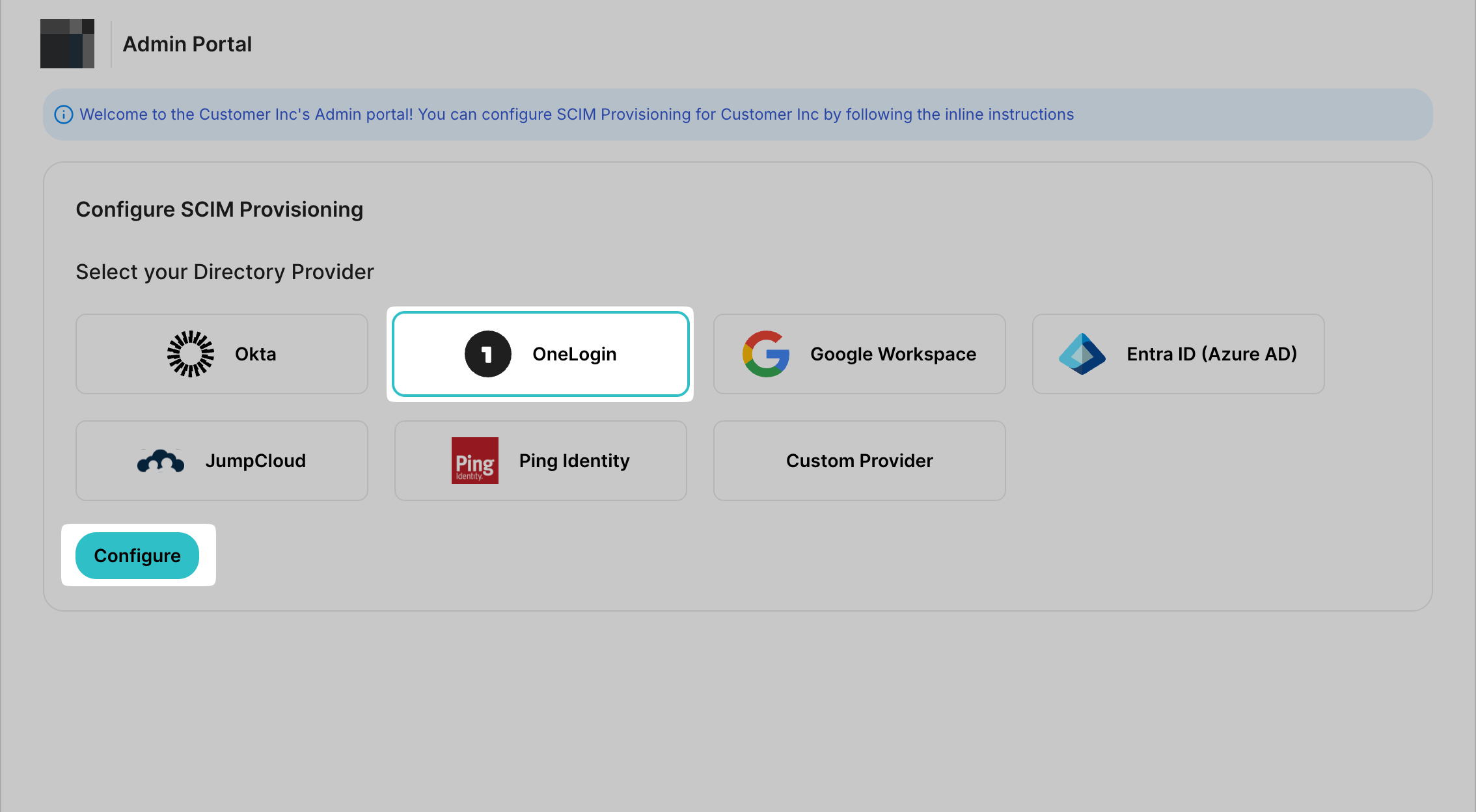
Section titled “Create an endpoint and API token”Open the SCIM configuration portal and select the SCIM Provisioning tab. Choose OneLogin as your Directory Provider and click on Configure.
-
Add a new application in OneLogin
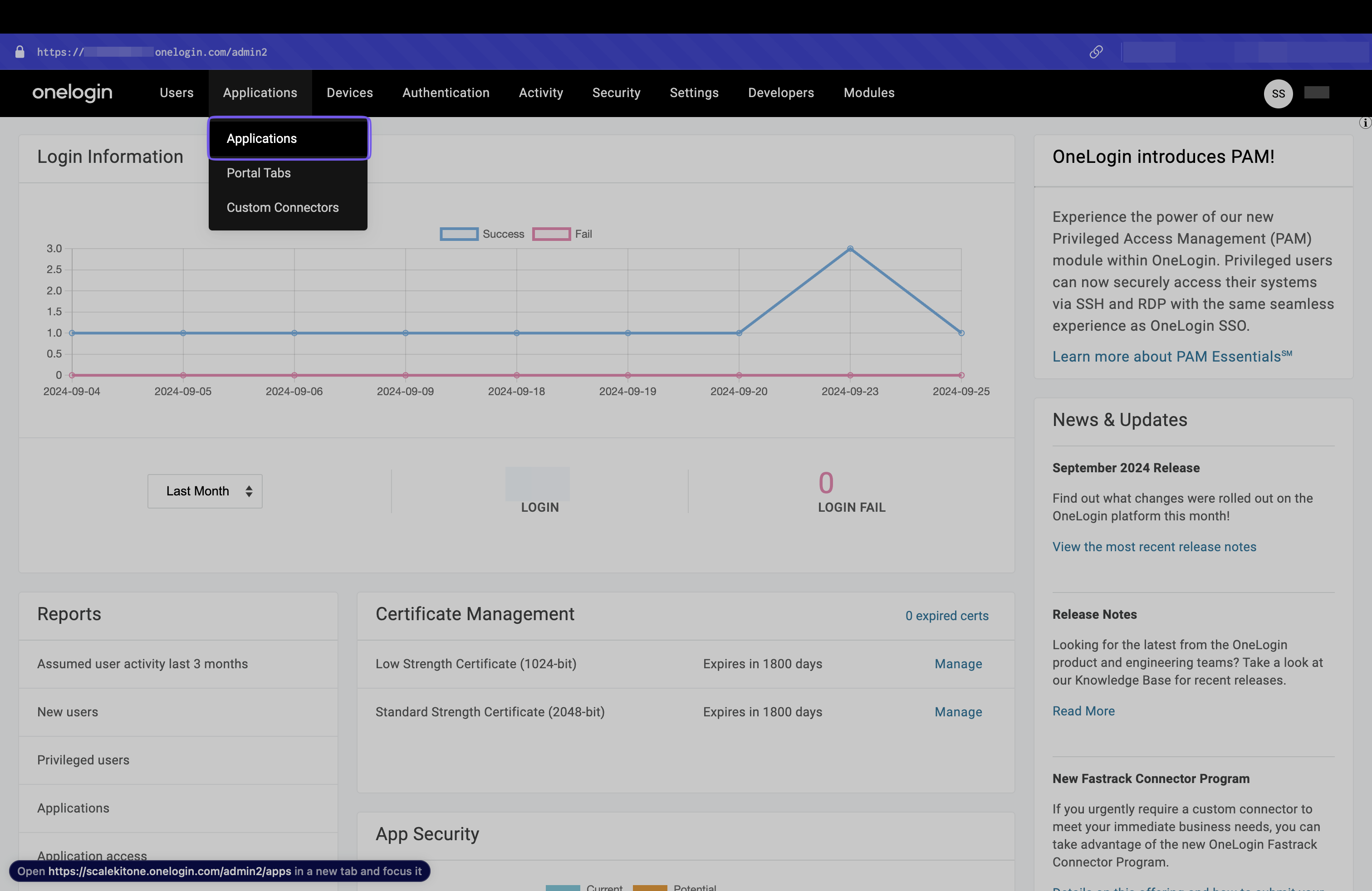
Section titled “Add a new application in OneLogin”Open OneLogin’s Administration portal. Click Applications from the top navigation panel.
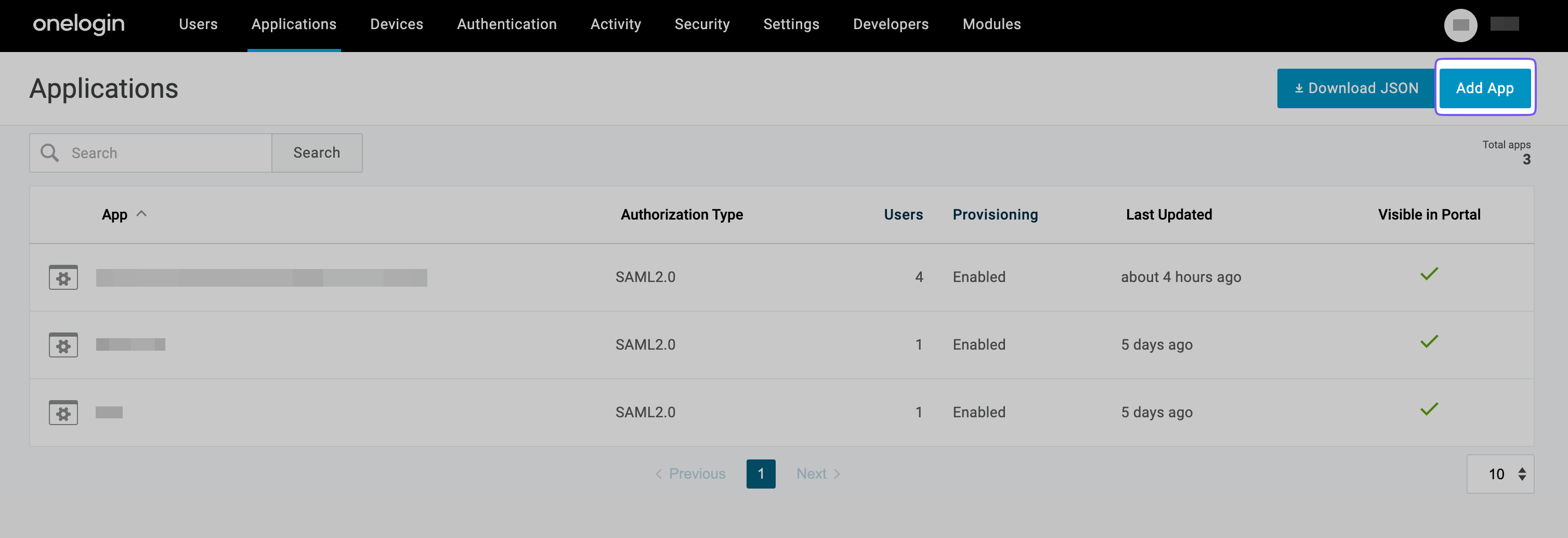
Click Add App to add a new application.
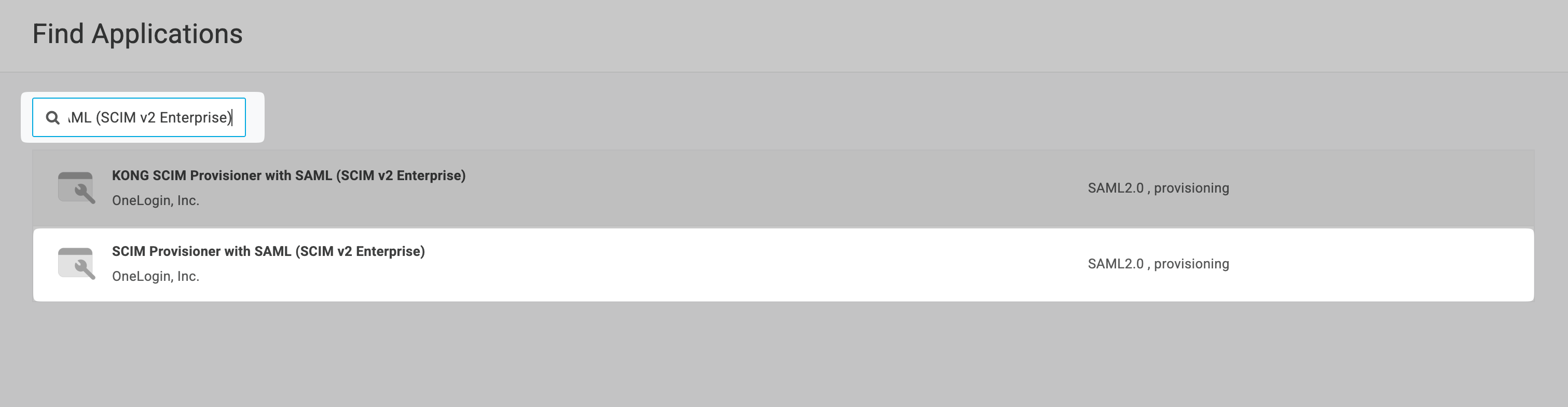
Search for SCIM with SAML (SCIM v2 Enterprise) and select it.
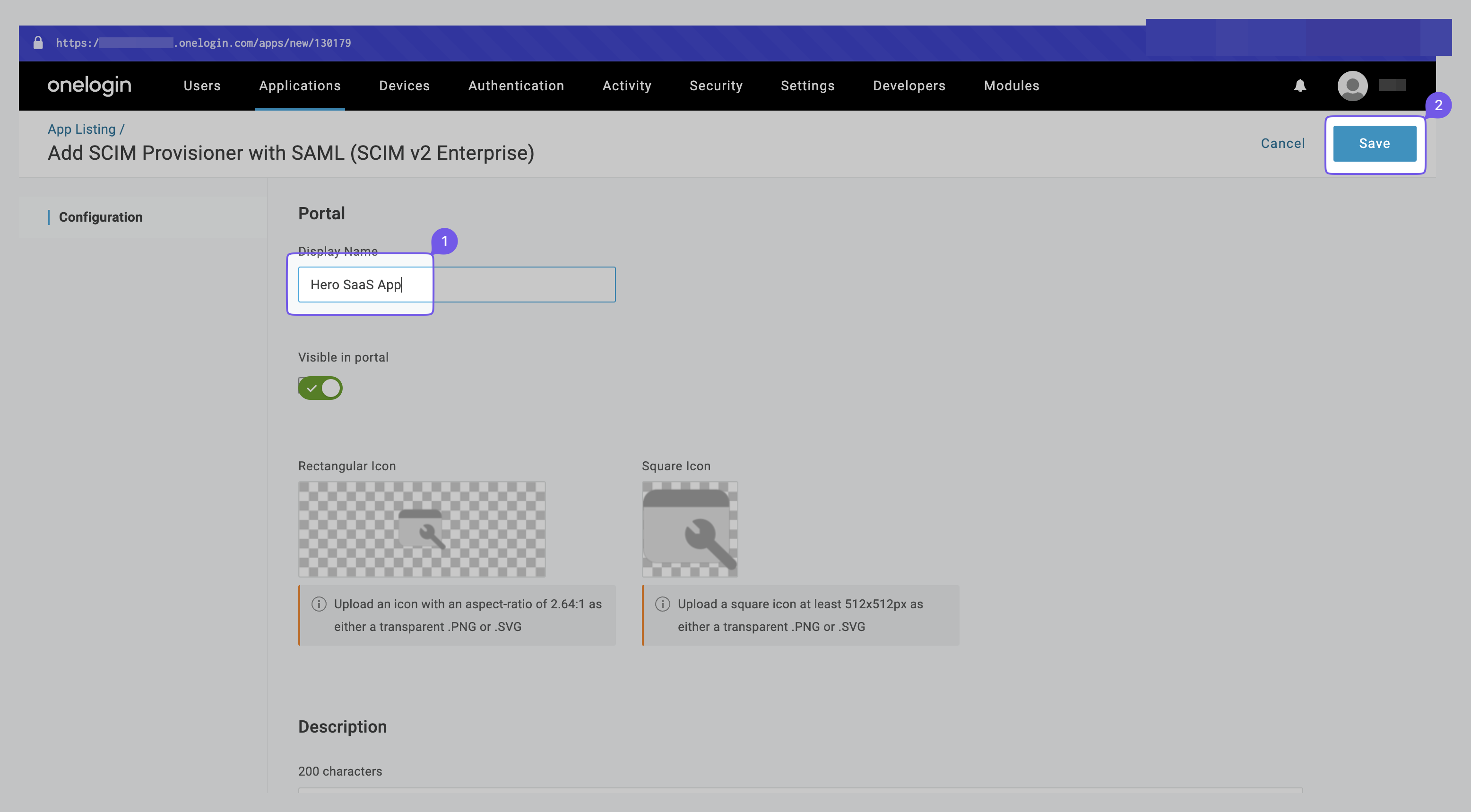
Give a suitable app name(e.g., Hero SaaS App) and then click Save.
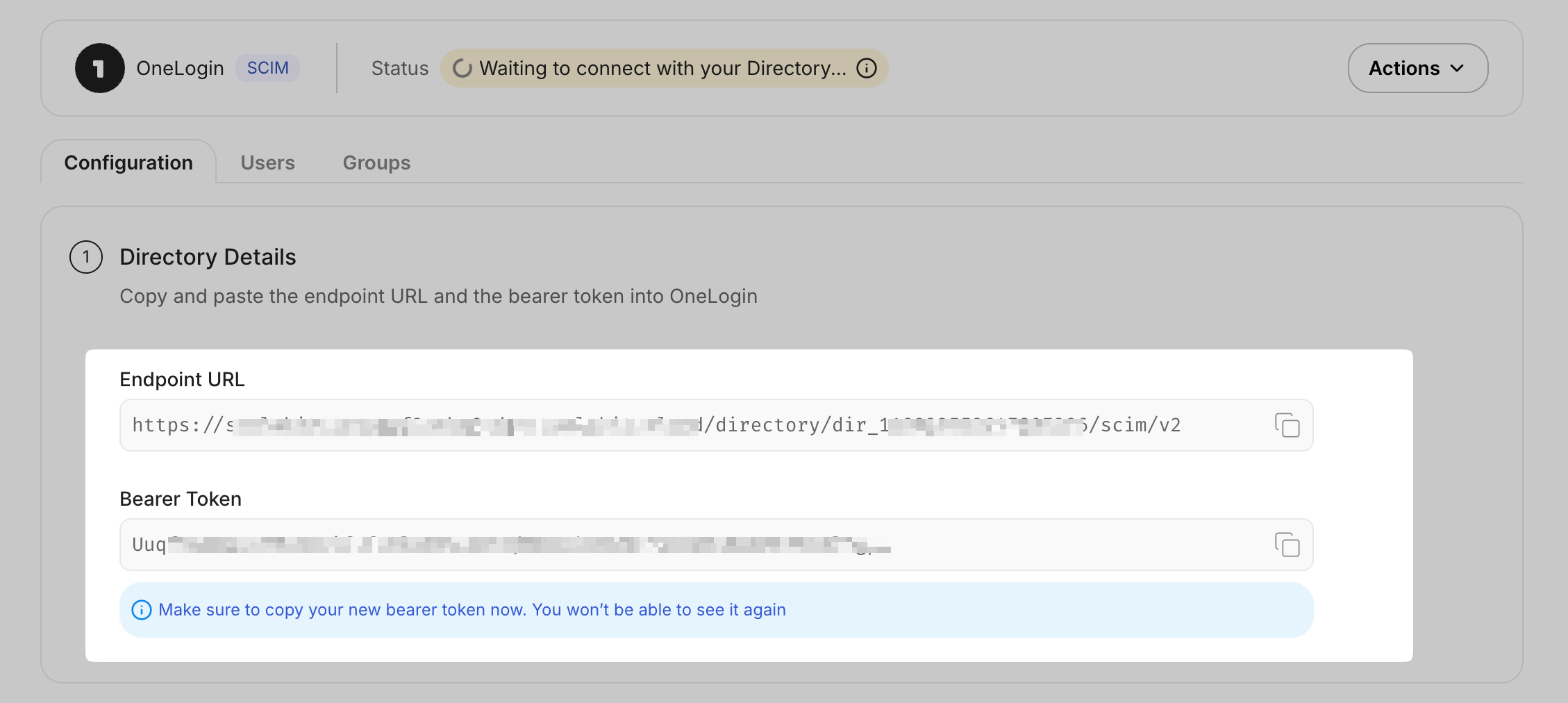
Go to the SCIM configuration portal and copy the Endpoint URL and Bearer Token for the SCIM integration.
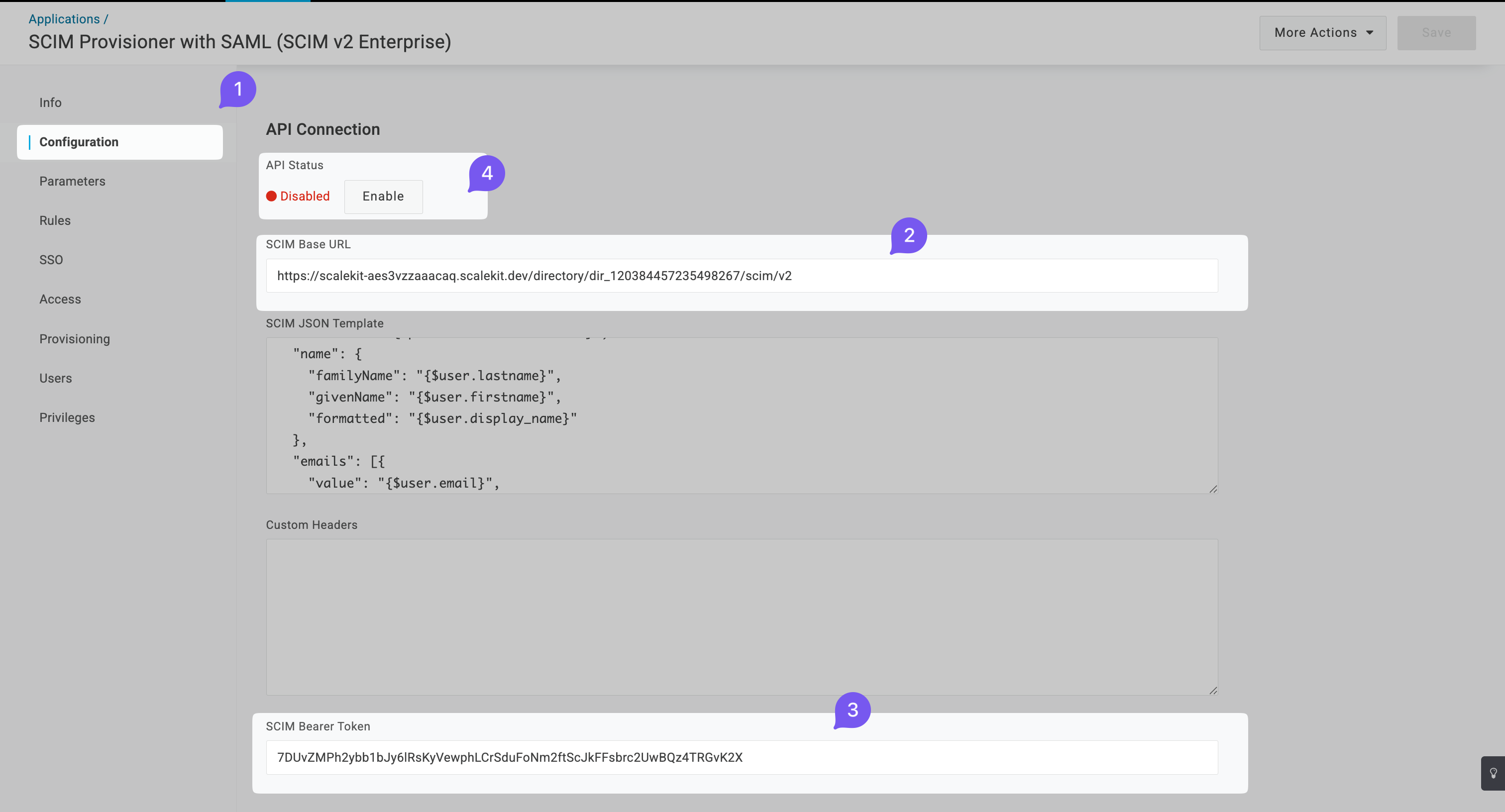
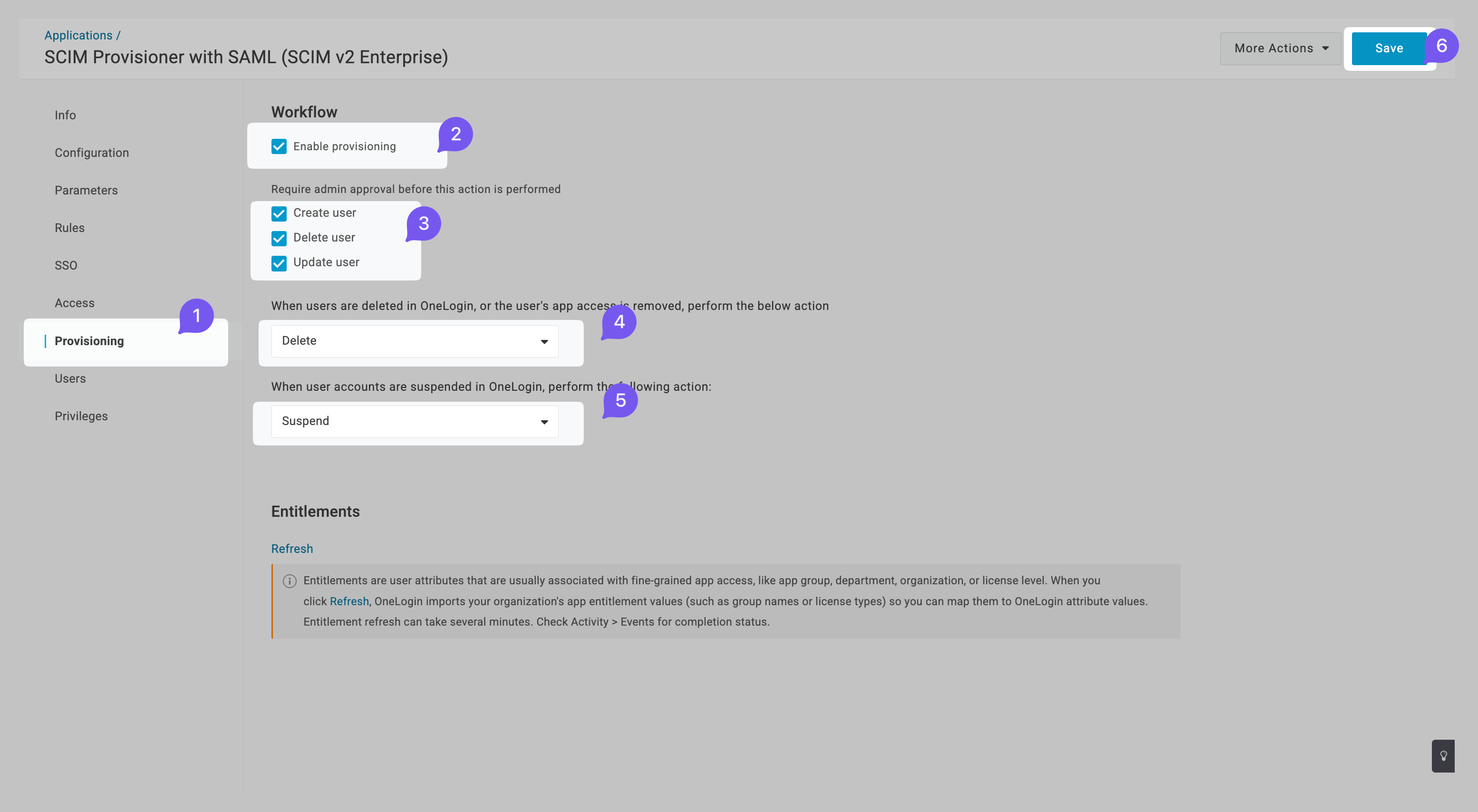
On OneLogin, go to the Configuration tab in the left navigation panel. Add the above copied values in the SCIM Base URL and SCIM Bearer Token fields. Then click the Enable button.
-
Provision users
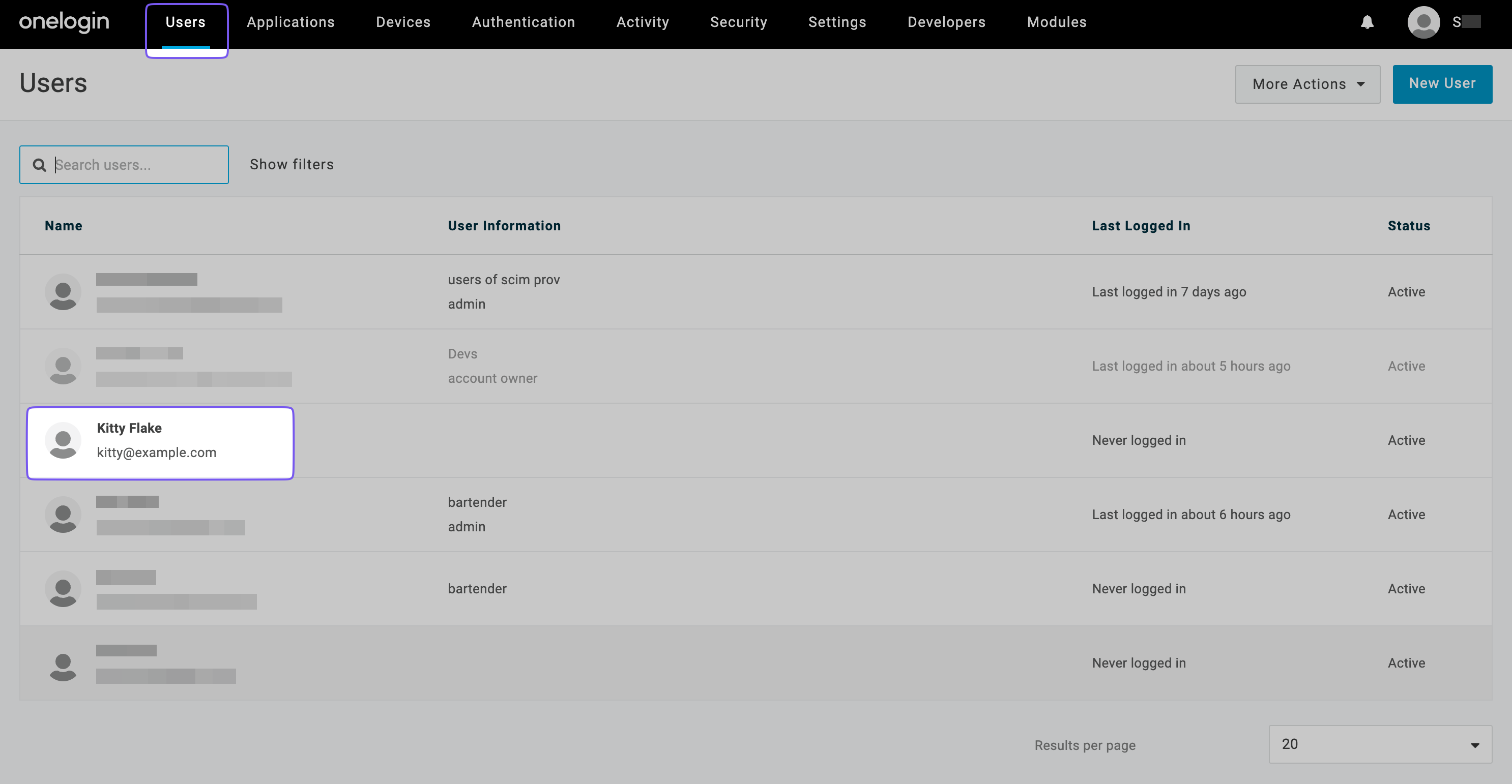
Section titled “Provision users”Go to Users and click on a user you want to provision.
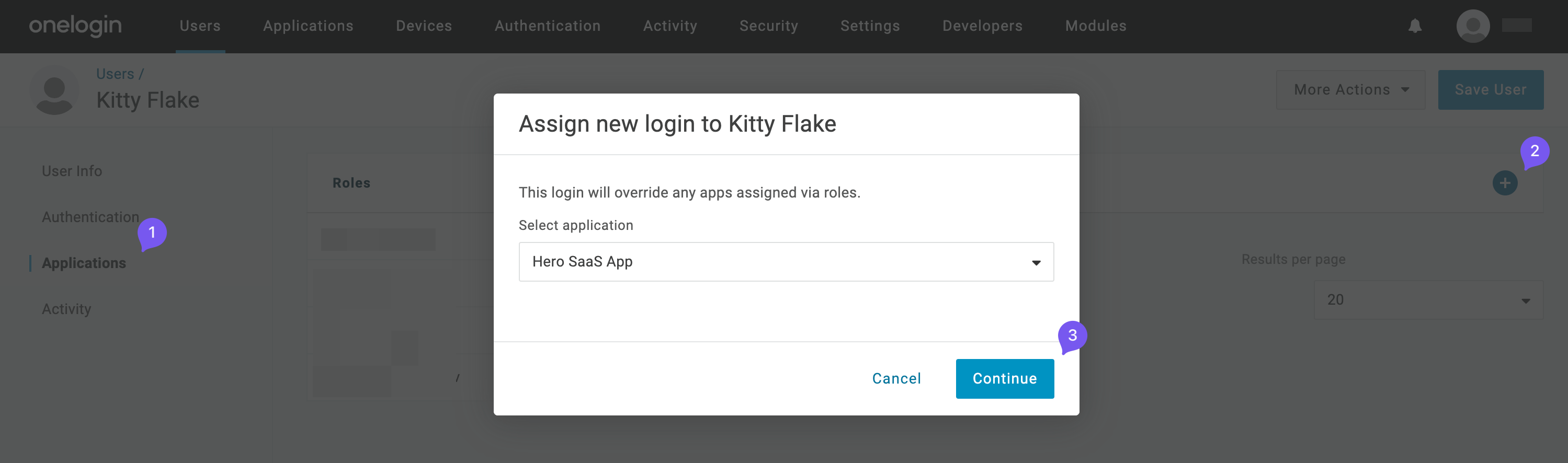
Go to the Applications tab from the left navigation bar, click +, and assign the recently created application. Click Continue.
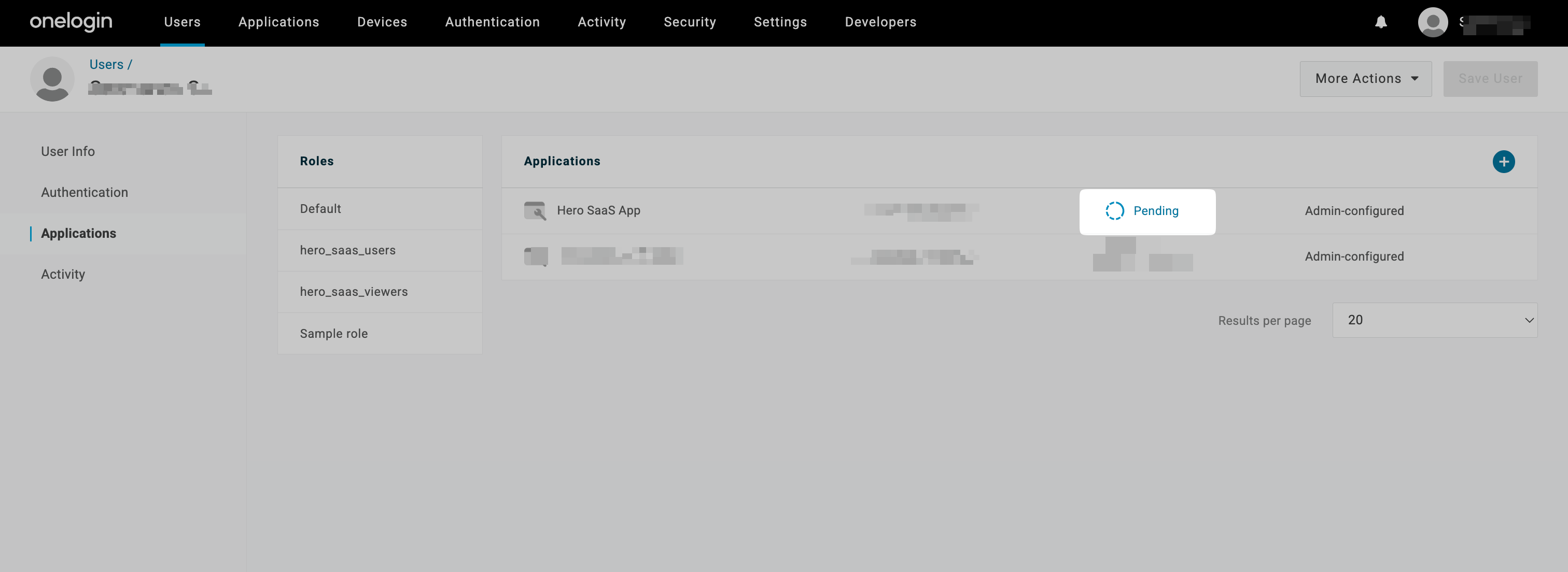
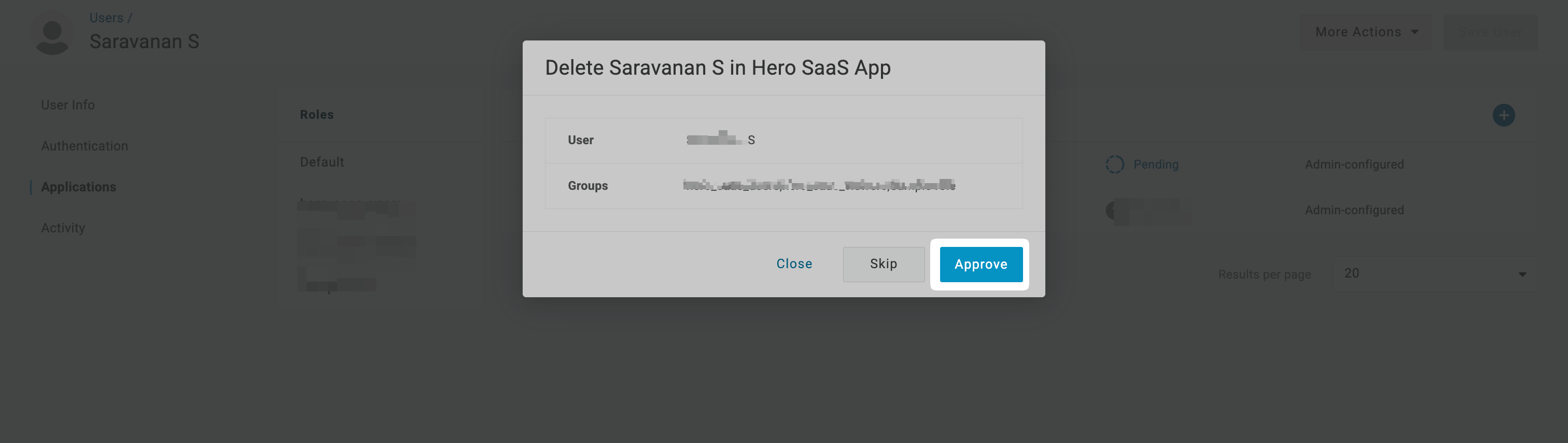
The user provisioning action will remain in pending state for the application. Click on Pending.
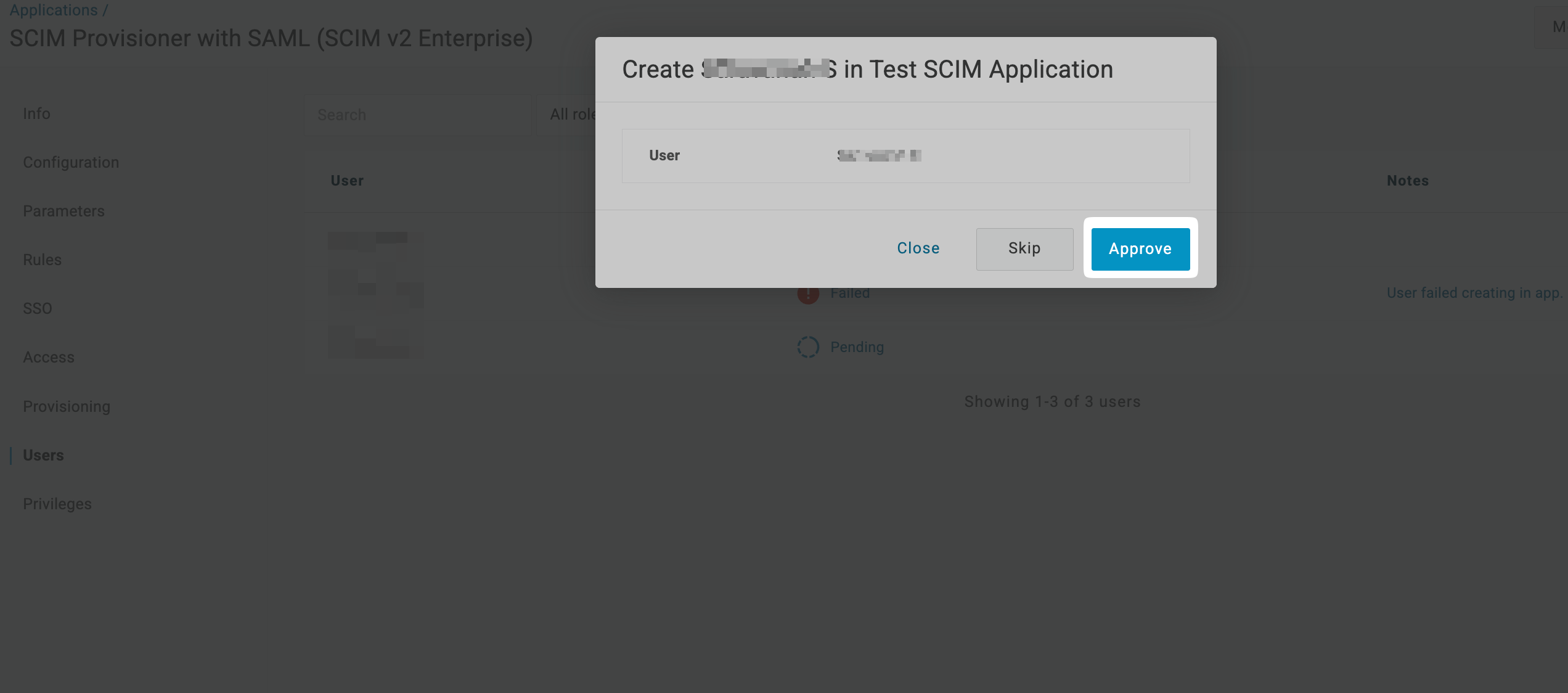
In the new modal, click on Approve to approve provisioning of the user in the application.
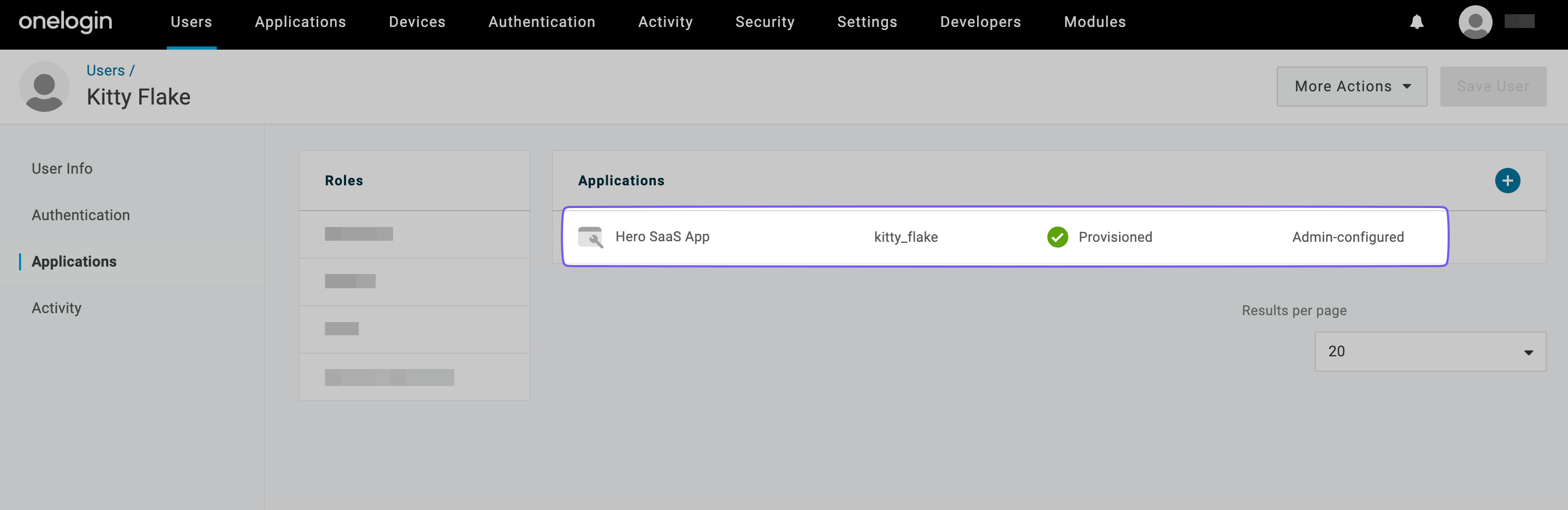
The status should change to Provisioned within a few seconds.
-
Configure group provisioning
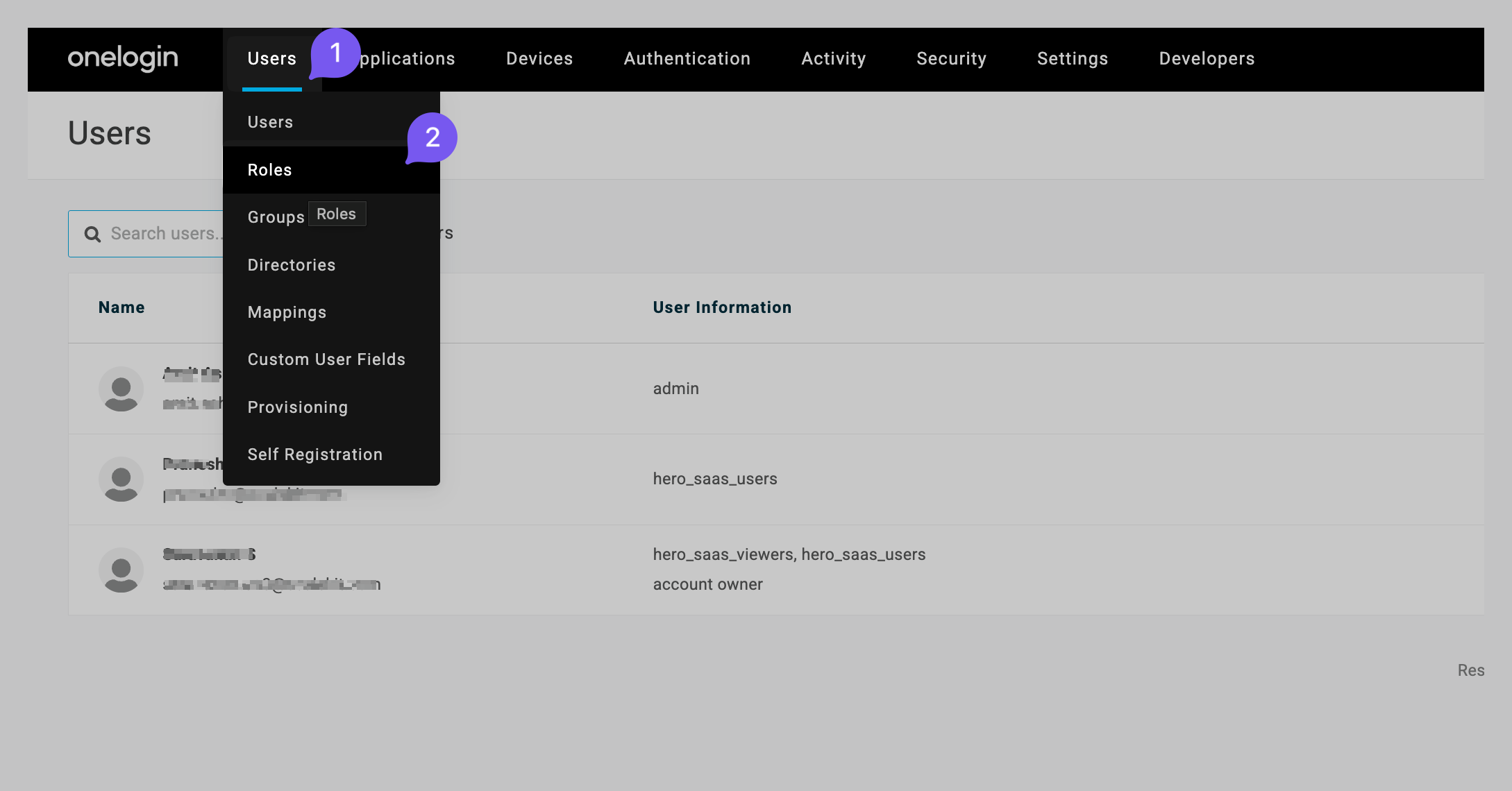
Section titled “Configure group provisioning”From the top navigation, click on Users and select Roles from the dropdown.
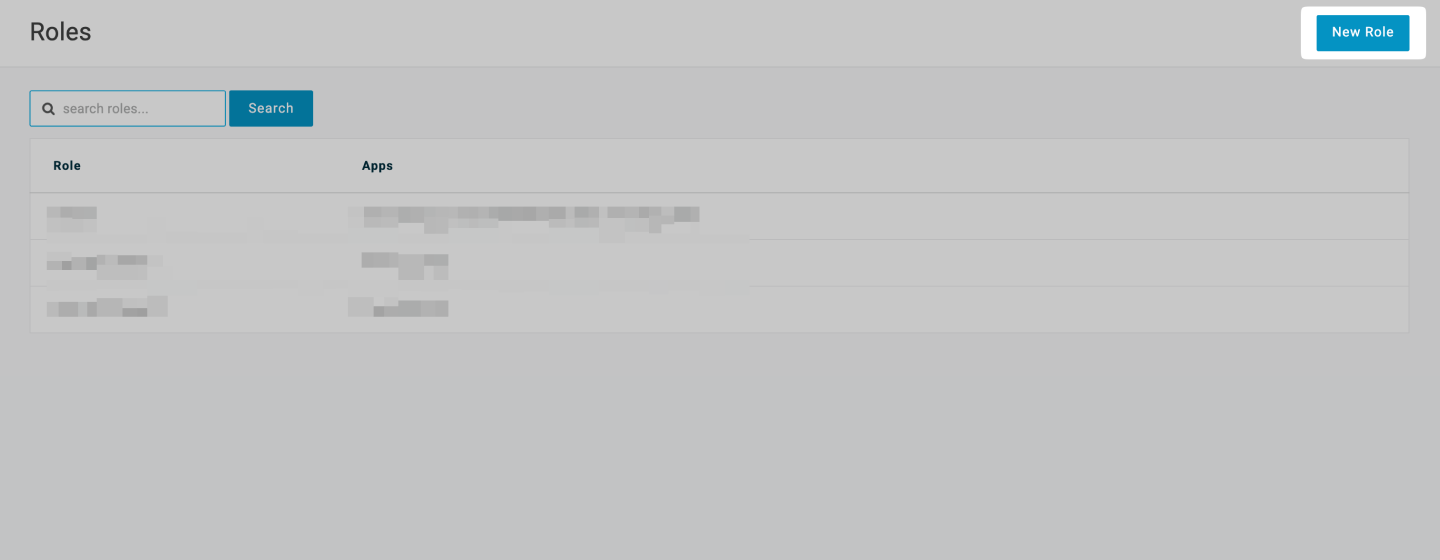
Click on New Role.
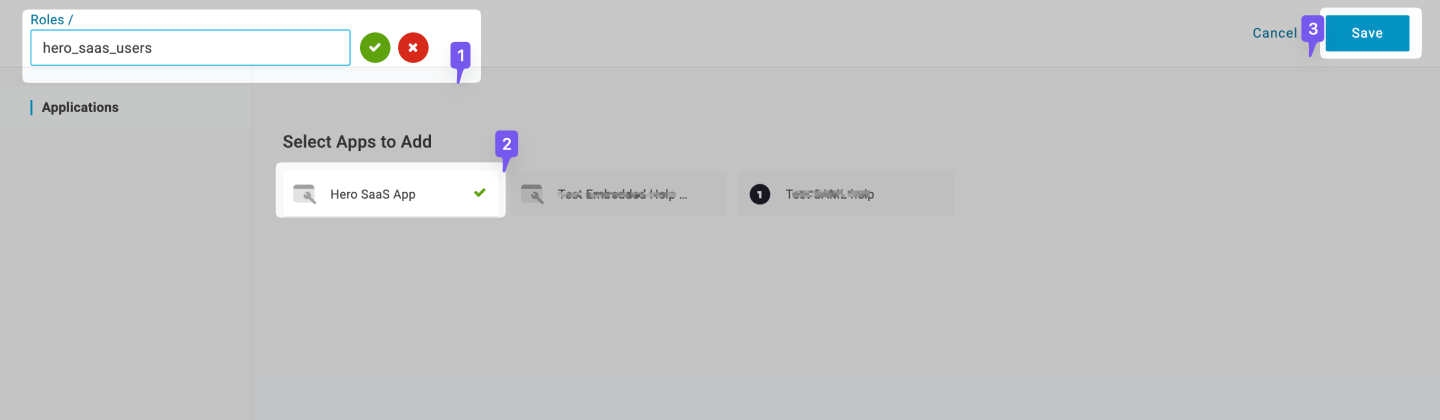
Enter the Role name(this will be the name of the group). Select the recently created SCIM application and click Save.
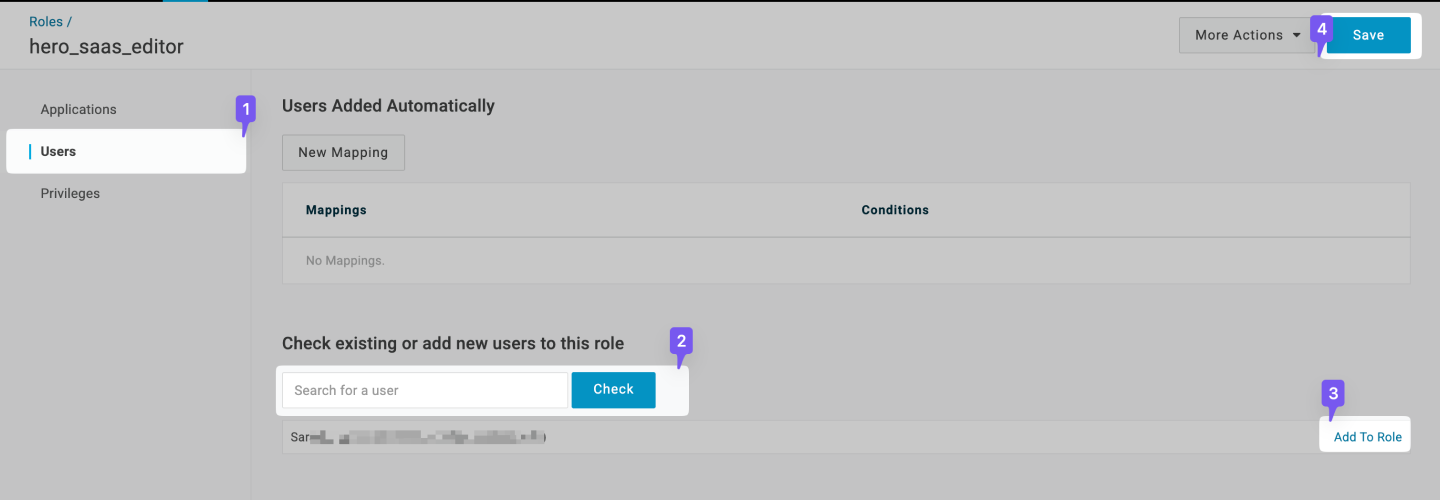
Now select the created Role. Click the Users tab for the role. Search for any users you’d like to assign to that role, click on Check and then click on Add To Role. Click on Save.
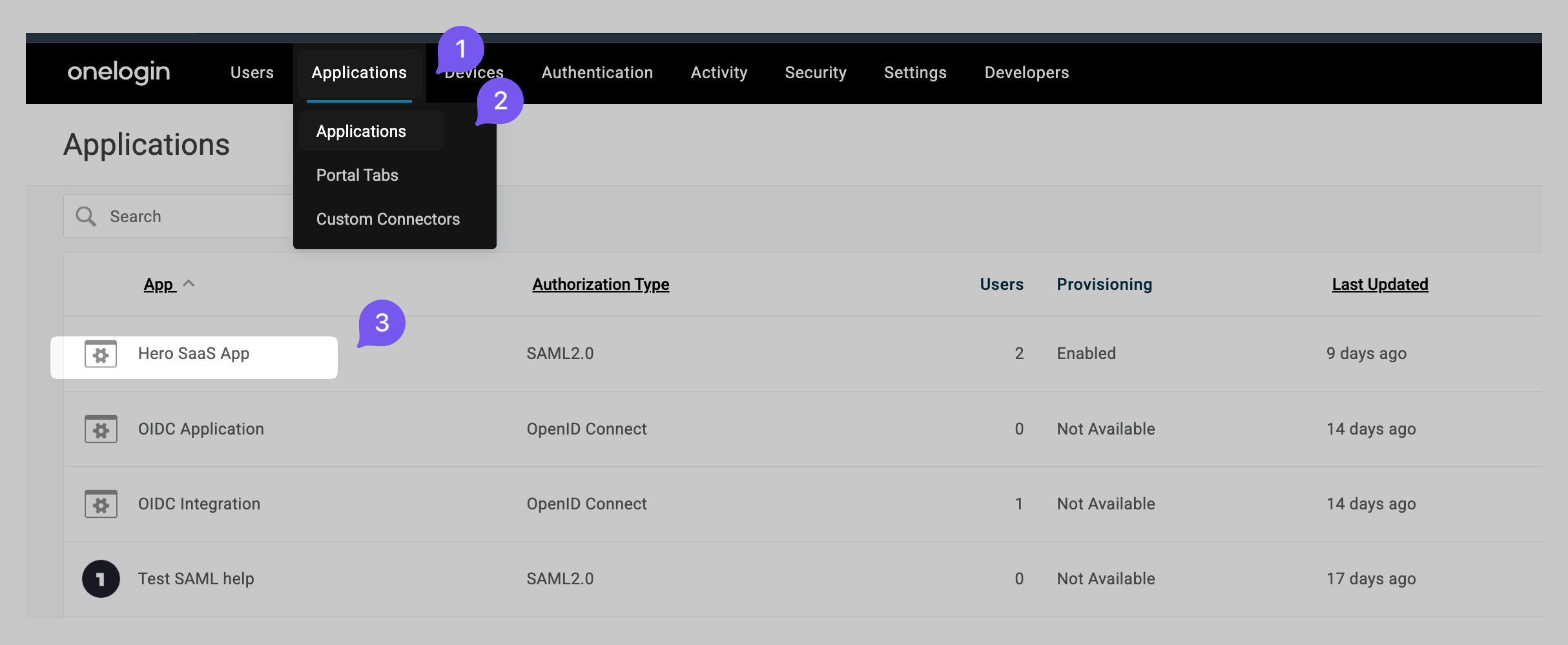
Navigate to Applications from the top bar and then click on the recently created application.
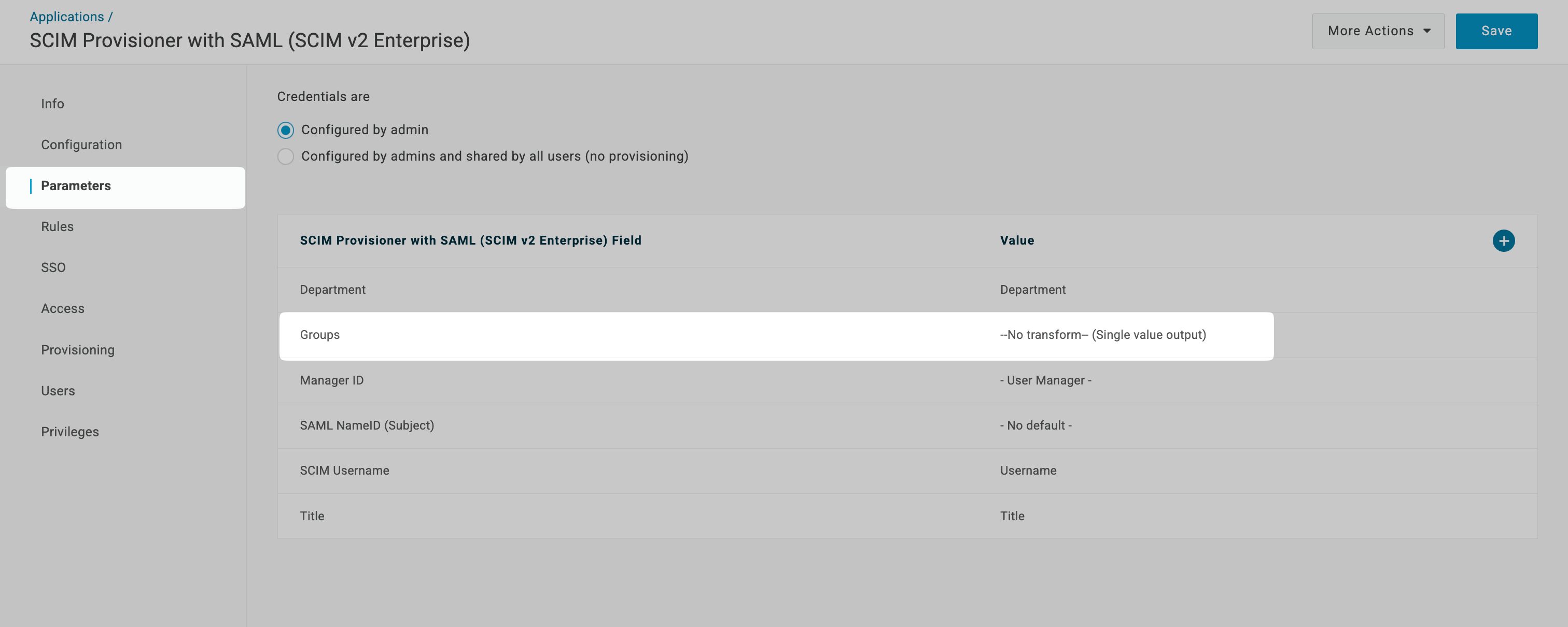
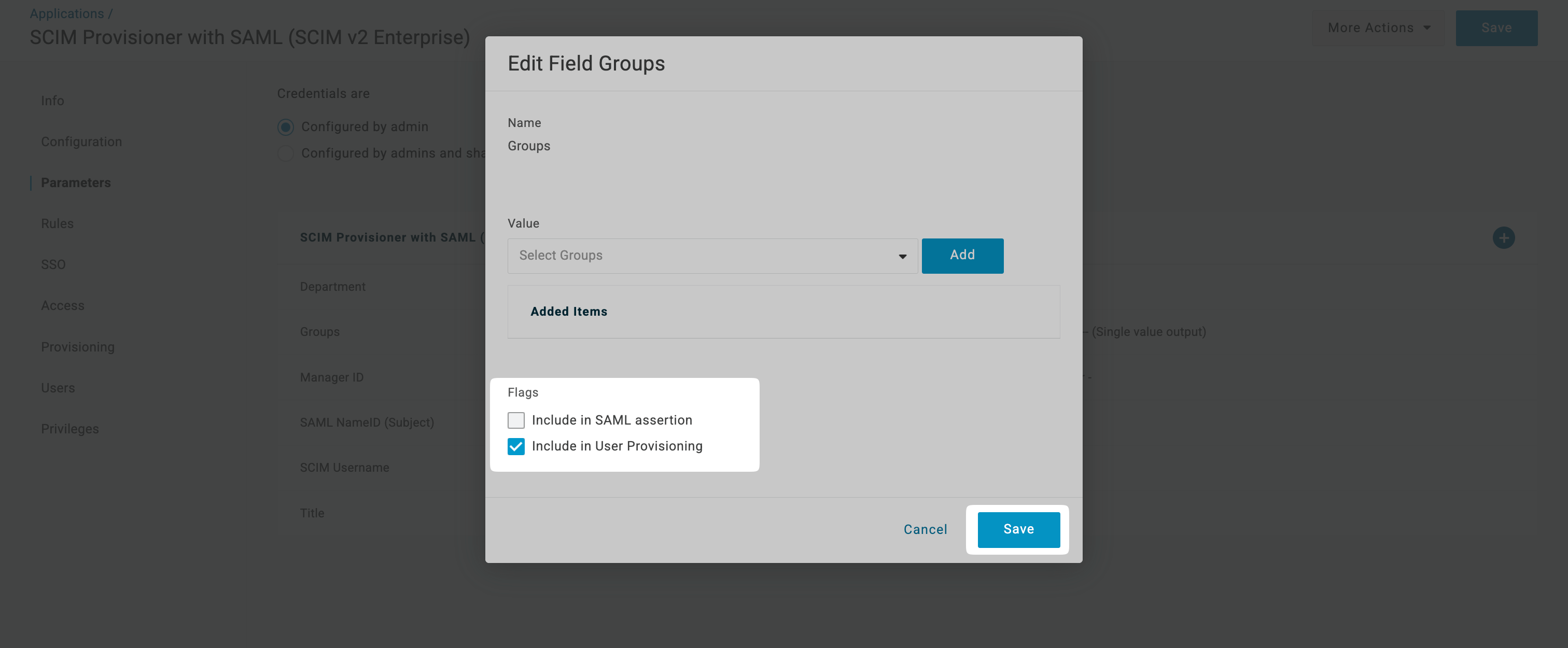
Go to the Parameters tab from the left navigation and click on the Groups row.
Once the modal opens up, check Include in User Provisioning and then click on Save.
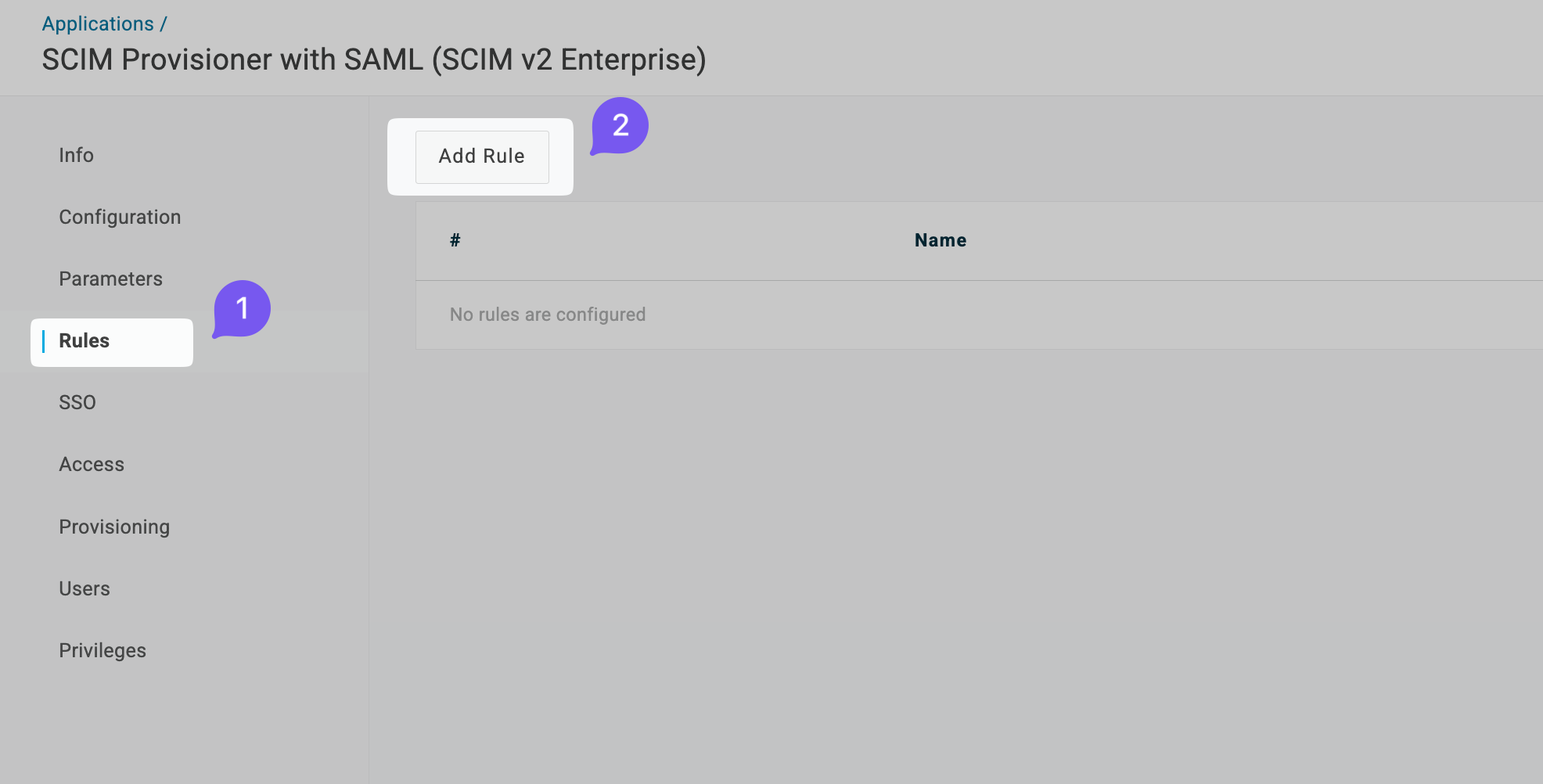
Navigate to Rules tab from left navigation and click on Add Rule.
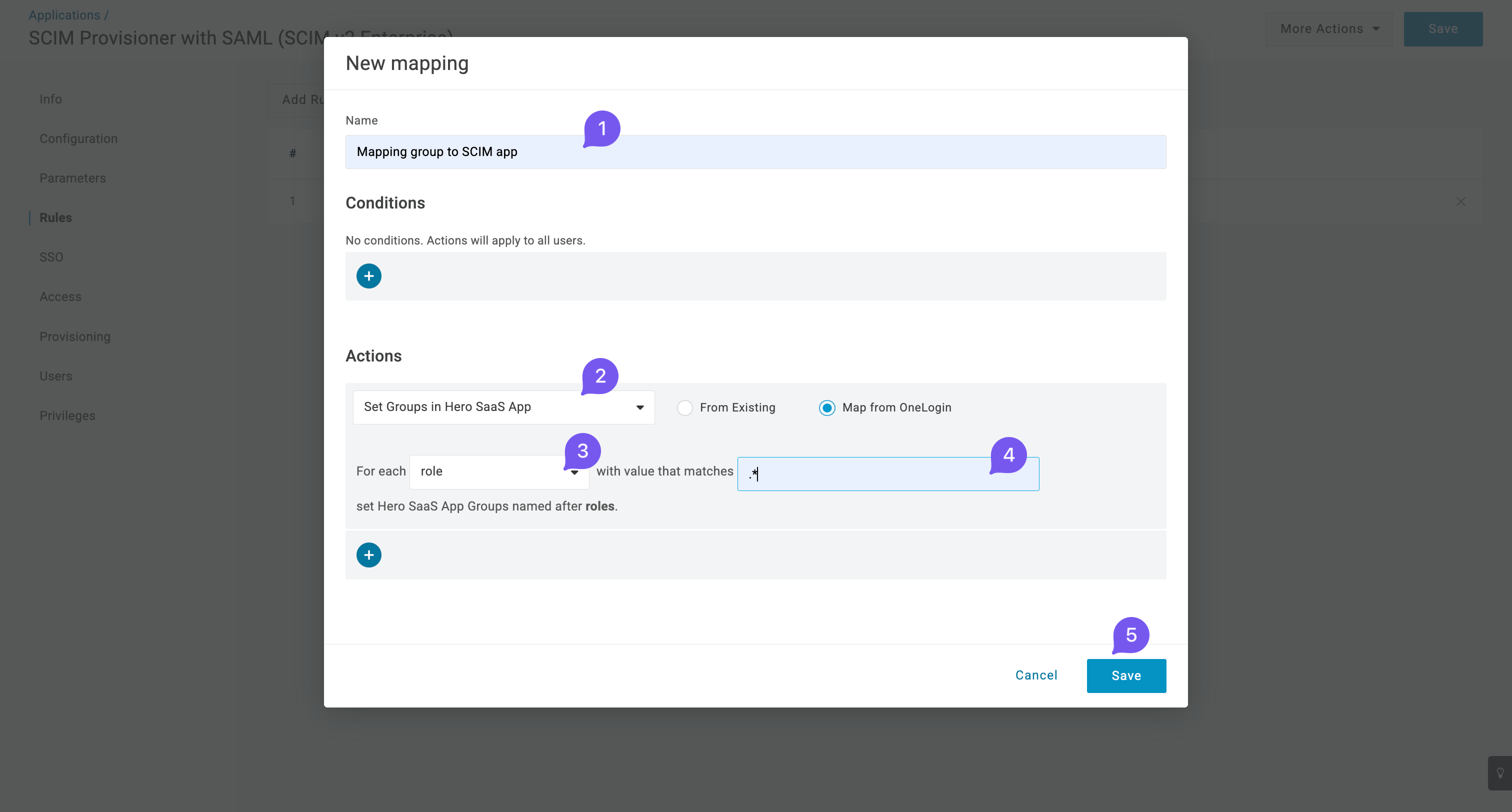
Give a suitable name to the rule (e.g., Assign Group to SCIM app) and set the action to Set Groups in Hero SaaS App for each role with any value. Then click Save.
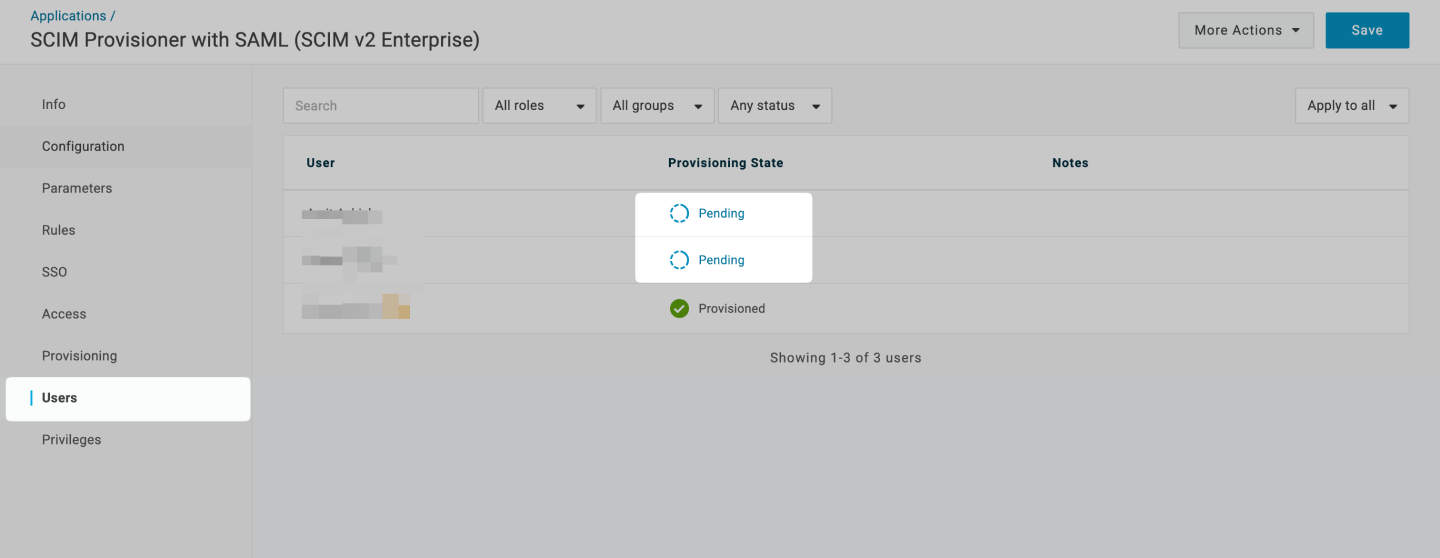
Navigate to Users tab from the left nav bar. You can see new users(belonging to the above created role) populated on the screen. For each of such user, click on Pending.
Once the modal opens up, click on Approve. The user belonging to the role will be provisioned to the application.
-
Group based role assignment
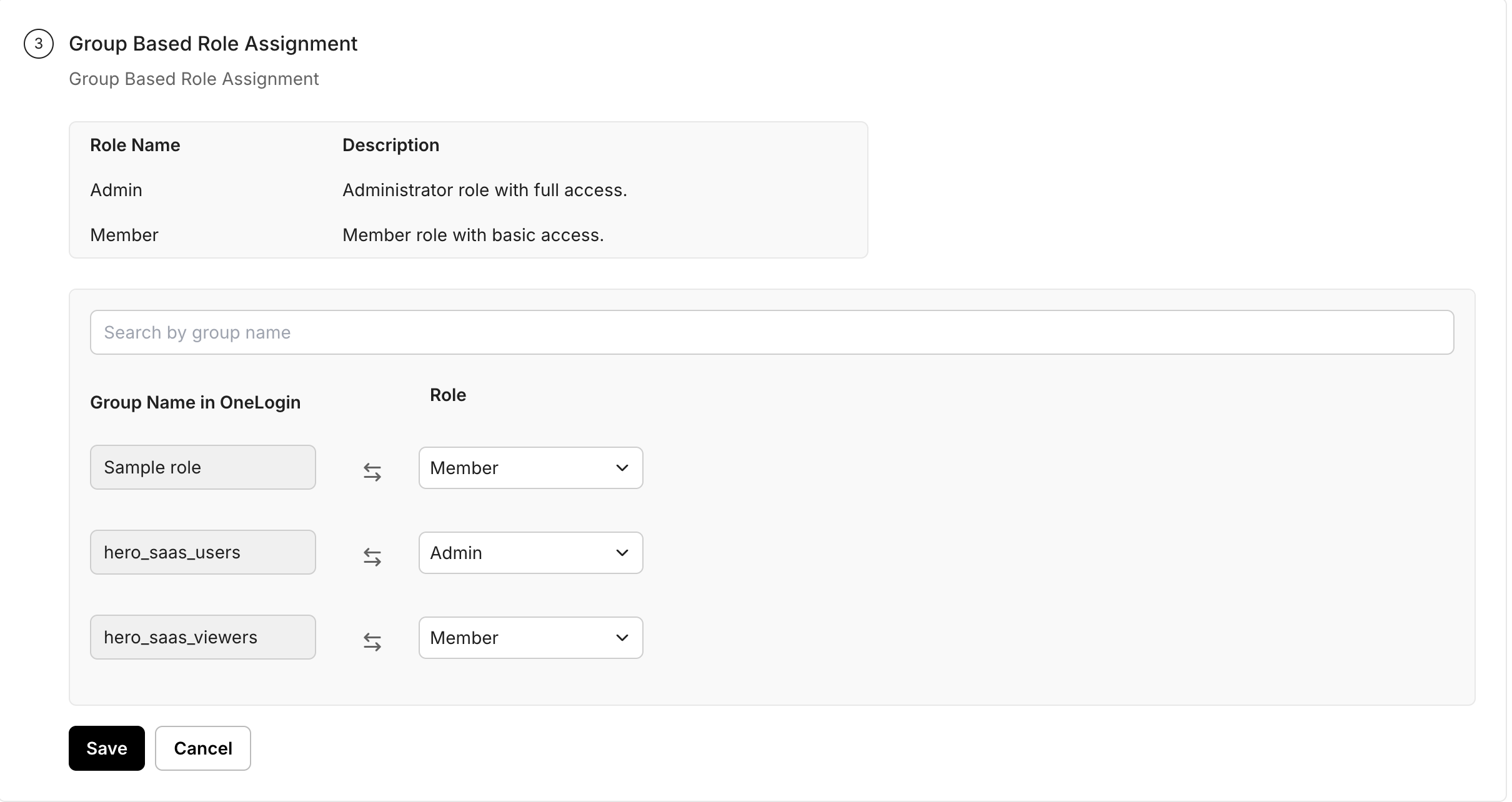
Section titled “Group based role assignment”Now on the SCIM configuration portal, configure appropriate group to role mapping to automatically assign roles to users in the application based on their group membership in OneLogin. Then click on Save.
-
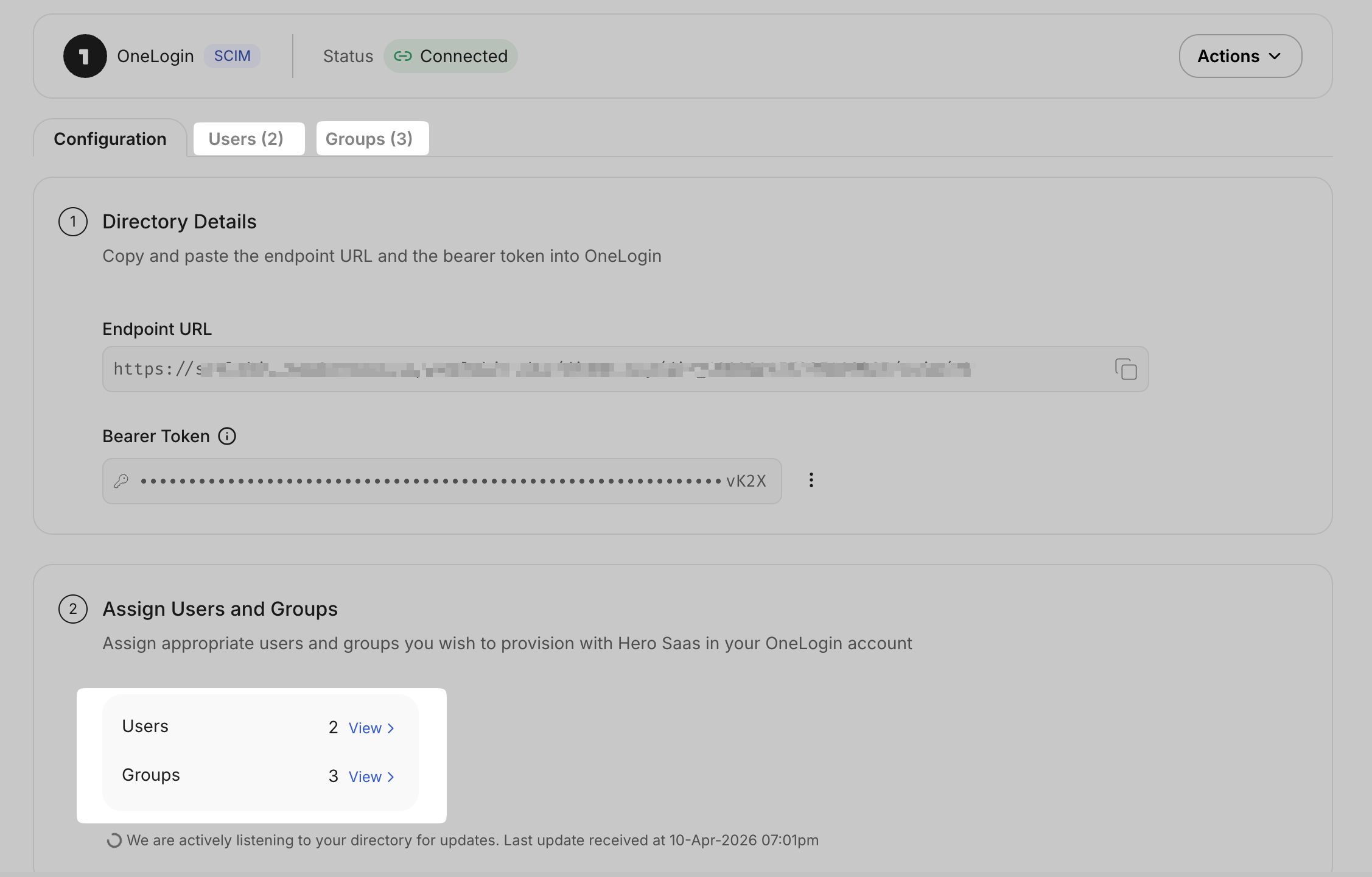
Verify successful connection
Section titled “Verify successful connection”After completing these steps, verify that the users and groups are successfully synced by visiting Users and Groups tab in the SCIM configuration portal.