

JumpCloud - OIDC
Learn how to set up OpenID Connect (OIDC) Single Sign-On (SSO) using JumpCloud, with step-by-step instructions for OIDC application setup.
This guide walks you through configuring JumpCloud as your OIDC identity provider. You’ll create a custom OIDC application, add the redirect URI, provide the required OIDC values in the SSO Configuration Portal, assign access, test the connection, and then enable Single Sign-On.
-
Create an OIDC Application
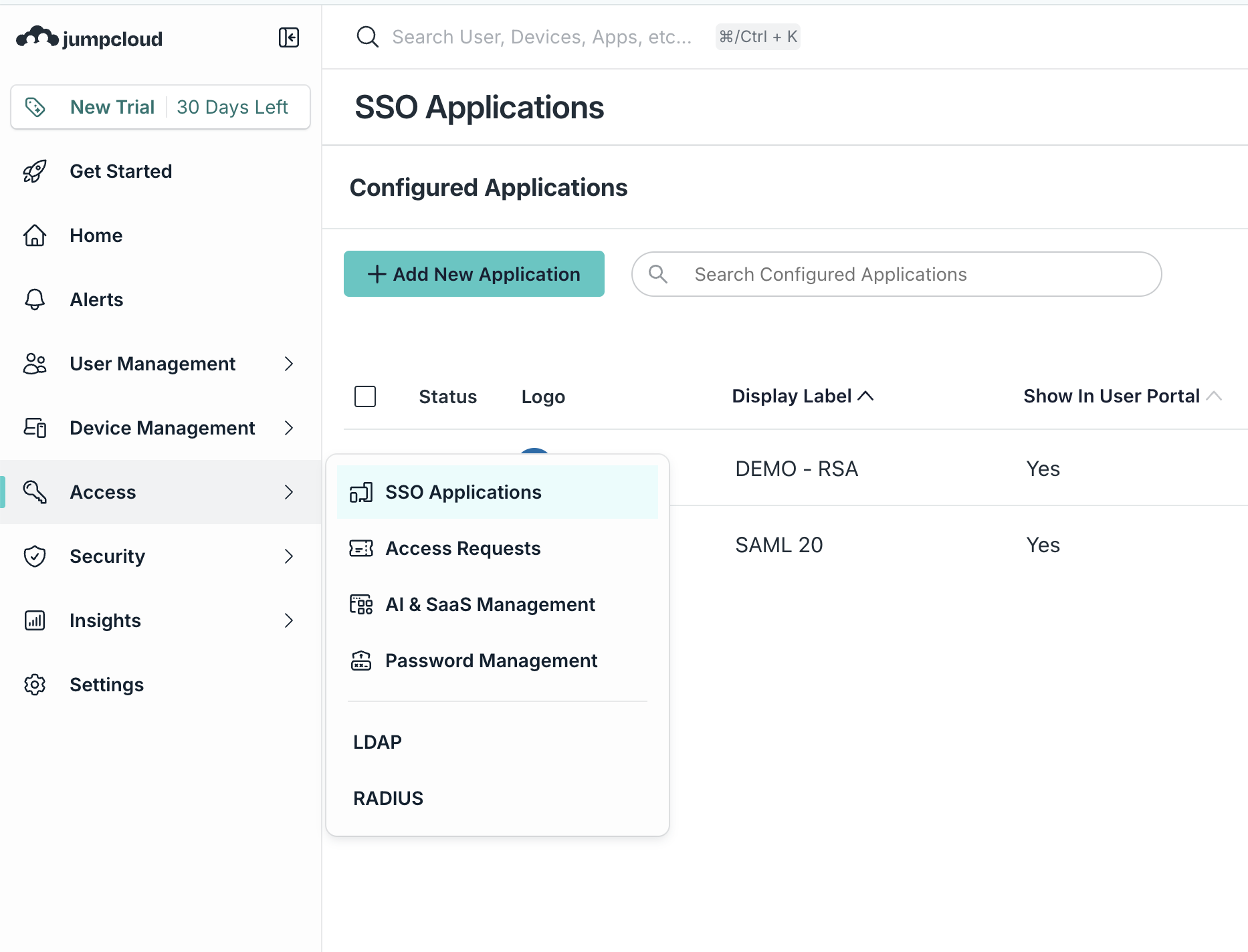
Section titled “Create an OIDC Application”Sign in to your JumpCloud Admin Portal. Go to Access -> SSO Applications and click Add New Application.
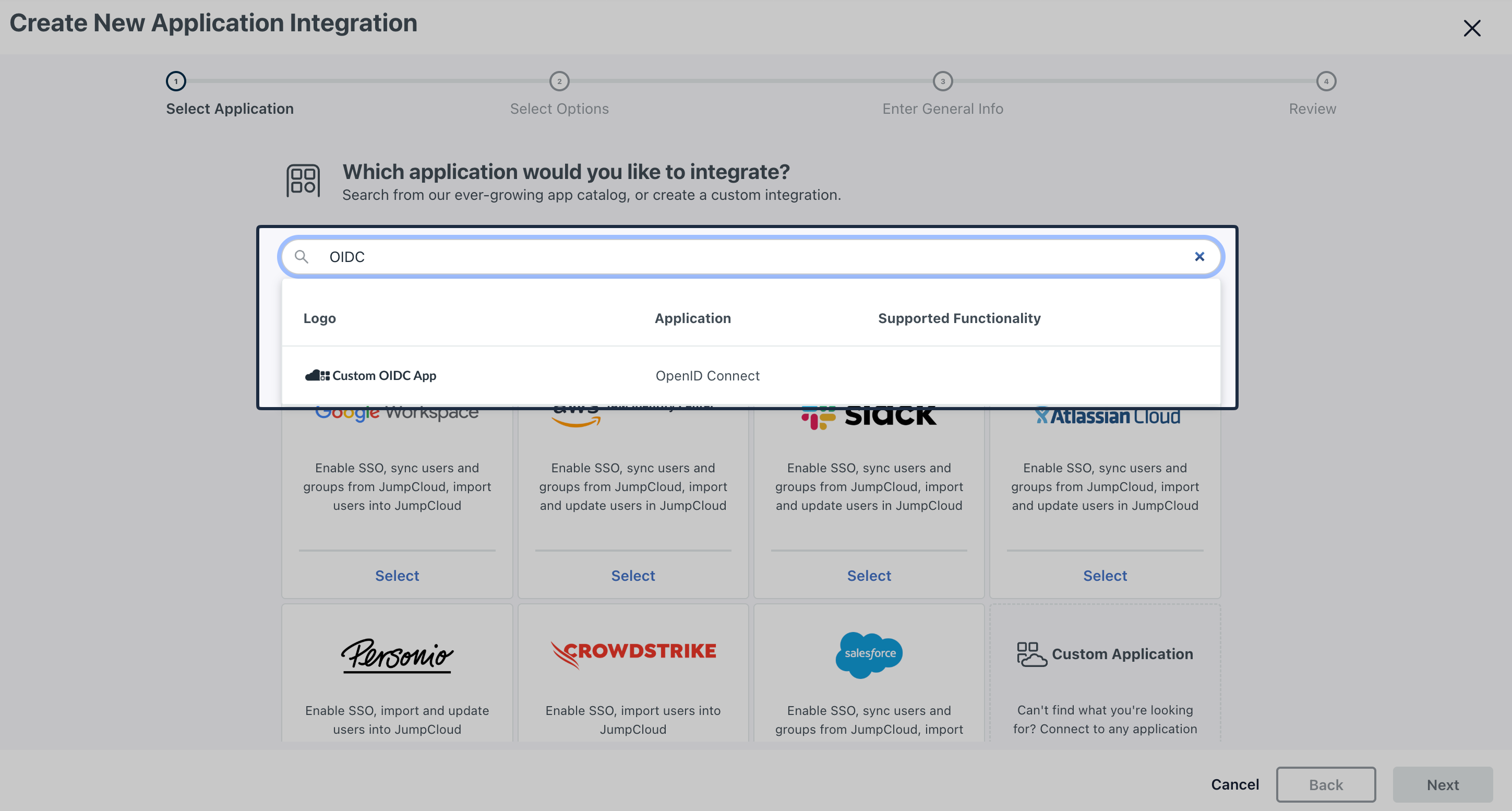
In the application catalog, search for OIDC and select Custom OIDC App.
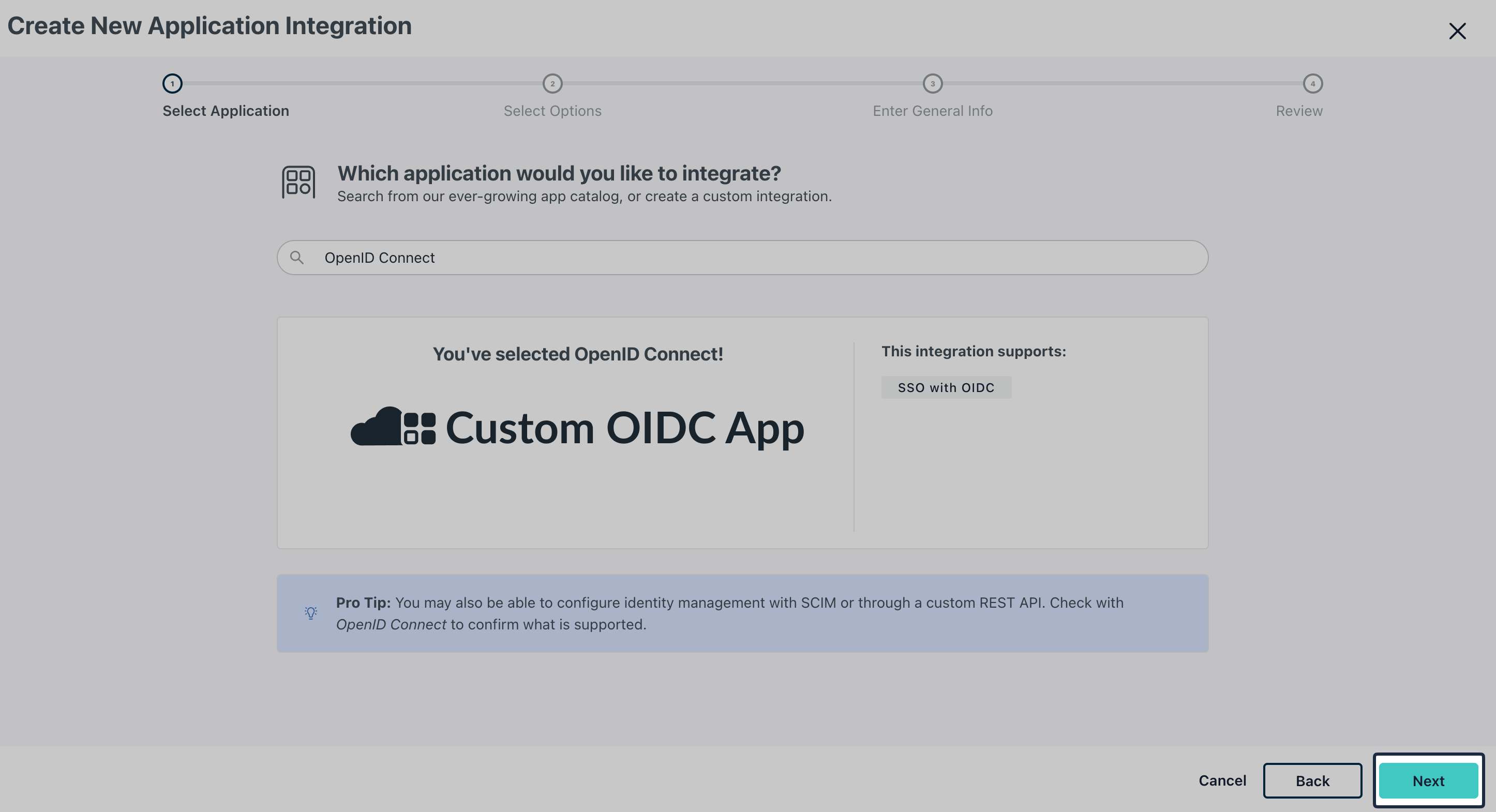
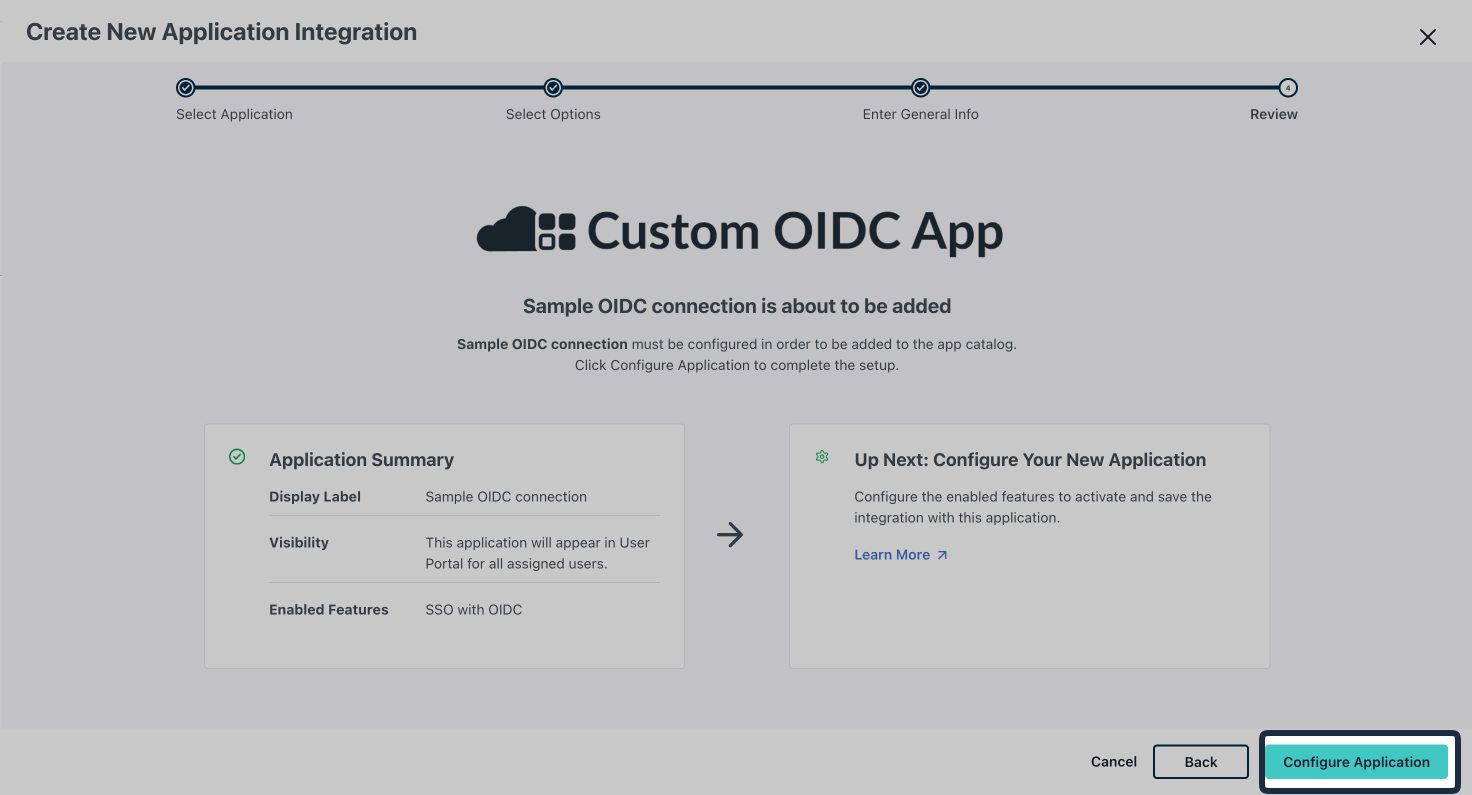
Continue through the setup, confirm the OIDC app selection by clicking Next.
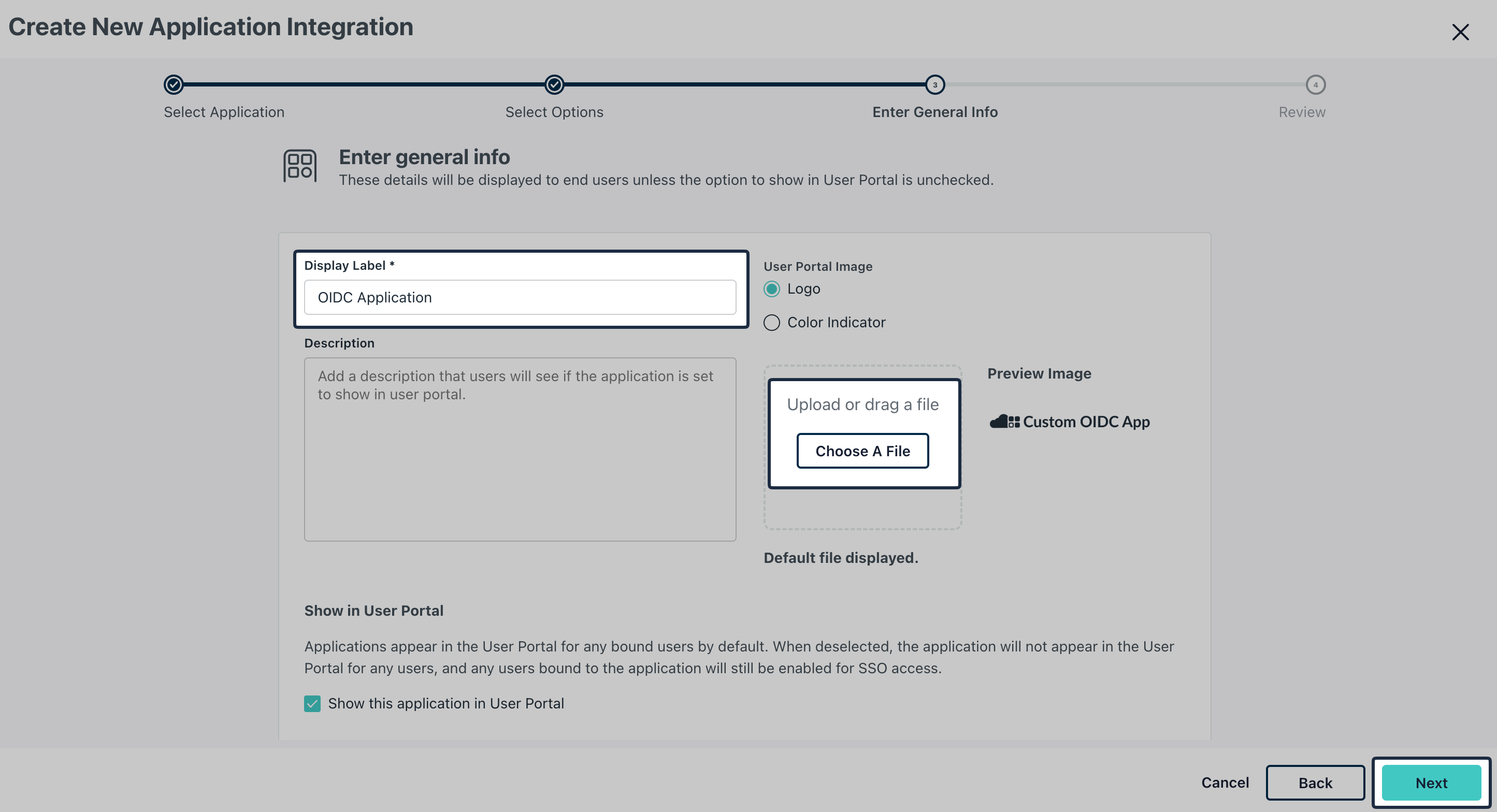
Enter a recognizable Application name in Display Label field, and optionally upload an icon and click Next.
Click Configure Application.
-
Add Redirect URI
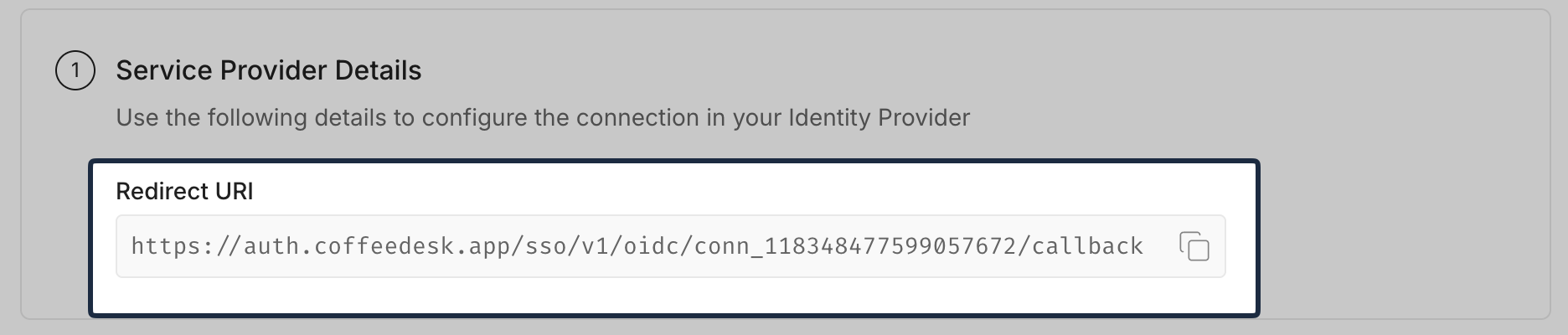
Section titled “Add Redirect URI”From the SSO Configuration Portal, copy the Redirect URI under Service Provider Details.
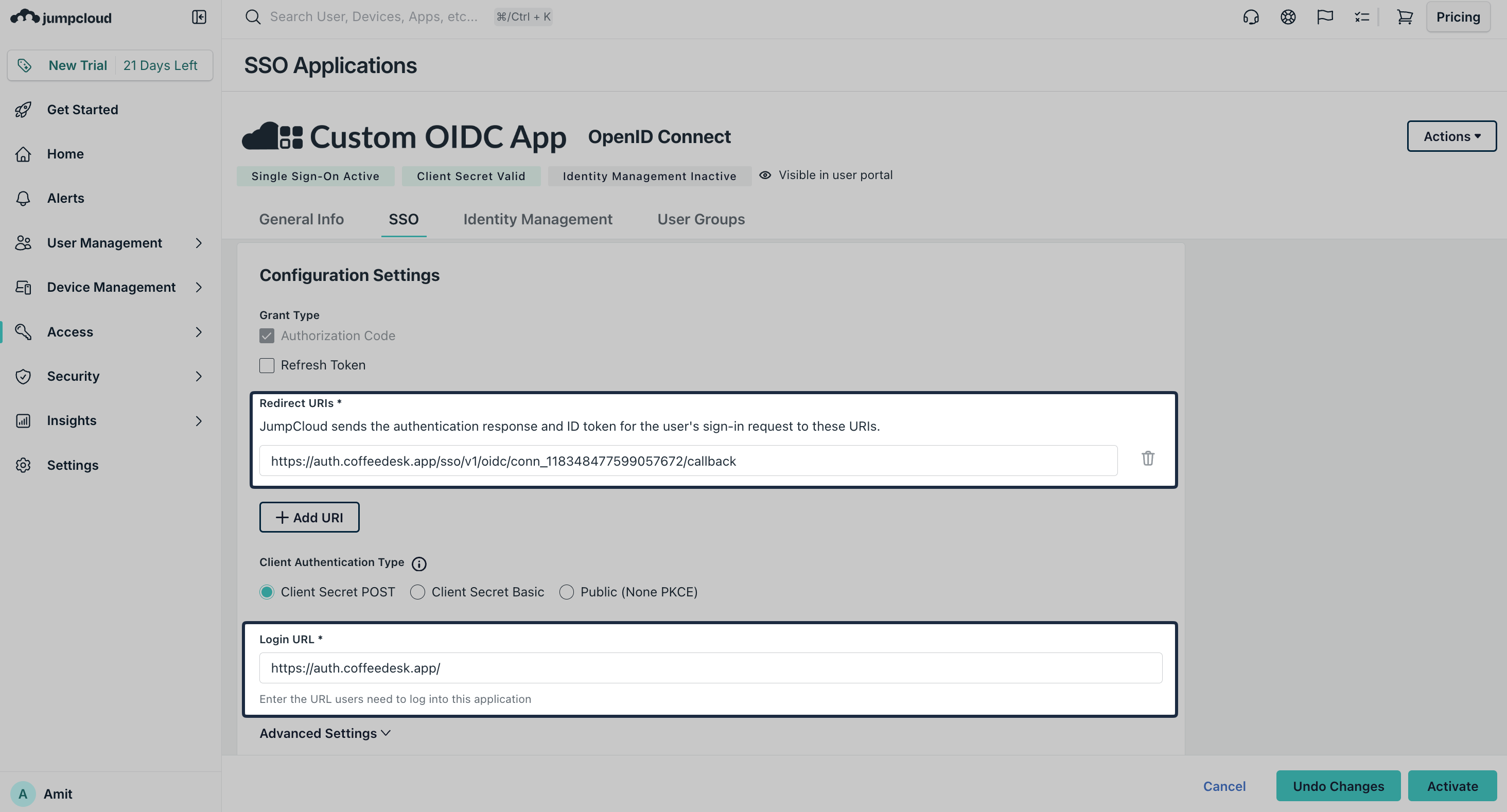
In JumpCloud, open the recently created OIDC application and navigate to SSO -> Configuration Settings. Paste the copied URI into the Redirect URI field. Add the login url of your application in Login URL field.
-
Configure Attributes
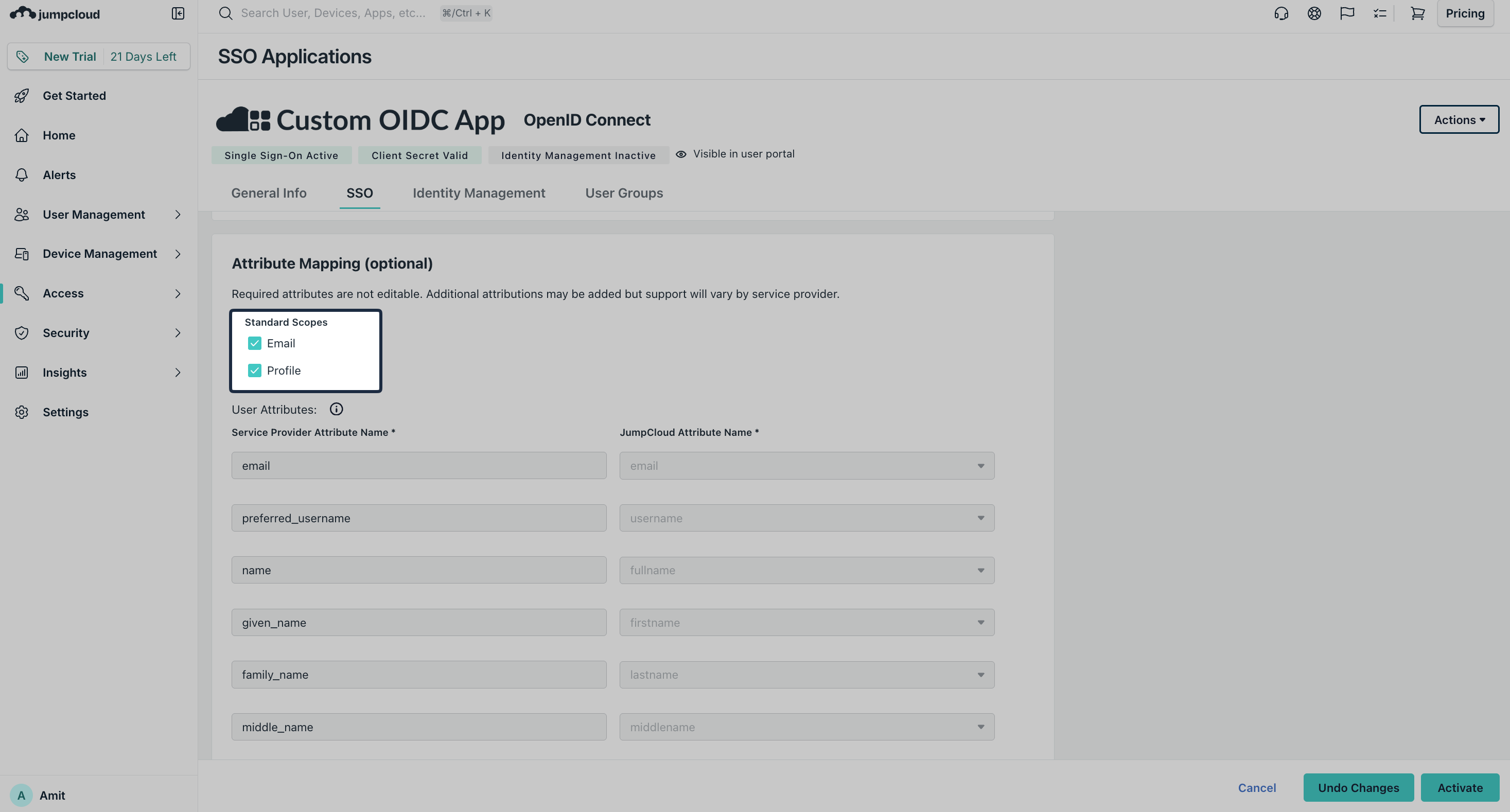
Section titled “Configure Attributes”Scroll down to Attribute Mapping section, select Email and Profile as Standard Scopes and then click Activate.
-
Provide OIDC Configuration
Section titled “Provide OIDC Configuration”From JumpCloud, copy the Client ID and Client Secret. For Issuer URL, use
https://oauth.id.jumpcloud.com.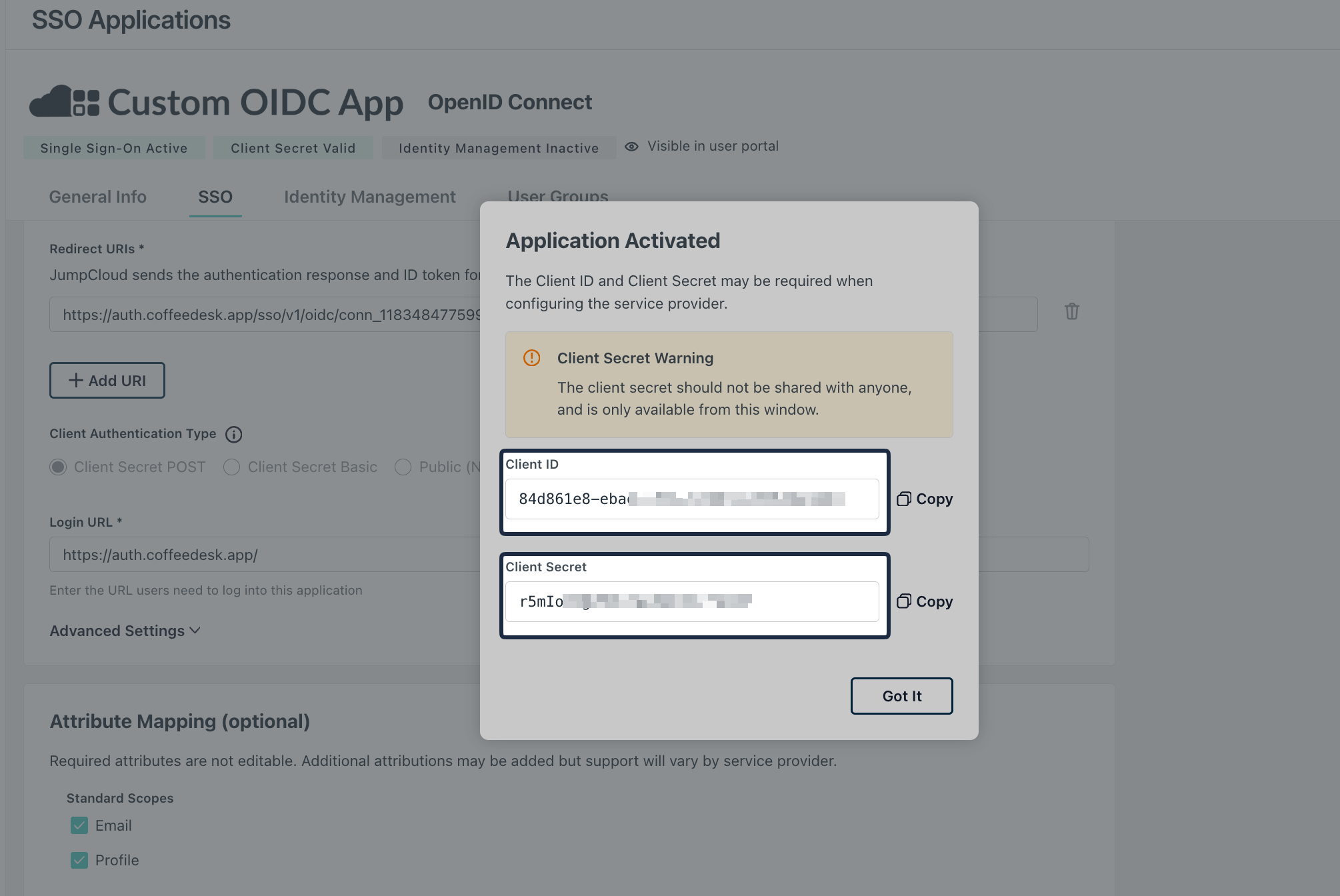
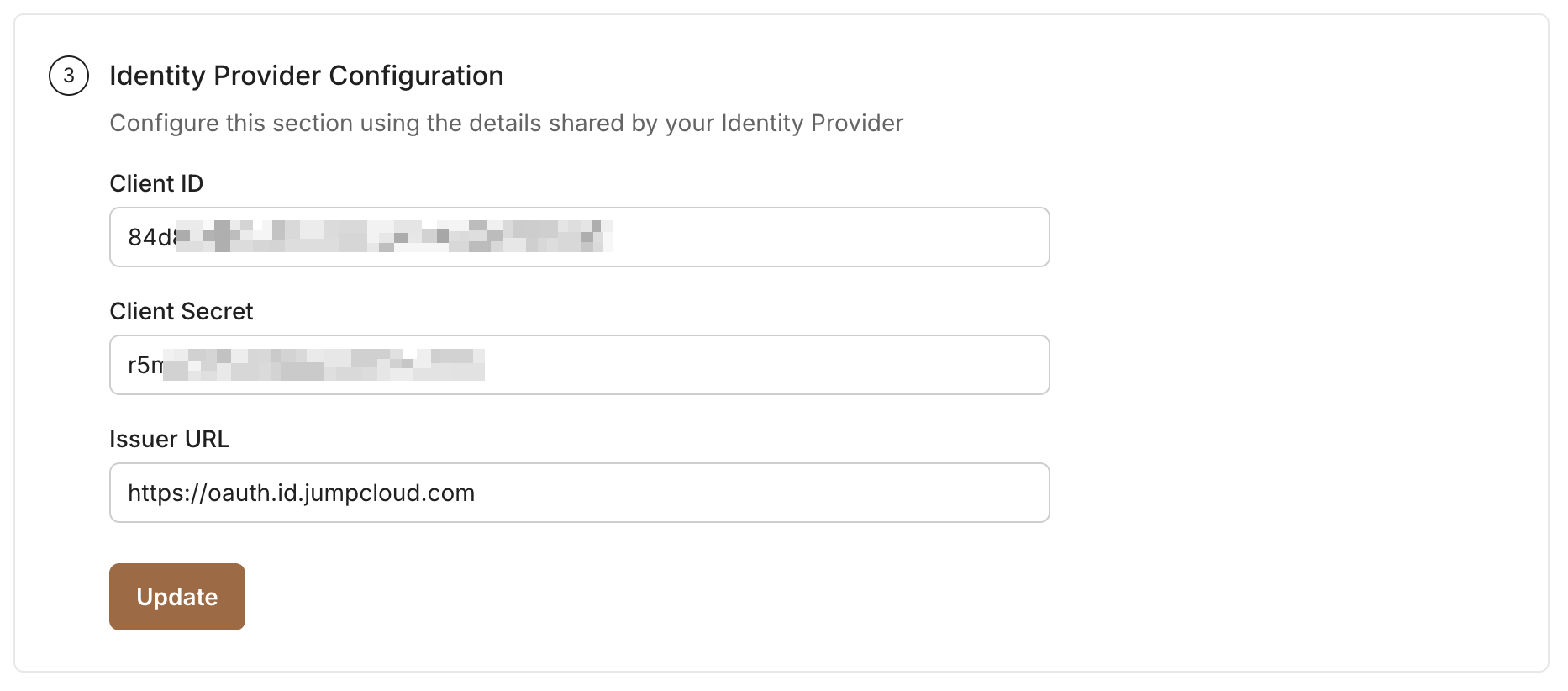
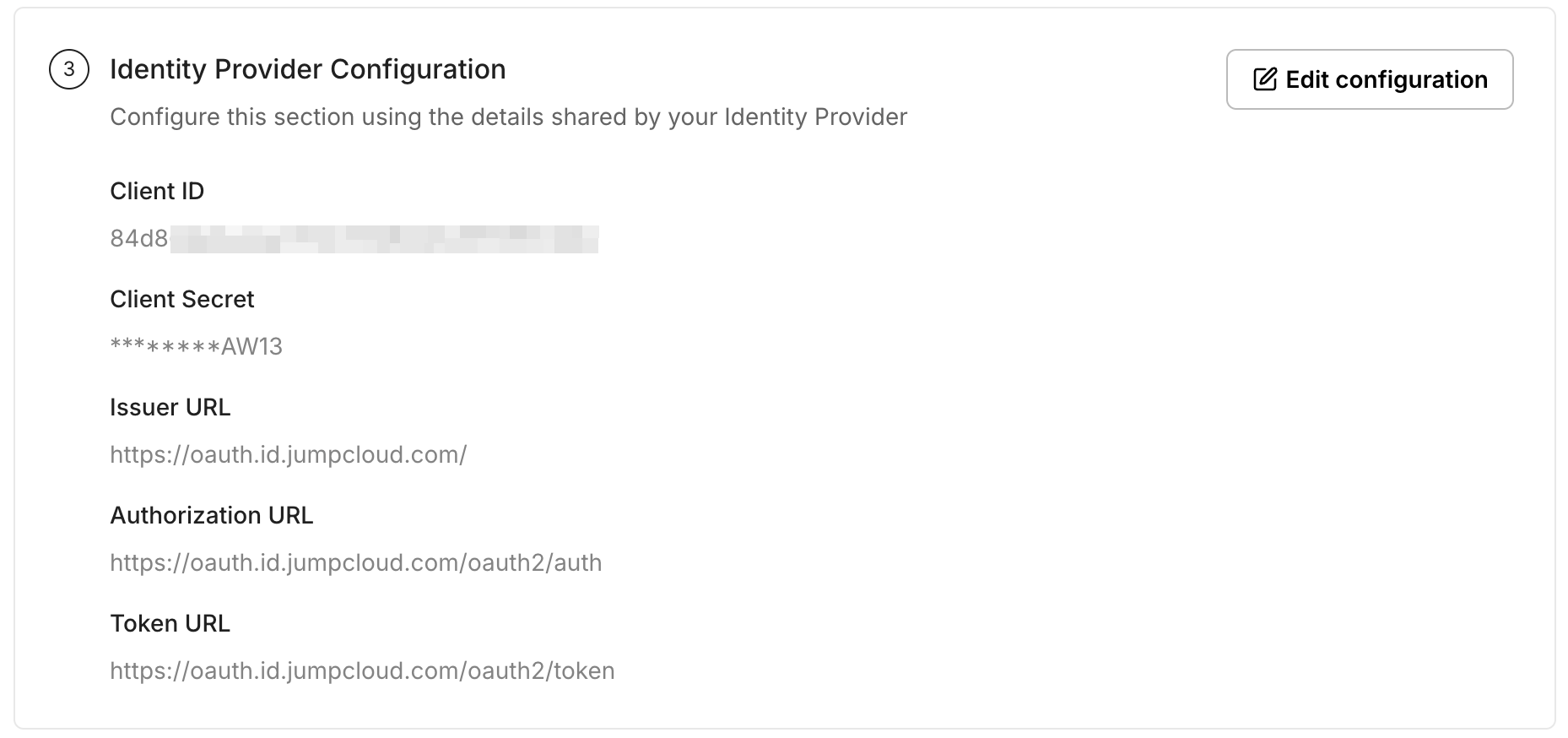
Add these values under Identity Provider Configuration in the SSO Configuration Portal, then click Update.
-
Assign Users/Groups
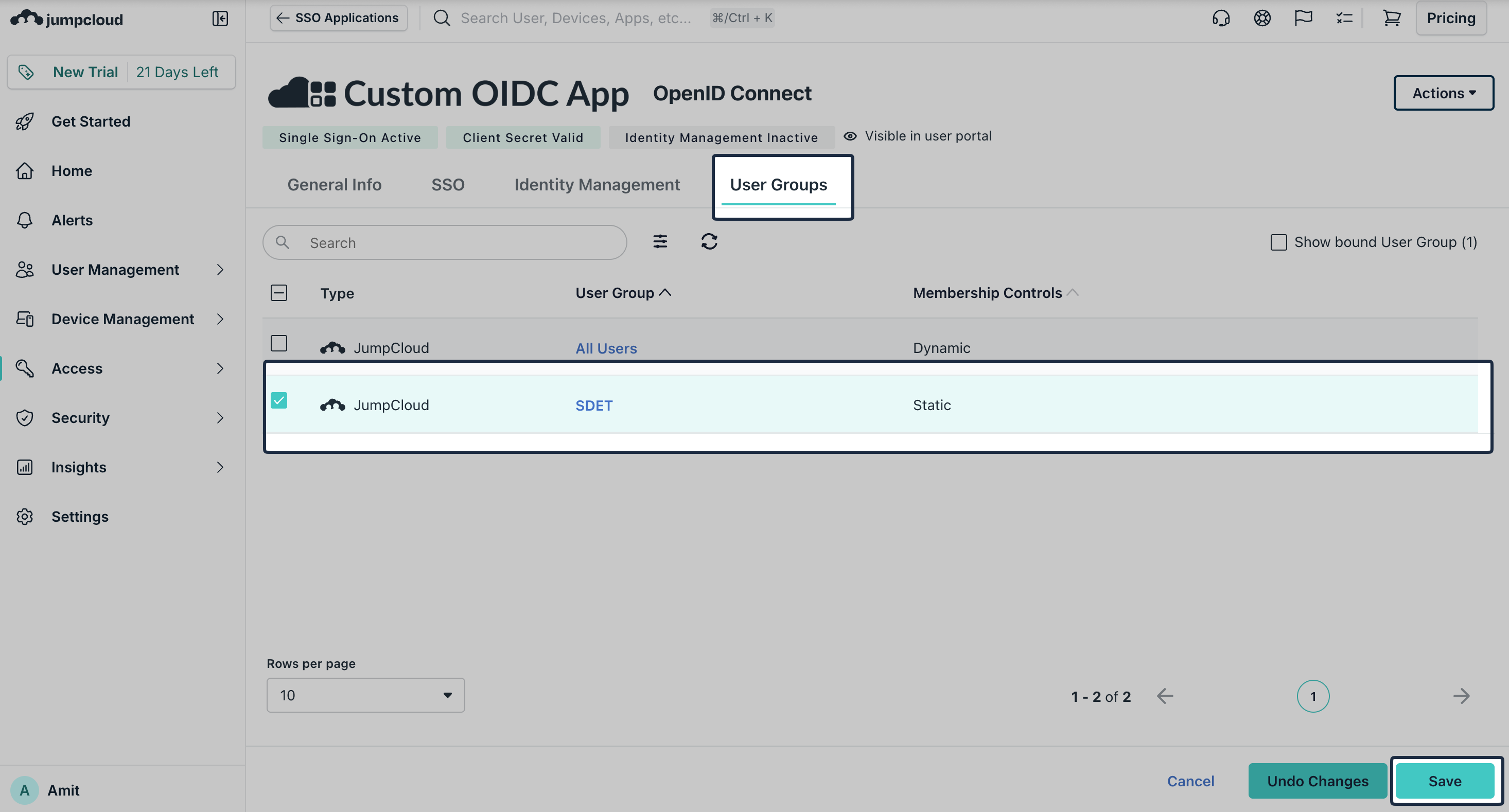
Section titled “Assign Users/Groups”On JumpCloud, navigate to User Groups tab. Assign the appropriate user groups to the new OIDC application and click Save.
-
Test Connection
Section titled “Test Connection”In the SSO Configuration Portal, click Test Connection to verify your configuration.
-
Enable Single Sign-On
Section titled “Enable Single Sign-On”Once the test succeeds, click Enable Connection to allow assigned users to sign in with JumpCloud OIDC.

This completes the JumpCloud OIDC SSO setup for your application.