

Okta - OIDC
Learn how to set up OpenID Connect (OIDC) Single Sign-On (SSO) using Okta as your identity provider, with step-by-step instructions for app integration setup.
This guide walks you through configuring Okta as your OIDC identity provider for your application. You’ll create an OIDC app integration in Okta, connect it to the SSO Configuration Portal, assign access, test the connection, and then enable Single Sign-On.
-
Create an OIDC Integration
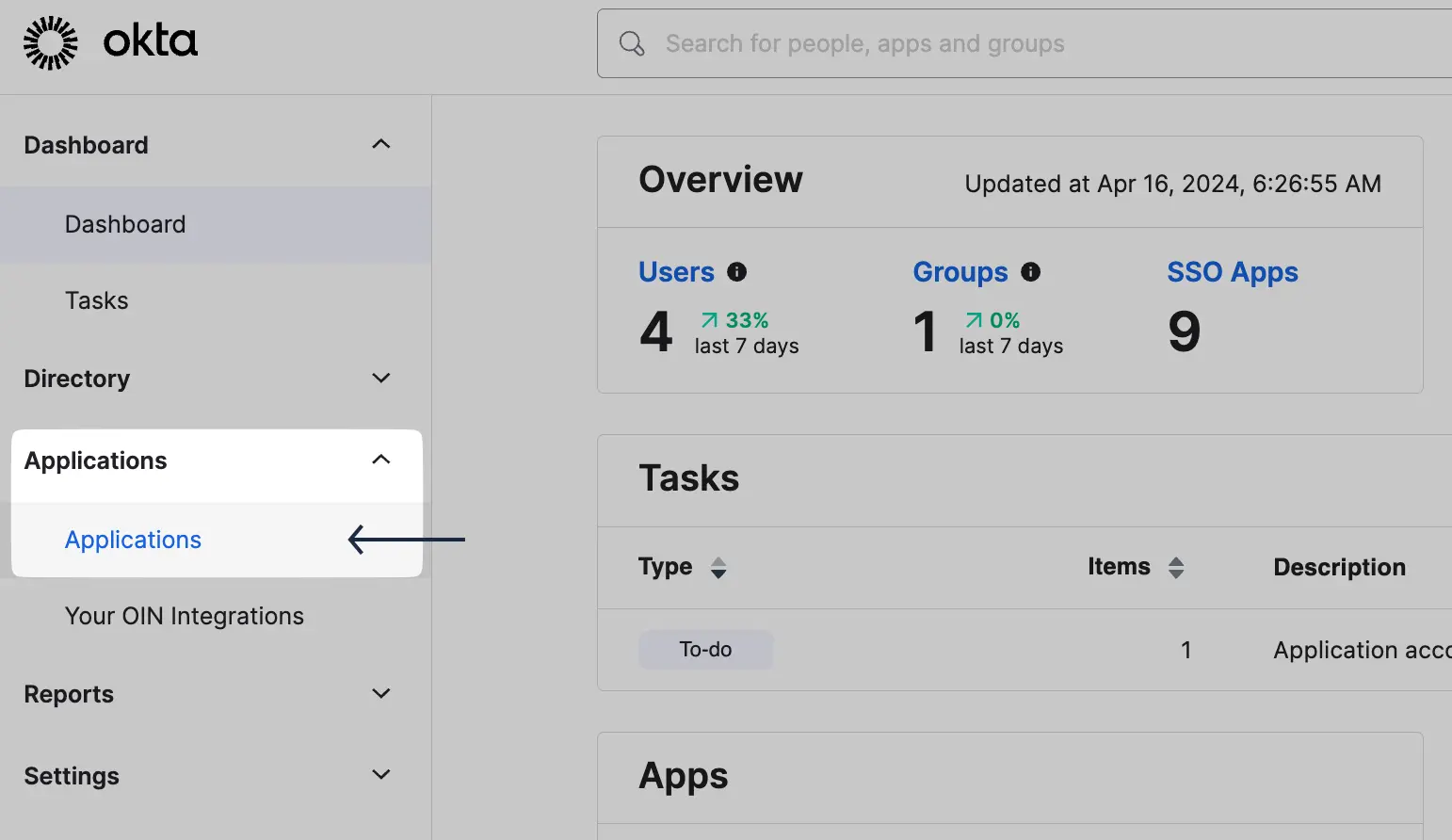
Section titled “Create an OIDC Integration”Log in to your Okta Admin Console. Go to Applications -> Applications.
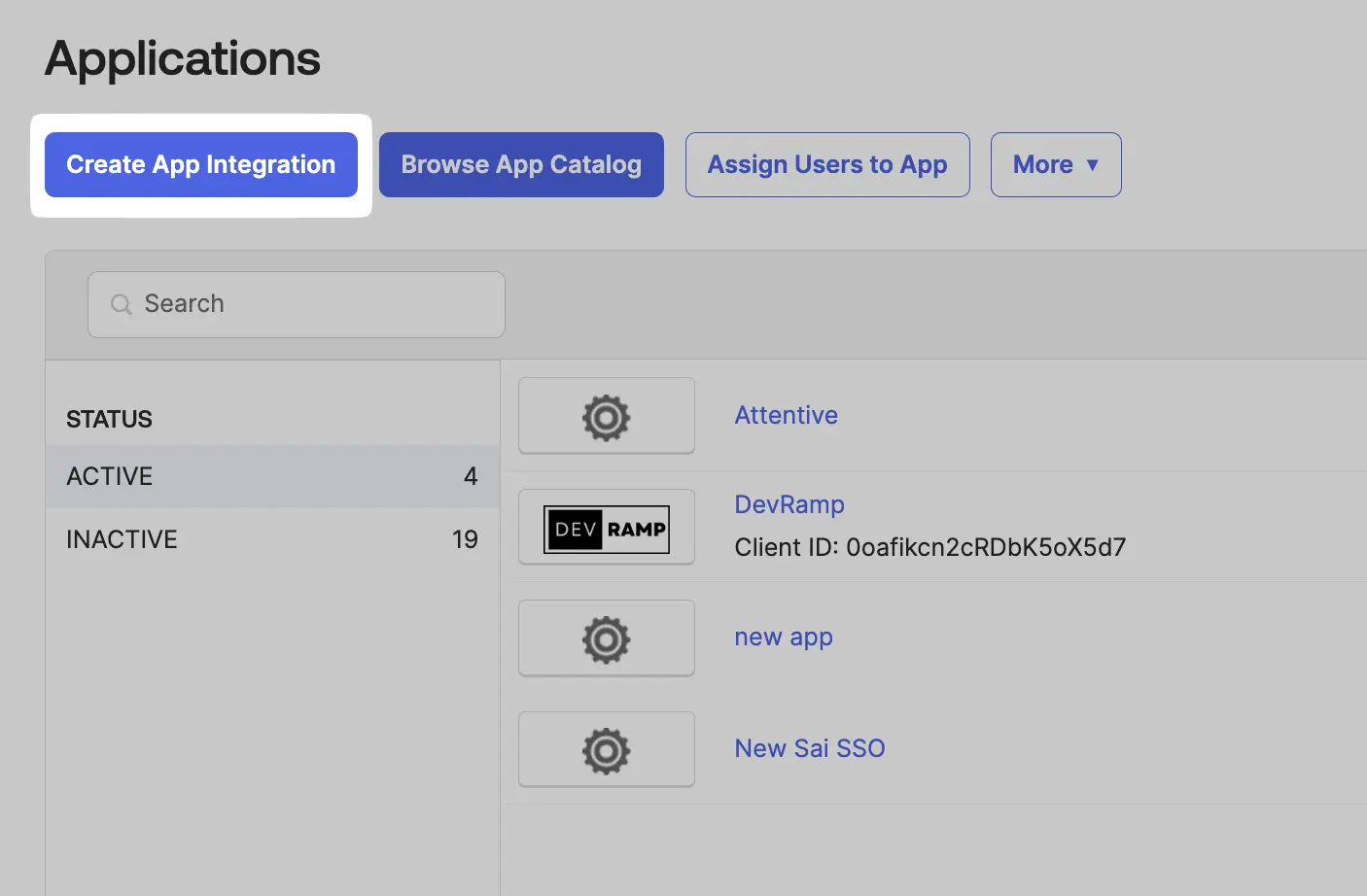
In the Applications tab, click on Create App Integration.
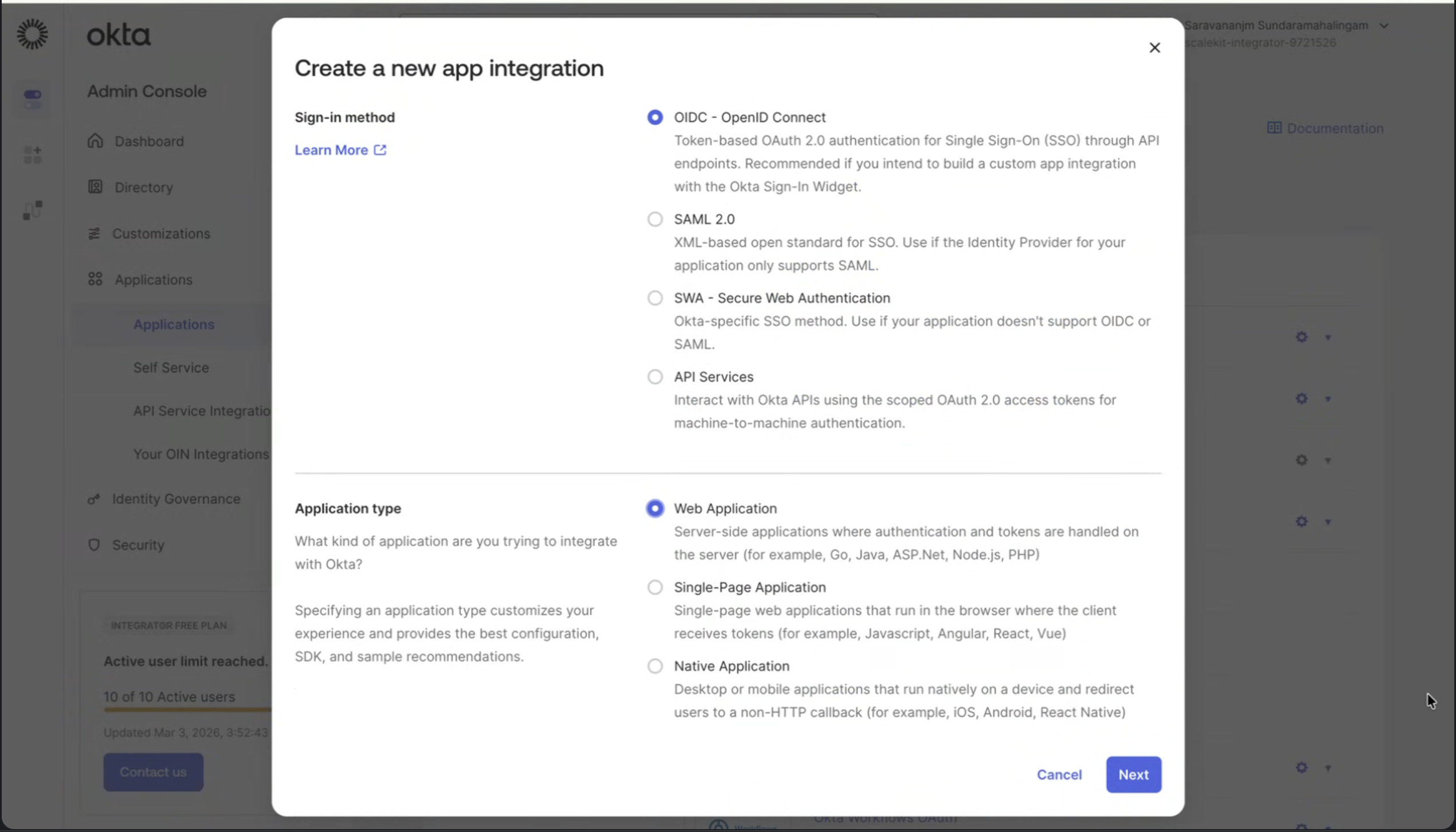
Select OIDC - OpenID Connect as the sign-in method and Web Application as the application type, then click Next.
-
Configure OIDC Integration
Section titled “Configure OIDC Integration”In the app configuration form, enter an app name.
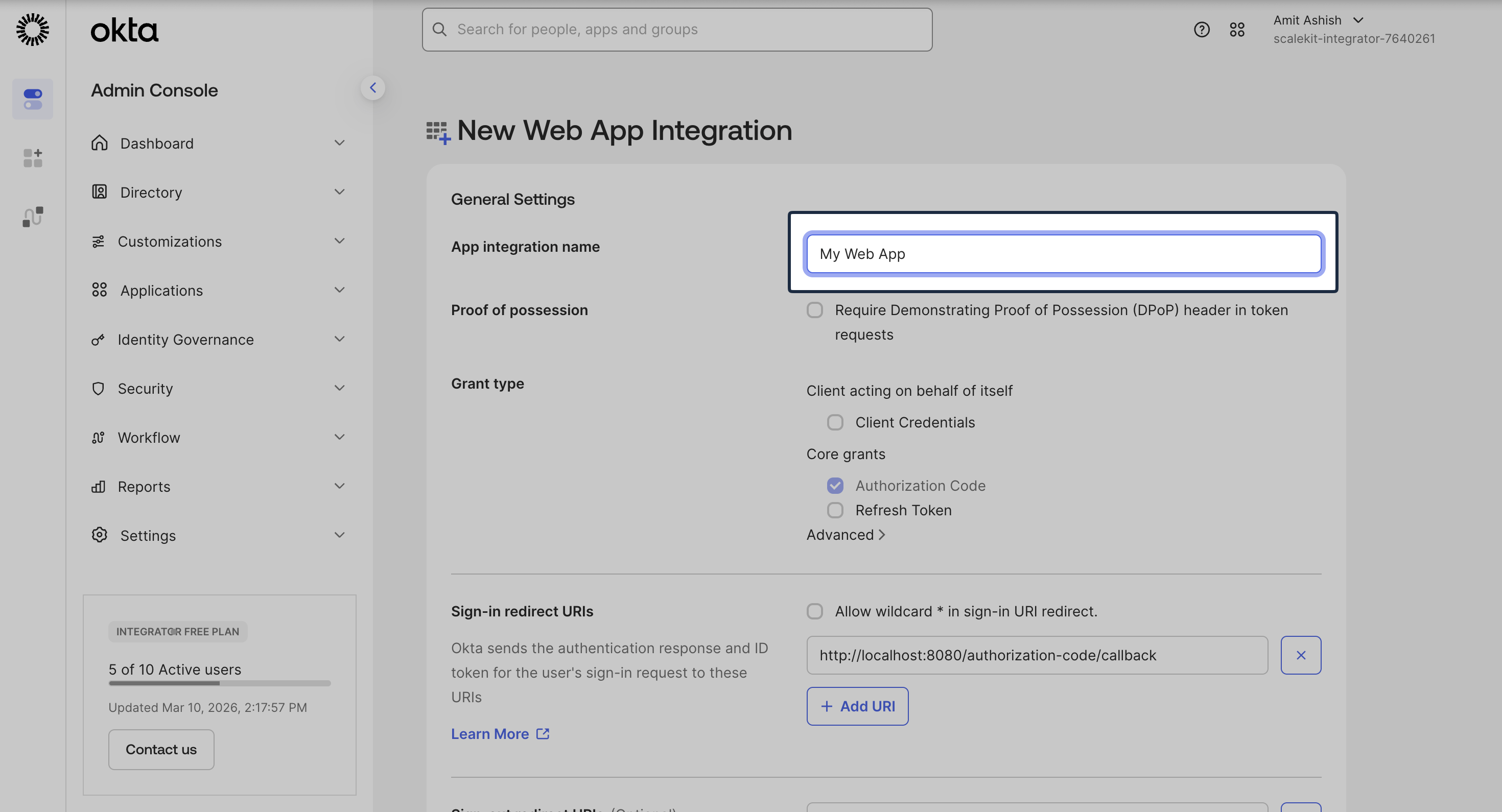
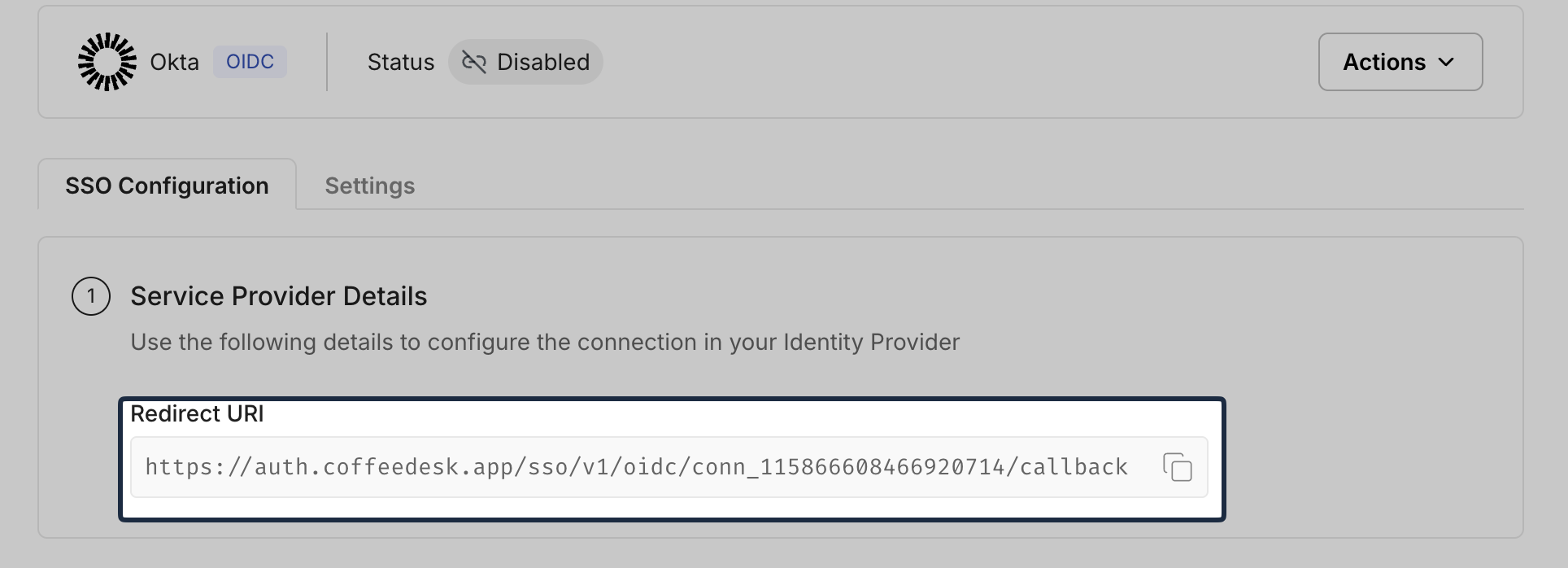
From the SSO Configuration Portal, copy the Redirect URI under Service Provider Details.
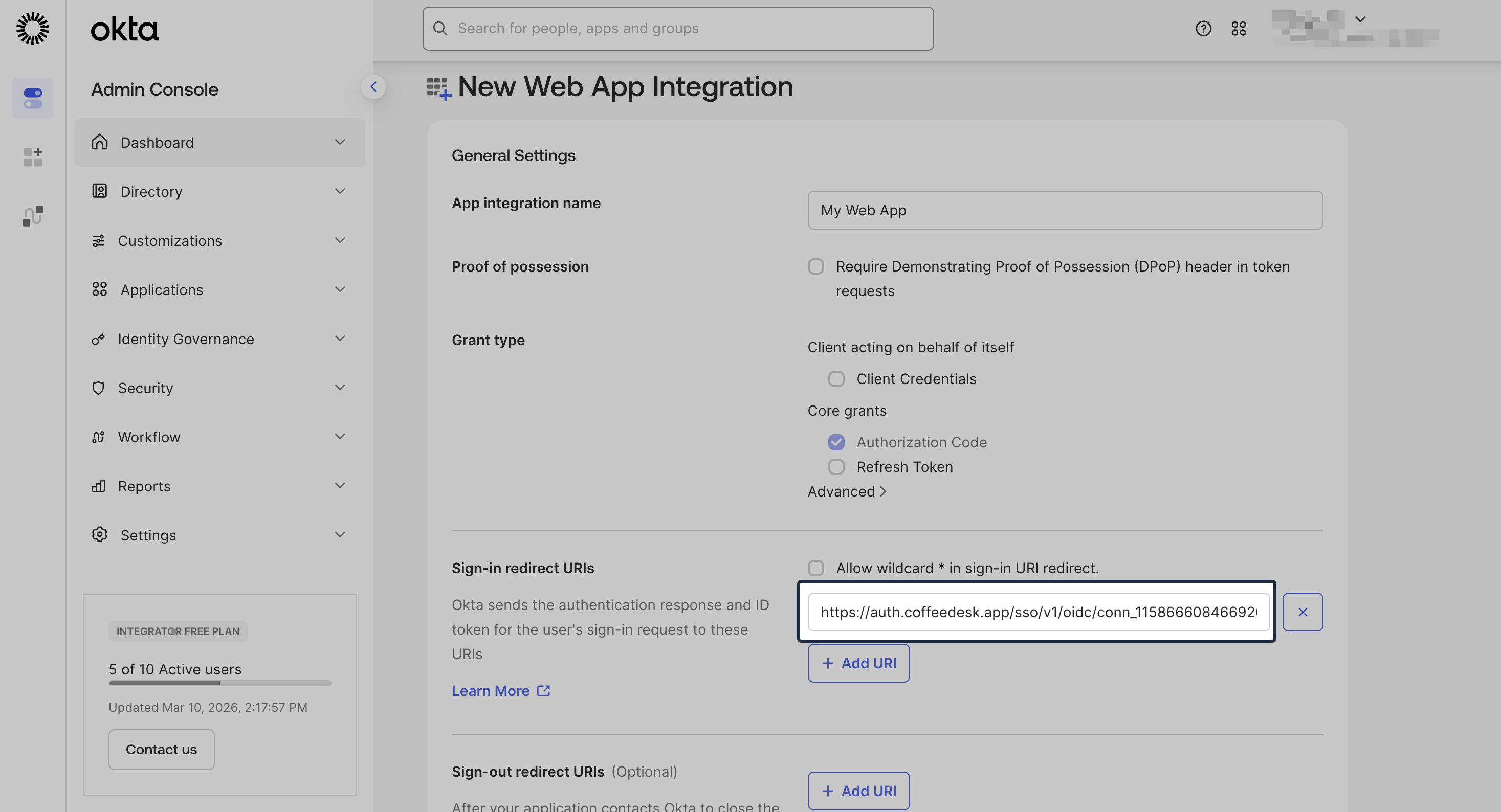
Back in Okta, paste this value into Sign-in redirect URIs.
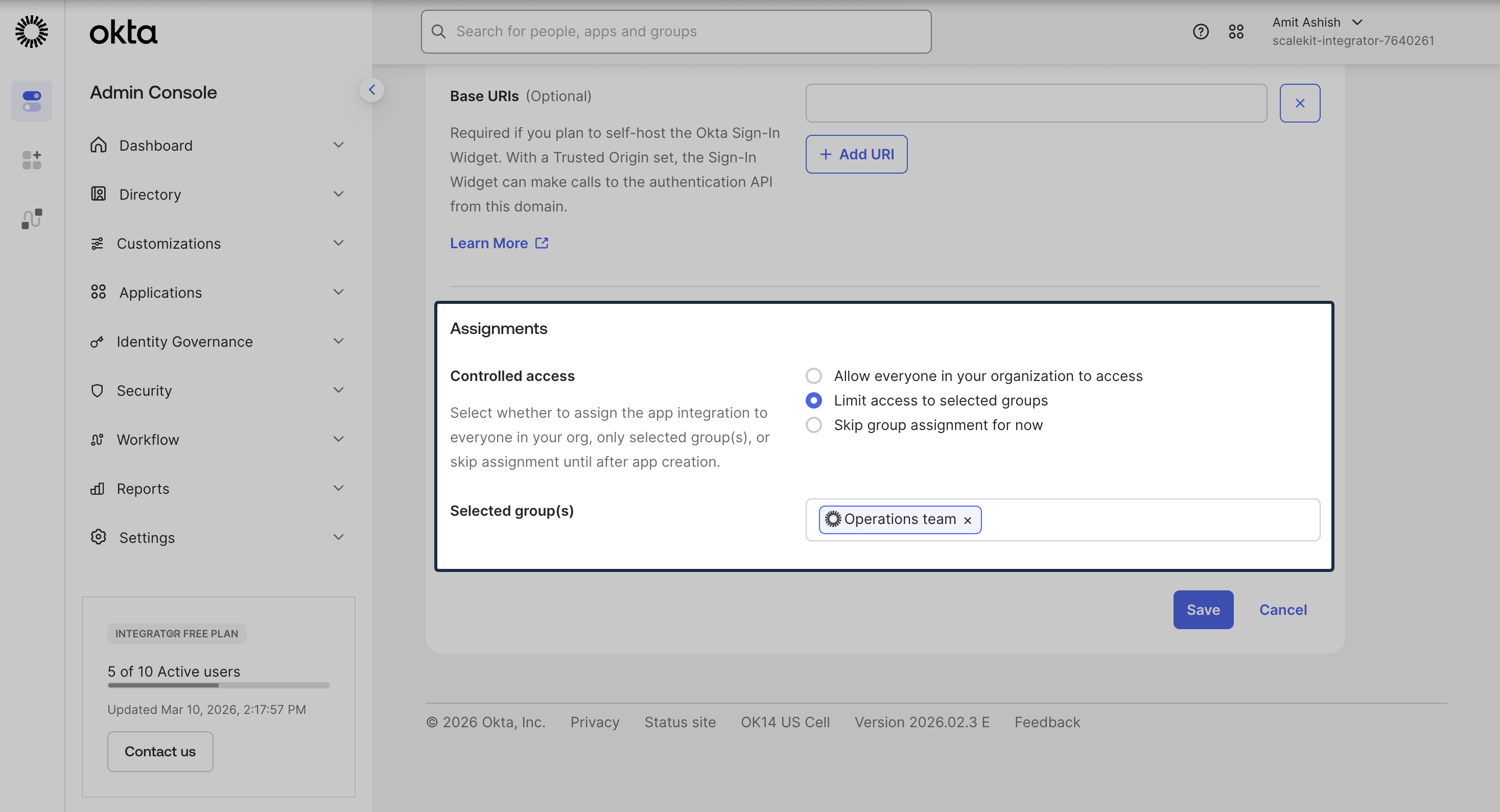
Scroll down to the Assignments section. Select Limit access to selected groups and assign the appropriate groups to the application. The group assignment can be edited later.
-
Provide OIDC Configuration
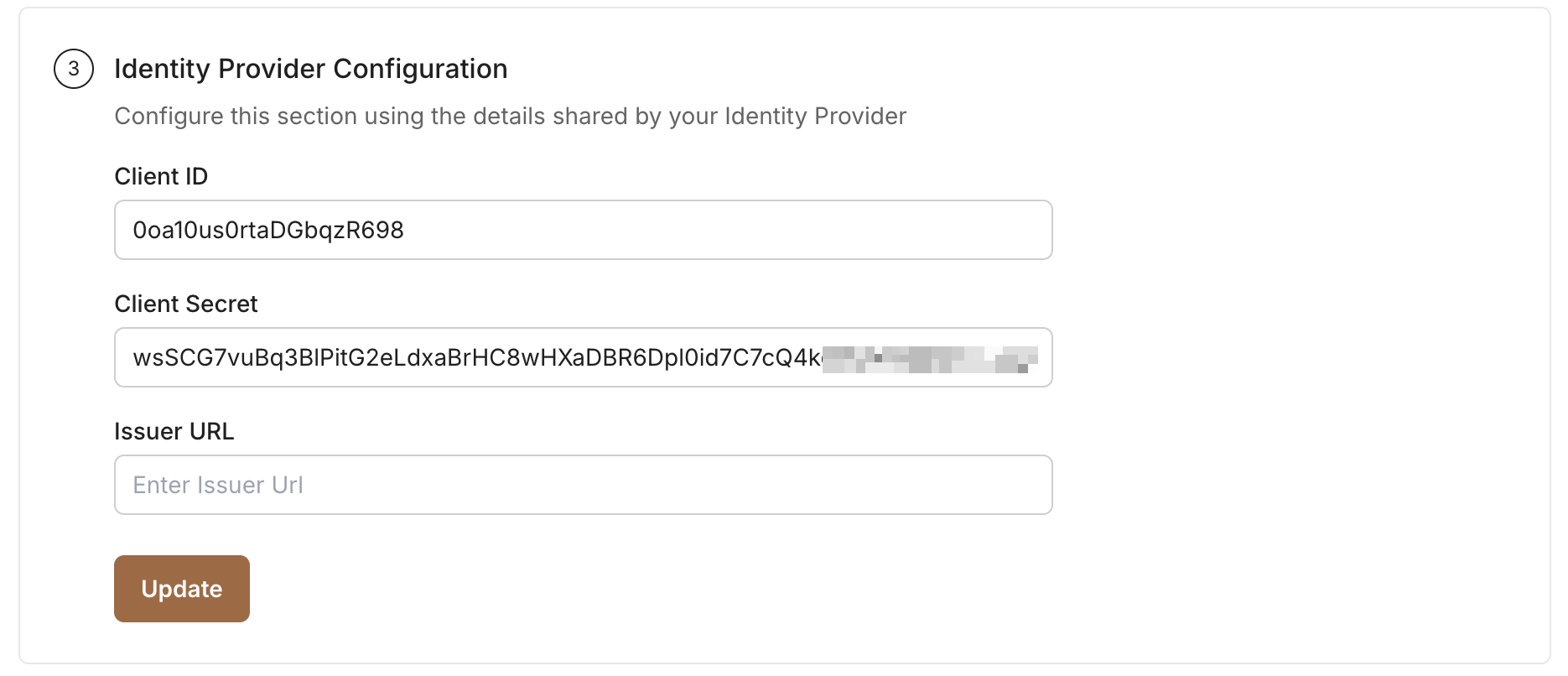
Section titled “Provide OIDC Configuration”After the app integration is created, copy Client ID and Client Secret from the General tab in Okta:
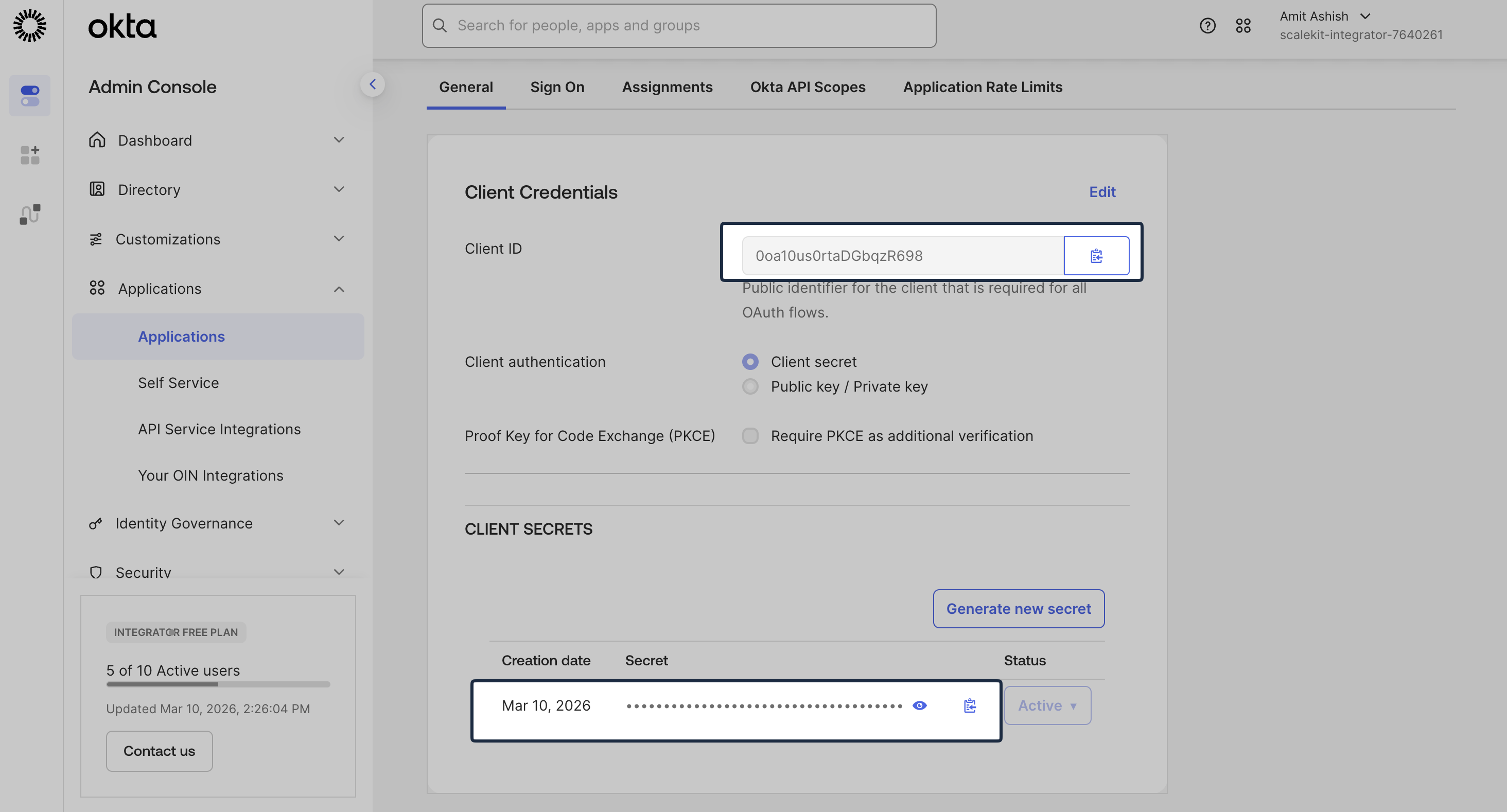
Add these values under Identity Provider Configuration in the SSO Configuration Portal:
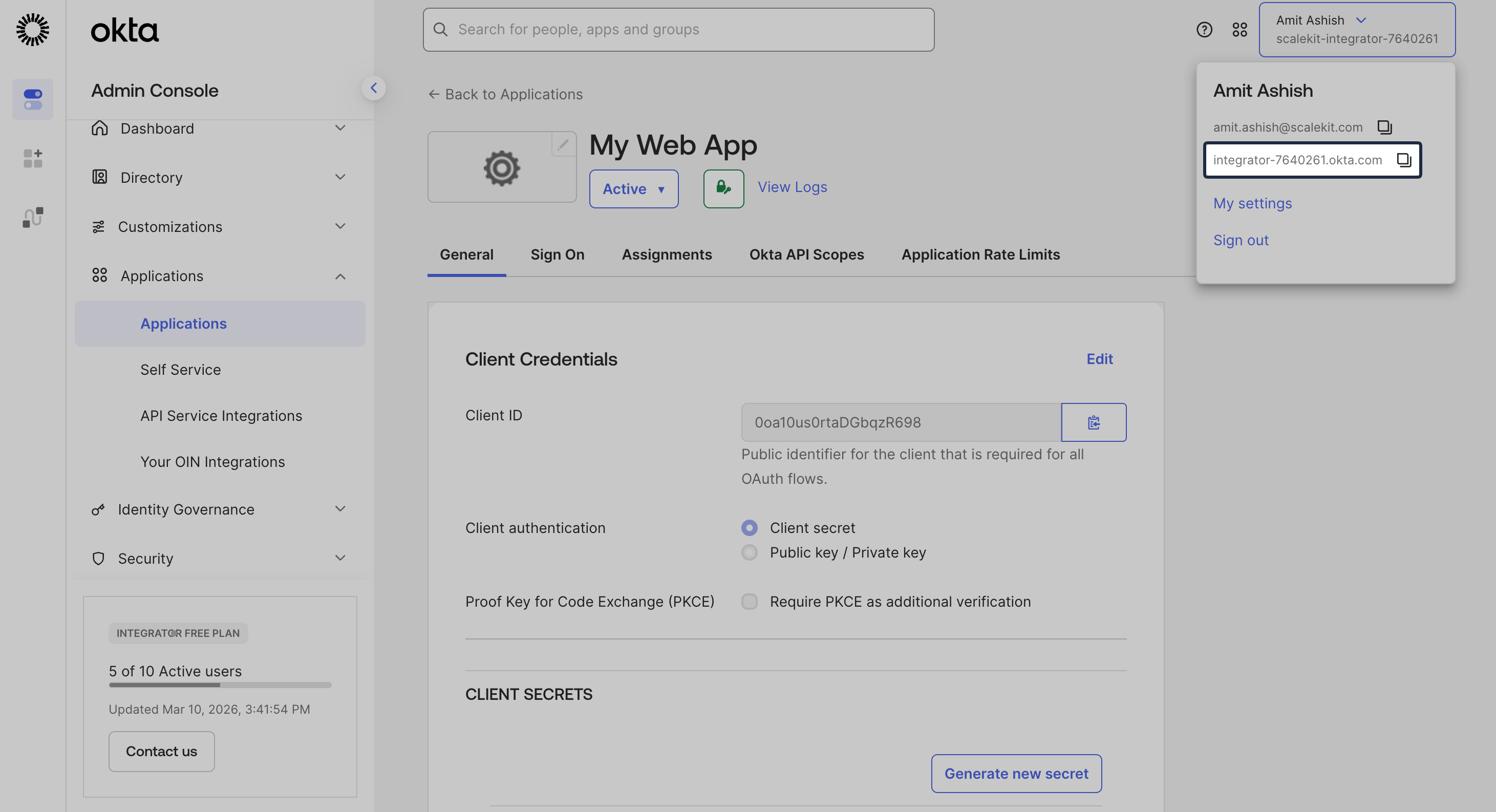
Click the profile section in the top navigation bar in Okta and copy the Okta Tenant Domain. We will use this value to construct the Issuer URL.
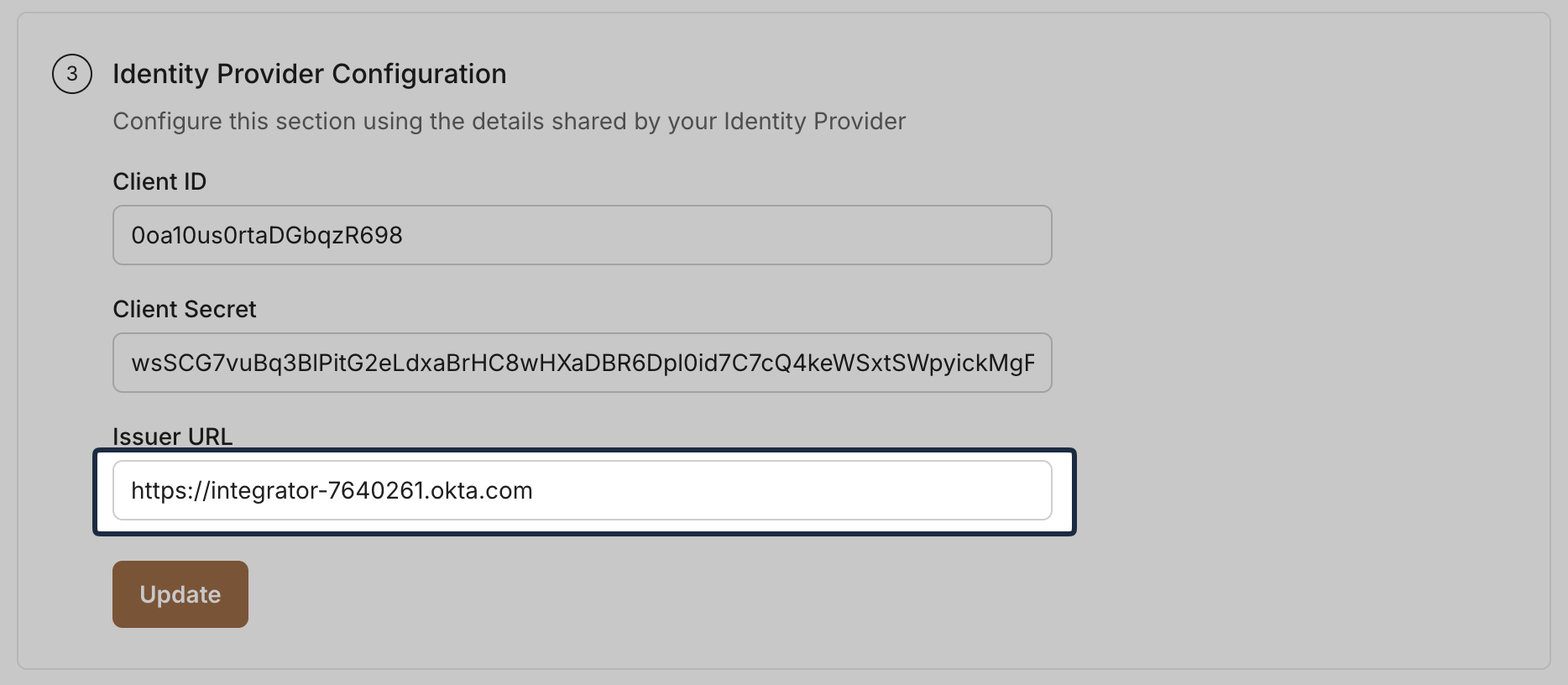
Construct the Issuer URL using the following format:
https://[okta-tenant-domain]Add this Issuer URL in the SSO Configuration Portal:
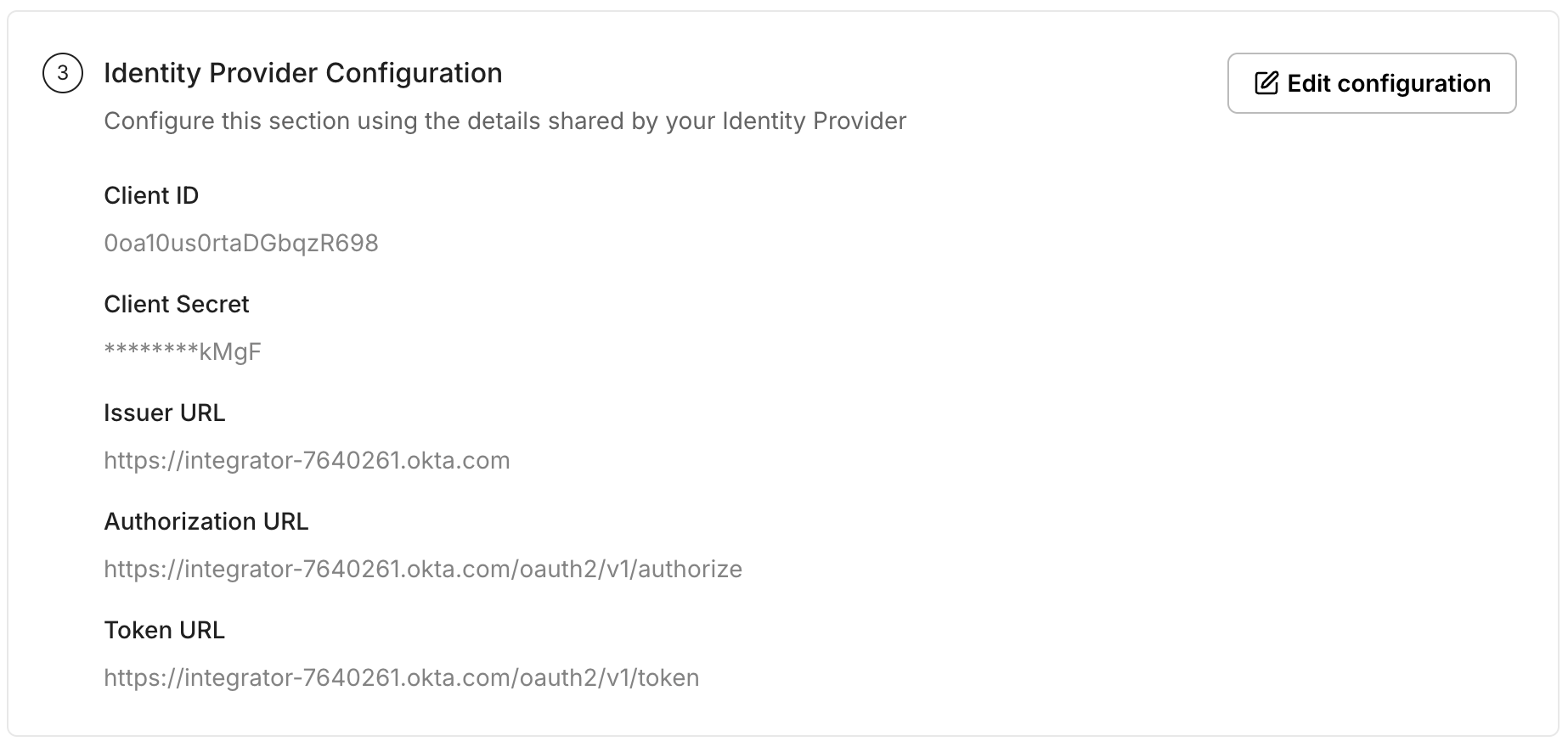
Once all values are entered, click Update.
-
Assign People/Groups
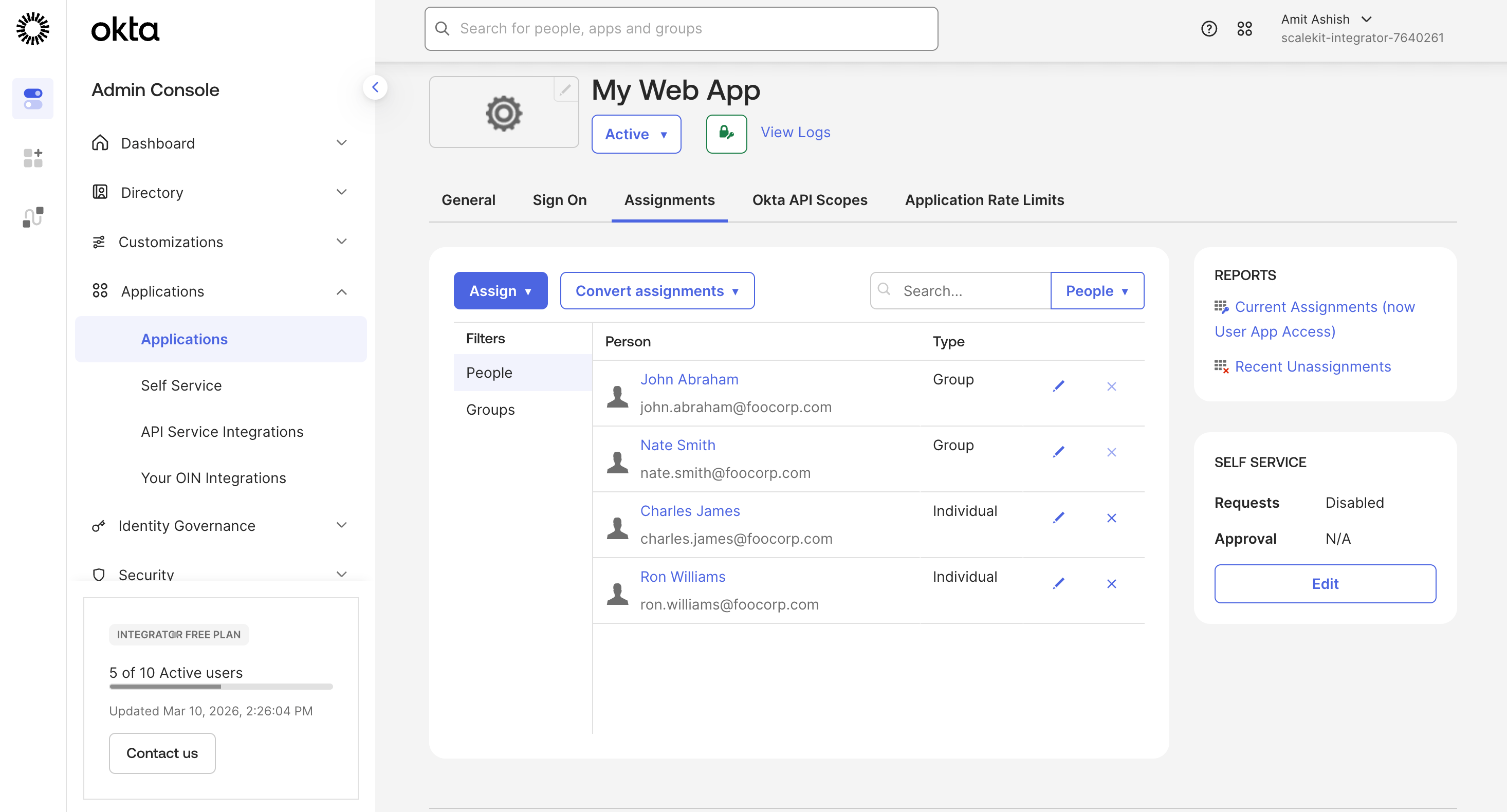
Section titled “Assign People/Groups”In Okta, go to the Assignments tab.
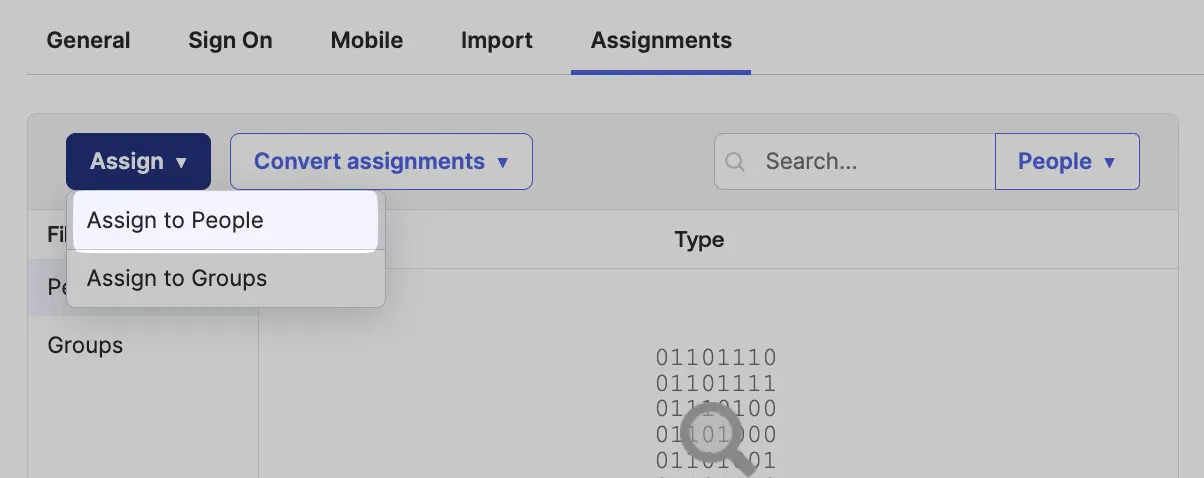
Click Assign, then choose Assign to People or Assign to Groups. Assign the appropriate people or groups to this integration and click Done.
-
Test Connection
Section titled “Test Connection”In the SSO Configuration Portal, click Test Connection. If everything is configured correctly, you will see a Success response.
-
Enable Single Sign-On
Section titled “Enable Single Sign-On”Click Enable Connection to allow assigned users to sign in through Okta OIDC.

This completes the Okta OIDC SSO setup for your application.