

Control which tools each group can use in Agent Gateway
Create groups, grant them all tools, an allow-list or a deny-list on each connection, check what a user gets and follow recipes for common setups.
This guide is for the admin who decides which tools people’s AI clients can use through Agent Gateway. By the end, you’ll have groups for your teams, a grant on each connection that says which tools each group gets, and a way to check what any user can use.
Before you start
Section titled “Before you start”- Agent Gateway is enabled for your environment, and you’ve added at least one connection. See the Agent Gateway quickstart.
- The people you want to group are Gateway users. See Add users.
How access works
Section titled “How access works”Three things decide which tools a person sees in their AI client:
| Piece | What it is | Where you set it |
|---|---|---|
| Group | A set of Gateway users, such as Sales or Contractors | Groups |
| Grant | Gives one group access to one connection, with all of its tools, only the tools you allow or all tools except the ones you block | The connection’s Policies tab |
| Preview Access | Shows the tools one user can use on a connection today | The connection’s Policies tab |
A person belongs to the built-in Everyone group, plus every directory and manual group they’re a member of. On each connection, they get the tools from the grants of all their groups combined, minus any tool one of their groups blocks.
Create groups
Section titled “Create groups”-
In Agent Gateway, open Groups.
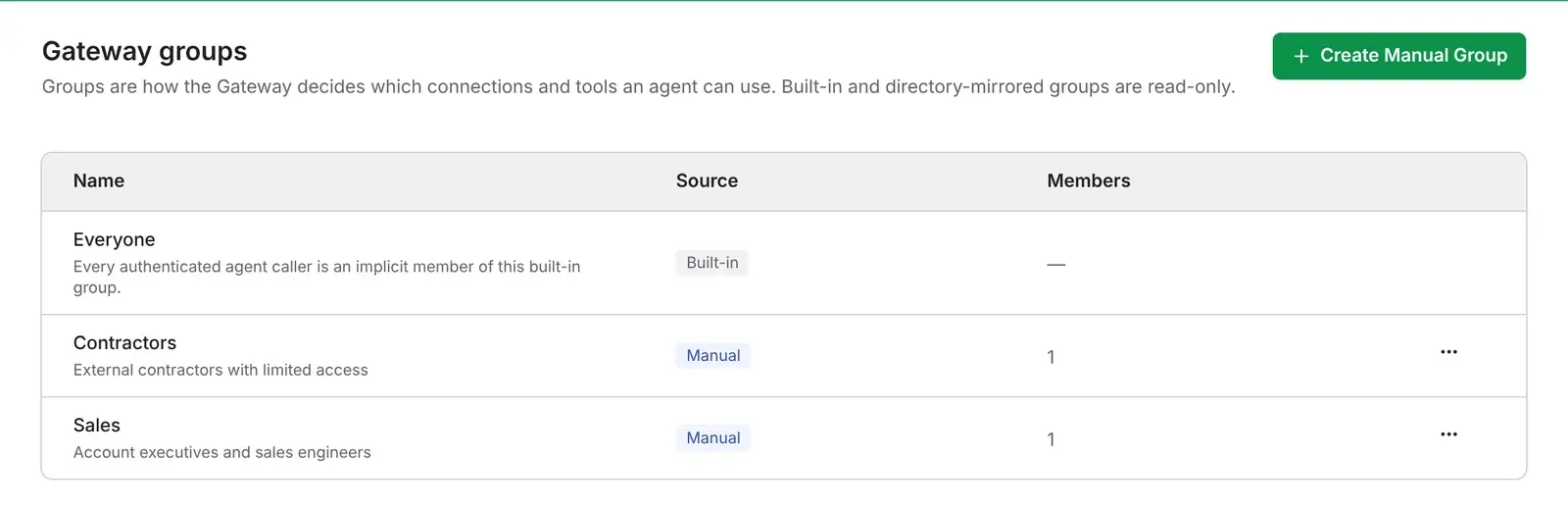
Each group has a source:
Source Members Editable Built-in The Everyone group: every signed-in user No Directory A group synced from your identity provider through SCIM No: change it in your identity provider Manual The users you add Yes -
Select Create Manual Group, enter a Name, such as
Sales, and an optional Description, then select Create Group.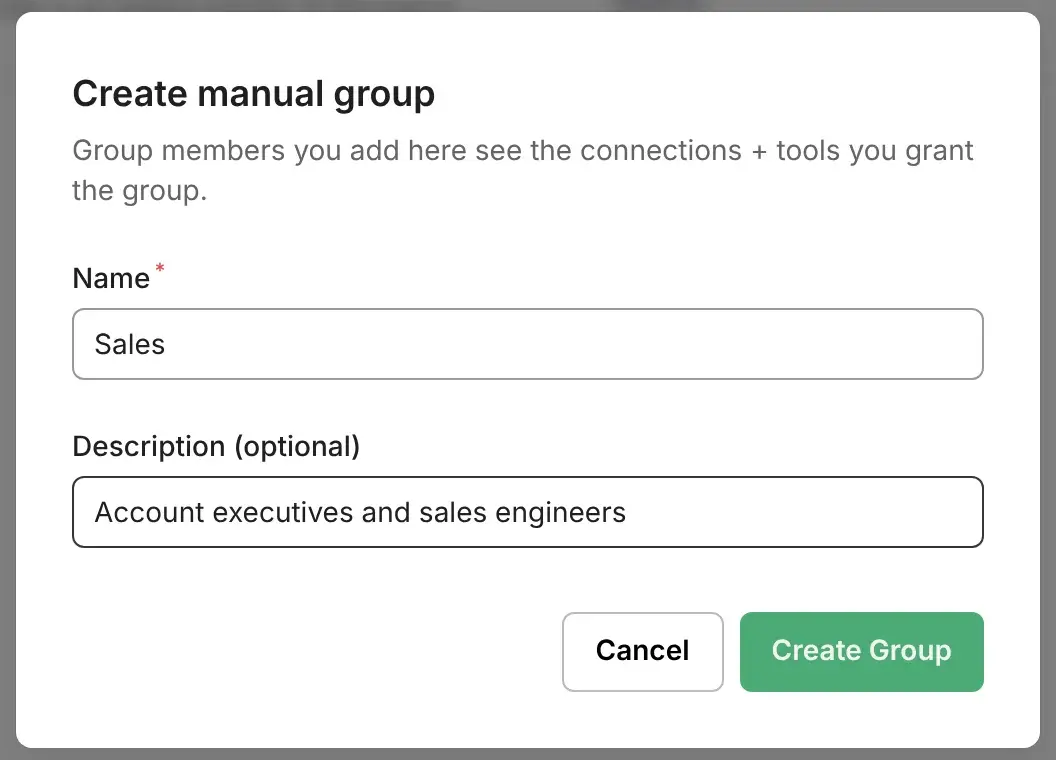
-
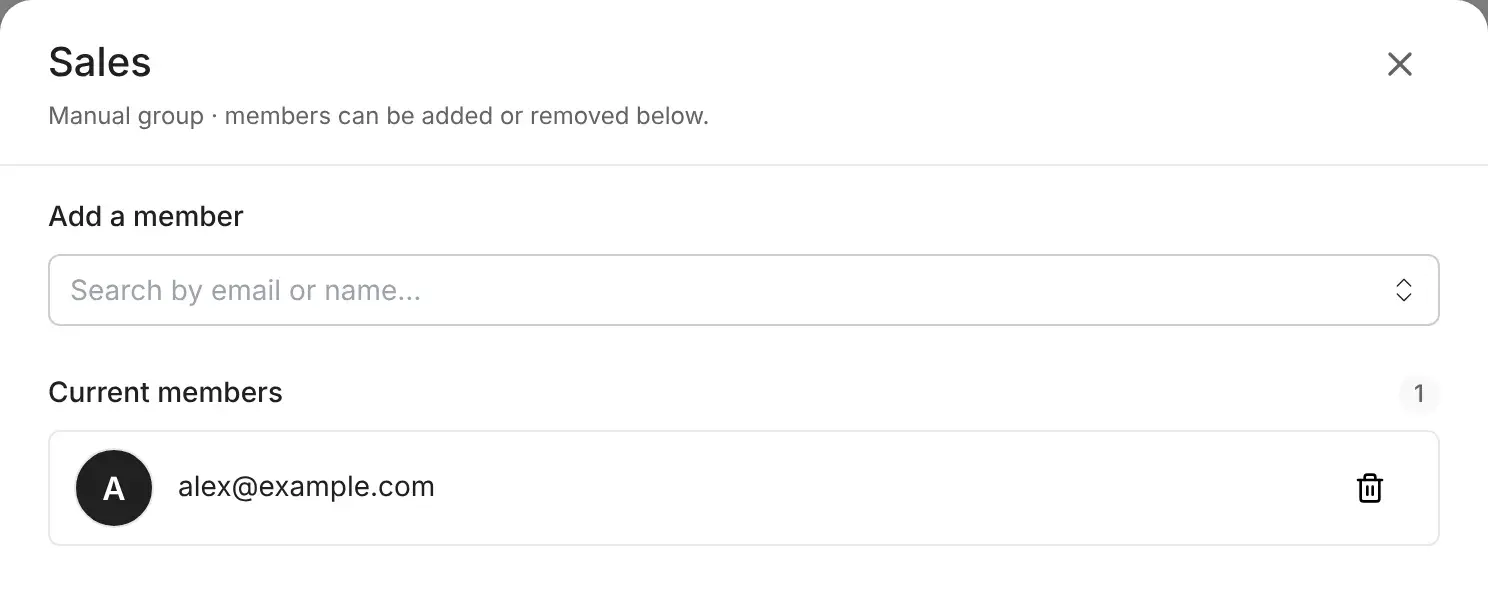
To add people, open the group’s … menu and select Edit members. Search for a user by email or name and select them. They’re added straight away. To remove someone, select the delete icon next to their name.
To delete a manual group, open its … menu and select Delete. This removes its members, its grants and any tool settings tied to them, and can’t be undone.
Grant a group access to a connection
Section titled “Grant a group access to a connection”-
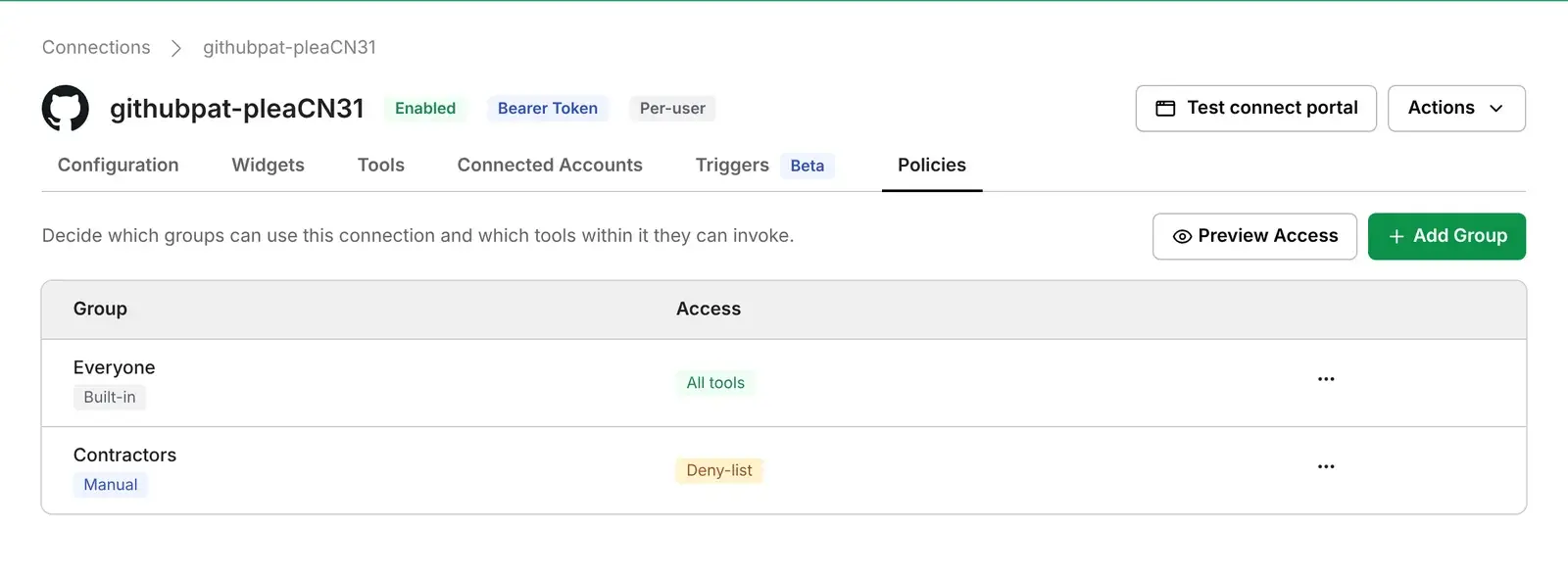
In Agent Gateway, open Connections, select the connection and open its Policies tab. The table lists each group with a grant and its access.
-
Select Add Group and choose the group.
-
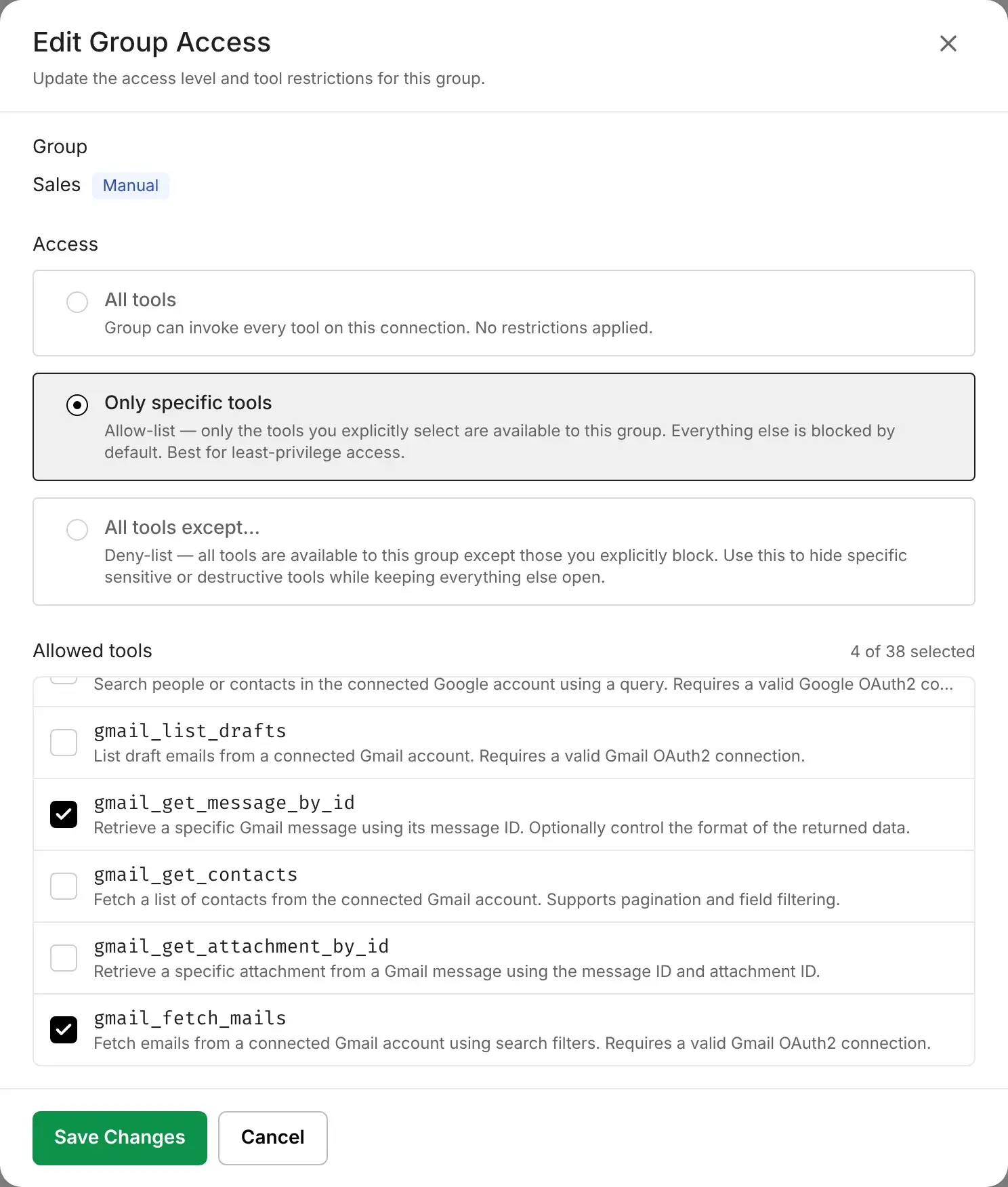
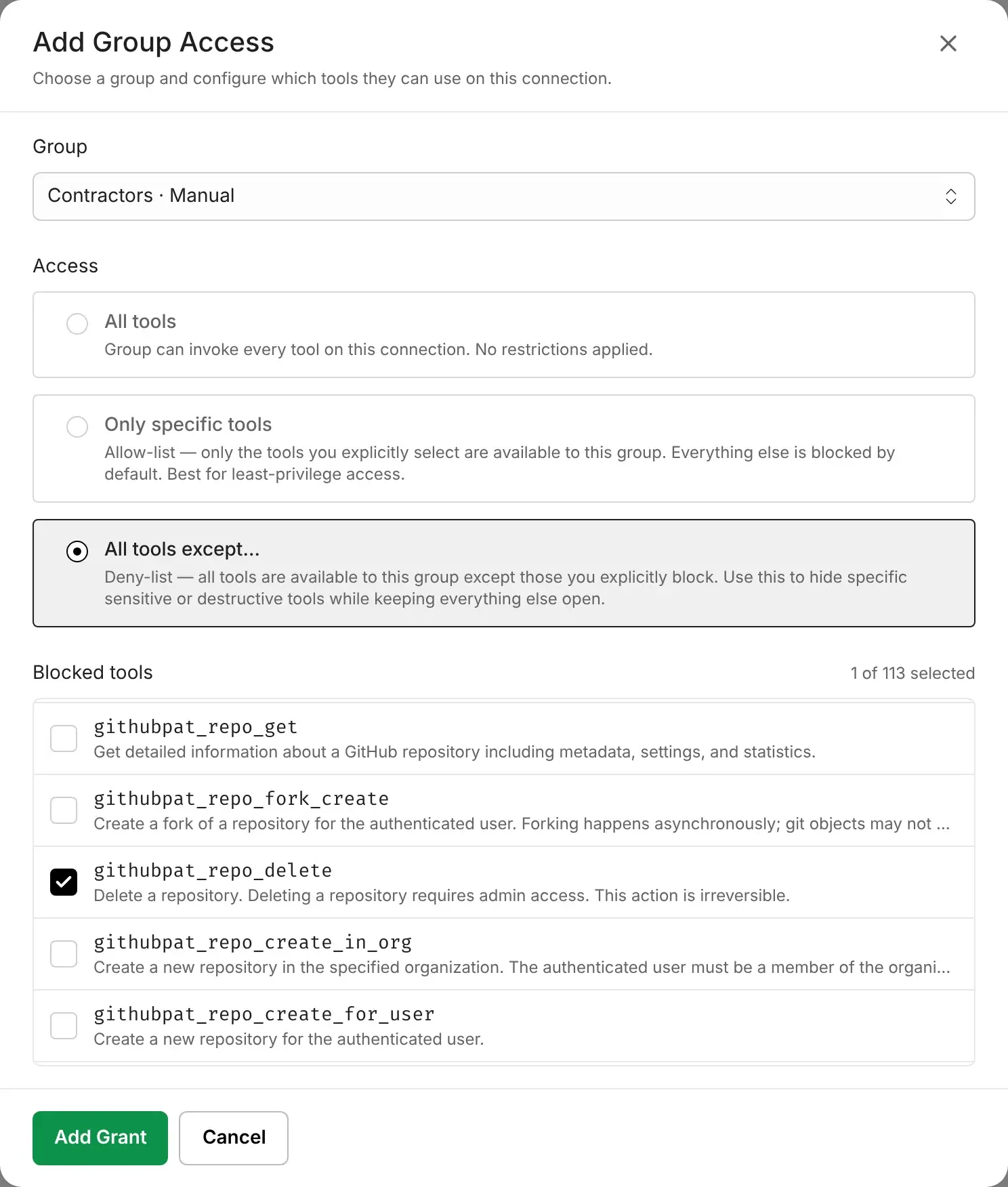
Choose its Access:
Access The group can use Use it to All tools Every tool on the connection Give a team the whole app Only specific tools Only the tools you select (an allow-list) Give the least access a team needs All tools except… Every tool except the ones you select (a deny-list) Keep a few risky tools away from a group, even if another of its groups allows them -
For an allow-list or a deny-list, select the tools. The count above the list shows how many you’ve selected.
-
Select Add Grant.
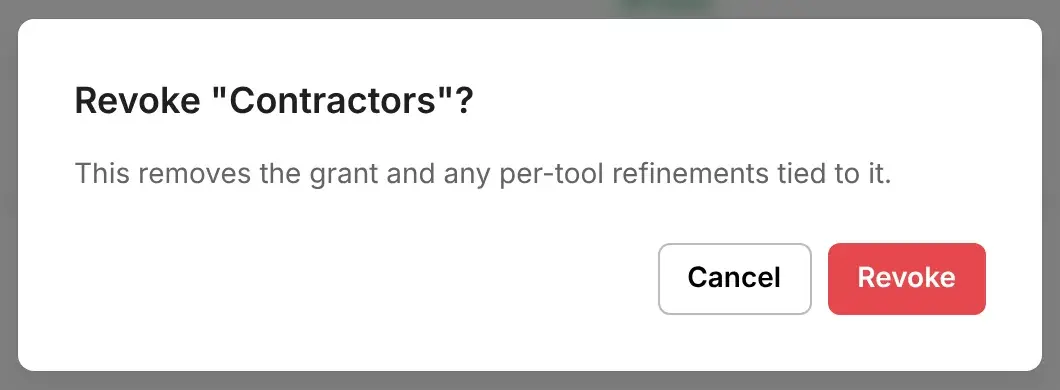
To change a grant, open its … menu, select Edit, change the access or the tools and select Save Changes. To remove it, select Revoke and confirm. Revoking removes the grant and its tool selection.
How grants combine
Section titled “How grants combine”- A connection with no grants is open to every user. Once a connection has a grant, only the groups with a grant can use it.
- New connections start with
Everyone: All tools. A connection you add after enabling the Gateway gets that grant, so every user can use it until you edit or revoke it. - A person gets the tools from all their groups’ grants together. If Everyone has All tools, each user has every tool their groups don’t block. An allow-list for another group doesn’t take tools away from its members.
- A blocked tool stays blocked. If any of a person’s groups has a deny-list that blocks a tool, they can’t use it, even if Everyone or another group allows it.
- A tool missing from an allow-list isn’t blocked. Another of the person’s groups can still grant it.
Check what a user gets
Section titled “Check what a user gets”On the connection’s Policies tab, select Preview Access and pick a user. You see the groups that contribute to their access and every tool they can use on this connection today.
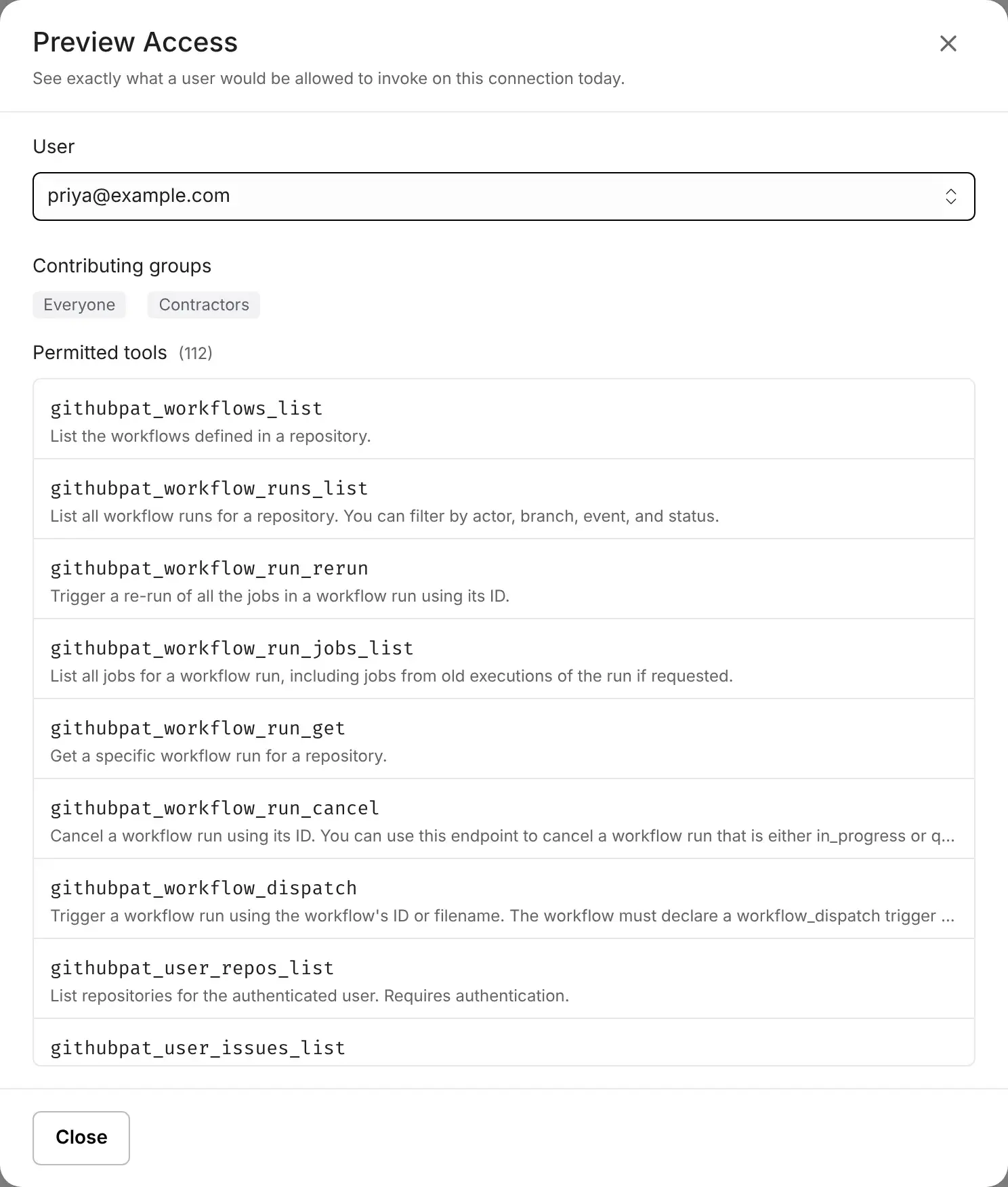
A user with no permitted tools has no grant on this connection through any of their groups:
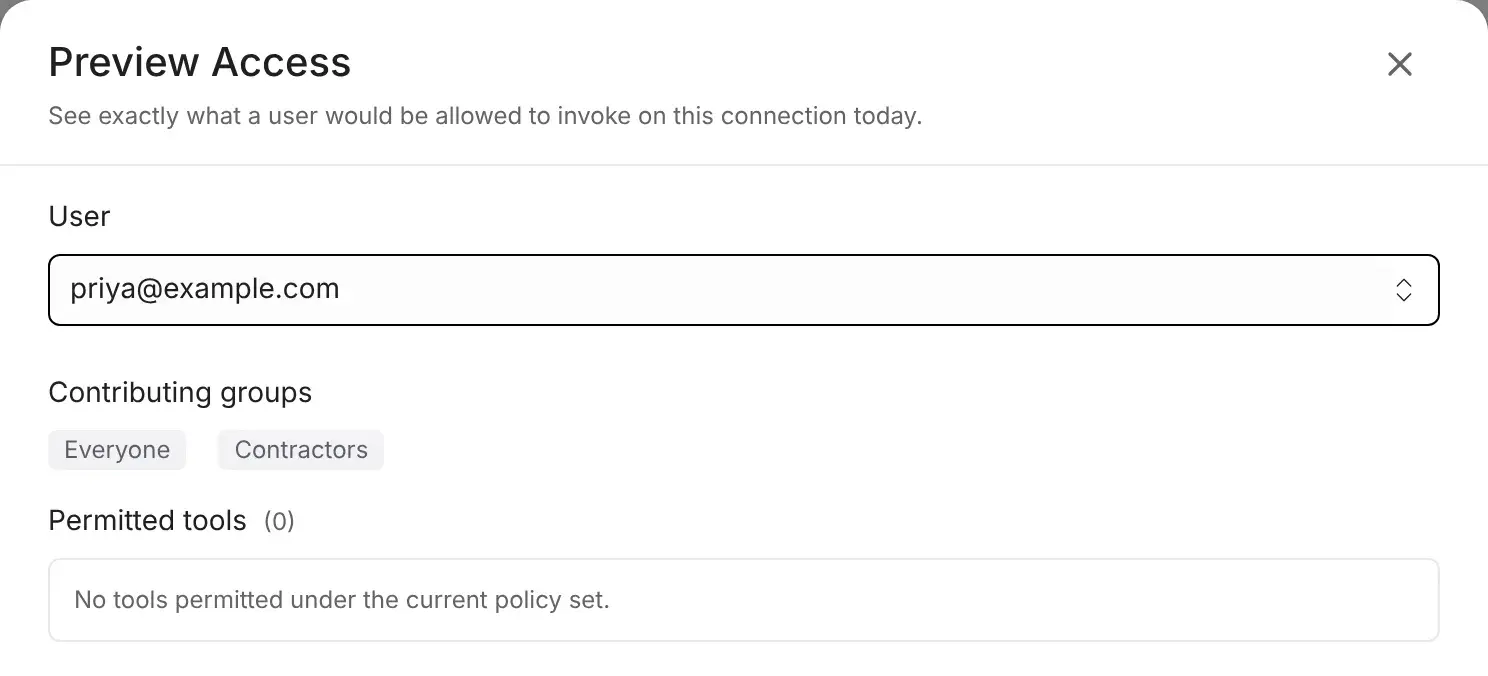
After each change, check Preview Access for one person in each group the change affects.
Recipes
Section titled “Recipes”Limit a connection to one team
Section titled “Limit a connection to one team”For example, only the sales team should use Gmail.
- On the Gmail connection’s Policies tab, add a grant for
Saleswith All tools, or with Only specific tools for less. - Revoke the Everyone grant.
- In Preview Access, check one member of
Sales, who gets the tools, and one person outside it, who gets none.
Add the Sales grant before you revoke Everyone. If you revoke first, the connection has no grants and is open to every user again.
Keep contractors read-only on a shared app
Section titled “Keep contractors read-only on a shared app”For example, everyone keeps full GitHub access, but contractors can only read.
- On the GitHub connection, keep Everyone: All tools.
- Add a grant for
Contractorswith All tools except… and select the tools that change something, such asgithubpat_repo_delete,githubpat_issue_createandgithubpat_pull_request_merge. - In Preview Access, check a contractor. The tools you blocked are missing, and everything else is there.
An allow-list for Contractors wouldn’t work here: contractors are also in Everyone, which already grants every tool. Only a deny-list takes tools away.
Block one risky tool for everyone
Section titled “Block one risky tool for everyone”For example, nobody should delete repositories through an AI client.
- On the connection’s Policies tab, open the Everyone grant’s … menu and select Edit.
- Choose All tools except…, select the tool, such as
githubpat_repo_delete, and select Save Changes.
Every user loses the tool, whatever their other groups allow.
Roll out a new connection to a pilot group
Section titled “Roll out a new connection to a pilot group”A new connection starts with Everyone: All tools, so every user sees its tools as soon as you add it.
- Right after you add the connection, add a grant for your pilot group, such as
Pilot, then revoke the Everyone grant. - When the pilot ends, add Everyone back with All tools, or with a deny-list for the tools you want to keep restricted.
See what each plan includes in Plans and limits.