

Organization branding
Show each customer's logo and name on your hosted login page, admin portal, and hosted widgets.
Organization branding lets you brand the end-user-facing UI to match your customers’ branding. Once enabled, Scalekit replaces your application branding with the customer’s logo and name across three interfaces: the login page, admin portal, and hosted widgets. When a user from Acme Corp organization signs in, they see Acme Corp’s logo and name instead of your application’s logo and name.
Where it appears
Section titled “Where it appears”| Interface | What changes |
|---|---|
| Login page | Organization logo and Login to {Organization name} heading on the login page. |
| Admin portal | Organization logo in the portal header. |
| Hosted widgets | Organization logo in the widgets header. |
Enable organization branding
Section titled “Enable organization branding”Navigate to Customization > Branding > Organization branding in your Scalekit dashboard. Toggle it on and click Save.
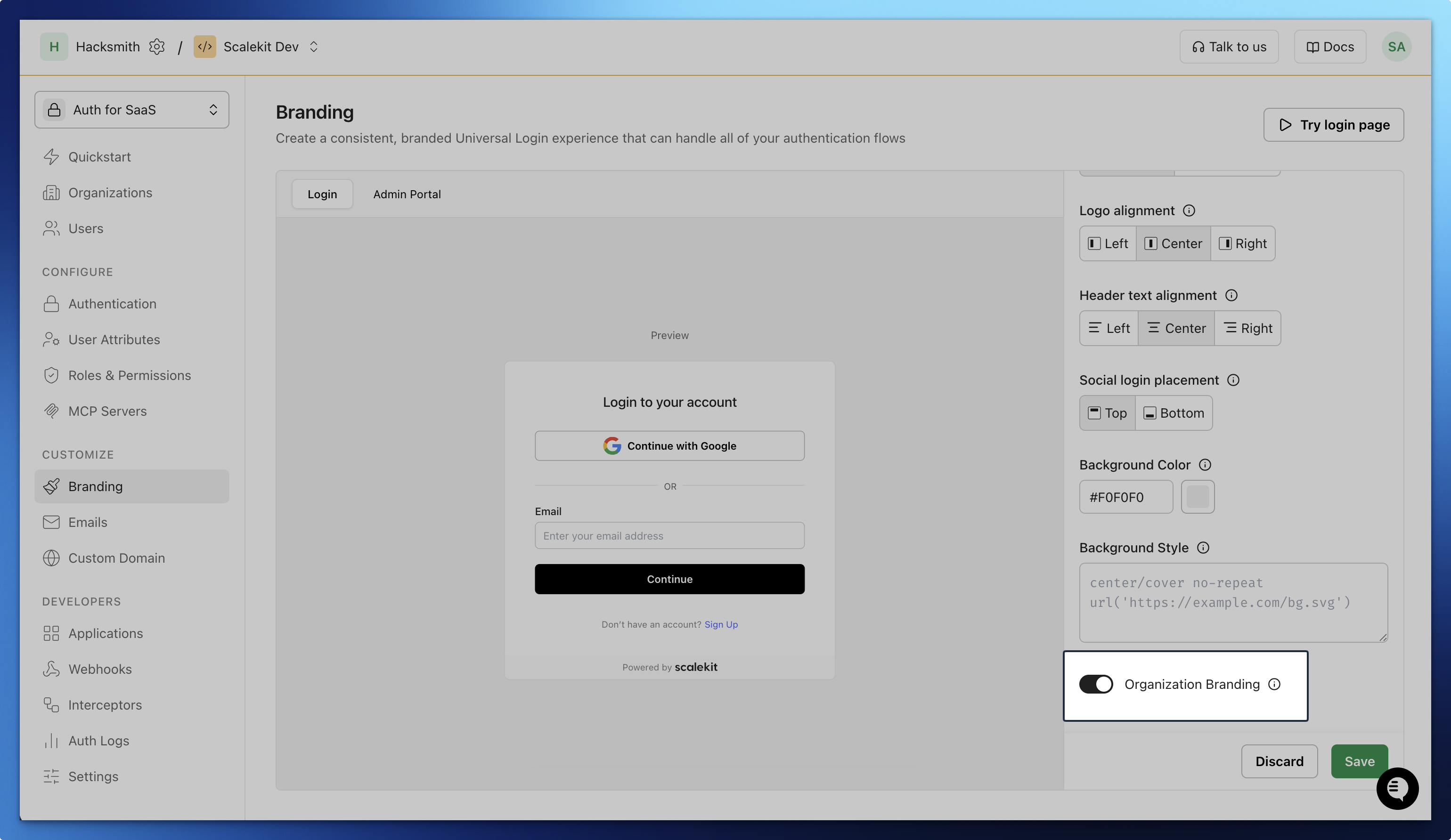
Once enabled, any organization with a Logo URL shows its own logo on the interfaces above. Organizations without one continue to show your application logo, there is no broken image state.
Set the organization’s logo URL
Section titled “Set the organization’s logo URL”You can set the logo for an organization by adding a logo URL via dashboard or SDK. The logo file must meet these requirements:
- Publicly accessible URL: Scalekit fetches the image from the URL you provide.
- Allowed formats: PNG, JPG, SVG, GIF.
- Recommended minimum height: 36px. Smaller logos may look pixelated in the login page, admin portal, and hosted widgets.
Via dashboard
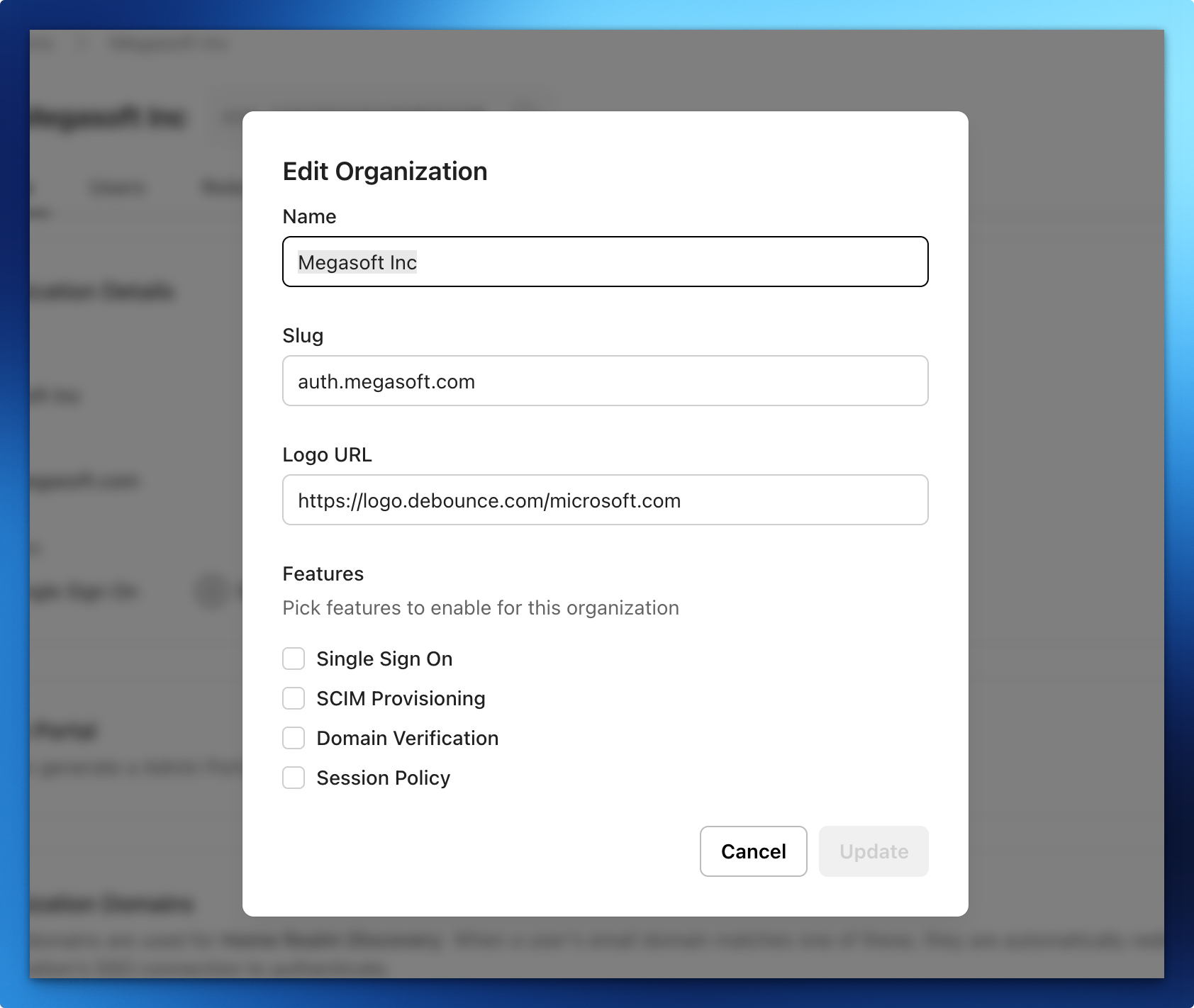
Section titled “Via dashboard”- Navigate to Organizations > Select the organization > Overview > Edit in your Scalekit dashboard.
- Add Logo URL for the organization and save.
Via SDK
Section titled “Via SDK”Use the examples below to set and remove Logo URL for an organization.
npm install @scalekit-sdk/nodepip install scalekit-sdk-pythongo get -u github.com/scalekit-inc/scalekit-sdk-go/* Gradle users - add the following to your dependencies in build file */implementation "com.scalekit:scalekit-sdk-java:2.1.3"<!-- Maven users - add the following to your `pom.xml` --><dependency> <groupId>com.scalekit</groupId> <artifactId>scalekit-sdk-java</artifactId> <version>2.1.3</version></dependency>Set logo while creating an organization
Section titled “Set logo while creating an organization”const organization = await scalekit.organization.createOrganization( 'Acme Corporation', { logoUrl: 'https://cdn.acmecorp.com/logo.png' });from scalekit.v1.organizations.organizations_pb2 import CreateOrganization
organization = scalekit_client.organization.create_organization( CreateOrganization( display_name='Acme Corporation', logo_url='https://cdn.acmecorp.com/logo.png', ))logoURL := "https://cdn.acmecorp.com/logo.png"
organization, err := scalekitClient.Organization().CreateOrganization( ctx, "Acme Corporation", scalekit.CreateOrganizationOptions{ LogoUrl: &logoURL, },)if err != nil { log.Fatal(err)}// Requires scalekit-sdk-java v2.1.3+CreateOrganization create = CreateOrganization.newBuilder() .setDisplayName("Acme Corporation") .setLogoUrl("https://cdn.acmecorp.com/logo.png") .build();
Organization organization = scalekitClient.organizations().create(create);Set logo when updating an existing organization
Section titled “Set logo when updating an existing organization”await scalekit.organization.updateOrganization( 'org_12345', { logoUrl: 'https://cdn.acmecorp.com/logo.png' });from scalekit.v1.organizations.organizations_pb2 import UpdateOrganization
scalekit_client.organization.update_organization( organization_id='org_12345', organization=UpdateOrganization(logo_url='https://cdn.acmecorp.com/logo.png'))logoURL := "https://cdn.acmecorp.com/logo.png"
scalekitClient.Organization().UpdateOrganization( ctx, "org_12345", &scalekit.UpdateOrganization{LogoUrl: &logoURL},)// Requires scalekit-sdk-java v2.1.3+UpdateOrganization update = UpdateOrganization.newBuilder() .setLogoUrl("https://cdn.acmecorp.com/logo.png") .build();
scalekitClient.organizations().updateById("org_12345", update);Remove an organization’s logo
Section titled “Remove an organization’s logo”Set logo_url to an empty string to remove a logo. The hosted interfaces fall back to your application logo immediately.
await scalekit.organization.updateOrganization( 'org_12345', { logoUrl: '' });from scalekit.v1.organizations.organizations_pb2 import UpdateOrganization
scalekit_client.organization.update_organization( organization_id='org_12345', organization=UpdateOrganization(logo_url=''))emptyURL := ""
scalekitClient.Organization().UpdateOrganization( ctx, "org_12345", &scalekit.UpdateOrganization{LogoUrl: &emptyURL},)// Requires scalekit-sdk-java v2.1.3+UpdateOrganization update = UpdateOrganization.newBuilder() .setLogoUrl("") .build();
scalekitClient.organizations().updateById("org_12345", update);Show the organization’s logo on the login page
Section titled “Show the organization’s logo on the login page”For the organization’s logo and Login to {Organization name} heading to appear, your authorization request must include organization_id. Without it, Scalekit has no organization in scope and the login page renders with your application branding instead.
Pass organization_id when building the authorization URL in your login flow:
const options = {  scopes: ['openid', 'profile', 'email'],  state: sessionStorage.oauthState,  organizationId: 'org_12345',};
const authorizationUrl = scalekit.getAuthorizationUrl(redirectUri, options);res.redirect(authorizationUrl);options = AuthorizationUrlOptions()options.scopes = ['openid', 'profile', 'email']options.state = session['oauth_state']options.organization_id = 'org_12345'
authorization_url = scalekit_client.get_authorization_url(redirect_uri, options)return redirect(authorization_url)options := scalekit.AuthorizationUrlOptions{ Scopes: []string{"openid", "profile", "email"}, State: state, OrganizationId: "org_12345",}
authorizationUrl := scalekitClient.GetAuthorizationUrl(redirectUri, options)http.Redirect(w, r, authorizationUrl, http.StatusFound)AuthorizationUrlOptions options = new AuthorizationUrlOptions();options.setScopes(List.of("openid", "profile", "email"));options.setState(state);options.setOrganizationId("org_12345");
String authorizationUrl = scalekitClient.getAuthorizationUrl(redirectUri, options);response.sendRedirect(authorizationUrl);Understand fallback behavior
Section titled “Understand fallback behavior”If organization branding is enabled but an organization has no logo URL, the hosted interfaces fall back to your application logo. There is no broken image state; the feature degrades gracefully per organization.