

Confluence
Connect to Confluence. Manage spaces, pages, content, and team collaboration
Connect to Confluence. Manage spaces, pages, content, and team collaboration

Supports authentication: OAuth 2.0
Set up the agent connector
Section titled “Set up the agent connector”Register your Scalekit environment with the Confluence connector so Scalekit handles the authentication flow and token lifecycle for you. The connection name you create will be used to identify and invoke the connection programmatically. Then complete the configuration in your application as follows:
-
Set up auth redirects
-
In Scalekit dashboard, go to Agent Auth → Create Connection. Find Confluence and click Create. Copy the redirect URI. It looks like
https://<SCALEKIT_ENVIRONMENT_URL>/sso/v1/oauth/<CONNECTION_ID>/callback.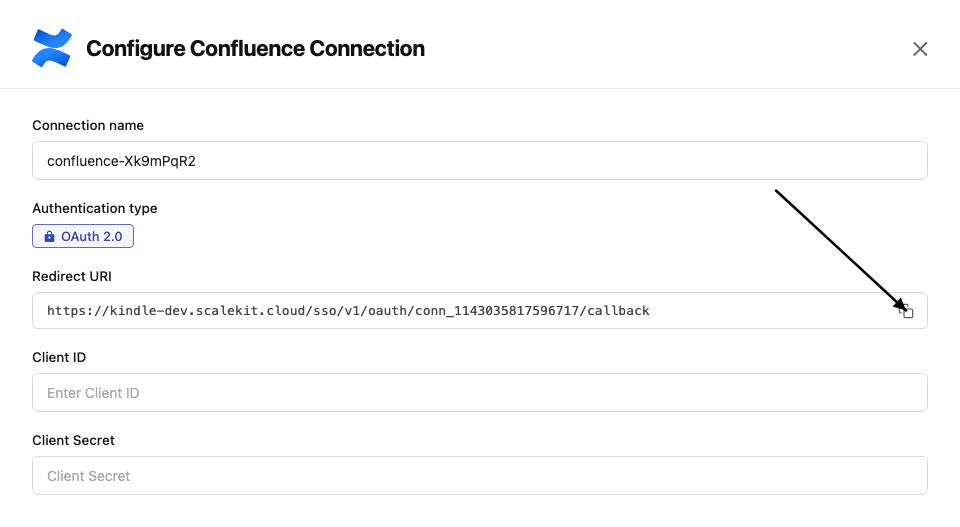
-
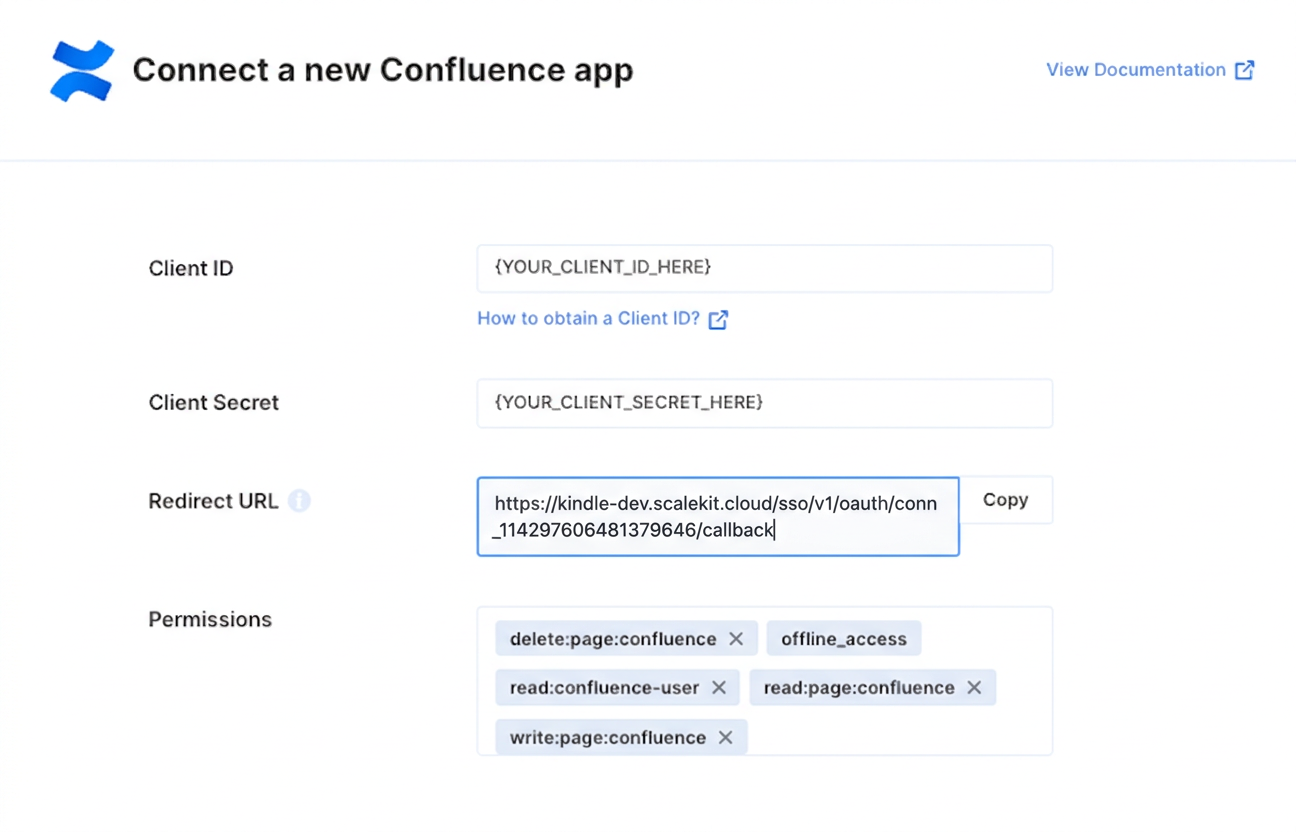
In the Atlassian Developer Console, open your app and go to Authorization → OAuth 2.0 (3LO) → Configure.
-
Paste the copied URI into the Callback URL field and click Save changes.
-
-
Get client credentials
In the Atlassian Developer Console, open your app and go to Settings:
- Client ID — listed under Client ID
- Client Secret — listed under Secret
-
Add credentials in Scalekit
-
In Scalekit dashboard, go to Agent Auth → Connections and open the connection you created.
-
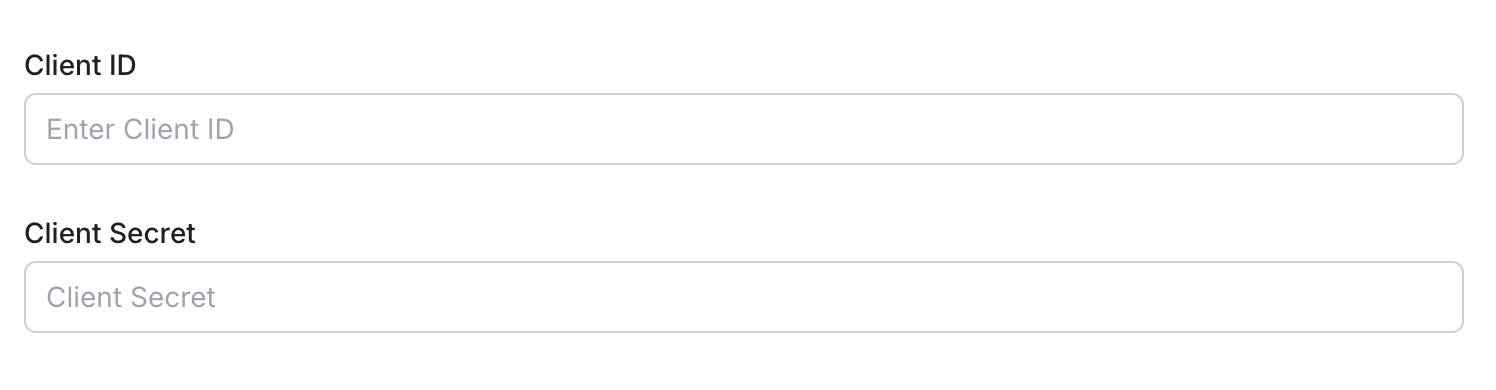
Enter your credentials:
- Client ID (from your Atlassian app settings)
- Client Secret (from your Atlassian app settings)
- Permissions (scopes — see Confluence OAuth scopes reference)
-
Click Save.
-
Connect a user’s Confluence account and make API calls on their behalf — Scalekit handles OAuth and token management automatically.
Don’t worry about the Confluence cloud ID in the path. Scalekit automatically resolves {{cloud_id}} from the connected account’s configuration. For example, a request with path="/wiki/rest/api/user/current" will be sent to https://api.atlassian.com/ex/confluence/a1b2c3d4-e5f6-7890-abcd-ef1234567890/wiki/rest/api/user/current automatically.
You can interact with Confluence in two ways — via direct proxy API calls or via Scalekit optimized tool calls. Scroll down to see the list of available Scalekit tools.
Proxy API Calls
import { ScalekitClient } from '@scalekit-sdk/node';import 'dotenv/config';
const connectionName = 'confluence'; // get your connection name from connection configurationsconst identifier = 'user_123'; // your unique user identifier
// Get your credentials from app.scalekit.com → Developers → Settings → API Credentialsconst scalekit = new ScalekitClient( process.env.SCALEKIT_ENV_URL, process.env.SCALEKIT_CLIENT_ID, process.env.SCALEKIT_CLIENT_SECRET);const actions = scalekit.actions;
// Authenticate the userconst { link } = await actions.getAuthorizationLink({ connectionName, identifier,});console.log('🔗 Authorize Confluence:', link);process.stdout.write('Press Enter after authorizing...');await new Promise(r => process.stdin.once('data', r));
// Make a request via Scalekit proxyconst result = await actions.request({ connectionName, identifier, path: '/wiki/rest/api/user/current', method: 'GET',});console.log(result);import scalekit.client, osfrom dotenv import load_dotenvload_dotenv()
connection_name = "confluence" # get your connection name from connection configurationsidentifier = "user_123" # your unique user identifier
# Get your credentials from app.scalekit.com → Developers → Settings → API Credentialsscalekit_client = scalekit.client.ScalekitClient( client_id=os.getenv("SCALEKIT_CLIENT_ID"), client_secret=os.getenv("SCALEKIT_CLIENT_SECRET"), env_url=os.getenv("SCALEKIT_ENV_URL"),)actions = scalekit_client.actions
# Authenticate the userlink_response = actions.get_authorization_link( connection_name=connection_name, identifier=identifier)# present this link to your user for authorization, or click it yourself for testingprint("🔗 Authorize Confluence:", link_response.link)input("Press Enter after authorizing...")
# Make a request via Scalekit proxyresult = actions.request( connection_name=connection_name, identifier=identifier, path="/wiki/rest/api/user/current", method="GET")print(result)