


Fathom connector
API KeyAIAutomationCommunicationTranscriptionConnect to Fathom AI meeting assistant. Record, transcribe, and summarize meetings with AI-powered insights
Fathom connector
-
Install the SDK
Section titled “Install the SDK”Terminal window npm install @scalekit-sdk/nodeTerminal window pip install scalekit -
Set your credentials
Section titled “Set your credentials”Add your Scalekit credentials to your
.envfile. Find values in app.scalekit.com > Developers > API Credentials..env SCALEKIT_ENVIRONMENT_URL=<your-environment-url>SCALEKIT_CLIENT_ID=<your-client-id>SCALEKIT_CLIENT_SECRET=<your-client-secret> -
Set up the connector
Section titled “Set up the connector”Register your Fathom credentials with Scalekit so it can authenticate requests on your behalf. You do this once per environment.
Dashboard setup steps
Register your Fathom API key with Scalekit so it can authenticate and proxy requests on behalf of your users. Unlike OAuth connectors, Fathom uses API key authentication — there is no redirect URI or OAuth flow.
-
Generate a Fathom API key
- Sign in to app.fathom.video and click Settings in the top navigation bar.
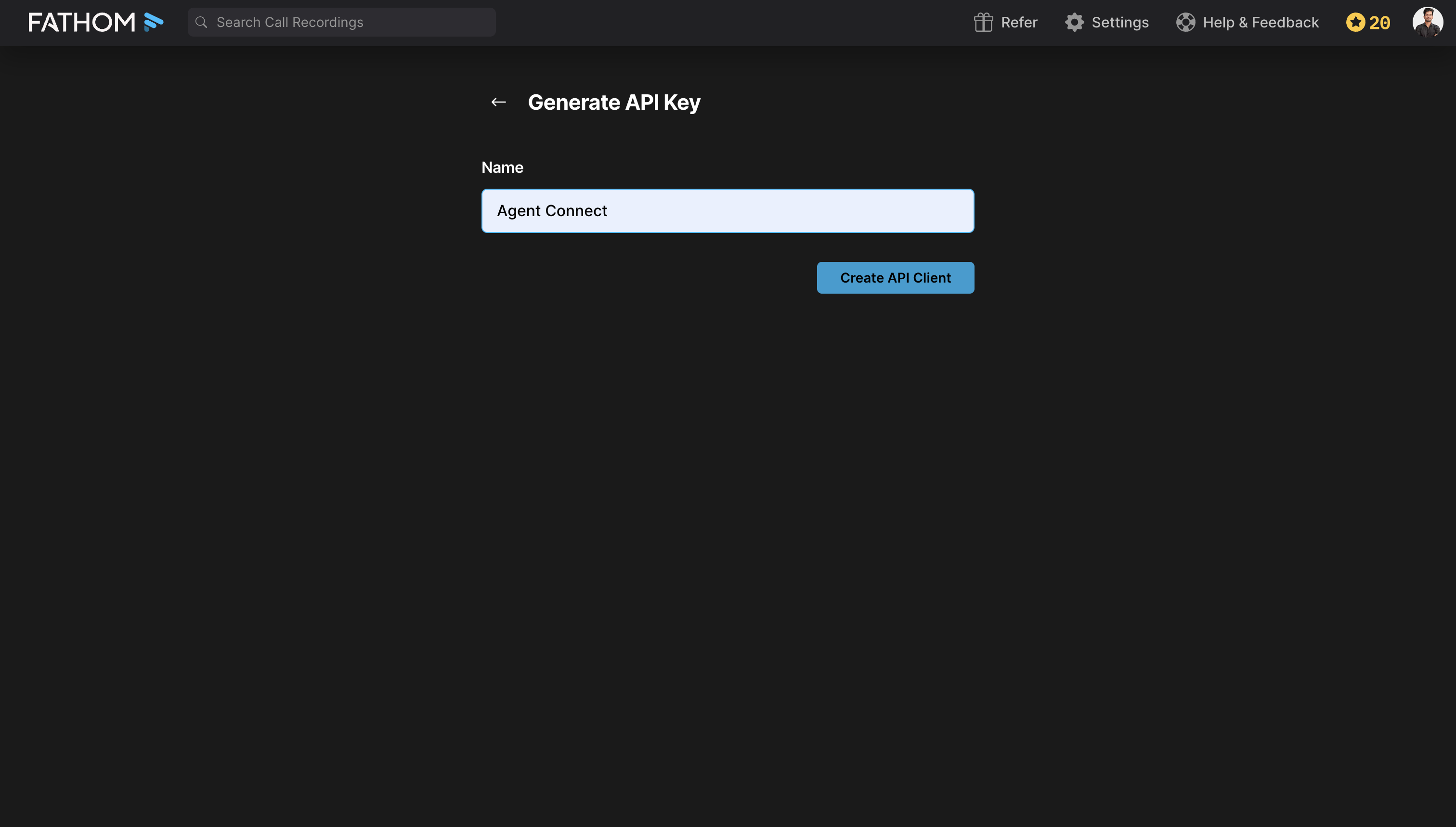
- Go to API and click Generate API Key.
- Enter a Name for the key, for example
Agent Connect, and click Create API Client.
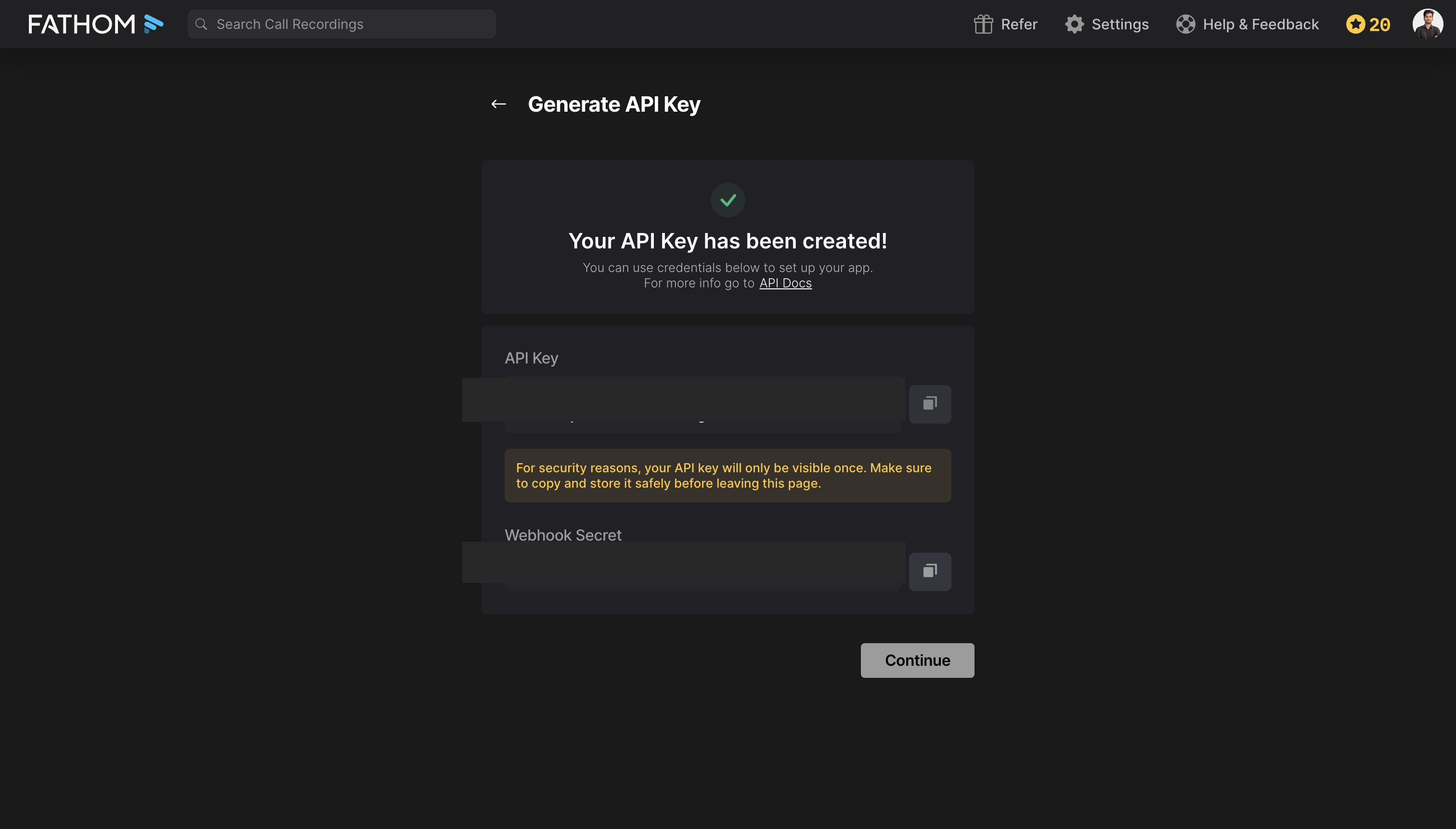
Fathom displays your new API Key and a Webhook Secret. Copy the API Key immediately.
-
Create a connection in Scalekit
- In Scalekit dashboard, go to AgentKit > Connections > Create Connection. Find Fathom and click Create.
- Note the Connection name — you will use this as
connection_namein your code (e.g.,fathom).
-
Add a connected account
Connected accounts link a specific user identifier in your system to a Fathom API key. Add accounts via the dashboard for testing, or via the Scalekit API in production.
Via dashboard (for testing)
- Open the connection you created and click the Connected Accounts tab → Add account.
- Fill in:
- Your User’s ID — a unique identifier for this user in your system (e.g.,
user_123) - API Key — the Fathom API key you copied in step 1
- Your User’s ID — a unique identifier for this user in your system (e.g.,
- Click Save.
Via API (for production)
await scalekit.actions.upsertConnectedAccount({connectionName: 'fathom',identifier: 'user_123',credentials: { api_key: 'your-fathom-api-key' },});scalekit_client.actions.upsert_connected_account(connection_name="fathom",identifier="user_123",credentials={"api_key": "your-fathom-api-key"})
-
-
Make your first call
Section titled “Make your first call”quickstart.ts import { ScalekitClient } from '@scalekit-sdk/node'import 'dotenv/config'const scalekit = new ScalekitClient(process.env.SCALEKIT_ENV_URL,process.env.SCALEKIT_CLIENT_ID,process.env.SCALEKIT_CLIENT_SECRET,)const actions = scalekit.actionsconst connector = 'fathom'const identifier = 'user_123'// Make your first callconst result = await actions.executeTool({connector,identifier,toolName: 'fathom_list_meeting_types',toolInput: {},})console.log(result)quickstart.py import osfrom scalekit.client import ScalekitClientfrom dotenv import load_dotenvload_dotenv()scalekit_client = ScalekitClient(env_url=os.getenv("SCALEKIT_ENV_URL"),client_id=os.getenv("SCALEKIT_CLIENT_ID"),client_secret=os.getenv("SCALEKIT_CLIENT_SECRET"),)actions = scalekit_client.actionsconnection_name = "fathom"identifier = "user_123"# Make your first callresult = actions.execute_tool(tool_input={},tool_name="fathom_list_meeting_types",connection_name=connection_name,identifier=identifier,)print(result)
What you can do
Section titled “What you can do”Connect this agent connector to let your agent:
- List teams, team members, meetings — List all teams configured in Fathom
- Get recording transcript, recording summary — Retrieve the full transcript for a specific Fathom recording by its recording ID
- Delete webhook — Delete a webhook subscription in Fathom by its ID
- Create webhook — Create a new webhook subscription in Fathom
Common workflows
Section titled “Common workflows”Proxy API call
const result = await actions.request({ connectionName: 'fathom', identifier: 'user_123', path: '/v1/users/me', method: 'GET',});console.log(result);result = actions.request( connection_name='fathom', identifier='user_123', path="/v1/users/me", method="GET",)print(result)Execute a tool
const result = await actions.executeTool({ connector: 'fathom', identifier: 'user_123', toolName: 'fathom_list', toolInput: {},});console.log(result);result = actions.execute_tool( connection_name='fathom', identifier='user_123', tool_name='fathom_list', tool_input={},)print(result)Tool list
Section titled “Tool list”Use the exact tool names from the Tool list below when you call execute_tool. If you’re not sure which name to use, list the tools available for the current user first.
fathom_create_webhook#Create a new webhook subscription in Fathom. Fathom will POST meeting data to the destination_url when recordings matching the triggered_for criteria are available. The triggered_for field controls whose recordings trigger the webhook. At least one of the include_summary, include_transcript, include_action_items, or include_crm_matches flags must be set to true — the API returns an error if all content flags are omitted or null.6 params
Create a new webhook subscription in Fathom. Fathom will POST meeting data to the destination_url when recordings matching the triggered_for criteria are available. The triggered_for field controls whose recordings trigger the webhook. At least one of the include_summary, include_transcript, include_action_items, or include_crm_matches flags must be set to true — the API returns an error if all content flags are omitted or null.
destination_urlstringrequiredThe HTTPS URL that Fathom will POST webhook payloads to. Must be a publicly accessible URL. Example: https://yourserver.example.com/webhooks/fathom.triggered_forarrayrequiredArray of recording scopes that trigger this webhook. Valid values: my_recordings (your own recordings), shared_external_recordings (recordings shared from outside your org), my_shared_with_team_recordings (your recordings shared with a team), shared_team_recordings (recordings shared within the team). At least one value is required.include_action_itemsbooleanoptionalWhen true, the webhook payload includes extracted action items from the meeting.include_crm_matchesbooleanoptionalWhen true, the webhook payload includes matched CRM data (contacts, deals, companies).include_summarybooleanoptionalWhen true, the webhook payload includes the AI-generated meeting summary.include_transcriptbooleanoptionalWhen true, the webhook payload includes the full meeting transcript.fathom_delete_webhook#Delete a webhook subscription in Fathom by its ID. Once deleted, Fathom will stop sending webhook POST requests to the associated destination URL. The webhook ID is returned in the Create Webhook response.1 param
Delete a webhook subscription in Fathom by its ID. Once deleted, Fathom will stop sending webhook POST requests to the associated destination URL. The webhook ID is returned in the Create Webhook response.
idstringrequiredThe unique identifier of the webhook to delete. Returned as the id field in the Create Webhook response.fathom_get_recording_summary#Retrieve the AI-generated summary for a specific Fathom recording by its recording ID. The recording_id is found in the Meeting object returned by List Meetings. If destination_url is provided, the result is posted asynchronously to that URL instead of returned directly.2 params
Retrieve the AI-generated summary for a specific Fathom recording by its recording ID. The recording_id is found in the Meeting object returned by List Meetings. If destination_url is provided, the result is posted asynchronously to that URL instead of returned directly.
recording_idintegerrequiredThe numeric ID of the recording whose summary to retrieve. Found in the recording_id field of a Meeting object from the List Meetings response.destination_urlstringoptionalOptional webhook URL to receive the summary asynchronously. When set, Fathom posts the result to this URL instead of returning it in the response. Must be a valid HTTPS URL. Example: https://yourserver.example.com/webhooks/fathom.fathom_get_recording_transcript#Retrieve the full transcript for a specific Fathom recording by its recording ID. The recording_id is found in the Meeting object returned by List Meetings. If destination_url is provided, the transcript is posted asynchronously to that URL instead of returned directly.2 params
Retrieve the full transcript for a specific Fathom recording by its recording ID. The recording_id is found in the Meeting object returned by List Meetings. If destination_url is provided, the transcript is posted asynchronously to that URL instead of returned directly.
recording_idintegerrequiredThe numeric ID of the recording whose transcript to retrieve. Found in the recording_id field of a Meeting object from the List Meetings response.destination_urlstringoptionalOptional webhook URL to receive the transcript asynchronously. When set, Fathom posts the result to this URL instead of returning it in the response. Must be a valid HTTPS URL. Example: https://yourserver.example.com/webhooks/fathom.fathom_list_meeting_types#List all meeting types configured in Fathom. Meeting types categorize recordings (e.g., 'Sales Call', 'Demo', 'Onboarding'). Use the returned type names to filter meetings in the List Meetings tool.1 param
List all meeting types configured in Fathom. Meeting types categorize recordings (e.g., 'Sales Call', 'Demo', 'Onboarding'). Use the returned type names to filter meetings in the List Meetings tool.
cursorstringoptionalPagination cursor returned by a previous List Meeting Types response. Pass this value to retrieve the next page of results.fathom_list_meetings#List meetings recorded by Fathom with optional filters. Returns paginated meeting records including participants, recording IDs, and metadata. Use cursor for pagination. Array parameters (calendar_invitees_domains, recorded_by, teams) must be sent with bracket notation (e.g., calendar_invitees_domains[]=example.com) — the API handles this automatically when you pass arrays.13 params
List meetings recorded by Fathom with optional filters. Returns paginated meeting records including participants, recording IDs, and metadata. Use cursor for pagination. Array parameters (calendar_invitees_domains, recorded_by, teams) must be sent with bracket notation (e.g., calendar_invitees_domains[]=example.com) — the API handles this automatically when you pass arrays.
calendar_invitees_domainsarrayoptionalFilter meetings by company domains of calendar invitees. Provide as an array of domain strings, e.g. ["acme.com", "example.org"]. Sent as calendar_invitees_domains[] query params.calendar_invitees_domains_typestringoptionalControls how the calendar_invitees_domains filter is applied. Valid values: all (all invitees match), only_internal (only internal domains), one_or_more_external (at least one external domain).created_afterstringoptionalReturn only meetings created after this ISO 8601 datetime. Example: 2025-01-01T00:00:00Z.created_beforestringoptionalReturn only meetings created before this ISO 8601 datetime. Example: 2025-12-31T23:59:59Z.cursorstringoptionalPagination cursor returned by a previous List Meetings response. Pass this value to retrieve the next page of results.include_action_itemsbooleanoptionalWhen true, each meeting record includes extracted action items from the AI analysis.include_crm_matchesbooleanoptionalWhen true, each meeting record includes matched CRM data (contacts, deals, companies).include_highlightsbooleanoptionalWhen true, each meeting record includes AI-generated highlights from the recording.include_summarybooleanoptionalWhen true, each meeting record includes the AI-generated meeting summary.include_transcriptbooleanoptionalWhen true, each meeting record includes the full meeting transcript.meeting_typestringoptionalFilter meetings by their meeting type name (e.g., 'Sales Call', 'Demo'). Must match a meeting type name configured in Fathom.recorded_byarrayoptionalFilter meetings by recorder email addresses. Provide as an array of email strings. Sent as recorded_by[] query params.teamsarrayoptionalFilter meetings by team names. Provide as an array of team name strings. Sent as teams[] query params.fathom_list_team_members#List team members in Fathom. Returns user details including names and email addresses. Optionally filter by team name to retrieve members of a specific team.2 params
List team members in Fathom. Returns user details including names and email addresses. Optionally filter by team name to retrieve members of a specific team.
cursorstringoptionalPagination cursor returned by a previous List Team Members response. Pass this value to retrieve the next page of results.teamstringoptionalFilter members by team name. Must match a team name returned by the List Teams tool. Example: 'Sales'.fathom_list_teams#List all teams configured in Fathom. Returns team names and metadata. Use the returned team names to filter meetings via the teams parameter in the List Meetings tool.1 param
List all teams configured in Fathom. Returns team names and metadata. Use the returned team names to filter meetings via the teams parameter in the List Meetings tool.
cursorstringoptionalPagination cursor returned by a previous List Teams response. Pass this value to retrieve the next page of results.