

PhantomBuster
Connect to PhantomBuster. Launch and manage automation agents, stream container output, manage leads and lead lists, run AI completions, export usage reports, and control your entire organization programmatically.
Connect to PhantomBuster to launch and monitor automation agents, stream live container output, manage leads and lead lists, run AI completions grounded in real data, export usage reports, and control every aspect of your PhantomBuster organization programmatically.

Supports authentication: API Key
What you can build with this connector
PhantomBuster automates web actions — primarily LinkedIn scraping, lead generation, and outreach at scale. With this connector your AI agent can:
| Use case | Tools involved |
|---|---|
| LinkedIn outreach pipeline | phantombuster_agent_launch → phantombuster_container_fetch_result → phantombuster_leads_save_many |
| Scheduled scraping with monitoring | phantombuster_agent_save (set schedule) → phantombuster_org_fetch_running_containers → phantombuster_container_fetch_output |
| Lead enrichment with AI | phantombuster_leads_fetch_by_list → phantombuster_ai_completions (parse titles/skills) → phantombuster_leads_save_many |
| Quota-aware automation | phantombuster_org_fetch_resources (check limits) → phantombuster_agent_launch → phantombuster_org_export_container_usage |
| Multi-org reporting | phantombuster_org_fetch → phantombuster_org_export_agent_usage → phantombuster_org_export_container_usage |
Key concepts:
- Agent — a saved automation configuration (script + schedule + arguments). Launch an agent to create a container.
- Container — a single execution run of an agent. Containers hold logs, status, and result data.
- Lead list — a named collection of leads stored in your PhantomBuster organization.
Set up the agent connector
Section titled “Set up the agent connector”Register your PhantomBuster API key with Scalekit so it can authenticate and proxy automation requests on behalf of your users. PhantomBuster uses API key authentication — there is no redirect URI or OAuth flow.
-
Get your PhantomBuster API key
-
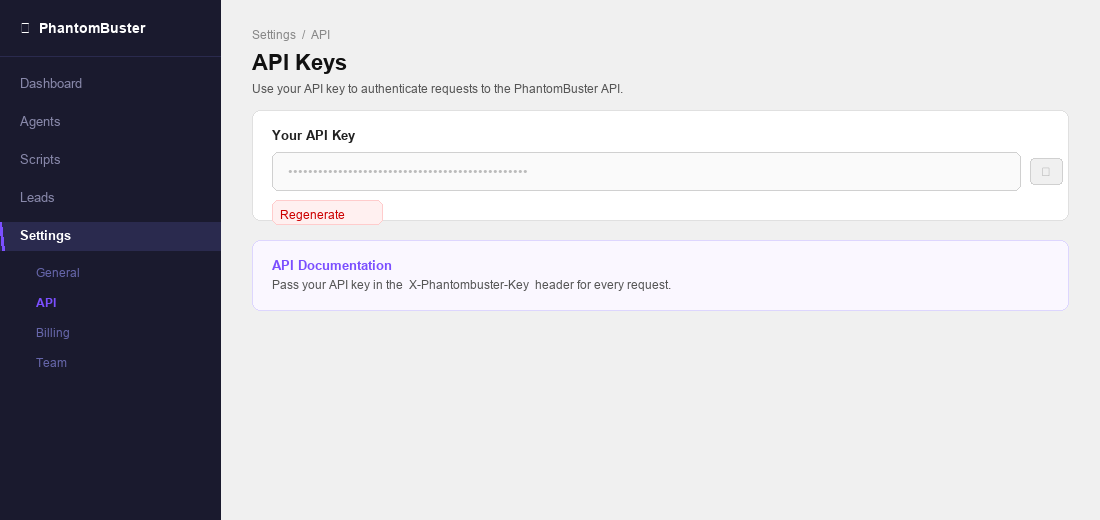
Sign in to phantombuster.com and go to Settings → API in the left sidebar.
-
Your API key is displayed on this page. Click the copy icon to copy it. If you need a new key, click Regenerate.
-
-
Create a connection in Scalekit
-
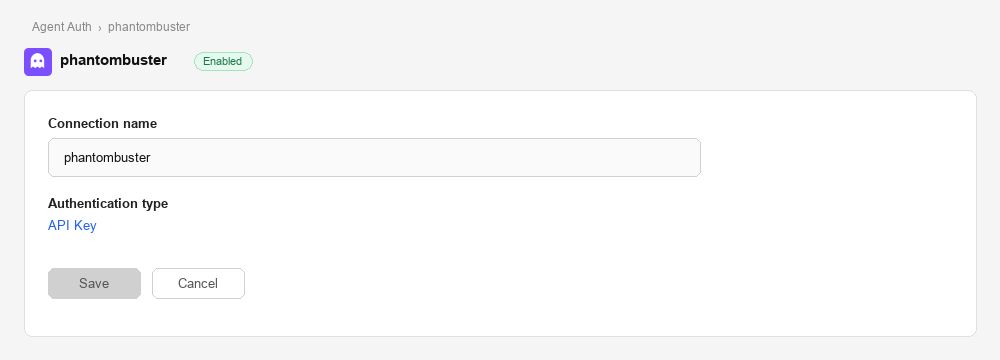
In Scalekit dashboard, go to Agent Auth → Create Connection. Find PhantomBuster and click Create.
-
Note the Connection name — you will use this as
connection_namein your code (e.g.,phantombuster).
-
-
Add a connected account
Connected accounts link a specific user identifier in your system to a PhantomBuster API key. Add accounts via the dashboard for testing, or via the Scalekit API in production.
Via dashboard (for testing)
-
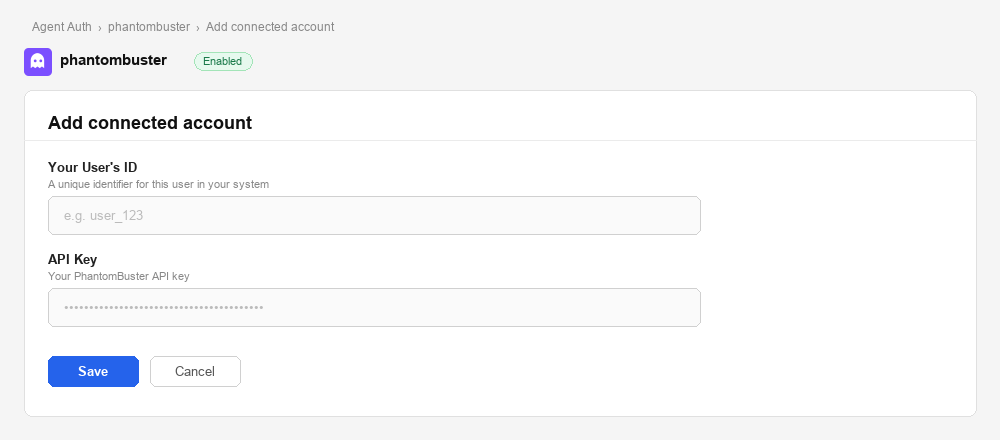
Open the connection you created and click the Connected Accounts tab → Add account.
-
Fill in:
- Your User’s ID — a unique identifier for this user in your system (e.g.,
user_123) - API Key — the PhantomBuster API key you copied in step 1
- Your User’s ID — a unique identifier for this user in your system (e.g.,
-
Click Save.
Via API (for production)
await scalekit.actions.upsertConnectedAccount({connectionName: 'phantombuster',identifier: 'user_123',credentials: { api_key: 'your-phantombuster-api-key' },});scalekit_client.actions.upsert_connected_account(connection_name="phantombuster",identifier="user_123",credentials={"api_key": "your-phantombuster-api-key"}) -
Once a connected account is set up, call the PhantomBuster API through the Scalekit proxy. Scalekit injects the API key as the X-Phantombuster-Key header automatically — you never handle credentials in your application code.
You can interact with PhantomBuster in two ways — via direct proxy API calls or via Scalekit optimized tool calls. Scroll down to see the list of available Scalekit tools.
Proxy API calls
import { ScalekitClient } from '@scalekit-sdk/node';import 'dotenv/config';
const connectionName = 'phantombuster'; // connection name from your Scalekit dashboardconst identifier = 'user_123'; // your user's unique identifier
// Get your credentials from app.scalekit.com → Developers → Settings → API Credentialsconst scalekit = new ScalekitClient( process.env.SCALEKIT_ENV_URL, process.env.SCALEKIT_CLIENT_ID, process.env.SCALEKIT_CLIENT_SECRET);const actions = scalekit.actions;
// List all agents via Scalekit proxy — no API key needed hereconst result = await actions.request({ connectionName, identifier, path: '/api/v2/agents', method: 'GET',});console.log(result.data);import scalekit.client, osfrom dotenv import load_dotenvload_dotenv()
connection_name = "phantombuster" # connection name from your Scalekit dashboardidentifier = "user_123" # your user's unique identifier
# Get your credentials from app.scalekit.com → Developers → Settings → API Credentialsscalekit_client = scalekit.client.ScalekitClient( client_id=os.getenv("SCALEKIT_CLIENT_ID"), client_secret=os.getenv("SCALEKIT_CLIENT_SECRET"), env_url=os.getenv("SCALEKIT_ENV_URL"),)actions = scalekit_client.actions
# List all agents via Scalekit proxy — no API key needed hereresult = actions.request( connection_name=connection_name, identifier=identifier, path="/api/v2/agents", method="GET")print(result)Scalekit tools
Use execute_tool to call PhantomBuster tools directly from your code. Scalekit resolves the connected account, injects the API key, and returns a structured response — no raw HTTP or credential management needed.
Launch an agent and retrieve results
The most common PhantomBuster workflow: launch an automation agent, stream its console output while it runs, then read the final result.
import scalekit.client, os, timefrom dotenv import load_dotenvload_dotenv()
scalekit_client = scalekit.client.ScalekitClient( client_id=os.getenv("SCALEKIT_CLIENT_ID"), client_secret=os.getenv("SCALEKIT_CLIENT_SECRET"), env_url=os.getenv("SCALEKIT_ENV_URL"),)actions = scalekit_client.actions
connection_name = "phantombuster"identifier = "user_123"
# Step 1: Resolve the connected account for this userresponse = actions.get_or_create_connected_account( connection_name=connection_name, identifier=identifier)connected_account = response.connected_account
# Step 2: Find the agent you want to runagents = actions.execute_tool( tool_name="phantombuster_agents_fetch_all", connected_account_id=connected_account.id, tool_input={})agent_id = agents.result[0]["id"] # pick the first agent, or filter by name
# Step 3: Launch the agentlaunch_result = actions.execute_tool( tool_name="phantombuster_agent_launch", connected_account_id=connected_account.id, tool_input={ "id": agent_id, "output": "result-object", })container_id = launch_result.result["containerId"]print(f"Agent launched. Container ID: {container_id}")
# Step 4: Poll for output until the agent finishesoutput_pos = 0while True: output = actions.execute_tool( tool_name="phantombuster_container_fetch_output", connected_account_id=connected_account.id, tool_input={"id": container_id, "fromOutputPos": output_pos} ) print(output.result.get("output", ""), end="", flush=True) output_pos = output.result.get("nextOutputPos", output_pos) if output.result.get("status") in ("finished", "error"): break time.sleep(3) # poll every 3 seconds
# Step 5: Fetch the structured resultfinal_result = actions.execute_tool( tool_name="phantombuster_container_fetch_result", connected_account_id=connected_account.id, tool_input={"id": container_id})print("Scraped profiles:", final_result.result)Save scraped profiles as leads
After a scraping run, bulk-save extracted profiles to a PhantomBuster lead list for downstream CRM enrichment or outreach.
# First: fetch available lead lists (or create one in the PhantomBuster dashboard)lists = actions.execute_tool( tool_name="phantombuster_lists_fetch_all", connected_account_id=connected_account.id, tool_input={})list_id = lists.result[0]["id"] # use the first list, or filter by name
# Bulk-save up to 1,000 profiles in one call — more efficient than loopingactions.execute_tool( tool_name="phantombuster_leads_save_many", connected_account_id=connected_account.id, tool_input={ "listId": list_id, "leads": [ { "firstName": p.get("firstName"), "lastName": p.get("lastName"), "email": p.get("email"), "linkedinUrl": p.get("linkedinUrl"), "company": p.get("company"), "jobTitle": p.get("title"), "additionalFields": { "source": "phantombuster-scraper", "agentId": agent_id, "containerId": container_id, }, } for p in final_result.result ], })print(f"{len(final_result.result)} leads saved to list {list_id}.")Check resource usage before running agents
Avoid quota errors by verifying execution time and credit balances before launching a large scraping run.
resources = actions.execute_tool( tool_name="phantombuster_org_fetch_resources", connected_account_id=connected_account.id, tool_input={})
exec_time = resources.result.get("executionTime", {})ai_credits = resources.result.get("aiCredits", {})
if exec_time.get("remaining", 0) < 30: raise RuntimeError( f"Insufficient execution time: {exec_time.get('remaining')} min remaining. " "Upgrade at phantombuster.com/pricing or wait for your plan to reset." )
print(f"Execution time: {exec_time['remaining']} min remaining ({exec_time.get('used')} used)")print(f"AI credits: {ai_credits.get('remaining', 'N/A')}")Run AI completions on scraped data
Use PhantomBuster’s AI service to extract structured data from raw agent output — such as parsing job titles into seniority levels or extracting skills from profile summaries.
# Extract structured data from a raw LinkedIn profile headlinecompletion = actions.execute_tool( tool_name="phantombuster_ai_completions", connected_account_id=connected_account.id, tool_input={ "model": "gpt-4o", "messages": [ { "role": "system", "content": "Extract the seniority level and primary skill from this LinkedIn headline. Return JSON only.", }, { "role": "user", "content": "Senior Software Engineer at Acme Corp | React, TypeScript, GraphQL", }, ], "responseSchema": { "type": "object", "properties": { "seniority": {"type": "string", "enum": ["junior", "mid", "senior", "lead", "exec"]}, "primarySkill": {"type": "string"}, }, "required": ["seniority", "primarySkill"], }, })print("Parsed profile:", completion.result)# → {'seniority': 'senior', 'primarySkill': 'React'}LangChain integration
Let an LLM decide which PhantomBuster tool to call based on natural language. This example builds an agent that can manage automation runs and leads in response to user input.
import scalekit.client, osfrom dotenv import load_dotenvfrom langchain_openai import ChatOpenAIfrom langchain.agents import AgentExecutor, create_openai_tools_agentfrom langchain_core.prompts import ( ChatPromptTemplate, SystemMessagePromptTemplate, HumanMessagePromptTemplate, MessagesPlaceholder, PromptTemplate)load_dotenv()
scalekit_client = scalekit.client.ScalekitClient( client_id=os.getenv("SCALEKIT_CLIENT_ID"), client_secret=os.getenv("SCALEKIT_CLIENT_SECRET"), env_url=os.getenv("SCALEKIT_ENV_URL"),)actions = scalekit_client.actions
identifier = "user_123"
# Resolve connected account (API key auth — no OAuth redirect needed)actions.get_or_create_connected_account( connection_name="phantombuster", identifier=identifier)
# Load all PhantomBuster tools in LangChain formattools = actions.langchain.get_tools( identifier=identifier, providers=["PHANTOMBUSTER"], page_size=100)
prompt = ChatPromptTemplate.from_messages([ SystemMessagePromptTemplate(prompt=PromptTemplate( input_variables=[], template=( "You are a PhantomBuster automation assistant. " "Use the available tools to manage agents, check resource usage, " "manage leads, and analyse automation run results." ) )), MessagesPlaceholder(variable_name="chat_history", optional=True), HumanMessagePromptTemplate(prompt=PromptTemplate( input_variables=["input"], template="{input}" )), MessagesPlaceholder(variable_name="agent_scratchpad")])
llm = ChatOpenAI(model="gpt-4o")agent = create_openai_tools_agent(llm, tools, prompt)agent_executor = AgentExecutor(agent=agent, tools=tools, verbose=True)
result = agent_executor.invoke({ "input": "List all my agents, show which ones ran in the last 24 hours, and tell me how many leads are in each list"})print(result["output"])Tool list
Section titled “Tool list”Agent management
Section titled “Agent management”phantombuster_agents_fetch_all
Section titled “phantombuster_agents_fetch_all”Retrieve all automation agents in the PhantomBuster organization. Returns agent IDs, names, associated scripts, schedules, and current status. Use this to build an inventory of available agents before launching or managing them.
Required plan: All plans.
This tool takes no input parameters.
phantombuster_agent_fetch
Section titled “phantombuster_agent_fetch”Retrieve full details of a specific PhantomBuster agent by its ID — including name, script, schedule, launch type, argument configuration, and current status.
Required plan: All plans.
| Name | Type | Required | Description |
|---|---|---|---|
id | string | Yes | The ID of the agent to retrieve. |
phantombuster_agent_save
Section titled “phantombuster_agent_save”Create a new PhantomBuster agent or update an existing one. Supports configuring the script, schedule, proxy, notifications, execution limits, and launch arguments. Pass an id to update an existing agent; omit id to create a new one.
Required plan: All plans. Custom scripts require Team+.
| Name | Type | Required | Description |
|---|---|---|---|
id | string | No | Agent ID to update. Omit to create a new agent. |
name | string | No | Human-readable name for the agent. |
scriptId | string | No | ID of the script this agent runs. Use phantombuster_scripts_fetch_all to find script IDs. |
schedule | string | No | Cron-style schedule string (e.g., 0 9 * * 1-5 for weekdays at 9 AM). Set to null to disable. |
launchType | string | No | How the agent is triggered: manually, automatically, or repeatedly. |
arguments | object | No | Key-value pairs of input arguments the script expects. Must match the script’s argument schema. |
executionTimeLimit | integer | No | Maximum execution time in minutes before the agent is force-stopped. |
fileSizeLimit | integer | No | Maximum output file size in MB. |
proxy | string | No | Proxy configuration: none, datacenter, or residential. |
notifications | object | No | Notification settings including slackWebhookUrl and notification triggers (onSuccess, onError). |
phantombuster_agent_delete
Section titled “phantombuster_agent_delete”Permanently delete a PhantomBuster agent and all its associated data including execution history and output files. This action is irreversible.
Required plan: All plans.
| Name | Type | Required | Description |
|---|---|---|---|
id | string | Yes | The ID of the agent to permanently delete. |
phantombuster_agent_launch
Section titled “phantombuster_agent_launch”Launch a PhantomBuster automation agent asynchronously. Starts execution immediately and returns a containerId to track progress. Use phantombuster_container_fetch_output or phantombuster_container_fetch_result to retrieve results.
Required plan: All plans (execution time consumed from plan quota).
| Name | Type | Required | Description |
|---|---|---|---|
id | string | Yes | The ID of the agent to launch. |
arguments | object | No | Override launch arguments for this run. Must match the script’s argument schema. |
output | string | No | Output format: result-object or file-manager. |
phantombuster_agent_launch_soon
Section titled “phantombuster_agent_launch_soon”Schedule a PhantomBuster agent to launch within a specified number of minutes. Useful for delayed execution without setting up a full recurring schedule.
Required plan: All plans.
| Name | Type | Required | Description |
|---|---|---|---|
id | string | Yes | The ID of the agent to schedule. |
minutes | integer | Yes | Number of minutes from now to launch the agent (minimum 1). |
phantombuster_agent_stop
Section titled “phantombuster_agent_stop”Stop a currently running PhantomBuster agent execution. Gracefully halts the agent and saves any partial results collected up to that point.
Required plan: All plans.
| Name | Type | Required | Description |
|---|---|---|---|
id | string | Yes | The ID of the agent whose current execution to stop. |
phantombuster_agents_fetch_deleted
Section titled “phantombuster_agents_fetch_deleted”Retrieve all deleted agents in the PhantomBuster organization. Returns agent IDs, names, creation timestamps, deletion timestamps, and who deleted each agent. Useful for audit trails and recovery planning.
Required plan: All plans.
This tool takes no input parameters.
phantombuster_agents_unschedule_all
Section titled “phantombuster_agents_unschedule_all”Disable automatic launch for all agents in the current PhantomBuster organization. Agents remain intact but will only run when launched manually. Use with caution — this affects every scheduled agent in the org.
Required plan: All plans.
This tool takes no input parameters.
Container management
Section titled “Container management”phantombuster_containers_fetch_all
Section titled “phantombuster_containers_fetch_all”Retrieve all execution containers (past runs) for a specific PhantomBuster agent. Returns container IDs, status, launch type, exit codes, timestamps, and runtime events for each execution.
Required plan: All plans.
| Name | Type | Required | Description |
|---|---|---|---|
agentId | string | Yes | The ID of the agent whose execution history to retrieve. |
page | integer | No | Page number for pagination (default 1). |
perPage | integer | No | Number of containers per page (default 20, max 100). |
phantombuster_container_fetch
Section titled “phantombuster_container_fetch”Retrieve a single PhantomBuster container by its ID. Returns status, timestamps, launch type, exit code, and optionally the full output, result object, and runtime events.
Required plan: All plans.
| Name | Type | Required | Description |
|---|---|---|---|
id | string | Yes | The container ID to retrieve. |
withOutput | boolean | No | Include the full console output in the response. |
withResult | boolean | No | Include the structured result object in the response. |
withEvents | boolean | No | Include runtime events (steps, warnings, errors) in the response. |
phantombuster_container_fetch_output
Section titled “phantombuster_container_fetch_output”Retrieve the console output and execution logs of a specific PhantomBuster container. Useful for monitoring execution progress, debugging errors, and viewing step-by-step agent activity.
Required plan: All plans.
| Name | Type | Required | Description |
|---|---|---|---|
id | string | Yes | The container ID whose output to retrieve. |
fromOutputPos | integer | No | Byte offset to start reading from. Use the nextOutputPos value from a previous call to retrieve only new output since the last fetch (incremental polling). |
phantombuster_container_fetch_result
Section titled “phantombuster_container_fetch_result”Retrieve the final result object of a completed PhantomBuster container. Returns the structured data extracted or produced by the agent — such as scraped profiles, leads, or exported records.
Required plan: All plans.
| Name | Type | Required | Description |
|---|---|---|---|
id | string | Yes | The container ID whose result to retrieve. |
phantombuster_container_attach
Section titled “phantombuster_container_attach”Attach to a running PhantomBuster container and stream its console output in real-time. Returns a live stream of log lines as the agent executes. Use when you need to monitor execution as it happens rather than polling after completion.
Required plan: All plans.
| Name | Type | Required | Description |
|---|---|---|---|
id | string | Yes | The ID of the running container to attach to. |
phantombuster_agent_fetch_output
Section titled “phantombuster_agent_fetch_output”Get the output of the most recent container of an agent. Designed for incremental data retrieval — use fromOutputPos to fetch only new output since the last call, avoiding re-reading data you have already processed.
Required plan: All plans.
| Name | Type | Required | Description |
|---|---|---|---|
id | string | Yes | The agent ID whose latest container output to retrieve. |
fromOutputPos | integer | No | Byte offset to start reading from. Pass the nextOutputPos value returned by a previous call to fetch only new output. |
phantombuster_org_fetch_running_containers
Section titled “phantombuster_org_fetch_running_containers”List all currently executing containers across the PhantomBuster organization. Returns container IDs, associated agent IDs and names, creation timestamps, launch types, and script slugs. Use to monitor live execution or detect runaway agents.
Required plan: All plans.
This tool takes no input parameters.
Script management
Section titled “Script management”phantombuster_scripts_fetch_all
Section titled “phantombuster_scripts_fetch_all”Retrieve all scripts associated with the current PhantomBuster user. Returns script IDs, names, slugs, descriptions, branches, and manifest details. Use to discover available scripts before creating or configuring agents.
Required plan: All plans.
This tool takes no input parameters.
phantombuster_script_fetch
Section titled “phantombuster_script_fetch”Retrieve a specific PhantomBuster script by ID, including its manifest, argument schema, and output types. Optionally include the full source code.
Required plan: All plans. Source code access requires Team+.
| Name | Type | Required | Description |
|---|---|---|---|
id | string | Yes | The script ID to retrieve. |
withSource | boolean | No | Include the full source code of the script in the response. Requires Team+ plan. |
Branch management
Section titled “Branch management”phantombuster_branches_fetch_all
Section titled “phantombuster_branches_fetch_all”Retrieve all branches associated with the current PhantomBuster organization. Branches let you manage multiple versions of custom scripts — staging vs. production, for example.
Required plan: Team+.
This tool takes no input parameters.
phantombuster_branch_create
Section titled “phantombuster_branch_create”Create a new script branch in the current PhantomBuster organization. Use branches to develop and test script changes without affecting production agents.
Required plan: Team+.
| Name | Type | Required | Description |
|---|---|---|---|
name | string | Yes | A unique name for the new branch (e.g., staging, dev-v2). |
phantombuster_branch_delete
Section titled “phantombuster_branch_delete”Permanently delete a branch by ID from the current PhantomBuster organization. All scripts associated with the branch will also be removed. This action is irreversible.
Required plan: Team+.
| Name | Type | Required | Description |
|---|---|---|---|
id | string | Yes | The ID of the branch to permanently delete. |
phantombuster_branch_release
Section titled “phantombuster_branch_release”Release (promote to production) specified scripts on a branch in the current PhantomBuster organization. Use this to deploy tested scripts from a staging branch to production.
Required plan: Team+.
| Name | Type | Required | Description |
|---|---|---|---|
id | string | Yes | The ID of the branch to release scripts from. |
scripts | array | Yes | List of script IDs to promote to production from this branch. |
Organization
Section titled “Organization”phantombuster_org_fetch
Section titled “phantombuster_org_fetch”Retrieve details of the current PhantomBuster organization — including plan, billing information, timezone, proxy configuration, and connected CRM integrations.
Required plan: All plans.
This tool takes no input parameters.
phantombuster_org_fetch_resources
Section titled “phantombuster_org_fetch_resources”Retrieve the current PhantomBuster organization’s resource usage and limits. Returns daily and monthly usage for execution time, mail, captcha, AI credits, SERP credits, storage, and agent count. Use to proactively manage quota before hitting limits.
Required plan: All plans.
This tool takes no input parameters.
phantombuster_org_fetch_agent_groups
Section titled “phantombuster_org_fetch_agent_groups”Retrieve the agent groups and their ordering for the current PhantomBuster organization. Agent groups are used to organise agents in the dashboard.
Required plan: All plans.
This tool takes no input parameters.
phantombuster_org_save_agent_groups
Section titled “phantombuster_org_save_agent_groups”Update the agent groups and their ordering for the current PhantomBuster organization. The order of groups and agents within groups is preserved exactly as provided.
Required plan: All plans.
| Name | Type | Required | Description |
|---|---|---|---|
groups | array | Yes | Ordered array of group objects. Each group must include name (string) and agentIds (array of agent ID strings). |
phantombuster_org_export_agent_usage
Section titled “phantombuster_org_export_agent_usage”Export a CSV file containing agent usage metrics for the current PhantomBuster organization over a specified number of days (maximum 6 months / 180 days).
Required plan: Pro+ (full 6-month range). Starter plan limited to 30 days.
| Name | Type | Required | Description |
|---|---|---|---|
days | integer | Yes | Number of past days to include in the export (1–180). |
phantombuster_org_export_container_usage
Section titled “phantombuster_org_export_container_usage”Export a CSV file containing container (agent run) usage metrics for the current PhantomBuster organization. Optionally filter to a specific agent to analyse a single automation’s resource consumption.
Required plan: Pro+ (full history). Starter plan limited to 30 days.
| Name | Type | Required | Description |
|---|---|---|---|
agentId | string | No | Filter the export to a specific agent ID. Omit to export all agents. |
phantombuster_org_save_crm_contact
Section titled “phantombuster_org_save_crm_contact”Save a new contact to the organization’s connected CRM (HubSpot). Requires a HubSpot CRM integration to be configured in PhantomBuster dashboard → Settings → CRM.
Required plan: Pro+. HubSpot integration must be connected first.
| Name | Type | Required | Description |
|---|---|---|---|
firstName | string | No | Contact’s first name. |
lastName | string | No | Contact’s last name. |
email | string | No | Contact’s email address. Used as the unique identifier in HubSpot. |
phone | string | No | Contact’s phone number. |
company | string | No | Company name associated with the contact. |
jobTitle | string | No | Contact’s job title. |
linkedinUrl | string | No | Contact’s LinkedIn profile URL. |
website | string | No | Contact’s or company’s website URL. |
Lead management
Section titled “Lead management”phantombuster_leads_save
Section titled “phantombuster_leads_save”Save a single lead to PhantomBuster organization storage. If a lead with the same identifier already exists, it is updated.
Required plan: Starter+.
| Name | Type | Required | Description |
|---|---|---|---|
listId | string | Yes | The ID of the lead list to save the lead into. |
firstName | string | No | Lead’s first name. |
lastName | string | No | Lead’s last name. |
email | string | No | Lead’s email address. |
linkedinUrl | string | No | Lead’s LinkedIn profile URL. Used as a unique identifier if present. |
company | string | No | Company the lead is associated with. |
jobTitle | string | No | Lead’s job title. |
additionalFields | object | No | Any extra key-value pairs to store with the lead (e.g., {"source": "webinar", "score": 90}). |
phantombuster_leads_save_many
Section titled “phantombuster_leads_save_many”Save multiple leads at once to PhantomBuster organization storage. Existing leads with matching identifiers are updated. More efficient than calling phantombuster_leads_save in a loop for bulk operations.
Required plan: Starter+.
| Name | Type | Required | Description |
|---|---|---|---|
listId | string | Yes | The ID of the lead list to save leads into. |
leads | array | Yes | Array of lead objects. Each object supports the same fields as phantombuster_leads_save (firstName, lastName, email, linkedinUrl, company, jobTitle, additionalFields). Maximum 1,000 leads per call. |
phantombuster_leads_delete_many
Section titled “phantombuster_leads_delete_many”Permanently delete multiple leads from PhantomBuster organization storage by their IDs. This action is irreversible.
Required plan: Starter+.
| Name | Type | Required | Description |
|---|---|---|---|
ids | array | Yes | Array of lead IDs to permanently delete. Maximum 1,000 IDs per call. |
phantombuster_leads_fetch_by_list
Section titled “phantombuster_leads_fetch_by_list”Fetch paginated leads belonging to a specific lead list in PhantomBuster organization storage. Use page and perPage to iterate through large lists.
Required plan: Starter+.
| Name | Type | Required | Description |
|---|---|---|---|
listId | string | Yes | The ID of the lead list to fetch leads from. |
page | integer | No | Page number for pagination (default 1). |
perPage | integer | No | Number of leads per page (default 20, max 1,000). |
Lead lists
Section titled “Lead lists”phantombuster_lists_fetch_all
Section titled “phantombuster_lists_fetch_all”Retrieve all lead lists in the PhantomBuster organization’s storage. Returns list IDs, names, lead counts, and creation timestamps. Use to discover available lists before fetching or saving leads.
Required plan: Starter+.
This tool takes no input parameters.
phantombuster_list_fetch
Section titled “phantombuster_list_fetch”Retrieve a specific lead list from PhantomBuster organization storage by its ID. Returns the list metadata including name, lead count, and creation timestamp.
Required plan: Starter+.
| Name | Type | Required | Description |
|---|---|---|---|
id | string | Yes | The ID of the lead list to retrieve. |
phantombuster_list_delete
Section titled “phantombuster_list_delete”Permanently delete a lead list from PhantomBuster organization storage by its ID. All leads within the list are also deleted. This action is irreversible.
Required plan: Starter+.
| Name | Type | Required | Description |
|---|---|---|---|
id | string | Yes | The ID of the lead list to permanently delete. |
AI and utilities
Section titled “AI and utilities”phantombuster_ai_completions
Section titled “phantombuster_ai_completions”Get an AI text completion from PhantomBuster’s AI service. Supports multiple models including GPT-4o and GPT-4.1-mini. Optionally request structured JSON output via a response schema — useful for extracting structured data from unstructured agent output.
Required plan: Pro+. Each call consumes AI credits from your plan quota. Monitor credit usage at Dashboard → Usage.
| Name | Type | Required | Description |
|---|---|---|---|
model | string | Yes | Model to use: gpt-4o (highest quality) or gpt-4.1-mini (faster, lower credit cost). |
messages | array | Yes | Conversation messages in OpenAI format: [{"role": "user", "content": "..."}]. Supported roles: system, user, assistant. |
responseSchema | object | No | JSON Schema object defining the expected response structure. When provided, the model returns structured JSON conforming to the schema instead of free-form text. |
phantombuster_location_ip
Section titled “phantombuster_location_ip”Retrieve the country associated with an IPv4 or IPv6 address using PhantomBuster’s geolocation service. Useful for validating proxy locations or enriching lead data with geographic context.
Required plan: All plans.
| Name | Type | Required | Description |
|---|---|---|---|
ip | string | Yes | The IPv4 or IPv6 address to geolocate (e.g., 8.8.8.8 or 2001:4860:4860::8888). |