

Customize email provider and templates
Send login, sign-up and invitation emails through Scalekit or your own SMTP provider, and customize what they say with templates and variables.
Scalekit sends your users’ authentication emails: the one-time passcode or magic link they use to log in or sign up, and invitations to join an organization. You control two things in Emails:
- How the emails are sent, in the Custom Email Provider tab: through Scalekit’s email service, or through your own SMTP provider from your own domain.
- What the emails say, in the Custom Templates tab: the subject and body of each email. Custom templates need your own email provider.
Choose how emails are sent
Section titled “Choose how emails are sent”By default, Scalekit sends every authentication email through its own email service. Switch to your own email provider when you need more control over branding, deliverability or compliance.
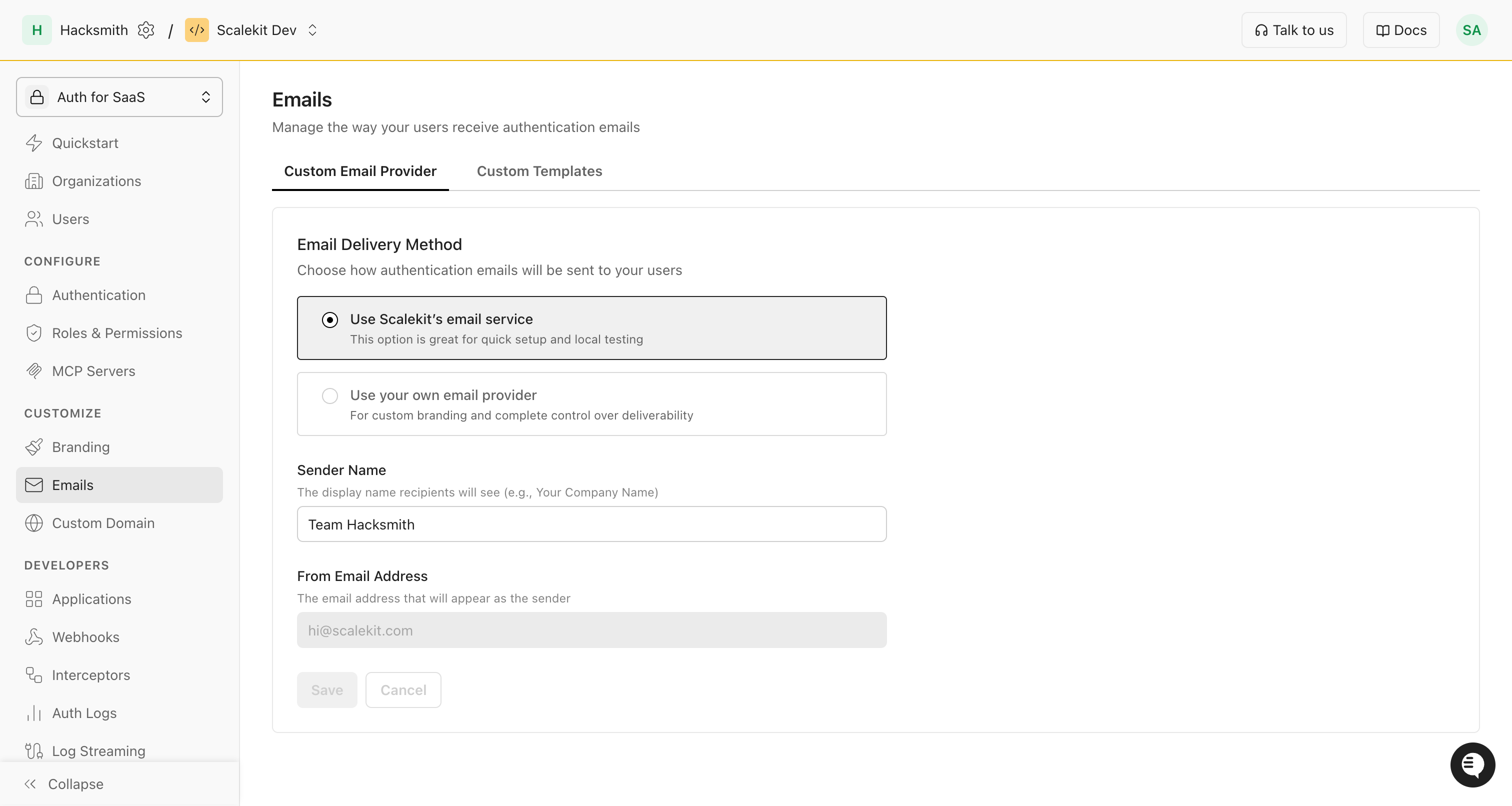
Use Scalekit’s email service Default
Section titled “Use Scalekit’s email service ”This needs no setup, which suits development and testing. Scalekit handles delivery with these settings:
- Sender Name:
Teamfollowed by your application name, such asTeam Hacksmith. You can change it. - From Email Address:
hi@scalekit.com
Use your own email provider
Section titled “Use your own email provider”Use your own SMTP provider when you need any of these:
- Emails sent from your own domain and address, to keep your brand and your users’ trust
- Your provider’s deliverability, sending reputation and analytics
- Email handling that meets your compliance requirements, such as GDPR or CCPA
Before you start, collect these details from your email provider:
| Field | Description |
|---|---|
| SMTP Server Host | Your provider’s SMTP hostname |
| SMTP Port | Usually 587 (TLS) or 465 (SSL) |
| SMTP Username | Your authentication username |
| SMTP Password | Your SMTP password or API key |
| From Email Address | The email address emails are sent from |
| Sender Name | The display name recipients see in their inbox, such as your company name. It can include variables. |
Common providers use these settings:
Host: smtp.sendgrid.netPort: 587Username: apikeyPassword: [Your SendGrid API Key]Host: email-smtp.<region>.amazonaws.com (the region of your SMTP credentials, such as us-east-1)Port: 587Username: [Your SMTP Username from AWS]Password: [Your SMTP Password from AWS]Host: smtp.postmarkapp.comPort: 587Username: [Your Postmark Server Token]Password: [Your Postmark Server Token]Then enter them in Scalekit:
-
In your Scalekit dashboard, go to Emails.
-
Choose Use your own email provider.
-
Enter the sender details:
From Email Address: noreply@yourdomain.comSender Name: Your Company Name -
Enter the SMTP details:
SMTP Server Host: smtp.your-provider.comSMTP Port: 587SMTP Username: your-usernameSMTP Password: your-password -
Click Test & Save Configuration. Scalekit checks the connection to your SMTP server before it saves the settings.
Scalekit stores your SMTP password encrypted and requires TLS when it sends through your server.
Use variables in the sender name
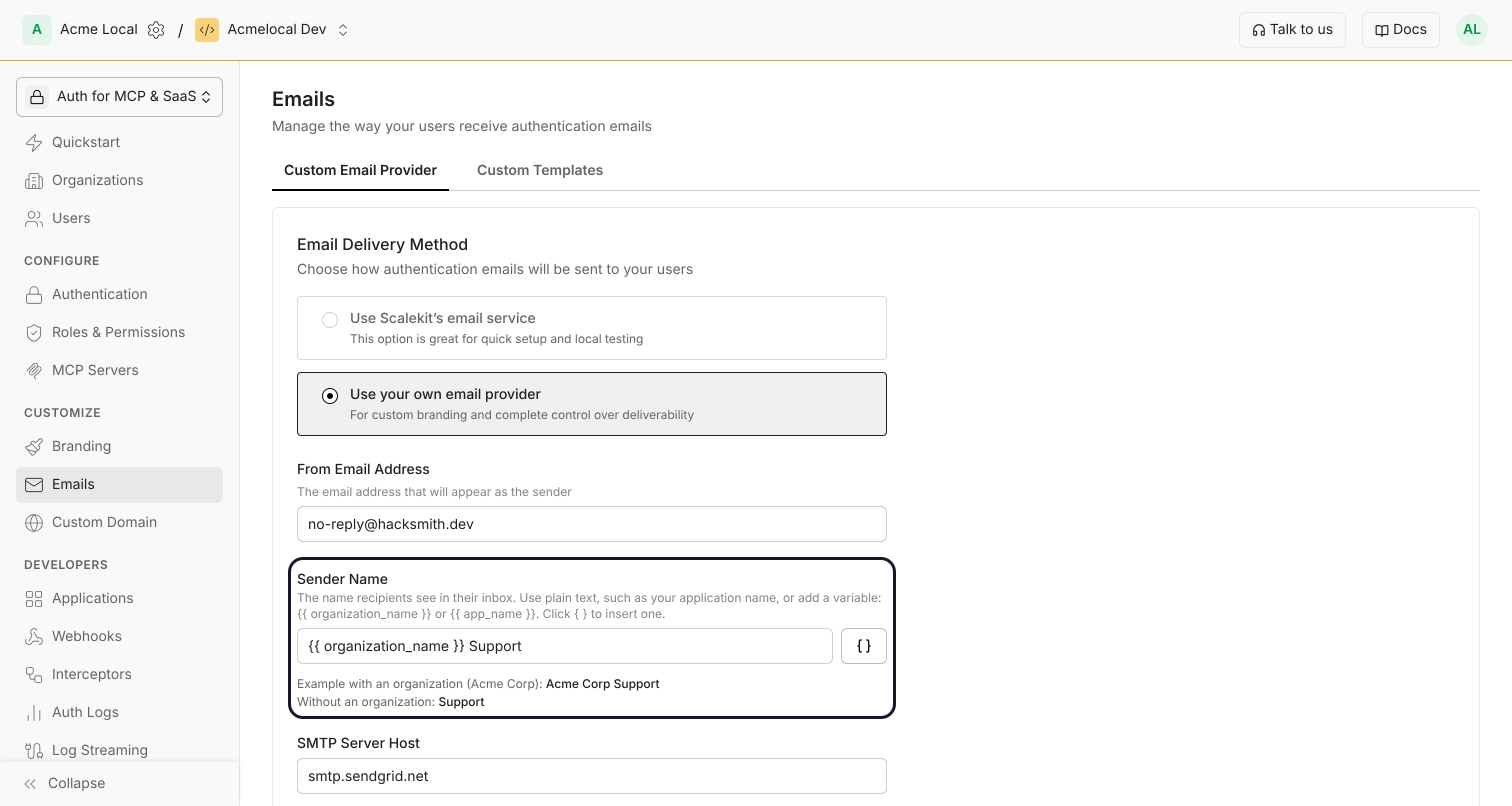
Section titled “Use variables in the sender name”The sender name can name the organization an email is sent for, such as {{ organization_name }} Support. Click { } next to Sender Name to insert a variable; the field previews the result with and without an organization.
| Variable | Value |
|---|---|
{{ organization_name }} | The organization the email is sent for. Empty when the email isn’t sent for one, so {{ organization_name }} Support becomes Support. |
{{ app_name }} | Your application name from Branding, else your workspace name |
Only these two variables work in the sender name; saving any other returns a 400 error. If the name renders empty or as an email address, the email uses your default sender name.
Customize email templates
Section titled “Customize email templates”Scalekit uses its default templates for each email. To change what an email says, go to Emails > Custom Templates and select the email.
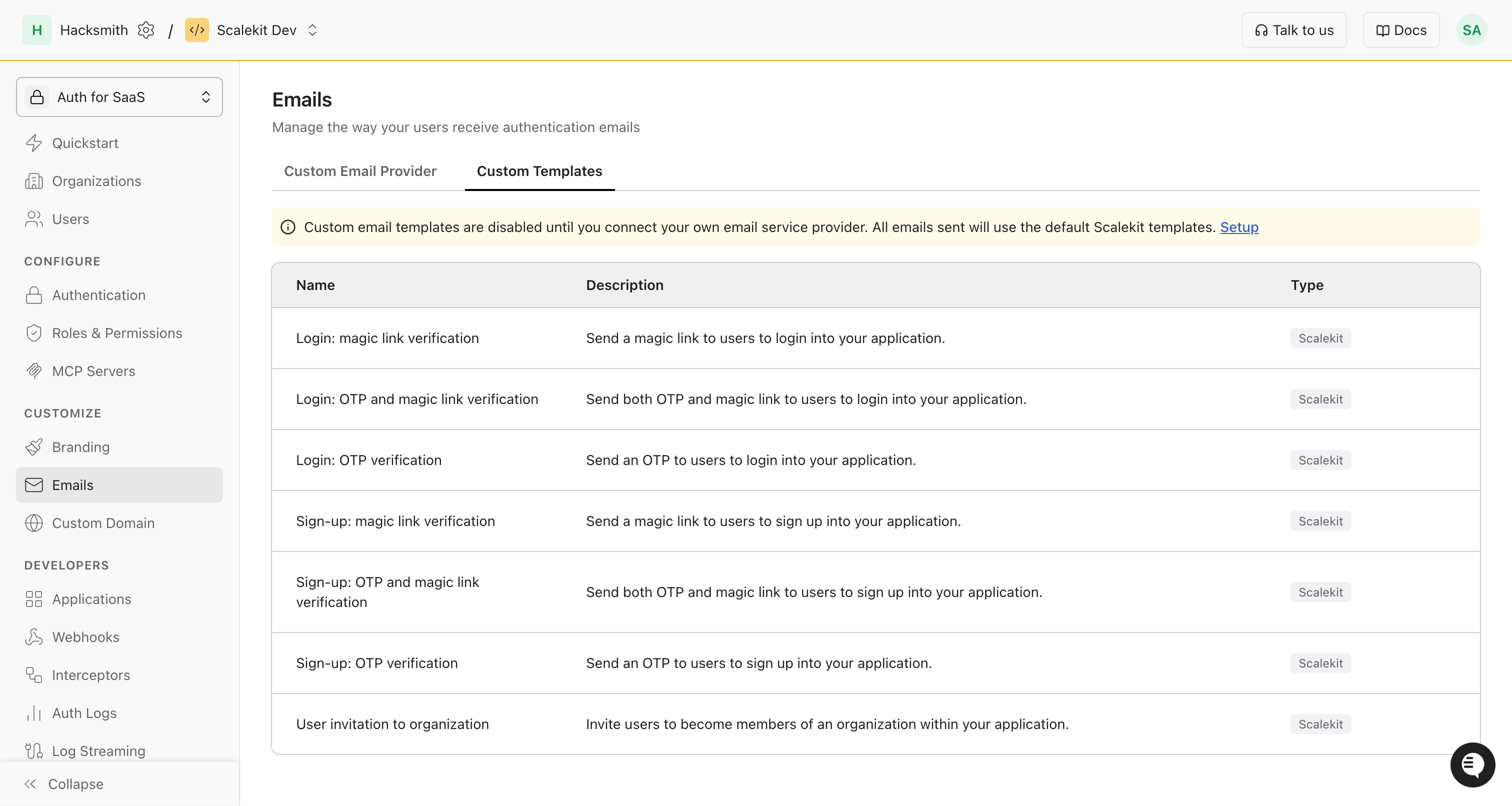
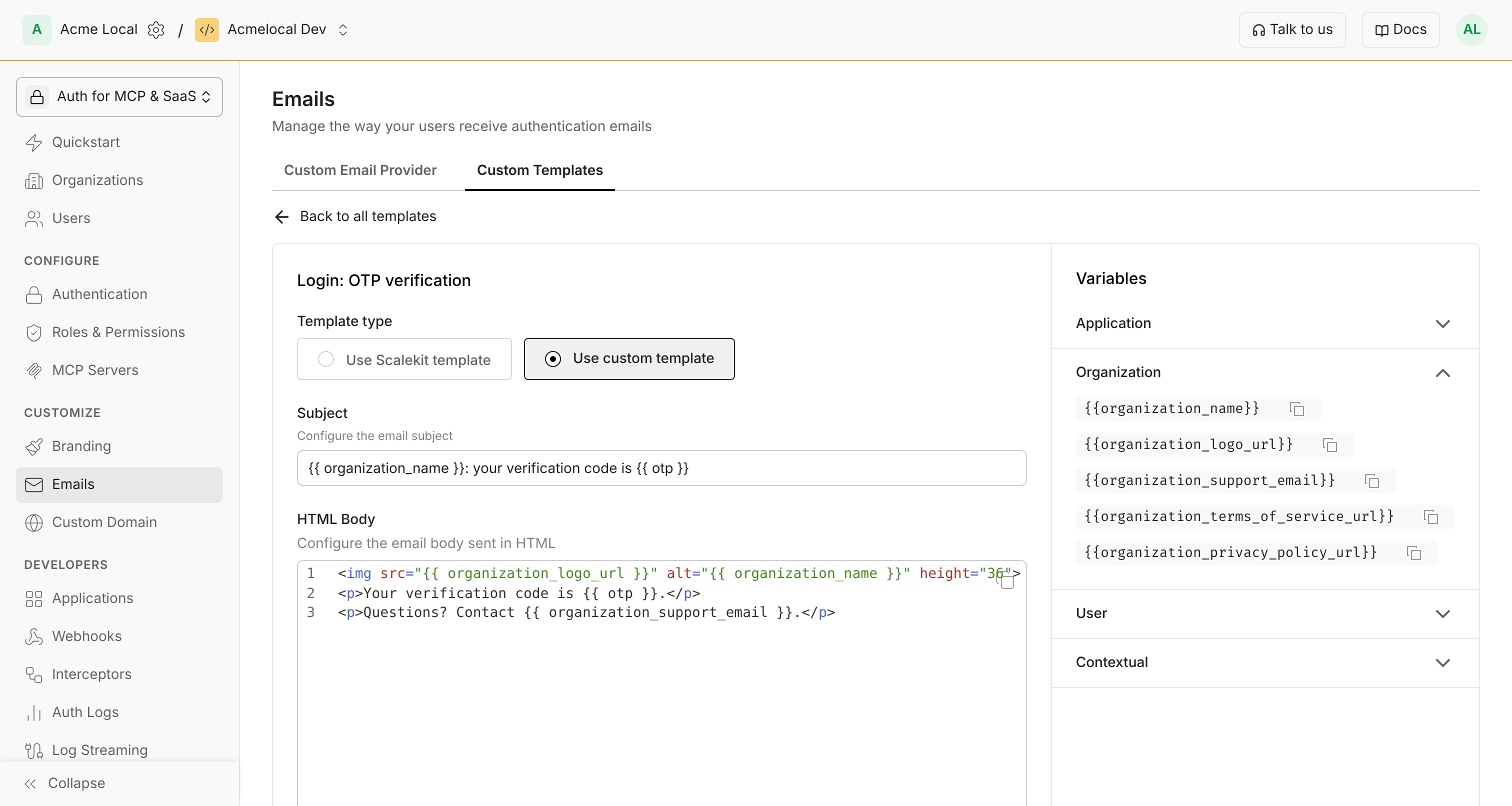
For each email, choose how it is generated:
- Use Scalekit template: preview the subject and bodies. You can’t edit them; the email uses Scalekit’s default content.
- Use custom template: edit the subject, HTML body and plain text body. Your saved content is used for every later send.
Provide HTML and plain text versions
Section titled “Provide HTML and plain text versions”Provide both versions of your email body in the template editor. When both are present, Scalekit sends a multipart/alternative message: clients that show HTML display the HTML part, and the others display the plain text part.
Use built-in template variables
Section titled “Use built-in template variables”Use these built-in variables in your templates. Values are filled in at send time. The variables below apply to all Scalekit templates.
Application
Section titled “Application”Use application variables to include app-level data (for example, name, logo, support email) that stays the same across all emails for your app.
| Variable | Description |
|---|---|
{{app_name}} | Your application name |
{{app_logo_url}} | Public URL to your application logo |
{{app_support_email}} | Support email address for your application |
{{app_organization_meta_name}} | What your app calls an organization, such as workspace or team, from Branding |
{{app_terms_of_service_url}} | Terms of service link from your branding settings |
{{app_privacy_policy_url}} | Privacy policy link from your branding settings |
Organization
Section titled “Organization”Organization variables describe the organization an email is sent for. Login and sign-up emails are sent for an organization when your authorization URL includes organization_id. Invitation emails are sent for the organization the user is invited to.
| Variable | Description |
|---|---|
{{organization_name}} | The organization name. Empty when the email isn’t sent for an organization. |
{{organization_logo_url}} | The organization’s logo, else your application logo |
{{organization_support_email}} | The organization’s support email, else your application’s |
{{organization_terms_of_service_url}} | The organization’s terms of service link, else your application’s |
{{organization_privacy_policy_url}} | The organization’s privacy policy link, else your application’s |
The organization_* values other than the name come from the organization’s custom branding when organization branding is on. Otherwise, and for any value the organization doesn’t set, they use your application’s values, so one template works whether or not the email is sent for an organization. The app_* variables hold your application’s values, also in emails sent for an organization.
<img src="{{ organization_logo_url }}" alt="{{ if organization_name }}{{ organization_name }}{{ else }}{{ app_name }}{{ end }}" height="36"><p>Questions? Contact {{ organization_support_email }}.</p>User variables personalize the email for the recipient (for example, name and email).
| Variable | Description |
|---|---|
{{user_name}} | The recipient’s name |
{{user_email}} | The recipient’s email address |
Contextual
Section titled “Contextual”Contextual variables belong to the current email and change with each send.
| Variable | Description |
|---|---|
{{link}} | The magic link the user clicks to log in or sign up |
{{otp}} | The one-time passcode the user enters |
{{expiry_time_relative}} | How long the link, passcode or invitation stays valid, rounded to one unit, such as “10 minutes” or “7 days” |
Use Jet template syntax
Section titled “Use Jet template syntax”Custom email templates use Jet syntax for dynamic content, including conditionals, loops and filters. Two common patterns:
{{ if user_name }}  <p>Hello {{ user_name }},</p>{{ else }}  <p>Hello,</p>{{ end }}
<p>Welcome to {{ app_name }}!</p>
{{ if organization_name }} <p>You have been invited to join {{ organization_name }} organization in {{ app_name }}.</p>{{ else }} <p>You have been invited to {{ app_name }}.</p>{{ end }}Pass your own variables at runtime Passwordless
Section titled “Pass your own variables at runtime ”If you use the Passwordless headless API, you can fill your own variables in each email from your code. They work only when you use your own email provider.
- Send up to 30 variables per email, as key-value pairs. Keys are 2 to 25 characters; values are up to 256 characters.
- Every variable your template uses must have a value in the request.
- These names are reserved:
otp,expiry_time_relative,link,expire_time,expiry_time. - To change the application name or logo for one email, pass
app_nameorapp_logo_url. They replace your environment’s branding in that email.
This example is for the Verification Code method, so the email carries a one-time passcode. With Magic Link or Magic Link + Verification Code, also pass magiclinkAuthUri, the URL in your app that the magic link opens, and put {{ link }} in the template.
To run it, install @scalekit-sdk/node and dotenv (npm install @scalekit-sdk/node dotenv) and put SCALEKIT_ENVIRONMENT_URL, SCALEKIT_CLIENT_ID and SCALEKIT_CLIENT_SECRET in a .env file.
-
Add your variables to the email template, next to the passcode:
Example email template <p>Hello {{ first_name }},</p><p>Your {{ company_name }} verification code is {{ otp }}.</p><p>Find your onboarding kit: {{ onboarding_resources }}</p> -
Pass their values when you send the email. Save the code as
send-email.mtsand run it withnpx tsx send-email.mts:send-email.mts import 'dotenv/config';import { Scalekit, ScalekitServerException } from '@scalekit-sdk/node';const scalekit = new Scalekit(process.env.SCALEKIT_ENVIRONMENT_URL!,process.env.SCALEKIT_CLIENT_ID!,process.env.SCALEKIT_CLIENT_SECRET!);try {await scalekit.passwordless.sendPasswordlessEmail('john.doe@example.com', {templateVariables: {first_name: 'John',company_name: 'Acme Corp',onboarding_resources: 'https://acme.com/onboarding',},});} catch (err) {if (!(err instanceof ScalekitServerException)) throw err;console.error(err.errorCode, err.message);} -
The email arrives with the values filled in:
Example email preview Hello John,Your Acme Corp verification code is 123456.Find your onboarding kit: https://acme.com/onboarding
Test your emails
Section titled “Test your emails”After you change how emails are sent or what they say, log in or sign up through your app to trigger an email, then check:
- It reaches the inbox, not the spam folder.
- The recipient sees the sender name and address you set.
- The content, branding, links and buttons look and work as expected.
Test your knowledge with a quiz
Which choice requires using your own email provider?