
The Airtable connector lets your AI agent act in each user's Airtable account. Each user signs in to Airtable once, and Scalekit stores and refreshes their tokens, so your agent never handles credentials. It comes with 26 tools.
- Tools
- 26
- What they doRead · write · destructive
- 9 · 11 · 69 read11 write6 destructive
- Users sign in with
- OAuth
- OAuth app
- Scalekit's or your own
What you can do
- Read records: list, filter, sort, and fetch records from any table or view
- Manage records: create, update, and delete records, and upload files to attachment fields
- Manage schema: read a base’s structure and create or update tables and fields
- Comment on records: list, add, edit, and delete comments and replies on records
- Watch for changes: create, refresh, and delete webhooks, and read past change notifications for a base
Setup
Install the SDK
Terminal window npm install @scalekit-sdk/node dotenvTerminal window pip install scalekit-sdk-python python-dotenvSet your credentials
Add your Scalekit credentials to your
.envfile. Find values in app.scalekit.com > Developers > API Credentials..env SCALEKIT_ENVIRONMENT_URL=<your-environment-url>SCALEKIT_CLIENT_ID=<your-client-id>SCALEKIT_CLIENT_SECRET=<your-client-secret>Create the Airtable connection
In AgentKit > Connections, create an Airtable connection. The name you give it is the
connection_nameyour code passes. See Configure connections.Scalekit credentials are available for Airtable, so you don't need to register an OAuth app. To show your own app on the consent screen, use your own credentials instead.
Use your own OAuth app
Register your Scalekit environment with the Airtable connector so Scalekit handles the authentication flow and token lifecycle for you. The connection name you create will be used to identify and invoke the connection programmatically. Then complete the configuration in your application as follows:
-
Create the Airtable connection in Scalekit
-
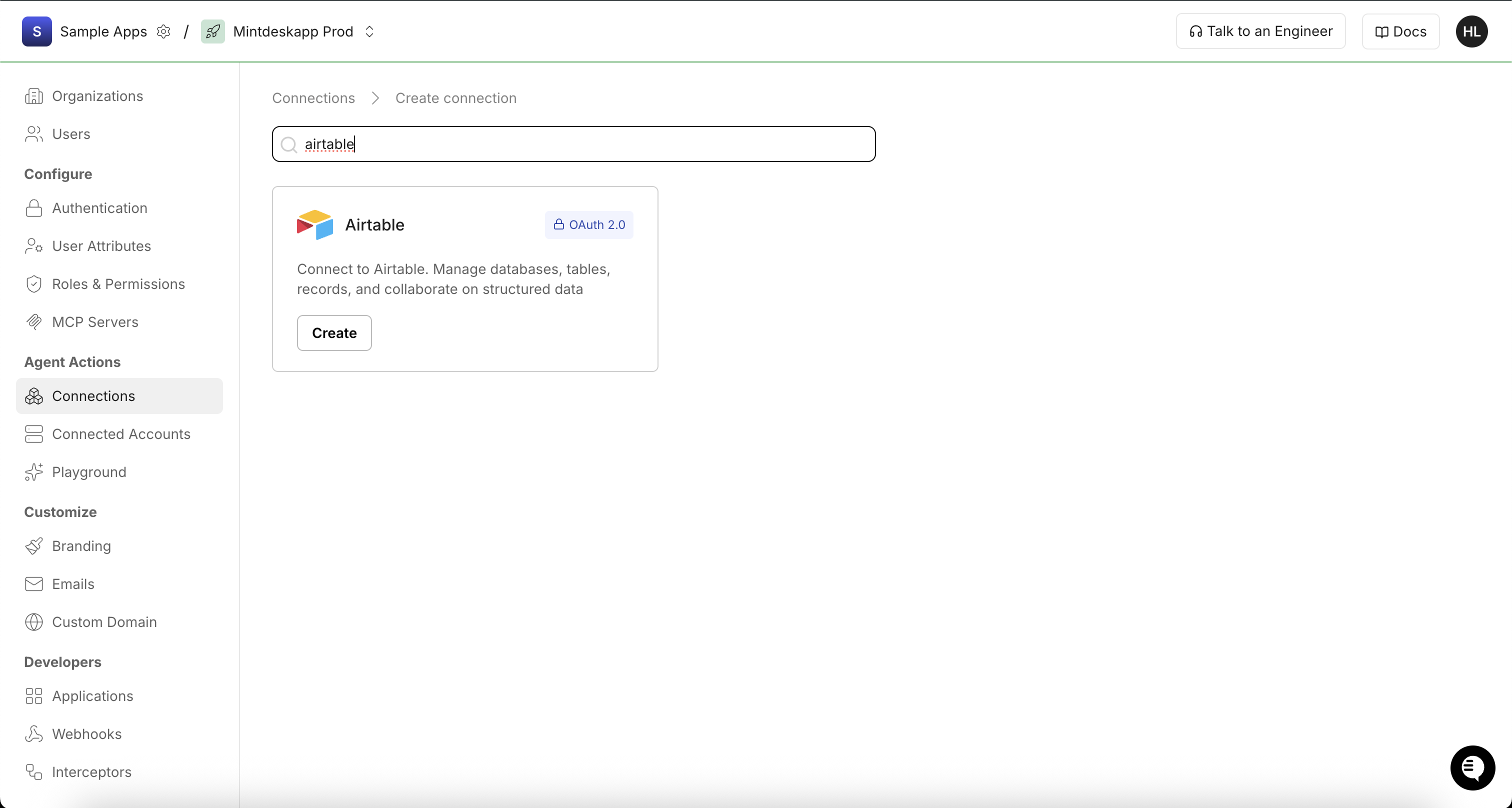
In Scalekit dashboard, go to AgentKit > Connections > Create Connection. Search for Airtable and click Create.
-
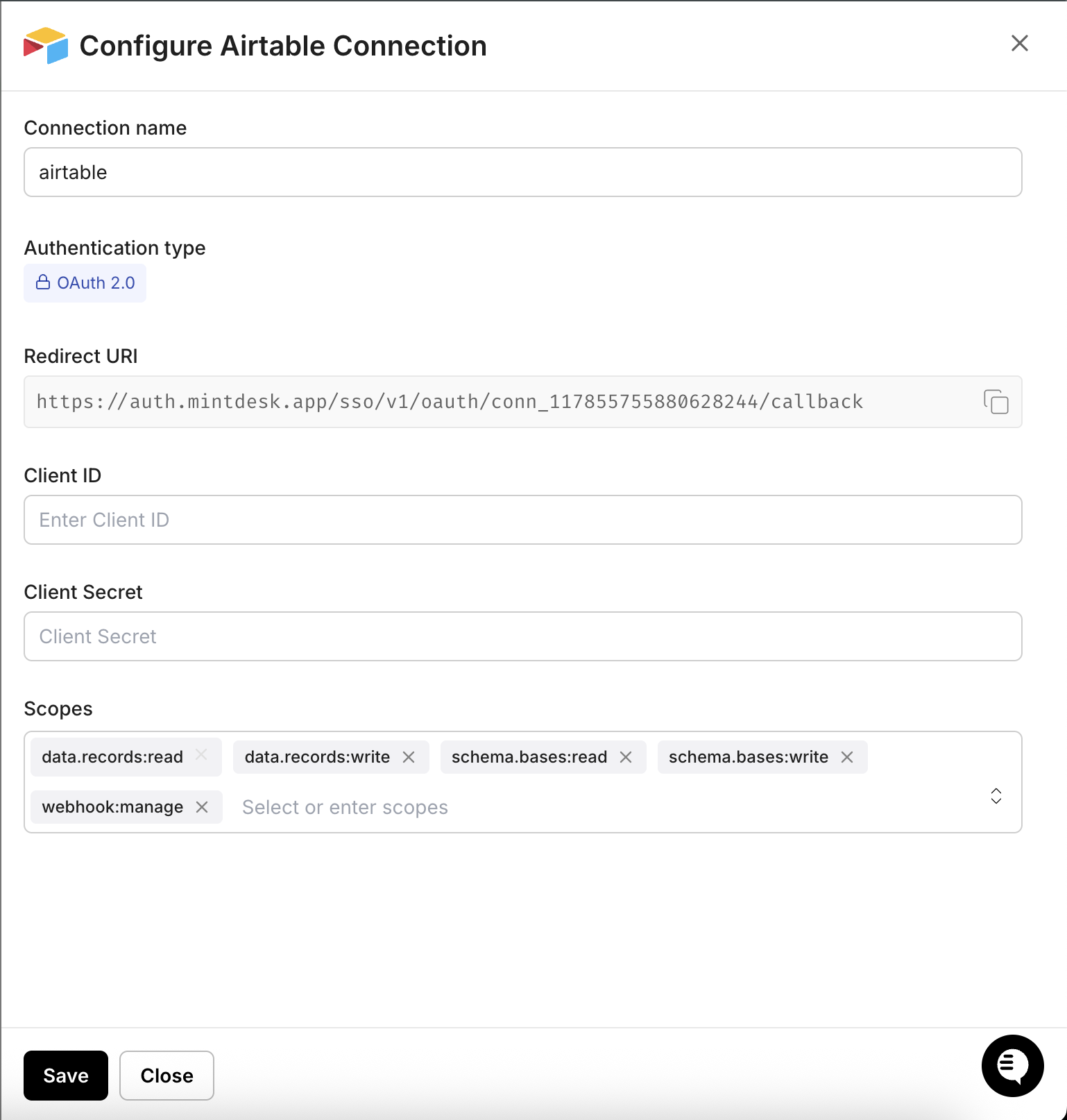
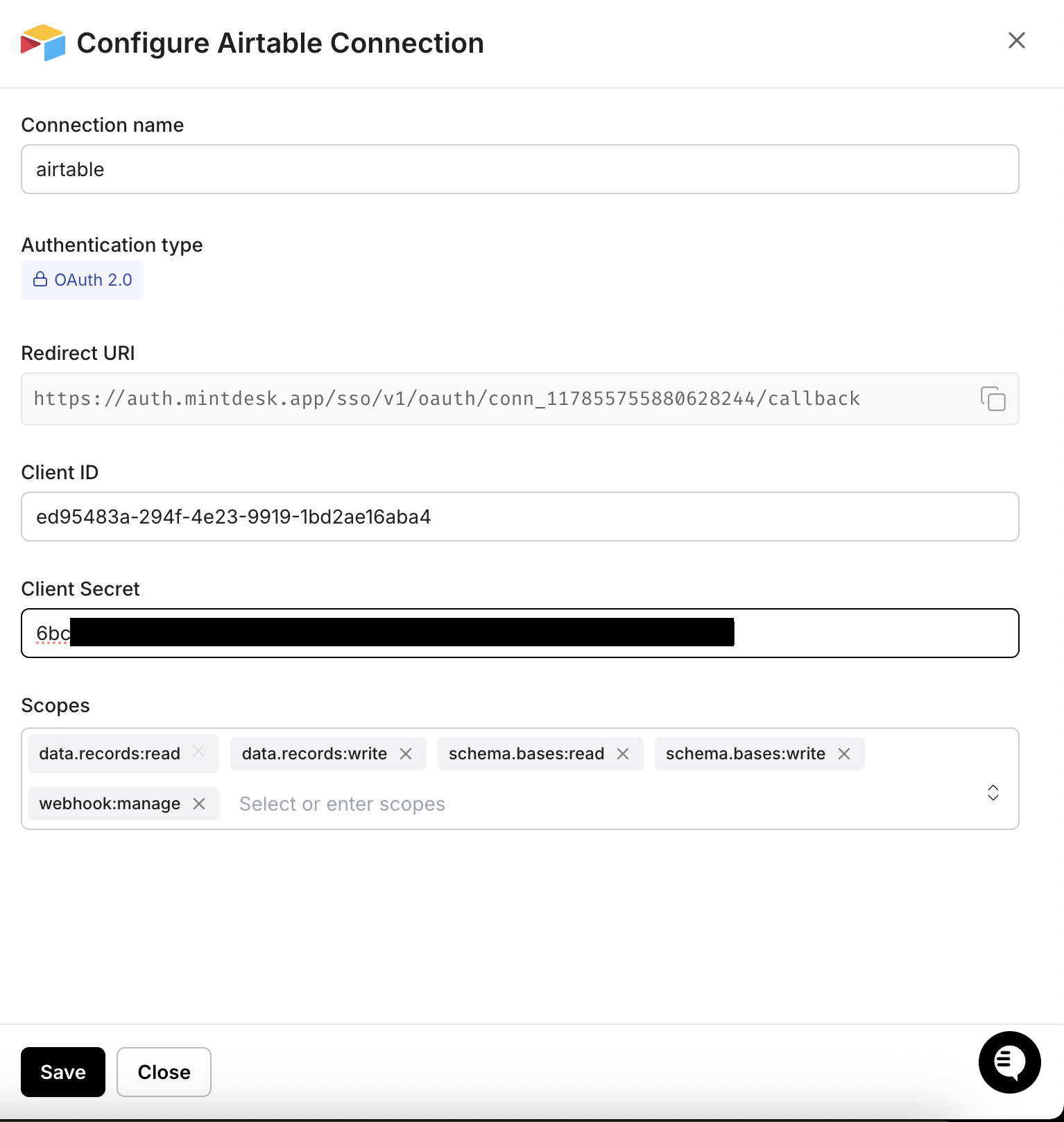
In the Configure Airtable Connection dialog, copy the Redirect URI. You will need this when registering your OAuth integration in Airtable.
-
-
Register an OAuth integration in Airtable
-
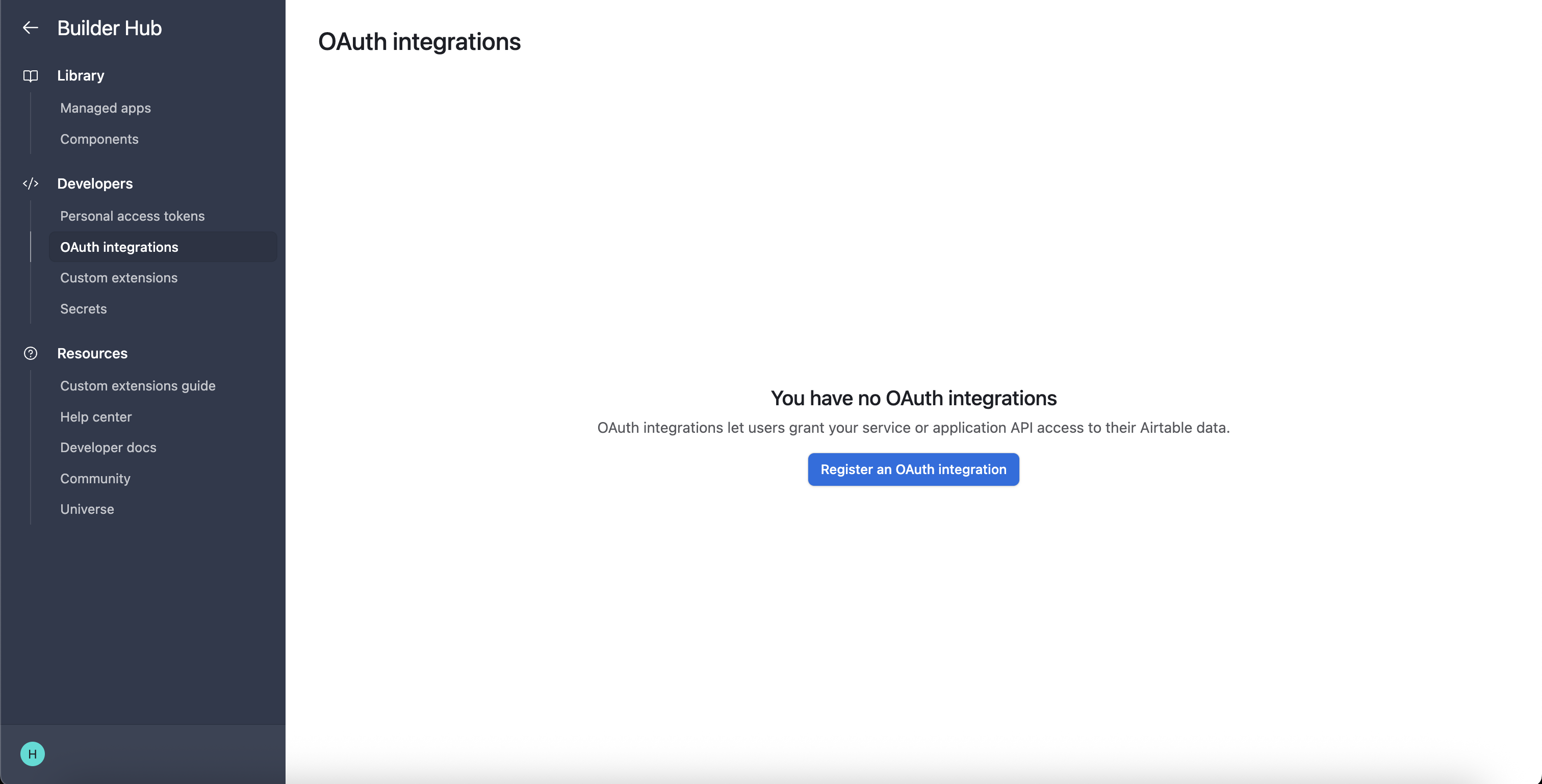
Go to the Airtable Builder Hub and navigate to OAuth integrations. Click Register an OAuth integration.
-
Fill in your integration details (name, description, and other required fields).
-
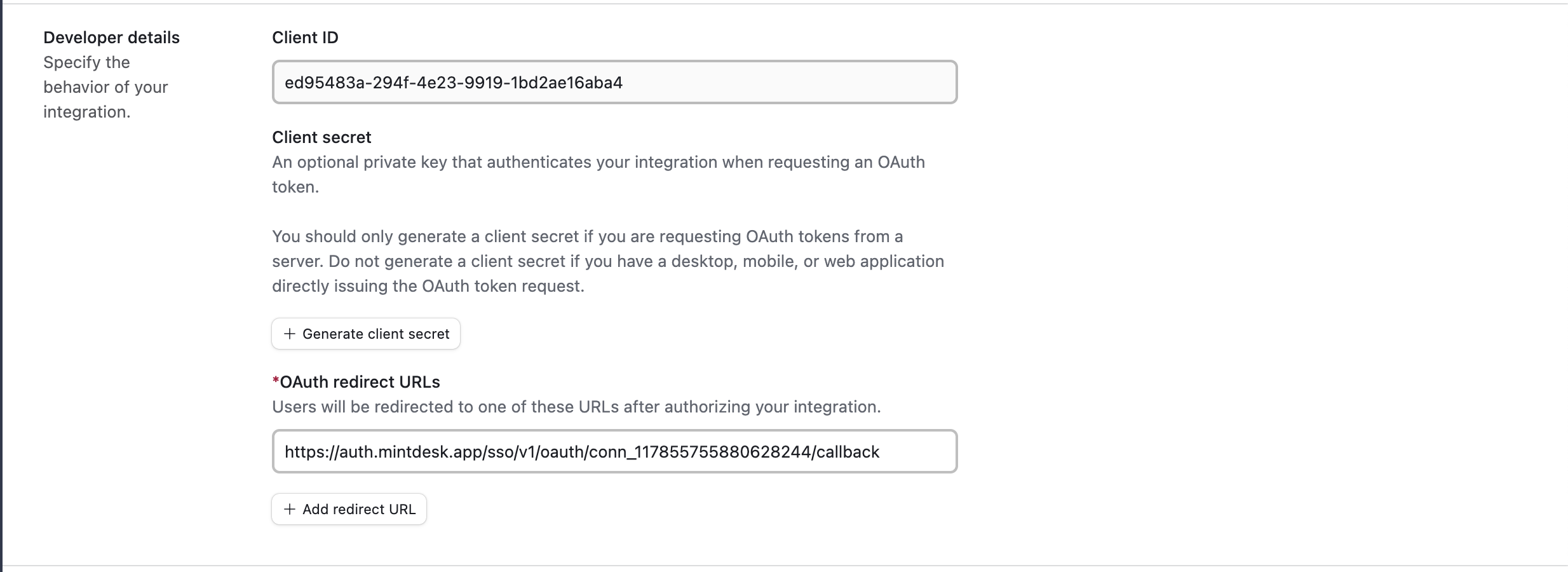
Under OAuth redirect URLs, paste the redirect URI you copied from the Scalekit dashboard.
-
-
Get your client credentials
-
On your OAuth integration page in the Airtable Builder Hub, find the Developer details section.
-
Copy the Client ID.
-
Click Generate client secret and copy the secret value immediately.
-
-
Add credentials in Scalekit
-
In Scalekit dashboard, go to AgentKit > Connections and open the Airtable connection you created.
-
Enter your credentials:
- Client ID — from the Airtable developer details
- Client Secret — the generated secret from Airtable
- Scopes — select the permissions your app needs (for example,
data.records:read,data.records:write,schema.bases:read,schema.bases:write,webhook.manage). See Airtable OAuth scopes reference for the full list.
-
Click Save.
-
-
Authorize a user and make your first call
quickstart.mts import { ScalekitClient } from '@scalekit-sdk/node'import 'dotenv/config'import { createInterface } from 'node:readline/promises'const scalekit = new ScalekitClient(process.env.SCALEKIT_ENVIRONMENT_URL,process.env.SCALEKIT_CLIENT_ID,process.env.SCALEKIT_CLIENT_SECRET,)const actions = scalekit.actionsconst connector = 'airtable'const identifier = 'user_123'// Generate an authorization link for the userconst { link } = await actions.getAuthorizationLink({ connectionName: connector, identifier })console.log('Authorize Airtable:', link)const rl = createInterface({ input: process.stdin, output: process.stdout })await rl.question('Press Enter after authorizing...')rl.close()// Make your first callconst result = await actions.executeTool({connector,identifier,toolName: 'airtable_get_current_user',toolInput: {},})console.log(result)Terminal window npx tsx quickstart.mtsquickstart.py import osfrom scalekit import ScalekitClientfrom dotenv import load_dotenvload_dotenv()scalekit_client = ScalekitClient(env_url=os.getenv("SCALEKIT_ENVIRONMENT_URL"),client_id=os.getenv("SCALEKIT_CLIENT_ID"),client_secret=os.getenv("SCALEKIT_CLIENT_SECRET"),)actions = scalekit_client.actionsconnection_name = "airtable"identifier = "user_123"# Generate an authorization link for the userlink_response = actions.get_authorization_link(connection_name=connection_name,identifier=identifier,)print("Authorize Airtable:", link_response.link)input("Press Enter after authorizing...")# Make your first callresult = actions.execute_tool(tool_input={},tool_name="airtable_get_current_user",connection_name=connection_name,identifier=identifier,)print(result)Terminal window python quickstart.pyEach user signs in once. See Authorize a user for the full flow and statuses.
Tools
Pass the exact name toexecute_toolairtable_get_base_schemaRetrieve the full schema of an Airtable base, including all tables, fields, views, and field options.Read-onlyGet Base Schema
Retrieve the full schema of an Airtable base, including all tables, fields, views, and field options. Useful for discovering the structure of a base before reading or writing records. Requires schema.bases:read scope.
Inputs
base_idstringrequired- The ID of the Airtable base to retrieve the schema for. Found in the base URL: airtable.com/{base_id}/... — always starts with 'app'.
includearray- Optional array of additional data to include. Pass ["visibleFieldIds"] to include visible field IDs for each grid view in the schema response.
airtable_get_current_userRetrieve information about the currently authenticated Airtable user, including their user ID, and (when the token grants the relevant scopes) their email address and the list of OAuth scopes granted to the token.Read-onlyGet Current User
Retrieve information about the currently authenticated Airtable user, including their user ID, and (when the token grants the relevant scopes) their email address and the list of OAuth scopes granted to the token. Useful for verifying which account and permissions a connection is using.
Inputs
This tool takes no inputs.
airtable_get_recordRetrieve a single record from an Airtable table by its record ID.Read-onlyGet Record
Retrieve a single record from an Airtable table by its record ID. Returns the record's field values along with its ID and creation timestamp.
Inputs
base_idstringrequired- The ID of the Airtable base containing the table. Found in the base URL: airtable.com/{base_id}/...
record_idstringrequired- The unique ID of the record to retrieve. Record IDs start with 'rec', e.g. recXXXXXXXXXXXXXX.
table_id_or_namestringrequired- The ID or name of the table containing the record. Table IDs start with 'tbl'; names are the display name.
cellFormatstring- Format for cell values. 'json' (default) returns structured objects; 'string' returns all values as strings. When using 'string', you must also provide timeZone and userLocale.one of
jsonstring includeDateDependencyMetadataboolean- If true, includes additional metadata about date dependency fields in the response.
returnFieldsByFieldIdboolean- If true, field keys in the response will be field IDs (e.g. fldXXXXXXXXXXXXXX) instead of field names.
airtable_get_viewRetrieve metadata for a single view in an Airtable table, including its name, type (grid, form, calendar, kanban, gallery, etc), and visible field order.Read-onlyGet View Metadata
Retrieve metadata for a single view in an Airtable table, including its name, type (grid, form, calendar, kanban, gallery, etc), and visible field order. Complements airtable_list_views, which only returns summary info for all views.
Inputs
base_idstringrequired- The ID of the Airtable base containing the table. Found in the base URL: airtable.com/{base_id}/...
table_id_or_namestringrequired- The ID or name of the table that contains the view. Table IDs start with 'tbl'; names are the display name of the table.
view_id_or_namestringrequired- The ID or name of the view to retrieve metadata for. View IDs start with 'viw'; names are the display name of the view.
airtable_list_basesList all Airtable bases accessible to the authenticated user.Read-onlyList Bases
List all Airtable bases accessible to the authenticated user. Returns base IDs, names, and permission levels. Supports pagination via offset token when there are more bases than returned in a single response.
Inputs
offsetstring- Pagination token returned from a previous list bases response. Pass this value to retrieve the next page of bases.
airtable_list_commentsList all comments on a specific Airtable record, ordered from newest to oldest.Read-onlyList Comments
List all comments on a specific Airtable record, ordered from newest to oldest. Supports pagination via pageSize and offset. Returns comment text, author details, timestamps, and threading information.
Inputs
base_idstringrequired- The ID of the Airtable base containing the table. Found in the base URL: airtable.com/{base_id}/...
record_idstringrequired- The unique ID of the record whose comments to list. Record IDs start with 'rec', e.g. recXXXXXXXXXXXXXX.
table_id_or_namestringrequired- The ID or name of the table containing the record. Table IDs start with 'tbl'; names are the display name of the table.
offsetstring- Pagination offset token returned from a previous list comments response. Pass this value to retrieve the next page of comments.
pageSizenumber- Number of comments to return per page. Maximum is 100. If not specified, Airtable defaults to returning all comments.
airtable_list_recordsList and query records from an Airtable table.Read-onlyList Records
List and query records from an Airtable table. Supports filtering by formula, sorting, pagination, field selection, and view scoping. Returns an array of records with their field values, and an offset token for fetching subsequent pages.
Inputs
base_idstringrequired- The ID of the Airtable base containing the table. Found in the base URL: airtable.com/{base_id}/...
table_id_or_namestringrequired- The ID or name of the table to list records from. Table IDs start with 'tbl'; names are the display name of the table.
cellFormatstring- Format for cell values. 'json' (default) returns structured objects; 'string' returns all values as strings. When using 'string', you must also provide timeZone and userLocale.one of
jsonstring fieldsarray- Array of field names or IDs to include in the response. If omitted, all fields are returned. Example: ["Name", "Status", "fldXXXXXXXXXXXXXX"]
filterByFormulastring- An Airtable formula to filter records. Only records where this formula evaluates to true will be returned. Example: {Status}='Active'
maxRecordsnumber- Maximum total number of records to return across all pages. Useful for capping large result sets.
offsetstring- Pagination offset token returned from a previous list request. Pass this value to retrieve the next page of records.
pageSizenumber- Number of records to return per page. Maximum is 100. If not specified, Airtable defaults to 100.
returnFieldsByFieldIdboolean- If true, field keys in the response will be field IDs (e.g. fldXXXXXXXXXXXXXX) instead of field names. Useful for fields with special characters or to avoid name-collision issues.
timeZonestring- IANA time zone identifier to use when cellFormat is 'string'. Required when cellFormat='string'. Example: 'America/New_York'.
userLocalestring- User locale for date/time formatting when cellFormat is 'string'. Required when cellFormat='string'. Example: 'en-us'.
viewstring- The name or ID of a view to scope results to. Records outside the view's filter and sort will be excluded.
airtable_list_webhook_payloadsRetrieve past webhook payloads for an Airtable webhook.Read-onlyList Webhook Payloads
Retrieve past webhook payloads for an Airtable webhook. Useful for inspecting which changes triggered notifications and for cursor-based pagination through the payload history. Use the cursorForNextPayload value from the List Webhooks response as the cursor. Requires the webhook:manage scope.
Inputs
base_idstringrequired- The ID of the Airtable base containing the webhook. Found in the base URL: airtable.com/{base_id}/...
webhook_idstringrequired- The unique ID of the webhook whose payloads to retrieve. Webhook IDs can be retrieved from the List Webhooks tool.
cursornumber- Numeric cursor for pagination. Use the cursorForNextPayload value from the List Webhooks response to retrieve payloads starting from that position.
limitnumber- Maximum number of payload records to return per page. Leave blank to use the Airtable API default.
airtable_list_webhooksList all webhooks configured for an Airtable base.Read-onlyList Webhooks
List all webhooks configured for an Airtable base. Returns webhook IDs, notification URLs, enabled status, expiration times, and event specifications. Requires the webhook:manage scope.
Inputs
base_idstringrequired- The ID of the Airtable base whose webhooks to list. Found in the base URL: airtable.com/{base_id}/...
airtable_create_commentAdd a comment to an Airtable record.WriteCreate Comment
Add a comment to an Airtable record. Optionally specify a parentCommentId to reply in an existing thread. You can mention users with @[userId] syntax in the text. Requires the data.recordComments:write scope.
Inputs
base_idstringrequired- The ID of the Airtable base containing the table. Found in the base URL: airtable.com/{base_id}/...
record_idstringrequired- The unique ID of the record to comment on. Record IDs start with 'rec', e.g. recXXXXXXXXXXXXXX.
table_id_or_namestringrequired- The ID or name of the table containing the record. Table IDs start with 'tbl'; names are the display name of the table.
textstringrequired- The text content of the comment. Supports @[userId] syntax to mention users. Example: 'Please review this record @[usrXXXXXXXXXXXXXX]'.
parentCommentIdstring- The ID of an existing comment to reply to, creating a threaded reply. Comment IDs start with 'com'. Omit to create a top-level comment.
airtable_create_fieldCreate a new field (column) in an Airtable table.WriteCreate Field
Create a new field (column) in an Airtable table. Specify the field name, type, and type-specific options. Common types include: singleLineText, multilineText, number, checkbox, singleSelect, multipleSelect, date, email, url, phoneNumber, currency, percent, duration, rating, formula, rollup, count, lookup, multipleRecordLinks, attachment. Requires schema.bases:write scope.
Inputs
base_idstringrequired- The ID of the Airtable base containing the target table. Found in the base URL: airtable.com/{base_id}/... — always starts with 'app'.
namestringrequired- The display name for the new field. Must be unique within the table.
table_idstringrequired- The ID of the table to add the field to. Table IDs start with 'tbl'.
typestringrequired- The field type. Common values: singleLineText, multilineText, number, checkbox, singleSelect, multipleSelect, date, email, url, phoneNumber, currency, percent, duration, rating, formula, rollup, count, lookup, multipleRecordLinks, attachment.
descriptionstring- Optional description for the field, shown in the Airtable UI as field help text.
optionsobject- Type-specific field configuration object. For singleSelect/multipleSelect, provide {"choices": [{"name": "Option A"}, {"name": "Option B"}]}. For number, provide {"precision": 2}. For currency, provide {"precision": 2, "symbol": "$"}. For formula, provide {"formula": "UPPER({Name)"}. Refer to Airtable field options docs for each type.
airtable_create_recordsCreate one or more records in an Airtable table.WriteCreate Records
Create one or more records in an Airtable table. Provide an array of record objects, each with a 'fields' object mapping field names (or IDs) to values. Up to 10 records can be created in a single request. Returns the created records with their assigned IDs.
Inputs
base_idstringrequired- The ID of the Airtable base containing the table. Found in the base URL: airtable.com/{base_id}/...
recordsarrayrequired- Array of record objects to create, each containing a 'fields' object mapping field names or IDs to values. Up to 10 records per request. Example: [{"fields": {"Name": "Alice", "Status": "Active"}}]
table_id_or_namestringrequired- The ID or name of the table to create records in. Table IDs start with 'tbl'; names are the display name.
returnFieldsByFieldIdboolean- If true, field keys in the response will be field IDs (e.g. fldXXXXXXXXXXXXXX) instead of field names.
typecastboolean- If true, Airtable will attempt to auto-convert string values to the appropriate field type (e.g. '2025-01-15' to a date field). Useful when passing data from external sources.
airtable_create_tableCreate a new table in an Airtable base.WriteCreate Table
Create a new table in an Airtable base. Specify the table name and initial field definitions. The first field in the fields array becomes the primary field. Requires schema.bases:write scope.
Inputs
base_idstringrequired- The ID of the Airtable base where the new table will be created. Found in the base URL: airtable.com/{base_id}/... — always starts with 'app'.
fieldsarrayrequired- Array of field definitions to create in the table. Each field must have at minimum a 'name' and 'type'. The first field becomes the primary field. Example: [{"name": "Name", "type": "singleLineText"}, {"name": "Status", "type": "singleSelect", "options": {"choices": [{"name": "Active"}, {"name": "Done"}]}}]
namestringrequired- The name for the new table. Must be unique within the base.
descriptionstring- Optional description for the new table. Maximum 20000 characters.
airtable_create_webhookCreate a new webhook for an Airtable base to receive real-time notifications when data changes.WriteCreate Webhook
Create a new webhook for an Airtable base to receive real-time notifications when data changes. Provide an HTTPS notification URL and optionally specify event filters (dataTypes, changeTypes, table/field scope). Returns the webhook ID, expiration time, and MAC secret for payload verification. Requires the webhook:manage scope.
Inputs
base_idstringrequired- The ID of the Airtable base to create the webhook for. Found in the base URL: airtable.com/{base_id}/...
notificationUrlstringrequired- The HTTPS URL that Airtable will send webhook POST requests to when changes occur. Must be a publicly accessible HTTPS endpoint.
specificationobject- Optional webhook specification object to filter which events trigger notifications. Shape: {options: {filters?: {fromSources?, dataTypes?, changeTypes?, watchDataInFieldIds?, watchSchemasOfFieldIds?, watchDataInTableIds?, watchSchemasOfTableIds?, recordChangeScope?}}}. Omit to receive all events.
airtable_refresh_webhookRefresh an Airtable webhook to extend its expiration time.WriteRefresh Webhook
Refresh an Airtable webhook to extend its expiration time. Webhooks expire after 7 days by default; call this endpoint periodically to keep them active. Returns the new expiration time. Requires the webhook:manage scope.
Inputs
base_idstringrequired- The ID of the Airtable base containing the webhook. Found in the base URL: airtable.com/{base_id}/...
webhook_idstringrequired- The unique ID of the webhook to refresh. Webhook IDs can be retrieved from the List Webhooks tool.
airtable_update_commentUpdate the text of an existing comment on an Airtable record.WriteUpdate Comment
Update the text of an existing comment on an Airtable record. Only the comment's original author can update it via the API. Requires the data.recordComments:write scope.
Inputs
base_idstringrequired- The ID of the Airtable base containing the table. Found in the base URL: airtable.com/{base_id}/...
comment_idstringrequired- The unique ID of the comment to update. Comment IDs start with 'com', e.g. comXXXXXXXXXXXXXX.
record_idstringrequired- The unique ID of the record containing the comment. Record IDs start with 'rec', e.g. recXXXXXXXXXXXXXX.
table_id_or_namestringrequired- The ID or name of the table containing the record. Table IDs start with 'tbl'; names are the display name of the table.
textstringrequired- The new text content for the comment. Replaces the existing comment text entirely.
airtable_update_fieldUpdate a field's name, description, or options in an Airtable table.WriteUpdate Field
Update a field's name, description, or options in an Airtable table. At least one of name, description, or options must be provided. Note: changing a field's type via update is not supported — create a new field instead. Requires schema.bases:write scope.
Inputs
base_idstringrequired- The ID of the Airtable base containing the target table. Found in the base URL: airtable.com/{base_id}/... — always starts with 'app'.
field_idstringrequired- The ID of the field to update. Field IDs start with 'fld'. Use airtable_get_base_schema to discover field IDs.
table_idstringrequired- The ID of the table containing the field to update. Table IDs start with 'tbl'.
descriptionstring- New description for the field, shown in the Airtable UI as field help text. At least one of name, description, or options must be provided.
namestring- New display name for the field. Must be unique within the table. At least one of name, description, or options must be provided.
optionsobject- Updated type-specific field configuration. For singleSelect/multipleSelect, provide {"choices": [{"name": "Option A"}, {"name": "Option B"}]}. For number, provide {"precision": 2}. At least one of name, description, or options must be provided.
airtable_update_recordsUpdate one or more existing records in an Airtable table using a merge (PATCH) strategy — only the fields you specify are changed; unspecified fields are left untouched.WriteUpdate Records
Update one or more existing records in an Airtable table using a merge (PATCH) strategy — only the fields you specify are changed; unspecified fields are left untouched. Provide an array of record objects each with an 'id' and 'fields'. Up to 10 records per request. Optionally enable upsert mode with 'performUpsert' to create records that don't match an existing ID.
Inputs
base_idstringrequired- The ID of the Airtable base containing the table. Found in the base URL: airtable.com/{base_id}/...
recordsarrayrequired- Array of record objects to update. Each must have an 'id' (the record ID starting with 'rec') and a 'fields' object with the fields to update. Up to 10 records per request. Example: [{"id": "recXXXXXXXXXXXXXX", "fields": {"Status": "Done"}}]
table_id_or_namestringrequired- The ID or name of the table containing records to update. Table IDs start with 'tbl'; names are the display name.
performUpsertobject- When provided, enables upsert mode. Must be an object with a 'fieldsToMergeOn' array specifying which field names to match on for upsert. Records matching on those fields will be updated; non-matching records will be created. Example: {"fieldsToMergeOn": ["Email"]}
returnFieldsByFieldIdboolean- If true, field keys in the response will be field IDs (e.g. fldXXXXXXXXXXXXXX) instead of field names.
typecastboolean- If true, Airtable will attempt to auto-convert string values to the appropriate field type. Useful when passing data from external sources.
airtable_update_tableUpdate a table's name or description in an Airtable base.WriteUpdate Table
Update a table's name or description in an Airtable base. At least one of name or description must be provided. Requires schema.bases:write scope.
Inputs
base_idstringrequired- The ID of the Airtable base containing the table. Found in the base URL: airtable.com/{base_id}/... — always starts with 'app'.
table_id_or_namestringrequired- The ID or name of the table to update. Table IDs start with 'tbl'; names are the display name of the table.
descriptionstring- New description for the table. Maximum 20000 characters. At least one of name or description must be provided.
namestring- New name for the table. Must be unique within the base. At least one of name or description must be provided.
airtable_upload_attachmentUpload a file directly to an attachment field on an Airtable record, by sending its base64-encoded content in the request body.WriteUpload Attachment
Upload a file directly to an attachment field on an Airtable record, by sending its base64-encoded content in the request body. The file is appended to any attachments already in that field. Requires the data.records:write scope.
Inputs
attachment_field_id_or_namestringrequired- The ID or name of the attachment field to upload the file into.
base_idstringrequired- The ID of the Airtable base containing the record. Found in the base URL: airtable.com/{base_id}/...
content_typestringrequired- MIME type of the file being uploaded.
filestringrequired- Base64-encoded content of the file to upload.
filenamestringrequired- Filename to store the attachment as.
record_idstringrequired- The ID of the record to attach the file to. Record IDs start with 'rec'.
airtable_delete_basePermanently delete an Airtable base.DestructiveDelete Base
Permanently delete an Airtable base. The base is moved to Trash and recoverable per your workspace's retention policy, but is otherwise removed immediately. Only available on Enterprise billing plans, and requires Enterprise admin permissions plus the workspacesAndBases:manage scope.
- Idempotent
Inputs
base_idstringrequired- The ID of the Airtable base to delete. Found in the base URL: airtable.com/{base_id}/...
airtable_delete_commentDelete a comment from an Airtable record.DestructiveDelete Comment
Delete a comment from an Airtable record. API users can only delete comments they created. Enterprise Admins can delete any comment. Requires the data.recordComments:write scope.
- Idempotent
Inputs
base_idstringrequired- The ID of the Airtable base containing the table. Found in the base URL: airtable.com/{base_id}/...
comment_idstringrequired- The unique ID of the comment to delete. Comment IDs start with 'com', e.g. comXXXXXXXXXXXXXX.
record_idstringrequired- The unique ID of the record containing the comment to delete. Record IDs start with 'rec', e.g. recXXXXXXXXXXXXXX.
table_id_or_namestringrequired- The ID or name of the table containing the record. Table IDs start with 'tbl'; names are the display name of the table.
airtable_delete_recordDelete a single record from an Airtable table by its record ID.DestructiveDelete Record
Delete a single record from an Airtable table by its record ID. This action is permanent and cannot be undone — the record and all its field data will be removed from the table.
- Idempotent
Inputs
base_idstringrequired- The ID of the Airtable base containing the table. Found in the base URL: airtable.com/{base_id}/...
record_idstringrequired- The unique ID of the record to delete. Record IDs start with 'rec', e.g. recXXXXXXXXXXXXXX. Deletion is permanent and cannot be undone.
table_id_or_namestringrequired- The ID or name of the table containing the record to delete. Table IDs start with 'tbl'; names are the display name.
airtable_delete_recordsDelete multiple records from an Airtable table in a single request.DestructiveDelete Records
Delete multiple records from an Airtable table in a single request. Provide up to 10 record IDs to delete. Each record ID must start with 'rec' (e.g. recABCDEFGHIJKLMN). Returns a list of deleted record IDs with confirmed deletion status.
- Idempotent
Inputs
base_idstringrequired- The ID of the Airtable base containing the table. Found in the base URL: airtable.com/{base_id}/...
recordsarrayrequired- Array of record IDs to delete. Each ID must start with 'rec'. Maximum 10 records per request. Example: ["recABCDEFGHIJKLMN", "recXXXXXXXXXXXXXX"].
table_id_or_namestringrequired- The ID or name of the table from which records will be deleted. Table IDs start with 'tbl'; names are the display name of the table.
airtable_delete_viewPermanently delete a view from an Airtable table.DestructiveDelete View
Permanently delete a view from an Airtable table. This does not delete the underlying records or fields, only the view itself. Requires the workspacesAndBases:write scope.
- Idempotent
Inputs
base_idstringrequired- The ID of the Airtable base containing the table. Found in the base URL: airtable.com/{base_id}/...
table_id_or_namestringrequired- The ID or name of the table that contains the view. Table IDs start with 'tbl'; names are the display name of the table.
view_id_or_namestringrequired- The ID or name of the view to delete. View IDs start with 'viw'; names are the display name of the view.
airtable_delete_webhookDelete an Airtable webhook.DestructiveDelete Webhook
Delete an Airtable webhook. This permanently stops all future notifications from this webhook. Requires the webhook:manage scope.
- Idempotent
Inputs
base_idstringrequired- The ID of the Airtable base containing the webhook. Found in the base URL: airtable.com/{base_id}/...
webhook_idstringrequired- The unique ID of the webhook to delete. Webhook IDs can be retrieved from the List Webhooks tool.
No tools match.
Workflows
Proxy API call
const result = await actions.request({ connectionName: 'airtable', identifier: 'user_123', path: '/v0/meta/whoami', method: 'GET',});console.log(result);result = actions.request( connection_name='airtable', identifier='user_123', path="/v0/meta/whoami", method="GET",)print(result)Execute a tool
const result = await actions.executeTool({ connector: 'airtable', identifier: 'user_123', toolName: 'airtable_list_bases', toolInput: {},});console.log(result);result = actions.execute_tool( connection_name='airtable', identifier='user_123', tool_name='airtable_list_bases', tool_input={},)print(result)