
The Intercom connector lets your AI agent act in each user's Intercom account. Each user signs in to Intercom once, and Scalekit stores and refreshes their tokens, so your agent never handles credentials. It comes with 113 tools.
- Tools
- 113
- What they doRead · write · destructive
- 55 · 42 · 1655 read42 write16 destructive
- Users sign in with
- OAuth
- OAuth app
- Your own Intercom app
What you can do
- Handle conversations: read, search, reply to, assign, close, and snooze customer conversations
- Manage contacts: create, update, search, merge, archive, and tag users and leads, and add notes
- Manage tickets: create, search, update, and reply to tickets, or convert conversations into tickets
- Send messages: send in-app or email messages from an admin to a contact
- Maintain the Help Center: create, update, search, and delete articles and organize them in collections
- Manage companies: create, update, and delete companies and attach contacts to them
Setup
Install the SDK
Terminal window npm install @scalekit-sdk/node dotenvTerminal window pip install scalekit-sdk-python python-dotenvSet your credentials
Add your Scalekit credentials to your
.envfile. Find values in app.scalekit.com > Developers > API Credentials..env SCALEKIT_ENVIRONMENT_URL=<your-environment-url>SCALEKIT_CLIENT_ID=<your-client-id>SCALEKIT_CLIENT_SECRET=<your-client-secret>Create the Intercom connection
In AgentKit > Connections, create an Intercom connection and copy its redirect URI. The name you give it is the
connection_nameyour code passes. See Configure connections.Register an OAuth app
Intercom connections use your own OAuth app. Register one with Intercom and add the redirect URI you copied.
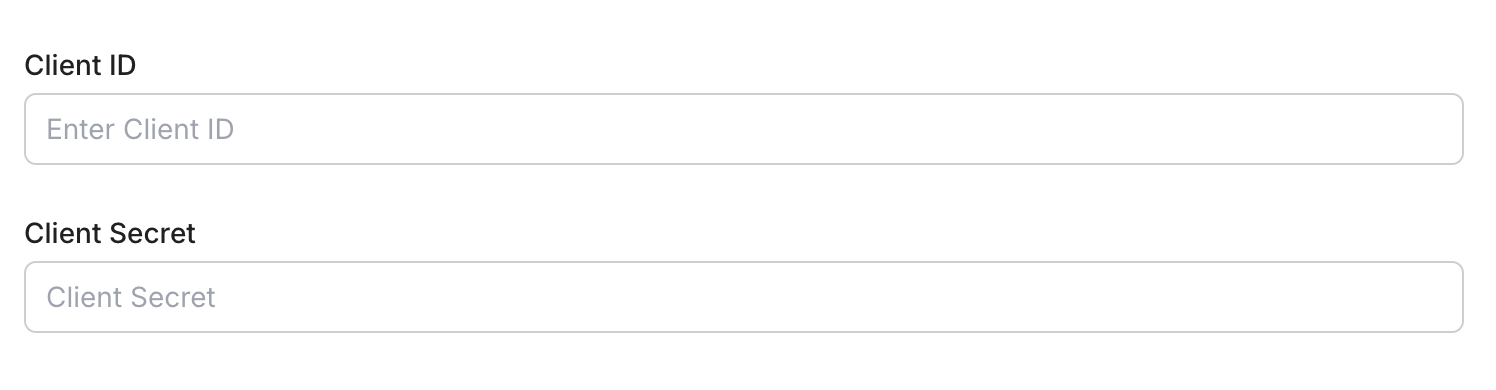
Then enter the app's Client ID and Client Secret on the Intercom connection.
Console steps with screenshots
Register your Scalekit environment with the Intercom connector so Scalekit handles the authentication flow and token lifecycle for you. The connection name you create will be used to identify and invoke the connection programmatically. You’ll need your app credentials from the Intercom Developer Hub.
-
Set up auth redirects
-
In Scalekit dashboard, go to AgentKit > Connections > Create Connection.
-
Find Intercom from the list of providers and click Create. Copy the redirect URI. It looks like
https://<SCALEKIT_ENVIRONMENT_URL>/sso/v1/oauth/<CONNECTION_ID>/callback.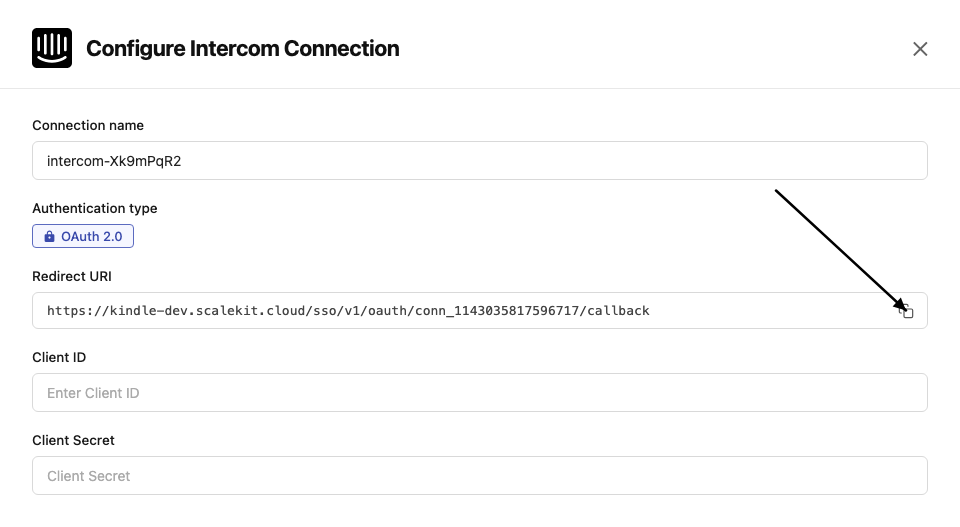
-
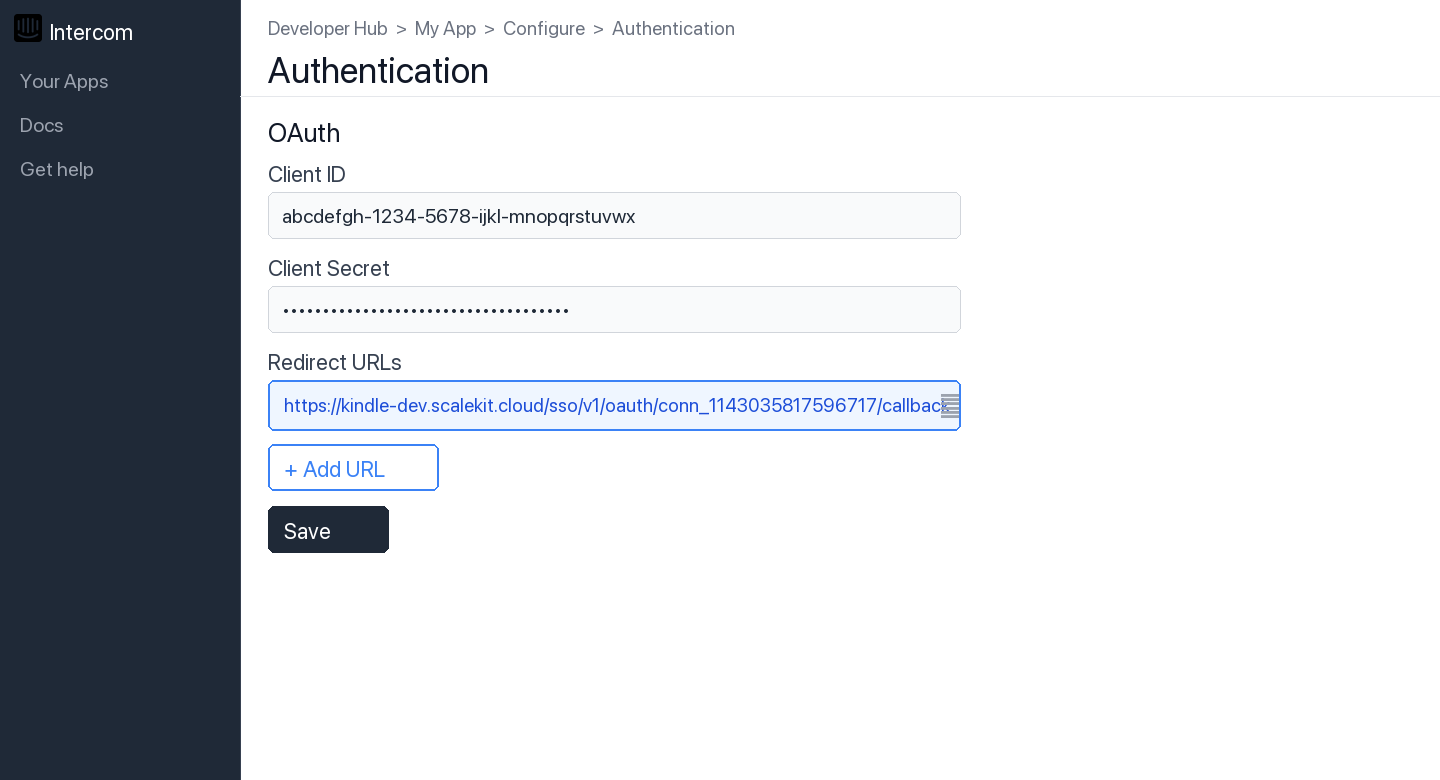
In the Intercom Developer Hub, open your app and go to Configure → Authentication.
-
Click Edit, paste the copied URI into the Redirect URLs field, and click Save.
-
-
Get client credentials
- In the Intercom Developer Hub, open your app and go to Configure → Basic Information:
- Client ID — listed under Client ID
- Client Secret — listed under Client Secret
- In the Intercom Developer Hub, open your app and go to Configure → Basic Information:
-
Add credentials in Scalekit
-
In Scalekit dashboard, go to AgentKit > Connections and open the connection you created.
-
Enter your credentials:
- Client ID (from your Intercom app)
- Client Secret (from your Intercom app)
-
Click Save.
-
-
Authorize a user and make your first call
quickstart.mts import { ScalekitClient } from '@scalekit-sdk/node'import 'dotenv/config'import { createInterface } from 'node:readline/promises'const scalekit = new ScalekitClient(process.env.SCALEKIT_ENVIRONMENT_URL,process.env.SCALEKIT_CLIENT_ID,process.env.SCALEKIT_CLIENT_SECRET,)const actions = scalekit.actionsconst connector = 'intercom'const identifier = 'user_123'// Generate an authorization link for the userconst { link } = await actions.getAuthorizationLink({ connectionName: connector, identifier })console.log('Authorize Intercom:', link)const rl = createInterface({ input: process.stdin, output: process.stdout })await rl.question('Press Enter after authorizing...')rl.close()// Make your first callconst result = await actions.executeTool({connector,identifier,toolName: 'intercom_identify_admin',toolInput: {},})console.log(result)Terminal window npx tsx quickstart.mtsquickstart.py import osfrom scalekit import ScalekitClientfrom dotenv import load_dotenvload_dotenv()scalekit_client = ScalekitClient(env_url=os.getenv("SCALEKIT_ENVIRONMENT_URL"),client_id=os.getenv("SCALEKIT_CLIENT_ID"),client_secret=os.getenv("SCALEKIT_CLIENT_SECRET"),)actions = scalekit_client.actionsconnection_name = "intercom"identifier = "user_123"# Generate an authorization link for the userlink_response = actions.get_authorization_link(connection_name=connection_name,identifier=identifier,)print("Authorize Intercom:", link_response.link)input("Press Enter after authorizing...")# Make your first callresult = actions.execute_tool(tool_input={},tool_name="intercom_identify_admin",connection_name=connection_name,identifier=identifier,)print(result)Terminal window python quickstart.pyEach user signs in once. See Authorize a user for the full flow and statuses.
Tools
Pass the exact name toexecute_toolintercom_get_macroRetrieve a single macro (saved reply) by its ID, subject to the same team-visibility rules as the Intercom inbox.Read-onlyGet Macro
Retrieve a single macro (saved reply) by its ID, subject to the same team-visibility rules as the Intercom inbox.
Inputs
macro_idstringrequired- The Intercom ID of the macro to retrieve.
Also accepts
schema_versionandtool_versionto pin a version.intercom_identify_adminRetrieve the currently authenticated admin's details.Read-onlyIdentify Admin
Retrieve the currently authenticated admin's details.
Inputs
This tool takes no inputs.
Also accepts
schema_versionandtool_versionto pin a version.intercom_list_activity_log_event_typesList the event types that can appear in admin activity logs, for use as filters with Search Activity Logs.Read-onlyList Activity Log Event Types
List the event types that can appear in admin activity logs, for use as filters with Search Activity Logs.
Inputs
This tool takes no inputs.
Also accepts
schema_versionandtool_versionto pin a version.intercom_list_activity_logsList all admin activity logs within a date range.Read-onlyList Activity Logs
List all admin activity logs within a date range. Dates must be Unix timestamps.
Inputs
created_at_afterstringrequired- Start date as a Unix timestamp. Only logs after this date are returned.
created_at_beforestring- End date as a Unix timestamp. Only logs before this date are returned.
Also accepts
schema_versionandtool_versionto pin a version.intercom_list_adminsList all admins in the Intercom workspace.Read-onlyList Admins
List all admins in the Intercom workspace.
Inputs
display_avatarboolean- If true, includes the admin's avatar image URL in the response.
Also accepts
schema_versionandtool_versionto pin a version.intercom_list_all_companiesList all companies via Intercom's dedicated companies list endpoint (POST /companies/list), sorted by last_request_at descending by default.Read-onlyList All Companies
List all companies via Intercom's dedicated companies list endpoint (POST /companies/list), sorted by last_request_at descending by default. Distinct from the GET /companies filter endpoint; use the Scroll API instead when iterating over more than 10,000 companies.
Inputs
orderstring- asc or desc. Return the companies in ascending or descending order. Defaults to desc.
pageinteger- The page of results to fetch. Defaults to first page.
per_pageinteger- How many results to return per page. Defaults to 15.
intercom_list_articlesList all Help Center articles in the Intercom workspace.Read-onlyList Articles
List all Help Center articles in the Intercom workspace.
Inputs
pageinteger- Page number of results to return.
per_pageinteger- Number of articles per page (default: 15).
Also accepts
schema_versionandtool_versionto pin a version.intercom_list_companiesRetrieve companies filtered by name, company_id, tag_id, or segment_id.Read-onlyList Companies
Retrieve companies filtered by name, company_id, tag_id, or segment_id.
Inputs
company_idstring- Filter by your system's company identifier.
namestring- Filter companies by name.
pageinteger- Page number of results to return.
per_pageinteger- Number of results per page.
segment_idstring- Filter companies by a segment's Intercom ID.
tag_idstring- Filter companies by a tag's Intercom ID.
Also accepts
schema_versionandtool_versionto pin a version.intercom_list_company_contactsList all contacts associated with a company.Read-onlyList Company Contacts
List all contacts associated with a company.
Inputs
company_idstringrequired- The Intercom ID of the company.
Also accepts
schema_versionandtool_versionto pin a version.intercom_list_company_segmentsList all segments that a company belongs to.Read-onlyList Company Segments
List all segments that a company belongs to.
Inputs
company_idstringrequired- The Intercom ID of the company.
Also accepts
schema_versionandtool_versionto pin a version.intercom_list_contact_companiesList all companies that a contact is attached to.Read-onlyList Contact Companies
List all companies that a contact is attached to.
Inputs
contact_idstringrequired- The unique Intercom identifier for the contact.
Also accepts
schema_versionandtool_versionto pin a version.intercom_list_contact_notesList all notes associated with a contact.Read-onlyList Contact Notes
List all notes associated with a contact.
Inputs
contact_idstringrequired- The unique Intercom identifier for the contact.
pageinteger- Page number of results to return.
per_pageinteger- Number of notes to return per page.
Also accepts
schema_versionandtool_versionto pin a version.intercom_list_contact_segmentsList all segments that a contact belongs to.Read-onlyList Contact Segments
List all segments that a contact belongs to.
Inputs
contact_idstringrequired- The unique Intercom identifier for the contact.
Also accepts
schema_versionandtool_versionto pin a version.intercom_list_contact_subscriptionsList all email subscription types for a contact.Read-onlyList Contact Subscriptions
List all email subscription types for a contact.
Inputs
contact_idstringrequired- The unique Intercom identifier for the contact.
Also accepts
schema_versionandtool_versionto pin a version.intercom_list_contactsList all contacts (users and leads) in the Intercom workspace with optional pagination.Read-onlyList Contacts
List all contacts (users and leads) in the Intercom workspace with optional pagination.
Inputs
pageinteger- Page number of results to return.
per_pageinteger- Number of results per page.
starting_afterstring- Cursor for pagination. Use the value from the previous response to get the next page.
Also accepts
schema_versionandtool_versionto pin a version.intercom_list_content_import_sourcesList the AI content import sources configured to feed Fin/Help Center content ingestion.Read-onlyList Content Import Sources
List the AI content import sources configured to feed Fin/Help Center content ingestion. Each source determines the default audience for the external pages ingested from it.
Inputs
This tool takes no inputs.
Also accepts
schema_versionandtool_versionto pin a version.intercom_list_conversationsList all conversations in the Intercom workspace with optional pagination.Read-onlyList Conversations
List all conversations in the Intercom workspace with optional pagination.
Inputs
per_pageinteger- Number of conversations to return per page.
starting_afterstring- Pagination cursor from a previous response.
Also accepts
schema_versionandtool_versionto pin a version.intercom_list_data_attributesList all data attributes (custom attributes) for contacts, companies, or conversations.Read-onlyList Data Attributes
List all data attributes (custom attributes) for contacts, companies, or conversations.
Inputs
include_archivedboolean- Set to true to include archived attributes.
modelstring- Filter by model type: 'contact', 'company', or 'conversation'.
Also accepts
schema_versionandtool_versionto pin a version.intercom_list_data_eventsList data events for a specific contact.Read-onlyList Data Events
List data events for a specific contact. Requires a filter with the contact's user_id or email.
Inputs
typestringrequired- Must be 'user' to list events for a contact.
intercom_user_idstring- The Intercom ID of the contact.
per_pageinteger- Number of events to return per page.
summaryboolean- Set to true to return a summary of events grouped by name.
user_idstring- Your unique identifier for the contact to list events for.
Also accepts
schema_versionandtool_versionto pin a version.intercom_list_external_pagesList external pages registered as AI/Fin knowledge content in the Fin Content Library.Read-onlyList External Pages
List external pages registered as AI/Fin knowledge content in the Fin Content Library.
Inputs
This tool takes no inputs.
Also accepts
schema_versionandtool_versionto pin a version.intercom_list_help_center_collectionsList all Help Center collections in the Intercom workspace.Read-onlyList Help Center Collections
List all Help Center collections in the Intercom workspace.
Inputs
This tool takes no inputs.
Also accepts
schema_versionandtool_versionto pin a version.intercom_list_help_centersList all Help Centers in the Intercom workspace.Read-onlyList Help Centers
List all Help Centers in the Intercom workspace.
Inputs
This tool takes no inputs.
Also accepts
schema_versionandtool_versionto pin a version.intercom_list_macrosList all macros (saved replies) configured in the Intercom workspace, in descending order by last updated.Read-onlyList Macros
List all macros (saved replies) configured in the Intercom workspace, in descending order by last updated. Supports cursor-based pagination.
Inputs
starting_afterstring- Base64-encoded pagination cursor from a previous response, to fetch the next page.
Also accepts
schema_versionandtool_versionto pin a version.intercom_list_news_itemsList all news items in the workspace.Read-onlyList News Items
List all news items in the workspace.
Inputs
This tool takes no inputs.
Also accepts
schema_versionandtool_versionto pin a version.intercom_list_newsfeed_itemsList all news items in a newsfeed.Read-onlyList Newsfeed Items
List all news items in a newsfeed.
Inputs
newsfeed_idstringrequired- The Intercom ID of the newsfeed.
Also accepts
schema_versionandtool_versionto pin a version.intercom_list_newsfeedsList all newsfeeds in the workspace.Read-onlyList Newsfeeds
List all newsfeeds in the workspace.
Inputs
This tool takes no inputs.
Also accepts
schema_versionandtool_versionto pin a version.intercom_list_office_hours_schedulesList all office-hours schedules configured for the workspace.Read-onlyList Office Hours Schedules
List all office-hours schedules configured for the workspace. Schedules define the recurring weekly hours the workspace is open. Requires the read_write_office_hours OAuth scope.
Inputs
This tool takes no inputs.
Also accepts
schema_versionandtool_versionto pin a version.intercom_list_segmentsList all segments in the Intercom workspace.Read-onlyList Segments
List all segments in the Intercom workspace. Optionally include contact count.
Inputs
include_countboolean- Set to true to include the count of contacts in each segment.
Also accepts
schema_versionandtool_versionto pin a version.intercom_list_subscription_typesList all email subscription types configured in the Intercom workspace.Read-onlyList Subscription Types
List all email subscription types configured in the Intercom workspace.
Inputs
This tool takes no inputs.
Also accepts
schema_versionandtool_versionto pin a version.intercom_list_teamsList all teams in the Intercom workspace.Read-onlyList Teams
List all teams in the Intercom workspace.
Inputs
This tool takes no inputs.
Also accepts
schema_versionandtool_versionto pin a version.intercom_list_ticket_typesList all ticket types for the workspace.Read-onlyList Ticket Types
List all ticket types for the workspace.
Inputs
This tool takes no inputs.
Also accepts
schema_versionandtool_versionto pin a version.intercom_retrieve_adminRetrieve details for a specific admin by their ID.Read-onlyRetrieve Admin
Retrieve details for a specific admin by their ID.
Inputs
admin_idstringrequired- The unique identifier of the admin.
Also accepts
schema_versionandtool_versionto pin a version.intercom_retrieve_articleRetrieve a Help Center article by its Intercom ID.Read-onlyRetrieve Article
Retrieve a Help Center article by its Intercom ID.
Inputs
article_idstringrequired- The Intercom ID of the article.
Also accepts
schema_versionandtool_versionto pin a version.intercom_retrieve_companyRetrieve a company by its Intercom ID.Read-onlyRetrieve Company
Retrieve a company by its Intercom ID.
Inputs
company_idstringrequired- The Intercom ID of the company.
Also accepts
schema_versionandtool_versionto pin a version.intercom_retrieve_contactRetrieve a contact by their Intercom ID.Read-onlyRetrieve Contact
Retrieve a contact by their Intercom ID.
Inputs
contact_idstringrequired- The unique Intercom identifier for the contact.
Also accepts
schema_versionandtool_versionto pin a version.intercom_retrieve_conversationRetrieve a conversation by its Intercom ID.Read-onlyRetrieve Conversation
Retrieve a conversation by its Intercom ID. Optionally return the body in plaintext format.
Inputs
conversation_idstringrequired- The Intercom ID of the conversation.
display_asstring- Set to 'plaintext' to return conversation parts as plain text instead of HTML.
Also accepts
schema_versionandtool_versionto pin a version.intercom_retrieve_help_centerRetrieve a specific Help Center by its Intercom ID.Read-onlyRetrieve Help Center
Retrieve a specific Help Center by its Intercom ID.
Inputs
help_center_idstringrequired- The Intercom ID of the Help Center.
Also accepts
schema_versionandtool_versionto pin a version.intercom_retrieve_help_center_collectionRetrieve a Help Center collection by its Intercom ID.Read-onlyRetrieve Help Center Collection
Retrieve a Help Center collection by its Intercom ID.
Inputs
collection_idstringrequired- The Intercom ID of the collection.
Also accepts
schema_versionandtool_versionto pin a version.intercom_retrieve_news_itemRetrieve a news item by its Intercom ID.Read-onlyRetrieve News Item
Retrieve a news item by its Intercom ID.
Inputs
news_item_idstringrequired- The Intercom ID of the news item.
Also accepts
schema_versionandtool_versionto pin a version.intercom_retrieve_newsfeedRetrieve a newsfeed by its Intercom ID.Read-onlyRetrieve Newsfeed
Retrieve a newsfeed by its Intercom ID.
Inputs
newsfeed_idstringrequired- The Intercom ID of the newsfeed.
Also accepts
schema_versionandtool_versionto pin a version.intercom_retrieve_noteRetrieve a specific note by its Intercom ID.Read-onlyRetrieve Note
Retrieve a specific note by its Intercom ID.
Inputs
note_idstringrequired- The unique Intercom identifier for the note.
Also accepts
schema_versionandtool_versionto pin a version.intercom_retrieve_segmentRetrieve a specific segment by its Intercom ID.Read-onlyRetrieve Segment
Retrieve a specific segment by its Intercom ID.
Inputs
segment_idstringrequired- The Intercom ID of the segment.
Also accepts
schema_versionandtool_versionto pin a version.intercom_retrieve_tagRetrieve a specific tag by its Intercom ID.Read-onlyRetrieve Tag
Retrieve a specific tag by its Intercom ID.
Inputs
tag_idstringrequired- The Intercom ID of the tag.
Also accepts
schema_versionandtool_versionto pin a version.intercom_retrieve_teamRetrieve a specific team by its Intercom ID.Read-onlyRetrieve Team
Retrieve a specific team by its Intercom ID.
Inputs
team_idstringrequired- The Intercom ID of the team.
Also accepts
schema_versionandtool_versionto pin a version.intercom_retrieve_ticketRetrieve a ticket by its Intercom ID.Read-onlyRetrieve Ticket
Retrieve a ticket by its Intercom ID.
Inputs
ticket_idstringrequired- The Intercom ID of the ticket.
Also accepts
schema_versionandtool_versionto pin a version.intercom_retrieve_ticket_typeRetrieve a ticket type by its Intercom ID.Read-onlyRetrieve Ticket Type
Retrieve a ticket type by its Intercom ID.
Inputs
ticket_type_idstringrequired- The Intercom ID of the ticket type.
Also accepts
schema_versionandtool_versionto pin a version.intercom_retrieve_visitorRetrieve a visitor by their user_id.Read-onlyRetrieve Visitor
Retrieve a visitor by their user_id.
Inputs
user_idstringrequired- The user_id of the visitor to retrieve.
Also accepts
schema_versionandtool_versionto pin a version.intercom_scroll_companiesScroll over all companies in the workspace using Intercom's Scroll API, an efficient mechanism for iterating over large company datasets without the 10,000-record limit of the standard list endpoints.Read-onlyScroll Companies
Scroll over all companies in the workspace using Intercom's Scroll API, an efficient mechanism for iterating over large company datasets without the 10,000-record limit of the standard list endpoints. Call once with no scroll_param to get the first page, then pass the scroll_param returned in each response to fetch the next page. Each app can only have one scroll open at a time, and an idle scroll expires after 1 minute.
Inputs
scroll_paramstring- Cursor for the next page, taken from the scroll_param field of the previous response. Omit this on the first call to start a new scroll.
intercom_search_activity_logsSearch admin activity logs with structured filters (date range, event types, pagination), distinct from the existing plain date-range list tool.Read-onlySearch Activity Logs
Search admin activity logs with structured filters (date range, event types, pagination), distinct from the existing plain date-range list tool.
Inputs
created_at_afterintegerrequired- Start date as a Unix timestamp. Only logs after this date are returned.
created_at_beforeinteger- End date as a Unix timestamp. Only logs before this date are returned.
event_typesarray- JSON array of event type strings to filter by. See List Activity Log Event Types for valid values.
pageinteger- Result page number to retrieve.
per_pageinteger- Number of results per page (1-250).
Also accepts
schema_versionandtool_versionto pin a version.intercom_search_articlesSearch Help Center articles by phrase, state, or help center ID.Read-onlySearch Articles
Search Help Center articles by phrase, state, or help center ID.
Inputs
help_center_idinteger- Filter articles by a specific Help Center ID.
highlightboolean- Set to true to return highlighted matching content.
phrasestring- The search phrase to find in articles.
statestring- Filter by state: 'published', 'draft', or 'all'.
Also accepts
schema_versionandtool_versionto pin a version.intercom_search_contactsSearch for contacts using filter queries.Read-onlySearch Contacts
Search for contacts using filter queries. Supports complex filters by email, name, role, external_id, custom attributes, and more.
Inputs
queryobjectrequired- Filter query object to search contacts. Example: {"field": "email", "operator": "=", "value": "user@example.com"}
paginationobject- Pagination object with optional 'per_page' and 'starting_after' cursor.
Also accepts
schema_versionandtool_versionto pin a version.intercom_search_conversationsSearch for conversations using filter queries.Read-onlySearch Conversations
Search for conversations using filter queries.
Inputs
queryobjectrequired- Filter query object for searching conversations.
paginationobject- Pagination object with optional per_page and starting_after.
Also accepts
schema_versionandtool_versionto pin a version.intercom_search_ticketsSearch for tickets using filter queries.Read-onlySearch Tickets
Search for tickets using filter queries.
Inputs
queryobjectrequired- Filter query object for searching tickets.
paginationobject- Pagination object with optional per_page and starting_after.
Also accepts
schema_versionandtool_versionto pin a version.intercom_attach_contact_to_companyAssociate a contact with a company using the company's Intercom ID.WriteAttach Contact to Company
Associate a contact with a company using the company's Intercom ID.
Inputs
contact_idstringrequired- The unique Intercom identifier for the contact.
idstringrequired- The Intercom ID of the company to attach.
Also accepts
schema_versionandtool_versionto pin a version.intercom_attach_contact_to_conversationAdd a contact as a participant to an existing conversation.WriteAttach Contact to Conversation
Add a contact as a participant to an existing conversation.
Inputs
conversation_idstringrequired- The Intercom ID of the conversation.
customerobjectrequired- Customer object identifying the contact to add. E.g. {"intercom_user_id": "contact_id"} or {"email": "user@example.com"}.
admin_idstring- The admin performing the action.
Also accepts
schema_versionandtool_versionto pin a version.intercom_attach_subscription_to_contactAdd an email subscription type to a contact with opt-in or opt-out consent.WriteAttach Subscription to Contact
Add an email subscription type to a contact with opt-in or opt-out consent.
Inputs
consent_typestringrequired- Consent type: 'opt_in' or 'opt_out'.
contact_idstringrequired- The unique Intercom identifier for the contact.
idstringrequired- The Intercom ID of the subscription type.
Also accepts
schema_versionandtool_versionto pin a version.intercom_attach_tag_to_contactAdd a tag to a contact.WriteAttach Tag to Contact
Add a tag to a contact.
Inputs
contact_idstringrequired- The Intercom ID of the contact.
idstringrequired- The Intercom ID of the tag to attach.
Also accepts
schema_versionandtool_versionto pin a version.intercom_attach_tag_to_conversationAdd a tag to a conversation.WriteAttach Tag to Conversation
Add a tag to a conversation.
Inputs
admin_idstringrequired- The Intercom ID of the admin performing the action.
conversation_idstringrequired- The Intercom ID of the conversation.
idstringrequired- The Intercom ID of the tag to attach.
Also accepts
schema_versionandtool_versionto pin a version.intercom_attach_tag_to_ticketAdd a tag to a ticket.WriteAttach Tag to Ticket
Add a tag to a ticket.
Inputs
admin_idstringrequired- The Intercom ID of the admin performing the action.
idstringrequired- The Intercom ID of the tag to attach.
ticket_idstringrequired- The Intercom ID of the ticket.
Also accepts
schema_versionandtool_versionto pin a version.intercom_auto_assign_conversationRun the workspace's assignment rules on a conversation to automatically assign it.WriteAuto-Assign Conversation
Run the workspace's assignment rules on a conversation to automatically assign it.
Inputs
conversation_idstringrequired- The Intercom ID of the conversation to auto-assign.
Also accepts
schema_versionandtool_versionto pin a version.intercom_convert_conversation_to_ticketConvert an existing conversation into a ticket.WriteConvert Conversation to Ticket
Convert an existing conversation into a ticket.
Inputs
conversation_idstringrequired- The Intercom ID of the conversation to convert.
ticket_type_idstringrequired- The ID of the ticket type to use for the new ticket.
Also accepts
schema_versionandtool_versionto pin a version.intercom_convert_visitorConvert a visitor into a contact (lead or user).WriteConvert Visitor
Convert a visitor into a contact (lead or user).
Inputs
typestringrequired- The type to convert the visitor to: 'lead' or 'user'.
visitorobjectrequired- The visitor to convert. Object with 'id' or 'user_id' field.
userobject- The user to merge the visitor into. Object with 'id', 'user_id', or 'email' field.
Also accepts
schema_versionandtool_versionto pin a version.intercom_create_articleCreate a new Help Center article.WriteCreate Article
Create a new Help Center article. Articles are published or saved as drafts.
Inputs
author_idintegerrequired- The Intercom ID of the admin authoring the article.
titlestringrequired- Title of the article.
bodystring- The HTML content body of the article.
descriptionstring- Short description or summary of the article.
parent_idinteger- ID of the parent collection or section.
parent_typestring- Type of parent: 'collection' or 'section'.
statestring- Publication state: 'published' or 'draft' (default: draft).
Also accepts
schema_versionandtool_versionto pin a version.intercom_create_contactCreate a new contact (user or lead) in Intercom.WriteCreate Contact
Create a new contact (user or lead) in Intercom.
Inputs
avatarstring- URL of the contact's avatar image.
emailstring- Email address of the contact.
external_idstring- Your unique identifier for the contact.
last_seen_atinteger- Unix timestamp of when the contact was last seen.
namestring- Full name of the contact.
owner_idinteger- ID of the admin who owns this contact.
phonestring- Phone number of the contact.
rolestring- Role of the contact: 'user' or 'lead'.
signed_up_atinteger- Unix timestamp of when the contact signed up.
unsubscribed_from_emailsboolean- Set to true to unsubscribe the contact from emails.
Also accepts
schema_versionandtool_versionto pin a version.intercom_create_contact_noteCreate a note on a contact.WriteCreate Contact Note
Create a note on a contact. Notes are visible to admins in the Intercom inbox.
Inputs
bodystringrequired- The text content of the note.
contact_idstringrequired- The unique Intercom identifier for the contact.
admin_idstring- The ID of the admin authoring the note.
Also accepts
schema_versionandtool_versionto pin a version.intercom_create_content_import_sourceCreate a new AI content import source, the entity that owns the External Pages ingested from one external content source into the Fin Content Library.WriteCreate Content Import Source
Create a new AI content import source, the entity that owns the External Pages ingested from one external content source into the Fin Content Library. Set sync_behavior to 'api' when you intend to create or update External Pages via the API.
Inputs
sync_behaviorstringrequired- How pages from this source are synced. Use 'api' if you intend to create or update External Pages via the API.
urlstringrequired- The root URL of the external source these pages come from.
audience_idsarray- JSON array of audience IDs that determine who can see pages from this source.
statusstring- Status of the content import source. Defaults to active.one of
activedeactivated
Also accepts
schema_versionandtool_versionto pin a version.intercom_create_conversationCreate a new conversation initiated from an admin to a contact.WriteCreate Conversation
Create a new conversation initiated from an admin to a contact.
Inputs
bodystringrequired- Plain text message body. HTML is not supported.
fromobjectrequired- The sender object. For admin-initiated conversations: {"type": "admin", "id": "admin_id"}.
created_atinteger- Unix timestamp to backdate the conversation.
subjectstring- Subject line for email conversations.
Also accepts
schema_versionandtool_versionto pin a version.intercom_create_data_attributeCreate a new custom data attribute for contacts, companies, or conversations.WriteCreate Data Attribute
Create a new custom data attribute for contacts, companies, or conversations.
Inputs
data_typestringrequired- Data type: 'string', 'integer', 'float', 'boolean', 'date', or 'list'.
modelstringrequired- The model this attribute belongs to: 'contact', 'company', or 'conversation'.
namestringrequired- The name of the attribute.
descriptionstring- Description of the attribute.
messenger_writableboolean- Whether the attribute can be set through the Messenger.
optionsarray- List of allowed values for list-type attributes.
Also accepts
schema_versionandtool_versionto pin a version.intercom_create_data_eventSubmit a data event to track a user action.WriteCreate Data Event
Submit a data event to track a user action. Events appear in the contact's activity feed in Intercom.
Inputs
created_atintegerrequired- Unix timestamp (UTC) of when the event occurred.
event_namestringrequired- Name of the event as shown in the Intercom UI.
emailstring- Email address of the contact.
idstring- The Intercom contact ID.
metadataobject- Custom key-value pairs about the event.
user_idstring- Your unique identifier for the contact.
Also accepts
schema_versionandtool_versionto pin a version.intercom_create_data_event_summariesCreate an event summary for a user, tracking the number of times an event has occurred along with the first and last time it occurred.WriteCreate Data Event Summaries
Create an event summary for a user, tracking the number of times an event has occurred along with the first and last time it occurred. Use this to record aggregated event counts instead of submitting one data event per occurrence.
Inputs
event_summariesobjectrequired- A summary of an event for the user, containing the event name, the number of times it occurred, and the first and last time it occurred. The event name should be a past tense 'verb-noun' combination, e.g. 'updated-plan'.
user_idstringrequired- Your identifier for the user.
intercom_create_external_pageCreate an external page as AI/Fin knowledge content.WriteCreate External Page
Create an external page as AI/Fin knowledge content. If a page already exists with the given source_id and external_id, it is updated instead of duplicated.
Inputs
external_idstringrequired- The identifier for this page given by the source. Must be unique for the source.
htmlstringrequired- The body of the external page in HTML.
source_idintegerrequired- The unique identifier for the content import source this page belongs to, as returned by Create Content Import Source.
titlestringrequired- The title of the external page.
ai_agent_availabilityboolean- Whether Fin (the AI Agent) may use this page to answer questions.
ai_copilot_availabilityboolean- Whether AI Copilot may use this page to answer questions.
urlstring- The URL of the external page. Used by Fin to link end users to the page.
Also accepts
schema_versionandtool_versionto pin a version.intercom_create_help_center_collectionCreate a new Help Center collection to organize articles.WriteCreate Help Center Collection
Create a new Help Center collection to organize articles.
Inputs
namestringrequired- The name of the collection.
descriptionstring- Short description of the collection.
help_center_idinteger- The ID of the Help Center to create the collection in.
parent_idstring- ID of a parent collection (for nested collections).
Also accepts
schema_versionandtool_versionto pin a version.intercom_create_messageSend an outbound message (in-app or email) from an admin to a contact.WriteCreate Message
Send an outbound message (in-app or email) from an admin to a contact.
Inputs
bodystringrequired- The message body. HTML and plaintext supported.
fromobjectrequired- The sender admin object: {"type": "admin", "id": "admin_id"}.
toobjectrequired- The recipient contact object: {"type": "user", "id": "contact_id"} or {"type": "user", "email": "email"}.
create_conversation_without_contact_replyboolean- Set to true to create a conversation even if the contact does not reply.
message_typestring- Message channel: 'in_app' or 'email'.
subjectstring- Email subject (required for email message_type).
templatestring- Email template style: 'plain' or 'personal'.
Also accepts
schema_versionandtool_versionto pin a version.intercom_create_news_itemCreate a new news item for the workspace.WriteCreate News Item
Create a new news item for the workspace.
Inputs
sender_idintegerrequired- The Intercom ID of the admin sender.
titlestringrequired- Title of the news item.
bodystring- HTML content of the news item.
deliver_silentlyboolean- If true, the news item will not send notifications.
labelsarray- Labels to add to the news item.
statestring- State of the news item: 'draft' or 'live'.
Also accepts
schema_versionandtool_versionto pin a version.intercom_create_office_hours_scheduleCreate a new office-hours schedule defining the recurring weekly hours the workspace (or a team) is open.WriteCreate Office Hours Schedule
Create a new office-hours schedule defining the recurring weekly hours the workspace (or a team) is open. Requires the read_write_office_hours OAuth scope.
Inputs
namestringrequired- The name of the office hours schedule.
time_intervalsarrayrequired- JSON array of open intervals for the schedule. Each item is an object with start_minute and end_minute — minute offsets from Monday 00:00, aligned to 15-minute boundaries.
time_zone_namestringrequired- The IANA time zone the schedule's hours are evaluated in.
Also accepts
schema_versionandtool_versionto pin a version.intercom_create_or_update_companyCreate a new company or update an existing one.WriteCreate or Update Company
Create a new company or update an existing one. Uses company_id to identify existing companies.
Inputs
company_idstring- Your unique identifier for the company. Used to identify existing companies for updates. Cannot be updated once set.
industrystring- The industry the company operates in.
monthly_spendinteger- Monthly revenue from the company.
namestring- The name of the company.
planstring- The company's subscription plan name.
remote_created_atinteger- Unix timestamp of when the company was created in your system.
sizeinteger- Number of employees at the company.
websitestring- The company's website URL.
Also accepts
schema_versionandtool_versionto pin a version.intercom_create_or_update_tagCreate a new tag or update an existing tag's name.WriteCreate or Update Tag
Create a new tag or update an existing tag's name. To tag companies or contacts in bulk, include a 'companies' or 'users' array.
Inputs
namestringrequired- The name of the tag.
idstring- The Intercom ID of the tag (required for updates).
Also accepts
schema_versionandtool_versionto pin a version.intercom_create_ticketCreate a new ticket in Intercom.WriteCreate Ticket
Create a new ticket in Intercom. Requires a ticket type and at least one contact.
Inputs
contactsarrayrequired- Array of contact identifier objects, e.g. [{"id": "contact_id"}] or [{"email": "user@example.com"}].
ticket_type_idstringrequired- The ID of the ticket type to create.
company_idstring- The Intercom ID of the company associated with this ticket.
created_atinteger- Unix timestamp to backdate the ticket creation.
ticket_attributesobject- Ticket attribute key-value pairs. Include 'title' and 'description' for default attributes.
Also accepts
schema_versionandtool_versionto pin a version.intercom_create_ticket_typeCreate a new ticket type for the workspace.WriteCreate Ticket Type
Create a new ticket type for the workspace.
Inputs
namestringrequired- The name of the ticket type.
categorystring- Category of the ticket type: 'Customer', 'Back-office', or 'Tracker'.
descriptionstring- Description of the ticket type.
iconstring- Emoji icon for the ticket type.
is_internalboolean- Whether this ticket type is for internal use only.
Also accepts
schema_versionandtool_versionto pin a version.intercom_create_ticket_type_attributeCreate a new attribute for a ticket type.WriteCreate Ticket Type Attribute
Create a new attribute for a ticket type.
Inputs
data_typestringrequired- Data type of the attribute: 'string', 'list', 'integer', 'decimal', 'boolean', 'datetime', 'files'.
descriptionstringrequired- Description of the attribute.
namestringrequired- The name of the attribute.
ticket_type_idstringrequired- The Intercom ID of the ticket type.
required_to_createboolean- Whether this attribute is required when creating a ticket.
required_to_create_for_contactsboolean- Whether this attribute is required for contacts when creating a ticket.
visible_on_createboolean- Whether this attribute is visible when creating a ticket.
visible_to_contactsboolean- Whether this attribute is visible to contacts.
Also accepts
schema_versionandtool_versionto pin a version.intercom_manage_conversationManage a conversation by assigning it, closing it, opening it, or snoozing it.WriteManage Conversation
Manage a conversation by assigning it, closing it, opening it, or snoozing it. Use message_type to specify the action: 'assignment', 'close', 'open', or 'snoozed'.
Inputs
admin_idstringrequired- The Intercom ID of the admin performing the action.
conversation_idstringrequired- The Intercom ID of the conversation to manage.
message_typestringrequired- The action to take: 'assignment', 'close', 'open', or 'snoozed'.
typestringrequired- Sender type: 'admin'.
assignee_idstring- Admin or team ID to assign the conversation to (required for assignment).
bodystring- Optional message to send with the assignment.
snoozed_untilinteger- Unix timestamp until which to snooze the conversation (required for snoozed action).
Also accepts
schema_versionandtool_versionto pin a version.intercom_reply_to_conversationReply to a conversation as an admin.WriteReply to Conversation
Reply to a conversation as an admin. Supports user and admin reply types.
Inputs
admin_idstringrequired- The Intercom ID of the admin sending the reply.
conversation_idstringrequired- The Intercom ID of the conversation to reply to.
message_typestringrequired- Type of reply: 'comment' or 'note'.
typestringrequired- Sender type: 'admin' or 'user'.
bodystring- The reply message text. Notes support some HTML.
created_atinteger- Unix timestamp to backdate the reply.
Also accepts
schema_versionandtool_versionto pin a version.intercom_reply_to_ticketReply to a ticket as an admin.WriteReply to Ticket
Reply to a ticket as an admin.
Inputs
admin_idstringrequired- The Intercom ID of the admin sending the reply.
message_typestringrequired- Type of reply: 'comment' or 'note'.
ticket_idstringrequired- The Intercom ID of the ticket to reply to.
typestringrequired- Sender type: 'admin'.
bodystring- The reply message text.
Also accepts
schema_versionandtool_versionto pin a version.intercom_set_away_adminSet an admin's status to away or active, and optionally reassign new conversations to the default inbox.WriteSet Admin Away
Set an admin's status to away or active, and optionally reassign new conversations to the default inbox.
Inputs
admin_idstringrequired- The unique identifier of the admin.
away_mode_enabledbooleanrequired- Set to true to mark the admin as away, false to set them as active.
away_mode_reassignbooleanrequired- Set to true to reassign new conversation replies to the default inbox when away.
Also accepts
schema_versionandtool_versionto pin a version.intercom_update_articleUpdate an existing Help Center article.WriteUpdate Article
Update an existing Help Center article.
Inputs
article_idstringrequired- The Intercom ID of the article to update.
author_idinteger- Updated author admin ID.
bodystring- Updated HTML content body.
descriptionstring- Updated description.
statestring- Updated publication state: 'published' or 'draft'.
titlestring- Updated title of the article.
Also accepts
schema_versionandtool_versionto pin a version.intercom_update_companyUpdate a single company using its Intercom-provisioned ID.WriteUpdate Company
Update a single company using its Intercom-provisioned ID. The company's external company_id cannot be changed once set; this endpoint is for updating other company attributes such as name, plan, or custom_attributes.
- Idempotent
Inputs
company_idstringrequired- The unique identifier for the company which is given by Intercom.
custom_attributesobject- A hash of key/value pairs containing any other data about the company you want Intercom to store.
industrystring- The industry that this company operates in.
monthly_spendinteger- How much revenue the company generates for your business. Truncates floats to whole integers.
namestring- The name of the Company.
planstring- The name of the plan you have associated with the company.
remote_created_atinteger- The time the company was created by you.
sizeinteger- The number of employees in this company.
websitestring- The URL for this company's website. Not validated; accepts any string.
intercom_update_contactUpdate an existing contact's details by their Intercom ID.WriteUpdate Contact
Update an existing contact's details by their Intercom ID.
Inputs
contact_idstringrequired- The unique Intercom identifier for the contact to update.
emailstring- Email address of the contact.
external_idstring- Your unique identifier for the contact.
namestring- Full name of the contact.
owner_idinteger- ID of the admin who owns this contact.
phonestring- Phone number of the contact.
rolestring- Role of the contact: 'user' or 'lead'.
unsubscribed_from_emailsboolean- Set to true to unsubscribe the contact from emails.
Also accepts
schema_versionandtool_versionto pin a version.intercom_update_conversationUpdate a conversation's read status or custom attributes.WriteUpdate Conversation
Update a conversation's read status or custom attributes.
Inputs
conversation_idstringrequired- The Intercom ID of the conversation to update.
custom_attributesobject- Object of custom attribute key-value pairs to update.
readboolean- Set to true to mark the conversation as read.
Also accepts
schema_versionandtool_versionto pin a version.intercom_update_data_attributeUpdate an existing data attribute.WriteUpdate Data Attribute
Update an existing data attribute. Custom attributes cannot be deleted, only archived.
Inputs
data_attribute_idstringrequired- The Intercom ID of the data attribute to update.
archivedboolean- Set to true to archive this attribute.
descriptionstring- Updated description of the attribute.
messenger_writableboolean- Whether the attribute can be set through the Messenger.
optionsarray- Updated list of allowed values for list-type attributes.
Also accepts
schema_versionandtool_versionto pin a version.intercom_update_help_center_collectionUpdate a Help Center collection's name or description.WriteUpdate Help Center Collection
Update a Help Center collection's name or description.
Inputs
collection_idstringrequired- The Intercom ID of the collection to update.
descriptionstring- Updated description of the collection.
namestring- Updated name of the collection.
Also accepts
schema_versionandtool_versionto pin a version.intercom_update_news_itemUpdate an existing news item.WriteUpdate News Item
Update an existing news item.
Inputs
news_item_idstringrequired- The Intercom ID of the news item to update.
bodystring- Updated HTML content of the news item.
deliver_silentlyboolean- If true, the news item will not send notifications.
labelsarray- Labels for the news item.
sender_idinteger- Updated sender admin ID.
statestring- Updated state: 'draft' or 'live'.
titlestring- Updated title of the news item.
Also accepts
schema_versionandtool_versionto pin a version.intercom_update_ticketUpdate a ticket's attributes, state, or assignment.WriteUpdate Ticket
Update a ticket's attributes, state, or assignment.
Inputs
ticket_idstringrequired- The Intercom ID of the ticket to update.
assignmentobject- Assignment object: {"admin_id": "1234567"} or {"team_id": "1234567"}.
is_sharedboolean- Set to true to make the ticket visible to users.
openboolean- Set to false to close the ticket.
snoozed_untilinteger- Unix timestamp to snooze the ticket until.
statestring- Updated ticket state: 'in_progress', 'waiting_on_customer', 'resolved'.
ticket_attributesobject- Updated ticket attribute key-value pairs.
Also accepts
schema_versionandtool_versionto pin a version.intercom_update_ticket_typeUpdate an existing ticket type.WriteUpdate Ticket Type
Update an existing ticket type.
Inputs
ticket_type_idstringrequired- The Intercom ID of the ticket type to update.
archivedboolean- Set to true to archive the ticket type.
categorystring- Updated category: 'Customer', 'Back-office', or 'Tracker'.
descriptionstring- Updated description of the ticket type.
iconstring- Updated emoji icon for the ticket type.
is_internalboolean- Whether this ticket type is for internal use only.
namestring- Updated name of the ticket type.
Also accepts
schema_versionandtool_versionto pin a version.intercom_update_ticket_type_attributeUpdate an attribute on a ticket type.WriteUpdate Ticket Type Attribute
Update an attribute on a ticket type.
Inputs
attribute_idstringrequired- The Intercom ID of the attribute to update.
ticket_type_idstringrequired- The Intercom ID of the ticket type.
archivedboolean- Set to true to archive the attribute.
descriptionstring- Updated description of the attribute.
namestring- Updated name of the attribute.
required_to_createboolean- Whether this attribute is required when creating a ticket.
required_to_create_for_contactsboolean- Whether this attribute is required for contacts when creating a ticket.
visible_on_createboolean- Whether this attribute is visible when creating a ticket.
visible_to_contactsboolean- Whether this attribute is visible to contacts.
Also accepts
schema_versionandtool_versionto pin a version.intercom_update_visitorUpdate a visitor's attributes.WriteUpdate Visitor
Update a visitor's attributes.
Inputs
idstringrequired- The Intercom ID of the visitor.
custom_attributesobject- Custom attributes to update on the visitor.
namestring- Updated name for the visitor.
user_idstring- The user_id of the visitor.
Also accepts
schema_versionandtool_versionto pin a version.intercom_archive_contactArchive a contact to hide them from the workspace without permanently deleting them.DestructiveArchive Contact
Archive a contact to hide them from the workspace without permanently deleting them.
Inputs
contact_idstringrequired- The unique Intercom identifier for the contact to archive.
Also accepts
schema_versionandtool_versionto pin a version.intercom_delete_articlePermanently delete a Help Center article.DestructiveDelete Article
Permanently delete a Help Center article.
Inputs
article_idstringrequired- The Intercom ID of the article to delete.
Also accepts
schema_versionandtool_versionto pin a version.intercom_delete_companyPermanently delete a company by its Intercom ID.DestructiveDelete Company
Permanently delete a company by its Intercom ID.
Inputs
company_idstringrequired- The Intercom ID of the company to delete.
Also accepts
schema_versionandtool_versionto pin a version.intercom_delete_contactPermanently delete a contact by their Intercom ID.DestructiveDelete Contact
Permanently delete a contact by their Intercom ID.
Inputs
contact_idstringrequired- The unique Intercom identifier for the contact to delete.
Also accepts
schema_versionandtool_versionto pin a version.intercom_delete_help_center_collectionPermanently delete a Help Center collection.DestructiveDelete Help Center Collection
Permanently delete a Help Center collection.
Inputs
collection_idstringrequired- The Intercom ID of the collection to delete.
Also accepts
schema_versionandtool_versionto pin a version.intercom_delete_news_itemDelete a news item by its Intercom ID.DestructiveDelete News Item
Delete a news item by its Intercom ID.
Inputs
news_item_idstringrequired- The Intercom ID of the news item to delete.
Also accepts
schema_versionandtool_versionto pin a version.intercom_delete_tagPermanently delete a tag from the Intercom workspace.DestructiveDelete Tag
Permanently delete a tag from the Intercom workspace.
Inputs
tag_idstringrequired- The Intercom ID of the tag to delete.
Also accepts
schema_versionandtool_versionto pin a version.intercom_detach_contact_from_companyRemove the association between a contact and a company.DestructiveDetach Contact from Company
Remove the association between a contact and a company.
Inputs
company_idstringrequired- The Intercom ID of the company to detach from the contact.
contact_idstringrequired- The unique Intercom identifier for the contact.
Also accepts
schema_versionandtool_versionto pin a version.intercom_detach_contact_from_conversationRemove a contact as a participant from a conversation.DestructiveDetach Contact from Conversation
Remove a contact as a participant from a conversation.
Inputs
contact_idstringrequired- The Intercom ID of the contact to remove from the conversation.
conversation_idstringrequired- The Intercom ID of the conversation.
Also accepts
schema_versionandtool_versionto pin a version.intercom_detach_subscription_from_contactRemove an email subscription type from a contact.DestructiveDetach Subscription from Contact
Remove an email subscription type from a contact.
Inputs
contact_idstringrequired- The unique Intercom identifier for the contact.
subscription_idstringrequired- The Intercom ID of the subscription type to remove.
Also accepts
schema_versionandtool_versionto pin a version.intercom_detach_tag_from_contactRemove a tag from a contact.DestructiveDetach Tag from Contact
Remove a tag from a contact.
Inputs
contact_idstringrequired- The Intercom ID of the contact.
tag_idstringrequired- The Intercom ID of the tag to remove.
Also accepts
schema_versionandtool_versionto pin a version.intercom_detach_tag_from_conversationRemove a tag from a conversation.DestructiveDetach Tag from Conversation
Remove a tag from a conversation.
Inputs
admin_idstringrequired- The Intercom ID of the admin performing the action.
conversation_idstringrequired- The Intercom ID of the conversation.
tag_idstringrequired- The Intercom ID of the tag to remove.
Also accepts
schema_versionandtool_versionto pin a version.intercom_detach_tag_from_ticketRemove a tag from a ticket.DestructiveDetach Tag from Ticket
Remove a tag from a ticket.
Inputs
admin_idstringrequired- The Intercom ID of the admin performing the action.
tag_idstringrequired- The Intercom ID of the tag to remove.
ticket_idstringrequired- The Intercom ID of the ticket.
Also accepts
schema_versionandtool_versionto pin a version.intercom_merge_contactsMerge a lead contact into a user contact.DestructiveMerge Contacts
Merge a lead contact into a user contact. The lead contact is deleted and its data is merged into the user.
Inputs
fromstringrequired- The Intercom ID of the lead contact to merge away (will be deleted).
intostringrequired- The Intercom ID of the user contact to merge the lead into.
Also accepts
schema_versionandtool_versionto pin a version.intercom_redact_conversationRedact a conversation part or the source of a conversation to permanently remove its content.DestructiveRedact Conversation Part
Redact a conversation part or the source of a conversation to permanently remove its content.
Inputs
conversation_idstringrequired- The Intercom ID of the conversation.
typestringrequired- Type of content to redact: 'conversation_part' or 'source'.
conversation_part_idstring- The Intercom ID of the conversation part to redact (required if type is conversation_part).
Also accepts
schema_versionandtool_versionto pin a version.intercom_unarchive_contactUnarchive a previously archived contact to make them visible in the workspace again.DestructiveUnarchive Contact
Unarchive a previously archived contact to make them visible in the workspace again.
Inputs
contact_idstringrequired- The unique Intercom identifier for the contact to unarchive.
Also accepts
schema_versionandtool_versionto pin a version.
No tools match.
Workflows
Proxy API call
// Make a request via Scalekit proxyconst result = await actions.request({ connectionName: 'intercom', identifier: 'user_123', path: '/me', method: 'GET',});console.log(result);# Make a request via Scalekit proxyresult = actions.request( connection_name='intercom', identifier='user_123', path="/me", method="GET")print(result)