


The Google Docs connector lets your AI agent act in each user's Google Docs account. Each user signs in to Google Docs once, and Scalekit stores and refreshes their tokens, so your agent never handles credentials. It comes with 47 tools.
- Tools
- 47
- What they doRead · write · destructive
- 4 · 36 · 74 read36 write7 destructive
- Users sign in with
- OAuth
- OAuth app
- Your own Google app
What you can do
- Read and list documents: find Docs in Drive by name and read their full content, formatting, and structure
- Create and copy documents: create blank Docs, duplicate existing ones, and export them to PDF, Word, or HTML
- Edit text: insert, delete, and find and replace text, and fill named ranges for templating
- Format documents: apply text styles, headings, lists, page margins, headers, footers, and page breaks
- Build tables and add images: insert and edit tables, merge cells, and add or replace inline images
- Handle comments and suggestions: add, reply to, resolve, and delete comments, and accept or reject suggestions
Setup
Install the SDK
Terminal window npm install @scalekit-sdk/node dotenvTerminal window pip install scalekit-sdk-python python-dotenvSet your credentials
Add your Scalekit credentials to your
.envfile. Find values in app.scalekit.com > Developers > API Credentials..env SCALEKIT_ENVIRONMENT_URL=<your-environment-url>SCALEKIT_CLIENT_ID=<your-client-id>SCALEKIT_CLIENT_SECRET=<your-client-secret>Create the Google Docs connection
In AgentKit > Connections, create a Google Docs connection and copy its redirect URI. The name you give it is the
connection_nameyour code passes. See Configure connections.Register a Google OAuth app
Google Docs connections use your own OAuth app. Register one with Google and add the redirect URI you copied.
Then enter the app's Client ID and Client Secret on the Google Docs connection.
Console steps with screenshots
Register your Scalekit environment with the Google Docs connector so Scalekit handles the authentication flow and token lifecycle for you. The connection name you create will be used to identify and invoke the connection programmatically. Then complete the configuration in your application as follows:
-
Set up auth redirects
-
In Scalekit dashboard, go to AgentKit > Connections > Create Connection. Find Google Docs and click Create. Click Use your own credentials and copy the redirect URI. It looks like
https://<SCALEKIT_ENVIRONMENT_URL>/sso/v1/oauth/<CONNECTION_ID>/callback.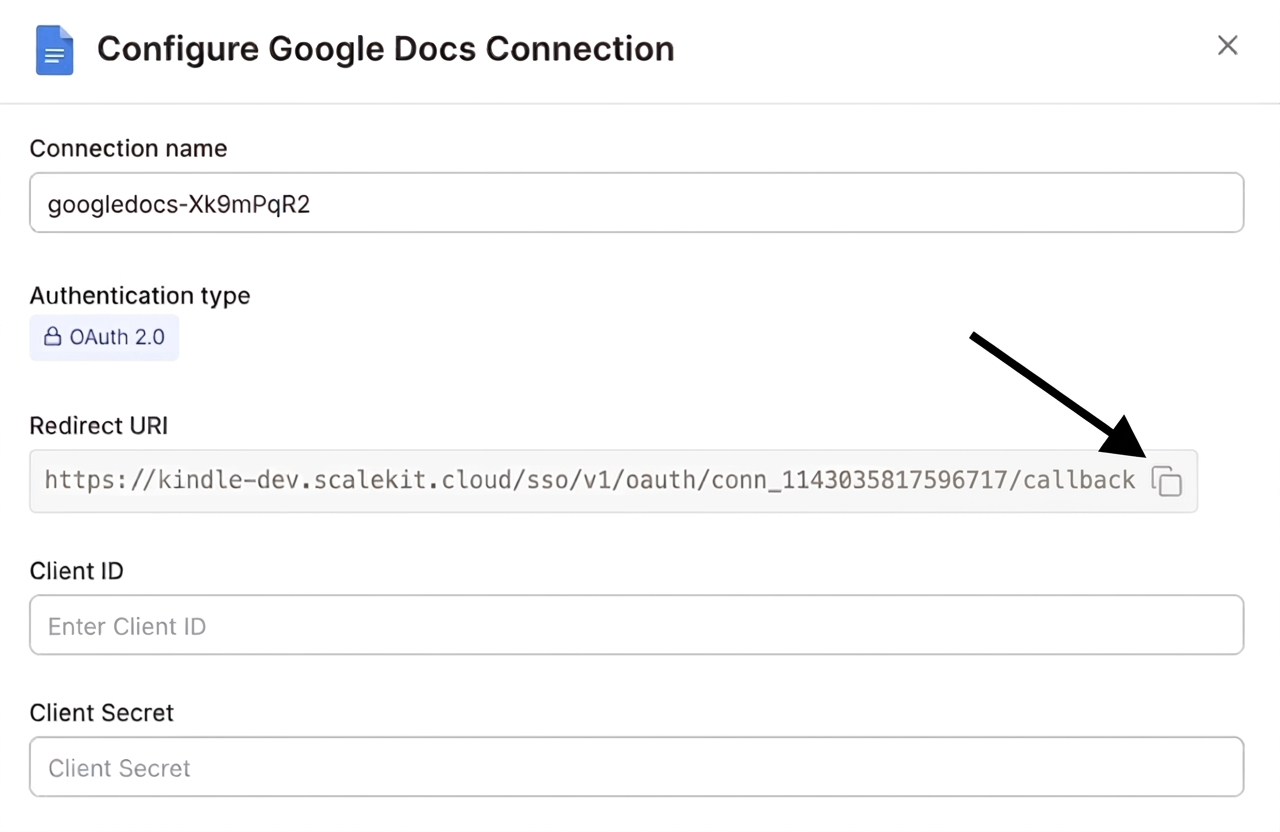
-
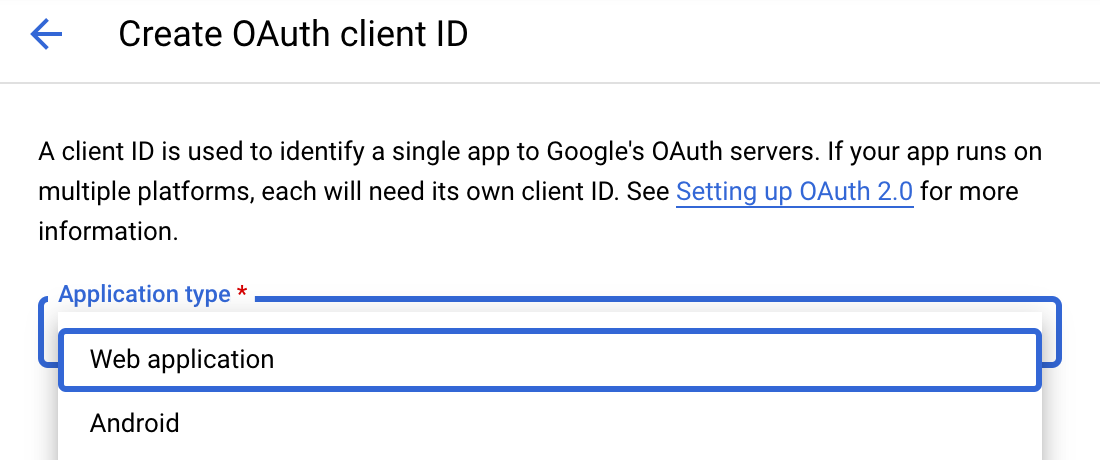
Navigate to Google Cloud Console → APIs & Services → Credentials. Select + Create Credentials, then OAuth client ID. Choose Web application from the Application type menu.
-
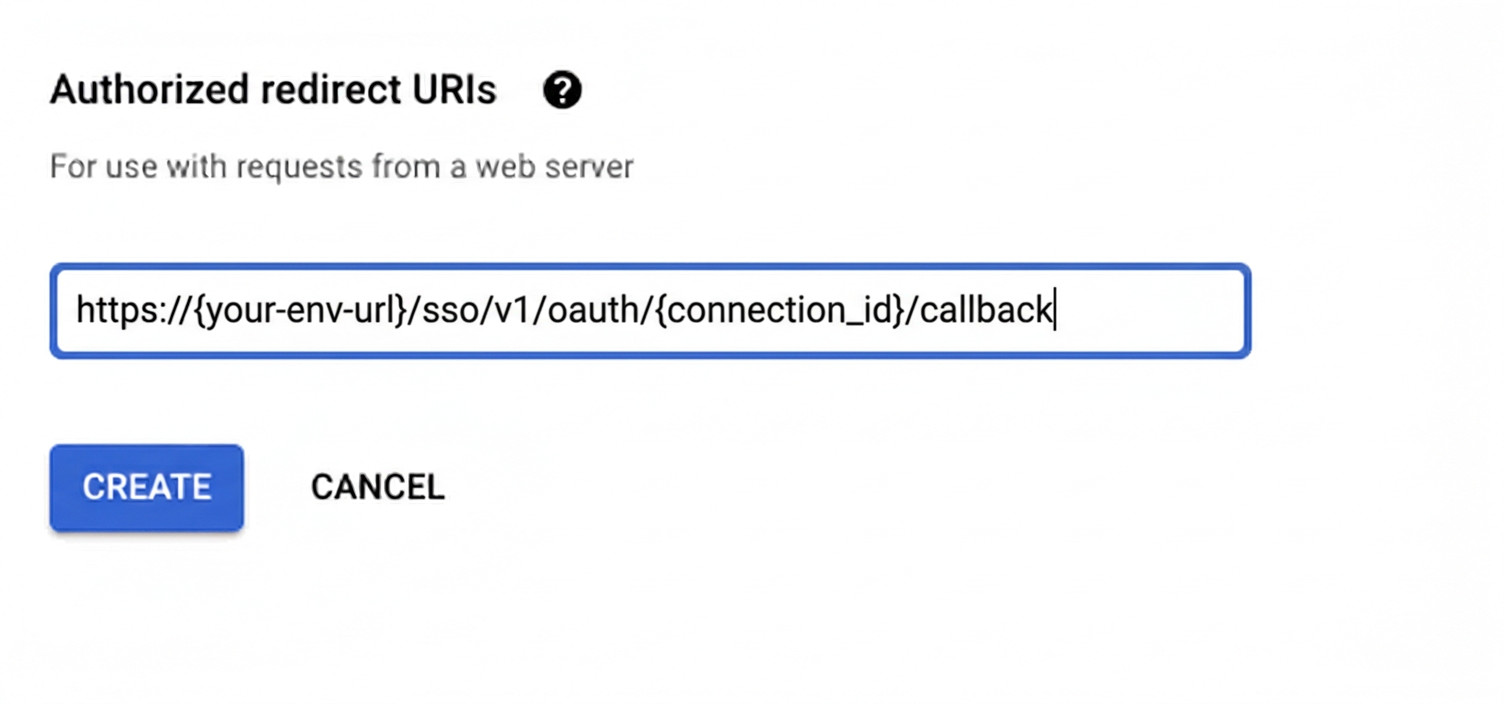
Under Authorized redirect URIs, click + Add URI, paste the redirect URI, and click Create.
-
-
Enable the Google Docs API
- In Google Cloud Console, go to APIs & Services → Library. Search for “Google Docs API” and click Enable.
-
Get client credentials
- Google provides your Client ID and Client Secret after you create the OAuth client ID in step 1.
-
Add credentials in Scalekit
-
In Scalekit dashboard, go to AgentKit > Connections and open the connection you created.
-
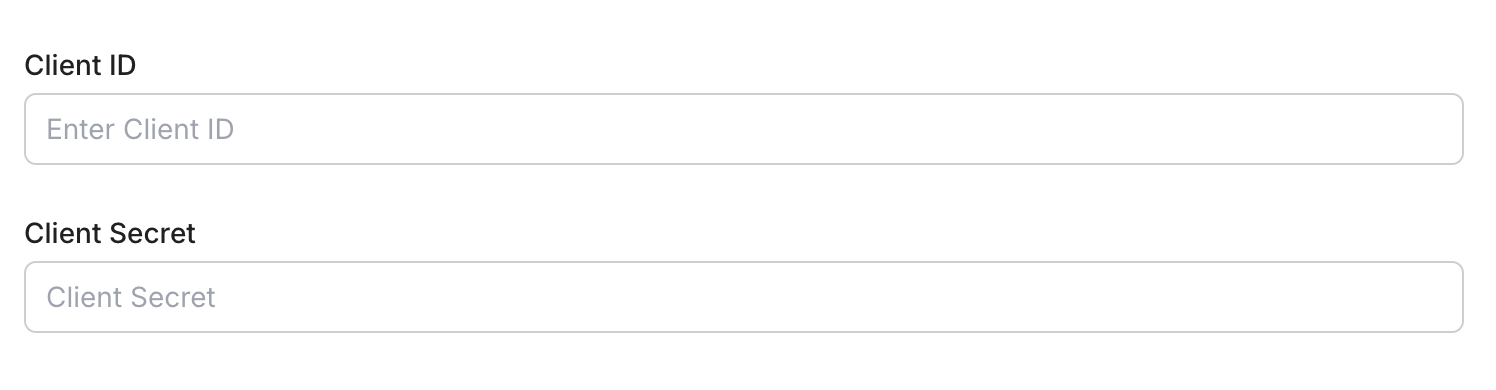
Enter your credentials:
- Client ID (from above)
- Client Secret (from above)
- Permissions (scopes — see Google API Scopes reference)
-
Click Save.
-
-
Authorize a user and make your first call
quickstart.mts import { ScalekitClient } from '@scalekit-sdk/node'import 'dotenv/config'import { createInterface } from 'node:readline/promises'const scalekit = new ScalekitClient(process.env.SCALEKIT_ENVIRONMENT_URL,process.env.SCALEKIT_CLIENT_ID,process.env.SCALEKIT_CLIENT_SECRET,)const actions = scalekit.actionsconst connector = 'googledocs'const identifier = 'user_123'// Generate an authorization link for the userconst { link } = await actions.getAuthorizationLink({ connectionName: connector, identifier })console.log('Authorize Google Docs:', link)const rl = createInterface({ input: process.stdin, output: process.stdout })await rl.question('Press Enter after authorizing...')rl.close()// Make your first callconst result = await actions.executeTool({connector,identifier,toolName: 'googledocs_list_documents',toolInput: {},})console.log(result)Terminal window npx tsx quickstart.mtsquickstart.py import osfrom scalekit import ScalekitClientfrom dotenv import load_dotenvload_dotenv()scalekit_client = ScalekitClient(env_url=os.getenv("SCALEKIT_ENVIRONMENT_URL"),client_id=os.getenv("SCALEKIT_CLIENT_ID"),client_secret=os.getenv("SCALEKIT_CLIENT_SECRET"),)actions = scalekit_client.actionsconnection_name = "googledocs"identifier = "user_123"# Generate an authorization link for the userlink_response = actions.get_authorization_link(connection_name=connection_name,identifier=identifier,)print("Authorize Google Docs:", link_response.link)input("Press Enter after authorizing...")# Make your first callresult = actions.execute_tool(tool_input={},tool_name="googledocs_list_documents",connection_name=connection_name,identifier=identifier,)print(result)Terminal window python quickstart.pyEach user signs in once. See Authorize a user for the full flow and statuses.
Tools
Pass the exact name toexecute_toolgoogledocs_export_documentExport a Google Doc to another format such as PDF, plain text, HTML, Word (.docx), RTF, or EPUB.Read-onlyExport Document
Export a Google Doc to another format such as PDF, plain text, HTML, Word (.docx), RTF, or EPUB. Uses the Drive API export endpoint. Exported files are limited to 10 MB.
Inputs
document_idstringrequired- The ID of the Google Doc to export
mime_typestringrequired- The MIME type of the target export formatone of
application/pdftext/plaintext/htmlapplication/vnd.openxmlformats-officedocument.wordprocessingml.documentapplication/rtfapplication/epub+zipapplication/vnd.oasis.opendocument.text
Also accepts
schema_versionandtool_versionto pin a version.googledocs_list_commentsList the comments on a Google Doc, including their replies and resolved status.Read-onlyList Comments
List the comments on a Google Doc, including their replies and resolved status. Comments are managed through the Drive API. Supports pagination.
Inputs
document_idstringrequired- The ID of the Google Doc whose comments to list
include_deletedboolean- Whether to include deleted comments. Deleted comments have their content and author stripped. Defaults to false.
page_sizeinteger- Maximum number of comments to return per page (1-100, default 20)
page_tokenstring- Token for retrieving the next page of results. Use the nextPageToken from a previous response.
start_modified_timestring- Only return comments modified after this RFC 3339 timestamp
Also accepts
schema_versionandtool_versionto pin a version.googledocs_list_documentsList all Google Docs documents in the user's Drive.Read-onlyList Google Docs
List all Google Docs documents in the user's Drive. Optionally search by document name. Returns document IDs, names, and metadata with pagination support.
Inputs
order_bystring- Sort order for results. Examples: modifiedTime desc, name asc, createdTime desc
page_sizeinteger- Number of documents to return per page (max 1000, default 100)
page_tokenstring- Token for retrieving the next page of results. Use the nextPageToken from a previous response.
querystring- Drive search query to filter documents. Defaults to all Google Docs. To search by name, use: mimeType = 'application/vnd.google-apps.document' and trashed = false and name contains 'report'
googledocs_read_documentRead the complete content and structure of a Google Doc including text, formatting, tables, and metadata.Read-onlyRead Google Doc
Read the complete content and structure of a Google Doc including text, formatting, tables, and metadata.
Inputs
document_idstringrequired- The ID of the Google Doc to read
suggestions_view_modestring- How suggestions are rendered in the responseone of
DEFAULT_FOR_CURRENT_ACCESSSUGGESTIONS_INLINEPREVIEW_SUGGESTIONS_ACCEPTEDPREVIEW_WITHOUT_SUGGESTIONS
Also accepts
schema_versionandtool_versionto pin a version.googledocs_accept_suggestionAccept a single tracked-change suggestion in a Google Doc by its suggestion ID, permanently applying the suggested edit.WriteAccept Suggestion
Accept a single tracked-change suggestion in a Google Doc by its suggestion ID, permanently applying the suggested edit. Suggestion IDs are found in the document's JSON content when reading with suggestions view mode enabled.
- Idempotent
Inputs
document_idstringrequired- The ID of the Google Doc to edit
suggestion_idstringrequired- The ID of the suggestion to accept.
googledocs_apply_text_styleApply character formatting (bold, italic, underline, strikethrough, font size) to a range of text in a Google Doc.WriteApply Text Style
Apply character formatting (bold, italic, underline, strikethrough, font size) to a range of text in a Google Doc. Only the attributes you set are changed.
- Idempotent
Inputs
document_idstringrequired- The ID of the Google Doc to edit
end_indexintegerrequired- End index of the range to format (exclusive)
start_indexintegerrequired- Zero-based start index of the range to format (inclusive)
boldboolean- Set text to bold (true) or non-bold (false)
font_size_ptnumber- Font size in points
italicboolean- Set text to italic (true) or non-italic (false)
strikethroughboolean- Set text to struck through (true) or not (false)
underlineboolean- Set text to underlined (true) or not (false)
Also accepts
schema_versionandtool_versionto pin a version.googledocs_copy_documentDuplicate a Google Doc.WriteCopy Document
Duplicate a Google Doc. Optionally rename the copy or place it in a specific Drive folder. Uses the Drive API and returns the new document's metadata.
Inputs
document_idstringrequired- The ID of the Google Doc to copy
namestring- Name for the copied document. If omitted, the copy is named 'Copy of <original name>'.
parent_folder_idstring- ID of the destination folder for the copy. If omitted, the copy is placed in the same folder as the original.
Also accepts
schema_versionandtool_versionto pin a version.googledocs_create_commentAdd a comment to a Google Doc.WriteCreate Comment
Add a comment to a Google Doc. Comments are managed through the Drive API. Optionally anchor the comment to a quoted section of the document.
Inputs
contentstringrequired- The plain-text content of the comment
document_idstringrequired- The ID of the Google Doc to comment on
Also accepts
schema_versionandtool_versionto pin a version.googledocs_create_documentCreate a new blank Google Doc with an optional title.WriteCreate Google Doc
Create a new blank Google Doc with an optional title. Returns the new document's ID and metadata.
Inputs
titlestring- Title of the new document
Also accepts
schema_versionandtool_versionto pin a version.googledocs_create_footnoteInsert a footnote reference at a location in a Google Doc, creating an empty footnote segment that can then be filled with text using googledocs_insert_text.WriteCreate Footnote
Insert a footnote reference at a location in a Google Doc, creating an empty footnote segment that can then be filled with text using googledocs_insert_text.
Inputs
document_idstringrequired- The ID of the Google Doc to edit
indexinteger- Zero-based character index at which to insert the footnote reference. Omit to append at the end of the document body.
googledocs_create_headerCreate a header for a Google Doc (or for the section starting at a given section break).WriteCreate Header
Create a header for a Google Doc (or for the section starting at a given section break). Returns the new header's ID in the response.
Inputs
document_idstringrequired- The ID of the Google Doc to edit
section_break_indexinteger- Zero-based character index of a section break. If provided, the header applies from that section onward instead of the whole document.
googledocs_create_named_rangeCreate a named range over a span of content in a Google Doc.WriteCreate Named Range
Create a named range over a span of content in a Google Doc. Named ranges let you reference and update a region of the document later by name.
Inputs
document_idstringrequired- The ID of the Google Doc to edit
end_indexintegerrequired- End index of the range (exclusive)
namestringrequired- Name for the range. Multiple ranges can share the same name.
start_indexintegerrequired- Zero-based start index of the range (inclusive)
Also accepts
schema_versionandtool_versionto pin a version.googledocs_create_paragraph_bulletsTurn the paragraphs in a range into a bulleted or numbered list using a preset glyph pattern.WriteCreate Paragraph Bullets
Turn the paragraphs in a range into a bulleted or numbered list using a preset glyph pattern.
- Idempotent
Inputs
document_idstringrequired- The ID of the Google Doc to edit
end_indexintegerrequired- End index of the paragraph range (exclusive)
start_indexintegerrequired- Zero-based start index of the paragraph range (inclusive)
bullet_presetstring- The bullet glyph preset. Use a BULLET_* preset for unordered lists or a NUMBERED_* preset for ordered lists.one of
BULLET_DISC_CIRCLE_SQUAREBULLET_DIAMONDX_ARROW3D_SQUAREBULLET_CHECKBOXBULLET_ARROW_DIAMOND_DISCBULLET_STAR_CIRCLE_SQUARENUMBERED_DECIMAL_ALPHA_ROMANNUMBERED_DECIMAL_NESTEDNUMBERED_UPPERALPHA_ALPHA_ROMANNUMBERED_UPPERROMAN_UPPERALPHA_DECIMAL
Also accepts
schema_versionandtool_versionto pin a version.googledocs_delete_content_rangeDelete content between two character indexes in a Google Doc.WriteDelete Content Range
Delete content between two character indexes in a Google Doc. The start index is inclusive and the end index is exclusive.
Inputs
document_idstringrequired- The ID of the Google Doc to edit
end_indexintegerrequired- End index of the range to delete (exclusive)
start_indexintegerrequired- Zero-based start index of the range to delete (inclusive)
Also accepts
schema_versionandtool_versionto pin a version.googledocs_delete_named_rangeDelete named ranges from a Google Doc.WriteDelete Named Range
Delete named ranges from a Google Doc. Provide a named range ID to remove one specific range, or a name to remove all ranges sharing that name. The underlying document content is not deleted.
- Idempotent
Inputs
document_idstringrequired- The ID of the Google Doc to edit
namestring- The name of the range(s) to delete. All named ranges with this name are removed.
named_range_idstring- The ID of a specific named range to delete. Takes precedence over name when both are provided.
Also accepts
schema_versionandtool_versionto pin a version.googledocs_delete_paragraph_bulletsRemove list bullets or numbering from the paragraphs in a range, converting them back to normal paragraphs.WriteDelete Paragraph Bullets
Remove list bullets or numbering from the paragraphs in a range, converting them back to normal paragraphs.
- Idempotent
Inputs
document_idstringrequired- The ID of the Google Doc to edit
end_indexintegerrequired- End index of the paragraph range (exclusive)
start_indexintegerrequired- Zero-based start index of the paragraph range (inclusive)
Also accepts
schema_versionandtool_versionto pin a version.googledocs_insert_inline_imageInsert an inline image from a publicly accessible URL into a Google Doc.WriteInsert Inline Image
Insert an inline image from a publicly accessible URL into a Google Doc. Optionally set the image width and height in points. Provide an index to insert at that position, or omit it to append at the end of the document body.
Inputs
document_idstringrequired- The ID of the Google Doc to edit
image_uristringrequired- Publicly accessible URL of the image to insert (PNG, JPEG, or GIF, max 50 MB / 25 megapixels)
height_ptnumber- Image height in points
indexinteger- Zero-based character index at which to insert the image. Omit to append at the end of the document body.
width_ptnumber- Image width in points
Also accepts
schema_versionandtool_versionto pin a version.googledocs_insert_page_breakInsert a page break into a Google Doc.WriteInsert Page Break
Insert a page break into a Google Doc. Provide an index to insert at that position, or omit it to append at the end of the document body.
Inputs
document_idstringrequired- The ID of the Google Doc to edit
indexinteger- Zero-based character index at which to insert the page break. Omit to append at the end of the document body.
Also accepts
schema_versionandtool_versionto pin a version.googledocs_insert_personInsert an @-mention 'smart chip' for a person by email address at a location in the document.WriteInsert Person
Insert an @-mention 'smart chip' for a person by email address at a location in the document. Provide an index to insert at that position, or omit it to append at the end of the document body.
Inputs
document_idstringrequired- The ID of the Google Doc to edit
emailstringrequired- Email address of the person to @-mention.
indexinteger- Zero-based character index at which to insert the mention. Omit to append at the end of the document body.
namestring- Display name to show in the mention instead of the email address.
googledocs_insert_rich_linkInsert a rich-link 'smart chip' referencing another Google Drive file (Sheet, Slide, Doc, or other Workspace/Chrome Web Store item) at a location in the document.WriteInsert Rich Link
Insert a rich-link 'smart chip' referencing another Google Drive file (Sheet, Slide, Doc, or other Workspace/Chrome Web Store item) at a location in the document. The chip's displayed title always reflects the linked resource's current title and cannot be overridden. Provide an index to insert at that position, or omit it to append at the end of the document body.
Inputs
document_idstringrequired- The ID of the Google Doc to edit
uristringrequired- URI of the Drive file or resource to render as a rich link. Currently only Google Workspace files (Docs, Sheets, Slides, etc.) and Chrome Web Store items are supported.
indexinteger- Zero-based character index at which to insert the rich link. Omit to append at the end of the document body.
googledocs_insert_section_breakInsert a section break into a Google Doc at a given index, or at the end of the document body if no index is given.WriteInsert Section Break
Insert a section break into a Google Doc at a given index, or at the end of the document body if no index is given. Section breaks are required before a section can have its own header, footer, or column layout.
Inputs
document_idstringrequired- The ID of the Google Doc to edit
indexinteger- Zero-based character index at which to insert the section break. Omit to append at the end of the document body.
section_typestring- The type of section break to insert. CONTINUOUS keeps the section on the same page; NEXT_PAGE starts the section on a new page.one of
CONTINUOUSNEXT_PAGEdefaultNEXT_PAGE
googledocs_insert_tableInsert an empty table with the given number of rows and columns into a Google Doc.WriteInsert Table
Insert an empty table with the given number of rows and columns into a Google Doc. Provide an index to insert at that position, or omit it to append at the end of the document body.
Inputs
columnsintegerrequired- Number of columns in the table
document_idstringrequired- The ID of the Google Doc to edit
rowsintegerrequired- Number of rows in the table
indexinteger- Zero-based character index at which to insert the table. Omit to append at the end of the document body.
Also accepts
schema_versionandtool_versionto pin a version.googledocs_insert_table_columnInsert a new empty column into an existing table in a Google Doc, to the left or right of a reference cell identified by the table's start index and the cell's row/column position.WriteInsert Table Column
Insert a new empty column into an existing table in a Google Doc, to the left or right of a reference cell identified by the table's start index and the cell's row/column position.
Inputs
column_indexintegerrequired- Zero-based column index of the reference cell that the new column is inserted relative to.
document_idstringrequired- The ID of the Google Doc to edit
row_indexintegerrequired- Zero-based row index of the reference cell that the new column is inserted relative to.
table_start_indexintegerrequired- The zero-based character index where the table starts in the document.
insert_rightboolean- Whether the new column is inserted to the right (true) or left (false) of the reference cell's column.default
true
googledocs_insert_table_rowInsert a new empty row into an existing table in a Google Doc, above or below a reference cell identified by the table's start index and the cell's row/column position.WriteInsert Table Row
Insert a new empty row into an existing table in a Google Doc, above or below a reference cell identified by the table's start index and the cell's row/column position.
Inputs
column_indexintegerrequired- Zero-based column index of the reference cell that the new row is inserted relative to.
document_idstringrequired- The ID of the Google Doc to edit
row_indexintegerrequired- Zero-based row index of the reference cell that the new row is inserted relative to.
table_start_indexintegerrequired- The zero-based character index where the table starts in the document.
insert_belowboolean- Whether the new row is inserted below (true) or above (false) the reference cell's row.default
true
googledocs_insert_textInsert text into a Google Doc at a specific location.WriteInsert Text
Insert text into a Google Doc at a specific location. Provide an index to insert at that position, or omit it to append at the end of the document body.
Inputs
document_idstringrequired- The ID of the Google Doc to edit
textstringrequired- The text to insert
indexinteger- Zero-based character index at which to insert the text. Omit to append at the end of the document body.
Also accepts
schema_versionandtool_versionto pin a version.googledocs_merge_table_cellsMerge a rectangular range of cells in an existing Google Doc table into one cell.WriteMerge Table Cells
Merge a rectangular range of cells in an existing Google Doc table into one cell. The range starts at a reference cell and spans the given number of rows and columns.
Inputs
column_indexintegerrequired- Zero-based column index of the top-left cell of the range to merge.
document_idstringrequired- The ID of the Google Doc to edit
row_indexintegerrequired- Zero-based row index of the top-left cell of the range to merge.
table_start_indexintegerrequired- The zero-based character index where the table starts in the document.
column_spaninteger- Number of columns the merged cell should span, starting from column_index.default
1 row_spaninteger- Number of rows the merged cell should span, starting from row_index.default
1
googledocs_pin_table_header_rowsPin a number of leading rows in a Google Doc table so they repeat as a header when the table spans multiple pages.WritePin Table Header Rows
Pin a number of leading rows in a Google Doc table so they repeat as a header when the table spans multiple pages. Pass 0 to unpin all rows.
- Idempotent
Inputs
document_idstringrequired- The ID of the Google Doc to edit
pinned_header_rows_countintegerrequired- Number of leading rows to pin as repeating headers. 0 unpins all rows.
table_start_indexintegerrequired- The zero-based character index where the table starts in the document.
googledocs_replace_all_textFind every occurrence of a text string in a Google Doc and replace it with new text.WriteReplace All Text
Find every occurrence of a text string in a Google Doc and replace it with new text. Useful for templating and bulk edits.
Inputs
document_idstringrequired- The ID of the Google Doc to edit
find_textstringrequired- The exact text to search for
replace_textstringrequired- The text to substitute for each match
match_caseboolean- Whether the search is case-sensitive. Defaults to false.
Also accepts
schema_versionandtool_versionto pin a version.googledocs_replace_imageReplace an existing image in a Google Doc with a new image fetched from a publicly accessible URL, keeping the same position and size.WriteReplace Image
Replace an existing image in a Google Doc with a new image fetched from a publicly accessible URL, keeping the same position and size.
Inputs
document_idstringrequired- The ID of the Google Doc to edit
image_object_idstringrequired- The object ID of the existing inline image to replace, as found in the document's JSON content.
uristringrequired- Publicly accessible URI of the new image, max 25 megapixels and 50MB, in a supported format (PNG, JPEG, GIF).
image_replace_methodstring- How the new image should be scaled to fit the existing image's bounding box.one of
CENTER_CROPdefaultCENTER_CROP
googledocs_replace_named_range_contentReplace the content of a named range (or every range sharing a name) in a Google Doc with new text.WriteReplace Named Range Content
Replace the content of a named range (or every range sharing a name) in a Google Doc with new text. Identify the range by its ID or by its name.
Inputs
document_idstringrequired- The ID of the Google Doc to edit
textstringrequired- The new text that will replace the current content of the named range(s).
named_range_idstring- The ID of a single named range whose content should be replaced. Provide either this or named_range_name, not both.
named_range_namestring- The name of the named range(s) whose content should be replaced. All ranges sharing this name are replaced. Provide either this or named_range_id, not both.
googledocs_reply_to_commentPost a reply to an existing comment on a Google Doc.WriteReply to Comment
Post a reply to an existing comment on a Google Doc. Comments and replies are managed through the Drive API.
Inputs
comment_idstringrequired- The ID of the comment to reply to
contentstringrequired- The plain-text content of the reply
document_idstringrequired- The ID of the Google Doc that holds the comment
Also accepts
schema_versionandtool_versionto pin a version.googledocs_resolve_commentResolve an open comment on a Google Doc by posting a resolving reply.WriteResolve Comment
Resolve an open comment on a Google Doc by posting a resolving reply. Comments are managed through the Drive API. Optionally include reply text alongside the resolution.
- Idempotent
Inputs
comment_idstringrequired- The ID of the comment to resolve
document_idstringrequired- The ID of the Google Doc that holds the comment
contentstring- Optional reply text to post along with the resolution
Also accepts
schema_versionandtool_versionto pin a version.googledocs_unmerge_table_cellsUnmerge a previously merged rectangular range of cells in an existing Google Doc table, splitting it back into individual cells.WriteUnmerge Table Cells
Unmerge a previously merged rectangular range of cells in an existing Google Doc table, splitting it back into individual cells.
Inputs
column_indexintegerrequired- Zero-based column index of the top-left cell of the merged range to split apart.
document_idstringrequired- The ID of the Google Doc to edit
row_indexintegerrequired- Zero-based row index of the top-left cell of the merged range to split apart.
table_start_indexintegerrequired- The zero-based character index where the table starts in the document.
column_spaninteger- Number of columns spanned by the merged cell to unmerge.default
1 row_spaninteger- Number of rows spanned by the merged cell to unmerge.default
1
googledocs_update_documentUpdate the content of an existing Google Doc using batch update requests.WriteUpdate Google Doc Content
Update the content of an existing Google Doc using batch update requests. Supports inserting and deleting text, formatting, tables, and other document elements.
Inputs
document_idstringrequired- The ID of the Google Doc to update
requestsarrayrequired- Array of update requests to apply to the document
write_controlobject- Optional write control for revision management
Also accepts
schema_versionandtool_versionto pin a version.googledocs_update_document_styleUpdate document-level style properties of a Google Doc, such as page margins and page size.WriteUpdate Document Style
Update document-level style properties of a Google Doc, such as page margins and page size. Only the fields you provide are changed.
- Idempotent
Inputs
document_idstringrequired- The ID of the Google Doc to edit
margin_bottom_ptnumber- Bottom page margin in points. Leave blank to keep the current value.
margin_left_ptnumber- Left page margin in points. Leave blank to keep the current value.
margin_right_ptnumber- Right page margin in points. Leave blank to keep the current value.
margin_top_ptnumber- Top page margin in points. Leave blank to keep the current value.
page_height_ptnumber- Page height in points. Must be provided together with page_width_pt.
page_width_ptnumber- Page width in points. Must be provided together with page_height_pt.
googledocs_update_paragraph_styleApply paragraph-level formatting to a range: set a named style such as a heading or title, and/or set text alignment.WriteUpdate Paragraph Style
Apply paragraph-level formatting to a range: set a named style such as a heading or title, and/or set text alignment. Use this to turn text into a heading.
- Idempotent
Inputs
document_idstringrequired- The ID of the Google Doc to edit
end_indexintegerrequired- End index of the paragraph range (exclusive)
start_indexintegerrequired- Zero-based start index of the paragraph range (inclusive)
alignmentstring- Paragraph alignmentone of
STARTCENTERENDJUSTIFIED named_style_typestring- Named paragraph style to apply (e.g. a heading level, title, or normal text)one of
NORMAL_TEXTTITLESUBTITLEHEADING_1HEADING_2HEADING_3HEADING_4HEADING_5HEADING_6
Also accepts
schema_versionandtool_versionto pin a version.googledocs_update_table_cell_styleApply background color and/or padding to a rectangular range of cells in a Google Doc table, starting at a reference cell and spanning the given number of rows and columns.WriteUpdate Table Cell Style
Apply background color and/or padding to a rectangular range of cells in a Google Doc table, starting at a reference cell and spanning the given number of rows and columns.
- Idempotent
Inputs
background_color_hexstringrequired- Background color to apply to the cell range, as a 6-digit hex code.
column_indexintegerrequired- Zero-based column index of the top-left cell of the range to style.
document_idstringrequired- The ID of the Google Doc to edit
row_indexintegerrequired- Zero-based row index of the top-left cell of the range to style.
table_start_indexintegerrequired- The zero-based character index where the table starts in the document.
column_spaninteger- Number of columns the styled range should span, starting from column_index.default
1 padding_ptnumber- Optional uniform padding (top, bottom, left, right) to apply to the cell range, in points.
row_spaninteger- Number of rows the styled range should span, starting from row_index.default
1
googledocs_update_table_column_propertiesSet a table column's width in points, or make it auto-fit by setting an evenly-distributed width type.WriteUpdate Table Column Properties
Set a table column's width in points, or make it auto-fit by setting an evenly-distributed width type. Applies to all columns in the table unless column_indices restricts it to specific ones.
- Idempotent
Inputs
document_idstringrequired- The ID of the Google Doc to edit
table_start_indexintegerrequired- The zero-based character index where the table starts in the document.
width_typestringrequired- How the column width is determined. FIXED_WIDTH uses width_pt; EVENLY_DISTRIBUTED auto-fits columns to share the table's width equally.one of
FIXED_WIDTHEVENLY_DISTRIBUTED column_indicesstring- Comma-separated zero-based column indices to apply the change to. Omit to apply to every column in the table.
width_ptnumber- Column width in points. Required when width_type is FIXED_WIDTH; ignored for EVENLY_DISTRIBUTED. Must be at least 5 points.
googledocs_update_table_row_styleSet a table row's minimum height, mark it as a header-style row, or prevent it from splitting across pages.WriteUpdate Table Row Style
Set a table row's minimum height, mark it as a header-style row, or prevent it from splitting across pages. Complements update_table_cell_style (per-cell) and pin_table_header_rows (repeating header count). Applies to all rows in the table unless row_indices restricts it to specific ones. Provide at least one of min_row_height_pt, table_header, or prevent_overflow.
- Idempotent
Inputs
document_idstringrequired- The ID of the Google Doc to edit
table_start_indexintegerrequired- The zero-based character index where the table starts in the document.
min_row_height_ptnumber- Minimum row height in points. The row grows to fit content taller than this.
prevent_overflowboolean- Whether the affected rows are prevented from splitting across page or column boundaries.
row_indicesstring- Comma-separated zero-based row indices to apply the change to. Omit to apply to every row in the table.
table_headerboolean- Whether the affected rows are styled as header rows.
googledocs_delete_commentPermanently delete a comment from a Google Doc.DestructiveDelete Comment
Permanently delete a comment from a Google Doc. Comments are managed through the Drive API. This cannot be undone.
- Idempotent
Inputs
comment_idstringrequired- The ID of the comment to delete
document_idstringrequired- The ID of the Google Doc that holds the comment
Also accepts
schema_versionandtool_versionto pin a version.googledocs_delete_headerDelete a header from a Google Doc by its header ID.DestructiveDelete Header
Delete a header from a Google Doc by its header ID.
Inputs
document_idstringrequired- The ID of the Google Doc to edit
header_idstringrequired- The ID of the header to delete, as returned by googledocs_create_header or found in the document's JSON content.
googledocs_delete_suggestionDelete a single tracked-change suggestion in a Google Doc by its suggestion ID, removing the suggestion entirely without applying or rejecting it as a reviewed change.DestructiveDelete Suggestion
Delete a single tracked-change suggestion in a Google Doc by its suggestion ID, removing the suggestion entirely without applying or rejecting it as a reviewed change.
- Idempotent
Inputs
document_idstringrequired- The ID of the Google Doc to edit
suggestion_idstringrequired- The ID of the suggestion to delete.
googledocs_delete_table_columnDelete the column spanned by a reference cell in an existing table in a Google Doc, identified by the table's start index and the cell's row/column position.DestructiveDelete Table Column
Delete the column spanned by a reference cell in an existing table in a Google Doc, identified by the table's start index and the cell's row/column position.
Inputs
column_indexintegerrequired- Zero-based column index of the cell whose column should be deleted.
document_idstringrequired- The ID of the Google Doc to edit
row_indexintegerrequired- Zero-based row index of the cell whose column should be deleted.
table_start_indexintegerrequired- The zero-based character index where the table starts in the document.
googledocs_delete_table_rowDelete the row spanned by a reference cell in an existing table in a Google Doc, identified by the table's start index and the cell's row/column position.DestructiveDelete Table Row
Delete the row spanned by a reference cell in an existing table in a Google Doc, identified by the table's start index and the cell's row/column position.
Inputs
column_indexintegerrequired- Zero-based column index of the cell whose row should be deleted.
document_idstringrequired- The ID of the Google Doc to edit
row_indexintegerrequired- Zero-based row index of the cell whose row should be deleted.
table_start_indexintegerrequired- The zero-based character index where the table starts in the document.
googledocs_reject_suggestionReject a single tracked-change suggestion in a Google Doc by its suggestion ID, discarding the suggested edit.DestructiveReject Suggestion
Reject a single tracked-change suggestion in a Google Doc by its suggestion ID, discarding the suggested edit. Suggestion IDs are found in the document's JSON content when reading with suggestions view mode enabled.
- Idempotent
Inputs
document_idstringrequired- The ID of the Google Doc to edit
suggestion_idstringrequired- The ID of the suggestion to reject.
No tools match.
Workflows
Proxy API call
const result = await actions.request({ connectionName: 'googledocs', identifier: 'user_123', path: '/v1/documents/<DOCUMENT_ID>', method: 'GET',});console.log(result);result = actions.request( connection_name='googledocs', identifier='user_123', path="/v1/documents/<DOCUMENT_ID>", method="GET")print(result)Execute a tool
const result = await actions.executeTool({ connector: 'googledocs', identifier: 'user_123', toolName: 'googledocs_create_document', toolInput: {},});console.log(result);result = actions.execute_tool( connection_name='googledocs', identifier='user_123', tool_name='googledocs_create_document', tool_input={},)print(result)Google OAuth consent screen verification
Before you use your own Google OAuth credentials in production, understand what end users see on Google’s consent screen when they authorize a connected account.
| Audience type | Consent screen behavior | When to use |
|---|---|---|
| Internal | Shows your App Name and logo from Branding settings | Only users in your Google Workspace or Cloud Identity organization can authorize the connector |
| External | Shows {env_name}.scalekit.dev until Google verifies your app | Any user with a Google account can authorize the connector |
Why External is required for most AgentKit connectors:
- Internal restricts authorization to users in your Google Workspace or Cloud Identity organization. Users with
@gmail.comor other Google accounts outside your organization cannot complete OAuth. - External is required when end users outside your organization authorize tool access through connected accounts.
- Organization-managed OAuth clients follow the same rules as personal or developer OAuth clients. Switching to an org-owned client does not bypass Google verification.
- Until Google completes verification of your External app, users see
scalekit.devon the consent screen. After verification, your App Name and logo appear.
During development:
- Add Test users under APIs & Services → OAuth consent screen while publishing status is Testing.
- On unverified apps, users can click Advanced → Go to app (unsafe) to proceed during testing.
- Google Workspace admins may need to allowlist your OAuth client.
For Google’s verification requirements and timeline, refer to Google’s OAuth consent screen verification guide.


