


The Dropbox connector lets your AI agent act in each user's Dropbox account. Each user signs in to Dropbox once, and Scalekit stores and refreshes their tokens, so your agent never handles credentials. It comes with 53 tools.
- Tools
- 53
- What they doRead · write · destructive
- 27 · 17 · 927 read17 write9 destructive
- Users sign in with
- OAuth
- OAuth app
- Scalekit's or your own
Setup
Install the SDK
Terminal window npm install @scalekit-sdk/node dotenvTerminal window pip install scalekit-sdk-python python-dotenvSet your credentials
Add your Scalekit credentials to your
.envfile. Find values in app.scalekit.com > Developers > API Credentials..env SCALEKIT_ENVIRONMENT_URL=<your-environment-url>SCALEKIT_CLIENT_ID=<your-client-id>SCALEKIT_CLIENT_SECRET=<your-client-secret>Create the Dropbox connection
In AgentKit > Connections, create a Dropbox connection. The name you give it is the
connection_nameyour code passes. See Configure connections.Scalekit credentials are available for Dropbox, so you don't need to register an OAuth app. To show your own app on the consent screen, use your own credentials instead.
Use your own OAuth app
Register your Scalekit environment with the Dropbox connector so Scalekit handles the authentication flow and token lifecycle for you. The connection name you create will be used to identify and invoke the connection programmatically. You’ll need your app credentials from the Dropbox App Console.
-
Set up auth redirects
-
In Scalekit dashboard, go to AgentKit > Connections > Create Connection.
-
Find Dropbox from the list of providers and click Create.
-
Click Use your own credentials and copy the redirect URI. It looks like
https://<SCALEKIT_ENVIRONMENT_URL>/sso/v1/oauth/<CONNECTION_ID>/callback.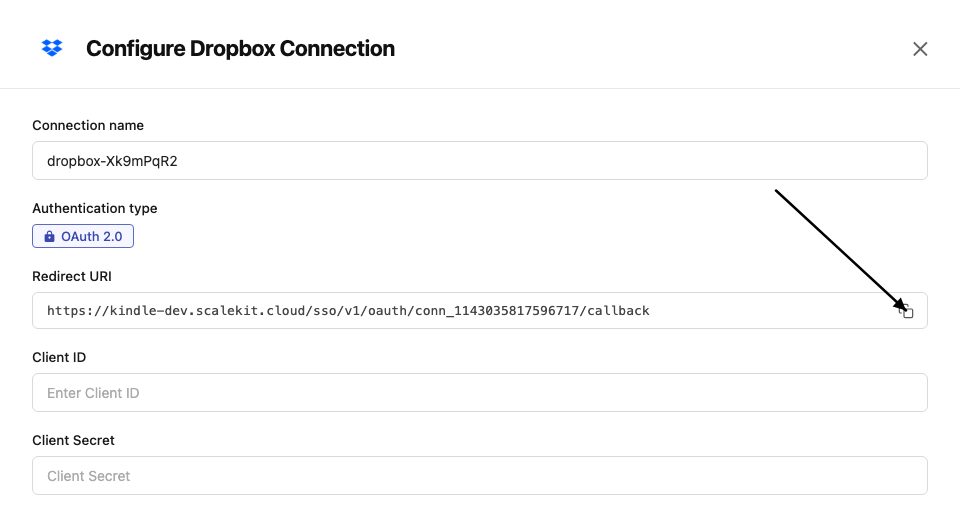
-
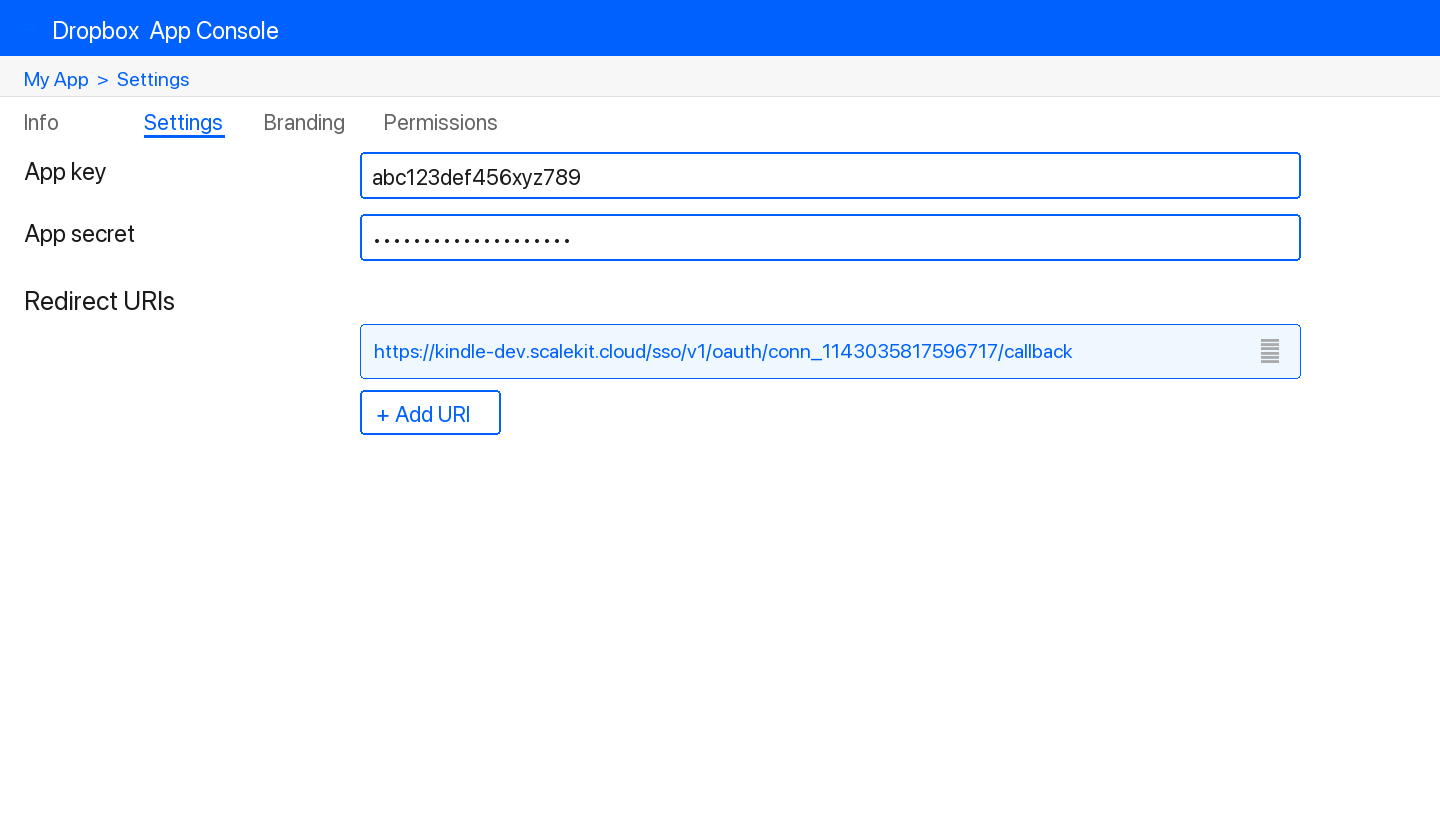
In the Dropbox App Console, open your app and go to the Settings tab.
-
Under Redirect URIs, paste the copied URI and click Add.
-
-
Get client credentials
- In the Dropbox App Console, open your app and go to the Settings tab:
- Client ID — listed under App key
- Client Secret — listed under App secret
- In the Dropbox App Console, open your app and go to the Settings tab:
-
Add credentials in Scalekit
-
In Scalekit dashboard, go to AgentKit > Connections and open the connection you created.
-
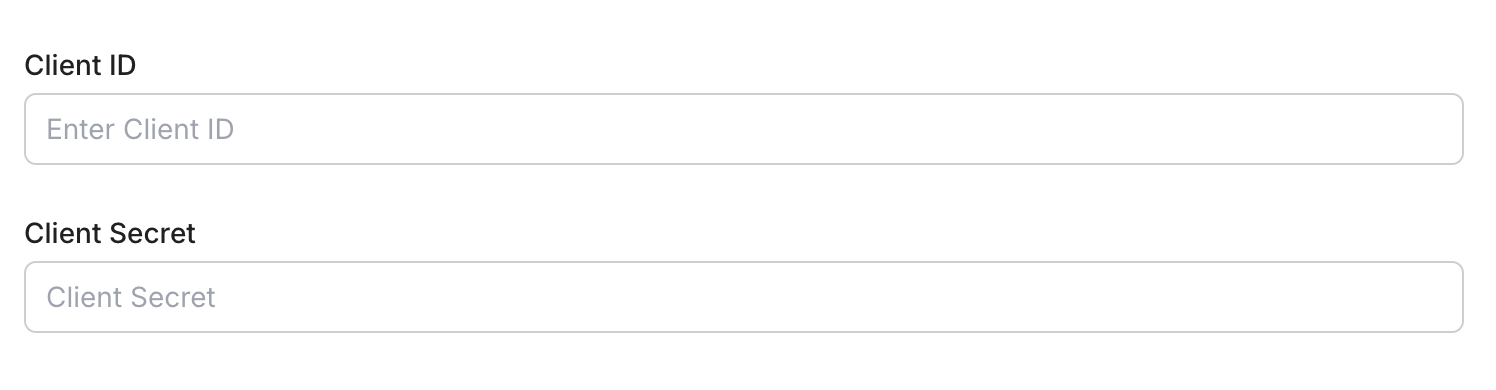
Enter your credentials:
- Client ID (App key from your Dropbox app)
- Client Secret (App secret from your Dropbox app)
- Permissions — select the scopes your app needs
-
Click Save.
-
-
Authorize a user and make your first call
quickstart.mts import { ScalekitClient } from '@scalekit-sdk/node'import 'dotenv/config'import { createInterface } from 'node:readline/promises'const scalekit = new ScalekitClient(process.env.SCALEKIT_ENVIRONMENT_URL,process.env.SCALEKIT_CLIENT_ID,process.env.SCALEKIT_CLIENT_SECRET,)const actions = scalekit.actionsconst connector = 'dropbox'const identifier = 'user_123'// Generate an authorization link for the userconst { link } = await actions.getAuthorizationLink({ connectionName: connector, identifier })console.log('Authorize Dropbox:', link)const rl = createInterface({ input: process.stdin, output: process.stdout })await rl.question('Press Enter after authorizing...')rl.close()// Make your first callconst result = await actions.executeTool({connector,identifier,toolName: 'dropbox_file_requests_list',toolInput: {},})console.log(result)Terminal window npx tsx quickstart.mtsquickstart.py import osfrom scalekit import ScalekitClientfrom dotenv import load_dotenvload_dotenv()scalekit_client = ScalekitClient(env_url=os.getenv("SCALEKIT_ENVIRONMENT_URL"),client_id=os.getenv("SCALEKIT_CLIENT_ID"),client_secret=os.getenv("SCALEKIT_CLIENT_SECRET"),)actions = scalekit_client.actionsconnection_name = "dropbox"identifier = "user_123"# Generate an authorization link for the userlink_response = actions.get_authorization_link(connection_name=connection_name,identifier=identifier,)print("Authorize Dropbox:", link_response.link)input("Press Enter after authorizing...")# Make your first callresult = actions.execute_tool(tool_input={},tool_name="dropbox_file_requests_list",connection_name=connection_name,identifier=identifier,)print(result)Terminal window python quickstart.pyEach user signs in once. See Authorize a user for the full flow and statuses.
Tools
Pass the exact name toexecute_tooldropbox_file_requests_getRetrieve details for a single Dropbox file request by its ID, including title, destination folder, deadline, and open/closed state.Read-onlyGet File Request
Retrieve details for a single Dropbox file request by its ID, including title, destination folder, deadline, and open/closed state.
Inputs
idstringrequired- The ID of the file request to retrieve.
dropbox_file_requests_listList all file requests created by the current Dropbox user.Read-onlyList File Requests
List all file requests created by the current Dropbox user.
Inputs
limitinteger- Maximum number of file requests to return.
dropbox_files_copy_batch_checkPoll the status of an asynchronous copy_batch_v2 job.Read-onlyCheck Copy Batch Job Status
Poll the status of an asynchronous copy_batch_v2 job. When dropbox_files_copy_batch returns an in-progress async_job_id instead of completing immediately, use this to check whether the copy has finished.
Inputs
async_job_idstringrequired- The async job ID returned by a previous copy_batch_v2 call that reported an in-progress status.
dropbox_files_delete_batch_checkPoll the status of an asynchronous delete_batch job.Read-onlyCheck Delete Batch Job Status
Poll the status of an asynchronous delete_batch job. When dropbox_files_delete_batch returns an in-progress async_job_id instead of completing immediately, use this to check whether the deletion has finished.
Inputs
async_job_idstringrequired- The async job ID returned by a previous delete_batch call that reported an in-progress status.
dropbox_files_downloadDownload the raw contents of a file from Dropbox by path or file ID.Read-onlyDownload File
Download the raw contents of a file from Dropbox by path or file ID. Returns the file bytes directly (not wrapped in JSON) via Dropbox's content API host.
Inputs
pathstringrequired- The path or ID of the file to download.
dropbox_files_get_metadataGet metadata for a file or folder at the specified Dropbox path.Read-onlyGet File/Folder Metadata
Get metadata for a file or folder at the specified Dropbox path. Returns name, path, size, modification date, and other properties.
Inputs
pathstringrequired- The path to the file or folder to get metadata for.
include_deletedboolean- If true, deleted files and folders will be included in the results.default
false include_has_explicit_shared_membersboolean- If true, the result will include a flag indicating whether the file has explicit shared members.default
false include_media_infoboolean- If true, the result will include media info (e.g., dimensions, duration) for photo and video files.default
false
dropbox_files_get_temporary_linkGet a temporary link to download a file from Dropbox.Read-onlyGet Temporary Download Link
Get a temporary link to download a file from Dropbox. The link expires after 4 hours. Use this to share a file download URL without granting permanent access.
Inputs
pathstringrequired- The path of the file to get a temporary download link for.
dropbox_files_get_temporary_upload_linkGet a one-time link that a third party can POST raw file bytes to directly, without needing Dropbox API credentials.Read-onlyGet Temporary Upload Link
Get a one-time link that a third party can POST raw file bytes to directly, without needing Dropbox API credentials. The uploaded content is committed to the given Dropbox path once the link is used.
Inputs
pathstringrequired- The Dropbox path the uploaded file will be committed to once the link is used.
autorenameboolean- If there's a conflict at the destination path, have the Dropbox server try to autorename the file to avoid it.default
false durationinteger- How long the link should remain valid, in seconds. Defaults to 14400 (4 hours), which is also the maximum.default
14400
dropbox_files_get_thumbnailGet a rendered thumbnail image for an image, video, or document file stored in Dropbox.Read-onlyGet File Thumbnail
Get a rendered thumbnail image for an image, video, or document file stored in Dropbox. Returns the raw thumbnail bytes (JPEG) directly via Dropbox's content API host, not wrapped in JSON.
Inputs
pathstringrequired- The path or ID of the file to generate a thumbnail for.
dropbox_files_list_folderList the contents of a folder in Dropbox.Read-onlyList Folder
List the contents of a folder in Dropbox. Returns files and subfolders at the given path. Supports recursive listing, filtering for deleted items, and pagination via cursor.
Inputs
pathstringrequired- The path to the folder to list. Use an empty string or '' to list the root of the Dropbox.
include_deletedboolean- If true, deleted files and folders will be included in the results.default
false include_has_explicit_shared_membersboolean- If true, the results will include a flag for each file indicating whether it has explicit shared members.default
false include_media_infoboolean- If true, the results will include media info (e.g., dimensions, duration) for photo and video files.default
false limitinteger- The maximum number of results to return per page. Default is determined by the server (typically 2000).
recursiveboolean- If true, the listing will recurse into subfolders.default
false
dropbox_files_list_folder_continueContinue listing folder contents using a cursor returned from a previous list_folder call.Read-onlyList Folder Continue
Continue listing folder contents using a cursor returned from a previous list_folder call. Use this to paginate through large folder listings.
Inputs
cursorstringrequired- The cursor returned by a previous list_folder or list_folder/continue call.
dropbox_files_list_revisionsList all revisions of a file at the given path in Dropbox.Read-onlyList File Revisions
List all revisions of a file at the given path in Dropbox. Returns revision history including IDs, sizes, and modification dates. Useful for viewing version history and recovering older versions.
Inputs
pathstringrequired- The path of the file to list revisions for.
limitinteger- The maximum number of revisions to return (1–100). Defaults to 10.
modestring- Determines how the path is interpreted. 'path' uses the file's current path; 'id' uses the file's unique ID.one of
pathiddefaultpath
dropbox_files_move_batch_checkPoll the status of an asynchronous move_batch_v2 job.Read-onlyCheck Move Batch Job Status
Poll the status of an asynchronous move_batch_v2 job. When dropbox_files_move_batch returns an in-progress async_job_id instead of completing immediately, use this to check whether the move has finished.
Inputs
async_job_idstringrequired- The async job ID returned by a previous move_batch_v2 call that reported an in-progress status.
dropbox_files_save_url_check_job_statusPoll the status of an asynchronous save_url job.Read-onlyCheck Save URL Job Status
Poll the status of an asynchronous save_url job. Saving a file from a URL to Dropbox is asynchronous; when dropbox_files_save_url returns an in-progress async_job_id, use this to check whether the download has finished.
Inputs
async_job_idstringrequired- The async job ID returned by a previous save_url call that reported an in-progress status.
dropbox_files_searchSearch for files and folders in Dropbox by name or content.Read-onlySearch Files and Folders
Search for files and folders in Dropbox by name or content. Supports filtering by path, file status, and limiting results. Returns matching file and folder entries.
Inputs
querystringrequired- The search query string. Matches file names, extensions, and content.
options_file_statusstring- Restricts search to files with this status. 'active' returns non-deleted files; 'deleted' returns only deleted files.one of
activedeleteddefaultactive options_filename_onlyboolean- If true, the search only matches filenames and not file content.default
false options_max_resultsinteger- The maximum number of search results to return (1–1000).
options_pathstring- Restricts the search to this folder path and its subfolders.
dropbox_files_search_continueFetch the next page of results for a previous dropbox_files_search call, using the cursor returned in that call's response.Read-onlyContinue File Search
Fetch the next page of results for a previous dropbox_files_search call, using the cursor returned in that call's response.
Inputs
cursorstringrequired- The cursor returned by the previous search call. Used to fetch the next page of results.
dropbox_sharing_get_folder_metadataRetrieve metadata for a single Dropbox shared folder by its ID, including name, policies, and the current user's permissions.Read-onlyGet Shared Folder Metadata
Retrieve metadata for a single Dropbox shared folder by its ID, including name, policies, and the current user's permissions.
Inputs
shared_folder_idstringrequired- The ID of the shared folder to look up.
dropbox_sharing_list_file_membersList the users and groups that have access to a specific shared file in Dropbox, including access levels and permissions.Read-onlyList Shared File Members
List the users and groups that have access to a specific shared file in Dropbox, including access levels and permissions.
Inputs
filestringrequired- The path or ID of the file whose members to list.
include_inheritedboolean- Whether to include members who only have access from a parent shared folder.default
true limitinteger- Maximum number of members to return per page (1-300). Defaults to 100.default
100
dropbox_sharing_list_folder_membersList all members (users and groups) of a Dropbox shared folder.Read-onlyList Shared Folder Members
List all members (users and groups) of a Dropbox shared folder.
Inputs
shared_folder_idstringrequired- The ID of the shared folder whose members to list.
limitinteger- Maximum number of members to return per page.
dropbox_sharing_list_foldersList all shared folders the current Dropbox user is a member of, including folders they own and folders shared with them.Read-onlyList Shared Folders
List all shared folders the current Dropbox user is a member of, including folders they own and folders shared with them.
Inputs
limitinteger- The maximum number of shared folders to return per request (1-1000). Defaults to 1000.default
1000
dropbox_sharing_list_received_filesList files that other people have shared directly with the current Dropbox user.Read-onlyList Received Files
List files that other people have shared directly with the current Dropbox user. Distinct from listing the members of a specific file or folder you already know about.
Inputs
limitinteger- The maximum number of files to return per request.default
100
dropbox_users_get_accountRetrieve basic account information (name, profile photo, team membership) for any Dropbox user by their account ID.Read-onlyGet Account Info
Retrieve basic account information (name, profile photo, team membership) for any Dropbox user by their account ID. Use dropbox_users_get_current_account for the connected user's own account.
Inputs
account_idstringrequired- The Dropbox account ID of the user to look up.
dropbox_users_get_current_accountGet information about the current Dropbox user's account, including name, email, and account type.Read-onlyGet Current Account
Get information about the current Dropbox user's account, including name, email, and account type.
Inputs
This tool takes no inputs.
dropbox_users_get_space_usageGet the current storage space usage for the authenticated Dropbox user, including used and allocated space.Read-onlyGet Space Usage
Get the current storage space usage for the authenticated Dropbox user, including used and allocated space.
Inputs
This tool takes no inputs.
dropbox_file_requests_createCreate a Dropbox file request that allows others to upload files to a designated Dropbox folder.WriteCreate File Request
Create a Dropbox file request that allows others to upload files to a designated Dropbox folder.
Inputs
destinationstringrequired- The Dropbox folder path where uploaded files will be saved.
titlestringrequired- The title of the file request, shown to contributors.
deadline_allow_late_uploadsstring- Whether to allow uploads after the deadline has passed.
deadline_deadlinestring- Deadline date for submissions in ISO 8601 format (e.g., '2024-12-31T23:59:59Z').
descriptionstring- A description of the file request, shown to contributors.
openboolean- Whether the file request is open for submissions. Defaults to true.
dropbox_file_requests_updateUpdate the title, destination, deadline, description, or open/closed state of an existing Dropbox file request.WriteUpdate File Request
Update the title, destination, deadline, description, or open/closed state of an existing Dropbox file request. Only the fields you provide are changed.
- Idempotent
Inputs
idstringrequired- The ID of the file request to update.
descriptionstring- New description for the file request, shown to contributors.
destinationstring- New destination folder path in the user's Dropbox for uploaded files.
openboolean- Whether the file request should be open for submissions.
titlestring- New title for the file request. Must not be empty if provided.
dropbox_files_copyCopy a file or folder from one path to another in Dropbox.WriteCopy File or Folder
Copy a file or folder from one path to another in Dropbox. The original file is preserved. Optionally auto-rename if a conflict exists at the destination.
Inputs
from_pathstringrequired- The path of the file or folder to copy.
to_pathstringrequired- The destination path for the copy.
allow_ownership_transferboolean- Allow copies that change the file ownership.default
false allow_shared_folderboolean- If true, copy is allowed even if the destination is inside a shared folder.default
false autorenameboolean- If true, the destination will be automatically renamed if a file/folder already exists there.default
false
dropbox_files_copy_batchCopy up to 1000 files or folders within Dropbox in a single batch request.WriteCopy Multiple Files or Folders
Copy up to 1000 files or folders within Dropbox in a single batch request. Each entry specifies a source and destination path.
Inputs
entriesarrayrequired- Array of source/destination path pairs to copy. Example: [{"from_path": "/Homework/math", "to_path": "/Archive/math"}]
autorenameboolean- If there's a conflict at the destination for any entry, have the Dropbox server try to autorename the file to avoid it.default
false
dropbox_files_create_folderCreate a new folder at the specified path in Dropbox.WriteCreate Folder
Create a new folder at the specified path in Dropbox. Optionally auto-rename if a folder with the same name already exists.
Inputs
pathstringrequired- The path of the folder to create.
autorenameboolean- If true, the folder will be renamed automatically if a folder with the same name already exists.default
false
dropbox_files_moveMove a file or folder from one path to another in Dropbox.WriteMove File or Folder
Move a file or folder from one path to another in Dropbox. Optionally allow moving into shared folders or auto-rename if a conflict exists at the destination.
Inputs
from_pathstringrequired- The current path of the file or folder to move.
to_pathstringrequired- The destination path for the file or folder.
allow_ownership_transferboolean- Allow moves that change the file ownership. Only relevant for moves from one user's Dropbox to another.default
false allow_shared_folderboolean- If true, move is allowed even if the destination is inside a shared folder.default
false autorenameboolean- If true, the destination will be automatically renamed if a file/folder already exists there.default
false
dropbox_files_move_batchMove up to 1000 files or folders within Dropbox in a single batch request.WriteMove Multiple Files or Folders
Move up to 1000 files or folders within Dropbox in a single batch request. Each entry specifies a source and destination path.
Inputs
entriesarrayrequired- Array of source/destination path pairs to move. Example: [{"from_path": "/Inbox/report.pdf", "to_path": "/Archive/report.pdf"}]
allow_ownership_transferboolean- Allow moves by owner even if it would result in an ownership transfer for the content being moved.default
false autorenameboolean- If there's a conflict at the destination for any entry, have the Dropbox server try to autorename the file to avoid it.default
false
dropbox_files_restoreRestore a file in Dropbox to a specific revision.WriteRestore File Revision
Restore a file in Dropbox to a specific revision. Requires the file path and revision identifier.
- Idempotent
Inputs
pathstringrequired- The path to the file to restore, e.g. '/Documents/notes.txt'.
revstringrequired- The revision identifier to restore the file to. Obtained from file revision history.
dropbox_files_save_urlSave a file from a URL directly to a Dropbox path.WriteSave URL to Dropbox
Save a file from a URL directly to a Dropbox path. The file is downloaded from the URL and saved to the specified Dropbox location.
Inputs
pathstringrequired- The Dropbox path where the file should be saved, e.g. '/Downloads/report.pdf'.
urlstringrequired- The URL of the file to download and save to Dropbox.
dropbox_sharing_add_file_memberShare a single Dropbox file directly with one or more people by email address, without sharing the whole containing folder.WriteAdd Shared File Member
Share a single Dropbox file directly with one or more people by email address, without sharing the whole containing folder.
Inputs
filestringrequired- The path or ID of the file to share.
member_emailsarrayrequired- Email addresses of the people to add as members of this file.
access_levelstring- Access level to grant the new members. Defaults to the file's standard sharing access if omitted.one of
editorviewerviewer_no_comment custom_messagestring- Message to include in the invitation email sent to the new members.
quietboolean- If true, do not send email or device notifications to the added members.default
false
dropbox_sharing_add_folder_memberAdd one or more members to a Dropbox shared folder.WriteAdd Shared Folder Member
Add one or more members to a Dropbox shared folder. Each member is specified with an email address and access level.
Inputs
membersarrayrequired- Array of members to add. Each member has an email and access level.
shared_folder_idstringrequired- The ID of the shared folder to add members to.
custom_messagestring- Optional custom message to include in the invitation email.
quietboolean- If true, do not send a notification email to added members.
dropbox_sharing_mount_folderMount a shared folder that has been shared with the current Dropbox user, adding it into their own Dropbox so it appears alongside their regular files.WriteMount Shared Folder
Mount a shared folder that has been shared with the current Dropbox user, adding it into their own Dropbox so it appears alongside their regular files.
Inputs
shared_folder_idstringrequired- The ID of the shared folder to mount.
dropbox_sharing_unmount_folderUnmount a shared folder from the current Dropbox user's own file tree.WriteUnmount Shared Folder
Unmount a shared folder from the current Dropbox user's own file tree. Membership is kept, so the folder can be mounted again later with dropbox_sharing_mount_folder; this only removes it from view.
- Idempotent
Inputs
shared_folder_idstringrequired- The ID of the shared folder to unmount.
dropbox_sharing_update_folder_memberChange the access level of an existing member of a Dropbox shared folder, identified by email address.WriteUpdate Shared Folder Member Access
Change the access level of an existing member of a Dropbox shared folder, identified by email address.
- Idempotent
Inputs
access_levelstringrequired- The new access level to grant the member. The 'owner' level cannot be set through this tool.one of
editorviewerviewer_no_comment member_emailstringrequired- Email address of the existing member whose access level should be changed.
shared_folder_idstringrequired- The ID of the shared folder containing the member.
dropbox_file_requests_deleteDelete one or more closed Dropbox file requests by ID.DestructiveDelete File Requests
Delete one or more closed Dropbox file requests by ID. File requests must be closed before they can be deleted.
Inputs
idsarrayrequired- List of file request IDs to delete. Each request must already be closed.
dropbox_files_deleteDelete a file or folder at the specified path in Dropbox.DestructiveDelete File or Folder
Delete a file or folder at the specified path in Dropbox. Deleted items are moved to the Dropbox trash and can be recovered within 30 days (or 180 days for Business accounts).
Inputs
pathstringrequired- The path of the file or folder to delete.
parent_revstring- Perform delete only if the file's revision matches this value. Only applies to files, not folders.
dropbox_files_delete_batchDelete up to 1000 files or folders from Dropbox in a single batch request.DestructiveDelete Multiple Files or Folders
Delete up to 1000 files or folders from Dropbox in a single batch request. Each entry is a path to move to the trash.
Inputs
entriesarrayrequired- Array of paths to delete. Each item must contain a 'path' key. Example: [{"path": "/Homework/old1.txt"}, {"path": "/Homework/old2.txt"}]
dropbox_files_permanently_deletePermanently delete a file or folder from Dropbox, bypassing the trash.DestructivePermanently Delete File or Folder
Permanently delete a file or folder from Dropbox, bypassing the trash. The item cannot be restored afterwards. Only available for Dropbox Business team folders/files, or accounts with extended version history disabled.
Inputs
pathstringrequired- The path in the user's Dropbox to permanently delete.
parent_revstring- If provided, only delete the file if its latest revision matches this rev. Does not support deleting a folder.
dropbox_sharing_remove_file_memberRemove a member's access to a Dropbox file that was directly shared with them (by email).DestructiveRemove Shared File Member
Remove a member's access to a Dropbox file that was directly shared with them (by email). Counterpart to dropbox_sharing_add_file_member.
Inputs
filestringrequired- The path or ID of the file to remove the member from.
member_emailstringrequired- Email address of the member to remove from this file.
dropbox_sharing_remove_folder_memberRemove a member (by email) from a Dropbox shared folder, revoking their access.DestructiveRemove Shared Folder Member
Remove a member (by email) from a Dropbox shared folder, revoking their access. Counterpart to dropbox_sharing_add_folder_member.
Inputs
member_emailstringrequired- Email address of the member to remove.
shared_folder_idstringrequired- The ID of the shared folder to remove the member from.
leave_a_copyboolean- If true, the removed member keeps their own copy of the folder's contents.default
false
No tools match.
Workflows
Proxy API call
const result = await actions.request({ connectionName: 'dropbox', identifier: 'user_123', path: '/2/users/get_current_account', method: 'POST',});console.log(result);result = actions.request( connection_name='dropbox', identifier='user_123', path="/2/users/get_current_account", method="POST",)print(result)Execute a tool
const result = await actions.executeTool({ connector: 'dropbox', identifier: 'user_123', toolName: 'dropbox_files_list_folder', toolInput: { path: '' },});console.log(result);result = actions.execute_tool( connection_name='dropbox', identifier='user_123', tool_name='dropbox_files_list_folder', tool_input={'path': ''},)print(result)

