
The Linear connector lets your AI agent act in each user's Linear account. Each user signs in to Linear once, and Scalekit stores and refreshes their tokens, so your agent never handles credentials. It comes with 62 tools.
- Tools
- 62
- What they doRead · write · destructive
- 27 · 24 · 1127 read24 write11 destructive
- Users sign in with
- OAuth
- OAuth app
- Scalekit's or your own
What you can do
- Read issues: fetch issues, projects, cycles, and team details
- Create and update issues: file new issues, update status, set priority, and assign teammates
- Manage projects: create and update project metadata and milestones
- Search: find issues by keyword, assignee, label, or state
Setup
Install the SDK
Terminal window npm install @scalekit-sdk/node dotenvTerminal window pip install scalekit-sdk-python python-dotenvSet your credentials
Add your Scalekit credentials to your
.envfile. Find values in app.scalekit.com > Developers > API Credentials..env SCALEKIT_ENVIRONMENT_URL=<your-environment-url>SCALEKIT_CLIENT_ID=<your-client-id>SCALEKIT_CLIENT_SECRET=<your-client-secret>Create the Linear connection
In AgentKit > Connections, create a Linear connection. The name you give it is the
connection_nameyour code passes. See Configure connections.Scalekit credentials are available for Linear, so you don't need to register an OAuth app. To show your own app on the consent screen, use your own credentials instead.
Use your own OAuth app
Register your Scalekit environment with the Linear connector so Scalekit handles the authentication flow and token lifecycle for you. The connection name you create will be used to identify and invoke the connection programmatically. Then complete the configuration in your application as follows:
-
Set up auth redirects
-
In Scalekit dashboard, go to AgentKit > Connections > Create Connection. Find Linear and click Create. Copy the redirect URI. It looks like
https://<SCALEKIT_ENVIRONMENT_URL>/sso/v1/oauth/<CONNECTION_ID>/callback.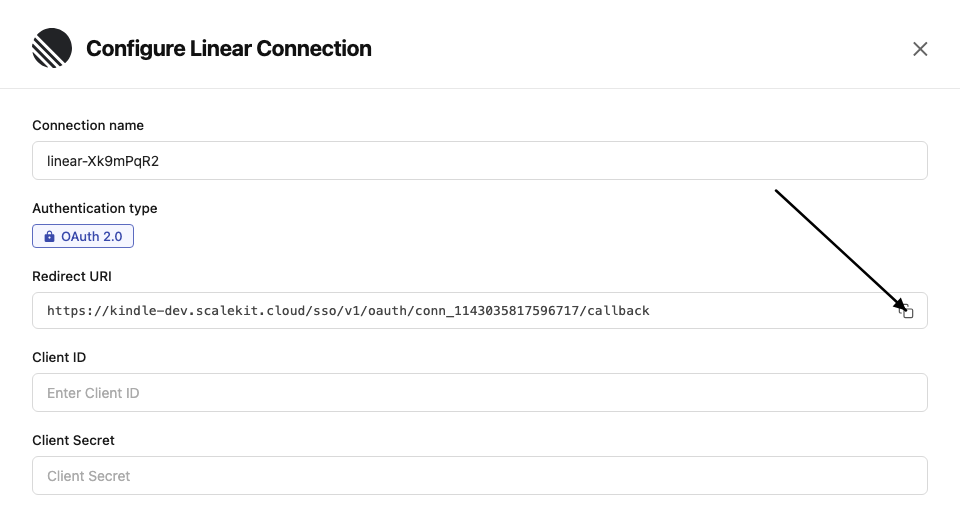
-
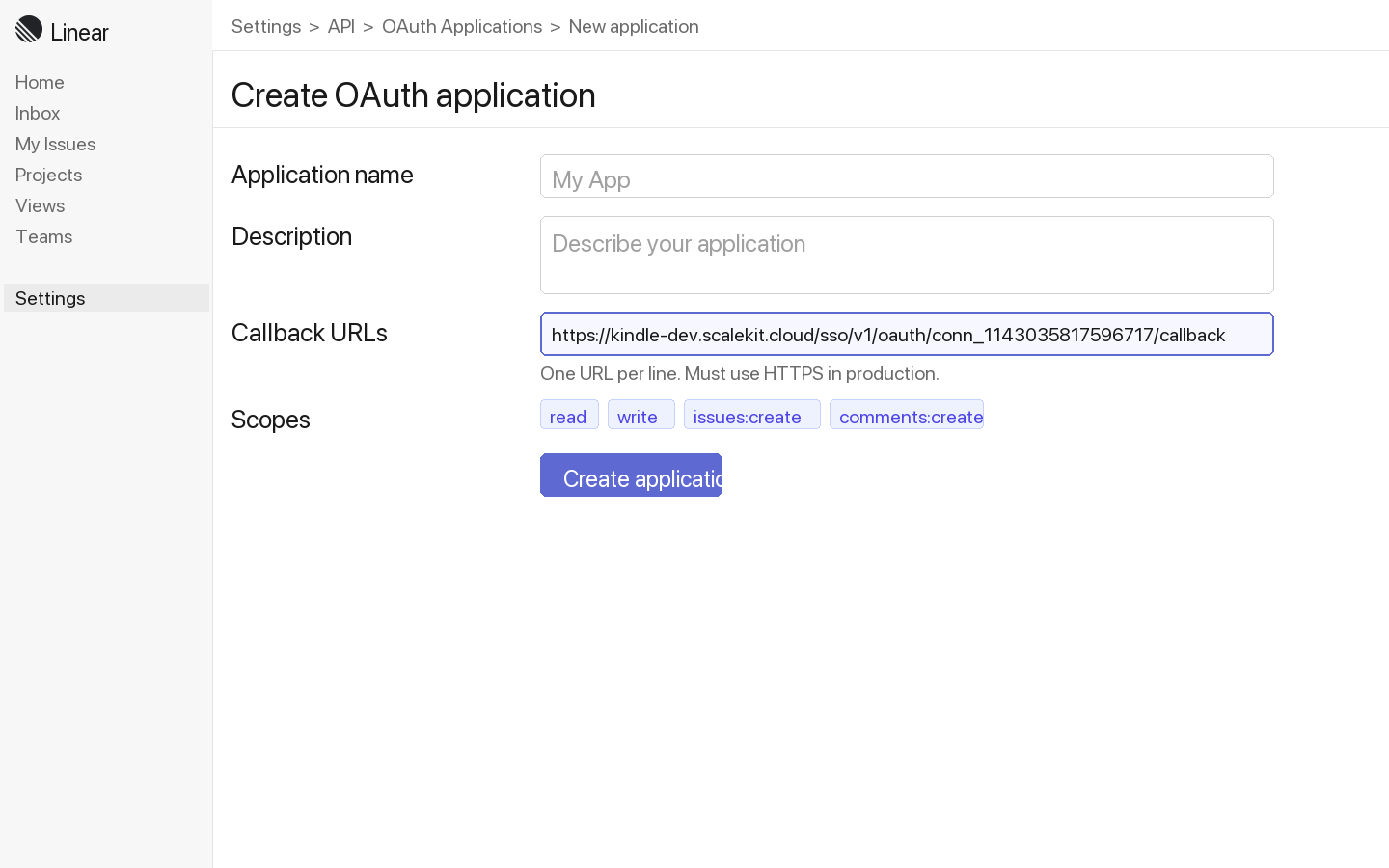
Log in to Linear and go to Settings → API → OAuth applications.
-
Click New application, enter an application name and description, then paste the redirect URI from Scalekit into the Callback URLs field. Click Create application.
-
-
Get client credentials
- In your Linear OAuth application, copy the Client ID and Client Secret.
-
Add credentials in Scalekit
-
In Scalekit dashboard, go to AgentKit > Connections and open the connection you created.
-
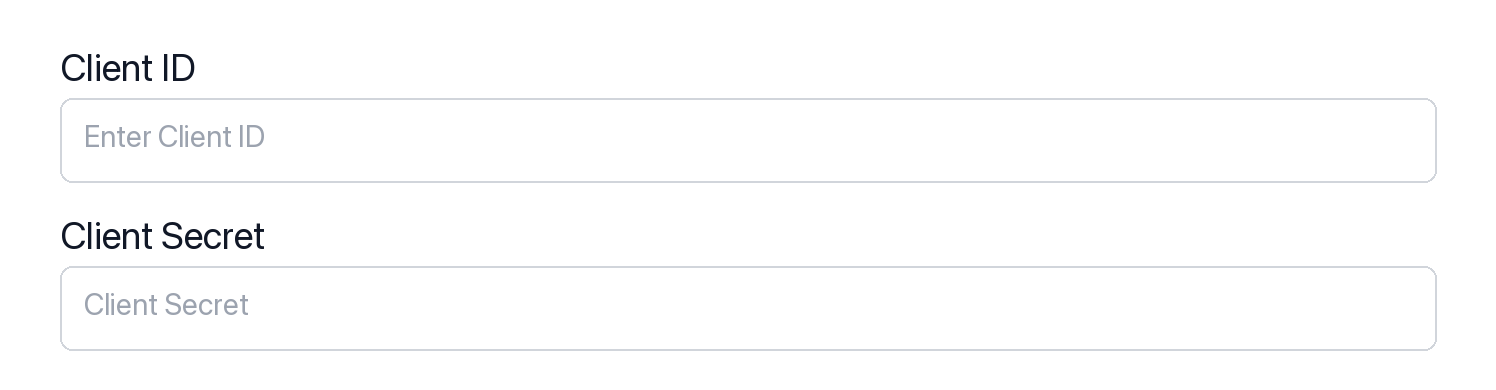
Enter your credentials:
- Client ID (from above)
- Client Secret (from above)
- Permissions (scopes — see Linear OAuth scopes reference)
-
Click Save.
-
-
Authorize a user and make your first call
quickstart.mts import { ScalekitClient } from '@scalekit-sdk/node'import 'dotenv/config'import { createInterface } from 'node:readline/promises'const scalekit = new ScalekitClient(process.env.SCALEKIT_ENVIRONMENT_URL,process.env.SCALEKIT_CLIENT_ID,process.env.SCALEKIT_CLIENT_SECRET,)const actions = scalekit.actionsconst connector = 'linear'const identifier = 'user_123'// Generate an authorization link for the userconst { link } = await actions.getAuthorizationLink({ connectionName: connector, identifier })console.log('Authorize Linear:', link)const rl = createInterface({ input: process.stdin, output: process.stdout })await rl.question('Press Enter after authorizing...')rl.close()// Make your first callconst result = await actions.executeTool({connector,identifier,toolName: 'linear_attachments_list',toolInput: {},})console.log(result)Terminal window npx tsx quickstart.mtsquickstart.py import osfrom scalekit import ScalekitClientfrom dotenv import load_dotenvload_dotenv()scalekit_client = ScalekitClient(env_url=os.getenv("SCALEKIT_ENVIRONMENT_URL"),client_id=os.getenv("SCALEKIT_CLIENT_ID"),client_secret=os.getenv("SCALEKIT_CLIENT_SECRET"),)actions = scalekit_client.actionsconnection_name = "linear"identifier = "user_123"# Generate an authorization link for the userlink_response = actions.get_authorization_link(connection_name=connection_name,identifier=identifier,)print("Authorize Linear:", link_response.link)input("Press Enter after authorizing...")# Make your first callresult = actions.execute_tool(tool_input={},tool_name="linear_attachments_list",connection_name=connection_name,identifier=identifier,)print(result)Terminal window python quickstart.pyEach user signs in once. See Authorize a user for the full flow and statuses.
Getting resource IDs
Section titled “Getting resource IDs”Most Linear tools require one or more IDs. Always fetch IDs from the API — never guess or hard-code them.
| Resource | Tool to get ID | Field in response |
|---|---|---|
| Team ID | linear_teams_list | teams.nodes[].id |
| Issue ID | linear_issues_list or linear_issue_search | issues.nodes[].id |
| Project ID | linear_projects_list | projects.nodes[].id |
| Cycle ID | linear_cycles_list | cycles.nodes[].id |
| Label ID | linear_labels_list | issueLabels.nodes[].id |
| Workflow State ID | linear_workflow_states_list | workflowStates.nodes[].id |
| User ID | linear_users_list | users.nodes[].id |
| Comment ID | linear_comments_list | comments.nodes[].id |
| Attachment ID | linear_issue_get (include attachments) | issue.attachments.nodes[].id |
| Webhook ID | linear_webhooks_list | webhooks.nodes[].id |
| Milestone ID | linear_project_milestones_list | projectMilestones.nodes[].id |
| Roadmap ID | linear_roadmaps_list | roadmaps.nodes[].id |
Tools
Pass the exact name toexecute_toollinear_attachment_getGet a single Linear attachment by ID using the attachment query, including its title, URL, source metadata, and timestamps.Read-onlyGet Attachment
Get a single Linear attachment by ID using the attachment query, including its title, URL, source metadata, and timestamps.
Inputs
attachmentIdstringrequired- ID of the attachment to retrieve
linear_attachments_listList attachments in the Linear workspace, optionally filtered by issue ID, with pagination support.Read-onlyList Attachments
List attachments in the Linear workspace, optionally filtered by issue ID, with pagination support.
Inputs
afterstring- Pagination cursor for fetching the next page
firstinteger- Number of attachments to return
issueIdstring- Filter attachments by issue ID
linear_comment_getGet one Linear comment by id.Read-onlyGet Comment
Get one Linear comment by id. Returns the comment body and author. Use comment_get when you have the id. Use comments_list to find comments on an issue.
Inputs
commentIdstringrequired- ID of the comment to retrieve
linear_comments_listList comments on one Linear issue with pagination.Read-onlyList Comments
List comments on one Linear issue with pagination. Returns comment nodes with id, body, and author. Use comments_list to browse a thread. Use comment_get for one comment id.
Inputs
issueIdstringrequired- ID of the issue to list comments for
afterstring- Pagination cursor for fetching the next page
firstinteger- Number of comments to return
linear_cycle_getGet a specific Linear cycle by ID, including its issues.Read-onlyGet Cycle
Get a specific Linear cycle by ID, including its issues.
Inputs
cycleIdstringrequired- ID of the cycle to retrieve
linear_cycle_issues_listList all issues in a specific Linear cycle with pagination support.Read-onlyList Cycle Issues
List all issues in a specific Linear cycle with pagination support.
Inputs
cycleIdstringrequired- ID of the cycle to list issues for
afterstring- Pagination cursor for fetching the next page
firstinteger- Number of issues to return
linear_cycles_listList cycles (sprints) for a Linear team with pagination support.Read-onlyList Cycles
List cycles (sprints) for a Linear team with pagination support.
Inputs
teamIdstringrequired- Team ID to list cycles for
afterstring- Pagination cursor for fetching the next page
firstinteger- Number of cycles to return
linear_issue_getGet one Linear issue by id, including state, assignee, team, labels, and project.Read-onlyGet Issue
Get one Linear issue by id, including state, assignee, team, labels, and project. Returns the issue object. Use issue_get when you have the id. Use issues_list or issue_search to find an id.
Inputs
issueIdstringrequired- ID of the issue to retrieve
linear_issue_relations_listList all relations for a specific issue (blocks, duplicates, related, similar).Read-onlyList Issue Relations
List all relations for a specific issue (blocks, duplicates, related, similar).
Inputs
issueIdstringrequired- ID of the issue to get relations for
linear_issue_searchSearch Linear issues by text across titles and descriptions.Read-onlySearch Issues
Search Linear issues by text across titles and descriptions. Returns matching issues with id, title, and url. Use issue_search for a text query. Use issues_list to browse with filters. Use issue_get for one known id.
Inputs
querystringrequired- Text to search for across issue titles and descriptions
firstinteger- Number of results to return (max 250)
teamIdstring- Restrict search to a specific team ID
linear_issues_listList Linear issues with filters (state, assignee, project, label, priority) and cursor pagination.Read-onlyList Issues
List Linear issues with filters (state, assignee, project, label, priority) and cursor pagination. Returns issue nodes with id, title, state, assignee, and url. Use issues_list to browse with filters. Use issue_search for a text query. Use issue_get for one known id.
Inputs
afterstring- Cursor for pagination (returns issues after this cursor)
assigneestring- Filter by assignee email (e.g., 'user@example.com')
beforestring- Cursor for pagination (returns issues before this cursor)
firstinteger- Number of issues to return (pagination)
labelsarray- Filter by label names (array of strings)
prioritystring- Filter by priority level (1=Urgent, 2=High, 3=Medium, 4=Low)
projectstring- Filter by project name (e.g., 'Q4 Goals')
statestring- Filter by state name (e.g., 'In Progress', 'Done')
linear_label_getGet a single Linear issue label by ID using the issueLabel query, including its color, description, team, and parent label.Read-onlyGet Label
Get a single Linear issue label by ID using the issueLabel query, including its color, description, team, and parent label.
Inputs
labelIdstringrequired- ID of the label to retrieve
linear_labels_listList issue labels in the Linear workspace, optionally filtered by team.Read-onlyList Labels
List issue labels in the Linear workspace, optionally filtered by team.
Inputs
firstinteger- Number of labels to return
teamIdstring- Filter labels by team ID
linear_project_getGet a single Linear project by ID, including teams, members, and associated issues.Read-onlyGet Project
Get a single Linear project by ID, including teams, members, and associated issues.
Inputs
projectIdstringrequired- ID of the project to retrieve
linear_project_milestones_listList milestones for a specific project.Read-onlyList Project Milestones
List milestones for a specific project.
Inputs
projectIdstringrequired- ID of the project to list milestones for
firstinteger- Number of milestones to return
linear_projects_listList all projects in the Linear workspace with pagination support.Read-onlyList Projects
List all projects in the Linear workspace with pagination support.
Inputs
afterstring- Pagination cursor for fetching the next page
firstinteger- Number of projects to return
linear_roadmaps_listList all roadmaps in the Linear workspace with pagination support.Read-onlyList Roadmaps
List all roadmaps in the Linear workspace with pagination support.
Inputs
afterstring- Pagination cursor for fetching the next page
firstinteger- Number of roadmaps to return
linear_team_getGet a single Linear team by ID, including its members and workflow states.Read-onlyGet Team
Get a single Linear team by ID, including its members and workflow states.
Inputs
teamIdstringrequired- ID of the team to retrieve
linear_teams_listList all teams in the Linear workspace with their members and pagination support.Read-onlyList Teams
List all teams in the Linear workspace with their members and pagination support.
Inputs
afterstring- Pagination cursor for fetching the next page
firstinteger- Number of teams to return
linear_test_listList issues in Linear using the issues query with simple filtering and pagination support.Read-onlyList Issues
List issues in Linear using the issues query with simple filtering and pagination support.
Inputs
afterstring- Cursor for pagination (returns issues after this cursor)
assigneestring- Filter by assignee email (e.g., 'user@example.com')
beforestring- Cursor for pagination (returns issues before this cursor)
firstinteger- Number of issues to return (pagination)
labelsarray- Filter by label names (array of strings)
prioritystring- Filter by priority level (1=Urgent, 2=High, 3=Medium, 4=Low)
projectstring- Filter by project name (e.g., 'Q4 Goals')
statestring- Filter by state name (e.g., 'In Progress', 'Done')
linear_user_getRetrieve a single Linear user by their ID.Read-onlyGet User
Retrieve a single Linear user by their ID.
Inputs
userIdstringrequired- ID of the user to retrieve
linear_users_listList all users in the Linear workspace with pagination support.Read-onlyList Users
List all users in the Linear workspace with pagination support.
Inputs
afterstring- Pagination cursor for fetching the next page
firstinteger- Number of users to return
linear_viewer_getGet the currently authenticated Linear user (viewer), including their teams.Read-onlyGet Viewer
Get the currently authenticated Linear user (viewer), including their teams.
Inputs
This tool takes no inputs.
linear_webhook_getRetrieve a single webhook by its ID.Read-onlyGet Webhook
Retrieve a single webhook by its ID.
Inputs
webhookIdstringrequired- ID of the webhook
linear_webhooks_listList all webhooks configured for the current workspace.Read-onlyList Webhooks
List all webhooks configured for the current workspace.
Inputs
afterstring- Pagination cursor
firstinteger- Number of webhooks to return
linear_workflow_state_getRetrieve a single workflow state by its ID.Read-onlyGet Workflow State
Retrieve a single workflow state by its ID.
Inputs
stateIdstringrequired- ID of the workflow state
linear_workflow_states_listList workflow states in the Linear workspace, optionally filtered by team.Read-onlyList Workflow States
List workflow states in the Linear workspace, optionally filtered by team.
Inputs
firstinteger- Number of workflow states to return
teamIdstring- Filter by team ID
linear_attachment_createCreate an external link attachment on a Linear issue.WriteCreate Attachment
Create an external link attachment on a Linear issue.
Inputs
issueIdstringrequired- ID of the issue to attach the link to
titlestringrequired- Attachment title
urlstringrequired- URL of the attachment
subtitlestring- Subtitle or description for the attachment
linear_attachment_updateUpdate the title or subtitle of an existing attachment on a Linear issue.WriteUpdate Attachment
Update the title or subtitle of an existing attachment on a Linear issue.
Inputs
attachmentIdstringrequired- ID of the attachment to update
titlestringrequired- New title for the attachment
subtitlestring- New subtitle or description
linear_comment_createCreate a comment on a Linear issue.WriteCreate Comment
Create a comment on a Linear issue. Returns the new comment id. Use comment_create to add a comment. Use comment_update to change one.
Inputs
bodystringrequired- Comment text
issueIdstringrequired- ID of the issue to comment on
linear_comment_updateUpdate the body of an existing Linear comment.WriteUpdate Comment
Update the body of an existing Linear comment. Returns the comment id. Use comment_update to change text. Use comment_create to add a new comment.
Inputs
bodystringrequired- Updated comment text
commentIdstringrequired- ID of the comment to update
linear_cycle_createCreate a new cycle (sprint) for a Linear team.WriteCreate Cycle
Create a new cycle (sprint) for a Linear team. Requires a team ID, start date, and end date.
Inputs
endsAtstringrequired- Cycle end date-time in ISO 8601 format
startsAtstringrequired- Cycle start date-time in ISO 8601 format
teamIdstringrequired- ID of the team to create the cycle in
descriptionstring- Optional description of the cycle
namestring- Optional custom name for the cycle
linear_cycle_updateUpdate an existing cycle (sprint) in Linear.WriteUpdate Cycle
Update an existing cycle (sprint) in Linear.
Inputs
cycleIdstringrequired- ID of the cycle to update
descriptionstring- New description for the cycle
endsAtstring- New end date-time in ISO 8601 format
namestring- New name for the cycle
startsAtstring- New start date-time in ISO 8601 format
linear_graphql_queryExecute a custom GraphQL query or mutation against the Linear API.WriteExecute GraphQL Query
Execute a custom GraphQL query or mutation against the Linear API. Allows running any valid GraphQL operation with variables support for advanced use cases.
Inputs
querystringrequired- The GraphQL query or mutation to execute
variablesobject- Variables to pass to the GraphQL query
linear_issue_archiveArchive a Linear issue by id.WriteArchive Issue
Archive a Linear issue by id. Returns the archived issue id. Use issue_archive to hide an issue. Use issue_unarchive to restore it. Use issue_delete to remove it.
Inputs
issueIdstringrequired- ID of the issue to archive
linear_issue_createCreate a Linear issue.WriteCreate Issue
Create a Linear issue. Requires team id and title. Returns the new issue id, number, title, and url. Use issue_create to open a new issue. Use issue_update to change an existing one.
Inputs
teamIdstringrequired- ID of the team to create the issue in
titlestringrequired- Title of the issue
assigneeIdstring- ID of the user to assign the issue to
descriptionstring- Description of the issue
estimatestring- Story point estimate for the issue
labelIdsarray- Array of label IDs to apply to the issue
prioritystring- Priority level of the issue (1-4, where 1 is urgent)
projectIdstring- ID of the project to associate the issue with
stateIdstring- ID of the workflow state to set
linear_issue_relation_createCreate a relation between two issues.WriteCreate Issue Relation
Create a relation between two issues. Valid types: blocks, duplicate, related, similar.
Inputs
issueIdstringrequired- ID of the issue
relatedIssueIdstringrequired- ID of the related issue
typestringrequired- Relation type: blocks, duplicate, related, or similar
linear_issue_unarchiveRestore an archived Linear issue to active.WriteUnarchive Issue
Restore an archived Linear issue to active. Returns the issue id. Use issue_unarchive on an archived issue. Use issue_archive to hide it again.
Inputs
issueIdstringrequired- ID of the archived issue to restore
linear_issue_updateUpdate a Linear issue's title, description, priority, state, or assignee.WriteUpdate Issue
Update a Linear issue's title, description, priority, state, or assignee. Returns the updated issue id and title. Use issue_update to change an existing issue. Use issue_create to open a new one.
Inputs
issueIdstringrequired- ID of the issue to update
assigneeIdstring- ID of the user to assign the issue to
descriptionstring- New description for the issue
prioritystring- Priority level of the issue (1-4, where 1 is urgent)
stateIdstring- ID of the workflow state to set
titlestring- New title for the issue
linear_label_createCreate a new issue label in a Linear team.WriteCreate Label
Create a new issue label in a Linear team.
Inputs
namestringrequired- Label name
teamIdstringrequired- Team ID to create the label in
colorstring- Label color as hex code
descriptionstring- Label description
linear_label_updateUpdate an existing Linear issue label's name, color, or description using the issueLabelUpdate mutation.WriteUpdate Label
Update an existing Linear issue label's name, color, or description using the issueLabelUpdate mutation.
Inputs
labelIdstringrequired- ID of the label to update
colorstring- New color for the label as a hex code
descriptionstring- New description for the label
namestring- New name for the label
linear_project_createCreate a new project in Linear with optional description, state, and date fields.WriteCreate Project
Create a new project in Linear with optional description, state, and date fields.
Inputs
namestringrequired- Name of the project
teamIdsarrayrequired- Array of team IDs to associate with the project
descriptionstring- Description of the project
startDatestring- Start date in YYYY-MM-DD format
statestring- Project state: planned, started, paused, completed, cancelled
targetDatestring- Target date in YYYY-MM-DD format
linear_project_milestone_createCreate a new milestone for a project.WriteCreate Project Milestone
Create a new milestone for a project.
Inputs
namestringrequired- Name of the milestone
projectIdstringrequired- ID of the project to add the milestone to
descriptionstring- Description of the milestone
targetDatestring- Target completion date (YYYY-MM-DD)
linear_project_milestone_updateUpdate an existing project milestone.WriteUpdate Project Milestone
Update an existing project milestone.
Inputs
milestoneIdstringrequired- ID of the milestone to update
descriptionstring- New description
namestring- New name for the milestone
targetDatestring- New target date (YYYY-MM-DD)
linear_project_updateUpdate an existing Linear project's name, description, state, or dates.WriteUpdate Project
Update an existing Linear project's name, description, state, or dates.
Inputs
projectIdstringrequired- ID of the project to update
descriptionstring- Updated description of the project
namestring- Updated name of the project
startDatestring- Updated start date in YYYY-MM-DD format
statestring- Updated project state: planned, started, paused, completed, cancelled
targetDatestring- Updated target date in YYYY-MM-DD format
linear_team_createCreate a new team in the Linear workspace.WriteCreate Team
Create a new team in the Linear workspace.
Inputs
namestringrequired- Name of the team
colorstring- Team color as hex code
descriptionstring- Description of the team
keystring- Short identifier key for the team (e.g. PLAT)
privateboolean- Whether the team is private
linear_team_updateUpdate an existing team's name, description, or settings.WriteUpdate Team
Update an existing team's name, description, or settings.
Inputs
teamIdstringrequired- ID of the team to update
colorstring- New team color as hex code
descriptionstring- New description for the team
namestring- New name for the team
linear_webhook_createCreate a new webhook for Linear events.WriteCreate Webhook
Create a new webhook for Linear events. Specify the URL and the resource types to subscribe to.
Inputs
resourceTypesarrayrequired- List of resource types to subscribe to (e.g. Issue, Comment, Project)
urlstringrequired- The URL to receive webhook payloads
enabledboolean- Whether the webhook is active (default: true)
labelstring- Human-readable label for the webhook
secretstring- Secret token to sign the webhook payload
teamIdstring- Restrict webhook to a specific team ID
linear_webhook_updateUpdate an existing webhook's URL, resource types, label, or enabled status.WriteUpdate Webhook
Update an existing webhook's URL, resource types, label, or enabled status.
Inputs
webhookIdstringrequired- ID of the webhook to update
enabledboolean- Enable or disable the webhook
labelstring- New label for the webhook
resourceTypesarray- Updated list of resource types to subscribe to
secretstring- New secret token for signing payloads
urlstring- New URL to receive webhook payloads
linear_workflow_state_createCreate a new workflow state for a Linear team.WriteCreate Workflow State
Create a new workflow state for a Linear team. Valid types: backlog, unstarted, started, completed, canceled.
Inputs
colorstringrequired- Color of the state as a hex code
namestringrequired- Name of the workflow state
teamIdstringrequired- ID of the team to create the state in
typestringrequired- State type: backlog, unstarted, started, completed, or canceled
descriptionstring- Optional description of the state
positionnumber- Position of the state in the workflow
linear_workflow_state_updateUpdate an existing workflow state in Linear.WriteUpdate Workflow State
Update an existing workflow state in Linear.
Inputs
stateIdstringrequired- ID of the workflow state to update
colorstring- New color as hex code
descriptionstring- New description for the state
namestring- New name for the state
linear_attachment_deleteDelete an attachment from a Linear issue.DestructiveDelete Attachment
Delete an attachment from a Linear issue.
Inputs
attachmentIdstringrequired- ID of the attachment to delete
linear_comment_deletePermanently delete a Linear comment.DestructiveDelete Comment
Permanently delete a Linear comment. Returns success. Use comment_delete to remove a comment. Use comment_update to change its text.
Inputs
commentIdstringrequired- ID of the comment to delete
linear_cycle_archiveArchive a Linear cycle using the cycleArchive mutation.DestructiveArchive Cycle
Archive a Linear cycle using the cycleArchive mutation. Linear does not support permanently deleting a cycle -- archiving is the standard way to remove one from active use.
Inputs
cycleIdstringrequired- ID of the cycle to archive
linear_issue_deletePermanently delete a Linear issue by id.DestructiveDelete Issue
Permanently delete a Linear issue by id. Returns success. Use issue_delete to remove the issue. Use issue_archive to hide it and keep the record.
Inputs
issueIdstringrequired- ID of the issue to delete
linear_issue_relation_deleteDelete an issue relation by its ID.DestructiveDelete Issue Relation
Delete an issue relation by its ID.
Inputs
relationIdstringrequired- ID of the issue relation to delete
linear_label_archiveArchive a Linear issue label using the issueLabelArchive mutation.DestructiveArchive Label
Archive a Linear issue label using the issueLabelArchive mutation. This is the only way to remove a label via the API -- Linear does not support permanently deleting or unarchiving a label once created.
Inputs
labelIdstringrequired- ID of the label to archive
linear_project_deleteDelete (move to trash) a Linear project by ID using the projectDelete mutation.DestructiveDelete Project
Delete (move to trash) a Linear project by ID using the projectDelete mutation.
Inputs
projectIdstringrequired- ID of the project to delete
linear_project_milestone_deleteDelete a project milestone by its ID.DestructiveDelete Project Milestone
Delete a project milestone by its ID.
Inputs
milestoneIdstringrequired- ID of the milestone to delete
linear_team_deletePermanently delete a Linear team by ID using the teamDelete mutation.DestructiveDelete Team
Permanently delete a Linear team by ID using the teamDelete mutation. This is irreversible and affects all issues, cycles, and projects owned solely by the team.
Inputs
teamIdstringrequired- ID of the team to delete
linear_webhook_deleteDelete a webhook by its ID.DestructiveDelete Webhook
Delete a webhook by its ID.
Inputs
webhookIdstringrequired- ID of the webhook to delete
linear_workflow_state_archiveArchive a Linear workflow state using the workflowStateArchive mutation, removing it from the team's active workflow.DestructiveArchive Workflow State
Archive a Linear workflow state using the workflowStateArchive mutation, removing it from the team's active workflow.
Inputs
stateIdstringrequired- ID of the workflow state to archive
No tools match.
Workflows
Proxy API call
// Make a GraphQL request via Scalekit proxyconst result = await actions.request({ connectionName: 'linear', identifier: 'user_123', path: '/graphql', method: 'POST', body: JSON.stringify({ query: '{ viewer { id name email } }' }),});console.log(result);import json
# Make a GraphQL request via Scalekit proxyresult = actions.request( connection_name='linear', identifier='user_123', path="/graphql", method="POST", body=json.dumps({"query": "{ viewer { id name email } }"}))print(result)Execute a tool
const result = await actions.executeTool({ connector: 'linear', identifier: 'user_123', toolName: 'linear_graphql_query', toolInput: { query: '{ viewer { id name email } }', },});console.log(result);result = actions.execute_tool( connection_name='linear', identifier='user_123', tool_name='linear_graphql_query', tool_input={ "query": "{ viewer { id name email } }", },)print(result)