


The Google Sheets connector lets your AI agent act in each user's Google Sheets account. Each user signs in to Google Sheets once, and Scalekit stores and refreshes their tokens, so your agent never handles credentials. It comes with 48 tools.
- Tools
- 48
- What they doRead · write · destructive
- 7 · 29 · 127 read29 write12 destructive
- Users sign in with
- OAuth
- OAuth app
- Your own Google app
What you can do
- Read spreadsheets: fetch cell values from one or more ranges, or full spreadsheet metadata and formatting
- Write and append data: update cells across ranges, append rows, clear values, and find and replace text
- Create and organize sheets: create spreadsheets, and add, duplicate, rename, copy, and delete tabs
- Restructure rows and columns: insert, move, resize, hide, and delete rows, columns, and cell ranges
- Format cells: apply number and text formatting, alternating colors, conditional rules, merges, and frozen panes
- Sort, filter, and chart: sort ranges, set filters, protect ranges, and add charts built from source data
Setup
Install the SDK
Terminal window npm install @scalekit-sdk/node dotenvTerminal window pip install scalekit-sdk-python python-dotenvSet your credentials
Add your Scalekit credentials to your
.envfile. Find values in app.scalekit.com > Developers > API Credentials..env SCALEKIT_ENVIRONMENT_URL=<your-environment-url>SCALEKIT_CLIENT_ID=<your-client-id>SCALEKIT_CLIENT_SECRET=<your-client-secret>Create the Google Sheets connection
In AgentKit > Connections, create a Google Sheets connection and copy its redirect URI. The name you give it is the
connection_nameyour code passes. See Configure connections.Register a Google OAuth app
Google Sheets connections use your own OAuth app. Register one with Google and add the redirect URI you copied.
Then enter the app's Client ID and Client Secret on the Google Sheets connection.
Console steps with screenshots
Register your Scalekit environment with the Google Sheets connector so Scalekit handles the authentication flow and token lifecycle for you. The connection name you create will be used to identify and invoke the connection programmatically. Then complete the configuration in your application as follows:
-
Set up auth redirects
-
In Scalekit dashboard, go to AgentKit > Connections > Create Connection. Find Google Sheets and click Create. Click Use your own credentials and copy the redirect URI. It looks like
https://<SCALEKIT_ENVIRONMENT_URL>/sso/v1/oauth/<CONNECTION_ID>/callback.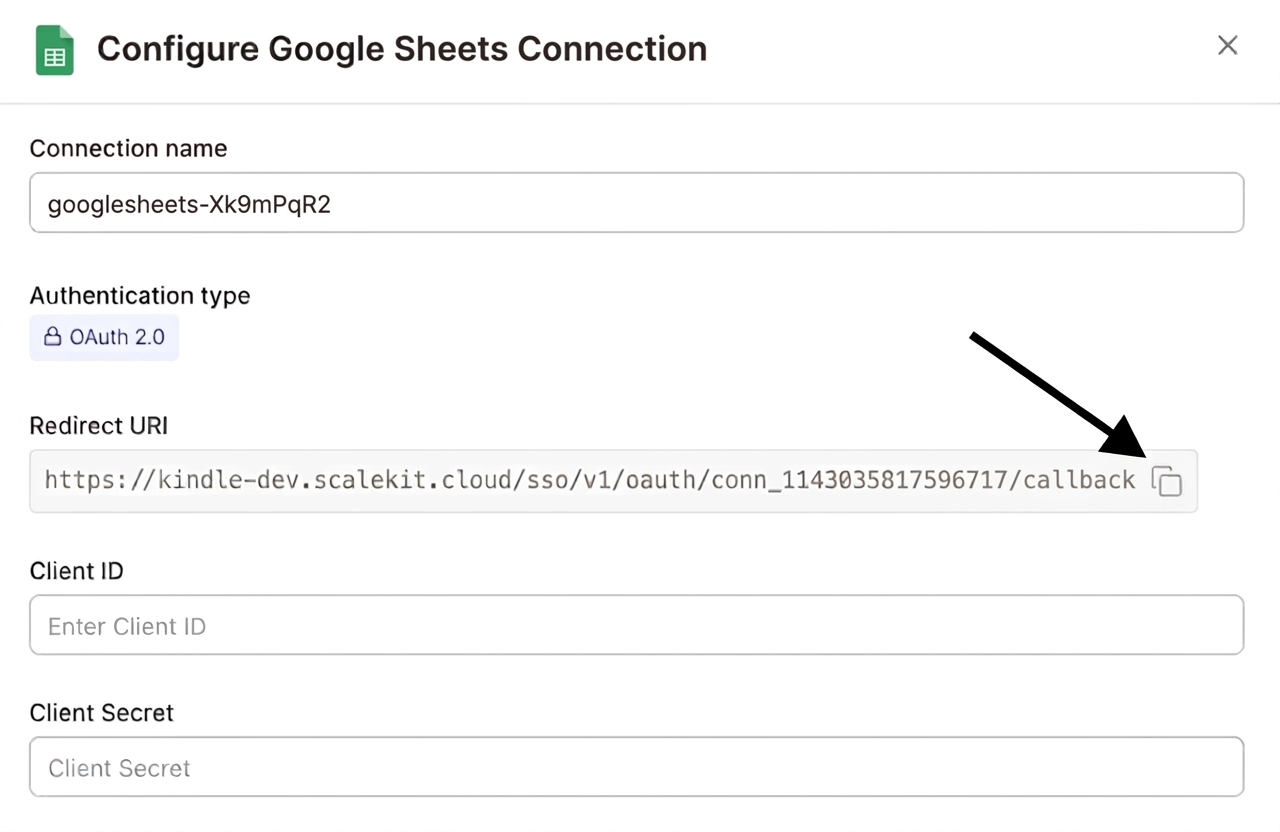
-
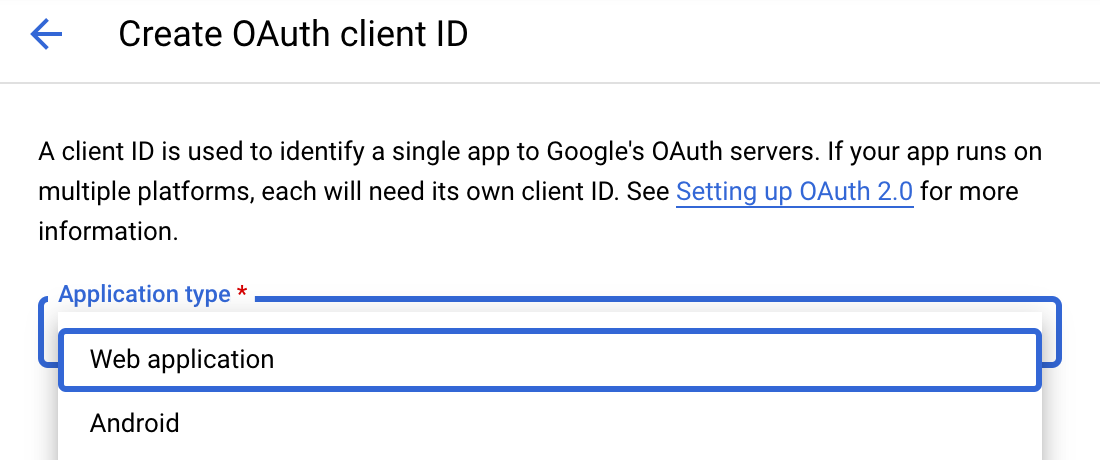
Navigate to Google Cloud Console → APIs & Services → Credentials. Select + Create Credentials, then OAuth client ID. Choose Web application from the Application type menu.
-
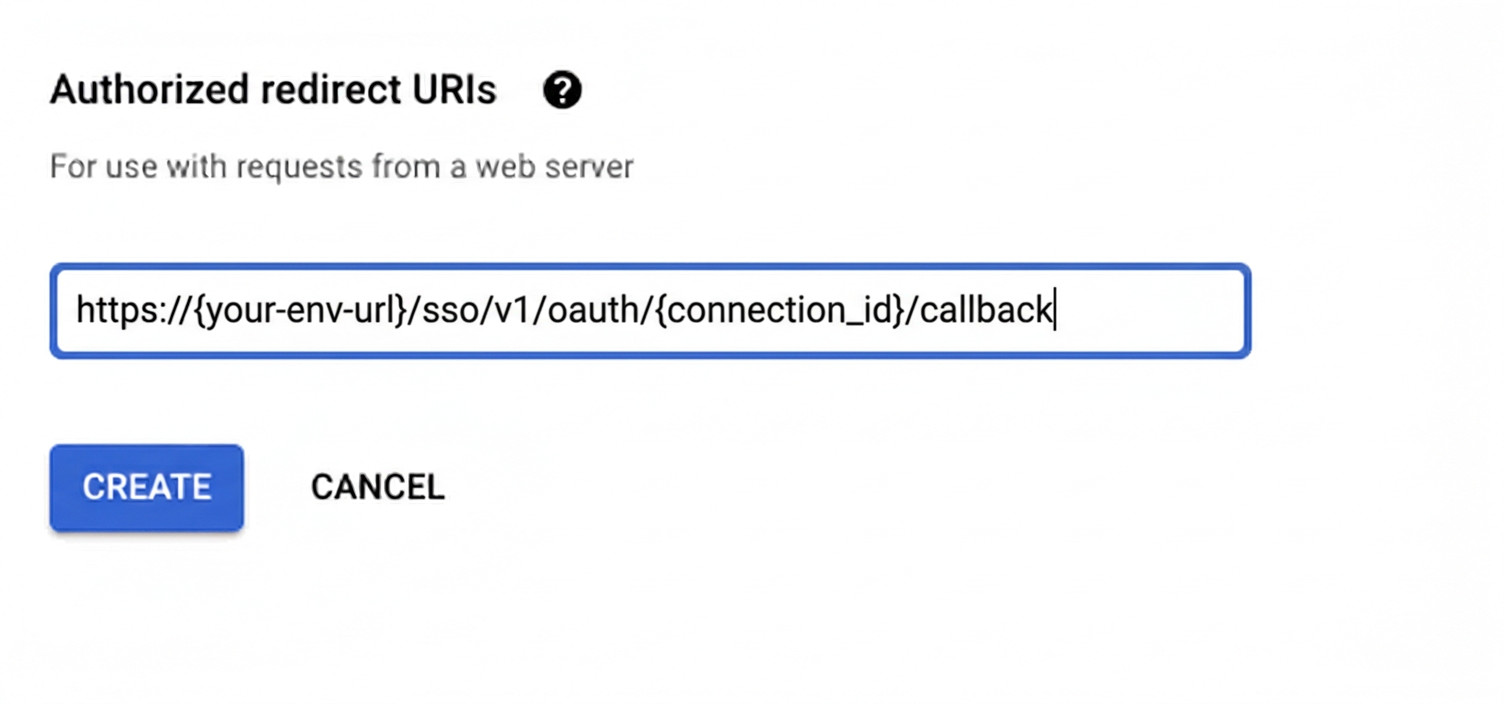
Under Authorized redirect URIs, click + Add URI, paste the redirect URI, and click Create.
-
-
Enable the Google Sheets API
- In Google Cloud Console, go to APIs & Services → Library. Search for “Google Sheets API” and click Enable.
-
Get client credentials
- Google provides your Client ID and Client Secret after you create the OAuth client ID in step 1.
-
Add credentials in Scalekit
-
In Scalekit dashboard, go to AgentKit > Connections and open the connection you created.
-
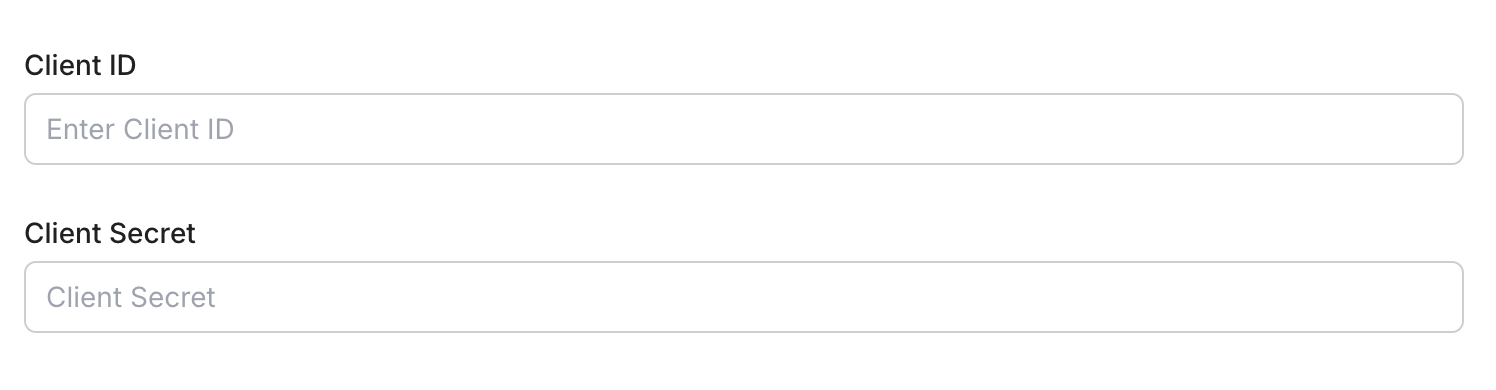
Enter your credentials:
- Client ID (from above)
- Client Secret (from above)
- Permissions (scopes — see Google API Scopes reference)
-
Click Save.
-
-
Authorize a user and make your first call
quickstart.mts import { ScalekitClient } from '@scalekit-sdk/node'import 'dotenv/config'import { createInterface } from 'node:readline/promises'const scalekit = new ScalekitClient(process.env.SCALEKIT_ENVIRONMENT_URL,process.env.SCALEKIT_CLIENT_ID,process.env.SCALEKIT_CLIENT_SECRET,)const actions = scalekit.actionsconst connector = 'googlesheets'const identifier = 'user_123'// Generate an authorization link for the userconst { link } = await actions.getAuthorizationLink({ connectionName: connector, identifier })console.log('Authorize Google Sheets:', link)const rl = createInterface({ input: process.stdin, output: process.stdout })await rl.question('Press Enter after authorizing...')rl.close()// Make your first callconst result = await actions.executeTool({connector,identifier,toolName: 'googlesheets_read_spreadsheet',toolInput: { spreadsheet_id: 'YOUR_SPREADSHEET_ID' },})console.log(result)Terminal window npx tsx quickstart.mtsquickstart.py import osfrom scalekit import ScalekitClientfrom dotenv import load_dotenvload_dotenv()scalekit_client = ScalekitClient(env_url=os.getenv("SCALEKIT_ENVIRONMENT_URL"),client_id=os.getenv("SCALEKIT_CLIENT_ID"),client_secret=os.getenv("SCALEKIT_CLIENT_SECRET"),)actions = scalekit_client.actionsconnection_name = "googlesheets"identifier = "user_123"# Generate an authorization link for the userlink_response = actions.get_authorization_link(connection_name=connection_name,identifier=identifier,)print("Authorize Google Sheets:", link_response.link)input("Press Enter after authorizing...")# Make your first callresult = actions.execute_tool(tool_input={"spreadsheet_id":"YOUR_SPREADSHEET_ID"},tool_name="googlesheets_read_spreadsheet",connection_name=connection_name,identifier=identifier,)print(result)Terminal window python quickstart.pyEach user signs in once. See Authorize a user for the full flow and statuses.
Tools
Pass the exact name toexecute_toolgooglesheets_batch_get_valuesReturn cell values for multiple ranges of a Google Sheet in a single request.Read-onlyBatch Get Sheet Values
Return cell values for multiple ranges of a Google Sheet in a single request. More efficient than calling googlesheets_get_values repeatedly when you need several ranges at once.
Inputs
rangesarrayrequired- List of A1 notation ranges to fetch values for
spreadsheet_idstringrequired- The ID of the Google Sheet to read from
major_dimensionstring- Whether values are returned by rows or columnsone of
ROWSCOLUMNSdefaultROWS value_render_optionstring- How values should be rendered in the responseone of
FORMATTED_VALUEUNFORMATTED_VALUEFORMULAdefaultFORMATTED_VALUE
Also accepts
schema_versionandtool_versionto pin a version.googlesheets_batch_get_values_by_data_filterReturn cell values for one or more ranges of a Google Sheet, selected by DataFilter (an A1 range, a GridRange, or a developer metadata lookup) instead of a plain A1 string.Read-onlyBatch Get Values by Data Filter
Return cell values for one or more ranges of a Google Sheet, selected by DataFilter (an A1 range, a GridRange, or a developer metadata lookup) instead of a plain A1 string. Use this instead of googlesheets_batch_get_values when you need to select ranges by developer metadata or a structured GridRange.
Inputs
data_filtersarrayrequired- List of DataFilter objects selecting which ranges to fetch values for. Each object must set exactly one of 'a1Range' (string), 'gridRange' (object), or 'developerMetadataLookup' (object).
spreadsheet_idstringrequired- The ID of the Google Sheet to read from
date_time_render_optionstring- How dates, times, and durations should be represented in the responseone of
SERIAL_NUMBERFORMATTED_STRINGdefaultSERIAL_NUMBER major_dimensionstring- Whether values are returned by rows or columnsone of
ROWSCOLUMNSdefaultROWS value_render_optionstring- How values should be rendered in the responseone of
FORMATTED_VALUEUNFORMATTED_VALUEFORMULAdefaultFORMATTED_VALUE
Also accepts
schema_versionandtool_versionto pin a version.googlesheets_get_developer_metadataRetrieve a single developer metadata entry from a Google Sheet by its metadata ID.Read-onlyGet Developer Metadata
Retrieve a single developer metadata entry from a Google Sheet by its metadata ID. Developer metadata lets apps attach hidden key-value data to a spreadsheet, sheet, row, or column.
Inputs
metadata_idintegerrequired- The spreadsheet-scoped ID of the developer metadata entry to retrieve.
spreadsheet_idstringrequired- The ID of the Google Sheet to read from
googlesheets_get_spreadsheet_by_data_filterReturn spreadsheet metadata and (optionally) cell data for only the ranges that match one or more DataFilters (an A1 range, a GridRange, or a developer metadata lookup).Read-onlyGet Spreadsheet by Data Filter
Return spreadsheet metadata and (optionally) cell data for only the ranges that match one or more DataFilters (an A1 range, a GridRange, or a developer metadata lookup). Use this instead of googlesheets_read_spreadsheet when you need to select ranges by developer metadata or a structured GridRange rather than a plain A1 string.
Inputs
data_filtersarrayrequired- List of DataFilter objects selecting which parts of the spreadsheet to return. Each object must set exactly one of 'a1Range' (string), 'gridRange' (object), or 'developerMetadataLookup' (object).
spreadsheet_idstringrequired- The ID of the Google Sheet to read from
include_grid_databoolean- Include cell data in the responsedefault
true
Also accepts
schema_versionandtool_versionto pin a version.googlesheets_get_valuesReturns only the cell values from a specific range in a Google Sheet — no metadata, no formatting, just the data.Read-onlyGet Sheet Values
Returns only the cell values from a specific range in a Google Sheet — no metadata, no formatting, just the data. For full spreadsheet metadata and formatting, use googlesheets_read_spreadsheet instead.
Inputs
rangestringrequired- Cell range to read in A1 notation
spreadsheet_idstringrequired- The ID of the Google Sheet
major_dimensionstring- Whether values are returned by rows or columnsone of
ROWSCOLUMNSdefaultROWS value_render_optionstring- How values should be rendered in the responseone of
FORMATTED_VALUEUNFORMATTED_VALUEFORMULAdefaultFORMATTED_VALUE
Also accepts
schema_versionandtool_versionto pin a version.googlesheets_read_spreadsheetReturns everything about a spreadsheet — including spreadsheet metadata, sheet properties, cell values, formatting, themes, and pixel sizes.Read-onlyRead Google Sheet
Returns everything about a spreadsheet — including spreadsheet metadata, sheet properties, cell values, formatting, themes, and pixel sizes. If you only need cell values, use googlesheets_get_values instead.
Inputs
spreadsheet_idstringrequired- The ID of the Google Sheet to read
include_grid_databoolean- Include cell data in the responsedefault
true rangesstring- Cell range to read in A1 notation
Also accepts
schema_versionandtool_versionto pin a version.googlesheets_search_developer_metadataSearch for developer metadata entries in a Google Sheet by key, or by the sheet/row/column they are attached to.Read-onlySearch Developer Metadata
Search for developer metadata entries in a Google Sheet by key, or by the sheet/row/column they are attached to. Returns all matching entries with their location and value.
Inputs
metadata_keystringrequired- Only return developer metadata entries with this exact key.
spreadsheet_idstringrequired- The ID of the Google Sheet to search
googlesheets_add_bandingApply alternating row colors (banding) to a range in a Google Sheet, using explicit hex colors for the two alternating bands and an optional header row color.WriteAdd Banded Range
Apply alternating row colors (banding) to a range in a Google Sheet, using explicit hex colors for the two alternating bands and an optional header row color.
Inputs
end_column_indexintegerrequired- Zero-based end column index of the range (exclusive).
end_row_indexintegerrequired- Zero-based end row index of the range (exclusive).
first_band_color_hexstringrequired- Hex color for odd-numbered rows in the band.
second_band_color_hexstringrequired- Hex color for even-numbered rows in the band.
sheet_idintegerrequired- The ID of the sheet (tab) containing the range to band.
spreadsheet_idstringrequired- The ID of the Google Sheet to modify
start_column_indexintegerrequired- Zero-based start column index of the range (inclusive).
start_row_indexintegerrequired- Zero-based start row index of the range (inclusive).
header_color_hexstring- Optional hex color for the first (header) row of the range, drawn distinct from the alternating bands.
googlesheets_add_chartAdd a basic chart (column, bar, line, area, scatter, or combo) to a Google Sheet, built from a labeled range of source data.WriteAdd Google Sheets Chart
Add a basic chart (column, bar, line, area, scatter, or combo) to a Google Sheet, built from a labeled range of source data. The chart is placed on a new sheet.
Inputs
chart_typestringrequired- The type of chart to createone of
COLUMNBARLINEAREASCATTERCOMBO end_column_indexintegerrequired- The zero-based end column index (exclusive) of the data range, including the value columns
end_row_indexintegerrequired- The zero-based end row index (exclusive) of the data range
sheet_idintegerrequired- The ID of the sheet (tab) holding the source data for the chart
spreadsheet_idstringrequired- The ID of the Google Sheet to modify
start_column_indexintegerrequired- The zero-based start column index of the data range. This column is used as the chart's domain (labels/categories)
start_row_indexintegerrequired- The zero-based start row index of the data range
titlestring- Title displayed on the chart
Also accepts
schema_versionandtool_versionto pin a version.googlesheets_add_conditional_formatAdd a conditional formatting rule to a range in a Google Sheet, applying bold text formatting when the specified condition is met.WriteAdd Google Sheets Conditional Format Rule
Add a conditional formatting rule to a range in a Google Sheet, applying bold text formatting when the specified condition is met.
Inputs
condition_typestringrequired- The type of condition that triggers the formattingone of
NUMBER_GREATERNUMBER_GREATER_THAN_EQNUMBER_LESSNUMBER_LESS_THAN_EQNUMBER_EQTEXT_CONTAINSTEXT_NOT_CONTAINSTEXT_STARTS_WITHTEXT_ENDS_WITHBLANKNOT_BLANK end_column_indexintegerrequired- The zero-based end column index (exclusive) of the range
end_row_indexintegerrequired- The zero-based end row index (exclusive) of the range
sheet_idintegerrequired- The ID of the sheet (tab) containing the range
spreadsheet_idstringrequired- The ID of the Google Sheet to modify
start_column_indexintegerrequired- The zero-based start column index of the range
start_row_indexintegerrequired- The zero-based start row index of the range
boldboolean- Whether matching cells should be formatted bolddefault
true condition_valuestring- The comparison value used by the condition (not needed for BLANK/NOT_BLANK)
Also accepts
schema_versionandtool_versionto pin a version.googlesheets_add_named_rangeCreate a named range in a Google Sheet, letting formulas and scripts reference a fixed cell range by a friendly name instead of A1 notation.WriteAdd Named Range
Create a named range in a Google Sheet, letting formulas and scripts reference a fixed cell range by a friendly name instead of A1 notation.
Inputs
end_column_indexintegerrequired- Zero-based end column index of the range (exclusive).
end_row_indexintegerrequired- Zero-based end row index of the range (exclusive).
namestringrequired- The name to give this range.
sheet_idintegerrequired- The ID of the sheet (tab) containing the range.
spreadsheet_idstringrequired- The ID of the Google Sheet to modify
start_column_indexintegerrequired- Zero-based start column index of the range (inclusive).
start_row_indexintegerrequired- Zero-based start row index of the range (inclusive).
googlesheets_add_protected_rangeProtect a range of cells (or an entire sheet) in a Google Sheet from being edited by anyone other than the specified editors.WriteAdd Protected Range
Protect a range of cells (or an entire sheet) in a Google Sheet from being edited by anyone other than the specified editors.
Inputs
sheet_idintegerrequired- The ID of the sheet (tab) containing the range to protect.
spreadsheet_idstringrequired- The ID of the Google Sheet to modify
descriptionstring- Description of this protected range, shown to users who try to edit it.
editor_emailsstring- Email addresses of the only users allowed to edit this range. Leave blank to restrict to the sheet's existing editors.
end_column_indexinteger- Zero-based end column index of the protected range (exclusive).
end_row_indexinteger- Zero-based end row index of the protected range (exclusive).
start_column_indexinteger- Zero-based start column index of the protected range (inclusive).
start_row_indexinteger- Zero-based start row index of the protected range (inclusive). Omit along with the other range fields to protect the entire sheet.
warning_onlyboolean- If true, edits are allowed but show a warning instead of being blocked.default
false
googlesheets_add_sheetAdd a new sheet (tab) to an existing Google Sheets spreadsheet, with an optional position and grid size.WriteAdd Sheet
Add a new sheet (tab) to an existing Google Sheets spreadsheet, with an optional position and grid size.
Inputs
spreadsheet_idstringrequired- The ID of the spreadsheet to add a sheet to
titlestringrequired- Title of the new sheet
column_countinteger- Number of columns for the new sheet's grid
indexinteger- Zero-based position at which to insert the new sheet
row_countinteger- Number of rows for the new sheet's grid
Also accepts
schema_versionandtool_versionto pin a version.googlesheets_append_valuesAppend rows of data to a Google Sheets spreadsheet.WriteAppend Values to Google Sheet
Append rows of data to a Google Sheets spreadsheet. Data is added after the last row with existing content in the specified range.
Inputs
rangestringrequired- The A1 notation range to append data to (e.g. Sheet1!A1)
spreadsheet_idstringrequired- The ID of the spreadsheet to append data to
valuesarrayrequired- 2D array of values to append. Each inner array is a row.
insert_data_optionstring- How the input data should be inserted. Options: INSERT_ROWS (inserts new rows), OVERWRITE (overwrites existing data). Default: OVERWRITE
value_input_optionstring- How input data should be interpreted. Options: RAW (literal values), USER_ENTERED (as if typed in UI, parses formulas/dates). Default: USER_ENTERED
googlesheets_batch_update_valuesUpdate values across multiple ranges of a Google Sheet in a single request.WriteBatch Update Sheet Values
Update values across multiple ranges of a Google Sheet in a single request. Each entry in the data array specifies its own range and 2D array of values, so you can write to several non-contiguous ranges at once.
- Idempotent
Inputs
dataarrayrequired- List of range/values pairs to update. Each object must contain a 'range' (A1 notation string) and a 'values' key (2D array of rows, e.g. [["a","b"],["c","d"]]). Example: [{"range": "Sheet1!A1:B2", "values": [["a","b"],["c","d"]]}]
spreadsheet_idstringrequired- The ID of the Google Sheet to update
value_input_optionstringrequired- How input values should be interpretedone of
RAWUSER_ENTEREDdefaultUSER_ENTERED include_values_in_responseboolean- Return the updated cell values in the responsedefault
false
Also accepts
schema_versionandtool_versionto pin a version.googlesheets_batch_update_values_by_data_filterSet values in one or more ranges of a Google Sheet, with each range selected by DataFilter (an A1 range, a GridRange, or a developer metadata lookup) instead of a plain A1 string.WriteBatch Update Values by Data Filter
Set values in one or more ranges of a Google Sheet, with each range selected by DataFilter (an A1 range, a GridRange, or a developer metadata lookup) instead of a plain A1 string. Use this instead of googlesheets_batch_update_values when you need to target ranges by developer metadata or a structured GridRange.
- Idempotent
Inputs
dataarrayrequired- List of DataFilterValueRange objects to write. Each object must contain a 'dataFilter' (DataFilter object, e.g. {"a1Range": "Sheet1!A1:B2"}) and a 'values' key (2D array of rows). Example: [{"dataFilter": {"a1Range": "Sheet1!A1:B2"}, "values": [["a","b"],["c","d"]]}]
spreadsheet_idstringrequired- The ID of the Google Sheet to update
value_input_optionstringrequired- How input values should be interpretedone of
RAWUSER_ENTEREDdefaultUSER_ENTERED include_values_in_responseboolean- Return the updated cell values in the responsedefault
false response_date_time_render_optionstring- How dates/times should be represented in the response, when include_values_in_response is trueone of
SERIAL_NUMBERFORMATTED_STRINGdefaultSERIAL_NUMBER response_value_render_optionstring- How values should be rendered in the response, when include_values_in_response is trueone of
FORMATTED_VALUEUNFORMATTED_VALUEFORMULAdefaultFORMATTED_VALUE
Also accepts
schema_versionandtool_versionto pin a version.googlesheets_clear_basic_filterRemove the basic filter from a sheet (tab) in a Google Sheet, hiding the filter dropdown arrows and clearing any active filter criteria.WriteClear Basic Filter
Remove the basic filter from a sheet (tab) in a Google Sheet, hiding the filter dropdown arrows and clearing any active filter criteria.
- Idempotent
Inputs
sheet_idintegerrequired- The ID of the sheet (tab) to remove the basic filter from.
spreadsheet_idstringrequired- The ID of the Google Sheet to modify
googlesheets_copy_sheet_toCopy a sheet (tab) from one Google Sheets spreadsheet into another spreadsheet as a new sheet.WriteCopy Sheet To Another Spreadsheet
Copy a sheet (tab) from one Google Sheets spreadsheet into another spreadsheet as a new sheet.
Inputs
destination_spreadsheet_idstringrequired- The ID of the spreadsheet to copy the sheet into
sheet_idintegerrequired- The numeric ID of the sheet to copy
spreadsheet_idstringrequired- The ID of the source spreadsheet containing the sheet to copy
Also accepts
schema_versionandtool_versionto pin a version.googlesheets_create_developer_metadataAttach a hidden developer metadata key-value entry to a Google Sheet, either at the spreadsheet level, a specific sheet, or a specific row/column.WriteCreate Developer Metadata
Attach a hidden developer metadata key-value entry to a Google Sheet, either at the spreadsheet level, a specific sheet, or a specific row/column. Useful for storing app-specific state alongside spreadsheet data.
Inputs
metadata_keystringrequired- The key for this metadata entry. Multiple entries may share the same key.
spreadsheet_idstringrequired- The ID of the Google Sheet to modify
dimensionstring- If scoping to a single row or column, whether the index refers to a row or a column. Requires sheet_id and dimension_index.one of
ROWSCOLUMNS dimension_indexinteger- Zero-based index of the row or column to attach the metadata to. Requires sheet_id and dimension.
metadata_valuestring- The value to associate with the metadata key.
sheet_idinteger- If set, scopes the metadata to this sheet (tab) instead of the whole spreadsheet. Cannot be combined with row/column scoping.
visibilitystring- DOCUMENT makes the metadata readable by any project with access to the spreadsheet; PROJECT restricts it to the creating project only.one of
DOCUMENTPROJECTdefaultDOCUMENT
googlesheets_create_spreadsheetCreate a new Google Sheets spreadsheet with an optional title and initial sheet configuration.WriteCreate Google Sheet
Create a new Google Sheets spreadsheet with an optional title and initial sheet configuration. Returns the new spreadsheet ID and metadata.
Inputs
localestring- Locale of the spreadsheet
sheetsarray- Initial sheets to include in the spreadsheet
time_zonestring- Time zone for the spreadsheet
titlestring- Title of the new spreadsheet
Also accepts
schema_versionandtool_versionto pin a version.googlesheets_duplicate_sheetDuplicate an existing sheet (tab) within the same Google Sheets spreadsheet, with an optional new name and insert position.WriteDuplicate Sheet
Duplicate an existing sheet (tab) within the same Google Sheets spreadsheet, with an optional new name and insert position.
Inputs
source_sheet_idintegerrequired- The numeric ID of the sheet to duplicate
spreadsheet_idstringrequired- The ID of the spreadsheet containing the sheet to duplicate
insert_indexinteger- Zero-based position at which to insert the duplicated sheet
new_sheet_namestring- Name for the duplicated sheet
Also accepts
schema_versionandtool_versionto pin a version.googlesheets_find_and_replaceFind and replace text within a Google Sheet, either in a specific sheet (tab) or across all sheets in the spreadsheet.WriteFind and Replace in Google Sheets
Find and replace text within a Google Sheet, either in a specific sheet (tab) or across all sheets in the spreadsheet.
Inputs
findstringrequired- The text to search for
replacementstringrequired- The text to replace matches with
spreadsheet_idstringrequired- The ID of the Google Sheet to modify
include_formulasboolean- Whether to search within formula text as well as cell valuesdefault
false match_caseboolean- Whether the search should be case-sensitivedefault
false match_entire_cellboolean- Whether the search should match the entire cell contentsdefault
false search_by_regexboolean- Whether the find text should be treated as a regular expressiondefault
false sheet_idinteger- The ID of the sheet (tab) to search within. Omit to search all sheets in the spreadsheet
Also accepts
schema_versionandtool_versionto pin a version.googlesheets_format_cellsApply text and number formatting (bold, italic, font size, number format, horizontal alignment) to a range of cells in a Google Sheet.WriteFormat Google Sheets Cells
Apply text and number formatting (bold, italic, font size, number format, horizontal alignment) to a range of cells in a Google Sheet.
- Idempotent
Inputs
end_column_indexintegerrequired- The zero-based end column index (exclusive) of the range
end_row_indexintegerrequired- The zero-based end row index (exclusive) of the range
sheet_idintegerrequired- The ID of the sheet (tab) containing the range to format
spreadsheet_idstringrequired- The ID of the Google Sheet to modify
start_column_indexintegerrequired- The zero-based start column index of the range
start_row_indexintegerrequired- The zero-based start row index of the range
boldboolean- Whether text in the range should be bold
font_sizeinteger- Font size in points to apply to the range
horizontal_alignmentstring- Horizontal alignment of text in the rangeone of
LEFTCENTERRIGHT italicboolean- Whether text in the range should be italic
number_format_patternstring- Custom number format pattern to apply (used with number_format_type)
number_format_typestring- The type of number format to apply to the rangeone of
TEXTNUMBERPERCENTCURRENCYDATETIMEDATE_TIMESCIENTIFIC
Also accepts
schema_versionandtool_versionto pin a version.googlesheets_freeze_panesFreeze a number of rows and/or columns at the top or left of a Google Sheet so they stay visible while scrolling.WriteFreeze Google Sheets Panes
Freeze a number of rows and/or columns at the top or left of a Google Sheet so they stay visible while scrolling.
- Idempotent
Inputs
sheet_idintegerrequired- The ID of the sheet (tab) to freeze panes on
spreadsheet_idstringrequired- The ID of the Google Sheet to modify
frozen_column_countinteger- Number of columns to freeze starting from the left
frozen_row_countinteger- Number of rows to freeze starting from the top
Also accepts
schema_versionandtool_versionto pin a version.googlesheets_insert_dimensionInsert new rows or columns into a Google Sheet at a specific position.WriteInsert Google Sheets Dimension
Insert new rows or columns into a Google Sheet at a specific position. Existing rows or columns are shifted to make room for the new ones.
Inputs
dimensionstringrequired- Whether to insert rows or columnsone of
ROWSCOLUMNS end_indexintegerrequired- The zero-based end index (exclusive) of the range to insert
sheet_idintegerrequired- The ID of the sheet (tab) to insert the dimension into
spreadsheet_idstringrequired- The ID of the Google Sheet to modify
start_indexintegerrequired- The zero-based start index of the range to insert
inherit_from_beforeboolean- Whether new rows/columns should inherit properties from the dimension before themdefault
false
Also accepts
schema_versionandtool_versionto pin a version.googlesheets_insert_rangeInsert empty cells into a Google Sheet at a given range, shifting existing cells down or right to make room.WriteInsert Range (Shift Cells)
Insert empty cells into a Google Sheet at a given range, shifting existing cells down or right to make room. Unlike inserting a whole row/column, this only affects the given range's rows/columns.
Inputs
end_column_indexintegerrequired- Zero-based end column index of the range to insert (exclusive).
end_row_indexintegerrequired- Zero-based end row index of the range to insert (exclusive).
sheet_idintegerrequired- The ID of the sheet (tab) to insert cells into.
shift_dimensionstringrequired- Direction existing cells shift to make room for the inserted range.one of
ROWSCOLUMNS spreadsheet_idstringrequired- The ID of the Google Sheet to modify
start_column_indexintegerrequired- Zero-based start column index of the range to insert (inclusive).
start_row_indexintegerrequired- Zero-based start row index of the range to insert (inclusive).
googlesheets_merge_cellsMerge a range of cells in a Google Sheet into a single cell, merging all cells, only columns, or only rows within the range.WriteMerge Google Sheets Cells
Merge a range of cells in a Google Sheet into a single cell, merging all cells, only columns, or only rows within the range.
- Idempotent
Inputs
end_column_indexintegerrequired- The zero-based end column index (exclusive) of the range
end_row_indexintegerrequired- The zero-based end row index (exclusive) of the range
sheet_idintegerrequired- The ID of the sheet (tab) containing the range to merge
spreadsheet_idstringrequired- The ID of the Google Sheet to modify
start_column_indexintegerrequired- The zero-based start column index of the range
start_row_indexintegerrequired- The zero-based start row index of the range
merge_typestring- How the range should be mergedone of
MERGE_ALLMERGE_COLUMNSMERGE_ROWSdefaultMERGE_ALL
Also accepts
schema_versionandtool_versionto pin a version.googlesheets_move_dimensionMove a contiguous range of rows or columns to a different position within the same sheet in a Google Sheet.WriteMove Rows or Columns
Move a contiguous range of rows or columns to a different position within the same sheet in a Google Sheet.
Inputs
destination_indexintegerrequired- Zero-based index of where to move the rows/columns to, measured before the source rows/columns are removed.
dimensionstringrequired- Whether to move rows or columns.one of
ROWSCOLUMNS end_indexintegerrequired- Zero-based end index of the rows/columns to move (exclusive).
sheet_idintegerrequired- The ID of the sheet (tab) containing the rows or columns to move.
spreadsheet_idstringrequired- The ID of the Google Sheet to modify
start_indexintegerrequired- Zero-based start index of the rows/columns to move (inclusive).
googlesheets_rename_sheetRename an existing sheet (tab) within a Google Sheets spreadsheet.WriteRename Sheet
Rename an existing sheet (tab) within a Google Sheets spreadsheet.
- Idempotent
Inputs
sheet_idintegerrequired- The numeric ID of the sheet to rename
spreadsheet_idstringrequired- The ID of the spreadsheet containing the sheet to rename
titlestringrequired- New title for the sheet
Also accepts
schema_versionandtool_versionto pin a version.googlesheets_set_basic_filterCreate the standard 'basic filter' on a range in a Google Sheet, enabling the filter dropdown arrows in the header row.WriteSet Basic Filter
Create the standard 'basic filter' on a range in a Google Sheet, enabling the filter dropdown arrows in the header row. Replaces any existing basic filter on the sheet.
- Idempotent
Inputs
end_column_indexintegerrequired- Zero-based end column index of the filtered range (exclusive).
end_row_indexintegerrequired- Zero-based end row index of the filtered range (exclusive).
sheet_idintegerrequired- The ID of the sheet (tab) to apply the filter to.
spreadsheet_idstringrequired- The ID of the Google Sheet to modify
start_column_indexintegerrequired- Zero-based start column index of the filtered range (inclusive).
start_row_indexintegerrequired- Zero-based start row index of the filtered range (inclusive), typically the header row.
googlesheets_sort_rangeSort the rows within a range in a Google Sheet by a single column, ascending or descending.WriteSort Range
Sort the rows within a range in a Google Sheet by a single column, ascending or descending. Only the rows inside the given range are reordered.
Inputs
end_column_indexintegerrequired- Zero-based end column index of the data to sort (exclusive).
end_row_indexintegerrequired- Zero-based end row index of the data to sort (exclusive).
sheet_idintegerrequired- The ID of the sheet (tab) containing the range to sort.
sort_column_indexintegerrequired- Zero-based column index (absolute, within the sheet) to sort by.
spreadsheet_idstringrequired- The ID of the Google Sheet to modify
start_column_indexintegerrequired- Zero-based start column index of the data to sort (inclusive).
start_row_indexintegerrequired- Zero-based start row index of the data to sort (inclusive). Exclude header rows from this range.
sort_orderstring- Sort direction for the chosen column.one of
ASCENDINGDESCENDINGdefaultASCENDING
googlesheets_text_to_columnsSplit the text in a single column of a Google Sheet into multiple columns, using a delimiter such as comma, semicolon, or a custom character.WriteSplit Text to Columns
Split the text in a single column of a Google Sheet into multiple columns, using a delimiter such as comma, semicolon, or a custom character.
Inputs
column_indexintegerrequired- Zero-based index of the single source column to split.
end_row_indexintegerrequired- Zero-based end row index of the source data (exclusive).
sheet_idintegerrequired- The ID of the sheet (tab) containing the column to split.
spreadsheet_idstringrequired- The ID of the Google Sheet to modify
start_row_indexintegerrequired- Zero-based start row index of the source data (inclusive). The range must span exactly one column.
custom_delimiterstring- The custom delimiter character to split on. Only used when delimiter_type is CUSTOM.
delimiter_typestring- The delimiter category to split on. Use CUSTOM together with custom_delimiter for an arbitrary character, or AUTODETECT to let Sheets pick automatically.one of
COMMASEMICOLONPERIODSPACECUSTOMAUTODETECTdefaultCOMMA
googlesheets_trim_whitespaceRemove leading and trailing whitespace, and collapse internal whitespace to single spaces, for every cell in a range of a Google Sheet.WriteTrim Whitespace
Remove leading and trailing whitespace, and collapse internal whitespace to single spaces, for every cell in a range of a Google Sheet.
- Idempotent
Inputs
end_column_indexintegerrequired- Zero-based end column index of the range to trim (exclusive).
end_row_indexintegerrequired- Zero-based end row index of the range to trim (exclusive).
sheet_idintegerrequired- The ID of the sheet (tab) containing the range to trim.
spreadsheet_idstringrequired- The ID of the Google Sheet to modify
start_column_indexintegerrequired- Zero-based start column index of the range to trim (inclusive).
start_row_indexintegerrequired- Zero-based start row index of the range to trim (inclusive).
googlesheets_update_dimension_propertiesResize or hide/unhide a range of rows or columns in a Google Sheet.WriteUpdate Row/Column Properties
Resize or hide/unhide a range of rows or columns in a Google Sheet.
- Idempotent
Inputs
dimensionstringrequired- Whether to operate on rows or columns.one of
ROWSCOLUMNS end_indexintegerrequired- Zero-based end index of the rows/columns to update (exclusive).
sheet_idintegerrequired- The ID of the sheet (tab) containing the rows or columns to update.
spreadsheet_idstringrequired- The ID of the Google Sheet to modify
start_indexintegerrequired- Zero-based start index of the rows/columns to update (inclusive).
hiddenboolean- Whether the rows/columns should be hidden from view.
pixel_sizeinteger- New height (for rows) or width (for columns) in pixels.
googlesheets_update_spreadsheet_propertiesUpdate spreadsheet-level properties of a Google Sheet, such as its title, locale, or time zone.WriteUpdate Spreadsheet Properties
Update spreadsheet-level properties of a Google Sheet, such as its title, locale, or time zone. Only the fields you provide are changed.
- Idempotent
Inputs
spreadsheet_idstringrequired- The ID of the Google Sheet to modify
localestring- New locale for the spreadsheet, affecting how values and formulas are parsed and displayed.
time_zonestring- New time zone for the spreadsheet, used for date/time functions.
titlestring- New title for the spreadsheet. Leave blank to keep the current title.
googlesheets_update_valuesUpdate cell values in a specific range of a Google Sheet.WriteUpdate Google Sheets Values
Update cell values in a specific range of a Google Sheet. Supports writing single cells or multiple rows and columns at once.
Inputs
rangestringrequired- Cell range to update in A1 notation
spreadsheet_idstringrequired- The ID of the Google Sheet to update
valuesarrayrequired- 2D array of values to write to the range
include_values_in_responseboolean- Return the updated cell values in the responsedefault
false value_input_optionstring- How input values should be interpretedone of
RAWUSER_ENTEREDdefaultUSER_ENTERED
Also accepts
schema_versionandtool_versionto pin a version.googlesheets_batch_clear_valuesClear all values across multiple ranges of a Google Sheet in a single request.DestructiveBatch Clear Sheet Values
Clear all values across multiple ranges of a Google Sheet in a single request. Formatting is preserved; only the cell values are cleared.
- Idempotent
Inputs
rangesarrayrequired- List of A1 notation ranges to clear
spreadsheet_idstringrequired- The ID of the spreadsheet to clear values in
Also accepts
schema_versionandtool_versionto pin a version.googlesheets_batch_clear_values_by_data_filterClear values from one or more ranges of a Google Sheet, with each range selected by DataFilter (an A1 range, a GridRange, or a developer metadata lookup) instead of a plain A1 string.DestructiveBatch Clear Values by Data Filter
Clear values from one or more ranges of a Google Sheet, with each range selected by DataFilter (an A1 range, a GridRange, or a developer metadata lookup) instead of a plain A1 string. Formatting is preserved; only cell values are cleared. Use this instead of googlesheets_batch_clear_values when you need to target ranges by developer metadata or a structured GridRange.
- Idempotent
Inputs
data_filtersarrayrequired- List of DataFilter objects selecting which ranges to clear. Each object must set exactly one of 'a1Range' (string), 'gridRange' (object), or 'developerMetadataLookup' (object).
spreadsheet_idstringrequired- The ID of the spreadsheet to clear values in
Also accepts
schema_versionandtool_versionto pin a version.googlesheets_clear_valuesClear all values in a specified range of a Google Sheets spreadsheet.DestructiveClear Values in Google Sheet
Clear all values in a specified range of a Google Sheets spreadsheet. Formatting is preserved; only the cell values are cleared.
- Idempotent
Inputs
rangestringrequired- The A1 notation range to clear (e.g. Sheet1!A1:D10)
spreadsheet_idstringrequired- The ID of the spreadsheet to clear values in
googlesheets_delete_bandingRemove a banded (alternating color) range from a Google Sheet by its banded range ID.DestructiveDelete Banded Range
Remove a banded (alternating color) range from a Google Sheet by its banded range ID.
Inputs
banded_range_idintegerrequired- The ID of the banded range to remove, as returned when it was created.
spreadsheet_idstringrequired- The ID of the Google Sheet to modify
googlesheets_delete_conditional_format_ruleDelete a conditional formatting rule from a sheet in a Google Sheet, identified by its zero-based position in that sheet's rule list.DestructiveDelete Conditional Format Rule
Delete a conditional formatting rule from a sheet in a Google Sheet, identified by its zero-based position in that sheet's rule list.
Inputs
indexintegerrequired- Zero-based index of the conditional format rule to delete, within that sheet's list of rules.
sheet_idintegerrequired- The ID of the sheet (tab) containing the rule to delete.
spreadsheet_idstringrequired- The ID of the Google Sheet to modify
googlesheets_delete_developer_metadataDelete all developer metadata entries in a Google Sheet matching a given key.DestructiveDelete Developer Metadata
Delete all developer metadata entries in a Google Sheet matching a given key.
Inputs
metadata_keystringrequired- Delete every developer metadata entry with this exact key.
spreadsheet_idstringrequired- The ID of the Google Sheet to modify
googlesheets_delete_dimensionPermanently delete a range of rows or columns from a Google Sheet.DestructiveDelete Google Sheets Dimension
Permanently delete a range of rows or columns from a Google Sheet. Data in the deleted rows or columns is lost and remaining dimensions shift to fill the gap.
Inputs
dimensionstringrequired- Whether to delete rows or columnsone of
ROWSCOLUMNS end_indexintegerrequired- The zero-based end index (exclusive) of the range to delete
sheet_idintegerrequired- The ID of the sheet (tab) to delete the dimension from
spreadsheet_idstringrequired- The ID of the Google Sheet to modify
start_indexintegerrequired- The zero-based start index of the range to delete
Also accepts
schema_versionandtool_versionto pin a version.googlesheets_delete_embedded_objectDelete a chart or other embedded object from a Google Sheet by its object ID.DestructiveDelete Chart or Embedded Object
Delete a chart or other embedded object from a Google Sheet by its object ID.
Inputs
object_idintegerrequired- The ID of the chart or embedded object to delete, as returned when it was created.
spreadsheet_idstringrequired- The ID of the Google Sheet to modify
googlesheets_delete_named_rangeDelete an existing named range from a Google Sheet by its named range ID.DestructiveDelete Named Range
Delete an existing named range from a Google Sheet by its named range ID.
Inputs
named_range_idstringrequired- The ID of the named range to delete, as returned when it was created.
spreadsheet_idstringrequired- The ID of the Google Sheet to modify
googlesheets_delete_protected_rangeRemove protection from a previously protected range in a Google Sheet by its protected range ID.DestructiveDelete Protected Range
Remove protection from a previously protected range in a Google Sheet by its protected range ID.
Inputs
protected_range_idintegerrequired- The ID of the protected range to remove, as returned when it was created.
spreadsheet_idstringrequired- The ID of the Google Sheet to modify
googlesheets_delete_rangeDelete a range of cells from a Google Sheet, shifting the remaining cells up or left to fill the gap.DestructiveDelete Range (Shift Cells)
Delete a range of cells from a Google Sheet, shifting the remaining cells up or left to fill the gap. Unlike deleting a whole row/column, this only affects the given range's rows/columns.
Inputs
end_column_indexintegerrequired- Zero-based end column index of the range to delete (exclusive).
end_row_indexintegerrequired- Zero-based end row index of the range to delete (exclusive).
sheet_idintegerrequired- The ID of the sheet (tab) to delete cells from.
shift_dimensionstringrequired- Direction remaining cells shift to fill the gap left by the deleted range.one of
ROWSCOLUMNS spreadsheet_idstringrequired- The ID of the Google Sheet to modify
start_column_indexintegerrequired- Zero-based start column index of the range to delete (inclusive).
start_row_indexintegerrequired- Zero-based start row index of the range to delete (inclusive).
googlesheets_delete_sheetPermanently delete a sheet (tab) from a Google Sheets spreadsheet by its sheet ID.DestructiveDelete Sheet
Permanently delete a sheet (tab) from a Google Sheets spreadsheet by its sheet ID. This cannot be undone.
- Idempotent
Inputs
sheet_idintegerrequired- The numeric ID of the sheet to delete
spreadsheet_idstringrequired- The ID of the spreadsheet containing the sheet to delete
Also accepts
schema_versionandtool_versionto pin a version.
No tools match.
Workflows
Proxy API call
const result = await actions.request({ connectionName: 'googlesheets', identifier: 'user_123', path: '/v4/spreadsheets', method: 'GET',});console.log(result);result = actions.request( connection_name='googlesheets', identifier='user_123', path="/v4/spreadsheets", method="GET")print(result)Execute a tool
const result = await actions.executeTool({ connector: 'googlesheets', identifier: 'user_123', toolName: 'googlesheets_get_values', toolInput: { spreadsheet_id: '<SPREADSHEET_ID>', range: 'Sheet1!A1:D10', },});console.log(result);result = actions.execute_tool( connection_name='googlesheets', identifier='user_123', tool_name='googlesheets_get_values', tool_input={ "spreadsheet_id": "<SPREADSHEET_ID>", "range": "Sheet1!A1:D10", },)print(result)Google OAuth consent screen verification
Before you use your own Google OAuth credentials in production, understand what end users see on Google’s consent screen when they authorize a connected account.
| Audience type | Consent screen behavior | When to use |
|---|---|---|
| Internal | Shows your App Name and logo from Branding settings | Only users in your Google Workspace or Cloud Identity organization can authorize the connector |
| External | Shows {env_name}.scalekit.dev until Google verifies your app | Any user with a Google account can authorize the connector |
Why External is required for most AgentKit connectors:
- Internal restricts authorization to users in your Google Workspace or Cloud Identity organization. Users with
@gmail.comor other Google accounts outside your organization cannot complete OAuth. - External is required when end users outside your organization authorize tool access through connected accounts.
- Organization-managed OAuth clients follow the same rules as personal or developer OAuth clients. Switching to an org-owned client does not bypass Google verification.
- Until Google completes verification of your External app, users see
scalekit.devon the consent screen. After verification, your App Name and logo appear.
During development:
- Add Test users under APIs & Services → OAuth consent screen while publishing status is Testing.
- On unverified apps, users can click Advanced → Go to app (unsafe) to proceed during testing.
- Google Workspace admins may need to allowlist your OAuth client.
For Google’s verification requirements and timeline, refer to Google’s OAuth consent screen verification guide.


